How to Take a Screenshot of a News Article
Capture the part of a news story on screen or save the full article. Follow the steps for iPhone, Android, Windows, or Chromebook.

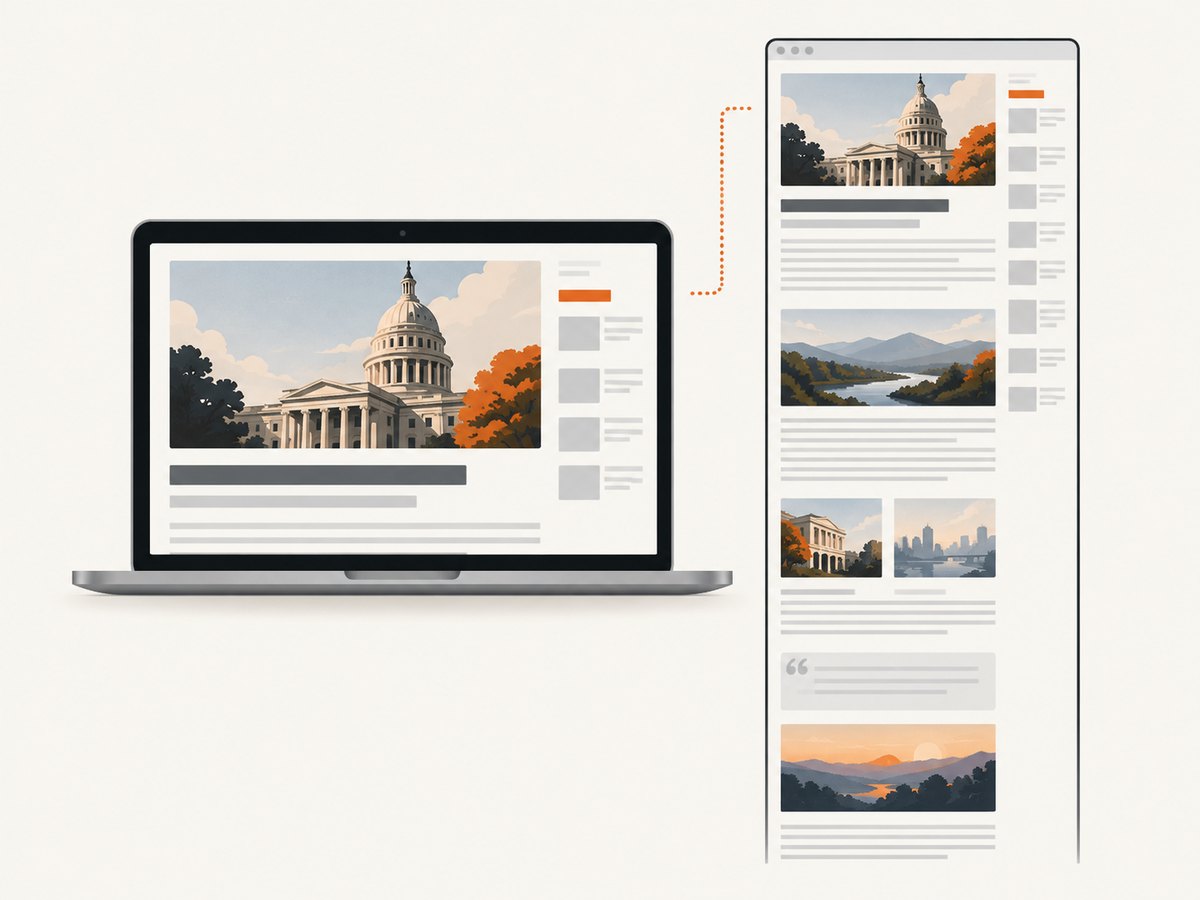
A regular screenshot captures what is visible on your screen. To save an entire news article, use a full-page or scrolling screenshot if your device, app, or browser supports it. The steps depend on where you opened the story: Safari on iPhone has a Full Page option for webpages, Android 12 and later support scrolling screenshots on most scrollable screens, Microsoft Edge can capture full webpages, and Chromebook’s built-in tool captures the full screen, a window, or a selected area.
First decide what you need: a quick image of the headline and current screen, or a complete record of the article as it appears at capture time. Use the first section for visible content and the device-specific sections below for longer captures.
1. Choose the capture that matches your goal
| What you need | Best fit | Result to expect |
|---|---|---|
| Headline, paragraph, or image currently visible | Standard screenshot or selected-area snip | An image of the screen area you capture |
| Most or all of a long article on a phone | Full Page on iPhone Safari, or scrolling screenshot on supported Android screens | A longer capture; iPhone Safari can save the full-page result as a PDF |
| A whole webpage on a Windows computer | Microsoft Edge Screenshot | Full webpage or selected area, with markup before saving or copying |
| A screen, window, or selected region on Chromebook | ChromeOS Screen Capture | Image saved to Downloads by default |
A screenshot records what was displayed at the time you captured it. It does not establish that a story is accurate, unchanged, or still available. When you share one, keep the publication name, headline, and date visible where practical, and include a link to the article if you can.
2. iPhone: capture a full article from Safari
- Open the news article in Safari and wait for the page to finish loading.
- Take a normal screenshot using the button combination for your iPhone model. The screenshot preview should appear temporarily.
- Tap the preview before it disappears.
- If the screenshot editor offers Full Page, select it to view content beyond the current screen.
- Review the capture and crop it if needed. Apple documents saving a full-page capture as a PDF to Files.
Apple’s documented full-page workflow is for a webpage in Safari. Do not assume Full Page will appear in every app or for every kind of content. If you only see the regular screenshot, save that visible capture or open the story as a webpage in Safari and try again. [Apple Support: Take a screenshot on iPhone]
When to choose PDF
Use the PDF option when you want a multipage document that is easier to file or print. Choose an image when you need a quick visual to paste into a message. Check the saved file before sharing: a long article can span many pages, and a screenshot may omit content that had not loaded or was hidden behind a subscription prompt.
3. Android: take a screenshot or scroll capture
- Open the article and position the screen where you want the capture to begin.
- Press Power + Volume down at the same time.
- If that shortcut does not work, Google says some devices let you hold Power for a few seconds and tap Screenshot.
- For a long capture, look for a scrolling screenshot or Capture more option in the screenshot preview, then extend the capture through the article.
- Review and save the result. If the capture controls differ, check your phone manufacturer’s support instructions.
Android 12 and later support scrolling screenshots on most screens that allow scrolling. The feature is not guaranteed on every screen or device, so a missing scroll control may be a compatibility limitation rather than a problem with the article. [Google Android Help: Take a screenshot or record your screen]
Keep the capture readable
Scroll capture is useful for a long story, but a single very tall image may be difficult to read on a phone. If you only need a few paragraphs, take separate captures with a little overlap. That makes the order clear and avoids shrinking the text into an unreadable strip.
4. Windows: use Snipping Tool or Edge
Capture the visible screen with Snipping Tool
- Open the article in your browser and arrange the page as you want it to appear.
- Open Snipping Tool from the Start menu.
- Choose a snip mode and select the screen content to capture.
- Review the snip, then save or copy it using the tool’s controls.
Snipping Tool captures the screen content selected with the tool. It is suitable for a visible section, but a standard screen snip does not automatically mean the whole webpage has been captured. [Microsoft Support: Use Snipping Tool to capture screenshots]
Capture the full webpage in Microsoft Edge
- Open the article in Edge.
- Open Edge’s Screenshot feature.
- Choose the full-page capture or selected-area option.
- Review the result, add markup if useful, then copy or save it.
Microsoft documents Edge Screenshot as supporting a full page or selected area. The feature and interface can change, so if the option is missing, check Edge’s current help or use a visible-area snip. Other Windows browsers may have different full-page capture features. [Microsoft Edge Screenshot]
5. Chromebook: capture the screen, window, or a region
- Open the story in your browser.
- Press the Screenshot key if your keyboard has one. Otherwise open Screen Capture from Quick Settings, or press Shift + Ctrl + Show windows.
- Choose full screen, partial screen, or window capture.
- Complete the capture and open the saved file from Downloads, the default destination.
You can change the save destination in Screen Capture settings. These built-in options capture the screen, window, or selected region; for an entire long webpage, check whether your browser provides a full-page capture option. [Google Chromebook Help: Take a screenshot or record your screen]
6. Capture a useful, shareable record
Before sending the screenshot, check whether it includes enough context for another person to understand it. A cropped paragraph without a headline or publication name can be hard to identify later.
- Include context: retain the headline, publication, and date if practical.
- Check the edges: make sure the first and last captured lines are complete.
- Check readability: zoom in on a tall capture before sharing it.
- Keep the original link: the screenshot is a picture of the displayed page at capture time, not a substitute for a source URL.
- Choose the file type for the task: images are convenient for messages; a PDF may be easier to store as a longer document.
Long captures can contain material beyond the passage you intended to share. Review the entire output, especially if the page includes comments, recommendations, account details, or other content below the article.
7. Troubleshooting common problems
| Problem | Likely cause | What to try |
|---|---|---|
| The button shortcut does nothing | The device uses a different shortcut, timing, or keyboard layout | On Android, try holding Power and tapping Screenshot if available. On Chromebook, use Quick Settings or Shift + Ctrl + Show windows. Consult current device support instructions. |
| There is no Full Page option on iPhone | The content or app may not support the documented Safari webpage workflow | Open the article webpage in Safari and inspect the screenshot preview. Otherwise capture visible sections. |
| Android offers no scrolling capture | The device version or current screen may not support scroll capture | Google describes support on Android 12+ for most scrollable screens, not all screens. Capture overlapping sections or check manufacturer guidance. |
| A Windows capture stops at the screen edge | You used a visible-area snip rather than a full-page browser capture | Use Edge Screenshot’s full-page option if available, or take several labeled, overlapping snips. |
| The article is cut off or partly blank | The page may still be loading, or images and text may load as you scroll | Wait for the story to render, scroll through it once, then capture. Verify the top and bottom of the output. |
| The saved file is hard to find | The save location varies by tool or was changed | Check the screenshot preview, Files app, Downloads, or the capture tool’s chosen destination. Chromebook saves to Downloads by default. |
| The result is too tall to read | A full-page capture compresses a long article into one image | Use PDF when supported, capture only the relevant passage, or split the page into overlapping sections. |
8. For developers: capture article pages with an API
If you need repeatable captures for a site workflow, report, archive, or automated review, a browser screenshot API can return an image or PDF from a URL. For a one-off personal screenshot, your device’s built-in feature is usually enough. For scripted captures, an API avoids setting up and maintaining a browser on your own machine.
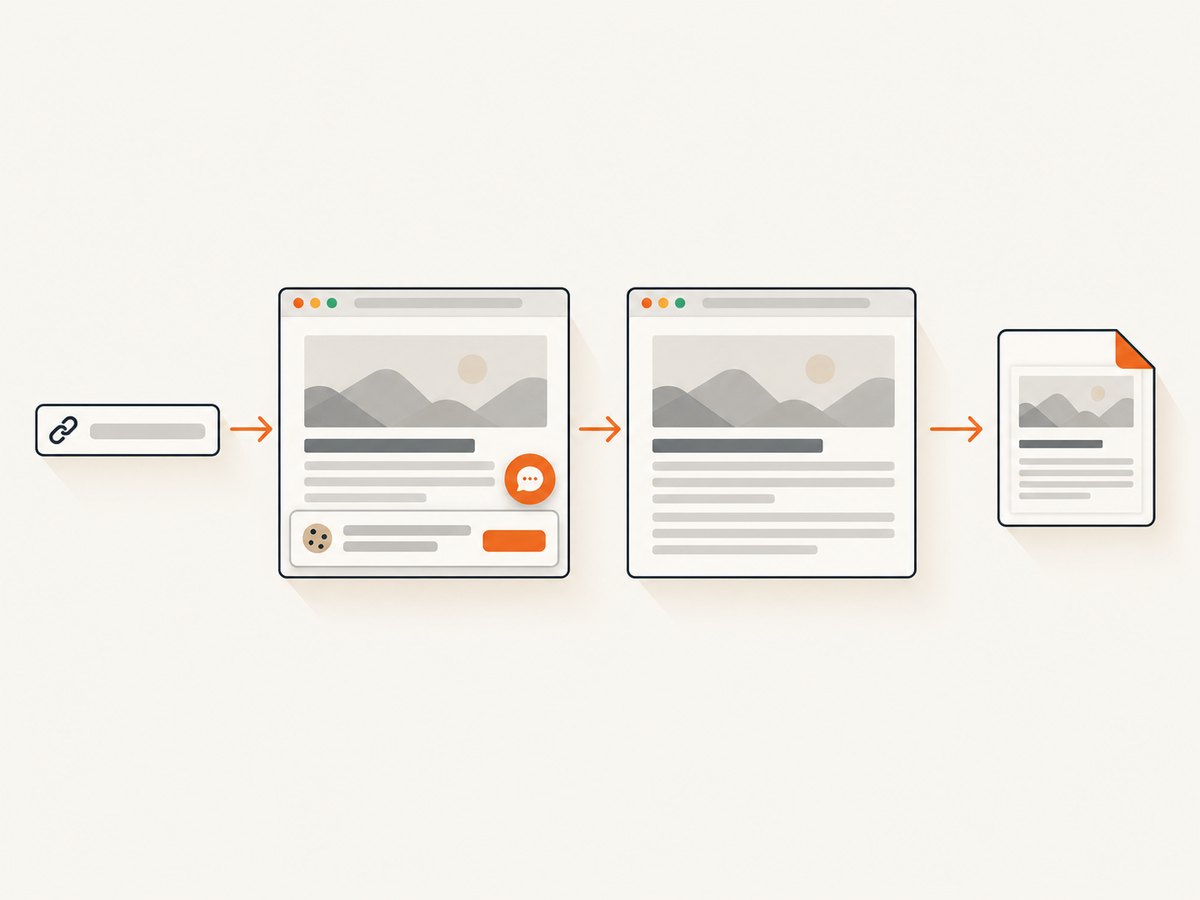
ScreenshotNeo is a website screenshot API and MCP server for developers. One GET request can return a PNG, JPEG, WebP, or PDF. See the ScreenshotNeo API documentation for the request options.
Direct request examples
These examples use the provided API base and a placeholder key. Replace the target URL as needed and keep your real key private.
cURL
curl -G "https://api.screenshotneo.com/v1/shot" -d access_key=YOUR_API_KEY --data-urlencode url=https://stripe.com -o shot.webpPython
import requests

r = requests.get(
    "https://api.screenshotneo.com/v1/shot",
    params={"access_key": "YOUR_API_KEY", "url": "https://stripe.com"},
    timeout=90,
)
open("shot.webp", "wb").write(r.content)
Node.js
const q = new URLSearchParams({
  access_key: 'YOUR_API_KEY',
  url: 'https://stripe.com'
});
const res = await fetch(`https://api.screenshotneo.com/v1/shot?${q}`);
const bytes = new Uint8Array(await res.arrayBuffer());
await import('node:fs/promises').then(fs => fs.writeFile('shot.webp', bytes));
For production code, inspect the HTTP response before treating its body as an image, handle network errors, and store the key in an environment variable or secret store rather than committing it to source control. Set a timeout appropriate to the pages you capture.
Options for article capture
ScreenshotNeo supports full-page capture with lazy images loaded, capture of one element by CSS selector, dark mode, 12 device presets and custom viewport dimensions, retina scale, PDF paper size and margins, landscape mode and page ranges. You can also supply custom CSS or JavaScript, click an element before capture, hide selectors, wait for a selector, a delay or network idle, and set custom headers, cookies, user agent, Authorization, timezone or geolocation. Request blocking can exclude ads, trackers, selected requests, or resource types. Transparent background and image resizing are also available.
For a news article, full-page capture is useful when the whole story is required; an element selector can focus on the article body when the site has a stable selector. Wait for a known article selector or use a delay if content appears after initial page load. If a page requires authentication, provide the permitted session cookies or headers. Respect the publication’s access controls and applicable rights when capturing or sharing content.
Reliability, cost, and repeated jobs
ScreenshotNeo says bot checks and CAPTCHAs, blank pages, timeouts, failed loads, and cache hits cost nothing; responses identify the page verdict and billing status in X-Page-Verdict and X-Billed headers. Check those headers in automated workflows so your job can distinguish a useful capture from a blocked or empty page.
For repeated URLs, caching can use a TTL you choose. Bulk capture supports 100 URLs per call; asynchronous jobs can use signed webhooks. A usage API and OpenAPI specification are available. Public image embeds can use signed links. Parameter names used by other screenshot APIs also work, which can simplify a migration.
Plans are Free for 1,000 shots per month with no card; Starter is $5 for 3,000, Growth $15 for 15,000, Pro $39 for 60,000, Scale $99 for 250,000, and Business $249 for 1,000,000. Yearly billing gives two months free, and every feature is available on every plan. Choose based on expected monthly volume and whether you need automated batch or asynchronous processing.
Or skip the browser setup
Use the one-call API when you want a webpage capture without managing a browser installation:
curl -G "https://api.screenshotneo.com/v1/shot" -d access_key=YOUR_API_KEY --data-urlencode url=https://stripe.com -o shot.webpSee the API documentation for formats and capture settings. ScreenshotNeo removes cookie banners, newsletter popups, and chat widgets before the shot; bot checks, blank pages, and failed loads are never billed; an MCP server lets AI agents take screenshots; and 1,000 screenshots a month are free with no card, with paid plans starting at $5 for 3,000. Sign up for the free plan.
9. Frequently asked questions
Does a screenshot save the article permanently?
It saves an image or document of what was displayed when captured. It does not preserve the original page as an editable article or prove that its contents were correct.
Can I screenshot a paywalled story?
Capture only content you can access through the site’s normal, authorized viewing options. A screenshot does not grant permission to redistribute the story.
What is the easiest way to capture just one paragraph?
Use a selected-area capture on a computer, or take a regular phone screenshot and crop it. Keep enough headline or publication context to identify the passage.
Should I send an image or PDF?
Use an image for a short visible passage or quick message. Use PDF when the supported full-page workflow produces a long multipage result that you need to file or print.
Why does the same article look different in a screenshot later?
Webpages can change after publication, and content can load or update dynamically. A screenshot reflects the particular display and moment you captured; include the article URL and capture date when that context matters.


