How to Take a Screenshot on the OnePlus Nord
Learn every reliable way to capture, edit, find, share, and troubleshoot screenshots on a OnePlus Nord, including three-finger and scrolling capture.
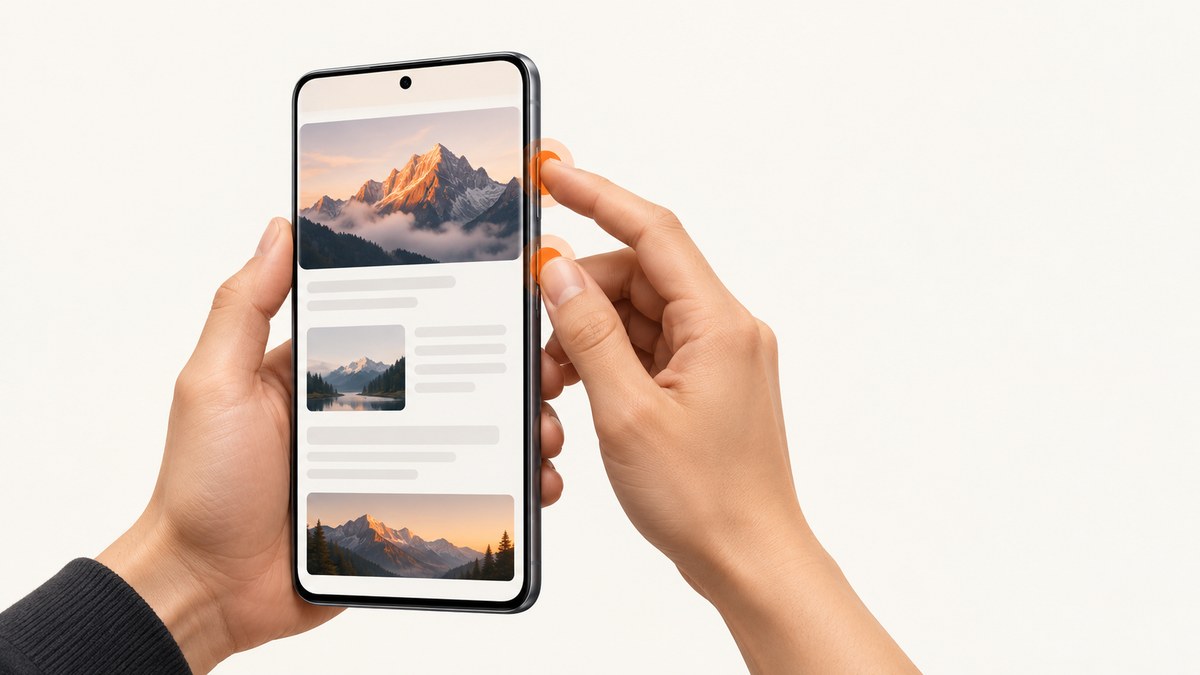
The fastest method is to press and hold the Power and Volume Down buttons together. Your OnePlus Nord captures the current screen and saves the image in the Gallery. You can also enable a three-finger swipe, use Android’s extended capture for a long page when your software supports it, then edit or share the result from your photo app.
1. Take a normal screenshot with the buttons
- Open the screen you want to capture. This can be the home screen, a browser page, a message, a settings panel, or another app.
- Place one finger on the Power button and another on Volume Down.
- Press and hold both buttons at the same time for a brief moment, then release them.
- Look for the screenshot preview or animation. The image is saved automatically.
The OnePlus Nord user manual describes this shortcut as pressing and holding the power and volume-down buttons simultaneously. The timing matters: if one button is pressed noticeably before the other, Android may change the volume, open the power menu, or lock the phone instead of taking a screenshot.
What the button shortcut captures
A normal screenshot records the visible portion of the display at the instant you press the buttons. It does not automatically include content below the fold in a webpage or list. For that, use the extended-capture instructions later in this guide.
2. Take a screenshot without pressing the buttons
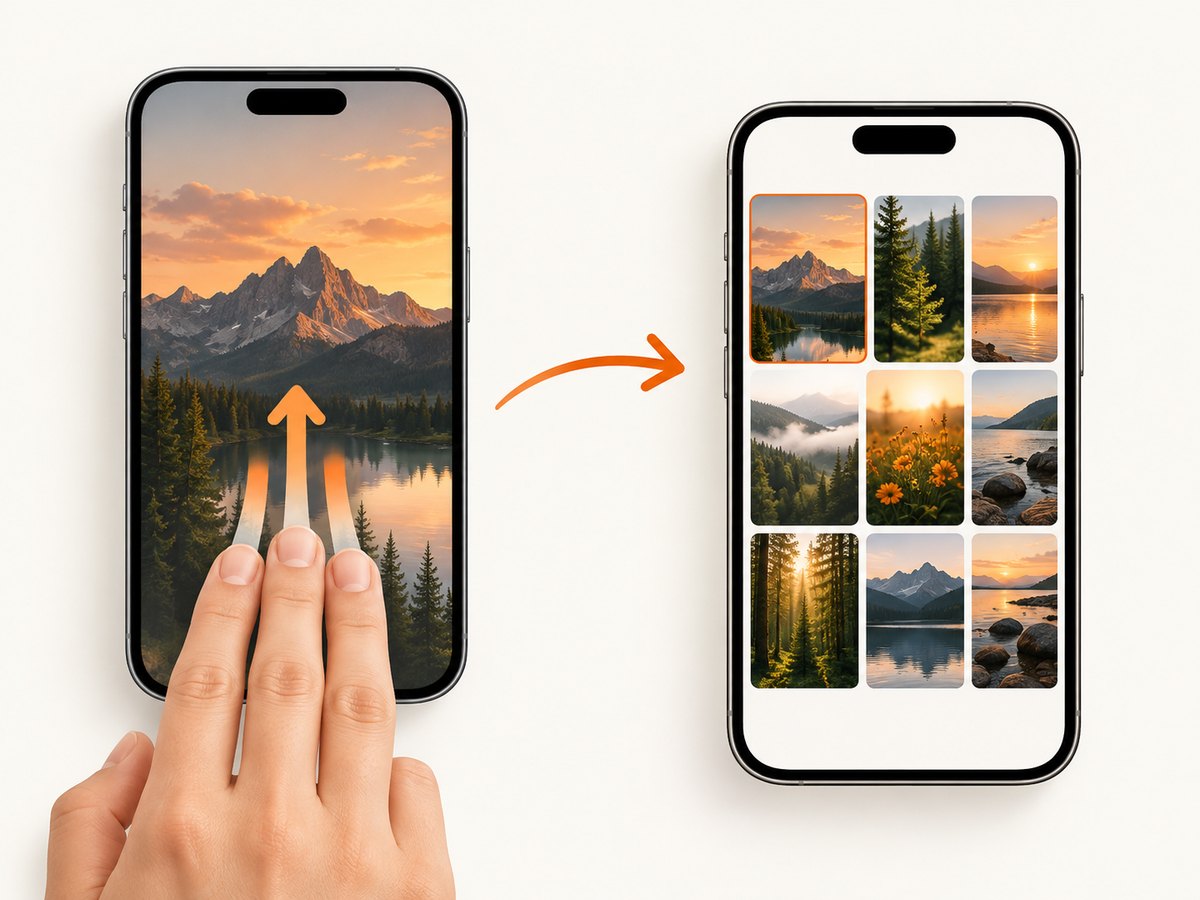
OxygenOS includes a three-finger screenshot gesture. It is useful when the phone is on a desk, when a case makes the buttons awkward to press, or when you want a quick one-handed method.
- Open Settings.
- Go to Buttons & gestures.
- Open Quick gestures.
- Turn on Three-finger screenshot.
- Place three fingers on the display and swipe downward in one smooth motion.
The OnePlus manual identifies this as “Three-finger screenshot.” After it is enabled, the swipe captures the current screen in the same way as the hardware shortcut.
Making the gesture reliable
- Start with all three fingers on the screen at once; do not begin with two and add the third.
- Swipe straight down rather than diagonally across the display.
- Use a moderate speed. A very short or very fast swipe may be interpreted as ordinary touch input.
- Clean or dry the screen if your fingers are slipping.
- If the gesture stops working after an update, revisit Quick gestures and confirm that the setting is still enabled.
3. Capture a scrolling or long screenshot
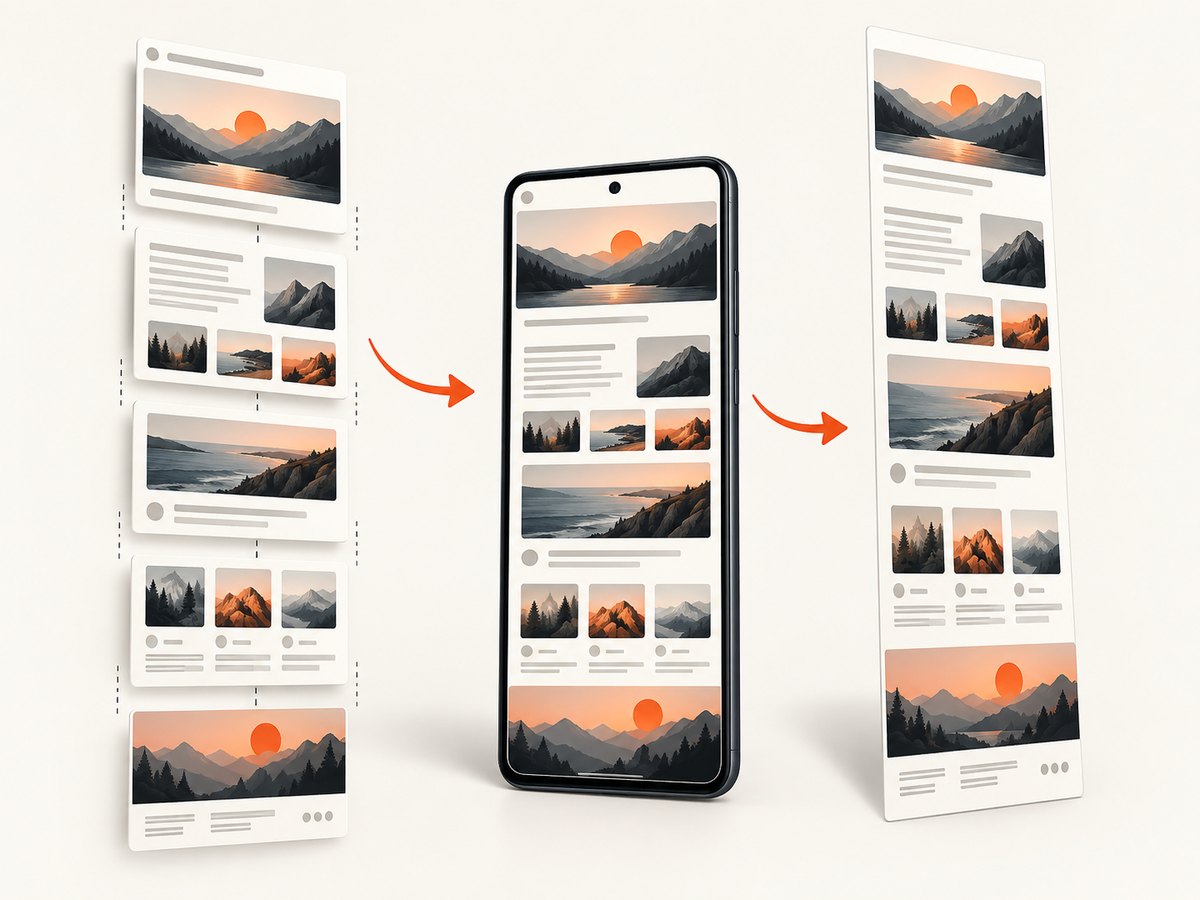
A long screenshot combines more than the currently visible screen. It is useful for a webpage, a long conversation, a settings list, or a document. Android’s official guidance says scrolling screenshots work on Android 12 and later on most screens that allow scrolling. The exact control name and placement can vary with the Nord model, OxygenOS release, and Android build.
- Open a scrollable page.
- Press Power + Volume Down together, or use the enabled three-finger gesture.
- When the screenshot preview appears, look for an extended-capture control such as Capture more, Scroll, or a down-arrow button.
- Tap the control and let the page move downward. Stop when the required content is included, or allow the capture to reach the end.
- Save the result. Android may show a crop editor before saving.
Scrolling capture is version-dependent. Some apps deliberately disable it, and some screens do not expose enough scrollable content for Android to extend the image. If no extended-capture control appears, take several ordinary screenshots or try the same page in a browser.
Why long capture may be unavailable
- The phone may be running an Android version below 12.
- The current screen may not be recognized as scrollable.
- The app may block extended screenshots for privacy, security, or technical reasons.
- The page may contain a nested scroll area, such as a panel inside another panel.
- The screenshot toolbar may be hidden behind a different OxygenOS layout.
4. Find screenshots on the OnePlus Nord
The screenshot is saved in the phone’s Gallery. Open Gallery and look for the Screenshots album or folder. Depending on the Android photo app installed on your Nord, the same files may also appear in Google Photos under Library or in the device folders list.
- Open Gallery or Photos.
- Choose Albums, Collections, or Library.
- Open Screenshots.
- Tap an image to view it, edit it, send it, or delete it.
If you cannot see the image immediately, wait a moment for the media index to refresh, then check the Screenshots folder rather than the camera timeline. A file manager can also search for “Screenshot” if your photo app uses a different album layout.
5. Edit, crop, annotate, and share
After capture, tap the preview thumbnail if it is still visible. The editor normally lets you crop the image, rotate it, draw or highlight an area, add text, and blur or cover private information. If the preview has disappeared, open the screenshot from Gallery and choose the edit option.
Before sharing, check for passwords, addresses, payment details, access tokens, private messages, or notification banners. Cropping the status bar can remove the time and network indicators, while markup tools can draw attention to a button or error message.
Use the share button to send the image through messaging, email, cloud storage, or another installed app. For a very long screenshot, verify the receiving service supports large image dimensions; some services resize or recompress it.
6. Choosing the best method
| Method | Speed | Setup | One-handed use | Long capture |
|---|---|---|---|---|
| Power + Volume Down | Fast | None | Usually requires two hands | Only when the software offers extended capture |
| Three-finger swipe | Fast after practice | Enable in Quick gestures | Often easier with one hand | Same software limits as the button method |
| Extended capture | Slower | None, when supported | Depends on the screen | Designed for scrollable pages |
Use the hardware shortcut when you need the most predictable result. Enable the three-finger option when physical buttons are inconvenient. Choose extended capture for a single shareable image of a long page, but confirm that your Android and OxygenOS versions expose the feature.
7. Troubleshooting common screenshot problems
The phone changes volume instead of taking a screenshot
Cause: The buttons were pressed at different times or held too long. Fix: Press Power and Volume Down together, hold briefly, and release both at the same time. Try again from the home screen to rule out an app-specific issue.
The power menu appears
Cause: Power was pressed first, or Volume Up was used by mistake. Fix: Dismiss the menu and use Power plus Volume Down. A case can also make it difficult to press both controls evenly; remove it temporarily if necessary.
Three-finger screenshot does nothing
Cause: The feature is disabled, the swipe is not recognized, or an app is consuming the gesture. Fix: Return to Settings > Buttons & gestures > Quick gestures and enable Three-finger screenshot. Then place three fingers down together and swipe straight down.
No screenshot preview appears
Cause: The capture may still have succeeded while the toolbar animation was missed, or the current app may restrict screenshots. Fix: Check Gallery > Screenshots. Test on the home screen or a normal browser page. Some app screens can restrict capture for privacy or security, so a missing preview does not always indicate a hardware fault.
Capture more or scrolling capture is missing
Cause: Android version, app support, or the current page structure does not meet the feature’s requirements. Fix: Confirm the phone is on Android 12 or later, try a standard scrollable webpage, and look for the extended-capture control immediately after taking the screenshot. If it remains unavailable, capture separate sections.
The screenshot is not in Gallery
Cause: You are viewing the camera album, the media index has not refreshed, or the file was saved in a device folder. Fix: Open Albums or Library and select Screenshots. Restart Gallery or Photos, then search the device for files named Screenshot. Ensure the phone has free storage.
An app shows a black image or blocks capture
Cause: Certain apps use Android privacy or security controls that prevent screenshots. Fix: Try the same method on a non-sensitive screen. Do not assume the Nord’s buttons are defective when only one protected app fails.
8. Privacy, storage, and reliability tips
- Review screenshots periodically; they can accumulate quickly and consume storage.
- Delete duplicates after sending a long image or editing a copy.
- Use a screen lock and avoid leaving sensitive screenshots in shared cloud albums.
- For support requests, include the app name, Android/OxygenOS version, and whether the hardware or gesture method failed.
- When documenting a bug, capture the full error message and the address bar, but redact account numbers and credentials before sharing.
9. Or skip the browser setup
If you need screenshots of websites for a product, report, test pipeline, or AI workflow, you can capture them remotely instead of operating a phone or browser. ScreenshotNeo is a website screenshot API and MCP server. One GET request returns a PNG, JPEG, WebP, or PDF. Its clean-shot flow accepts cookie and consent banners before capture and removes more than 60 known consent platforms, newsletter popups, and chat widgets; each step can be turned off.
Only clean shots are billed. Bot checks or CAPTCHAs, blank pages, timeouts, failed loads, and cache hits cost nothing, and the response reports the result through X-Page-Verdict and X-Billed headers. The MCP server exposes take_screenshot, get_page_info, and capture_pdf for Claude, Cursor, and other MCP clients.
See the ScreenshotNeo API documentation for authentication and all options. This minimal call captures a webpage as WebP:
curl -G "https://api.screenshotneo.com/v1/shot" \
  -d access_key=YOUR_API_KEY \
  --data-urlencode url=https://stripe.com \
  -o shot.webp
Python:
import requests

r = requests.get(
    "https://api.screenshotneo.com/v1/shot",
    params={"access_key": "YOUR_API_KEY", "url": "https://stripe.com"},
    timeout=90,
)
r.raise_for_status()
open("shot.webp", "wb").write(r.content)
Node.js:
const q = new URLSearchParams({
  access_key: 'YOUR_API_KEY',
  url: 'https://stripe.com'
});
const res = await fetch(`https://api.screenshotneo.com/v1/shot?${q}`);
if (!res.ok) throw new Error(`HTTP ${res.status}`);
const image = Buffer.from(await res.arrayBuffer());
require('fs').writeFileSync('shot.webp', image);
ScreenshotNeo also supports full-page capture with lazy images loaded, CSS element capture, dark mode, device presets, custom viewports, retina scale, PDF paper sizes and page ranges, custom CSS and JavaScript, click and wait actions, blocked resources, headers, cookies, user agents, authorization, timezone, geolocation, transparent backgrounds, resizing, chosen cache TTLs, signed links, asynchronous jobs, webhooks, bulk capture of up to 100 URLs per call, usage reporting, and an OpenAPI specification. The parameter names used by other screenshot APIs also work, which can simplify migration.
The Free plan includes 1,000 screenshots each month with no card. Paid plans start at $5 for 3,000 shots; yearly billing gives two months free. Create a free ScreenshotNeo account to try it.
10. FAQ
Do I need an app to screenshot on a OnePlus Nord?
No. The Power + Volume Down shortcut works without installing anything. The three-finger option is built into OxygenOS.
Where is the screenshot button on the Nord?
There is no dedicated screenshot button. Use the physical Power and Volume Down buttons together, or enable the three-finger gesture.
Can I screenshot a banking or streaming app?
Some apps restrict screenshots. If the result is blank or blocked, test the phone on another screen and check the app’s own rules.
What is the easiest way to capture an entire webpage?
Use the screenshot shortcut and choose Capture more when Android offers it. Availability depends on your Android and OxygenOS version and on whether the page supports scrolling capture.
Will a screenshot include notifications?
It captures whatever is visible, including notification banners. Clear or hide notifications first when they contain private information.


