Screenshot Pages Behind a Login with Cookies or Tokens
Use Playwright to authenticate, save browser state safely, and capture a protected page. Learn how cookies, tokens, session storage, and capture scope fit together.
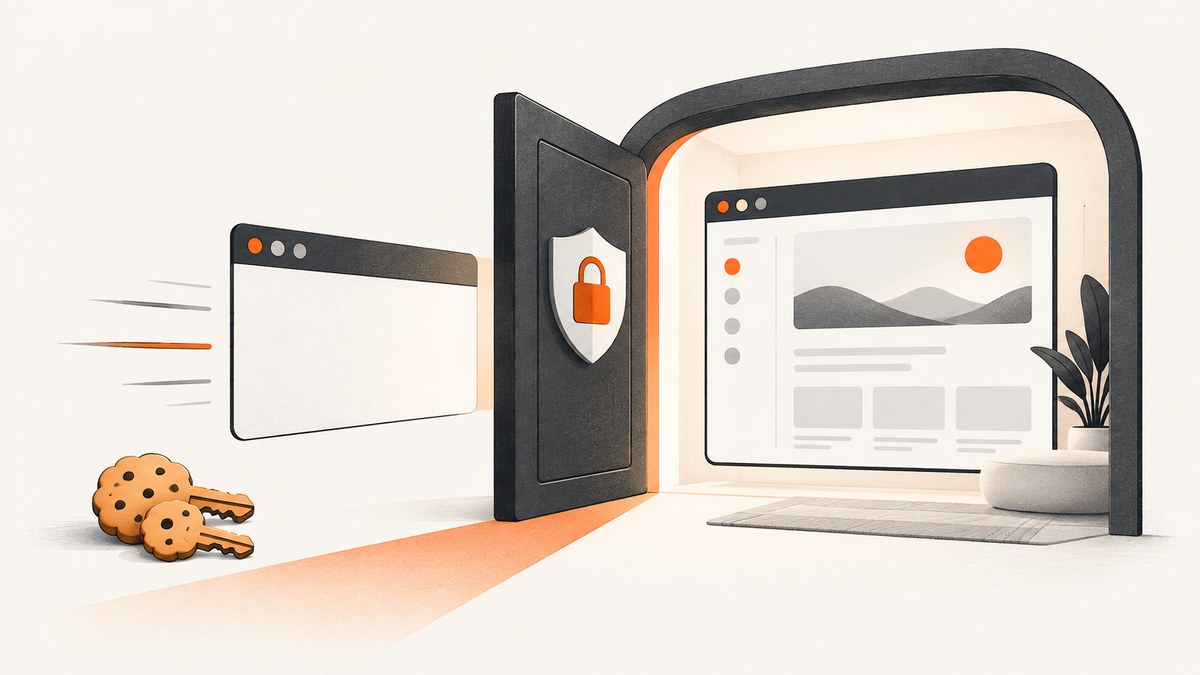
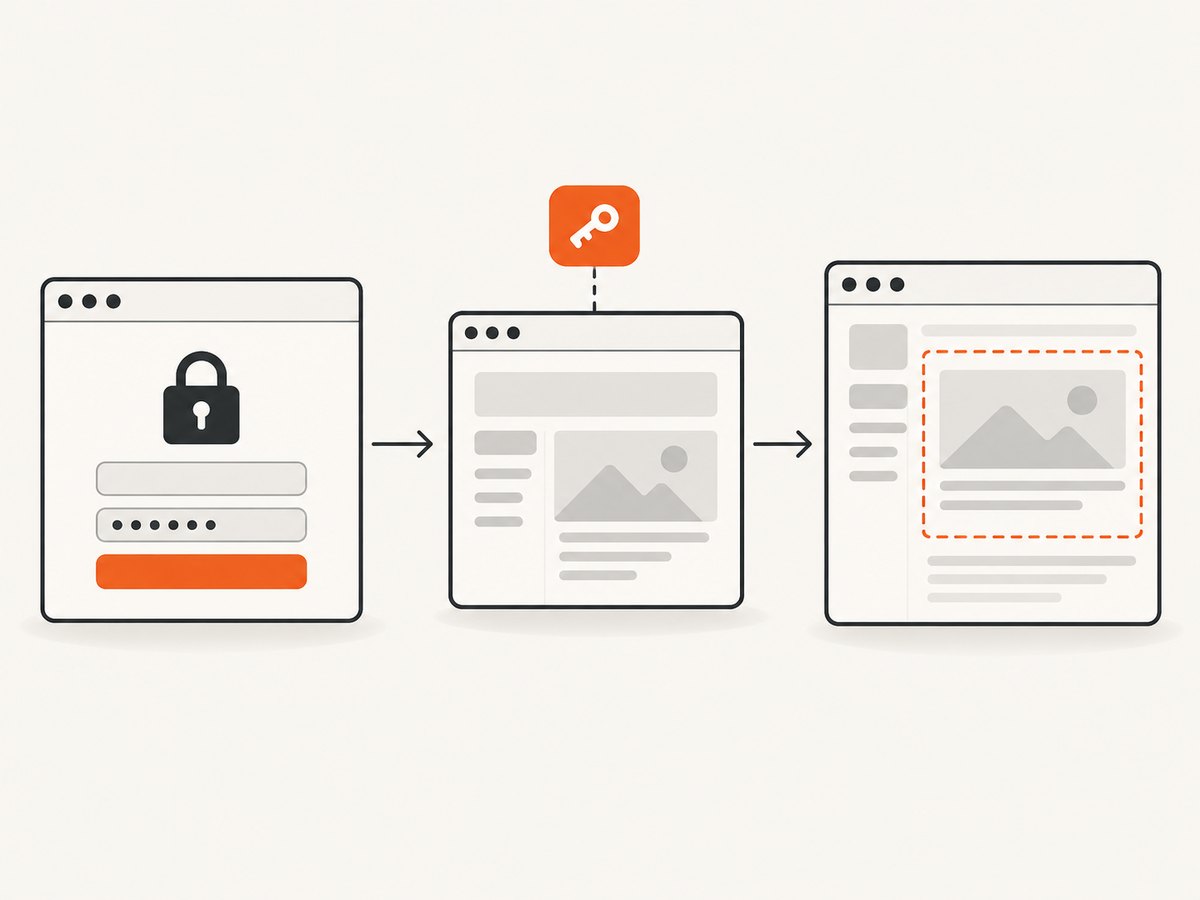
A URL does not carry your login session. To screenshot a protected page, open it in a browser context that has authenticated successfully, verify that the intended page loaded, then capture the viewport, full page, or a specific element. Playwright can save and reuse browser state, including cookies and several other storage types. Treat that state like a password: anyone who gets it may be able to act as your account. See the official Playwright authentication guide and screenshot guide.
This guide builds a repeatable flow in Node.js: log in, save state, reuse it for capture, handle session storage when necessary, and diagnose common failures. Use it only for accounts and pages you are authorized to access.
1. Choose an authentication workflow
There are two common approaches. Logging in for each capture is useful for a one-off or when the site requires an interactive flow such as multi-factor verification. Saving authenticated browser state is convenient for repeated captures and test runs, but the state can expire and must be protected.
| Workflow | Good fit | Trade-off |
|---|---|---|
| Log in for each run | One-off capture, changing credentials, or a flow that needs interactive verification | Repeats the login steps and may take longer |
| Save and reuse browser state | Repeated captures or automated runs | State is sensitive, can expire, and may not include session storage automatically |
A cookie or bearer token copied from somewhere is not guaranteed to be enough. Applications may depend on cookies, local storage, IndexedDB, passkey-based state, session storage, redirects, or additional verification. Prefer the site’s normal login flow in a browser context. If the target has a documented API or test-login method, follow its guidance.
2. Install Playwright and prepare a private state directory
Use a current supported Node.js release. In a new project, install Playwright and its Chromium browser:
npm init -y
npm install --save-dev playwright
npx playwright install chromium
Create a state directory and ensure it is excluded from version control. For example, add this line to .gitignore:
playwright/.auth/Do not commit storage-state JSON, cookies, tokens, or screenshots containing private account data. Playwright explicitly warns that a state file can contain cookies and headers capable of impersonating the account; see its authentication-state warning.
3. Log in once and save authenticated state
The most adaptable initial setup is to complete the normal login in a visible browser, then save state only after confirming authentication. Set the environment variables before running the script. This example assumes a username/password form; change the selectors and the authenticated-page check to match the site.
// save-auth.mjs
import { chromium } from 'playwright';

const baseURL = process.env.BASE_URL;
const username = process.env.LOGIN_USERNAME;
const password = process.env.LOGIN_PASSWORD;
if (!baseURL || !username || !password) {
  throw new Error('Set BASE_URL, LOGIN_USERNAME, and LOGIN_PASSWORD');
}

const browser = await chromium.launch({ headless: false });
const context = await browser.newContext();
const page = await context.newPage();
try {
  await page.goto(new URL('/login', baseURL).toString(), { waitUntil: 'domcontentloaded' });
  await page.getByLabel(/email|username/i).fill(username);
  await page.getByLabel(/password/i).fill(password);
  await page.getByRole('button', { name: /sign in|log in/i }).click();

  // If the site asks for MFA, complete it in the visible browser.
  // Wait for an authenticated signal specific to this application.
  await page.getByRole('link', { name: /account|dashboard/i }).waitFor({ timeout: 120_000 });
  await context.storageState({ path: 'playwright/.auth/user.json', indexedDB: true });
  console.log('Saved authenticated browser state.');
} finally {
  await browser.close();
}
Run it with credentials supplied by your local secret manager or shell environment, rather than hard-coding them into the file. The login selectors and success signal are site-specific. If the site redirects after login, waiting for a known final URL or authenticated element is more reliable than assuming the button click means the session is ready. Playwright’s storage-state options can include cookies, local storage, and IndexedDB; the available behavior depends on the installed Playwright version, so consult the storageState API reference.
4. Reuse state, verify the page, and capture it
Load the saved state into a new browser context. Navigate to the protected URL and assert an application-specific sign that the correct page and account loaded. A successful navigation by itself does not prove authorization: some sites return a login screen with a successful HTTP response.
// capture.mjs
import { chromium } from 'playwright';

const targetURL = process.env.TARGET_URL;
if (!targetURL) throw new Error('Set TARGET_URL');

const browser = await chromium.launch({ headless: true });
const context = await browser.newContext({
  storageState: 'playwright/.auth/user.json',
  viewport: { width: 1440, height: 1000 },
  deviceScaleFactor: 1,
});
const page = await context.newPage();
try {
  await page.goto(targetURL, { waitUntil: 'domcontentloaded', timeout: 60_000 });
  await page.getByRole('heading', { name: /private report/i }).waitFor({ timeout: 30_000 });

  // Viewport screenshot:
  await page.screenshot({ path: 'viewport.png', fullPage: false });
  // Or capture the entire scrollable document:
  await page.screenshot({ path: 'full-page.png', fullPage: true });
  // Or capture just one component:
  await page.locator('[data-testid="report-summary"]').screenshot({ path: 'summary.png' });
} finally {
  await context.close();
  await browser.close();
}
Replace the heading and selector with stable markers from your application. Prefer test IDs or accessible roles over brittle positional selectors. A viewport capture records only the visible browser area. A full-page capture includes the scrollable document. An element capture is useful for a specific card, chart, or panel. If content loads after navigation, wait for its own ready signal before capture; an arbitrary delay can be slower and less reliable.
5. Handle cookies, tokens, and browser storage correctly
Cookies
Cookies are one common part of authentication state. Chrome DevTools exposes them under Application → Storage → Cookies, where they can be inspected or edited for debugging. See Chrome’s cookie tools documentation. Copying a session cookie into a script is risky and may fail if the server expects other state or additional checks. Prefer Playwright’s saved context state after a normal login.
Bearer tokens and custom headers
Some services authenticate API calls with an authorization header. A browser page may also make requests that use a token stored in application storage. Do not assume that adding Authorization: Bearer … as a browser-wide header reproduces the site’s login flow: it can expose the token to unrelated requests, and the page may require cookies or CSRF state as well. If the application explicitly supports a header-based test session, scope it to the appropriate origin and keep the value in a secret store. Do not put credentials in the target URL, command history, logs, or screenshot.
Local storage and IndexedDB
Playwright’s saved browser state can preserve cookies and local storage, and can include IndexedDB where supported. This is why logging in through the application and saving state is more general than copying one cookie. Confirm the storage mechanisms and persistence behavior against the site’s own authentication setup.
Session storage
Session storage is a special case: Playwright’s normal storage-state flow does not automatically persist it. The official guide shows how to save it separately and restore it with an initialization script. Use that approach only if you have confirmed the app relies on session storage; keep the resulting data just as private as cookie state. See Playwright’s session-storage example.
6. Choose screenshot options for the job
| Need | Playwright approach | Notes |
|---|---|---|
| Visible browser area | page.screenshot({ path, fullPage: false }) |
Uses the configured viewport |
| Whole scrollable page | page.screenshot({ path, fullPage: true }) |
Very tall pages can produce large images and may expose content below the fold |
| Single component | page.locator(selector).screenshot({ path }) |
Wait for the locator and ensure it is visible |
| PNG, JPEG, or WebP | Set type and optionally quality |
Quality applies to JPEG/WebP; PNG is lossless |
| Retina-size output | Set scale: 'css' or scale: 'device' |
Device scale can increase output dimensions and file size |
| Hide dynamic or sensitive elements | Use mask or screenshot styles |
Check the API reference for exact options and behavior |
For example, a compressed WebP viewport image can be captured with:
await page.screenshot({ path: 'report.webp', type: 'webp', quality: 82, fullPage: false });Playwright also documents screenshot options for animations, caret visibility, masks, and styling. See the Page screenshot API for the full option list. Be cautious when masking: a mask can hide a value in the image, but it does not remove that value from the page or logs.
7. Make captures repeatable and safe
- Wait for a meaningful condition. Wait for the authenticated page’s heading, account marker, or data-loaded signal. Do not rely only on a navigation event.
- Use least-privilege access. A dedicated account with access only to the target data limits the impact if state leaks.
- Protect state files. Keep them out of source control, restrict filesystem access, and delete temporary state when no longer required.
- Keep secrets out of output. Avoid printing cookies, authorization headers, form values, or page content into CI logs. Review screenshots before sharing them.
- Plan for expiry. If a saved session expires or is revoked, repeat the login and save a fresh state. Sites may bind sessions to device context or require verification.
- Stabilize visual comparisons. Keep browser version, operating system, viewport, scale, fonts, and headless settings consistent. Playwright notes that rendering can vary with host OS, browser version, settings, hardware, power conditions, and headless mode; screenshot comparisons should control the environment. See visual comparisons.
8. Troubleshoot common failures
| Symptom | Likely cause | Fix |
|---|---|---|
| Screenshot shows the login page | State was saved before login completed, expired, or belongs to another environment | Re-run login, wait for the authenticated marker, confirm the target domain, and save fresh state |
| Navigation succeeds but content is missing | The site returned a login/permission page or the app has not finished rendering | Assert a page-specific heading or data marker; wait for the app’s ready condition |
| Cookie exists but access is denied | Authentication needs additional cookies, local storage, CSRF state, MFA, or device-bound checks | Use the normal login flow and save the full supported browser state; consult the site administrator for site-specific policy |
| State works locally but not in CI | Different domain, browser setup, session restrictions, missing secret file, or expired state | Check environment and state-file availability; authenticate in the intended environment and avoid transferring state unless the site permits it |
| Login hangs at MFA | The flow requires a human challenge or a separate verification step | Use an authorized test account and a supported test setup; do not attempt to bypass access controls |
| Element screenshot times out | Selector is wrong, hidden, or absent in the authenticated view | Inspect the rendered page, use a stable selector, and verify the account has access to the component |
| Full-page image is unexpectedly huge | Long document, oversized viewport scale, or large assets | Capture a relevant element or viewport, reduce device scale, or use a PDF/document workflow if appropriate |
| Visual diffs are noisy | Fonts, browser/OS, animations, dynamic data, or rendering settings vary | Pin the environment, wait for stable content, and use documented masks or screenshot styles where appropriate |
9. Performance, reliability, and cost
Browser automation includes the cost of launching a browser, completing or restoring authentication, loading the page, waiting for client-side rendering, and encoding the screenshot. Reusing state avoids repeating the login flow, but it does not eliminate page-load work and it introduces credential maintenance. Reuse one browser process for multiple captures when your application architecture allows it, while creating separate contexts for independent accounts or sessions. Close contexts and browsers in a finally block so failures do not leave processes running.
Full-page captures and high device scale can increase memory use, image dimensions, and output size. Capture only the needed area, select a suitable image format and quality, and set timeouts that reflect the page’s behavior. Reliability comes from waiting for application-specific readiness and detecting authentication failure explicitly. There is no universal success rate or fixed capture time: network, page complexity, login requirements, and runtime environment differ.
Playwright is software you run in your own environment; account for your compute, browser installation, CI execution, storage, and engineering time. Protect and rotate credentials under your organization’s normal practices. Do not assume a third-party screenshot API can access a private page merely from its URL; it must support the authentication mechanism and receive credentials securely.
Or skip the browser setup
ScreenshotNeo is a website screenshot API and MCP server from ScreenshotNeo. It offers a one-call capture with custom headers and cookies; see the API documentation. For a protected page, supply only credentials you are authorized to use and verify the supported authentication parameters in the docs:
curl -G "https://api.screenshotneo.com/v1/shot" \
  -d access_key=YOUR_API_KEY \
  --data-urlencode url=https://example.com/account \
  -o shot.webp
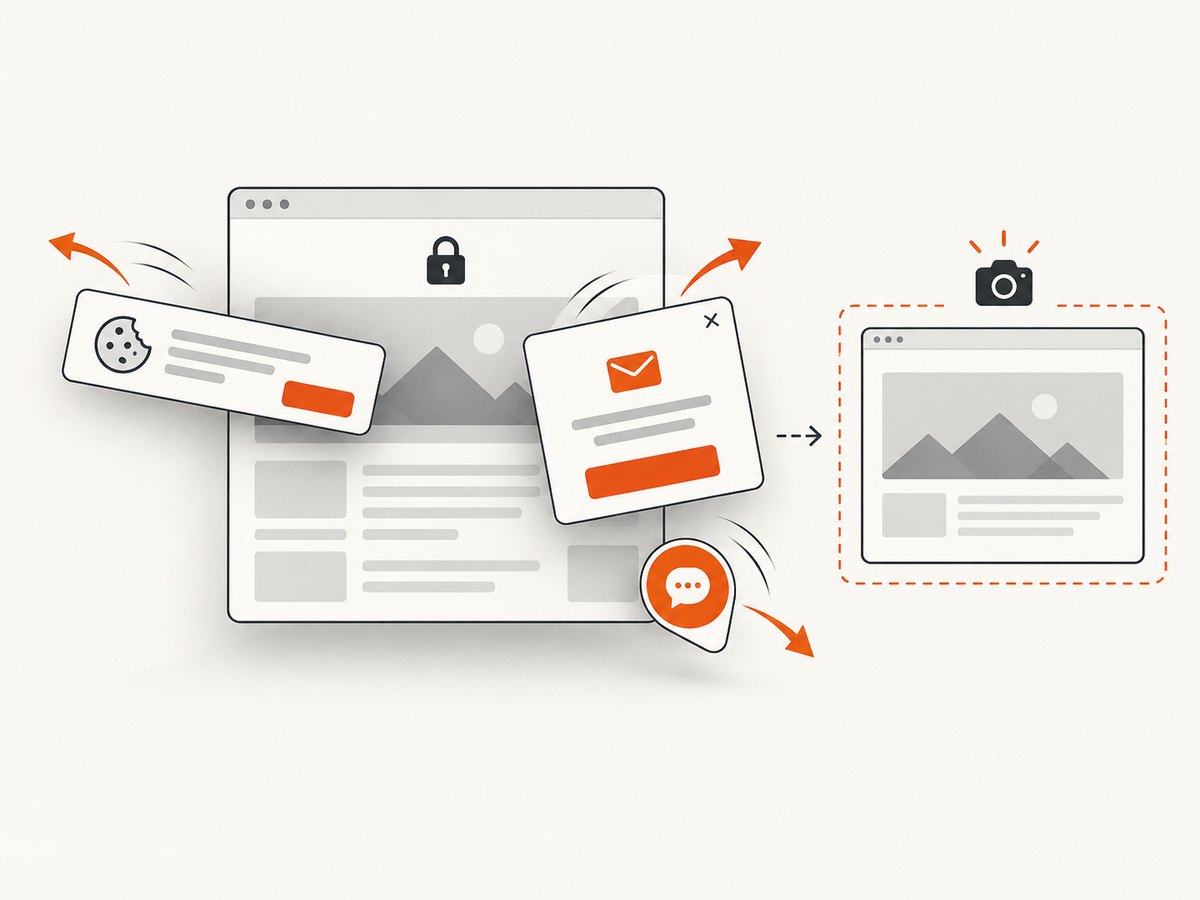
For authenticated pages, configure the required cookie or authorization header according to the API documentation. ScreenshotNeo removes cookie and consent banners, newsletter popups, and chat widgets before capture; each cleanup step can be turned off. Bot checks/CAPTCHAs, blank pages, failed loads, timeouts, and cache hits cost nothing, and the response identifies the page verdict and billing status in headers. Its MCP server provides screenshot tools for AI agents. The free plan includes 1,000 shots per month with no card; paid plans start at $5 for 3,000 shots.
Create a free ScreenshotNeo account for 1,000 screenshots a month, with no card.
FAQ
Can I pass a cookie directly to a screenshot?
Only if the capture mechanism accepts that cookie in the correct browser context and the site does not require additional authentication state. A cookie copied from DevTools may be incomplete or expired.
Will a bearer token work in the URL?
Do not put tokens in URLs. They can leak through history, logs, and referrers. Use the authentication method the site supports and keep secrets out of output.
Can Playwright capture a page after multi-factor login?
It can use an authenticated context after the required verification has completed. Whether an automated or saved session remains valid depends on the site.
Why does a page look different in the screenshot than in my browser?
Rendering depends on browser and host conditions, viewport, fonts, loaded data, and headless settings. Keep those inputs stable when comparing captures.


