How to Screenshot Part of a Web Page
Capture a selected region or a precise page element in Firefox or Edge. Learn which method to choose, how to save or copy the result, and what to try when the tool is missing.
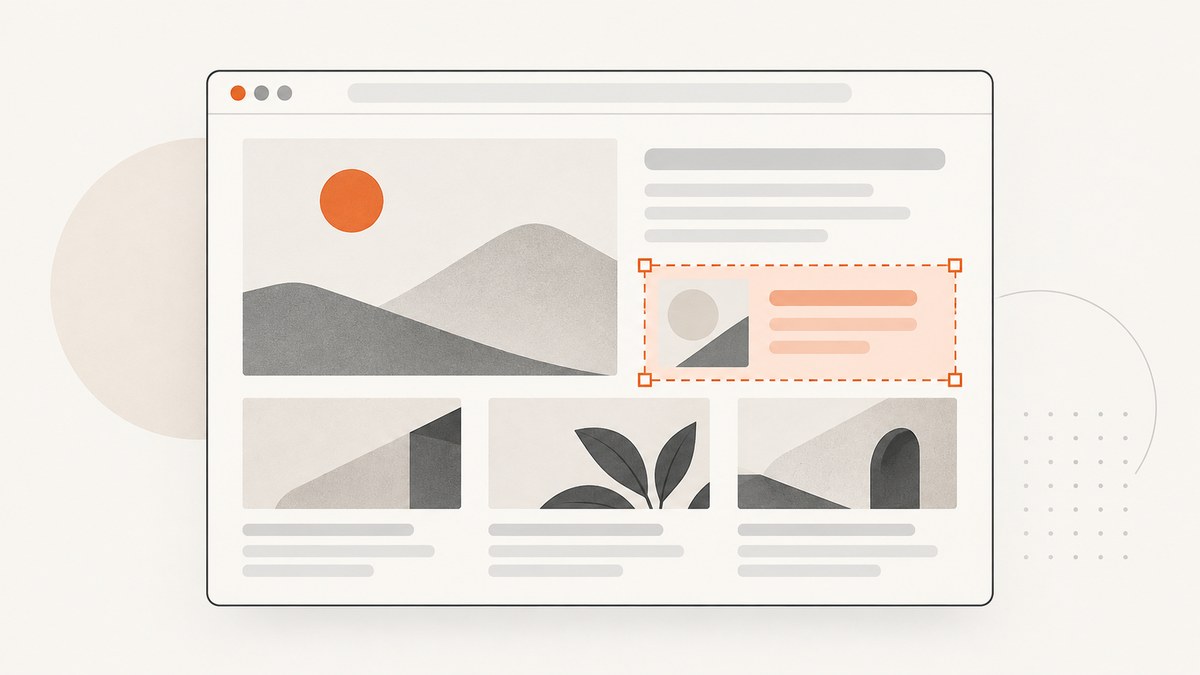
To screenshot part of a web page, use the browser’s region capture: in Firefox, choose Take Screenshot or press Ctrl+Shift+S on Windows/Linux or Command+Shift+S on Mac, then drag over the area or click a highlighted page part. In Microsoft Edge, open Screenshot from the page context menu or press Ctrl+Shift+S, choose Capture area, and select the region. Copy or save the result. If you need a precise DOM element, use Firefox Developer Tools’ Screenshot Node instead.
The right method depends on what “part” means: a rectangle you draw, a complete element such as a card, or the portion currently visible in the browser. Firefox and Edge document built-in capture options for these jobs; availability can vary by browser version, device, or market.
1. Choose the capture that matches the result
| What you need | Use | Good to know |
|---|---|---|
| A custom rectangle | Firefox region selection or Edge Capture area | Best when you want to decide the exact boundaries yourself. |
| A complete page element | Firefox Developer Tools: Screenshot Node | Captures the selected DOM node and its descendants. |
| What is currently visible | Firefox Save visible | Captures the visible viewport, not the entire long page. |
| The complete long page | Firefox Save full page or Edge full-page capture | Includes content below the visible scroll area. |
A drawn region is a screen rectangle. It may cut across several elements, or include only part of one. An element capture follows the page’s structure and can include the whole selected element even when its bounds are awkward to draw. A viewport capture is simply what is visible now; a full-page capture is intended to include the content below it.
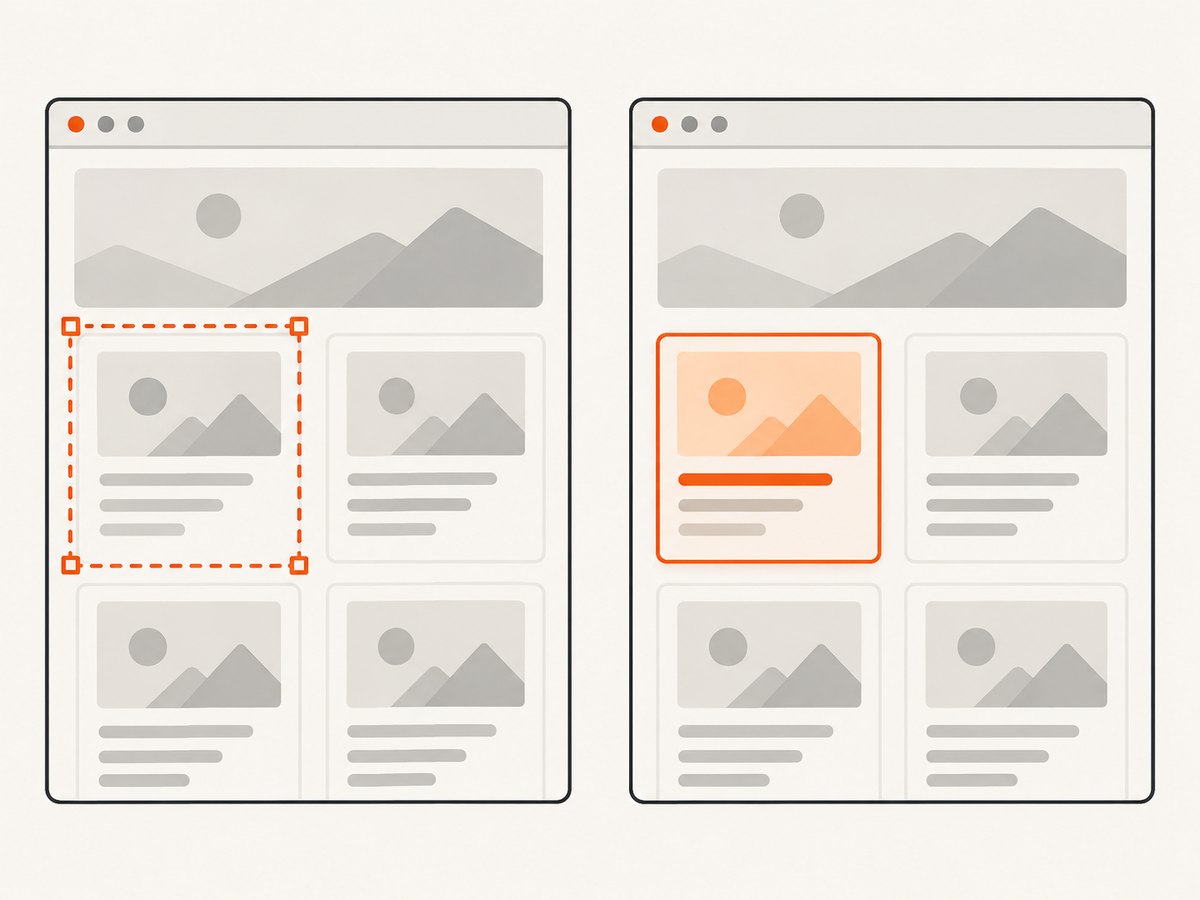
2. Capture a region in Firefox
- Open the page in Firefox desktop. Right-click an empty part of the page and select Take Screenshot. Alternatively, use Ctrl+Shift+S on Windows/Linux or Command+Shift+S on Mac.
- For a custom rectangle, click and drag across the area. Use the selection handles to resize or reposition it. To capture a page part Firefox identifies for you, move the pointer over the page and click the highlighted part.
- Choose to copy the image or download it. A downloaded capture is a PNG saved to Firefox’s default download location.
Choose Save visible if you want the current viewport, or Save full page for the entire page. These are separate capture modes; they do not mean “draw a region.”
Keyboard selection and Wayland
Mozilla documents keyboard navigation and resizing controls for the selected region. On Wayland, moving the crosshair with the pointer does not work as documented for other environments. If selection is awkward, use the keyboard controls listed in Mozilla’s current help page, or use the Firefox element-capture route below when the target is a DOM element.
3. Capture a region in Microsoft Edge
- Open the page in Edge and launch Screenshot from the page’s right-click menu, the Edge Settings menu, or with Ctrl+Shift+S.
- Choose Capture area and select the rectangle you want.
- Copy the image, or use markup to review and annotate it before saving.
Edge also supports full-page capture, including content that would otherwise require scrolling. Microsoft notes that feature availability and behavior can vary by device type, market, and browser version, so the menu or choices may differ from these steps on a particular installation.
4. Capture a complete page element in Firefox Developer Tools
Use this when you want a particular element—such as a chart, product card, or article block—rather than a manually drawn screen rectangle.
- Open Firefox Developer Tools and select the Inspector.
- Find the target element in the HTML pane and open its context menu.
- Choose Screenshot Node. Firefox saves the image in Downloads.
For a repeatable capture by CSS selector, open the Web Console and use the :screenshot helper with --selector. The selector targets the element and its descendants. For example, replace .article-card with a selector that matches the element on your page:
:screenshot --selector .article-cardThe Firefox screenshot helper also documents options for a delay, device pixel ratio, filename, full-page capture, and clipboard output. Consult the current Firefox source documentation for exact syntax and supported options for your installed version. This console route is useful for developer workflows, but the Inspector context menu is simpler for a one-off capture.
5. Save, copy, and check the result
Both browser tools provide a way to copy or save a capture. Firefox downloads PNG images to its default download location; Edge offers copy and save, and can add markup before saving. After capture, check the image itself rather than assuming the selection landed exactly where intended.
- Check the boundaries: confirm no heading, chart label, or edge of the target was clipped.
- Check the scale: browser zoom and display scaling can affect how easy it is to make a precise manual selection. If the selection is consistently off, try the element route in Firefox.
- Check what was included: a rectangle captures pixels inside its bounds; an element capture follows the selected node and descendants.
- Check the output: verify the saved file opens and that the clipboard contains the image before pasting it into another app.
6. Repeat a capture for documentation or debugging
For one screenshot, browser controls are usually the quickest option. For repeated documentation, bug reports, or page comparisons, make the capture steps consistent:
- Use the same browser and capture mode each time.
- For a stable page component, prefer an element capture over redrawing a rectangle.
- Wait until the page content you need is visible before capturing; a delayed image, animation, or loading state can change the result.
- Use descriptive filenames when saving, especially if you are collecting captures from several pages.
- Keep the original capture if you later annotate or crop it, so the unmarked version remains available.
Firefox’s console screenshot helper exposes a delay and filename option, which can help with repeated technical captures. Browser documentation does not establish a universal way to automate region selection across browsers, so do not assume the same selector or shortcut works in Chrome, Safari, or mobile browsers.
7. Common problems and fixes
| Problem | Likely cause | What to try |
|---|---|---|
| Screenshot is missing from the context menu | The browser version, platform, or menu differs; a non-page area may have been right-clicked. | Try the documented keyboard shortcut. In Edge, look in the Settings menu. Check the browser’s current help for your version. |
| The selection is a rectangle when you wanted the whole component | Region capture follows screen coordinates, not the page’s DOM structure. | In Firefox, select the element in Inspector and choose Screenshot Node. |
| The capture cuts off content below the fold | You used a region or visible-viewport mode. | Choose Firefox Save full page or Edge full-page capture. |
| The result includes neighboring content | The drawn selection extends beyond the target. | Resize the selection handles or use an element capture in Firefox. |
| The pointer crosshair will not move in Firefox on Wayland | Mozilla documents this limitation for moving the crosshair. | Use the documented keyboard selection and resize controls, or choose another supported capture route. |
| The page part you need is not highlighted | The browser’s automatic element detection may not identify it as a selectable part. | Drag a rectangle around it, or use Firefox Inspector’s Screenshot Node for a DOM element. |
| The feature or shortcut behaves differently | Browser functionality can change with version, device, or market. | Use the vendor’s current help page for the installed build; avoid relying on an unverified shortcut from another browser. |
8. Chrome, Safari, and mobile browsers
This guide’s verified browser-specific steps cover Firefox desktop and Microsoft Edge. The reviewed documentation does not establish reliable current instructions for saving a selected region in ordinary Chrome, Safari, or mobile browsers. A Chrome feature for selecting page content to include in a Gemini prompt is a different task from saving a screenshot, so it should not be treated as region capture.
If your browser does not offer the needed capture, consult the current support instructions for your browser or operating system. The exact menu, shortcut, and output can depend on device and version; do not assume desktop instructions apply to a phone or tablet.
9. Or skip the browser setup
ScreenshotNeo is a website screenshot API and MCP server. If you need a web page captured by URL rather than a manually drawn rectangle, one GET request returns an image or PDF. See the ScreenshotNeo API documentation for available options.
curl -G "https://api.screenshotneo.com/v1/shot" -d access_key=YOUR_API_KEY --data-urlencode url=https://stripe.com -o shot.webpimport requests
r = requests.get(
"https://api.screenshotneo.com/v1/shot",
params={"access_key": "YOUR_API_KEY", "url": "https://stripe.com"},
timeout=90,
)
open("shot.webp", "wb").write(r.content)const q = new URLSearchParams({ access_key: 'YOUR_API_KEY', url: 'https://stripe.com' });
const res = await fetch(`https://api.screenshotneo.com/v1/shot?${q}`);
if (!res.ok) throw new Error(`Screenshot request failed: ${res.status}`);
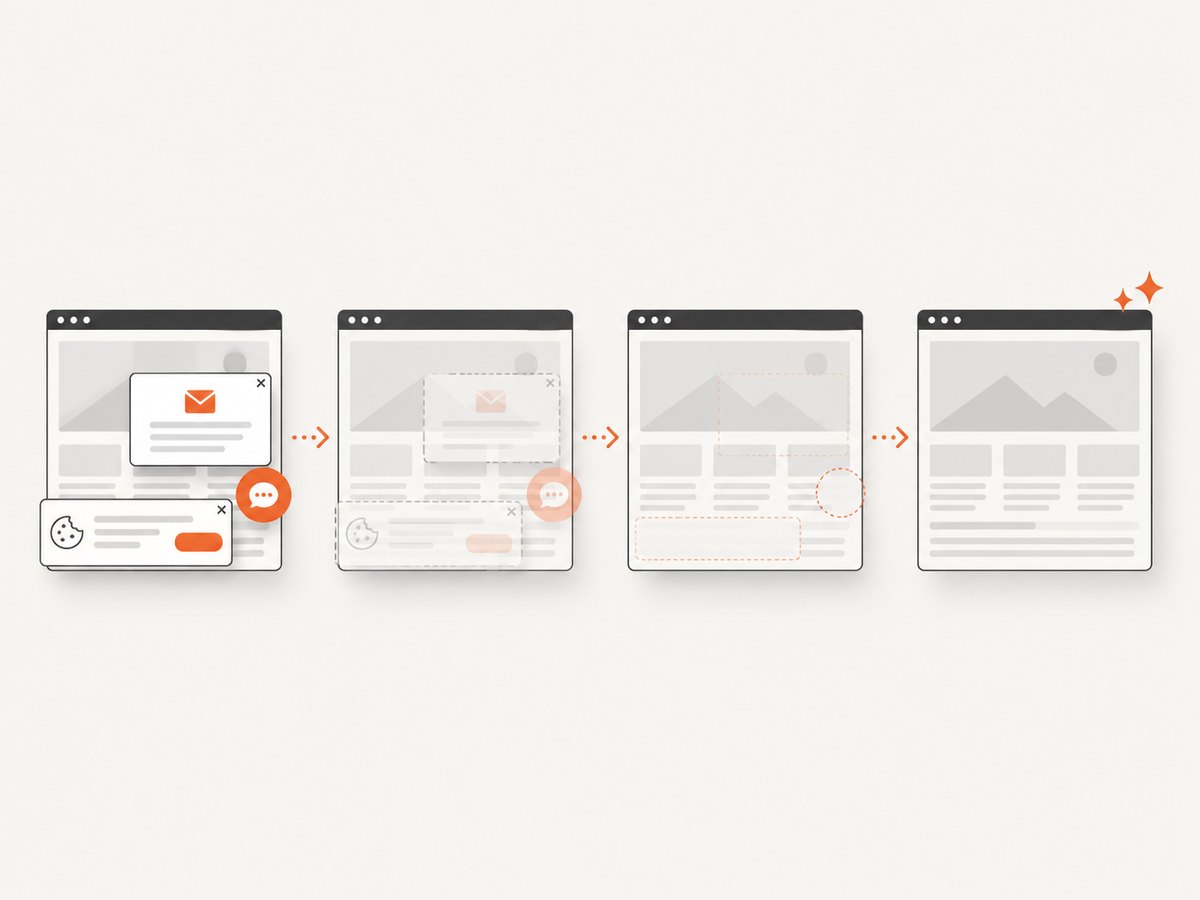
await Bun.write('shot.webp', res);ScreenshotNeo removes cookie banners, newsletter popups, and chat widgets before capture; bot checks, blank pages, and failed loads are never billed. Its MCP server lets AI agents take screenshots. The free plan includes 1,000 screenshots a month with no card; paid plans start at $5 for 3,000. These are URL-based captures, so use the browser steps above when you specifically need to draw a region on your current screen.
Sign up free for 1,000 screenshots a month, no card required.
10. Frequently asked questions
Does a region screenshot capture the whole page?
No. A region is the selected rectangle. Use a full-page mode when you need content below the current viewport.
Can I capture only one HTML element?
Firefox Developer Tools provides Screenshot Node in the Inspector, and its console helper supports a CSS selector.
Which method includes annotation?
Microsoft describes markup in Edge Screenshot. The Firefox region instructions focus on selecting, copying, and downloading.
Why is the saved screenshot a PNG?
Firefox’s documented download from Take Screenshot is a PNG. If another format is required, use an image editor or a capture tool that offers that output format.
Is a screenshot the same as copying webpage text?
No. A screenshot is an image of rendered pixels. Selecting page content for a prompt or copying text does not by itself save a screenshot file.