How to Take a Screenshot in a PDF with JavaScript
Render any PDF page to a sharp PNG or JPEG in JavaScript with PDF.js, canvas, CORS-safe loading, scaling, export, and troubleshooting.

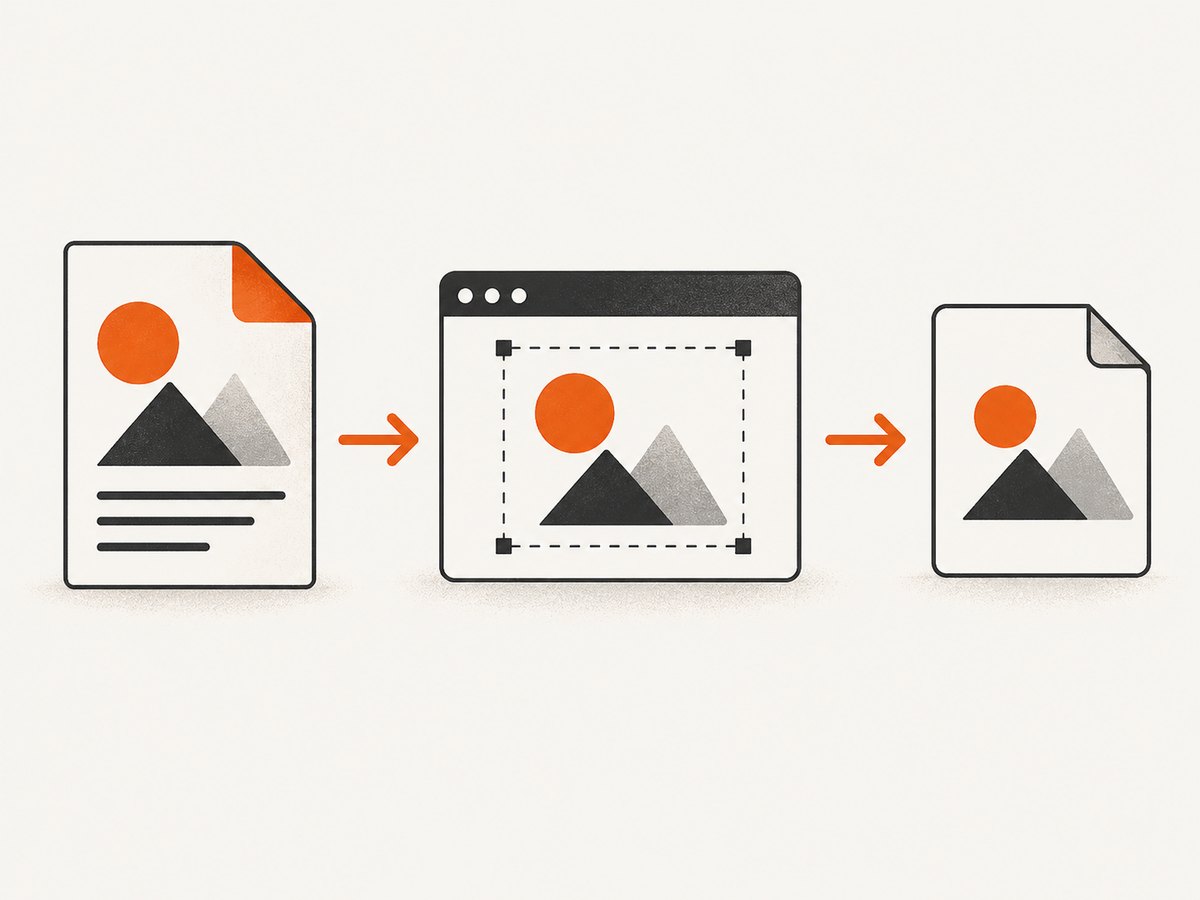
Direct answer: use Mozilla PDF.js to render the PDF page into an HTML <canvas>, wait for the render promise, then export the canvas with toDataURL() or toBlob(). The essential sequence is getDocument(), getPage(), getViewport(), page.render(), and canvas export.
This approach captures the page content itself instead of taking a screenshot of the browser’s built-in PDF plug-in. It works for one page, selected pages, or a complete document rendered page by page. You control resolution with the viewport scale and the device-pixel-ratio transform.
1. How PDF.js rendering works
PDF.js is Mozilla’s JavaScript library for parsing and rendering PDFs. Its display layer exposes the page rendering API used by custom applications; the viewer is a higher-level application built on that layer. For a screenshot feature, use the display API and your own canvas. See the official PDF.js examples and getting-started guide.
A PDF page uses a coordinate system whose origin is at the bottom left. Canvas uses a top-left origin. PDF.js creates the required coordinate transformation when you render with the viewport, so you should not manually flip the page.
- Load the PDF with
pdfjsLib.getDocument(). - Wait for the loading task and obtain a page with
pdf.getPage(pageNumber). - Create a viewport with
page.getViewport({ scale }). - Set the canvas backing-store dimensions from the viewport and output scale.
- Call
page.render()and await its promise. - Export the completed canvas as PNG or JPEG.
2. Complete browser example: render one PDF page
The following page is runnable in a normal HTTP(S) development server. It renders page one and downloads a PNG when the button is clicked.
<!doctype html>
<html lang="en">
<head>
  <meta charset="utf-8" />
  <title>PDF page screenshot</title>
  <style>
    body { font-family: system-ui, sans-serif; margin: 2rem; }
    canvas { max-width: 100%; height: auto; border: 1px solid #ccc; }
  </style>
</head>
<body>
  <button id="capture">Capture page 1</button>
  <div><canvas id="pdf-canvas"></canvas></div>

  <script src="https://cdnjs.cloudflare.com/ajax/libs/pdf.js/4.10.38/pdf.min.mjs" type="module"></script>
  <script type="module">
    import * as pdfjsLib from 'https://cdnjs.cloudflare.com/ajax/libs/pdf.js/4.10.38/pdf.min.mjs';

    pdfjsLib.GlobalWorkerOptions.workerSrc =
      'https://cdnjs.cloudflare.com/ajax/libs/pdf.js/4.10.38/pdf.worker.min.mjs';

    const pdfUrl = '/documents/example.pdf';
    const canvas = document.querySelector('#pdf-canvas');
    const context = canvas.getContext('2d', { alpha: false });

    async function renderPage(pageNumber, scale = 2) {
      const loadingTask = pdfjsLib.getDocument(pdfUrl);
      const pdf = await loadingTask.promise;
      const page = await pdf.getPage(pageNumber);
      const viewport = page.getViewport({ scale });
      const outputScale = window.devicePixelRatio || 1;

      canvas.width = Math.floor(viewport.width * outputScale);
      canvas.height = Math.floor(viewport.height * outputScale);
      canvas.style.width = `${Math.floor(viewport.width)}px`;
      canvas.style.height = `${Math.floor(viewport.height)}px`;

      const transform = outputScale !== 1
        ? [outputScale, 0, 0, outputScale, 0, 0]
        : null;

      const renderTask = page.render({
        canvasContext: context,
        viewport,
        transform
      });
      await renderTask.promise;

      canvas.toBlob((blob) => {
        if (!blob) throw new Error('Canvas export failed');
        const link = document.createElement('a');
        link.href = URL.createObjectURL(blob);
        link.download = `page-${pageNumber}.png`;
        link.click();
        URL.revokeObjectURL(link.href);
      }, 'image/png');
    }

    document.querySelector('#capture').addEventListener('click', () => {
      renderPage(1).catch(console.error);
    });
  </script>
</body>
</html>
Set scale to 1 for a smaller image, 2 or 3 for more pixels, or calculate it from a target DPI. The canvas CSS size controls how large it appears on screen; the backing-store size controls output detail.
3. A minimal reusable function
Separate loading, rendering, and exporting if your application captures several pages or offers multiple formats.
export async function pdfPageToBlob(pdfjsLib, pdfUrl, pageNumber = 1, options = {}) {
  const {
    scale = 2,
    type = 'image/png',
    quality = 0.92
  } = options;

  const pdf = await pdfjsLib.getDocument(pdfUrl).promise;
  const page = await pdf.getPage(pageNumber);
  const viewport = page.getViewport({ scale });
  const outputScale = globalThis.devicePixelRatio || 1;
  const canvas = document.createElement('canvas');
  const context = canvas.getContext('2d', { alpha: false });

  canvas.width = Math.floor(viewport.width * outputScale);
  canvas.height = Math.floor(viewport.height * outputScale);
  const transform = outputScale !== 1
    ? [outputScale, 0, 0, outputScale, 0, 0]
    : null;

  await page.render({ canvasContext: context, viewport, transform }).promise;

  return new Promise((resolve, reject) => {
    canvas.toBlob(blob => blob ? resolve(blob) : reject(new Error('Export failed')),
      type, type === 'image/jpeg' ? quality : undefined);
  });
}
Use PNG for lossless text, diagrams, and screenshots where every pixel matters. Use JPEG when a smaller file matters and slight compression artifacts are acceptable. WebP can also be requested with toBlob() when browser support and your downstream pipeline allow it.
4. Resolution, DPI, and device-pixel ratio
The viewport’s scale is the primary quality setting. A letter page at 96 DPI is about 816 × 1056 pixels and uses roughly 3.5 MB for one RGBA canvas before any high-density multiplication. Increasing scale and using a high-DPI output scale multiply both pixel count and memory.
| Goal | Suggested approach |
|---|---|
| Preview | scale: 1, device-pixel-ratio transform enabled |
| Readable download | scale: 1.5–2, PNG or high-quality JPEG |
| Print-like detail | Higher scale, but measure memory and output dimensions first |
Do not multiply the viewport’s CSS dimensions by devicePixelRatio and then also apply the transform; that would scale twice. Keep CSS dimensions at the viewport size, set the backing store to viewport × output scale, and pass the transform shown above.
5. Capture a selected page, many pages, or a range
PDF.js page numbers start at one. Validate the requested range against pdf.numPages and render only the pages the user needs. Rendering every page at once can consume hundreds of megabytes for large documents.
async function captureRange(pdfjsLib, pdfUrl, firstPage, lastPage, scale = 1.5) {
  const pdf = await pdfjsLib.getDocument(pdfUrl).promise;
  const end = Math.min(lastPage, pdf.numPages);
  const results = [];

  for (let pageNumber = Math.max(1, firstPage); pageNumber <= end; pageNumber++) {
    const page = await pdf.getPage(pageNumber);
    const viewport = page.getViewport({ scale });
    const canvas = document.createElement('canvas');
    const context = canvas.getContext('2d', { alpha: false });
    canvas.width = Math.ceil(viewport.width);
    canvas.height = Math.ceil(viewport.height);
    await page.render({ canvasContext: context, viewport }).promise;
    results.push({ pageNumber, canvas });
  }
  return results;
}
Process pages sequentially when memory is limited. After uploading or downloading each image, release its canvas reference. For a virtualized document viewer, render only visible pages; this is also the PDF.js FAQ’s recommended memory strategy. The canvas backend is the stable default. PDF.js describes its SVG backend as experimental and not feature complete.
6. Remote PDFs, CORS, and deployment
Serve your application over HTTP(S). The normal worker setup is not enabled for file:// URLs, so opening an HTML file directly can produce worker or loading failures.
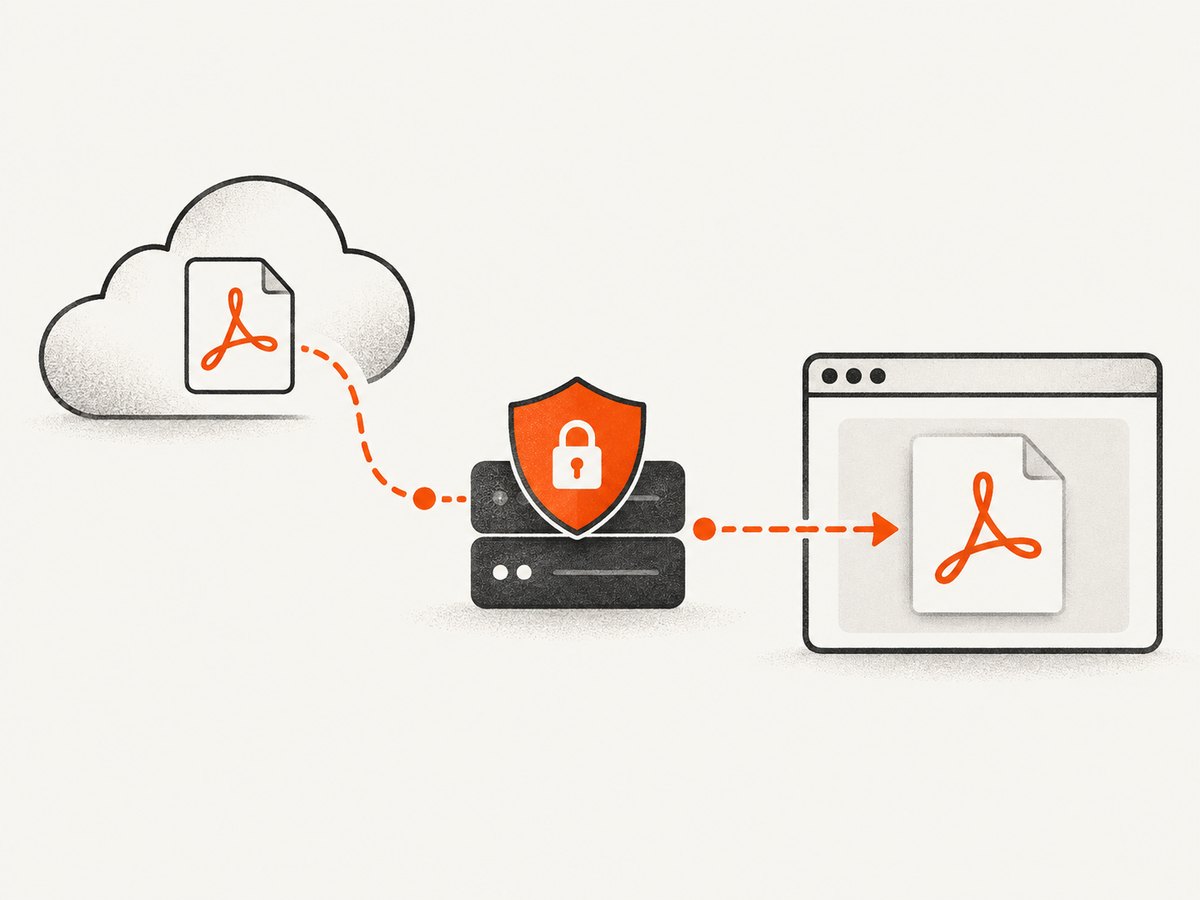
A remote PDF must allow your page’s origin through CORS. PDF.js runs with ordinary browser JavaScript permissions and cannot bypass the same-origin policy. Configure the PDF host with an Access-Control-Allow-Origin header, or fetch the file through a server-side endpoint on an origin you control.
// Same-origin proxy sketch (server-side endpoint)
app.get('/pdf-proxy', async (req, res) => {
  const upstream = await fetch(ALLOWED_PDF_URL);
  if (!upstream.ok) return res.sendStatus(upstream.status);
  res.set('Content-Type', upstream.headers.get('content-type') || 'application/pdf');
  res.send(Buffer.from(await upstream.arrayBuffer()));
});
Restrict proxy targets to an allowlist. Do not turn an endpoint that fetches arbitrary URLs into an open server-side request proxy. Keep the PDF.js main library and worker on matching versions; pin both from the same release when you deploy.
7. Export and upload the image
toDataURL() is convenient for small images and immediate inline use, but it creates a base64 string in memory. Prefer toBlob() for downloads and uploads.
canvas.toBlob(async (blob) => {
  const form = new FormData();
  form.append('file', blob, 'page-1.png');
  await fetch('/upload', { method: 'POST', body: form });
}, 'image/png');
If the PDF or an image inside it came from another origin without the required CORS headers, the canvas becomes tainted. Reading pixels or exporting then throws a security error. Fix the resource headers or proxy the PDF through your own origin; do not attempt to disable browser security.
8. Troubleshooting common failures
| Symptom | Cause | Fix |
|---|---|---|
| “Setting up fake worker” or worker load error | Worker URL is missing, mismatched, or blocked | Set GlobalWorkerOptions.workerSrc and use the exact matching PDF.js worker version. |
| Works locally only as a blank file | Application opened with file:// |
Run a local HTTP server and deploy over HTTP(S). |
| Failed to fetch remote PDF | CORS or authentication prevents access | Enable CORS on the PDF host or fetch through an authenticated same-origin server endpoint. |
| Canvas is tainted | Cross-origin PDF or embedded asset lacked CORS | Return the correct CORS headers or proxy the document. |
| Image is blurry | Low scale or backing store equals CSS size on a HiDPI display | Increase scale and apply the device-pixel-ratio transform. |
| Browser tab crashes or freezes | Too many large canvases rendered at once | Render sequentially, reduce scale, process only needed pages, and release canvases. |
| Downloaded image is blank | Export happened before rendering completed | Await renderTask.promise before calling toBlob() or toDataURL(). |
| Wrong page | Page numbers are one-based | Use values from 1 through pdf.numPages. |
9. Performance and reliability checklist
- Load the PDF once and reuse the
pdfdocument for multiple pages. - Render only requested or visible pages.
- Use a bounded queue instead of starting dozens of render tasks simultaneously.
- Choose the lowest scale that meets the output requirement.
- Use
toBlob()to avoid large base64 strings. - Show progress for multi-page jobs and catch both loading and rendering errors.
- Cancel obsolete render tasks when a user changes pages quickly.
- Keep library and worker versions pinned and identical.
10. Or skip the browser setup
If your goal is simply to obtain an image or PDF from a URL, ScreenshotNeo provides a website screenshot API and MCP server. Its endpoint can return PNG, JPEG, WebP, or PDF in one GET request. Cookie and consent banners are accepted and removed before capture, along with more than 60 known consent platforms, newsletter popups, and chat widgets. Bot checks, blank pages, timeouts, failed loads, and cache hits are not billed, and response headers identify the page verdict and billing result.
Read the complete options in the ScreenshotNeo documentation. The same API also supports full-page capture, element selectors, dark mode, device presets, retina scale, PDF paper and margin settings, custom CSS and JavaScript, click and wait actions, request blocking, headers and cookies, timezone and geolocation, resizing, caching, signed links, asynchronous webhooks, bulk capture, and a usage API.
cURL
curl -G "https://api.screenshotneo.com/v1/shot" \
  -d access_key=YOUR_API_KEY \
  --data-urlencode url=https://stripe.com \
  -o shot.webp
Python
import requests

r = requests.get(
    "https://api.screenshotneo.com/v1/shot",
    params={"access_key": "YOUR_API_KEY", "url": "https://stripe.com"},
    timeout=90,
)
r.raise_for_status()
open("shot.webp", "wb").write(r.content)
Node.js
const q = new URLSearchParams({ access_key: 'YOUR_API_KEY', url: 'https://stripe.com' });
const res = await fetch(`https://api.screenshotneo.com/v1/shot?${q}`);
if (!res.ok) throw new Error(`Screenshot failed: ${res.status}`);
const image = Buffer.from(await res.arrayBuffer());
await Bun.write('shot.webp', image);
ScreenshotNeo includes an MCP server with take_screenshot, get_page_info, and capture_pdf tools for Claude, Cursor, and other MCP clients. The Free plan includes 1,000 shots per month with no card; paid plans start at $5 for 3,000 shots, and every feature is available on every plan. Create a free ScreenshotNeo account.
11. Cost and architecture choices
A local PDF.js implementation has no per-capture API charge, but your application owns browser memory, PDF hosting, CORS configuration, worker delivery, retries, and multi-page queueing. A hosted capture API shifts those operational concerns to a request boundary. For repeated URLs, caching can reduce work; for user-controlled documents, local rendering can keep files inside your own application boundary.
Choose PDF.js when the PDF is available to the browser and you need interactive, page-by-page control. Choose a hosted service when the input is a web URL, you need consistent server-side capture, or browser setup and cleanup would be more work than the feature warrants.
12. FAQ
Can I screenshot the browser’s native PDF viewer?
Use PDF.js instead. The display API renders page content directly and avoids depending on browser plug-in UI.
Should I use PNG or JPEG?
Use PNG for lossless text and diagrams. Use JPEG when smaller files matter and compression is acceptable.
How do I capture a PDF page at 300 DPI?
Convert the desired physical page dimensions to pixels and choose a viewport scale that reaches those dimensions. Check memory before rendering many pages.
Why does a remote PDF work in a new tab but not in my app?
A new tab is not the same as a cross-origin JavaScript fetch. Configure CORS or retrieve the file through a same-origin server endpoint.
Can PDF.js render annotations?
The render API exposes annotation-related settings, but a custom screenshot feature must decide whether and how to render annotation layers separately from the page canvas.


