How to Take a Screenshot of a PDF Opened in a New Tab
Capture a visible PDF page on Windows or Mac, use browser tools for longer documents, and automate PDF screenshots with ScreenshotNeo.
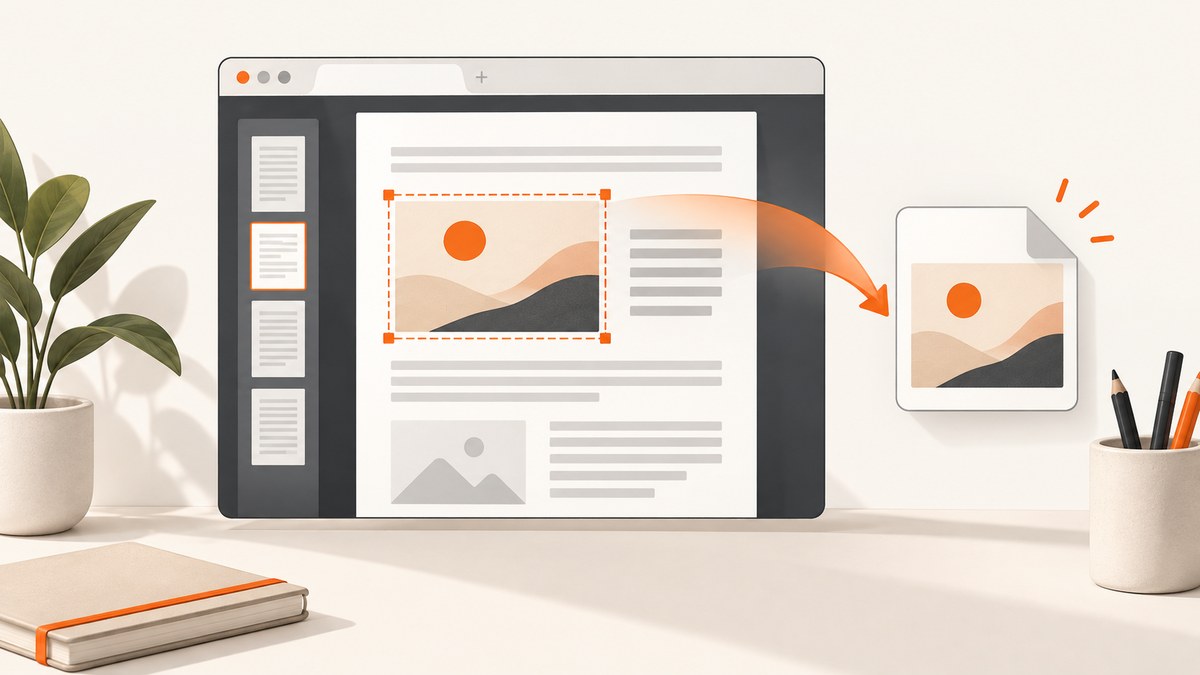
Quick answer: open the PDF in its own browser tab, scroll to the page or area you need, then use your operating system’s capture shortcut. On Windows, press Windows + Shift + S. On macOS, press Shift + Command + 4 and drag around the PDF. These methods capture exactly what is visible. For a long PDF, try your browser’s full-page feature, but verify the result because PDF viewers do not all stitch every page reliably.
Choose the right kind of PDF capture
A screenshot can mean several different things:
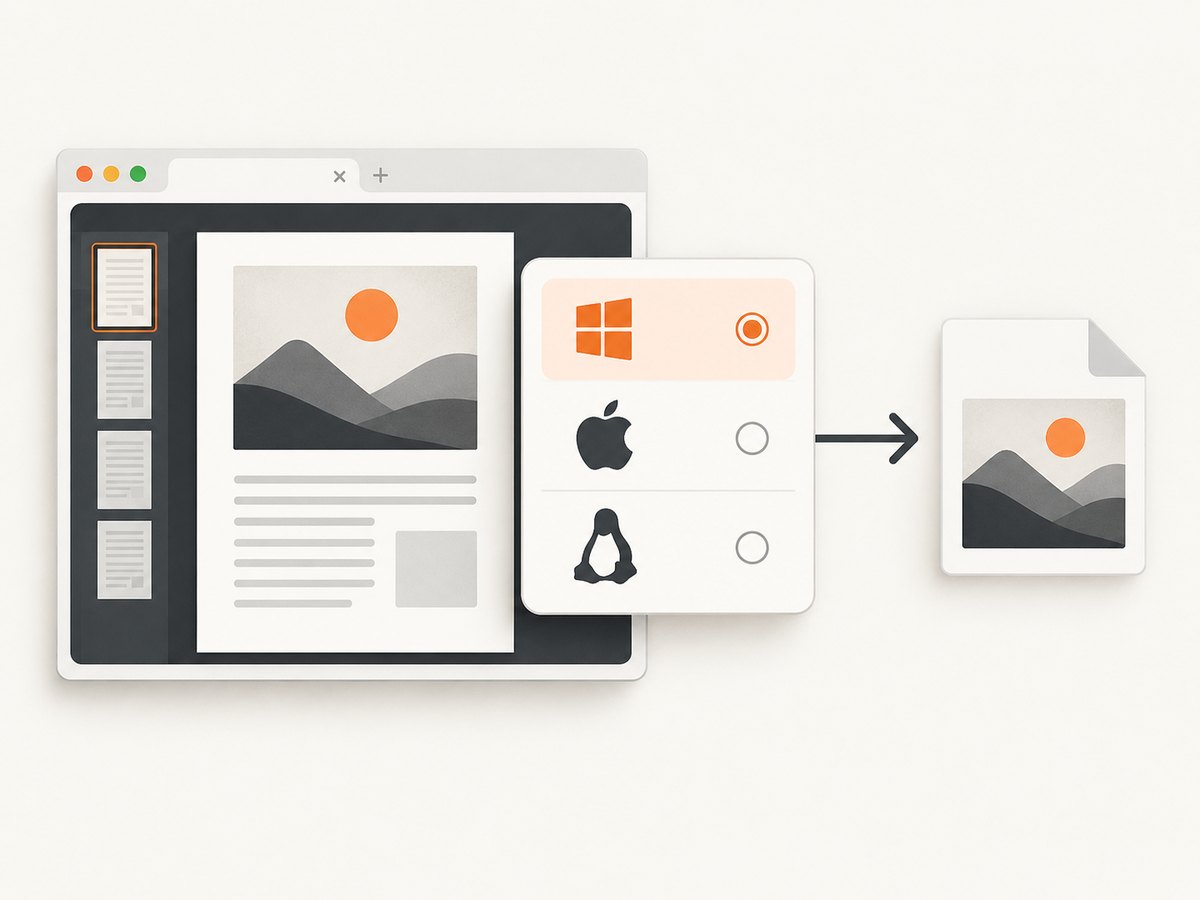
- Selected area: a rectangle around a chart, paragraph, signature, or page region.
- Visible page: the portion currently shown in the PDF viewer.
- Browser window: the PDF plus the browser frame, useful for documenting which file or tab was open.
- Long or full document: multiple pages combined into one image. This is the least consistent option because browser PDF viewers render pages differently.
- Original PDF: the downloadable document itself, not an image. If you need searchable text, selectable vectors, or every page at native quality, download the PDF instead.
Decide first which result you need. A region capture is usually clearest for sharing one detail. A window capture preserves context. A downloaded PDF is the correct choice for archival or editing work.
Windows 10 and 11: Snipping Tool
Capture a selected area
- Open the PDF in a new tab and navigate to the page.
- Adjust zoom until the text or diagram is readable.
- Press Windows + Shift + S.
- Choose rectangular snip, then drag from one corner of the PDF area to the opposite corner.
- Open the Snipping Tool notification to annotate or save the image.
The snip is copied to the clipboard immediately, so you can paste it into an email, document, or image editor. Include only the PDF content when you do not want browser controls, bookmarks, or another tab in the result.
Capture a window or the entire screen
After pressing the shortcut, choose the window option and select the browser window. This includes the PDF viewer and browser chrome. Full-screen capture includes everything on the monitor and is useful only when the surrounding desktop is part of the evidence. The Snipping Tool also lets you save the capture, copy it, and mark it up.
When the PDF is larger than the viewport
Scroll to each page and take separate captures if you need a dependable record. Name files in page order, such as report-page-01.png. Stitching screenshots manually in an image editor avoids the blank gaps and duplicated headers that can occur when a PDF viewer is captured while it is still rendering.
macOS: Screenshot shortcuts
Capture a region
- Open the PDF tab and position the page.
- Press Shift + Command + 4.
- Drag over the PDF content.
- Release the mouse or trackpad, then open the thumbnail to crop or annotate.
macOS normally saves the file to the desktop. The Screenshot options panel lets you change the destination, timer, pointer visibility, and whether to capture a selected window or the whole screen.
Capture the browser window
Press Shift + Command + 4, then press Space. The pointer becomes a camera. Click the browser window to capture it as a single image. This is useful when you must show the tab, address bar, or viewer controls as context.
Improve readability
Retina displays can produce large images. If the screenshot is too large to send, export a resized copy after capture. If small text is blurry, increase PDF zoom before selecting the region instead of enlarging the finished bitmap.
Microsoft Edge: full-page and PDF capture
Edge’s Screenshot feature can capture web content and PDF content. Availability and behavior vary by device, market, and browser version, so the menu may look different. With the PDF open, use Edge’s screenshot command, choose a selected area or full-page capture when offered, and inspect the resulting image before sharing.
Full-page capture is useful for a short PDF or a viewer that exposes a continuous document surface. It may stop at the current page, omit pages that have not rendered, or create an incomplete image for a long multi-page file. If the output is incomplete, use the operating-system shortcut page by page.
Firefox: visible, region, page-part, and full-page options
In Firefox, right-click an empty part of the page and choose Take Screenshot. You can also use Ctrl + Shift + S on Windows or Linux, or Command + Shift + S on macOS. Firefox offers visible-page, selected-region, page-part, and full-page choices.
Firefox’s help describes webpage screenshots. It does not guarantee that full-page mode captures every page in every PDF viewer. Treat the full-page result as something to verify: check the first, middle, and final pages, and look for missing text or repeated sections.
Chrome: use the operating-system capture for what is visible
Chrome’s PDF viewer can open a PDF in a tab and provides controls for viewing and downloading it. The documented PDF controls do not provide a dedicated screenshot command. For a visible page or selection, use Windows + Shift + S on Windows or Shift + Command + 4 on macOS.
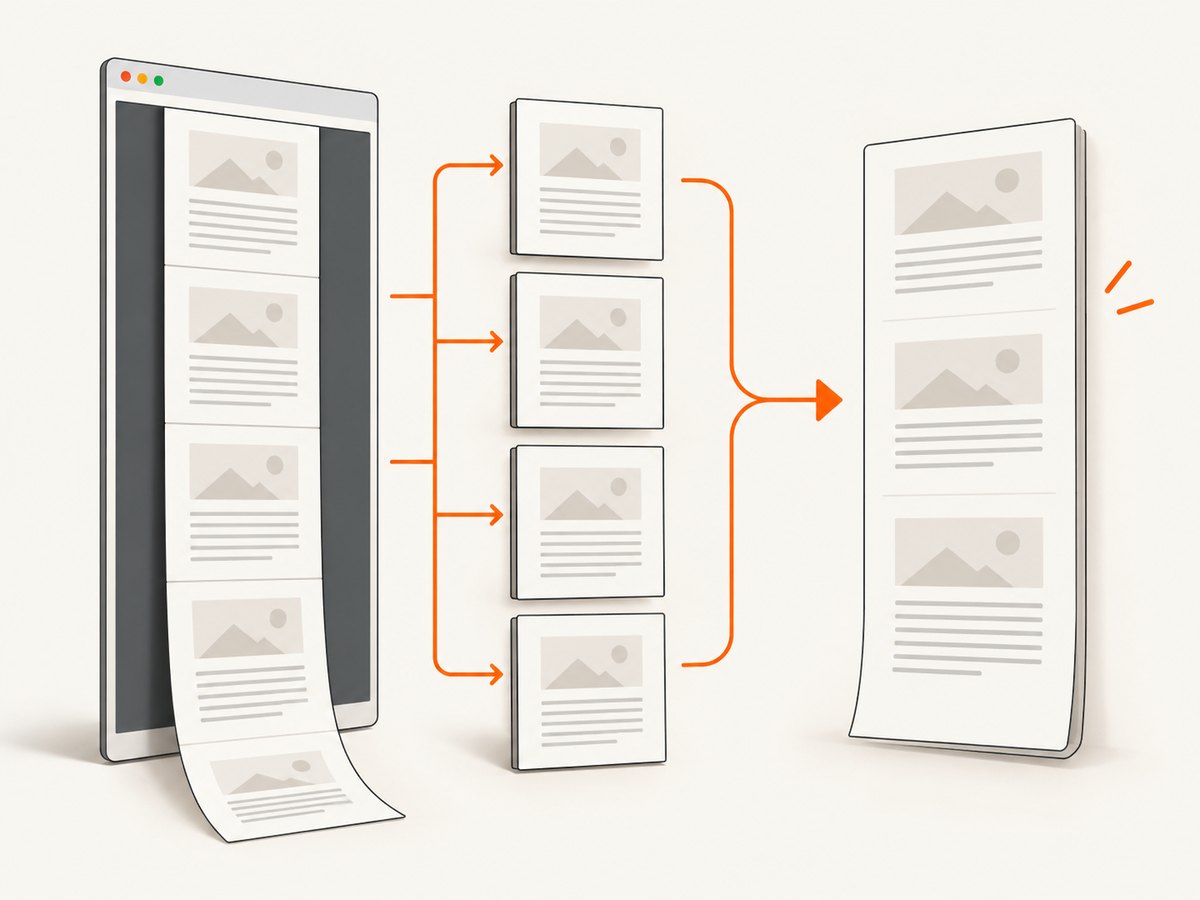
If you need the complete document, use the viewer’s download control. A downloaded PDF preserves selectable text and vector graphics; a screenshot is a raster image of the rendered view.
How to capture a clean, legible image
- Open the file in its own tab. This prevents another page or application from appearing in the capture.
- Wait for rendering. Scroll through the target page once so fonts, images, and annotations finish loading.
- Set zoom deliberately. Increase zoom for small type, but keep the complete region inside the viewport.
- Hide distractions. Close sidebars, thumbnails, download banners, and browser find bars before capturing.
- Choose the smallest useful area. A tight crop is easier to read and contains less unrelated information.
- Check the result at 100%. Confirm that no text is clipped and that page numbers, margins, and annotations are present.
- Use a descriptive filename. Include the document and page, for example
invoice-2026-09-page-3.png.
Capturing long PDFs and multiple pages
There is no universal browser shortcut that guarantees a perfect image of every multi-page PDF. PDF viewers often render pages lazily, and a browser full-page tool may capture only the viewer surface rather than the document’s full scrollable height.
For a reliable manual workflow:
- Record the page range you need.
- Set a consistent zoom and window size.
- Capture each page or fixed-height section with the same margins.
- Use an image editor or document tool to stitch the sections.
- Compare the stitched image with the PDF at page boundaries.
For an automated workflow, render the PDF to images with a PDF processing tool, or use a screenshot service that can load the document URL. Rendering the source PDF directly generally gives more predictable page boundaries than trying to scroll a browser viewer.
Or skip the browser setup
ScreenshotNeo can load a public PDF URL and return a PNG, JPEG, WebP, or PDF response from one API request. It is useful when screenshots must run in CI, a backend job, or an AI workflow.
See the ScreenshotNeo API documentation for the complete parameter list. The following calls use a PDF URL as the target; replace it with a URL your account can access.
cURL
curl -G "https://api.screenshotneo.com/v1/shot" \
  -d access_key=YOUR_API_KEY \
  --data-urlencode url=https://example.com/document.pdf \
  -o document.webp
Python
import requests

r = requests.get(
    "https://api.screenshotneo.com/v1/shot",
    params={
        "access_key": "YOUR_API_KEY",
        "url": "https://example.com/document.pdf",
    },
    timeout=90,
)
r.raise_for_status()
open("document.webp", "wb").write(r.content)
Node.js
const q = new URLSearchParams({
  access_key: 'YOUR_API_KEY',
  url: 'https://example.com/document.pdf'
});

const res = await fetch(`https://api.screenshotneo.com/v1/shot?${q}`);
if (!res.ok) throw new Error(`HTTP ${res.status}`);
const data = Buffer.from(await res.arrayBuffer());
await import('node:fs/promises').then(fs => fs.writeFile('document.webp', data));
Useful capture options for PDF work
| Need | Option to use | Why it helps |
|---|---|---|
| Every page in one capture | Full-page capture | Extends beyond the initial viewport when the document surface supports it. |
| One chart or page region | Element capture by CSS selector | Limits the output to a selected element on an HTML viewer. |
| Readable output | Viewport and retina scale | Controls the rendered dimensions and pixel density. |
| Consistent appearance | Custom CSS, JavaScript, dark mode, timezone | Sets page styling and runtime state before capture. |
| PDF output | Paper size, margins, landscape, page ranges | Creates a document-oriented result instead of one tall image. |
| Private source | Custom headers, cookies, user agent, Authorization | Allows the capture request to reach protected content. |
| Dynamic viewer | Wait for a selector, delay, or network idle | Gives the PDF viewer time to render before the shot. |
| Repeat requests | Cache with a chosen TTL | Reuses a recent result when the source has not changed. |
You can also hide selectors, click an element before capture, block ads, trackers, requests, or resource types, set geolocation, use a transparent background, resize the image, create signed links for public <img> tags, submit asynchronous jobs with signed webhooks, capture up to 100 URLs per bulk call, and inspect usage through the usage API. Parameter names used by other screenshot APIs also work, which can reduce migration changes.
ScreenshotNeo removes cookie and consent banners, newsletter popups, and chat widgets before capture. Each cleanup step can be disabled. Bot checks and CAPTCHAs, blank pages, timeouts, failed loads, and cache hits cost nothing; response headers identify the page verdict and whether the request was billed. An MCP server provides take_screenshot, get_page_info, and capture_pdf tools for Claude, Cursor, and other MCP clients.
Create a free ScreenshotNeo account for 1,000 screenshots per month with no card. Paid plans start at $5 for 3,000 shots.
Troubleshooting
| Problem | Likely cause | Fix |
|---|---|---|
| The capture is blank | The PDF viewer has not finished rendering, or the page is still loading. | Wait, scroll through the page, then capture again. For an API request, use a selector, delay, or network-idle wait. |
| Only the first page appears | The browser tool captured the viewport or viewer shell, not the document. | Capture pages individually, try Edge full-page capture, or render the PDF through an API workflow. |
| Text is blurry | The zoom or pixel density was too low. | Increase PDF zoom, use a tighter selection, or raise the screenshot scale. |
| Browser controls are visible | You selected a window or full screen instead of the document area. | Use a region capture and drag inside the PDF page. |
| The image cuts off the bottom | The selection ended before the page edge or the viewer changed size. | Resize the window, use a fixed zoom, and include a small margin around the page. |
| Pages are duplicated in a long capture | Lazy rendering or stitching captured overlapping viewer sections. | Capture fixed page regions manually or use PDF page-range output. |
| The API returns an authorization error | The access key is missing or the PDF requires authentication. | Send the key, then provide the source’s required headers, cookies, or Authorization value. |
| The API times out | The PDF or embedded resources are slow. | Reduce the capture scope, block unnecessary resource types, add an explicit wait only when needed, and retry transient failures. |
| Private content is not captured | The service cannot access your local file or login session. | Use a reachable URL and pass permitted headers or cookies. Do not expose credentials in client-side code. |
Performance, reliability, and cost considerations
For manual work, the fastest route is a region screenshot. Full-page captures take longer because the browser must render more content, and very long PDFs can produce large files. Keep a consistent viewport and avoid loading unrelated tabs or extensions that alter the viewer.
For automation, capture only the pages or element you need. Use caching with a TTL for repeated requests, bulk capture for batches of up to 100 URLs, and asynchronous jobs with signed webhooks when a job should not block an HTTP request. Add retries for network failures, but inspect the response before retrying so you do not duplicate successful work.
ScreenshotNeo bills only clean shots. Bot checks or CAPTCHAs, blank pages, timeouts, failed loads, and cache hits are not billed, and X-Page-Verdict and X-Billed headers state what happened. Plans include every feature: Free provides 1,000 shots each month without a card; Starter is $5 for 3,000; Growth $15 for 15,000; Pro $39 for 60,000; Scale $99 for 250,000; and Business $249 for 1,000,000. Yearly billing gives two months free.
Privacy and sharing checklist
- Check whether the PDF contains personal, financial, medical, or confidential information.
- Crop unrelated pages and browser tabs before sharing.
- Remove downloaded screenshots from shared folders when they are no longer needed.
- For automated captures, keep API keys on a server and use short-lived or restricted credentials where possible.
- Verify that the source URL is allowed to be accessed by your capture workflow.
FAQ
Can I screenshot a PDF without downloading it?
Yes. Open it in a browser tab and use the Windows or macOS screenshot shortcut. This captures the rendered view without creating a local PDF copy.
How do I capture one page instead of the whole screen?
Use a rectangular selection: Windows + Shift + S on Windows, or Shift + Command + 4 on macOS. Drag only around the page.
Will a browser full-page screenshot include every PDF page?
Not always. It depends on the browser, viewer, file length, and rendering behavior. Check the output and use page-by-page captures or a PDF-aware workflow when completeness matters.
What is better for searchable text: a screenshot or the PDF?
The original PDF. Screenshots are raster images and usually do not preserve selectable text or vector quality.
Can an API capture a PDF behind a login?
It can when the capture request is given the required headers, cookies, user agent, or Authorization value and the source is reachable from the service. Keep those credentials out of browser code.
Can AI agents take PDF screenshots?
ScreenshotNeo’s MCP server exposes take_screenshot, get_page_info, and capture_pdf for Claude, Cursor, and other MCP clients.


