How to Screenshot a PDF in Headless Mode with Puppeteer
Puppeteer screenshots rendered pages, not PDF bytes. Learn how to render an existing PDF page for capture, use screenshot options, and avoid headless-mode pitfalls.
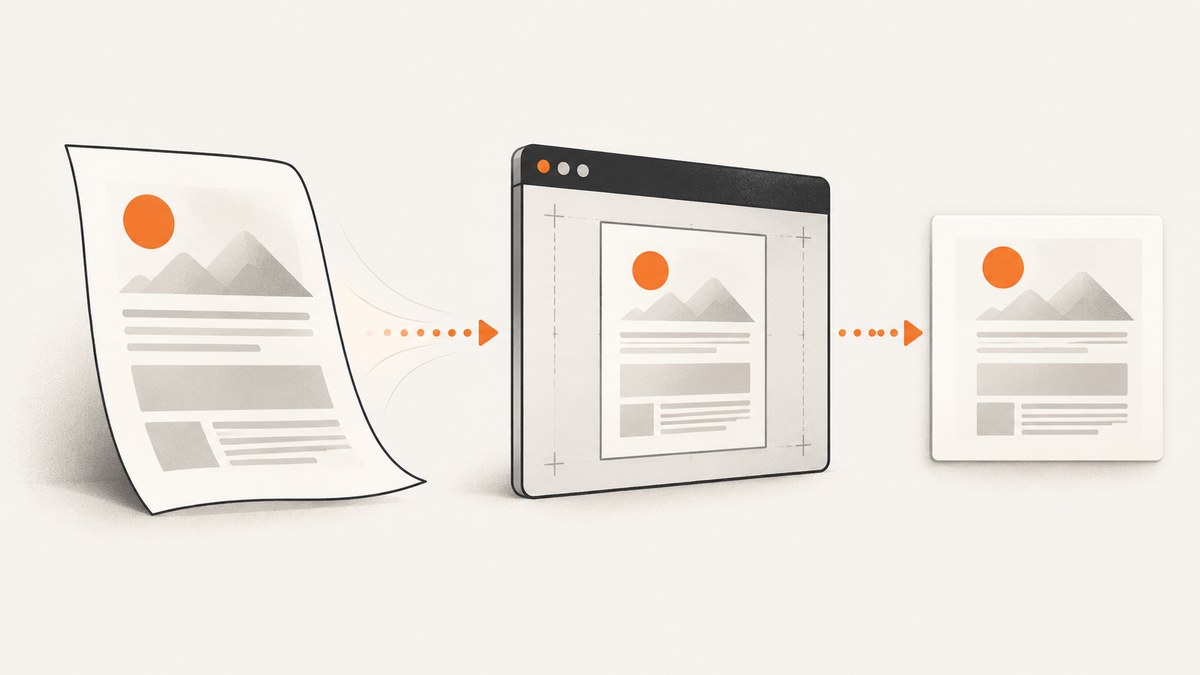
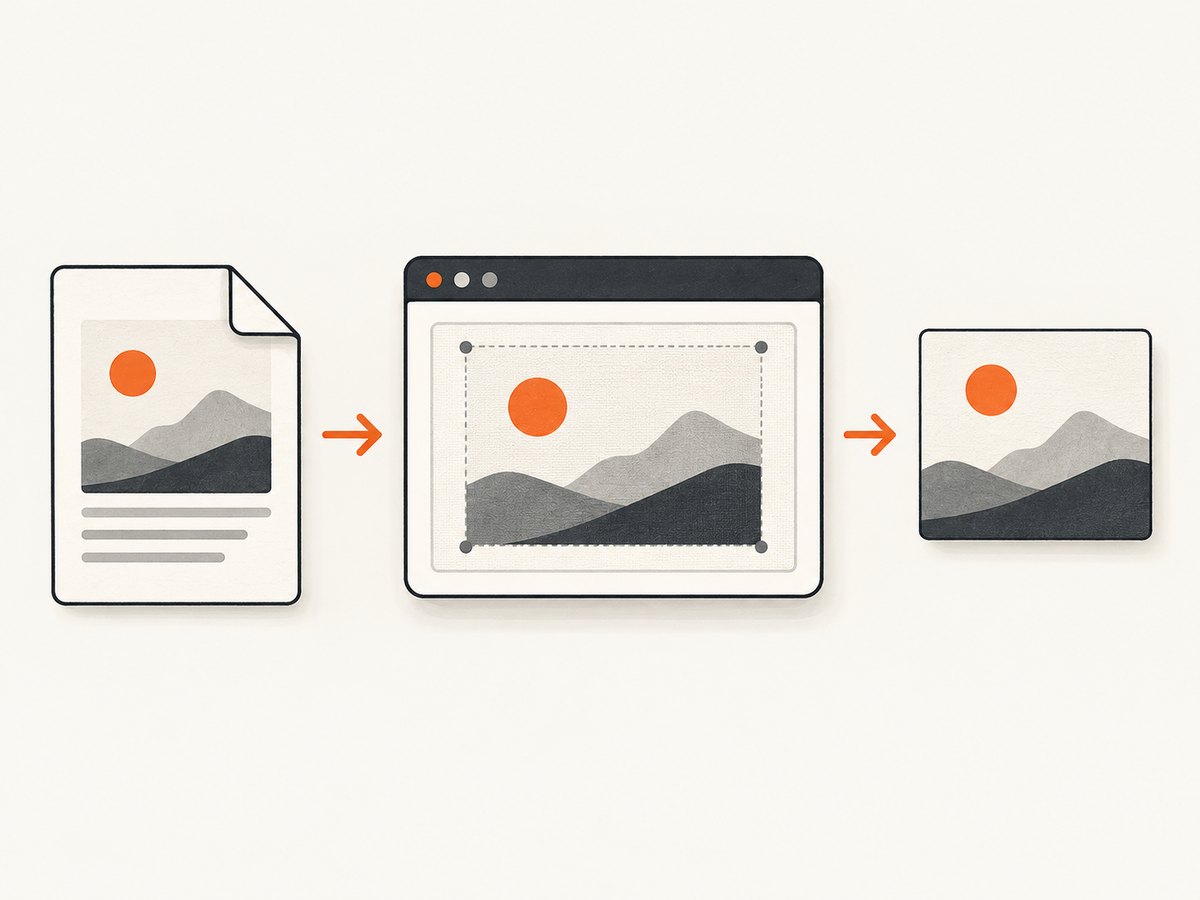
To screenshot an existing PDF with Puppeteer, first render the PDF page into a browser-visible surface such as a canvas, then call page.screenshot(). Puppeteer captures rendered browser content; it does not turn raw PDF bytes into an image. Directly navigating to a PDF is specifically unsupported in Puppeteer’s headless shell mode. If instead you want to create a PDF from a web page, use page.pdf()—that is the reverse operation.
1. Choose the right workflow
| Your input | Your output | Workflow |
|---|---|---|
| An existing PDF file or URL | PNG, JPEG, or WebP image | Render a PDF page to canvas or another browser surface, then use page.screenshot(). |
| A web page | Load the page and use page.pdf(). |
|
| A web page | Screenshot | Load the page and use page.screenshot(). |
Puppeteer’s screenshot API captures the current page. Its PDF API generates a PDF from page content. The PDF guide describes printing with Page.pdf(). Puppeteer also documents that headless shell mode does not support navigation to a PDF document. That caveat is specific to headless shell; do not assume every Chromium mode behaves identically.
2. Render an existing PDF, then screenshot it
The reliable shape of the job is: obtain the PDF bytes, render the selected page using a PDF rendering library, wait for rendering to finish, and capture the canvas. The dossier establishes that an intermediate rendering step is needed but does not validate a particular PDF.js setup. The example below uses PDF.js as the renderer; check the installed version’s API and packaging instructions when adopting it, especially if your bundler or deployment environment differs.
Install dependencies
npm init -y
npm install puppeteer pdfjs-dist
Save this as capture-pdf.mjs. It loads a local PDF in Node, provides its bytes to the page, renders one page with PDF.js, and screenshots the resulting canvas. The PDF.js module is loaded from the installed package path; if your package version changes its exported paths, use that version’s documented browser build path.
import puppeteer from 'puppeteer';
import { readFile } from 'node:fs/promises';
import { pathToFileURL } from 'node:url';
import { resolve } from 'node:path';

const input = process.argv[2];
const pageNumber = Number(process.argv[3] ?? '1');
const output = process.argv[4] ?? 'page.png';
if (!input || !Number.isInteger(pageNumber) || pageNumber < 1) {
  throw new Error('Usage: node capture-pdf.mjs input.pdf [page-number] [output.png]');
}

const pdfBytes = await readFile(input);
const browser = await puppeteer.launch({ headless: true });
try {
  const page = await browser.newPage();
  await page.setViewport({ width: 1400, height: 1800, deviceScaleFactor: 1 });
  await page.setContent('<!doctype html><meta charset="utf-8"><style>html,body{margin:0;background:#eee}canvas{display:block;margin:0 auto;background:white}</style><canvas id="pdf-page"></canvas>');

  // Load PDF.js from the installed package's browser module.
  const pdfjsPath = resolve('node_modules/pdfjs-dist/build/pdf.mjs');
  await page.addScriptTag({ url: pathToFileURL(pdfjsPath).href, type: 'module' });
  await page.evaluate(async ({ bytes, pageNumber }) => {
    const data = new Uint8Array(bytes);
    const pdf = await globalThis.pdfjsLib.getDocument({ data }).promise;
    if (pageNumber > pdf.numPages) throw new Error(`PDF has ${pdf.numPages} pages`);
    const pdfPage = await pdf.getPage(pageNumber);
    const scale = 1.5;
    const viewport = pdfPage.getViewport({ scale });
    const canvas = document.querySelector('#pdf-page');
    canvas.width = Math.ceil(viewport.width);
    canvas.height = Math.ceil(viewport.height);
    canvas.style.width = `${canvas.width}px`;
    canvas.style.height = `${canvas.height}px`;
    await pdfPage.render({ canvasContext: canvas.getContext('2d'), viewport }).promise;
    document.documentElement.dataset.rendered = 'true';
  }, { bytes: [...pdfBytes], pageNumber });

  await page.waitForSelector('html[data-rendered="true"]');
  await page.locator('#pdf-page').screenshot({ path: output, type: 'png' });
  console.log(`Saved ${output}`);
} finally {
  await browser.close();
}
Run it with node capture-pdf.mjs report.pdf 2 second-page.png. The second argument is a one-based page number. The canvas dimensions come from the PDF page’s rendered viewport; the example uses scale 1.5 to increase output resolution while keeping the page aspect ratio.
PDF.js browser builds may require a worker configuration compatible with the installed version. If the module does not expose pdfjsLib globally when loaded as a module, adapt the page setup to import the package’s documented browser entry point and assign the imported API where the render function can access it. Keep the worker and library versions aligned. This packaging detail varies by release, so verify against the version you pin instead of copying an unversioned CDN URL into production.
Page selection and resolution
- One page: Render only the requested page and capture its canvas. This controls memory and output size.
- Every page: Loop from 1 through the document’s page count, render and save one image at a time, then release page and canvas references before continuing.
- Higher resolution: Increase the render scale. Pixel dimensions grow in both directions, so memory use grows roughly with the square of the scale. Avoid rendering a whole large document into one enormous canvas.
- Selected region: Crop the screenshot with Puppeteer’s
clipoption or screenshot the canvas element itself. Element capture avoids surrounding page margins. - Image format: PNG is the default and suits sharp text. JPEG can reduce size for photographic pages; WebP is available where supported. Choose explicitly if downstream consumers expect a particular format.
3. Screenshot options that matter
Page.screenshot() supports an output path, full-page capture, a clip rectangle, and image type options. Its default is a PNG screenshot of the current viewport; fullPage defaults to false. For a PDF rendered to one canvas, capturing the canvas element is usually more predictable than asking the page to grow to full-page height.

| Option | Use | Watch for |
|---|---|---|
path |
Write the image to a file. | Ensure the output directory exists and the process can write there. |
type |
Select PNG, JPEG, or WebP where supported. | Transparency is lost in formats without alpha support. |
fullPage |
Capture the full document instead of only the viewport. | It does not combine separate PDF pages; render pages individually or build a deliberate multi-page layout. |
clip |
Capture a rectangle using x, y, width, and height. | Coordinates refer to rendered CSS pixels; keep them within the content area. |
| Device scale factor | Control physical output pixel density through the viewport. | Combining a high device scale factor with a high PDF render scale can produce unexpectedly huge files. |
4. If you meant web page to PDF
Use Puppeteer’s PDF method when the input is HTML and the desired output is a PDF. Puppeteer generates the PDF using print CSS by default and waits for fonts by default. To use screen media, call emulateMediaType('screen') first. Print rendering can adjust colors; -webkit-print-color-adjust can request exact colors.
import puppeteer from 'puppeteer';

const browser = await puppeteer.launch({ headless: true });
try {
  const page = await browser.newPage();
  await page.goto('https://example.com', { waitUntil: 'networkidle2' });
  // Optional: use screen styles instead of print styles.
  await page.emulateMediaType('screen');
  await page.pdf({
    path: 'page.pdf',
    format: 'A4',
    printBackground: true,
    margin: { top: '12mm', right: '12mm', bottom: '12mm', left: '12mm' }
  });
} finally {
  await browser.close();
}
This creates a PDF. To get an image of that output, render its pages using a PDF renderer and then screenshot the rendered surface as described above. Calling Page.pdf() does not rasterize an existing PDF.
5. Troubleshooting
| Symptom | Likely cause | Fix |
|---|---|---|
| Navigation to the PDF fails or shows no document | Direct PDF navigation is not supported by headless shell. | Render the PDF into a canvas or other page surface first. Confirm which headless mode your Puppeteer launch uses. |
| Screenshot is blank | The screenshot ran before the PDF renderer finished, the page failed to load, or the selected page number is invalid. | Await the render promise, signal completion only after it resolves, and validate page number against the document page count. |
| Canvas is clipped or tiny | Canvas CSS dimensions and backing pixel dimensions do not match, or the viewport is too small. | Set canvas width and height from the render viewport, set CSS dimensions intentionally, and capture the canvas element. |
| Worker initialization error | PDF.js worker path or module format does not match the installed build. | Pin a PDF.js version and configure its matching worker according to that version’s documentation. Avoid mixing worker and library versions. |
| Fonts or glyphs look wrong | Required font resources are unavailable, or the PDF has unusual font encoding. | Check renderer warnings and resource access; test representative documents and make font assets reachable to the rendering environment. |
| Timeout on large documents | High scale, many pages, or expensive image decoding uses substantial CPU and memory. | Render one page at a time, lower scale, increase the operation timeout where appropriate, and close the browser even on errors. |
| Navigation returned an error page but script continued | Some headless-shell navigation cases do not throw for every HTTP error status. | Inspect the navigation response status and handle non-success responses explicitly. |
6. Performance, reliability, and cost
PDF rendering is often CPU and memory bound. A single tall page at large scale can consume more memory than expected because the pixel buffer grows with width multiplied by height. Process pages sequentially for long documents, choose a scale based on the downstream use, and avoid retaining all page canvases in memory. If several independent PDFs must be processed, limit concurrency based on available memory rather than starting unbounded browser jobs.
For reliability, use a fixed Puppeteer and PDF renderer version, validate the input and page number, wait on the renderer’s completion promise, set a job timeout, and close the browser in a finally block. Log the PDF page count, requested page, dimensions, and failure stage without logging sensitive document contents. Treat untrusted PDFs as input that can be malformed or resource-heavy, and isolate processing in an environment with appropriate resource limits.
There is no universal cost per screenshot established here. Self-hosted cost depends on browser runtime, CPU and memory, execution time, storage, and any infrastructure you operate. Rendering only needed pages and avoiding excessive scale are the most direct ways to reduce work.
7. Or skip the browser setup
If your goal is to screenshot a web page rather than rasterize an existing PDF, ScreenshotNeo provides a one-request website screenshot API. Its API captures URLs as PNG, JPEG, WebP, or PDF, with options including full-page capture, device presets, waiting rules, and custom headers. It does not convert arbitrary existing PDF bytes into page images; use the PDF rendering workflow above for that job.
See the ScreenshotNeo API documentation for request options.
curl -G "https://api.screenshotneo.com/v1/shot" -d access_key=YOUR_API_KEY --data-urlencode url=https://stripe.com -o shot.webpimport requests
r = requests.get("https://api.screenshotneo.com/v1/shot", params={"access_key": "YOUR_API_KEY", "url": "https://stripe.com"}, timeout=90)
open("shot.webp", "wb").write(r.content)const q = new URLSearchParams({ access_key: 'YOUR_API_KEY', url: 'https://stripe.com' });
const res = await fetch(`https://api.screenshotneo.com/v1/shot?${q}`);ScreenshotNeo accepts cookie and consent banners and removes more than 60 known consent platforms, newsletter popups, and chat widgets before capture; each step can be turned off. Bot checks, blank pages, timeouts, failed loads, and cache hits cost nothing, with the page verdict and billing status in response headers. An MCP server exposes screenshot, page info, and PDF capture tools to AI agents. The free plan includes 1,000 shots each month with no card; paid plans start at $5 for 3,000 shots. Sign up for 1,000 free screenshots a month, with no card.
8. FAQ
Can Puppeteer screenshot a PDF URL directly?
Do not rely on that in headless shell: Puppeteer documents that this mode does not support navigation to PDF documents. Render the PDF into browser content first.
Does fullPage: true capture every page of a PDF?
No. It captures the page’s full rendered document area. A PDF renderer typically exposes one canvas per selected page, so iterate through pages and save each image or deliberately compose them.
Should I use Page.pdf() for an input PDF?
No. Page.pdf() prints browser page content to a PDF. It is not an input-PDF rasterizer.
Which image type should I choose?
PNG is the default and preserves crisp text. Choose a lossy format when smaller output matters more than pixel-perfect text edges, and verify support in your target environment.


