How to Screenshot a PDF on a Windows PC
Capture a PDF page, window, or full screen on Windows with the right shortcut, save it correctly, and fix common screenshot problems.
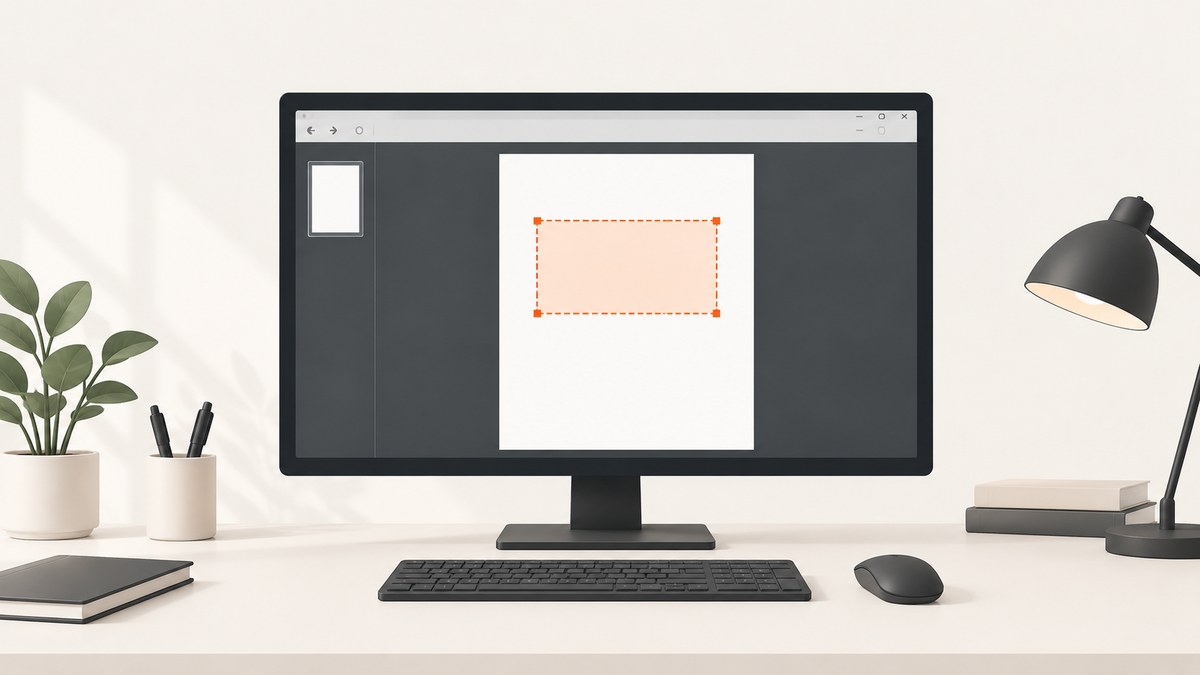
Use Windows + Shift + S. Open the PDF, place the page or section on screen, press Windows logo key + Shift + S, choose a snip mode, and drag over the content. The capture is copied to your clipboard; select the Snipping Tool notification to edit or save it. Microsoft documents this workflow for Windows 10 and Windows 11 in Snipping Tool support.
Choose the right Windows screenshot method
| What you need | Shortcut | Result |
|---|---|---|
| Part of a PDF page | Windows + Shift + S | Select a rectangular or freeform area; copied to clipboard |
| PDF reader window | Windows + Shift + S, then Window snip | Captures the selected application window |
| Entire screen copied | PrtSc | Copies a full-screen image to the clipboard |
| Active window copied | Alt + PrtScn | Copies only the active window |
| Entire screen saved automatically | Windows + PrtScn | Saves an image in Pictures\Screenshots |
| Keyboard without PrtScn | Fn + Windows + Space Bar | Alternative documented for some devices |
How to capture part of a PDF
- Open the PDF in your browser or PDF reader.
- Navigate to the page you need.
- Adjust zoom and scroll position so the complete passage, table, or figure is visible. A screenshot records the pixels currently displayed, including any visible margins or application chrome.
- Press Windows + Shift + S. The screen dims and the Snipping Tool overlay appears.
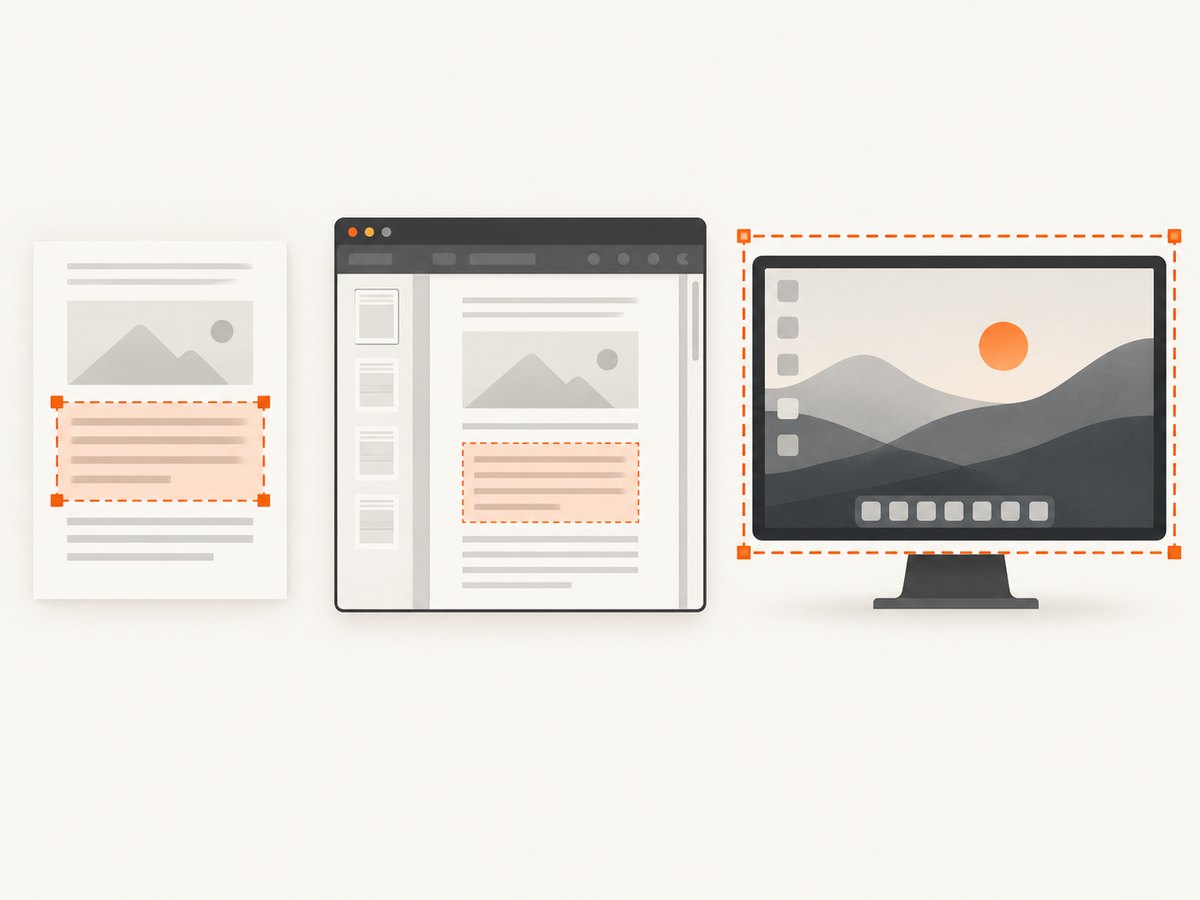
- Choose Rectangular snip for a clean excerpt, Freeform snip for an irregular shape, Window snip for the reader window, or Full-screen snip for everything visible.
- Click and drag around the PDF content. Release the mouse or trackpad button.
- Use the notification or open Snipping Tool to annotate, copy, share, or save the image.
Save the screenshot as a file
After capturing, click the Snipping Tool notification. Select the save button, choose a folder, name the file, and select an image format available in the dialog. If you only need to paste the image into an email or document, press Ctrl + V in the destination app instead.

Capture an entire PDF page
Windows screen capture works on the visible screen area. To capture a full page, zoom the PDF until the page fits inside the display, then use a rectangular snip around the page. If the page is taller than the screen, a normal screenshot cannot include the hidden portion below the fold. Capture it in sections or use an export-to-image feature supplied by your PDF application; the exact export steps vary by application.
Capture a PDF reader window or the whole desktop
Window only
Press Windows + Shift + S, choose Window snip, and select the PDF reader. This includes the window frame and any visible controls.
Full screen to a file
Press Windows + PrtScn. Microsoft lists Pictures\Screenshots as the default destination. Open File Explorer and browse to Pictures, then Screenshots.
Full screen or active window to the clipboard
Use PrtSc for the whole screen or Alt + PrtScn for the active window, then paste with Ctrl + V.
Make the capture easier to read
- Increase PDF zoom until small text is legible, while keeping the required content visible.
- Hide sidebars, thumbnails, bookmarks, and toolbars before selecting the region.
- Use rectangular mode for reports and tables so the edges are predictable.
- Capture at the display’s current scale; a screenshot does not recreate the PDF’s original vector or print resolution.
- For a long page, take overlapping captures so no lines are lost between sections.
Where screenshots are saved
Snips made with Windows + Shift + S are initially copied to the clipboard. Save them explicitly from the Snipping Tool notification or window. Screens captured with Windows + PrtScn are saved under Pictures\Screenshots by default. If you cannot find a file, open File Explorer and search for recent .png files, then check whether OneDrive has redirected your Pictures folder.
Troubleshooting
| Problem | Cause | Fix |
|---|---|---|
| Windows + Shift + S does nothing | The shortcut is intercepted, Snipping Tool is unavailable, or the keyboard layout behaves differently. | Open Snipping Tool from the Start menu, install pending Windows updates, and try the app’s New button. |
| The screenshot is in the clipboard but no file exists | A snip is copied first; it is not automatically saved. | Click the notification, choose Save, or paste it into Paint and save from there. |
| The PDF is blurry | The page was displayed at low zoom or the screenshot area was enlarged afterward. | Increase PDF zoom before capturing and avoid scaling the image up after saving. |
| The bottom of the page is missing | Only visible pixels are captured. | Zoom out, capture the page in sections, or use the PDF reader’s page-export function. |
| PrtSc opens Snipping Tool unexpectedly | Windows can assign the PrtSc key to screen snipping. | Change the setting under Accessibility > Keyboard if you prefer clipboard capture. |
| The keyboard has no PrtScn key | Some compact and laptop keyboards omit it. | Try Fn + Windows + Space Bar, or use Windows + Shift + S from the Snipping Tool. |
| A protected PDF shows a blank or restricted area | The document viewer may block copying or display content through a protected plug-in. | Use the permitted viewing and sharing options supplied by the document owner. Do not bypass access controls. |
Performance, quality, and privacy considerations
- A screen snip is immediate and requires no upload, making it suitable for sensitive documents when your workplace policy allows local capture.
- The output contains whatever is visible, including notifications, names, browser tabs, or other confidential material. Close unrelated windows before using a full-screen mode.
- For repeated page images, an application-level PDF export is usually more consistent than manually aligning many screen snips.
- Use a descriptive filename such as
contract-page-03.pngand keep the original PDF when the screenshot may be used as evidence.
Or skip the browser setup
If the PDF is available at a public URL and you need an image of what a browser displays, ScreenshotNeo can return a screenshot with one request. See the ScreenshotNeo API documentation for all parameters.
curl -G "https://api.screenshotneo.com/v1/shot" -d access_key=YOUR_API_KEY --data-urlencode url=https://your-site.example/file.pdf -o shot.webpimport requests
r = requests.get("https://api.screenshotneo.com/v1/shot", params={"access_key": "YOUR_API_KEY", "url": "https://your-site.example/file.pdf"}, timeout=90)
open("shot.webp", "wb").write(r.content)const q = new URLSearchParams({ access_key: 'YOUR_API_KEY', url: 'https://your-site.example/file.pdf' });
const res = await fetch(`https://api.screenshotneo.com/v1/shot?${q}`);Cookie banners, popups, and chat widgets are removed before the shot. Bot checks, blank pages, and failed loads are never billed. An MCP server lets AI agents take screenshots. The free plan includes 1,000 screenshots a month with no card, and paid plans start at $5 for 3,000. Create a free ScreenshotNeo account.
FAQ
How do I screenshot only one page?
Fit that page in the visible window, then use a rectangular snip around it. If it does not fit, capture it in sections or export the page from the PDF application.
Can I screenshot a PDF without opening it?
Windows screen shortcuts capture the screen, so the PDF must be displayed. A URL-based capture service can render a publicly reachable document instead.
What format should I use?
PNG is usually best for text and diagrams. JPEG can produce smaller files for photographic pages. Choose based on how the image will be shared.
Why is my screenshot missing annotations?
Annotations must be visible in the reader before capture. Confirm that layers, comments, and markup are enabled, then take the snip again.


