How to Take a Screenshot on a Samsung Device
Learn every reliable way to screenshot a Samsung Galaxy phone or tablet, including buttons, palm swipe, scrolling pages, S Pen captures, and fixes.
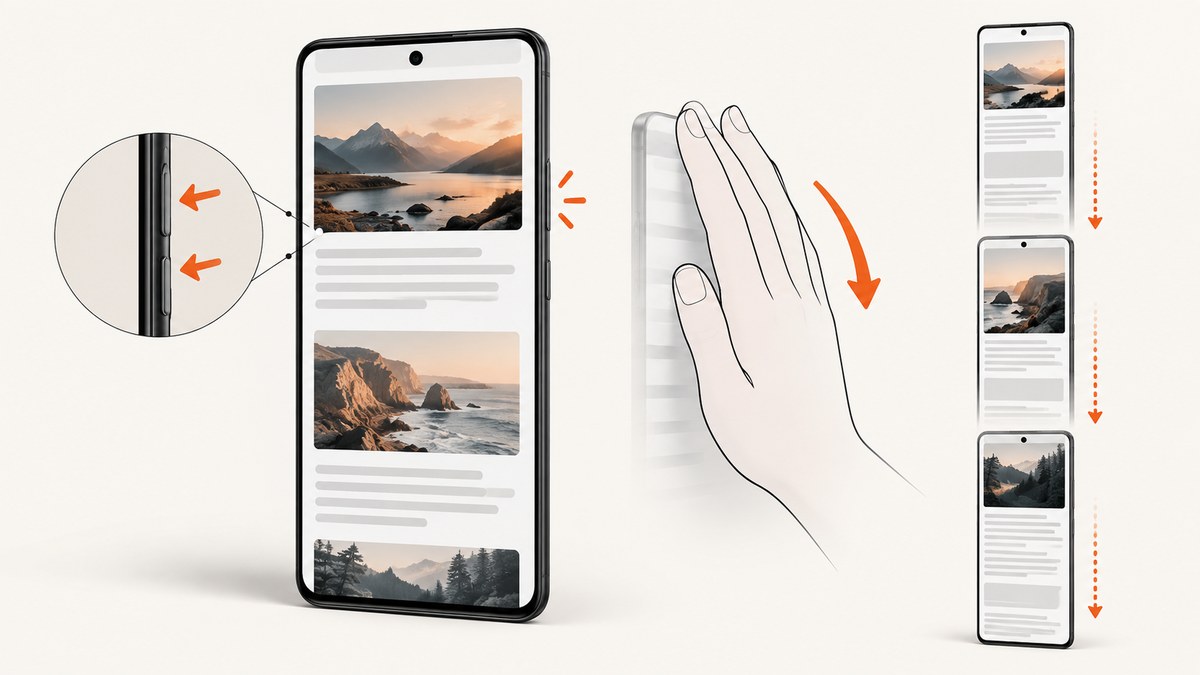
On most Samsung Galaxy phones and tablets, press and release the Power/Side button and Volume Down together. The screen flashes, and Samsung says the image is saved in Gallery. Release the buttons promptly instead of holding them.
1. Use the Power/Side and Volume Down buttons
- Open the screen you want to save.
- Press the Power/Side and Volume Down buttons at exactly the same time.
- Release both buttons immediately.
- Look for the flash or screenshot toolbar, then open Gallery to find the image.
The toolbar can provide actions such as scrolling capture, drawing, tagging, and sharing. This is the default method because it needs no setup and works on most current Galaxy phones and tablets. Samsung Electronics America documents this procedure in its 2025 support guidance.
Older Samsung tablets with a physical Home button
Some older tablets use Power + Home instead. Press and release those two buttons together. Hardware combinations vary by model, so use the buttons physically present on your tablet.
2. Take a screenshot with Palm swipe
Palm swipe lets you capture the display without pressing the hardware buttons. Samsung cautions that the setting depends on the model, software version, region, and carrier.
- Open Settings.
- Tap Advanced features.
- Choose Motions and gestures.
- Turn on Palm swipe to capture.
- Place the edge of your hand on one side of the display and swipe across it.
A successful gesture produces the same screenshot result as the button method. Palm swipe is unavailable while the keyboard is showing. Close the keyboard before trying again. Samsung also lists some devices, including Galaxy Tab S6 Lite, as lacking this feature.
3. Capture a whole webpage or long document
Use Scroll capture when the content extends beyond one screen. It works with supported scrollable webpages, documents, and apps.
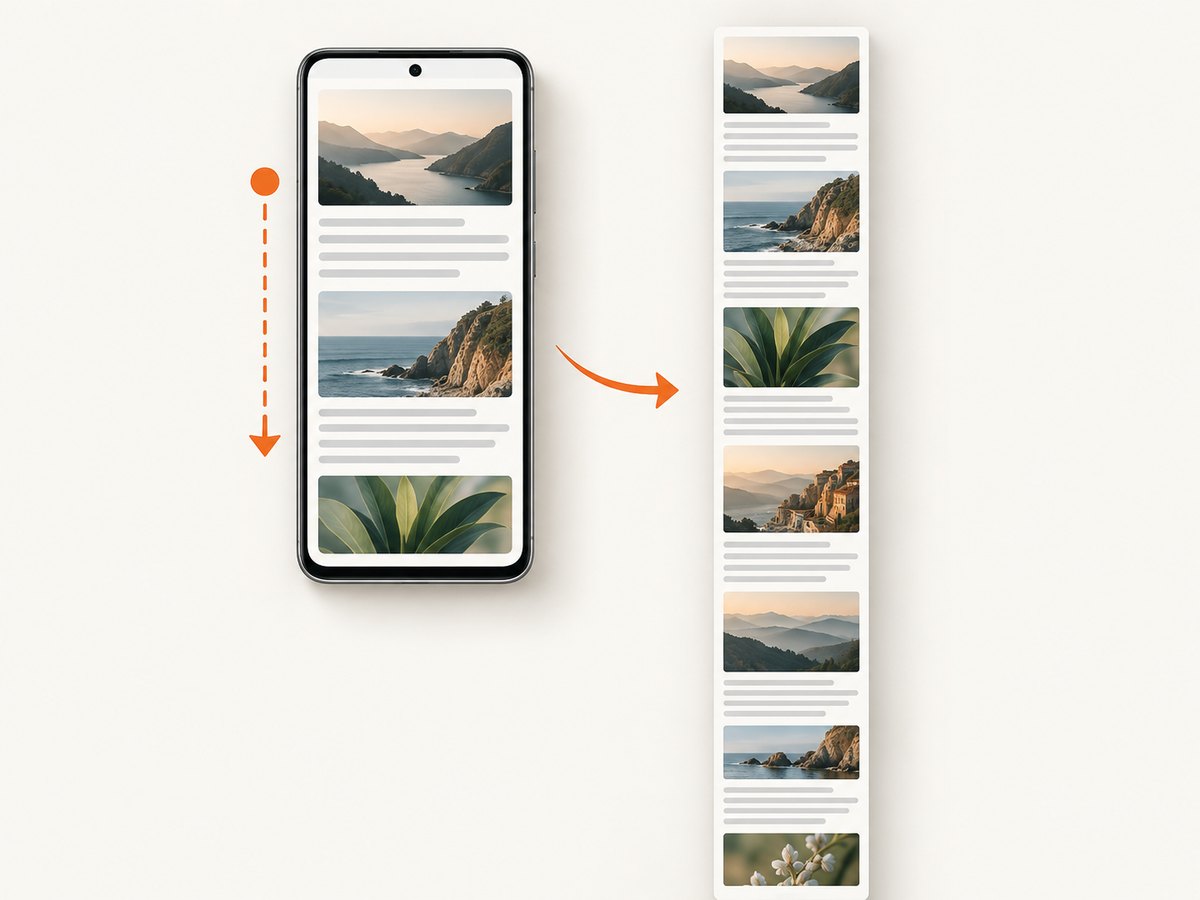
- Take a normal screenshot with Power/Side + Volume Down.
- When the toolbar appears, tap the Scroll capture button, shown as a downward-arrow icon.
- Tap it again to continue down the page, or stop when the required content is included.
- Save or share the resulting long image from the toolbar or Gallery.
Samsung’s guidance says the Scroll capture icon appears only when the current content extends beyond one screen. If you do not see it, try a page that can scroll and wait for the page to finish loading.
Why Scroll capture may stop early
- The app does not expose a scrollable page to Android.
- The page has reached its end.
- A modal, fixed panel, or embedded viewer prevents normal scrolling.
- The app limits screenshots for privacy or security.
For very long pages, capture in sections if the app cannot create one continuous image. Check the final image in Gallery before closing the source page.
4. Use an S Pen for annotation or a selected area
On compatible Galaxy devices, the S Pen adds capture and markup workflows through Air command.
Screen write
- Open Air command.
- Choose Screen write.
- Annotate, crop, or mark the captured screen.
- Save or share the result.
Smart select
Choose Smart select when you need only part of the display. Depending on the device, you can select a rectangle, lasso, oval, GIF, or pinned partial capture. Save the selection after adjusting its bounds.
5. Choose the right Samsung screenshot method
| Method | Hardware or setup | Capture scope | Compatibility notes |
|---|---|---|---|
| Power/Side + Volume Down | Two buttons; no setup | Current screen | Default on most Galaxy phones and tablets |
| Power + Home | Two buttons; no setup | Current screen | Older tablets with a physical Home button |
| Palm swipe | Enable a gesture in Settings | Current screen | Model and software dependent; unavailable with keyboard open |
| Scroll capture | Start with a normal screenshot | Scrollable content beyond one screen | Toolbar icon appears only when scrolling is supported |
| S Pen Screen write | Compatible S Pen | Current screen with markup | Available on supported S Pen devices |
| S Pen Smart select | Compatible S Pen | Selected region, GIF, or pinned area | Available options vary by device |
6. Where Samsung saves screenshots
Open Gallery and look for the Screenshots album. You can open the image to crop, draw, tag, edit, or share it. If it is not immediately visible, use Gallery search or check that the capture actually completed before navigating away.
7. Troubleshooting Samsung screenshots
The buttons do nothing
- Press and release both buttons simultaneously; do not hold them.
- Remove a case that may obstruct either key.
- Try the physical buttons again from a normal, unlocked screen.
- On an older tablet, try Power + Home instead.
Palm swipe is missing
Your model may not support it. Check Settings > Advanced features > Motions and gestures; Samsung specifically identifies Galaxy Tab S6 Lite as a tablet without palm-swipe capture. Software and regional differences can also change the menu.
Palm swipe does not trigger a capture
- Confirm the setting is enabled.
- Swipe the edge of your hand fully across the display.
- Close the on-screen keyboard.
- Try a slower, flatter swipe without touching other controls.
Scroll capture is not shown
The current screen may not be scrollable, or the app may block the feature. Scroll first to confirm there is more content, then take a new screenshot and check the toolbar again.
An app blocks screenshots
Some apps and screens restrict screenshots for privacy or security. Samsung notes that availability varies by model, software version, and region or carrier. There is no Samsung capture setting that can override an app’s security policy.
The screenshot is incomplete or blank
Wait for the page to render, dismiss overlays, and retry. A protected video, banking screen, or other secure surface can intentionally produce a restricted result.
8. Tips for reliable captures
- Hold the device steady while using Palm swipe.
- For long pages, start near the top and inspect the bottom of the saved image.
- Use S Pen Smart select when you need a small region instead of cropping a full-screen image later.
- Close sensitive notifications before capturing a screen you plan to share.
- Check Gallery immediately when the screenshot matters, such as a receipt or error message.
9. Or skip the browser setup
If what you really need is a screenshot of a website for documentation, testing, or an automated workflow, ScreenshotNeo returns an image or PDF from one request. It handles the browser session for you and supports PNG, JPEG, WebP, and PDF output.
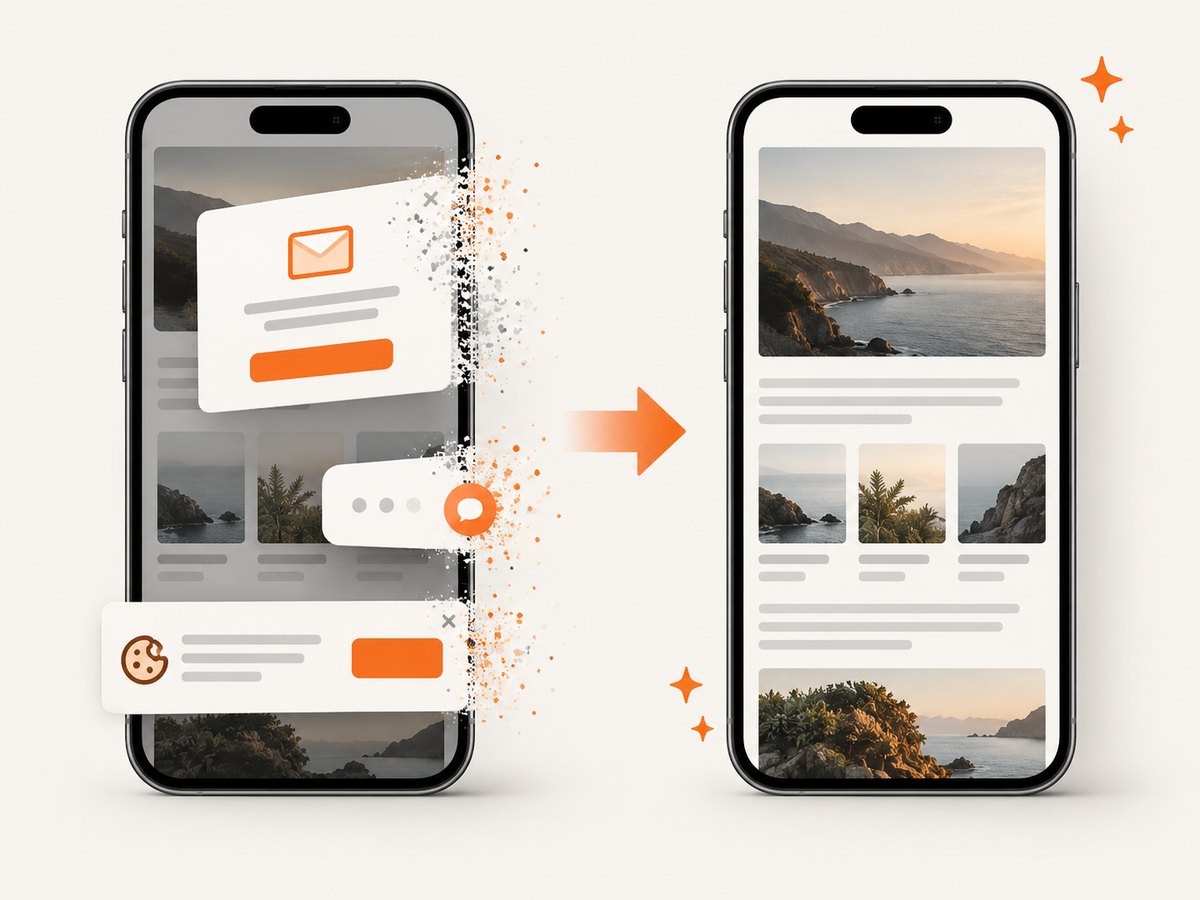
See the ScreenshotNeo API documentation for all options. This minimal call captures a webpage:
curl -G "https://api.screenshotneo.com/v1/shot" -d access_key=YOUR_API_KEY --data-urlencode url=https://stripe.com -o shot.webpimport requests
r = requests.get("https://api.screenshotneo.com/v1/shot", params={"access_key": "YOUR_API_KEY", "url": "https://stripe.com"}, timeout=90)
open("shot.webp", "wb").write(r.content)const q = new URLSearchParams({ access_key: 'YOUR_API_KEY', url: 'https://stripe.com' });
const res = await fetch(`https://api.screenshotneo.com/v1/shot?${q}`);ScreenshotNeo removes cookie and consent banners, newsletter popups, and chat widgets before capture. Bot checks, blank pages, failed loads, timeouts, and cache hits are not billed, and response headers report the page verdict and billing status. Its MCP server provides take_screenshot, get_page_info, and capture_pdf tools for Claude, Cursor, and other MCP clients. You get 1,000 screenshots each month free with no card; paid plans start at $5 for 3,000 shots. Create a free ScreenshotNeo account.
10. FAQ
What is the fastest way to screenshot a Samsung phone?
Press and release Power/Side and Volume Down together.
Can I screenshot without the Power button?
Yes, if your model supports Palm swipe and you enable it under Advanced features and Motions and gestures. Compatible S Pen devices also offer capture tools.
How do I screenshot an entire webpage?
Take a normal screenshot, then tap Scroll capture and continue until the page ends or you have the needed section.
Why can I not screenshot a banking or streaming app?
Some apps block screenshots as a privacy or security measure. Samsung says exact availability varies by app, model, software, region, and carrier.
Do all Samsung tablets use the same buttons?
No. Most current models use Power/Side + Volume Down, while older tablets with a physical Home button may use Power + Home.


