How to Take a Screenshot on a Samsung Galaxy S10
Press Power and Volume Down together to screenshot your Galaxy S10. Learn Palm swipe, scrolling captures, voice commands, saved locations, and fixes.
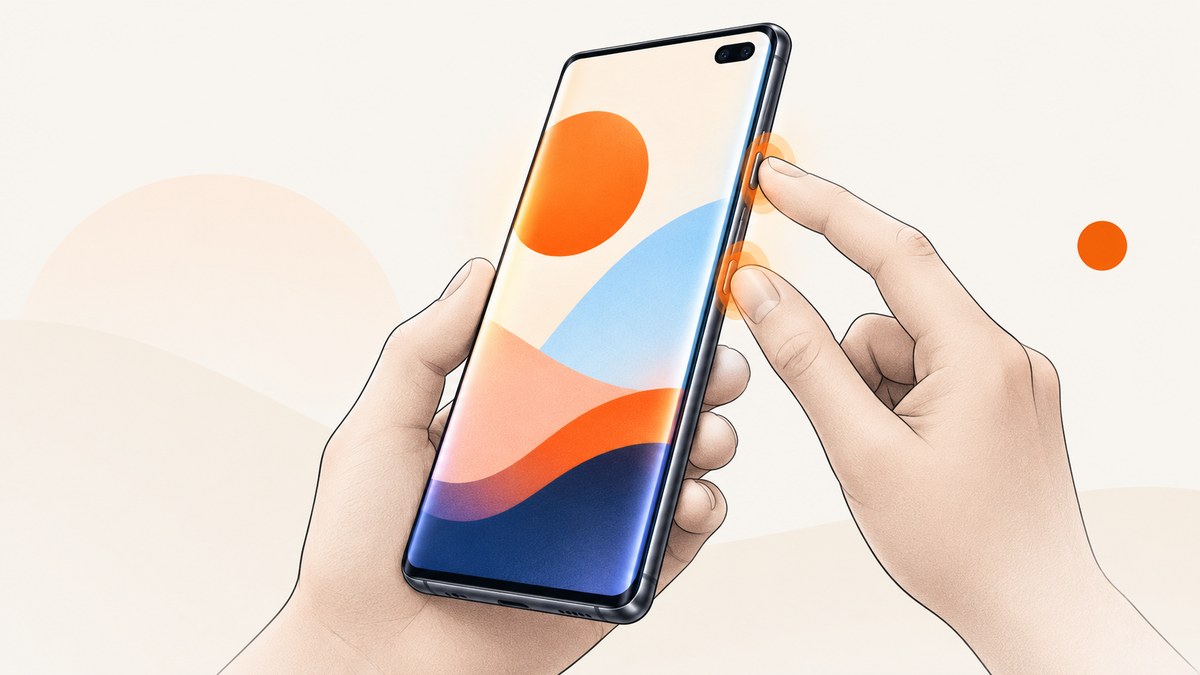
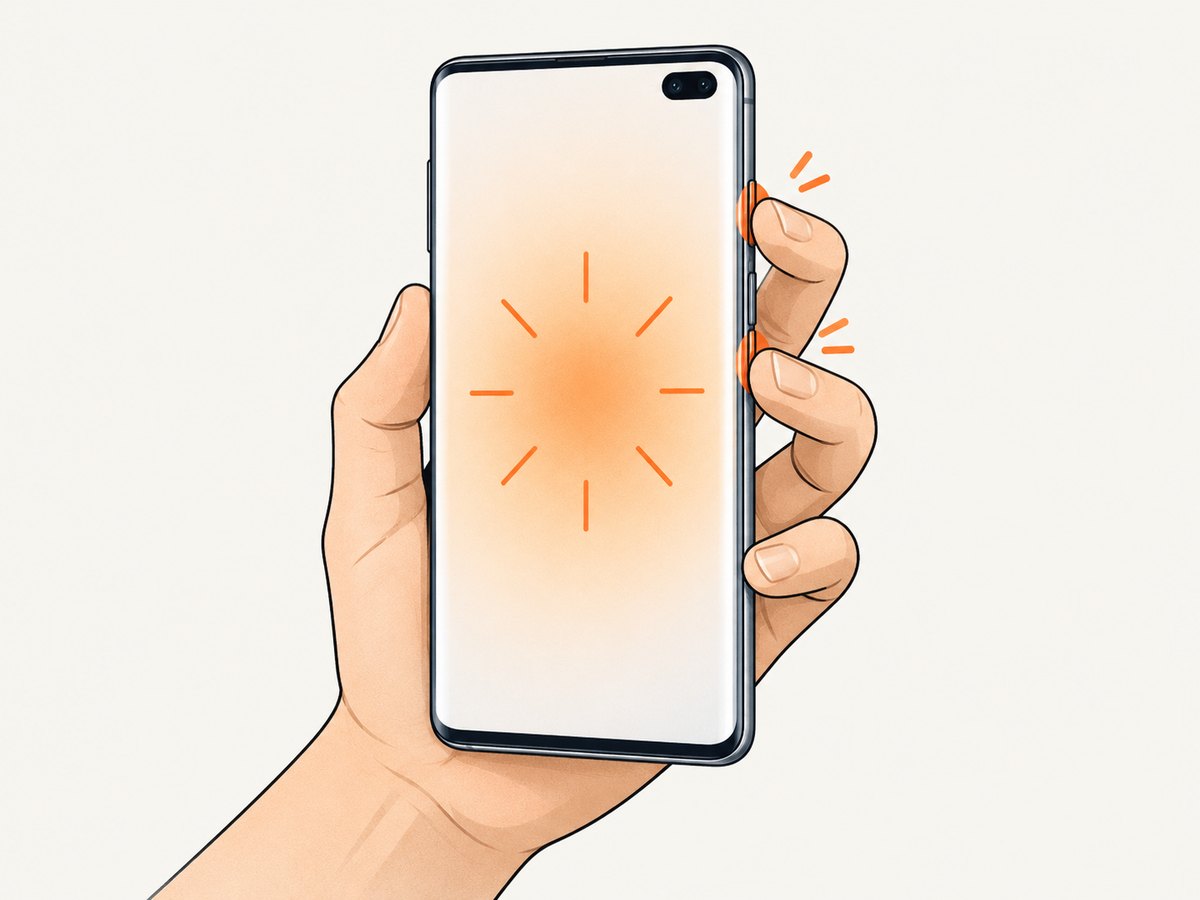
To take a screenshot on a Samsung Galaxy S10, press and release the Power (Side) button and Volume Down button at the same time. The screen briefly flashes, and the image is saved automatically in Gallery > Albums > Screenshots.
1. Use the S10 screenshot buttons
- Open the screen you want to capture.
- Press the Power/Side and Volume Down buttons together.
- Release both buttons promptly after the brief capture action.
- Look for the screen flash and thumbnail preview. Tap the preview to edit or share it.
Samsung’s guidance is: “Press the Volume down button and the Power button (or the Side button) at the same time.” A long hold can open the power menu, so use a quick, simultaneous press rather than holding the buttons.
| Method | Best for | Limitation |
|---|---|---|
| Power/Side + Volume Down | Fast, reliable single-screen captures | Requires both buttons to be pressed together |
| Palm swipe | Capturing without pressing physical buttons | Must be enabled; may be unavailable while the keyboard is open |
| Scroll capture | Long webpages, chats and documents | Only appears when the current screen supports scrolling |
| Bixby or Google Assistant | Hands-free screenshots | Voice assistant must be enabled and able to hear the command |
2. Turn on Palm swipe to capture
Palm swipe lets you sweep the edge of your hand across the display instead of pressing buttons.
- Open Settings.
- Tap Advanced features.
- Choose Motions and gestures.
- Enable Palm swipe to capture.
- Place the side of your hand on one edge of the screen and swipe across it.
Settings can vary by software version, carrier and model. If the gesture does nothing, confirm the toggle is enabled and try again with the edge of your hand touching the display. Samsung notes that Palm swipe may not work while the keyboard is showing.
3. Capture a full or long page with Scroll capture
For a page longer than the screen, first take a normal screenshot with the two buttons. When the capture toolbar appears, tap Scroll capture (the icon with down arrows). Continue tapping it until the screenshot includes the content you need, then stop.
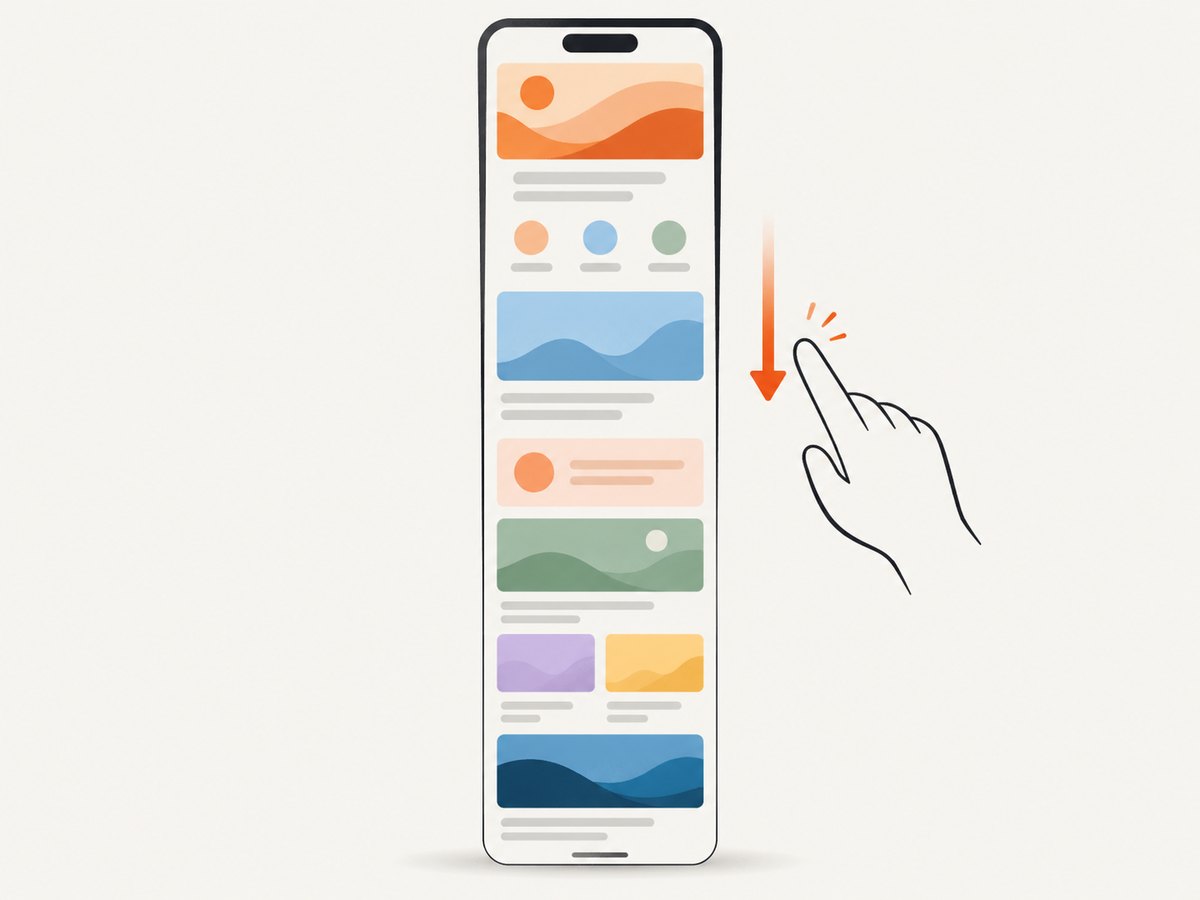
Scroll capture works only on scrollable screens and its availability depends on the app and software version. If the down-arrow button is missing, the app may not support a stitched scrolling screenshot, or the content may already fit on one screen.
4. Use Bixby or Google Assistant
With the relevant assistant enabled, say one of these commands:
- “Hey Bixby, take a screenshot.”
- “Hey Google, take a screenshot.”
The assistant needs microphone access and must be active on your phone. Voice capture is useful when you cannot reach the buttons, but the physical-button method is usually quicker for an ordinary screenshot.
5. Find, edit and share the screenshot
- Open Gallery.
- Tap Albums.
- Open Screenshots.
Samsung saves button, Palm swipe and voice screenshots automatically. From the thumbnail toolbar or Gallery editor, you may be able to crop, draw, add tags and share. The exact toolbar can differ by model and software version.
6. Troubleshooting Galaxy S10 screenshots
The button shortcut opens the power menu
Cause: One or both buttons were held too long, or they were pressed at different times.
Fix: Press Power/Side and Volume Down simultaneously, then release promptly.
Nothing happens when I press both buttons
Cause: The timing was off, a case is obstructing a button, or the phone is responding slowly.
Fix: Remove a tight case temporarily, press the center of each button together and try again. If needed, use Palm swipe after enabling it.
Palm swipe is not working
Cause: The feature is disabled, the gesture is not crossing the display correctly, or the keyboard is open.
Fix: Check Settings > Advanced features > Motions and gestures > Palm swipe to capture. Close the keyboard and swipe the edge of your hand fully across the screen.
Scroll capture is missing
Cause: The current app or screen does not expose a scrollable capture, or the content fits on one screen.
Fix: Scroll the page first, take a fresh screenshot and check the toolbar for the down-arrow Scroll capture icon. Some protected or specialized apps do not provide it.
A banking app or Secure Folder blocks screenshots
Cause: Protected screens can disable screenshots for privacy and security. Samsung specifically warns that some apps, Secure Folder screens and banking apps may prevent capture.
Fix: You cannot override that restriction through the normal S10 screenshot controls. Use an allowed export or sharing feature provided by the app.
The menus do not match these instructions
Cause: Samsung changes labels and available settings across software versions, carriers and models.
Fix: Search Settings for “screenshot” or “Palm swipe,” and use the Power/Side plus Volume Down shortcut first.
7. Or skip the browser setup
If you need screenshots of websites from a script, build job or AI workflow instead of a physical Galaxy S10, ScreenshotNeo returns a PNG, JPEG, WebP or PDF from one GET request. Its browser handles cookie and consent banners before capture and removes more than 60 known consent platforms, newsletter popups and chat widgets. Bot checks, blank pages, timeouts, failed loads and cache hits are not billed, and response headers identify the page verdict and billing status. An MCP server also lets Claude, Cursor and other MCP clients call take_screenshot, get_page_info and capture_pdf.
See the ScreenshotNeo API documentation for all options.
curl -G "https://api.screenshotneo.com/v1/shot" -d access_key=YOUR_API_KEY --data-urlencode url=https://stripe.com -o shot.webpimport requests
r = requests.get("https://api.screenshotneo.com/v1/shot", params={"access_key": "YOUR_API_KEY", "url": "https://stripe.com"}, timeout=90)
open("shot.webp", "wb").write(r.content)const q = new URLSearchParams({ access_key: 'YOUR_API_KEY', url: 'https://stripe.com' });
const res = await fetch(`https://api.screenshotneo.com/v1/shot?${q}`);Free accounts include 1,000 screenshots each month with no card. Paid plans start at $5 for 3,000 shots. Create a free ScreenshotNeo account.
8. FAQ
Where are screenshots saved on the S10?
Open Gallery, choose Albums, then open Screenshots.
Can I screenshot with one hand?
Enable Palm swipe to capture, or use Bixby or Google Assistant if voice control is enabled.
Can I take a screenshot of an entire webpage?
Use Scroll capture after taking the first screenshot, provided the app supports a scrollable capture.
Why is my screenshot black?
A protected app or screen may block capture. Banking apps and Secure Folder are common examples.
Does every Galaxy S10 menu look the same?
No. Carrier, model and software-version differences can change settings and available capture tools.


