How to Screenshot a Scrollable Div With Selenium and Python
Capture a visible element or stitch a scrollable div into one full image with Selenium and Python, including code, edge cases, and fixes.
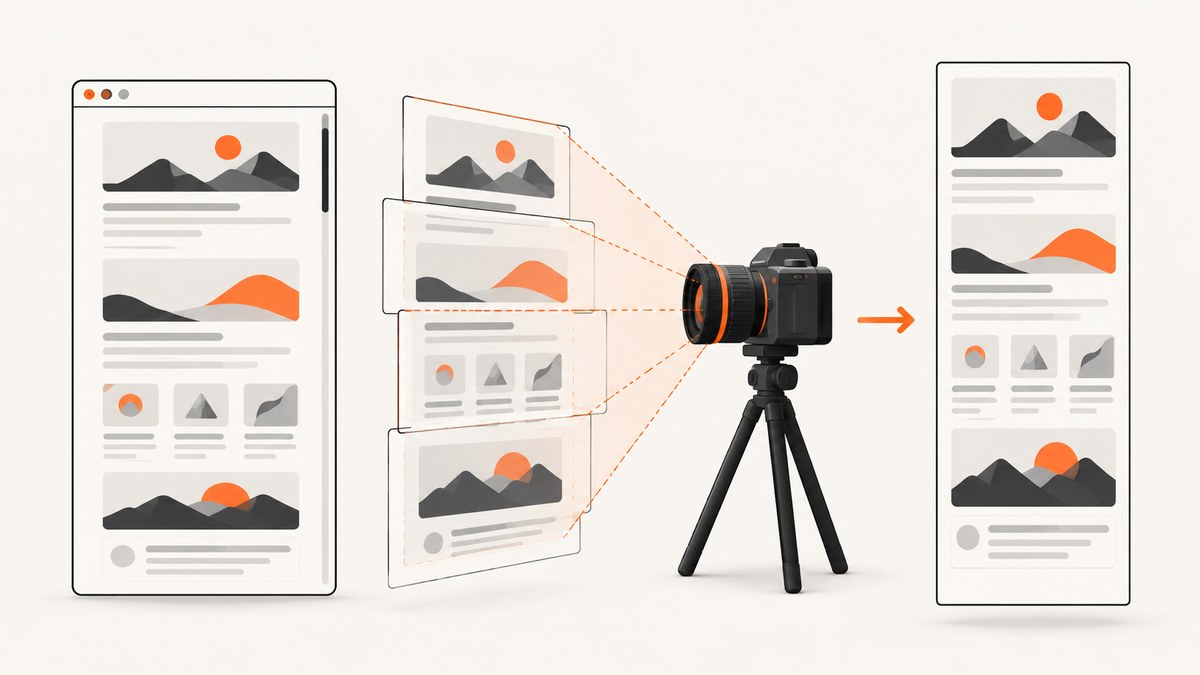
To screenshot a scrollable div with Selenium and Python, first decide whether you need the visible panel or all content inside it. Selenium’s WebElement.screenshot() saves the element as a PNG at its current rendered size. It does not document an automatic composite of the element’s entire scrollHeight. For the complete scrollable region, set the div’s own scrollTop, capture overlapping frames, and stitch them with Pillow.
1. Capture the visible part of the div
This is the shortest solution when the content currently visible in the panel is all you need. The official Selenium Python API describes this method as saving a PNG screenshot of the current element: WebElement screenshot documentation.
from pathlib import Path
from selenium import webdriver
from selenium.webdriver.common.by import By

options = webdriver.ChromeOptions()
options.add_argument("--headless=new")
options.add_argument("--window-size=1440,1000")

driver = webdriver.Chrome(options=options)
try:
    driver.get("https://example.com/page-with-panel")
    panel = driver.find_element(By.CSS_SELECTOR, ".scrollable-panel")
    output = Path("panel-visible.png").resolve()
    panel.screenshot(str(output))
    print(f"Saved {output}")
finally:
    driver.quit()
The file contains the element’s current rendered box, including borders and padding as rendered by the browser. If the panel is partly outside the viewport, bring it into view first:
driver.execute_script(
    "arguments[0].scrollIntoView({block: 'start', inline: 'nearest'});",
    panel,
)
panel.screenshot("panel-visible.png")
Selenium interactions may also scroll an out-of-view target into view, but that behavior only positions the element; it does not capture every pixel in an overflowing container. See the element interaction documentation.
2. Capture the entire scrollable div
A nested scrolling container has its own scroll position. Scrolling the document with window.scrollTo may leave the div unchanged. Read the element’s scrollHeight and clientHeight, assign successive values to scrollTop, and capture each viewport.
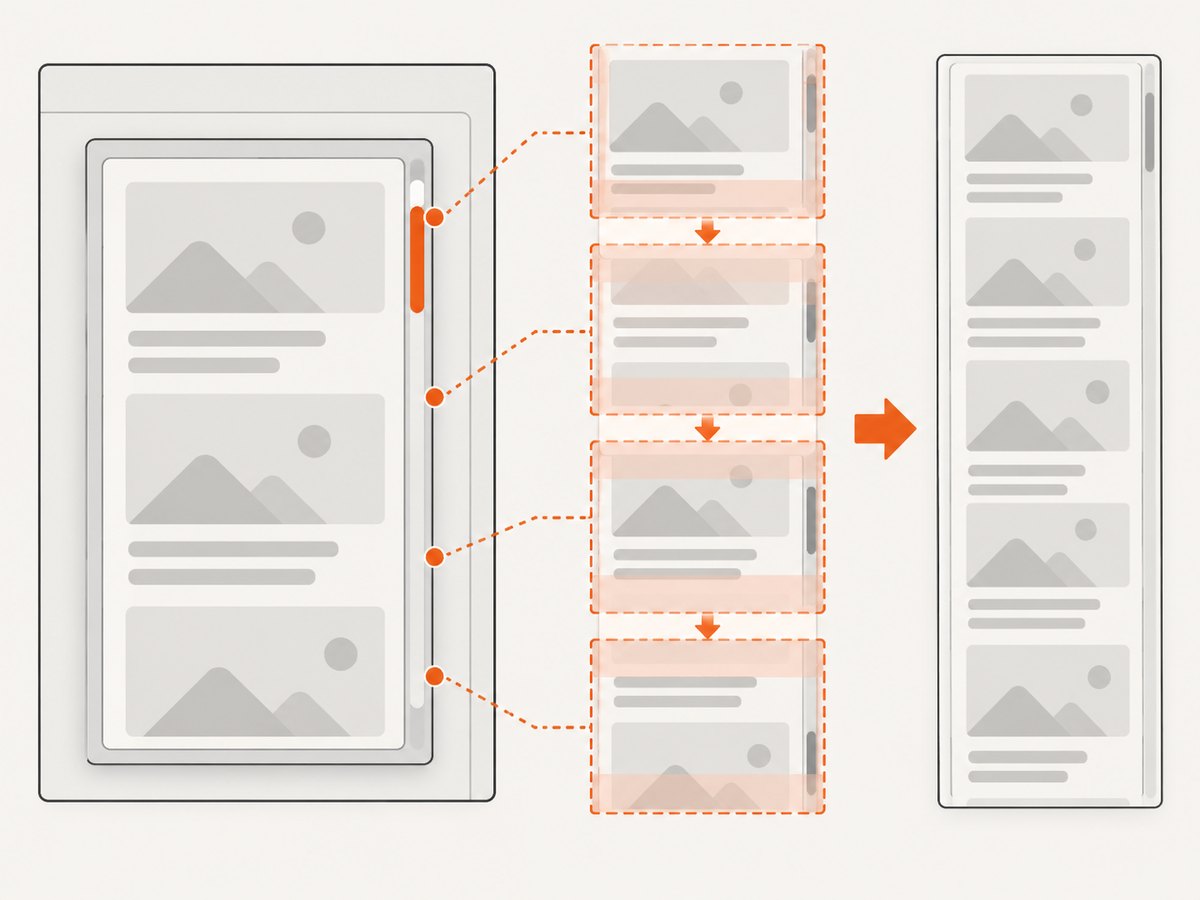
The following script is a complete example. It keeps an overlap between frames, waits for the browser to paint, and stitches the frames vertically. The overlap helps prevent gaps at joins; inspect the result when the page contains sticky or animated content.
from pathlib import Path
from time import sleep

from PIL import Image
from selenium import webdriver
from selenium.webdriver.common.by import By

URL = "https://example.com/page-with-panel"
SELECTOR = ".scrollable-panel"
FRAME_DIR = Path("panel-frames")
OUTPUT = Path("panel-full.png")
OVERLAP_CSS_PX = 40
PAINT_DELAY_SECONDS = 0.15

options = webdriver.ChromeOptions()
options.add_argument("--headless=new")
options.add_argument("--window-size=1440,1000")
driver = webdriver.Chrome(options=options)

try:
    driver.get(URL)
    panel = driver.find_element(By.CSS_SELECTOR, SELECTOR)
    driver.execute_script(
        "arguments[0].scrollIntoView({block: 'start', inline: 'nearest'});",
        panel,
    )

    metrics = driver.execute_script(
        """
        const el = arguments[0];
        return {
          scrollHeight: el.scrollHeight,
          clientHeight: el.clientHeight,
          clientWidth: el.clientWidth,
          devicePixelRatio: window.devicePixelRatio
        };
        """,
        panel,
    )
    total_height = metrics["scrollHeight"]
    viewport_height = metrics["clientHeight"]
    if viewport_height <= 0 or total_height <= 0:
        raise RuntimeError("The element has no rendered content")

    FRAME_DIR.mkdir(exist_ok=True)
    step = max(1, viewport_height - OVERLAP_CSS_PX)
    offsets = list(range(0, max(1, total_height - viewport_height + 1), step))
    final_offset = max(0, total_height - viewport_height)
    if offsets[-1] != final_offset:
        offsets.append(final_offset)

    frame_paths = []
    for index, offset in enumerate(offsets):
        driver.execute_script(
            "arguments[0].scrollTop = arguments[1];",
            panel,
            offset,
        )
        sleep(PAINT_DELAY_SECONDS)
        path = FRAME_DIR / f"frame-{index:03d}.png"
        panel.screenshot(str(path))
        frame_paths.append((path, offset))

    first = Image.open(frame_paths[0][0]).convert("RGB")
    scale_y = first.height / viewport_height
    output_height = round(total_height * scale_y)
    stitched = Image.new("RGB", (first.width, output_height), "white")

    for path, offset in frame_paths:
        frame = Image.open(path).convert("RGB")
        y = round(offset * scale_y)
        # Crop the frame at the bottom when it extends past the known content.
        available = min(frame.height, output_height - y)
        if available > 0:
            stitched.paste(frame.crop((0, 0, frame.width, available)), (0, y))

    stitched.save(OUTPUT)
    print(f"Saved {OUTPUT} from {len(frame_paths)} frames")
finally:
    driver.quit()
Install the image dependency with python -m pip install selenium pillow. Selenium Manager can obtain a compatible driver in current Selenium releases; otherwise install and configure the driver required by your browser.
Why the script uses CSS pixels and an overlap
scrollHeightandclientHeightare CSS-pixel measurements. Screenshots may be larger in device pixels when the browser has a device scale factor, so the script derives a vertical scale from the first frame.- The final offset is explicitly added so the bottom edge is covered even when the step does not divide the scroll range evenly.
- The script pastes frames at their measured offsets instead of blindly concatenating them. This avoids duplicating the overlap, but fixed headers inside the panel can still appear repeatedly and require page-specific cropping.
3. Wait for content before each capture
Virtualized lists, lazy images, fonts, and animations can change a frame after scrollTop is assigned. Prefer a deterministic wait where the page exposes one. Otherwise use a short delay and verify that the panel’s layout has settled.
from selenium.webdriver.support.ui import WebDriverWait

# Example: wait until a loading marker disappears.
WebDriverWait(driver, 20).until(
    lambda d: not d.find_elements(By.CSS_SELECTOR, ".panel-loading")
)

# After each scroll, wait for a marker or image condition when available.
driver.execute_script("arguments[0].scrollTop = arguments[1];", panel, offset)
WebDriverWait(driver, 10).until(
    lambda d: d.execute_script(
        "return arguments[0].querySelectorAll('img:not([complete])').length === 0;",
        panel,
    )
)
If the application virtualizes rows, scrolling may remove earlier DOM nodes. Capture each frame while it is rendered, and do not assume that querying the final DOM can reconstruct earlier content.
4. Alternative scrolling methods
JavaScript scrollTop
JavaScript is usually the most precise option for a nested div. Selenium’s execute_script runs synchronous JavaScript in the current window or frame and accepts WebElements as arguments: WebDriver API.
driver.execute_script("arguments[0].scrollTop = arguments[1];", panel, 800)Wheel actions
Use wheel actions when you need user-like scrolling. Selenium documents ActionChains.scroll_to_element and scroll_by_amount; the wheel-actions documentation identifies this API as Selenium 4.2 and Chromium-only: ActionChains API and wheel actions.
from selenium.webdriver.common.action_chains import ActionChains

actions = ActionChains(driver)
actions.scroll_to_element(panel).perform()
actions.scroll_by_amount(0, 600).perform()
Wheel scrolling is less deterministic for stitching because the browser can apply momentum, event handlers, or different deltas. Use measured scrollTop values when exact coverage matters.
5. Common edge cases
| Case | What happens | Practical handling |
|---|---|---|
| Horizontal overflow | Content extends beyond the panel width. | Read scrollWidth and either capture horizontal positions too or set a wider viewport. A vertical stitch alone cannot include hidden columns. |
| Sticky child or header | The same header appears in every frame. | Exclude it with a temporary CSS rule, crop it from frames, or align and deduplicate during stitching. |
| Nested scroll containers | Scrolling the outer panel does not move the inner one. | Find the element whose computed overflow-y is scrollable and set that element’s scrollTop. |
| Transforms and zoom | Rendered pixels do not map simply to CSS dimensions. | Keep browser zoom at 100%, record device pixel ratio, and calculate scale from the captured frame. |
| Cross-origin iframe | Scripts in the parent cannot inspect the iframe’s DOM. | Switch into the frame with Selenium if it is accessible; otherwise capture the frame as a separate browsing context subject to browser security. |
| Animations and blinking carets | Joins differ between frames. | Pause animations with injected CSS where permitted and wait for a stable state. |
| Canvas or video | Pixels can change while scrolling. | Pause media or capture at a known timestamp; expect frame-to-frame differences. |
| Lazy-loaded images | Earlier frames may be blank if images load late. | Wait for image completion after each scroll and reserve extra time for network and decoding. |
6. Troubleshooting
| Symptom | Cause | Fix |
|---|---|---|
NoSuchElementException |
The selector is wrong or the panel has not rendered. | Verify the selector in DevTools, wait for the element, and switch to the correct iframe before locating it. |
| Screenshot is only the visible viewport | element.screenshot() captures the current element view. |
Use the multi-offset capture and stitch workflow above. |
| Scrolling the page does nothing | The div owns the scroll position. | Set arguments[0].scrollTop on the panel itself. |
| Blank or clipped image | The element is hidden, has zero dimensions, or is outside a usable layout. | Scroll it into view, check getBoundingClientRect(), wait for display, and ensure the browser window is large enough. |
| Missing bottom rows | The final offset was not captured or virtualization has not rendered rows. | Always include scrollHeight - clientHeight as a final offset and wait for row rendering. |
| Visible seams | Layout, fonts, or images changed between frames. | Wait for stability, disable animation, increase overlap, and compare frame dimensions and scale. |
ElementClickInterceptedException while preparing |
A popup or overlay covers the panel. | Close the overlay, remove it with test-only CSS where appropriate, or wait until it disappears. |
| Driver or browser version error | Browser and WebDriver are incompatible. | Update Selenium and the browser/driver pair, or use the supported driver management for your environment. |
7. Performance, reliability, and cost
- Runtime: total time grows with the number of frames, image decoding, waits, and network activity triggered by lazy loading. Increase the overlap only when joins require it.
- Memory: a very tall output image can consume substantial RAM. Save frames incrementally and use RGB or a streaming image workflow when outputs are large.
- Reliability: pin browser dimensions, zoom, fonts, locale, timezone, and authentication state for repeatable captures. Wait for a concrete readiness condition instead of a single arbitrary sleep when possible.
- Validation: compare expected output height with the panel’s measured
scrollHeight, check that the first and last rows appear, and inspect joins for duplication or gaps. - Cost: Selenium itself is open-source, but hosted browsers, CI minutes, proxy traffic, storage, and image processing may add operational cost. Reuse a browser session when capturing several panels on the same page.
8. Or skip the browser setup
ScreenshotNeo provides a website screenshot API and MCP server. For a normal page or a hosted capture workflow, one GET request returns PNG, JPEG, WebP, or PDF. See the ScreenshotNeo API documentation for request options.
curl -G "https://api.screenshotneo.com/v1/shot" -d access_key=YOUR_API_KEY --data-urlencode url=https://stripe.com -o shot.webpimport requests
r = requests.get("https://api.screenshotneo.com/v1/shot", params={"access_key": "YOUR_API_KEY", "url": "https://stripe.com"}, timeout=90)
r.raise_for_status()
open("shot.webp", "wb").write(r.content)const q = new URLSearchParams({ access_key: 'YOUR_API_KEY', url: 'https://stripe.com' });
const res = await fetch(`https://api.screenshotneo.com/v1/shot?${q}`);
if (!res.ok) throw new Error(`Screenshot failed: ${res.status}`);
const data = Buffer.from(await res.arrayBuffer());
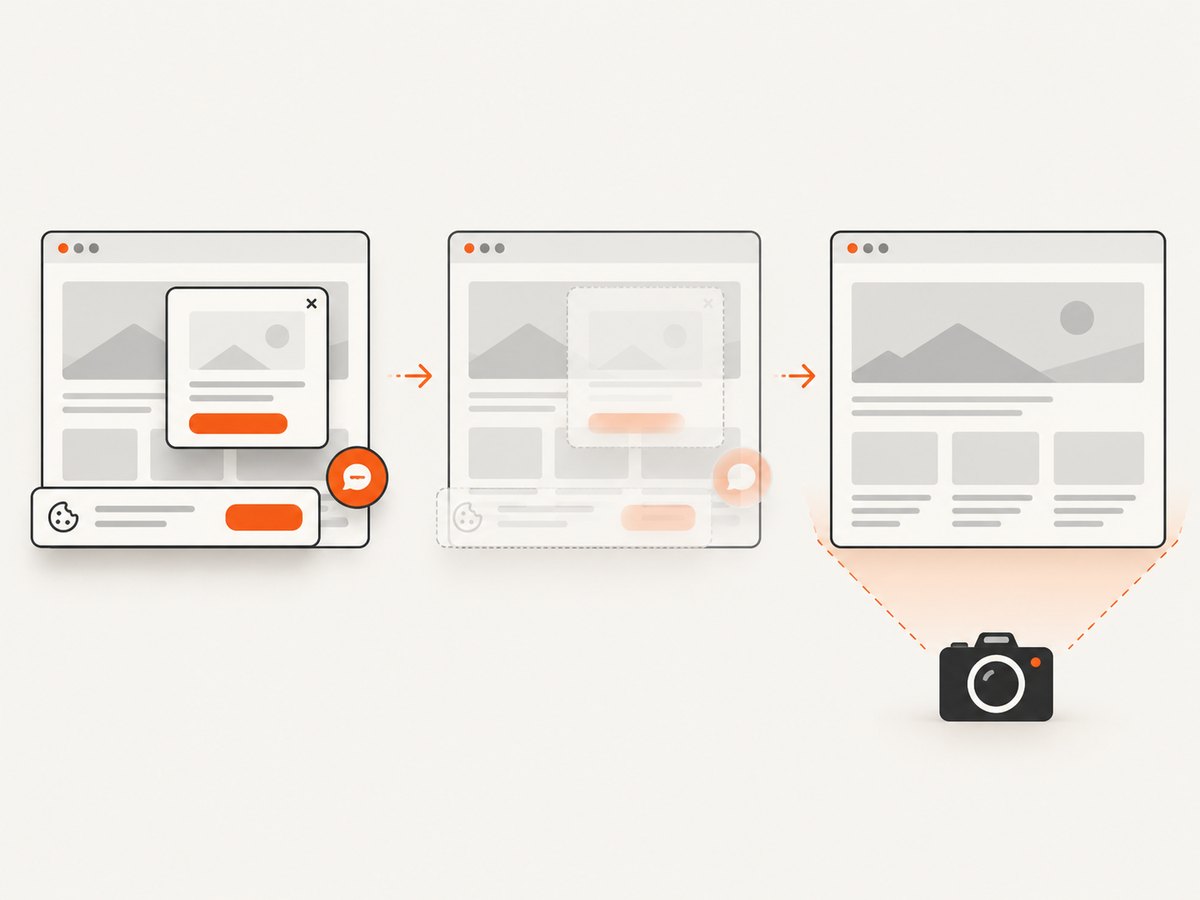
require('node:fs').writeFileSync('shot.webp', data);ScreenshotNeo removes cookie banners, newsletter popups, and chat widgets before the shot. Bot checks, blank pages, timeouts, failed loads, and cache hits are not billed, and response headers identify the page verdict and billing status. Its MCP server lets Claude, Cursor, and other MCP clients call take_screenshot, get_page_info, and capture_pdf. The Free plan includes 1,000 screenshots each month with no card; paid plans start at $5 for 3,000 shots. Create a free ScreenshotNeo account.
9. FAQ
Can Selenium make one full-height screenshot automatically?
The documented element screenshot API captures the current element. Treat full scroll-height output as a capture-and-stitch task unless your own browser tooling provides a separate composite feature.
Should I change the div’s CSS height?
Temporarily expanding the div can work for simple layouts, but it may alter wrapping, virtualization, sticky positioning, and lazy loading. Measuring and scrolling the original container preserves its normal layout.
How much overlap should I use?
There is no universal value. Start with a few dozen CSS pixels, then increase it when fonts, shadows, or dynamic content make joins difficult. Confirm that your stitcher does not paste the overlap twice.
Can I save JPEG or WebP with Selenium’s element method?
The documented WebElement method saves PNG. Convert the resulting image with Pillow or another image library if you need JPEG or WebP.
When are wheel actions preferable?
Use them for interaction tests that should model user scrolling. Use JavaScript scrollTop for deterministic frame positions, especially outside Chromium where wheel support differs.


