How to Screenshot a Scrolling Internal Div with Watir WebDriver
Scroll an internal div, capture its visible viewport, and stitch the full contents with Watir WebDriver. Includes iframe, lazy-load, and troubleshooting guidance.
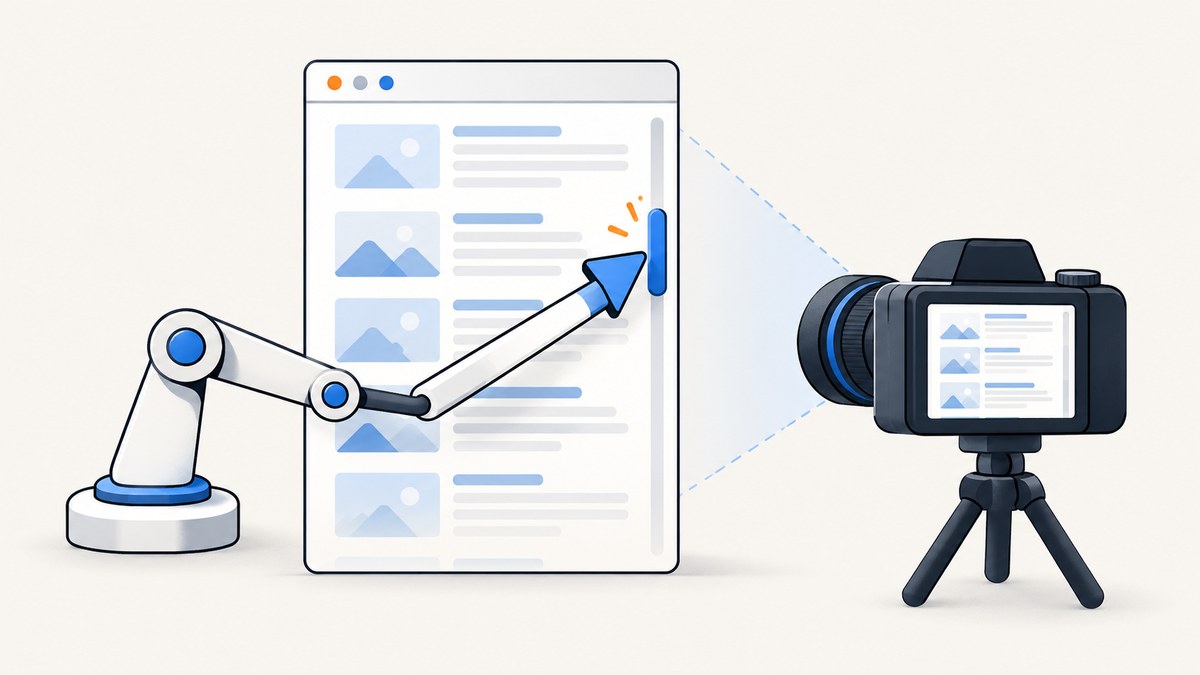
Direct answer: find the scrollable element, set that element’s scrollTop to the position you need, wait for rendering, and call Watir’s WebDriver screenshot method. For a screenshot of the whole internal div, repeat that process at overlapping positions and stitch the viewport images. A single screenshot after scrolling to the bottom contains only the visible slice; it does not prove that the complete div was captured.
Watir’s screenshot API saves the browser viewport as a PNG (and can expose Base64 output). The usual call is browser.screenshot.save "screenshot.png". The scrolling operation is separate: use JavaScript on the div itself instead of scrolling the document window. The examples below use an element with id="results".
1. Capture the visible part of an internal scrolling div
Install Watir and a browser driver appropriate for your environment, then run this minimal Ruby program:
require "watir"

browser = Watir::Browser.new
browser.goto "https://example.com/report"

results = browser.div(id: "results")
results.wait_until(&:present?)

# Scroll the internal container, not the document window.
browser.execute_script(<<~JS, results)
  arguments[0].scrollTop = arguments[0].scrollHeight;
JS

# Replace this short delay with a content-specific wait when scrolling loads data.
sleep 0.2
browser.screenshot.save("results-bottom.png")

browser.close
This produces a normal browser screenshot after the results element reaches its bottom. The output includes everything visible in the browser viewport, including the div and surrounding page. If you need only the element's pixels, use an element-screenshot add-on only after confirming its current maintenance, browser compatibility, and whether it captures the full scrollable content or just the rendered bounds. The Watir ecosystem lists watir-extensions-element-screenshot, but the listing alone does not establish those details.
Scroll to a specific position
# Top
browser.execute_script("arguments[0].scrollTop = 0", results)

# A fixed pixel offset
browser.execute_script("arguments[0].scrollTop = 800", results)

# Bottom
browser.execute_script(
  "arguments[0].scrollTop = arguments[0].scrollHeight - arguments[0].clientHeight",
  results
)
Use scrollHeight - clientHeight for the bottom position because scrollHeight describes the content height while scrollTop describes the top edge of the visible viewport. Setting scrollTop to the raw scrollHeight is commonly clamped by the browser, but the explicit expression makes the intent clear.
2. Capture the entire div with overlapping slices
WebDriver screenshots represent the current viewport. There is no established, version-independent Watir call in the reviewed material that turns an arbitrarily tall, internally scrolling element into one full-height image. A practical fallback is:
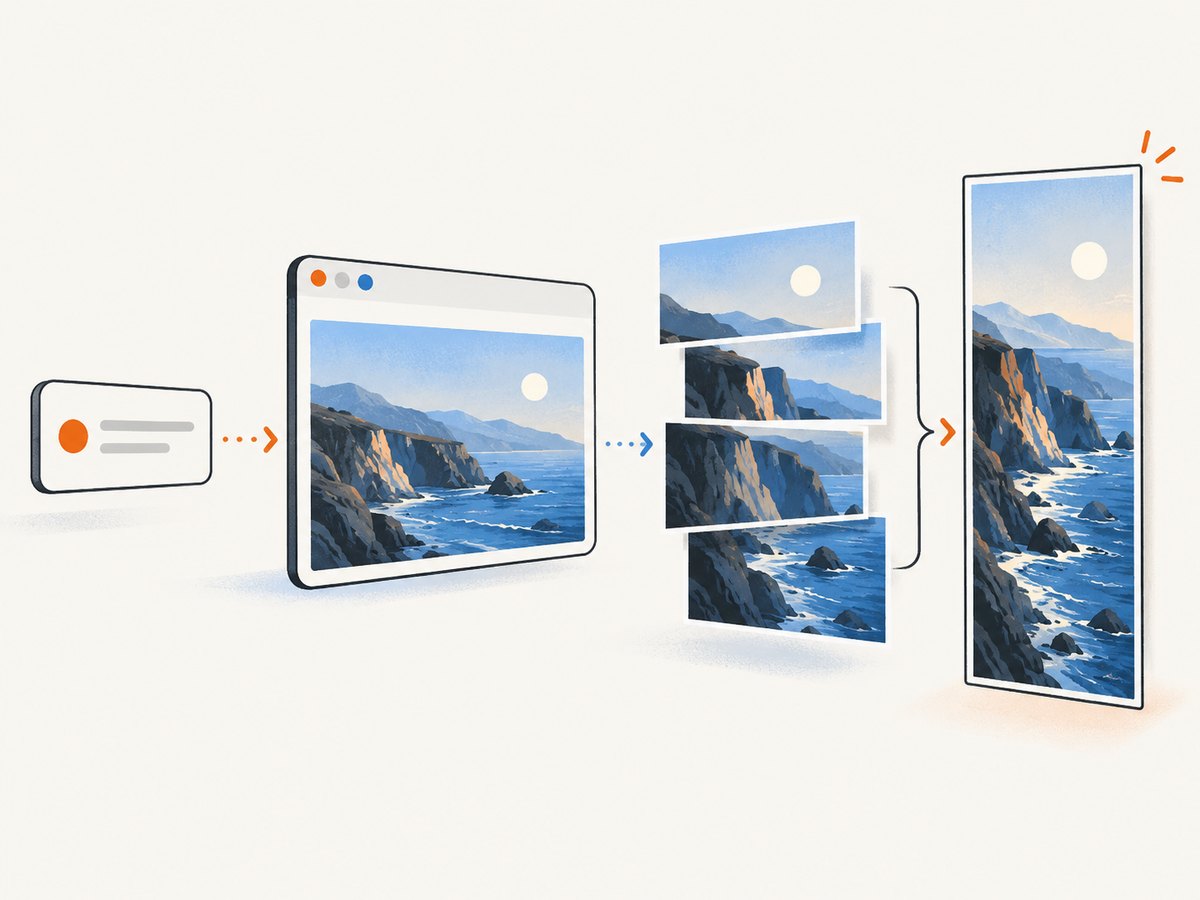
- Record the element's original
scrollTop. - Read its visible height and total
scrollHeight. - Move the div through the content in overlapping increments.
- Save one browser screenshot per position.
- Crop each screenshot to the div's screen rectangle.
- Remove the overlap and append the slices with an image library.
- Restore the original scroll position in an
ensureblock.
The following program captures the slices and records the geometry. It deliberately leaves the final image composition as a separate step, because browser viewport size, device scale factor, fixed headers, and the image library you choose vary between projects.
require "watir"
require "json"

browser = Watir::Browser.new
browser.goto "https://example.com/report"
results = browser.div(id: "results")
results.wait_until(&:present?)

state = browser.execute_script(<<~JS, results)
  const el = arguments[0];
  const rect = el.getBoundingClientRect();
  return {
    top: el.scrollTop,
    clientHeight: el.clientHeight,
    scrollHeight: el.scrollHeight,
    rect: { x: rect.x, y: rect.y, width: rect.width, height: rect.height }
  };
JS

positions = []
step = [state["clientHeight"] * 0.8, 1].max
pos = 0
while pos < state["scrollHeight"]
  positions << [pos, state["rect"]]
  pos += step
end
positions << [state["scrollHeight"] - state["clientHeight"], state["rect"]]
positions = positions.uniq { |entry| entry[0].round }

begin
  positions.each_with_index do |(scroll_top, rect), index|
    browser.execute_script("arguments[0].scrollTop = arguments[1]", results, scroll_top)

    # Replace this with a wait for a row, image, or loading marker.
    sleep 0.2

    browser.screenshot.save("slice-#{index}.png")
    File.write("slice-#{index}.json", JSON.pretty_generate(
      scroll_top: scroll_top,
      rect: rect
    ))
  end
ensure
  browser.execute_script("arguments[0].scrollTop = arguments[1]", results, state["top"])
  browser.close
end
To assemble the result, crop each screenshot to the element rectangle in screenshot pixels, then append the non-overlapping region of each subsequent crop. Browser CSS pixels and image pixels differ when the browser uses a retina scale, so calculate the scale from the actual screenshot dimensions rather than assuming a 1:1 mapping. An overlap of roughly 20% gives the stitcher repeated visual landmarks and reduces seams, but it cannot correct content that changes between captures.
Lazy loading and virtualized lists
Scrolling may trigger network requests, image decoding, or insertion of new rows. A fixed sleep 0.2 is only a starting point. Wait for a condition tied to the page, such as a loading indicator becoming hidden or a known row appearing:
browser.execute_script("arguments[0].scrollTop = arguments[1]", results, scroll_top)
browser.div(css: ".loading").wait_while(&:present?)
browser.div(css: ".row[data-index='40']").wait_until(&:present?)
Virtualized lists may remove rows that are no longer near the viewport. In that case, a stitched screenshot is a visual record of successive states, not a guarantee that every row remained in the DOM at once. Capture stable data exports when the requirement is archival rather than visual.
3. Elements inside iframes
WebDriver starts in the top-level browsing context. If the div is inside an iframe, include the iframe in the Watir locator path:
results = browser.iframe(id: "report-frame").div(id: "results")

browser.execute_script(
  "arguments[0].scrollTop = arguments[0].scrollHeight - arguments[0].clientHeight",
  results
)
browser.screenshot.save("frame-results-bottom.png")
For nested frames, include every level, for example browser.iframe(id: "outer").iframe(id: "inner").div(id: "results"). If Watir cannot locate the element, inspect the page for frames before changing selectors. Cross-origin frame policies can also prevent scripts or element access, depending on how the site is built.
4. Selecting the correct scroll container
Many pages have several scrollable regions: the document, a modal, a sidebar, and the results panel. Check the element's computed overflow and dimensions in the browser:
info = browser.execute_script(<<~JS, results)
  const el = arguments[0];
  const style = getComputedStyle(el);
  return {
    overflowY: style.overflowY,
    clientHeight: el.clientHeight,
    scrollHeight: el.scrollHeight,
    scrollTop: el.scrollTop
  };
JS

puts info
A useful internal scroller normally has scrollHeight > clientHeight and an overflow mode such as auto or scroll. Calling window.scrollTo changes the page position and may leave the internal scrollbar untouched. Always set scrollTop on the actual container.
5. Full-page, element, and viewport expectations
| Goal | Approach | What to verify |
|---|---|---|
| Visible slice of the div | Set scrollTop, then browser.screenshot.save |
The viewport includes the desired slice |
| Whole internal div | Overlapping captures plus cropping and stitching | Stable layout, correct pixel scale, no duplicated rows |
| Element-only image | Compatible element-screenshot tooling or cropping | Whether scrolling content beyond the rendered bounds is included |
| Whole document | Browser or driver full-page capability, if supported by your exact stack | Current Watir, browser, and driver behavior |
Watir's documented scrolling helpers and scroll_into_view are intended to bring an element into view for interaction. They should not be treated as full-content screenshot operations. Check the documentation for the Watir version installed in your project; the reviewed references span Watir 6.7.3, 7.1, and 7.3 and do not establish current browser-by-browser behavior.
6. Troubleshooting
The page scrolls, but the div does not
Cause: the script targets window or the wrong element. Fix: pass the Watir element as an argument and assign arguments[0].scrollTop. Confirm that scrollHeight exceeds clientHeight.
The screenshot stops at the bottom viewport
Cause: a browser screenshot is viewport-based. Fix: capture multiple positions and stitch them, or use a maintained element-capture tool whose full-content behavior you have verified.
Rows or images are missing after scrolling
Cause: lazy loading has not finished. Fix: wait for a page-specific loading condition, image completion, or the expected row before saving each slice. Increase the timeout only after identifying the condition you are waiting for.
Watir cannot find the div
Cause: the element is inside an iframe, has not rendered, or the selector is unstable. Fix: include the iframe path, wait for presence, and prefer a stable ID or data attribute.
The stitched image has seams or duplicated content
Cause: insufficient overlap, sticky content, animation, or layout changes between captures. Fix: pause animations with custom CSS where appropriate, use a larger overlap, hide sticky elements during capture, and compare adjacent slices for repeated rows.
The final image is the wrong size on a high-density display
Cause: CSS pixels do not equal screenshot pixels. Fix: derive the crop scale from the saved image and the browser's device scale factor, then apply the same scale to every slice.
7. Performance, reliability, and cost
- Reduce browser work: use a fixed viewport, disable unnecessary animations, and avoid recapturing unchanged positions.
- Use deterministic waits: a short sleep is fast but flaky when network or rendering time varies.
- Keep overlap intentional: more overlap improves matching but increases image processing and capture count.
- Restore state: always put
scrollTopback inensure, especially when the browser session continues with other checks. - Handle failures: save the current slice index and scroll position so a retry can resume instead of repeating the whole run.
- Budget for browser sessions: every slice requires navigation state, rendering, and image handling. A remote screenshot API can be simpler when you do not need to manage drivers, browsers, and stitching.
8. Or skip the browser setup
For a URL screenshot workflow, ScreenshotNeo provides a GET endpoint that returns PNG, JPEG, WebP, or PDF. It supports full-page capture with lazy images loaded, a CSS-selector element capture, custom JavaScript and CSS, waits for selectors, delays, or network idle, custom headers and cookies, device presets, retina scale, hiding selectors, and many other capture controls. It can be useful when the internal panel is part of a page you need to render repeatedly and you would rather avoid maintaining a local WebDriver and stitching pipeline.

Read the parameter reference in the ScreenshotNeo documentation. The simplest call is:
curl -G "https://api.screenshotneo.com/v1/shot" -d access_key=YOUR_API_KEY --data-urlencode url=https://stripe.com -o shot.webpimport requests
r = requests.get(
"https://api.screenshotneo.com/v1/shot",
params={"access_key": "YOUR_API_KEY", "url": "https://stripe.com"},
timeout=90,
)
r.raise_for_status()
open("shot.webp", "wb").write(r.content)const q = new URLSearchParams({ access_key: 'YOUR_API_KEY', url: 'https://stripe.com' });
const res = await fetch(`https://api.screenshotneo.com/v1/shot?${q}`);
if (!res.ok) throw new Error(`HTTP ${res.status}`);
const image = Buffer.from(await res.arrayBuffer());
require('fs').writeFileSync('shot.webp', image);ScreenshotNeo removes cookie and consent banners, newsletter popups, and chat widgets before capture. Bot checks, blank pages, timeouts, failed loads, and cache hits are not billed; the response identifies the result with X-Page-Verdict and X-Billed headers. An MCP server provides take_screenshot, get_page_info, and capture_pdf tools for Claude, Cursor, and other MCP clients. The Free plan includes 1,000 screenshots per month with no card; paid plans start at $5 for 3,000 screenshots. Create a free ScreenshotNeo account.
9. FAQ
Does browser.screenshot.save capture the whole scrolling div?
No. It saves the current WebDriver viewport. Scroll the element and capture each required position, then compose the slices for full content.
Can I use scroll_into_view for this?
It brings an element into view for interaction. It does not mean every pixel in a tall internal scroller has been captured.
Should I scroll the window or the div?
Scroll the div by assigning its scrollTop. Window scrolling affects the document and may not move the internal scrollbar.
What if the div is in an iframe?
Include the iframe and every nested iframe in the Watir locator path before selecting the div.
Is a fixed sleep reliable?
Only for simple, stable pages. For lazy loading or asynchronous updates, wait for a selector, loading state, row, or image condition tied to the page.
When is an API preferable?
Use an API when you need repeatable URL captures without browser-driver maintenance, or when you need built-in waits, cleanup of consent UI, caching, async jobs, or bulk capture. Keep Watir when your test must interact with the live browser state or validate behavior as a user would.
10. Practical checklist
- Identify the actual internal scroll container.
- Confirm
scrollHeight > clientHeight. - Include iframe context when necessary.
- Set
scrollTopon the div, not the window. - Wait for content-specific loading conditions.
- Use overlapping slices for full-content output.
- Crop in screenshot pixels and account for retina scale.
- Restore the original scroll position.
- Inspect seams, sticky elements, and virtualized rows.
- Consider ScreenshotNeo when browser setup and stitching outweigh the value of local WebDriver control.


