How to Take a Screenshot of a Scrolling Web Page
Capture a whole web page with built-in browser, iPhone, and Android tools. For repeatable developer workflows, use a full-page screenshot API.
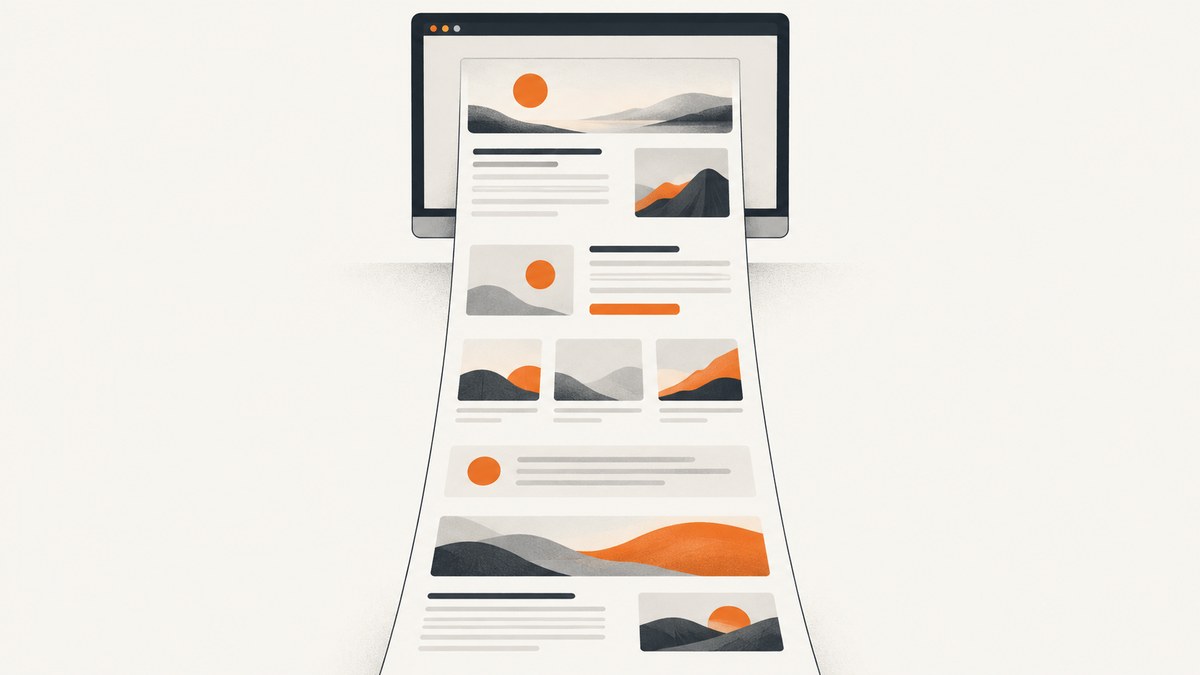
A normal screenshot usually captures only the part of a page visible on screen. To capture everything below the fold, use a browser’s full-page screenshot tool or your phone’s scrolling capture feature. For a developer workflow that needs repeatable captures, a screenshot API can render the page for you.
For a one-off desktop capture, Firefox and Microsoft Edge have built-in full-page tools. On iPhone, choose Full Page in the screenshot preview; on supported Android devices, choose Capture more. Chrome desktop has a DevTools route, though the steps below come from a community answer and may vary by version.
1. Choose the right capture method
| Situation | Start here | What to know |
|---|---|---|
| One page on desktop | Firefox or Edge full-page capture | Built into the browser; save or copy the resulting image. |
| Chrome desktop | DevTools full-size screenshot | Menu labels can change; the documented steps are community-reported. |
| Safari webpage on iPhone | Screenshot preview → Full Page | Review the long preview and crop if needed. |
| Android screen or Chrome page | Capture more or Chrome Long screenshot | Availability depends on Android version, phone maker, and screen support. |
| Automated or repeated captures | Screenshot API | Useful when a script, service, or agent needs an image file without manual browser steps. |
| Reading or printing | Save or print as PDF | A PDF can reflow content and is not a pixel-faithful screenshot. |
A scrolling screenshot usually produces one tall image. A PDF is a document with pages, selectable text in some cases, and potentially different layout. Choose based on whether you need the page’s appearance or a document that is convenient to read or print.

2. Capture a full web page in Firefox
- Open the page you want to capture.
- Right-click an empty area of the page and select Take Screenshot.
- Choose Save full page.
- Review the capture, then save the image.
Mozilla also documents a screenshot icon route and keyboard shortcuts for saving screenshots. The exact controls can vary with the installed Firefox version, so use the context-menu route if the icon is not visible.
3. Capture a full web page in Microsoft Edge
- Open the page in Edge.
- Open the Screenshot tool. Microsoft lists Ctrl+Shift+S as a shortcut.
- Choose Capture full page.
- Review the capture and use the available controls to save or copy it.
Edge’s full-page tool is intended to capture parts of the webpage that would otherwise require scrolling. If the shortcut opens a different browser feature in your version, find Screenshot through the browser menu.
4. Capture a full-size screenshot in Chrome desktop
The available step-by-step reference for Chrome desktop is a Chrome Help Community answer rather than official Chrome documentation. The route is commonly reported, but should not be treated as guaranteed across every version:
- Open the webpage in Chrome.
- Open DevTools: Ctrl+Shift+I on Windows or Linux, or Command+Option+I on Mac.
- Open the DevTools command menu: Ctrl+Shift+P on Windows or Linux, or Command+Shift+P on Mac.
- Search for screenshot, then choose Capture full size screenshot if it appears.
- Wait for Chrome to save the image, then inspect it for missing or repeated sections.
If you do not see that command, update your browser or use Firefox or Edge’s documented full-page controls. If your goal is a printable document rather than an image, use Chrome’s current print interface and inspect the PDF: printing can reflow the page and omit interactive details.
5. Take a scrolling screenshot on iPhone
- On an iPhone with Face ID, quickly press and release the side button and volume-up button together. On an iPhone with a Home button, press the Home and side buttons together.
- Tap the screenshot thumbnail if it appears.
- Tap Full Page to include content beyond the visible screen. Apple gives an entire Safari webpage as an example.
- Inspect the tall preview, crop if needed, and save or share it using the available options.
The standard screenshot saves to the photo library. The Full Page control is shown in the screenshot preview when supported; if it does not appear for the content you captured, try Safari with the webpage open or use another capture method.
6. Take a scrolling screenshot on Android
Android system capture
Google says scrolling screenshots work on Android 12 and later for most screens that allow scrolling. The usual button combination is Power plus Volume down, though device controls can differ.
- Open the scrollable page or screen and take a screenshot.
- Tap Capture more in the screenshot controls.
- Adjust the crop guides to include the content you need.
- Save or share the resulting capture.
Chrome for Android
- Open the page in Chrome.
- Tap More, then Share, then Long screenshot.
- Drag the crop handles to extend the capture down the page.
- Confirm, then save or share.
These are distinct entry points: Android’s system-level Capture more and Chrome’s Long screenshot. Phone maker, Android version, and screen support can affect which controls are available.
7. Get a reliable capture of dynamic pages
A page can be taller than its initial content. Images may load only when they approach the visible area, and some sections appear after scrolling or interaction. Before capturing, scroll through the page at a normal pace and give visible content time to load. Then take the full-page capture and inspect it from top to bottom.
- Check lazy-loaded images: Look for blank image areas or placeholders. Scroll through the page first and retry.
- Check sticky headers: A fixed header may overlap content or repeat in an unexpectedly tall capture.
- Check nested scroll areas: A table, chat panel, or embedded region may scroll independently from the main page. Capture that region separately if the full-page tool does not include its offscreen content.
- Check interactive content: Menus, tabs, and accordions may need to be opened before they appear in the image.
- Check very long pages: Large captures may take longer to produce and can be difficult to view or share. Crop to the relevant region when the entire page is unnecessary.
Browser and phone documentation describes the available controls, but does not guarantee that every unusual layout will render perfectly. If a capture is incomplete, try another full-page method, or use PDF when document continuity matters more than matching the screen exactly.
8. Or skip the browser setup
ScreenshotNeo is a website screenshot API and MCP server from Yorker Media. Make one GET request with the page URL to receive an image or PDF. The API supports full-page capture, lazy image loading, output formats including PNG, JPEG, and WebP, and many additional capture options. See the ScreenshotNeo API documentation for the full parameter list and response details.

This cURL example saves a WebP screenshot of a full page:
curl -G "https://api.screenshotneo.com/v1/shot" \
  -d access_key=YOUR_API_KEY \
  --data-urlencode url=https://stripe.com \
  -d full_page=true \
  -o shot.webp
The same request in Python:
import requests

r = requests.get(
    "https://api.screenshotneo.com/v1/shot",
    params={
        "access_key": "YOUR_API_KEY",
        "url": "https://stripe.com",
        "full_page": "true",
        "format": "webp",
    },
    timeout=90,
)
r.raise_for_status()
with open("shot.webp", "wb") as f:
    f.write(r.content)
And in Node.js with built-in fetch:
const q = new URLSearchParams({
  access_key: 'YOUR_API_KEY',
  url: 'https://stripe.com',
  full_page: 'true',
  format: 'webp',
});
const res = await fetch(`https://api.screenshotneo.com/v1/shot?${q}`);
if (!res.ok) throw new Error(`Screenshot request failed: ${res.status}`);
const fs = await import('node:fs/promises');
await fs.writeFile('shot.webp', Buffer.from(await res.arrayBuffer()));
Use an API key from your account in place of YOUR_API_KEY. Keep it on a server or in a secure environment variable; do not publish it in client-side code. Check the response headers, including X-Page-Verdict and X-Billed, to see the page outcome and whether the request was billed.
ScreenshotNeo accepts cookie or consent banners as a visitor and removes more than 60 known consent platforms, newsletter popups, and chat widgets before capture; each step can be turned off. Bot checks or CAPTCHAs, blank pages, timeouts, failed loads, and cache hits cost nothing. Its MCP server provides take_screenshot, get_page_info, and capture_pdf tools for Claude, Cursor, or another MCP client.
The Free plan includes 1,000 screenshots per month with no card. Paid plans start at $5 for 3,000 shots; higher tiers are Growth ($15 for 15,000), Pro ($39 for 60,000), Scale ($99 for 250,000), and Business ($249 for 1,000,000). Yearly billing gives two months free, and every feature is available on every plan. Sign up for 1,000 free screenshots a month, with no card required.
9. Troubleshooting
| Symptom | Likely cause | What to try |
|---|---|---|
| Only the visible screen was saved | The standard screenshot control was used. | Choose the browser’s full-page option or the phone’s scrolling capture control. |
| Full Page or Capture more is missing | The content, OS version, or device does not expose the feature. | Try a supported browser or alternate route; on Android, check Chrome’s Long screenshot separately. |
| Images or lower sections are blank | Content may load on scroll or after a delay. | Scroll through the page, wait for content, then recapture and inspect. |
| A region is clipped | It may be an independently scrolling nested element. | Capture the region separately or use a tool that supports selector-based element capture. |
| The header appears over the page | A fixed or sticky element overlaps the full-page layout. | Try another browser capture route; for automated capture, hide the header with a selector or custom CSS. |
| API returns an error or no usable image | Check URL encoding, API key, network access, and the page verdict. | Encode the target URL as a query parameter, confirm the key, inspect HTTP status and response headers, and retry only after addressing the cause. |
10. Performance, reliability, and cost
For a manual one-off, browser and phone tools avoid API setup. For repeated work, an API makes capture parameters scriptable and avoids relying on someone to open a browser and save each file. Full-page images grow with page length and pixel density, so use the smallest output format and capture area that meet your needs. WebP or JPEG can be smaller than PNG for photographic pages; PNG is useful when sharp text and lossless output matter.
Dynamic pages can still vary between captures because content loads at different times or depends on session state. For consistent results, use an explicit wait condition or delay where supported, provide required cookies or headers, and inspect the outcome headers. Cache settings can reduce repeat work, while a chosen TTL controls how long cached results may be reused. For large batches, ScreenshotNeo supports bulk capture of up to 100 URLs per call and asynchronous jobs with signed webhooks. The usage API can help track consumption.
Cost depends on the service and capture volume. ScreenshotNeo’s free tier is 1,000 shots per month; paid plans begin at $5 for 3,000. Its billing rule is based on clean shots: bot checks or CAPTCHAs, blank pages, timeouts, failed loads, and cache hits are not billed. Review the plan and request behavior in the documentation before putting a high-volume workflow into production.
11. Screenshot options developers commonly need
A full-page boolean is only the start when captures run in production. ScreenshotNeo supports these additional controls:
- Output and viewport: PNG, JPEG, or WebP; 12 device presets or a custom viewport; retina scale; image resizing; transparent background; dark mode.
- Page selection: full-page capture with lazy images loaded, or capture one element by CSS selector.
- PDF: paper size, margins, landscape orientation, and page ranges.
- Timing and interaction: wait for a selector, a delay, or network idle; click an element before capture; hide selectors; provide custom CSS or JavaScript.
- Network and identity: block ads, trackers, requests, or resource types; set custom headers, cookies, user agent, Authorization, timezone, or geolocation.
- Delivery and scale: choose a cache TTL, generate signed links for public
<img>tags, submit async jobs with signed webhooks, and bulk-capture up to 100 URLs per call.
Parameter names used by other screenshot APIs also work, which can make migration easier. Check the API documentation for accepted values, defaults, and exact response behavior before relying on a specific option.
12. FAQ
Does a normal screenshot include the whole webpage?
Usually no. It captures the visible screen; choose a full-page or scrolling capture feature to include below-the-fold content.
Is a full-page screenshot the same as a PDF?
No. A screenshot is an image of the rendered page. A PDF is paginated and may reflow or omit interactive details.
Can I capture a web page from a script?
Yes. A screenshot API can accept a URL and return an image or PDF. The example above shows cURL, Python, and Node.js calls.
Will every page capture correctly?
No universal guarantee covers all nested scroll regions, fixed elements, or dynamically loaded content. Inspect the result and use a second method if it is incomplete.
Can an AI agent take the screenshot?
ScreenshotNeo’s MCP server exposes screenshot, page-info, and PDF capture tools to compatible MCP clients such as Claude and Cursor.
Sources
- Mozilla Support: Take screenshots in Firefox
- Microsoft: Screenshot Tool in Microsoft Edge
- Apple Support: Take a screenshot on iPhone
- Google Android Help: Take a screenshot or record your screen
- Google Chrome Help: Share pages in Chrome on Android
- Google Chrome Help Community: reported DevTools screenshot workflow


