How to Screenshot a Specific Area of a Website
Select and save part of a webpage with Chrome, Firefox, Windows Snipping Tool, code, or ScreenshotNeo’s element capture API.

Quick answer: In Chrome, open the page, open DevTools, press Ctrl+Shift+P (Windows/Linux) or Command+Shift+P (Mac), choose Capture area screenshot, and drag over the region. Keep DevTools docked; Chrome does not support area capture when DevTools is undocked. Firefox has a built-in webpage screenshot tool with region selection. On Windows, Snipping Tool can select a rectangle of visible screen pixels.
The right method depends on what “area” means. Browser tools capture webpage content; Snipping Tool captures whatever pixels are visible, including browser chrome if you select it. For repeatable automation, select an element by CSS selector with an API such as ScreenshotNeo.
1. Choose the capture scope before you start
Decide whether you need a one-off image for a human, a browser-content crop, or a repeatable capture in a script.
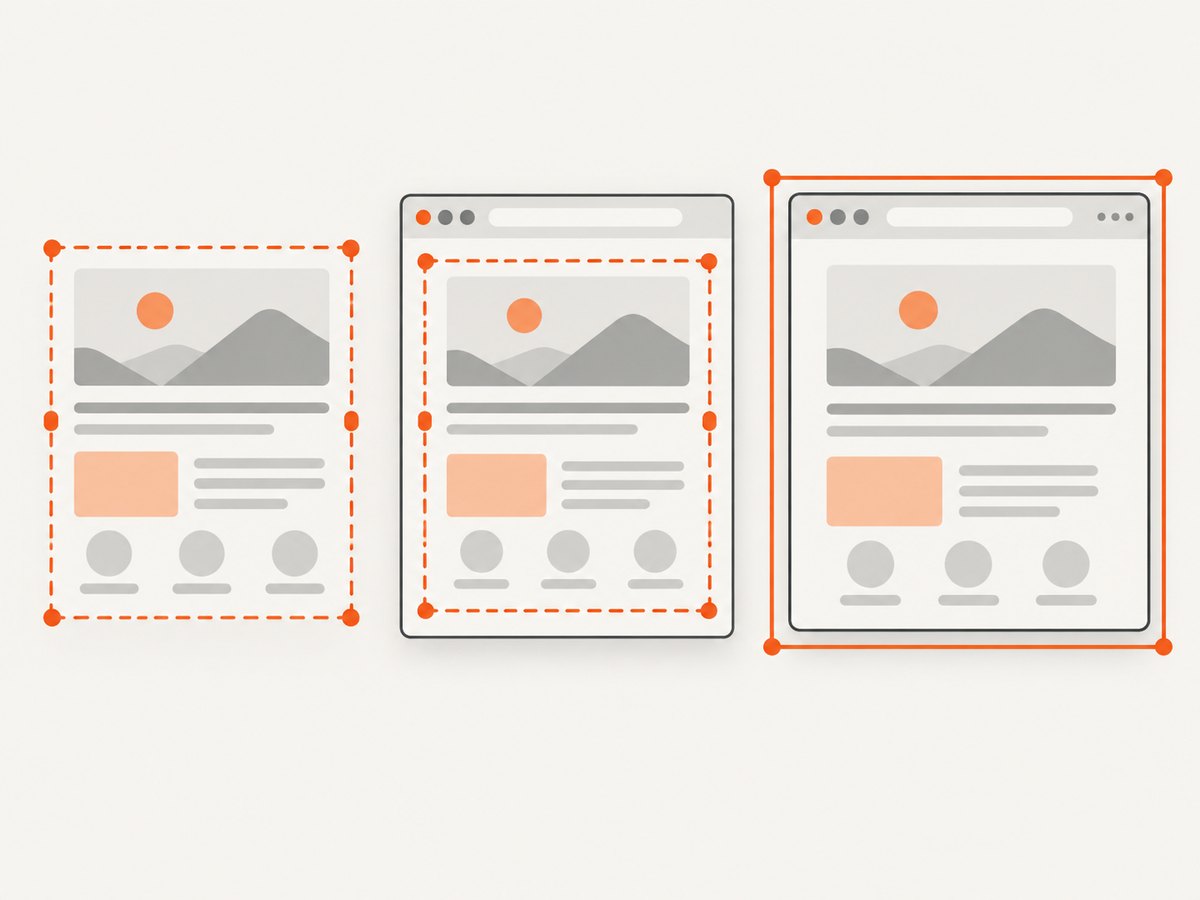
| Need | Best choice | What it captures |
|---|---|---|
| Quick manual crop in Chrome | Chrome DevTools area capture | A selected region of the webpage |
| Quick manual crop in Firefox | Firefox Screenshot | Selected webpage content or the visible page |
| Include browser or desktop pixels | Windows Snipping Tool | A rectangle of the visible screen |
| Capture the same component repeatedly | ScreenshotNeo element capture | An element selected by CSS selector |
Check the result before sharing. A screen crop can accidentally include tabs, account identifiers, notifications, or other private content. A webpage selection normally excludes the browser frame, while a screen selection does not.
2. Chrome: capture a selected area with DevTools
Step 1: Open the page and DevTools
- Navigate to the page in Chrome.
- Open DevTools with
F12,Ctrl+Shift+Ion Windows/Linux, orCommand+Option+Ion Mac. - Dock DevTools to the side or bottom of the browser. Chrome’s area capture will not work if DevTools is undocked.
Step 2: Run the screenshot command
- Open the Command Menu with
Ctrl+Shift+Pon Windows/Linux orCommand+Shift+Pon Mac. - Type
screenshot. - Choose Capture area screenshot. Chrome describes this as capturing an area “much like the snipping tool.” Chrome DevTools documentation
- Move the pointer over the page, then drag from one corner of the desired region to the opposite corner.
- Release the pointer. Chrome downloads the resulting image.
What the selection includes
The selection is tied to the rendered webpage, so it is useful for a card, chart, hero section, or paragraph that is visible in the page. It does not automatically understand semantic boundaries: if you start or end between pixels, the crop can cut off shadows, borders, or text. Drag slightly beyond the visual edge when those details matter.
When Chrome area capture is the wrong tool
- The component is below the fold: scroll it into view first, or use an automated full-page or element capture.
- The page changes while selecting: wait for animations, ads, and lazy images to settle.
- You need the same crop every day: use a selector-based workflow instead of manual coordinates.
- You need browser chrome in the image: use a screen capture tool such as Windows Snipping Tool.
3. Firefox: select webpage content
Firefox includes a built-in screenshot flow for selecting a region of webpage content and for capturing the currently visible page. Open the screenshot command from Firefox’s page actions or add the Screenshot button to the toolbar, then choose the selection mode and drag around the region. Firefox also supports keyboard movement and resizing after you begin a selection. See Mozilla’s screenshot support page for the current controls.
- Open the page in Firefox.
- Start the Screenshot tool from the page actions menu or toolbar button.
- Choose the region-selection option.
- Drag around the webpage area, adjust the handles if needed, and save or copy the image.
Firefox’s selection is page-oriented. If you want the tab bar, browser controls, or another application visible around the page, use an operating-system screen capture instead.
4. Windows Snipping Tool: capture visible screen pixels
Windows Snipping Tool is useful when a rectangle of the visible screen is enough. Press Windows+Shift+S, choose rectangular snip, and drag around the page area. The result can include browser tabs, address bars, desktop elements, or notifications if they fall inside the rectangle. Microsoft documents rectangular snips and other capture modes in its Snipping Tool guide.
Snipping Tool cannot capture content that is outside the current screen rectangle. Scroll and take multiple captures if the target is taller than the viewport, or use a webpage-aware tool for a single continuous image.
5. Capture one element reliably with ScreenshotNeo
Manual dragging is good for an occasional image. Automation needs a stable description of the target. ScreenshotNeo can capture one element by CSS selector, wait for a selector or network idle, load lazy images for full-page captures, set a viewport or device preset, use retina scale, apply custom CSS or JavaScript, click an element before capture, hide selectors, block unwanted requests, and set cookies, headers, user agent, timezone, or geolocation. It returns PNG, JPEG, WebP, or PDF from one GET request.
Find the selector in DevTools: right-click the target, choose Inspect, and identify a stable class, ID, data attribute, or structural selector. Prefer a purpose-built attribute such as [data-testid="pricing-card"] over a generated CSS class. Test the selector against page changes before putting it in a scheduled job.
Or skip the browser setup
Use the API endpoint documented at ScreenshotNeo’s documentation. The examples below save the response as an image; add the element-capture option from the documentation when you want a specific CSS-selected element.
curl -G "https://api.screenshotneo.com/v1/shot" \
  -d access_key=YOUR_API_KEY \
  --data-urlencode url=https://stripe.com \
  -o shot.webp
import requests
r = requests.get(
"https://api.screenshotneo.com/v1/shot",
params={"access_key": "YOUR_API_KEY", "url": "https://stripe.com"},
timeout=90,
)
r.raise_for_status()
open("shot.webp", "wb").write(r.content)const q = new URLSearchParams({ access_key: 'YOUR_API_KEY', url: 'https://stripe.com' });
const res = await fetch(`https://api.screenshotneo.com/v1/shot?${q}`);
if (!res.ok) throw new Error(`HTTP ${res.status}`);
const buffer = Buffer.from(await res.arrayBuffer());
await fs.promises.writeFile('shot.webp', buffer);Replace the target URL with the page you own or are authorized to capture, then add the selector and output parameters described in the API documentation. ScreenshotNeo also supports dark mode, transparent backgrounds, image resizing, caching with a TTL you choose, signed links for public <img> tags, asynchronous jobs with signed webhooks, bulk capture of up to 100 URLs per call, a usage API, and an OpenAPI specification. Parameter names used by other screenshot APIs also work, which can reduce migration changes.
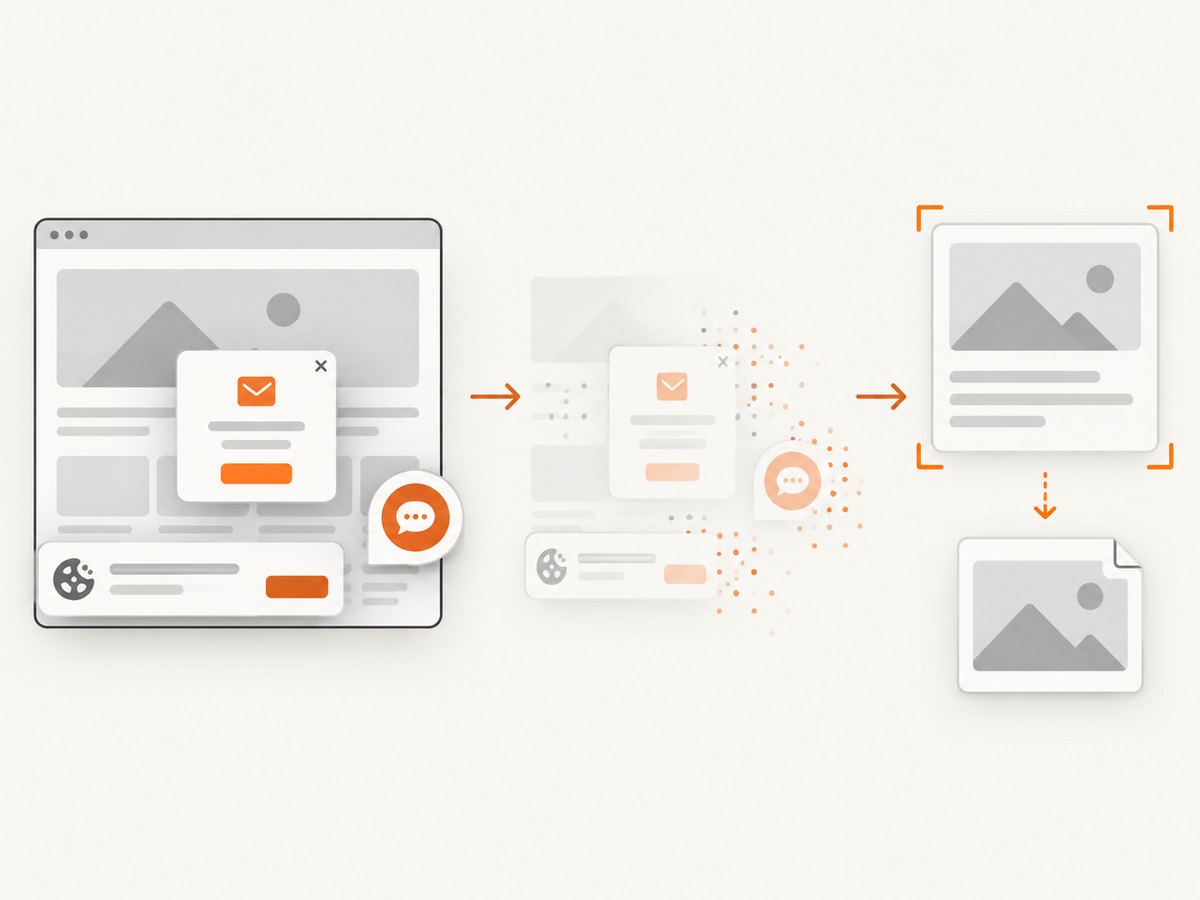
Before a capture, ScreenshotNeo accepts cookie or consent banners like a visitor and removes more than 60 known consent platforms, newsletter popups, and chat widgets; each step can be turned off. Bot checks or CAPTCHAs, blank pages, timeouts, failed loads, and cache hits cost nothing. The response identifies the result with X-Page-Verdict and X-Billed headers. An MCP server provides take_screenshot, get_page_info, and capture_pdf tools for Claude, Cursor, and other MCP clients.
6. Options that matter for an automated area capture
Selector and layout
- Element selector: target one component rather than guessing viewport coordinates.
- Viewport or device preset: reproduce desktop, tablet, or mobile layouts. ScreenshotNeo includes 12 device presets and accepts any viewport.
- Retina scale: increase pixel density for documentation or high-resolution previews.
- Full page: use when the target is outside the initial viewport; lazy images are loaded for full-page captures.
- PDF settings: choose paper size, margins, landscape mode, and page ranges when the deliverable is a document rather than an image.
Timing and interaction
- Wait for a selector when the component appears asynchronously.
- Use a fixed delay for a known animation or chart render.
- Wait for network idle when several requests must finish together.
- Click an element before capture to open a menu, switch a tab, or dismiss a local overlay.
- Run custom JavaScript or CSS to set deterministic state, hide a cursor, or remove an animation.
Network and identity
Use custom headers, cookies, a user agent, and an Authorization header for authenticated pages. Set timezone and geolocation when the page changes by locale. Block ads, trackers, selected requests, or resource types to reduce noise and make rendering more repeatable. Treat credentials as secrets and keep them out of URLs that may be logged.
7. Troubleshooting checklist
| Symptom | Likely cause | Fix |
|---|---|---|
| Chrome command is missing | DevTools is closed or the command search is incomplete | Open DevTools, press the Command Menu shortcut, and search for “screenshot.” |
| Chrome selection does nothing | DevTools is undocked | Dock DevTools, then run Capture area screenshot again. Chrome docs |
| Crop includes tabs or the address bar | A screen-level capture was used | Use Chrome/Firefox webpage capture, or redraw the Snipping Tool rectangle. |
| Element is cut off | Selection ended at the visual edge or the element has an overflowing child | Add padding to the selection, inspect overflow, or capture the element with a selector. |
| Lazy image is blank | The image loads only after scrolling or interaction | Scroll or wait for the image selector; for automation use full-page lazy-image loading and an explicit wait. |
| Cookie banner covers the target | Consent state was not handled | Dismiss it manually, or enable ScreenshotNeo’s consent handling and popup removal. |
| Screenshot is from the wrong theme or locale | Default color scheme, timezone, or geolocation differs | Set dark mode, timezone, geolocation, cookies, or headers explicitly. |
| API response is not an image | Authentication, URL encoding, or a page failure | Check the HTTP status and response headers, URL-encode the target, verify the access key, and inspect X-Page-Verdict and X-Billed. |
| Automated result changes between runs | Ads, animations, timestamps, or third-party requests vary | Block unnecessary resources, hide dynamic selectors, inject CSS to pause animation, and wait for a stable selector or network idle. |
8. Performance, reliability, and cost
Manual browser capture has no API cost but does not scale and is hard to reproduce exactly. Selector-based capture avoids coordinate drift when viewport size changes. A fixed viewport, explicit waits, blocked trackers, and a chosen user agent generally make repeated jobs easier to compare. Cache a stable page when appropriate; ScreenshotNeo lets you choose the cache TTL. For many URLs, use its bulk endpoint, which accepts up to 100 URLs per call. For long-running work, use asynchronous jobs and signed webhooks rather than keeping a client request open.
Plan for page failures. A site may return a bot check, CAPTCHA, blank document, timeout, or failed resource load. ScreenshotNeo does not bill those unsuccessful page outcomes or cache hits, and reports the verdict and billing decision in response headers. Your code should still handle non-2xx responses, save diagnostic headers, and retry only transient failures with backoff. Do not retry a deterministic selector error indefinitely.
ScreenshotNeo’s Free plan includes 1,000 shots per month with no card. Paid plans are Starter $5 for 3,000 shots, Growth $15 for 15,000, Pro $39 for 60,000, Scale $99 for 250,000, and Business $249 for 1,000,000. Yearly billing gives two months free, and every feature is available on every plan.
9. A repeatable workflow for teams
- Define the artifact: name the component, output format, viewport, and expected dimensions.
- Choose a stable selector: use a data attribute or semantic ID owned by the page team.
- Make state deterministic: set cookies, locale, timezone, theme, and authentication explicitly.
- Control timing: wait for the target selector and any chart or image dependencies.
- Remove visual noise: handle consent, hide chat widgets, block ads, and pause animations.
- Validate: check the image dimensions, verdict headers, and a small sample of pixels or a perceptual diff.
- Store safely: keep API keys and authenticated image URLs private; use signed links when a public embed is required.
10. FAQ
Can I select an area that is not currently visible?
Chrome and Snipping Tool select what is available in the current view. Scroll first, take multiple captures, or use an automated full-page or element capture for content outside the viewport.
Does a webpage screenshot include the browser frame?
Chrome DevTools and Firefox’s webpage tools target page content. Windows Snipping Tool captures screen pixels, so the browser frame is included when it falls inside your rectangle.
How do I capture a chart after it finishes rendering?
Wait for the chart’s selector or a known network-idle state, then capture the element. For repeatable results, disable animation and set a fixed viewport.
Which format should I use?
PNG is suited to sharp UI and text, JPEG to smaller photographic images, and WebP to a compact modern web asset. Use PDF when pagination, paper size, margins, or page ranges matter.
Can an AI agent take the screenshot?
Yes. ScreenshotNeo provides an MCP server with take_screenshot, get_page_info, and capture_pdf tools for Claude, Cursor, and other MCP clients.
11. Start with a free automated capture
If you only need one crop, Chrome or Firefox is enough. If you need the same area captured on demand, in a build, or for many URLs, ScreenshotNeo removes the browser setup: cookie banners, newsletter popups, and chat widgets are removed before the shot; bot checks, blank pages, and failed loads are never billed; an MCP server lets AI agents take screenshots; and 1,000 screenshots a month are free with no card. Paid plans start at $5 for 3,000 shots. Create a free ScreenshotNeo account.