How to Screenshot a Specific Gmail Email with Google Apps Script
Use Apps Script to find the exact Gmail message, then capture its displayed UI or create a portable PDF record.
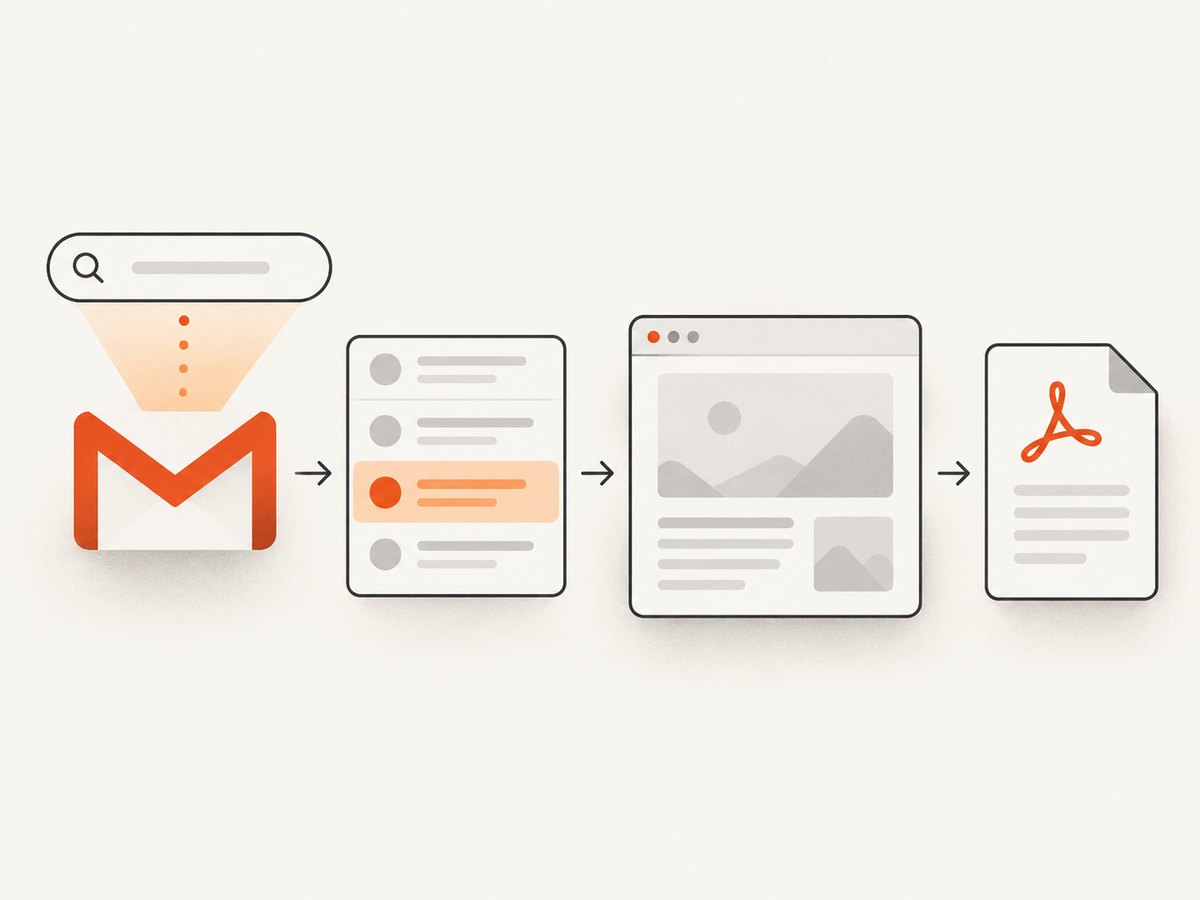
Short answer: Google Apps Script can search Gmail, inspect messages, and return the exact message ID. It does not provide a documented method for taking a screenshot of Gmail’s rendered interface. Use Apps Script to identify the message, then open that message in Gmail and use your browser or device screenshot tool. If a visual copy of the interface is not required, print the message to PDF instead.
This distinction matters: a screenshot preserves what Gmail displayed at capture time, while a PDF or reconstructed document contains message content and may not match Gmail’s layout.
What Apps Script can and cannot do
The GmailMessage reference exposes message properties such as sender, date, subject, HTML body, plain-text body, and ID. GmailApp.search() finds matching threads, and GmailApp.getMessageById() retrieves a message by its ID.
The documented Gmail service does not include a command that captures the Gmail web interface as an image. Reading getBody() or getPlainBody() gives you message data, not pixels from the Gmail page.
Step 1: Search for candidate Gmail threads
Use Gmail search operators that narrow the mailbox before selecting a message. Include the sender, an exact subject when known, and a date range when possible.
function findCandidateThreads() {
  const query = 'from:sender@example.com subject:"Example subject" after:2026/01/01 before:2026/02/01';
  const threads = GmailApp.search(query);

  console.log(`Found ${threads.length} matching thread(s)`);
  for (const thread of threads) {
    console.log({
      threadId: thread.getId(),
      messageCount: thread.getMessageCount(),
      firstMessageDate: thread.getMessages()[0].getDate()
    });
  }

  return threads;
}
Search results are threads, not individual messages. A conversation can contain replies, forwarded copies, and messages from different senders. Never assume that the first result, or the first message in a thread, is the email you need.
Step 2: Select the exact message
Iterate through every message in every matching thread and compare multiple fields. A subject alone is not unique.
function findMessageBySubjectAndSender() {
  const query = 'from:sender@example.com subject:"Example subject"';
  const threads = GmailApp.search(query);
  const matches = [];

  for (const thread of threads) {
    for (const message of thread.getMessages()) {
      const senderMatches = message.getFrom()
        .toLowerCase()
        .includes('sender@example.com');
      const subjectMatches = message.getSubject() === 'Example subject';

      if (senderMatches && subjectMatches) {
        matches.push(message);
      }
    }
  }

  if (matches.length === 0) {
    throw new Error('No matching message found');
  }

  if (matches.length > 1) {
    console.log('Multiple candidates found; inspect these before capture:');
    for (const message of matches) {
      console.log({
        id: message.getId(),
        from: message.getFrom(),
        subject: message.getSubject(),
        date: message.getDate()
      });
    }
    throw new Error('More than one message matched');
  }

  const messageId = matches[0].getId();
  return GmailApp.getMessageById(messageId);
}
For sensitive mail, add a confirmation step to your workflow before opening or exporting the selected message. Apps Script methods that read Gmail require authorization; review the requested permissions before granting access. The Gmail reference documents the https://mail.google.com/ scope for many of these operations.
Step 3: Record the message ID and details
Logging the ID makes the selection auditable and lets another step retrieve the same message later.
function inspectSelectedMessage() {
  const message = findMessageBySubjectAndSender();

  console.log({
    id: message.getId(),
    from: message.getFrom(),
    to: message.getTo(),
    date: message.getDate(),
    subject: message.getSubject(),
    plainBodyPreview: message.getPlainBody().slice(0, 500)
  });

  // Retrieve the same message by its documented ID pattern.
  const sameMessage = GmailApp.getMessageById(message.getId());
  return sameMessage.getId();
}
Step 4: Open the message and capture the visible Gmail UI
Apps Script has identified the message, but the screenshot must be taken by a browser or device that displays it.
- Run the selector function and copy the returned message ID or inspect the logged fields.
- In Gmail, locate the conversation and expand the exact message if it is collapsed.
- Confirm that the sender, subject, date, recipients, quoted replies, attachments, and any other required details are visible.
- Use your operating system or browser’s screenshot command to capture the displayed region or full page.
- Save the image with the message ID, date, or another non-sensitive reference so it can be traced back to the selection step.
Exact keyboard shortcuts and browser menus differ by device. A browser screenshot captures only what is rendered, including collapsed sections, viewport limits, and any banners or widgets visible at that moment.
When a PDF is a better record
If you need a readable archive rather than a picture of Gmail’s interface, use Gmail’s print-to-PDF workflow. This keeps the result portable and searchable, but it may not reproduce the on-screen Gmail layout.
You can also generate a document from message data, for example by inserting getSubject(), getFrom(), getDate(), and getBody() into an HTML template and converting that file to PDF. Google documents PDF workflows in its GmailApp reference and the Generate and send PDFs sample. Such a file is a representation of the message, not a screenshot of Gmail.
Apps Script limitations and edge cases
- Multiple messages in one thread: replies and forwards can share a subject. Iterate through
thread.getMessages(). - Duplicate subjects: combine sender, date range, and message content checks.
- No result: Gmail search syntax, account context, labels, or date boundaries may exclude the message.
- Collapsed content: a browser screenshot may omit quoted text or trimmed content until you expand it.
- Attachments: an email screenshot does not automatically capture an attachment’s contents. Open the attachment separately if it must appear.
- Dynamic rendering: images, remote content, and layout can change between opening and capture.
- Authorization: first execution pauses for Gmail permissions. A user without access to the mailbox cannot retrieve its messages.
Troubleshooting
| Problem | Likely cause | Fix |
|---|---|---|
No matching message found |
Search operators or exact comparisons are too strict. | Run the broad query first, log candidates, then add sender, date, and subject checks one at a time. |
| Several messages match | A subject or sender is shared by multiple emails. | Compare getDate(), recipients, thread position, and a body preview; require one confirmed match. |
| Only one email in a conversation is selected | The script treated a thread as one message. | Loop through thread.getMessages() and inspect each GmailMessage. |
| Authorization error | The script has not been authorized or the account lacks mailbox access. | Run the function from the intended account and review the Gmail permissions prompt. |
| The screenshot misses text | The message is collapsed or outside the viewport. | Expand the message, scroll through the required content, and capture each region or a full-page browser view. |
| The PDF does not look like Gmail | Print or generated HTML represents content rather than Gmail’s UI. | Use a browser screenshot when interface fidelity matters. |
Performance, reliability, and privacy
- Start with a narrow Gmail query to reduce the number of threads Apps Script must inspect.
- Stop after a unique match instead of scanning unrelated mail, but keep an explicit multiple-match check for safety.
- Log identifiers and metadata rather than full message bodies unless the body is required for disambiguation.
- For repeatable evidence, record the query, selected message ID, timestamp, and visible capture settings.
- Capture shortly after opening the message when layout, remote images, or account state could change.
- Protect screenshots and logs because they may contain personal data, message content, recipients, or attachment names.
Or skip the browser setup
ScreenshotNeo can capture a URL with one GET request, but it cannot sign in to a private Gmail account or select a mailbox message for you. Use the Apps Script workflow above to identify the email, then expose only an authorized page or other URL that your capture process is allowed to access.
For public or otherwise authorized pages, the API returns PNG, JPEG, WebP, or PDF. See the ScreenshotNeo documentation for all options.
curl -G "https://api.screenshotneo.com/v1/shot" -d access_key=YOUR_API_KEY --data-urlencode url=https://stripe.com -o shot.webpimport requests
r = requests.get("https://api.screenshotneo.com/v1/shot", params={"access_key": "YOUR_API_KEY", "url": "https://stripe.com"}, timeout=90)
open("shot.webp", "wb").write(r.content)const q = new URLSearchParams({ access_key: 'YOUR_API_KEY', url: 'https://stripe.com' });
const res = await fetch(`https://api.screenshotneo.com/v1/shot?${q}`);ScreenshotNeo removes cookie and consent banners, newsletter popups, and chat widgets before capture. Bot checks, blank pages, failed loads, timeouts, and cache hits are not billed, and response headers report the page verdict and billing status. Its MCP server provides take_screenshot, get_page_info, and capture_pdf tools for Claude, Cursor, and other MCP clients. The free plan includes 1,000 screenshots per month with no card; paid plans start at $5 for 3,000. Create a free ScreenshotNeo account.
FAQ
Can Apps Script take a screenshot of Gmail directly?
No documented Gmail Apps Script method captures the rendered Gmail interface. Apps Script can locate and read the message; a browser or device must capture the pixels.
How do I select one email from a thread?
Search for threads, loop through thread.getMessages(), and compare sender, subject, date, and other details before using getId().
Is a generated PDF the same as a screenshot?
No. A PDF made from message data can be useful for records, but it may not match Gmail’s visible layout. Print or capture the displayed message when UI fidelity matters.
Can I automate the final browser capture in Apps Script?
Apps Script alone does not provide a documented browser-rendering screenshot API. A separate browser automation or capture service is required, with appropriate authorization for the mailbox and page.


