How to Generate a Screenshot from Stored HTML as a String
Render stored HTML in a real browser with Playwright or Puppeteer, wait for assets, then save a deterministic PNG, JPEG, or WebP.

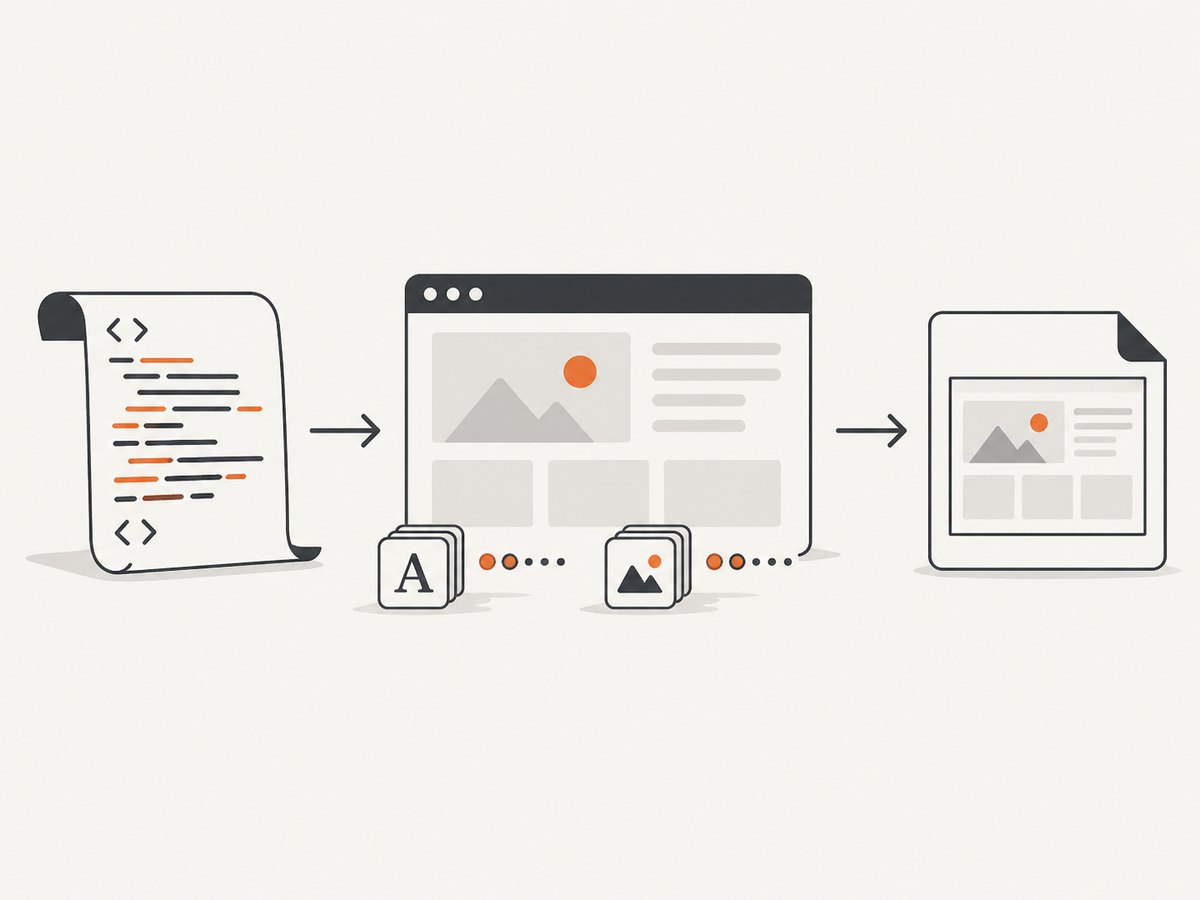
Direct answer: a string of HTML must be rendered by a browser engine before it can become a screenshot. Inject the string with page.setContent(html), set the viewport and device scale, wait for fonts, images, and client-side code, then call page.screenshot(). Playwright and Puppeteer both support this workflow.
1. Render an HTML string with Playwright
Install Playwright and its browser binaries:
npm install playwright
npx playwright install chromium
Create screenshot.mjs:
import { chromium } from 'playwright';

const html = `<!doctype html>
<html>
  <head>
    <meta charset="utf-8">
    <style>
      * { box-sizing: border-box; }
      body { font-family: system-ui, sans-serif; margin: 40px; background: #f6f7f9; }
      .card { max-width: 720px; padding: 24px; background: white; border: 1px solid #ccc; border-radius: 12px; }
    </style>
  </head>
  <body>
    <main class="card">
      <h1>Rendered from a string</h1>
      <p>This page never needed to be publicly hosted.</p>
    </main>
  </body>
</html>`;

const browser = await chromium.launch();
const page = await browser.newPage({
  viewport: { width: 1200, height: 800 },
  deviceScaleFactor: 1
});

await page.setContent(html, { waitUntil: 'load' });
await page.screenshot({ path: 'screenshot.png', fullPage: true });
await browser.close();
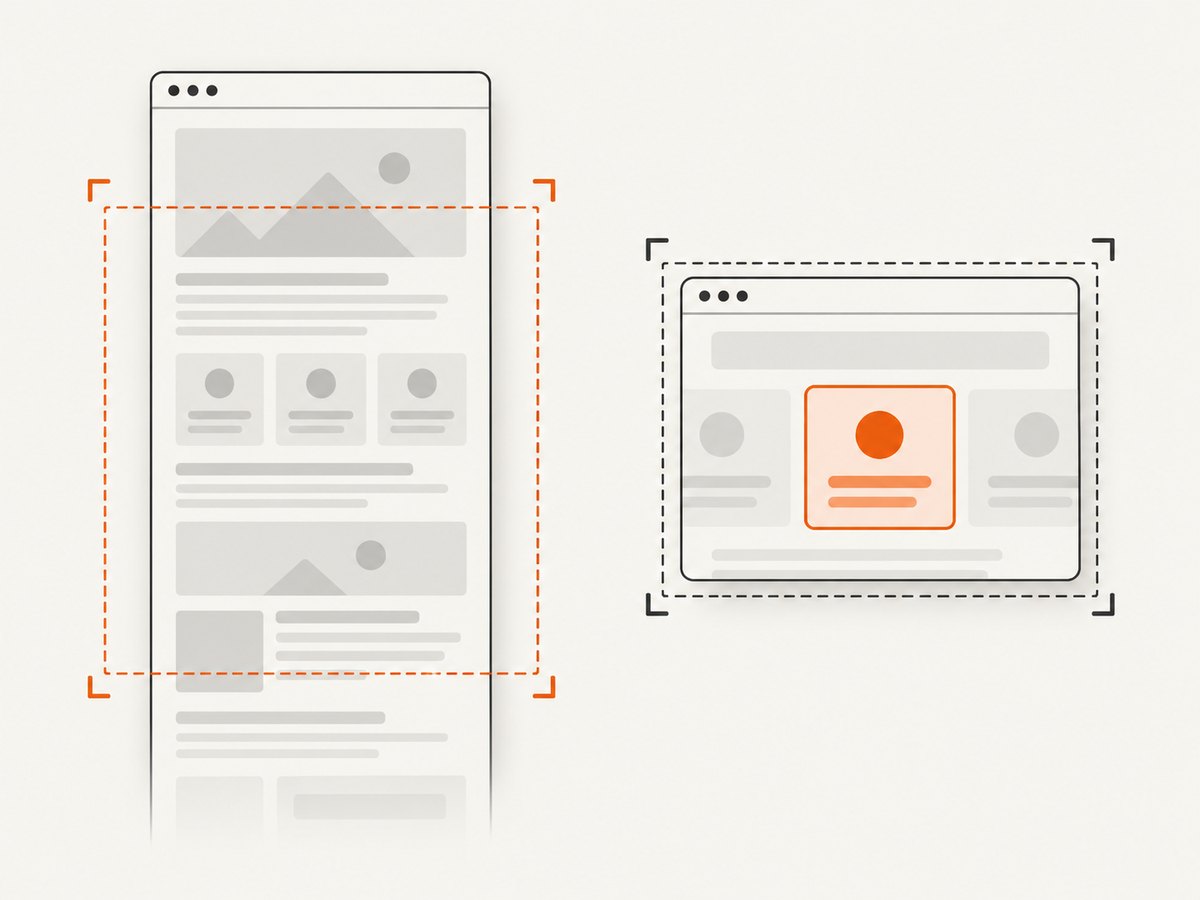
setContent assigns the HTML markup to the page. screenshot can write to a path or return image data. The example uses a full-page PNG; remove fullPage: true to capture only the viewport.
Wait for the document to be ready
waitUntil: 'load' covers the page load event, but external fonts, images, and JavaScript-rendered content may finish later. Add waits that match your document:
await page.setContent(html, { waitUntil: 'load' });
await page.locator('[data-ready="true"]').waitFor();
await page.evaluate(() => document.fonts.ready);
await page.waitForFunction(() =>
  [...document.images].every((image) => image.complete)
);
await page.screenshot({ path: 'ready.png', fullPage: true });
For a known image, wait for its decode operation:
await page.waitForFunction(() => {
  const image = document.querySelector('#hero');
  return image && image.complete && image.naturalWidth > 0;
});
Capture one element
await page.locator('.card').screenshot({ path: 'card.png' });2. Render the string with Puppeteer
Puppeteer is a Chromium-focused alternative with the same injection pattern:
npm install puppeteerimport puppeteer from 'puppeteer';
const html = '<!doctype html><html><body><h1>Rendered from a string</h1></body></html>';
const browser = await puppeteer.launch();
const page = await browser.newPage();
await page.setViewport({ width: 1200, height: 800, deviceScaleFactor: 1 });
await page.setContent(html, { waitUntil: 'load' });
const pngBytes = await page.screenshot({ fullPage: true });
await browser.close();
// pngBytes is a Uint8Array. In Node.js:
import { writeFile } from 'node:fs/promises';
await writeFile('screenshot.png', pngBytes);Puppeteer returns image bytes by default. Set encoding: 'base64' when a base64 string is more convenient.
3. Python Playwright example
Install the package and browser:
pip install playwright
playwright install chromium
from playwright.sync_api import sync_playwright
html = """<!doctype html>
<html><body>
<style>body { font-family: system-ui; margin: 40px; }</style>
<h1>Rendered from Python</h1>
</body></html>"""
with sync_playwright() as p:
browser = p.chromium.launch()
page = browser.new_page(viewport={"width": 1200, "height": 800}, device_scale_factor=1)
page.set_content(html, wait_until="load")
page.screenshot(path="screenshot.png", full_page=True)
browser.close()4. Choose the output and dimensions
| Need | Setting |
|---|---|
| Visible viewport | Omit fullPage or set it to false. |
| Entire document | Set fullPage: true. |
| One component | Screenshot a locator or element handle. |
| Lossless UI text | Use PNG. |
| Smaller files | Use JPEG or WebP when lossy compression is acceptable. |
| Retina output | Increase deviceScaleFactor; pixel dimensions increase accordingly. |
Set width, height, and device scale before rendering. This makes line wrapping and pixel dimensions predictable. If you need a fixed image size, also constrain the document width and avoid content that changes layout after capture.
5. Make standalone HTML reliable
Relative URLs
A string has no natural origin. Relative stylesheet, image, or module URLs can fail. Prefer absolute URLs, add a <base href="https://your-origin.example/"> element, or serve the assets from a controlled local origin.
Fonts and images
Wait for document.fonts.ready and for images to report a nonzero naturalWidth. Cross-origin resources can also be blocked by server policy or require authentication.
Client-side rendering
If a script fills the page after injection, wait for a stable selector or application-ready flag. A short timeout alone is less reliable than a condition tied to the document.
Animations and nondeterminism
Disable transitions and animations when reproducibility matters:
await page.addStyleTag({ content: `
  *, *::before, *::after {
    animation: none !important;
    transition: none !important;
    caret-color: transparent !important;
  }
` });
Also freeze clocks, random values, and changing data in your application if pixel comparisons must be stable.
Security boundaries
Treat stored HTML as untrusted input. Avoid enabling browser capabilities you do not need, isolate jobs, restrict network access where appropriate, and never expose secrets through page content or injected scripts.
6. Troubleshooting
| Symptom | Likely cause | Fix |
|---|---|---|
| Blank screenshot | Markup is empty or JavaScript has not rendered. | Log the string, wait for a readiness selector, and check console errors. |
| Missing images | Relative or blocked resource URLs. | Use absolute URLs or a base URL; wait for image completion. |
| Wrong line wrapping | Viewport or device scale was not set. | Set viewport before setContent and capture. |
| Fonts differ | Web fonts were still loading or unavailable. | Await document.fonts.ready and verify font responses. |
| Content is cut off | Viewport capture was used for a long page. | Use fullPage: true or capture a specific element. |
| Timeout during capture | A resource or script never completes. | Wait for a specific condition, set a bounded timeout, and handle failed resources. |
| Different images between runs | Animations, clocks, random IDs, or live data. | Disable motion and provide deterministic data. |
| Browser launch fails in CI | Missing browser binaries or system dependencies. | Run the library’s browser install command in the build image and use the documented CI dependencies. |
7. Performance, reliability, and cost
- Reuse a browser process for multiple pages, but create a fresh page or context per job to prevent state leaking between HTML strings.
- Set practical navigation and resource timeouts so one broken external asset cannot hold a worker forever.
- Block unnecessary third-party requests when they are not part of the visual result.
- Cache stable assets and HTML when you control them; avoid capturing before layout has settled.
- PNG uses more storage but preserves text sharply. WebP or JPEG can reduce transfer and storage size.
- Browser automation consumes CPU and memory. Queue work and limit concurrency to the capacity of the worker instead of launching unlimited browsers.
- For retries, use a fresh page and record the HTML version, viewport, browser version, and readiness condition that produced each image.
8. Or skip the browser setup
If your HTML can be served at a URL, ScreenshotNeo turns one GET request into a PNG, JPEG, WebP, or PDF. See the ScreenshotNeo API documentation for all options.
For a hosted page:
curl -G "https://api.screenshotneo.com/v1/shot" -d access_key=YOUR_API_KEY --data-urlencode url=https://stripe.com -o shot.webpimport requests
r = requests.get("https://api.screenshotneo.com/v1/shot", params={"access_key": "YOUR_API_KEY", "url": "https://stripe.com"}, timeout=90)
r.raise_for_status()
open("shot.webp", "wb").write(r.content)const q = new URLSearchParams({ access_key: 'YOUR_API_KEY', url: 'https://stripe.com' });
const res = await fetch(`https://api.screenshotneo.com/v1/shot?${q}`);
if (!res.ok) throw new Error(`Screenshot failed: ${res.status}`);
await Bun.write('shot.webp', res);For a stored string, first publish it at a URL you control, then pass that URL to the API. ScreenshotNeo can wait for selectors, delays, or network idle; load lazy images for full-page captures; apply custom CSS or JavaScript; set viewport, device, dark mode, headers, cookies, user agent, timezone, and geolocation; block ads, trackers, requests, or resource types; capture an element; resize output; cache with a chosen TTL; and create PDFs or async jobs.
Cookie and consent banners, newsletter popups, and chat widgets are removed before the shot. Bot checks, blank pages, failed loads, timeouts, and cache hits are not billed, and response headers report the page verdict and billing status. Its MCP server lets Claude, Cursor, and other MCP clients call take_screenshot, get_page_info, and capture_pdf. The free plan includes 1,000 screenshots per month with no card; paid plans start at $5 for 3,000.
Create a free ScreenshotNeo account and start with 1,000 screenshots each month at no charge.
9. FAQ
Can I screenshot HTML without hosting it?
Yes. Playwright or Puppeteer can inject the string directly with setContent; no public URL is required.
Why is setContent not enough for images?
It inserts markup, but external resources still need valid URLs and time to load. Wait for the assets your document depends on.
Should I use Playwright or Puppeteer?
Use Playwright when you want Chromium, Firefox, and WebKit automation from one API. Use Puppeteer when Chromium-focused automation fits your project.
How do I capture only a component?
Use a locator or element handle screenshot instead of a full-page screenshot.
Which format should I choose?
Choose PNG for lossless UI output; choose JPEG or WebP when smaller files matter and some compression is acceptable.


