Screenshot to Text Generator: Extract Text from Images with OCR
Learn how screenshot OCR works, which tools preserve layout, and how to extract text privately with Google Vision, Azure, or local workflows.
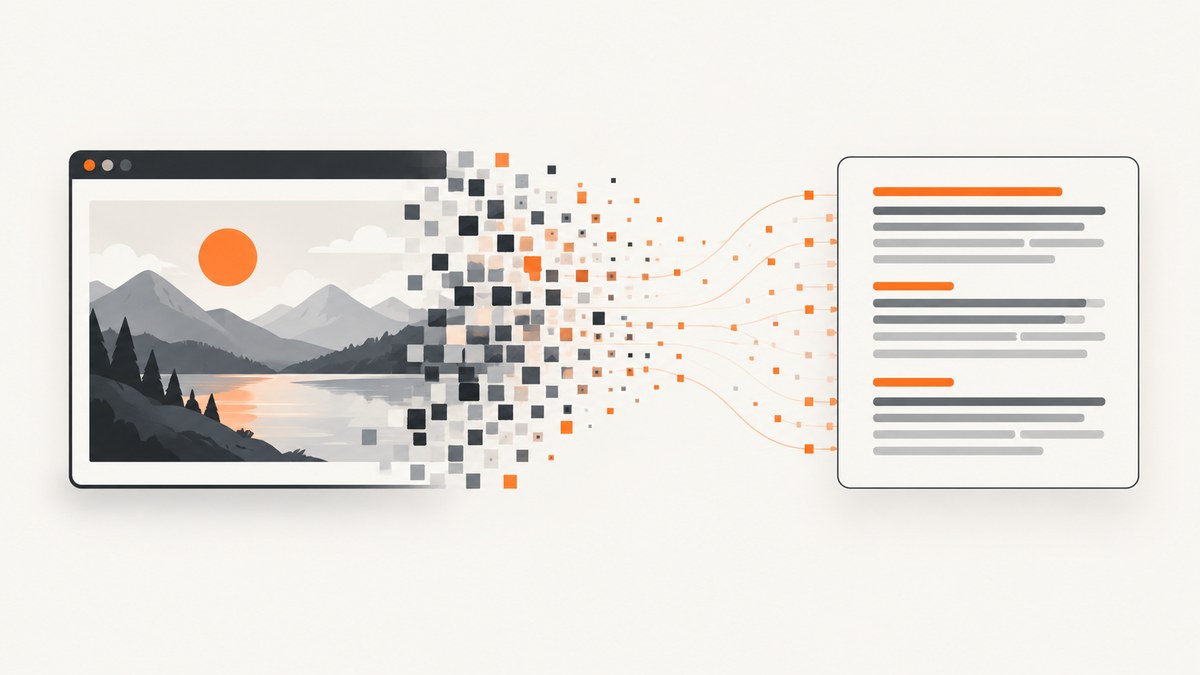
A screenshot-to-text generator uses optical character recognition (OCR) to turn visible words in a PNG, JPEG, or other image into machine-encoded, editable text. For a quick copy-and-paste job, use a browser or desktop OCR tool. For an application, send the image to an OCR API such as Google Cloud Vision or Azure Vision. For confidential material, run OCR locally or verify the provider’s retention and regional-processing controls before uploading.
The important choice is not only recognition quality. Check whether the tool preserves reading order, returns bounding boxes, reports confidence, supports your languages and handwriting, and lets you control where images are processed.
What a screenshot-to-text generator does
OCR analyzes the pixels in an image and predicts characters, words, lines, and (for document-oriented engines) larger blocks such as paragraphs and pages. The result can be plain text, searchable text, or structured data containing coordinates and confidence metadata.
| Need | Best starting point | Why |
|---|---|---|
| Copy a few words once | Browser or desktop OCR | Fastest workflow and no code |
| Automate screenshots in a product | Cloud Vision API | REST access, language support, and structured responses |
| Dense pages or reports | Document-oriented OCR | Page, block, paragraph, word, and break information helps rebuild layout |
| Confidential screenshots | Local OCR | Pixels stay on your machine when the engine is configured locally |
Choose between general OCR and document OCR
Google Cloud Vision exposes two relevant modes. TEXT_DETECTION is intended for text in general images. DOCUMENT_TEXT_DETECTION is optimized for dense documents and returns page, block, paragraph, word, and break information. Google documents requests using a local image, Cloud Storage object, or web image, with recognized text and bounding boxes in the response. See the Cloud Vision OCR documentation.
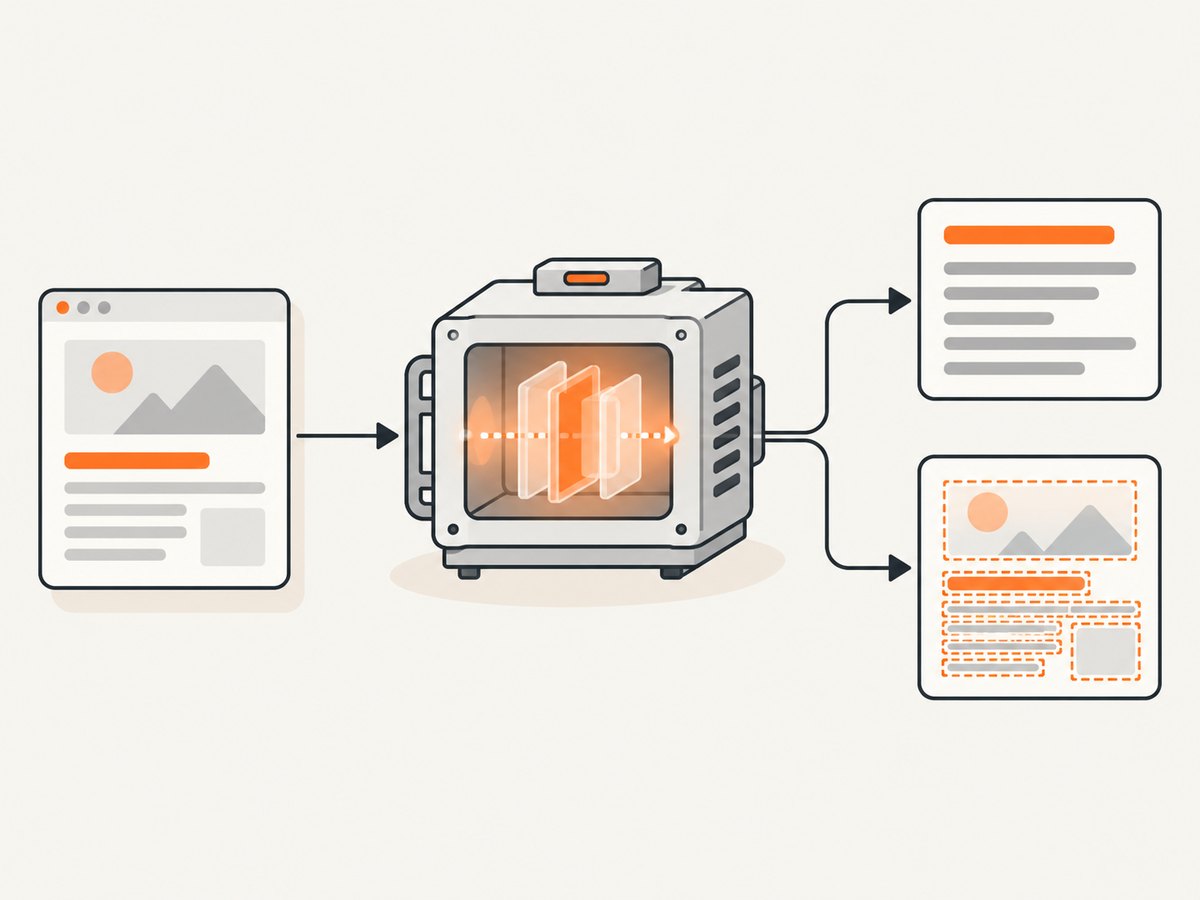
Use general detection for a UI screenshot, poster, or photograph with a modest amount of text. Use document detection when columns, paragraphs, tables, or page structure matter. Neither mode guarantees perfect reading order for unusual layouts, so keep the original image and review the output.
Fast browser workflow
- Capture or select a PNG, JPEG, or supported image.
- Upload it to an OCR tool that clearly states its deletion and retention policy.
- Choose the language or automatic detection if offered.
- Copy or download the recognized text.
- Compare names, numbers, punctuation, and line breaks with the screenshot.
This is suitable for non-sensitive, one-off work. Do not upload passwords, private messages, identity documents, source code, or confidential work screenshots until you understand who can access the image, how long it is retained, and where processing occurs.
Extract text with Google Cloud Vision
Cloud Vision accepts base64 image content in a REST request. Create a Google Cloud project, enable the Vision API, and provide credentials using the method recommended for your deployment. The examples below use an API key for readability; service-account authentication is usually preferable for server-side production systems.
cURL: document OCR from a local screenshot
IMG_B64=$(base64 -w 0 screenshot.png)
curl -sS -X POST \
  "https://vision.googleapis.com/v1/images:annotate?key=YOUR_API_KEY" \
  -H "Content-Type: application/json" \
  -d "{\"requests\":[{\"image\":{\"content\":\"$IMG_B64\"},\"features\":[{\"type\":\"DOCUMENT_TEXT_DETECTION\"}]}]}" \
  -o vision-response.json
On macOS, the system base64 command does not use -w 0; use IMG_B64=$(base64 screenshot.png | tr -d '\n') instead. The response’s fullTextAnnotation.text is convenient for plain text. The nested pages, blocks, paragraphs, words, and symbols contain geometry for layout-aware processing.
Python: send an image and save extracted text
import base64
import requests

api_key = "YOUR_API_KEY"
with open("screenshot.png", "rb") as f:
    content = base64.b64encode(f.read()).decode("ascii")

payload = {
    "requests": [{
        "image": {"content": content},
        "features": [{"type": "DOCUMENT_TEXT_DETECTION"}]
    }]
}
response = requests.post(
    "https://vision.googleapis.com/v1/images:annotate",
    params={"key": api_key},
    json=payload,
    timeout=60,
)
response.raise_for_status()
data = response.json()
annotation = data["responses"][0].get("fullTextAnnotation", {})
text = annotation.get("text", "")
with open("screenshot.txt", "w", encoding="utf-8") as out:
    out.write(text)
print(text)
Node.js: use the Vision REST endpoint
import { readFile } from 'node:fs/promises';

const apiKey = process.env.GOOGLE_VISION_KEY;
const content = (await readFile('screenshot.png')).toString('base64');
const payload = {
  requests: [{
    image: { content },
    features: [{ type: 'DOCUMENT_TEXT_DETECTION' }]
  }]
};
const res = await fetch(
  `https://vision.googleapis.com/v1/images:annotate?key=${apiKey}`,
  {
    method: 'POST',
    headers: { 'content-type': 'application/json' },
    body: JSON.stringify(payload)
  }
);
if (!res.ok) throw new Error(`${res.status}: ${await res.text()}`);
const data = await res.json();
console.log(data.responses?.[0]?.fullTextAnnotation?.text ?? '');
Image URLs and Cloud Storage
For a publicly reachable image, provide an image.source.imageUri instead of embedding base64. For private objects, use the Cloud Storage source format and grant the Vision service access. Base64 is simple for small files but increases request size; object references are easier to manage for larger or repeated inputs.
Extract text with Azure Vision
Azure Vision in Foundry Tools returns extracted lines and words, their locations, and confidence scores. Microsoft documents HTTPS requests and advises reviewing retention policies for both source images and extracted text. The exact endpoint and API-version query parameter depend on the Azure resource shown in its portal, so copy those values from your resource rather than hard-coding an outdated version.
curl -sS -X POST \
  "https://YOUR_RESOURCE.cognitiveservices.azure.com/vision/v3.2/ocr?language=unk&detectOrientation=true" \
  -H "Ocp-Apim-Subscription-Key: YOUR_AZURE_KEY" \
  -H "Content-Type: application/octet-stream" \
  --data-binary @screenshot.png
Use each returned line and word location to reconstruct reading order. Confidence is a signal for review, not a universal accuracy percentage. Evaluate it on your own screenshots, especially when fonts are small, stylized, rotated, compressed, or low contrast.
Preserve layout instead of returning a text blob
Plain text is enough for search and copy workflows, but layout matters for invoices, tables, code screenshots, and multi-column pages. A practical reconstruction pipeline is:
- Collect every word or symbol with its bounding polygon or rectangle.
- Normalize coordinates to the original image width and height.
- Group words into lines when their vertical centers are close.
- Sort lines from top to bottom, then words from left to right.
- Detect large horizontal gaps as column boundaries.
- Use paragraph or block boundaries from document OCR when available.
- Store the original coordinates alongside the text so a reviewer can jump back to the pixels.
Tables often need a second pass: infer rows from vertical position, infer columns from x positions, then validate totals and headers manually. OCR engines recognize characters; they do not automatically understand every table relationship.
Improve recognition before you upload
- Use the original screenshot instead of a repeatedly compressed copy.
- Capture at a scale where small text occupies several pixels in height.
- Crop irrelevant browser chrome and large blank margins.
- Increase contrast when text and background are close in tone.
- Deskew rotated content and avoid perspective distortion.
- Keep dark-mode and light-mode screenshots consistent with your downstream parser.
- For handwriting, test representative samples; support exists, but results vary by writing style.
Do not sharpen aggressively or threshold colored text without checking the result. Processing can remove punctuation or merge neighboring characters.
Privacy and regional processing
Cloud OCR sends image data to a provider. Google states that global is the default location and documents US and EU OCR endpoints. Microsoft advises implementers to consider retention of extracted text and underlying images. Select a region that meets your organization’s requirements, restrict credentials, redact secrets before upload, and set deletion policies for both the input image and OCR response.
Or skip the browser setup
If you first need a clean screenshot to feed into OCR, ScreenshotNeo captures a page through one GET request and can return PNG, JPEG, WebP, or PDF. Its consent handling accepts cookie banners like a visitor and removes more than 60 known consent platforms, newsletter popups, and chat widgets before capture. Bot checks, blank pages, timeouts, failed loads, and cache hits are not billed, and the response identifies the result with X-Page-Verdict and X-Billed headers. It is a capture service, so run the resulting image through your OCR engine when you need editable text.
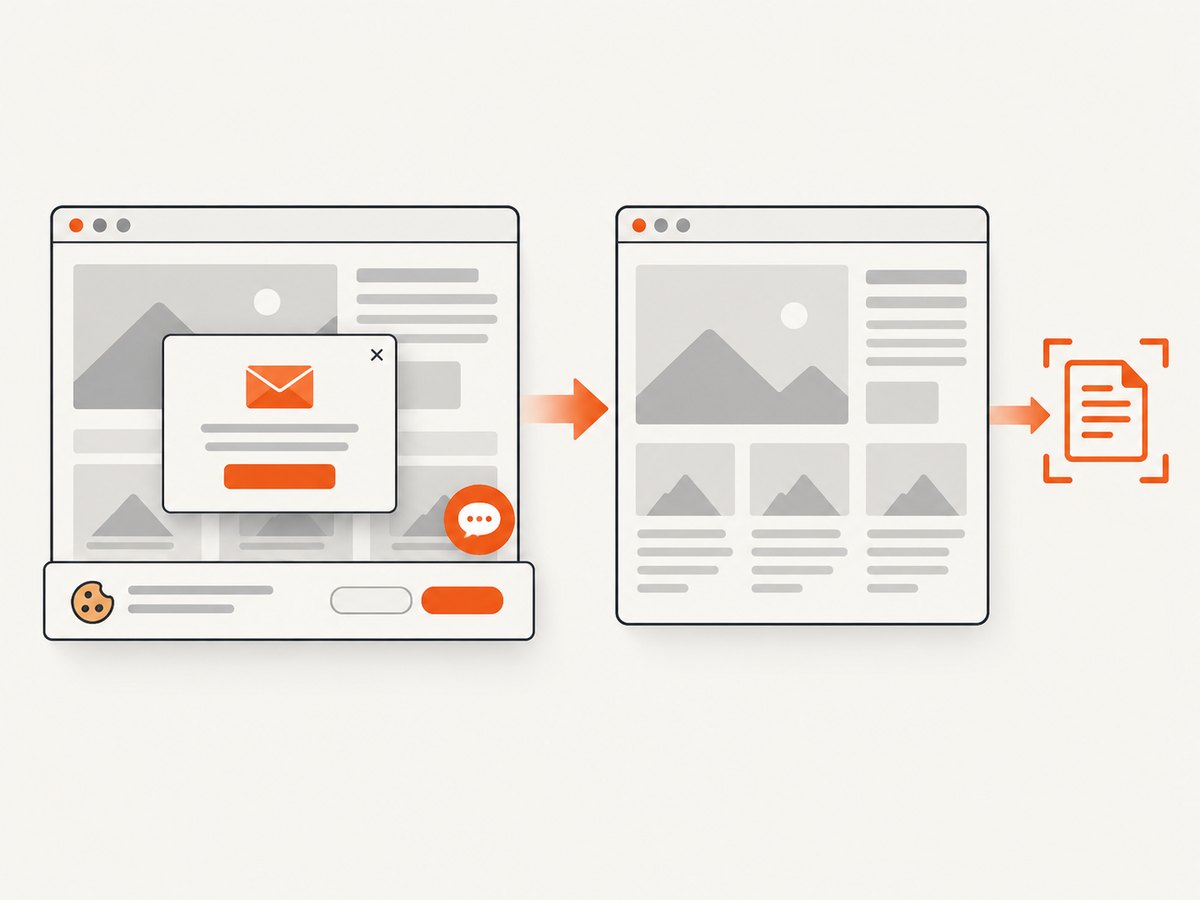
See the ScreenshotNeo API documentation for all options. The same request works from cURL, Python, or Node.js:
curl -G "https://api.screenshotneo.com/v1/shot" -d access_key=YOUR_API_KEY --data-urlencode url=https://stripe.com -o shot.webpimport requests
r = requests.get("https://api.screenshotneo.com/v1/shot", params={"access_key": "YOUR_API_KEY", "url": "https://stripe.com"}, timeout=90)
open("shot.webp", "wb").write(r.content)const q = new URLSearchParams({ access_key: 'YOUR_API_KEY', url: 'https://stripe.com' }); const res = await fetch(`https://api.screenshotneo.com/v1/shot?${q}`);Relevant capture controls include full-page screenshots with lazy images loaded, element capture by CSS selector, dark mode, device presets or custom viewports, retina scale, custom CSS and JavaScript, click and hide selectors, selector or network-idle waits, request blocking, custom headers and cookies, timezone and geolocation, transparent backgrounds, resizing, caching with a chosen TTL, signed image links, asynchronous jobs with signed webhooks, bulk capture for up to 100 URLs per call, and a usage API. An MCP server exposes take_screenshot, get_page_info, and capture_pdf to Claude, Cursor, and other MCP clients.
There are 1,000 screenshots per month free with no card. Paid plans start at $5 for 3,000 shots; yearly billing gives two months free. Create a free ScreenshotNeo account and use the resulting clean image as the OCR input.
Troubleshooting common OCR errors
| Symptom | Likely cause | Fix |
|---|---|---|
| Empty response | Unsupported, corrupt, or unreadable image | Open the file locally, verify its MIME type, and send a valid PNG or JPEG. |
| 401 or 403 | Credential, API enablement, or permission problem | Check the key or service account, enable the API, and confirm the project/resource. |
| 413 or request too large | Base64 payload exceeds limits | Resize or compress the image, or reference a Cloud Storage object. |
| Text order is wrong | Columns, floating labels, or mixed orientation | Use document OCR geometry and reconstruct lines and columns yourself. |
| Characters are confused | Tiny, blurred, low-contrast, or stylized text | Capture at higher resolution, crop, improve contrast, and review low-confidence words. |
| Private data appears in logs | Request or response logging | Redact payloads, restrict log access, and set retention rules. |
Performance, reliability, and cost notes
- Latency: Base64 encoding and network transfer add time. Reuse HTTP connections and avoid sending the same image repeatedly.
- Throughput: Queue jobs, apply provider quotas, and use bounded concurrency. Cache OCR results using a hash of the image bytes.
- Reliability: Set timeouts, retry transient 5xx responses with exponential backoff, and make retries idempotent by storing an image hash.
- Quality: Keep confidence and coordinates so humans can review uncertain fields. There is no single dated accuracy benchmark that applies to every screenshot.
- Cost: Check current provider pricing, quotas, regional charges, and storage or egress costs. A local engine can avoid per-image API charges but shifts compute and maintenance to you.
FAQ
Can OCR keep the exact screenshot formatting?
It can preserve approximate positions when the API returns bounding boxes or block structure, but editable text rarely reproduces CSS, colors, and spacing exactly. Keep the image as the visual source of truth.
Does screenshot OCR read handwriting?
Some engines support handwriting. Test samples from your real workflow because writing style, resolution, and background strongly affect results.
Is a screenshot safer than the original document?
Not automatically. A screenshot can still contain credentials, personal data, or confidential text. Apply the same handling rules and verify provider retention and regional processing.
Should I use general or document detection for a web page?
Use general detection for a small, simple UI image. Choose document detection when the screenshot contains dense text, multiple paragraphs, or columns and you need coordinates or hierarchy.
Can ScreenshotNeo convert the image into text?
ScreenshotNeo captures clean images and PDFs. Pair its output with Google Cloud Vision, Azure Vision, or a local OCR engine for text extraction.


