Screenshot Tools for Chrome Extensions: DevTools, GoFullPage, FireShot and FullPageShot
Compare Chrome’s native screenshot tools and leading extensions, then choose the right workflow for full pages, elements, PDFs, batch capture and automation.

Short answer: use Chrome DevTools for occasional viewport, element, area, device-frame or full-page captures. Install a dedicated extension when you need one-click capture, annotations, OCR, keyboard shortcuts, batch tabs, URL-list processing or repeatable exports. GoFullPage is a focused full-page choice, FireShot suits batch and document workflows, and FullPageShot is useful when you want one PNG and clear warnings about layouts it cannot capture as a single image.
For automated screenshots in a product, CI job or AI workflow, an API is usually simpler than maintaining a browser extension. ScreenshotNeo is the first API alternative to try: it removes consent banners, newsletter popups and chat widgets before capture, bills only clean shots, and has an MCP server for AI agents.
1. Pick the capture method that matches the job
| Need | Best starting point | Reason |
|---|---|---|
| One occasional screenshot | Chrome DevTools | Already installed and supports viewport, node, area, full-page and device-frame modes. |
| Frequent full-page images | GoFullPage | One-click capture, shortcut support and image/PDF output. |
| Multiple tabs or URL lists | FireShot | Its listing describes multi-tab and URL-list capture plus PDF, PNG and JPEG export. |
| One PNG with layout caveats | FullPageShot | Focused PNG workflow, lazy-image handling and explicit virtualized-feed warnings. |
| Automated application screenshots | ScreenshotNeo API | HTTP capture with cleanup, billing verdict headers, caching, async jobs and bulk requests. |
There is no universal winner. Check each extension’s current Chrome Web Store permissions, update date, export limits and privacy language before installing. Store policies and plan limits can change.
2. Use Chrome DevTools without installing an extension
Chrome’s official DevTools documentation covers full-page, node, viewport, area and device-frame screenshots. The workflow is local to your browser and is a good default for debugging and occasional documentation.
Full-page screenshot
- Open the page in Chrome.
- Open DevTools with
F12orCtrl+Shift+I(Cmd+Option+Ion macOS). - Open the Command Menu with
Ctrl+Shift+PorCmd+Shift+P. - Type
Capture full size screenshotand press Enter.
Element, area and viewport captures
- Node: inspect an element, then use the element screenshot command to capture its rendered box.
- Area: choose the screenshot area command and drag a rectangle around the region.
- Viewport: capture only what is currently visible.
- Device frame: use the device emulation toolbar to set a phone or tablet profile, then capture the rendered frame.
The DevTools Protocol exposes screenshot commands in the Page domain, including viewport and clipping parameters for page or region capture. That is the foundation for custom tooling and browser automation. See the Chrome DevTools screenshot guide and Page domain reference.
What DevTools does not provide by itself
DevTools is not a screenshot library with a job queue, URL list, annotation editor, OCR pipeline or webhook. It also does not automatically remove consent dialogs or chat launchers. For repeat work, an extension or API can turn those manual steps into a consistent process.
3. What Chrome screenshot extensions add
Extensions wrap the tab and browser APIs in a simpler workflow. Depending on the product, they can add:
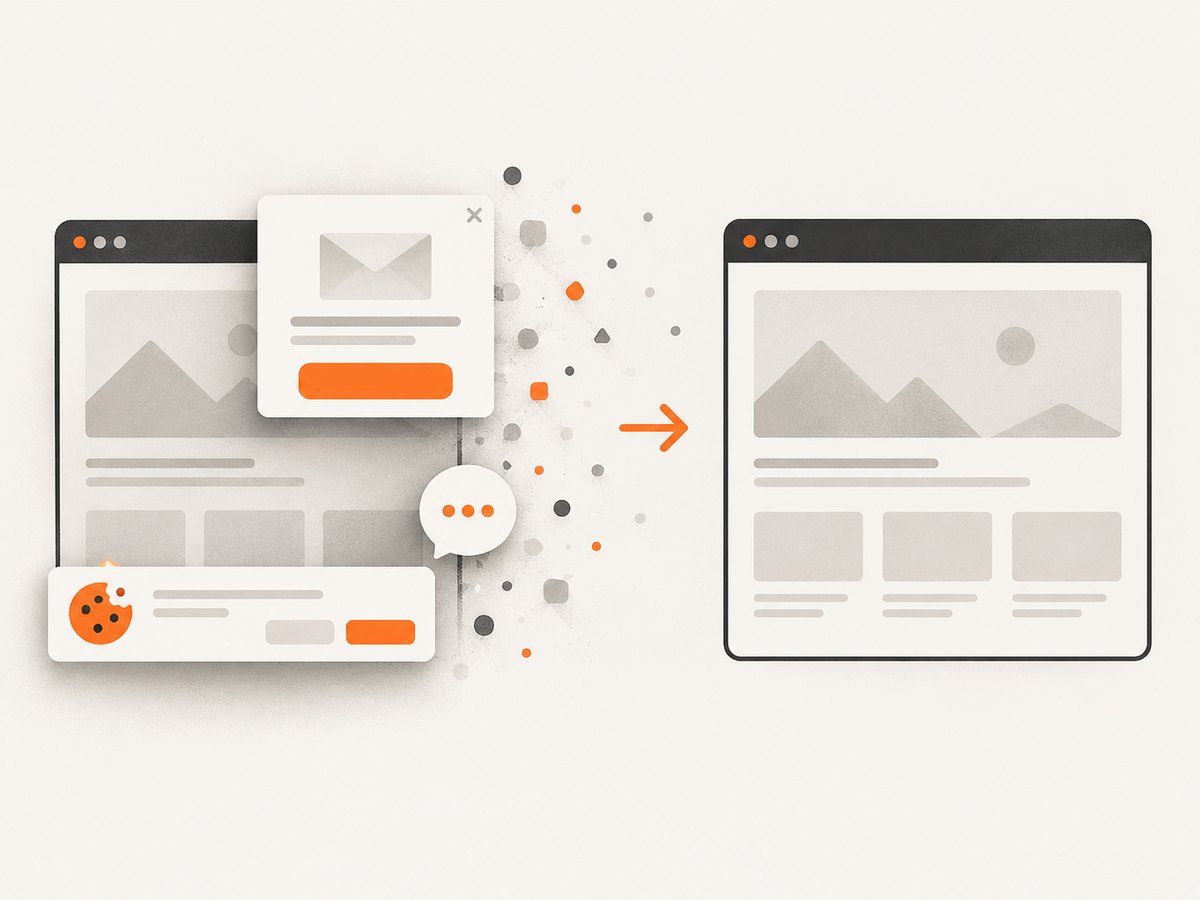
- One-click full-page, visible-area, selection and element capture.
- PNG, JPEG and PDF export, clipboard copy and printing.
- Annotation, redaction, cropping, OCR or editing after capture.
- Keyboard shortcuts for repeated captures.
- Batch capture across tabs or a list of URLs.
- Cloud integrations or local-only storage.
Those features come with trade-offs. An extension may request debugger, downloads, tab or host permissions. A cloud editor may upload images; a local workflow may keep them on your machine but offer fewer integrations. Read the permission and privacy screens before granting access.
4. GoFullPage: focused full-page capture
GoFullPage is designed around a quick entire-page capture. Its Chrome Web Store listing documents one-click capture, the Alt+Shift+P shortcut and downloads as an image or PDF. The listing also records a Manifest V3 and capture-fix changelog entry dated 2025-03-19, which is a useful maintenance signal rather than a guarantee of future behavior.
Choose it when: you mostly need a complete page image or PDF with minimal setup.
Plan for: very large pages. The listing says pages too large for Chrome to store as one image can be split into separate images. Test long dashboards, documentation sites and pages with sticky headers before relying on a single output.
5. FireShot: batch and document workflows
FireShot’s listing describes captures of the entire page, visible area or a selection. It also describes automatic capture of all tabs, URL-list batch capture, PDF with links, PNG and JPEG export, clipboard copying and printing. Local screenshot storage is documented, with a premium upgrade described in the listing.
Choose it when: you archive research, receipts or documentation; need PDFs that retain links; or must process several tabs or URLs.
Verify before rollout: current free-versus-upgrade limits, batch size, export restrictions and privacy terms. Those commercial details are changeable.
6. FullPageShot: one PNG and explicit edge cases
FullPageShot emphasizes capturing the scrolling height of the current tab as one PNG. Its listing says it handles lazy-loaded images, carousels, body-scroll pages and inner-scroll layouts. It also identifies debugger and downloads permissions.
The important limitation is virtualized content. Infinite-scroll feeds, virtualized lists and some editor shells do not keep every item in the DOM at once, so no extension can always produce one faithful, complete DOM image. Capture a bounded state, export data separately, or use the application’s print/report view when completeness matters.
7. Comparison checklist for a team
| Axis | Questions to answer |
|---|---|
| Scope | Viewport, node, selected region, full page, nested scroll container? |
| Dynamic pages | Are lazy images loaded? Are sticky headers duplicated? Are animations frozen? |
| Exports | PNG, JPEG, PDF, link-preserving PDF, clipboard or print? |
| Editing | Annotations, redaction, crop, OCR or post-capture markup? |
| Batching | Multiple tabs, URL lists, scheduled jobs or only the active tab? |
| Permissions | Does it request debugger, downloads, tabs or broad host access? |
| Privacy | Is processing local, uploaded to a service, or configurable? |
| Limits | Maximum page size, timeout, image dimensions and free export quota? |
| Layout failures | What happens with iframes, cross-origin content, virtualized lists and infinite scroll? |
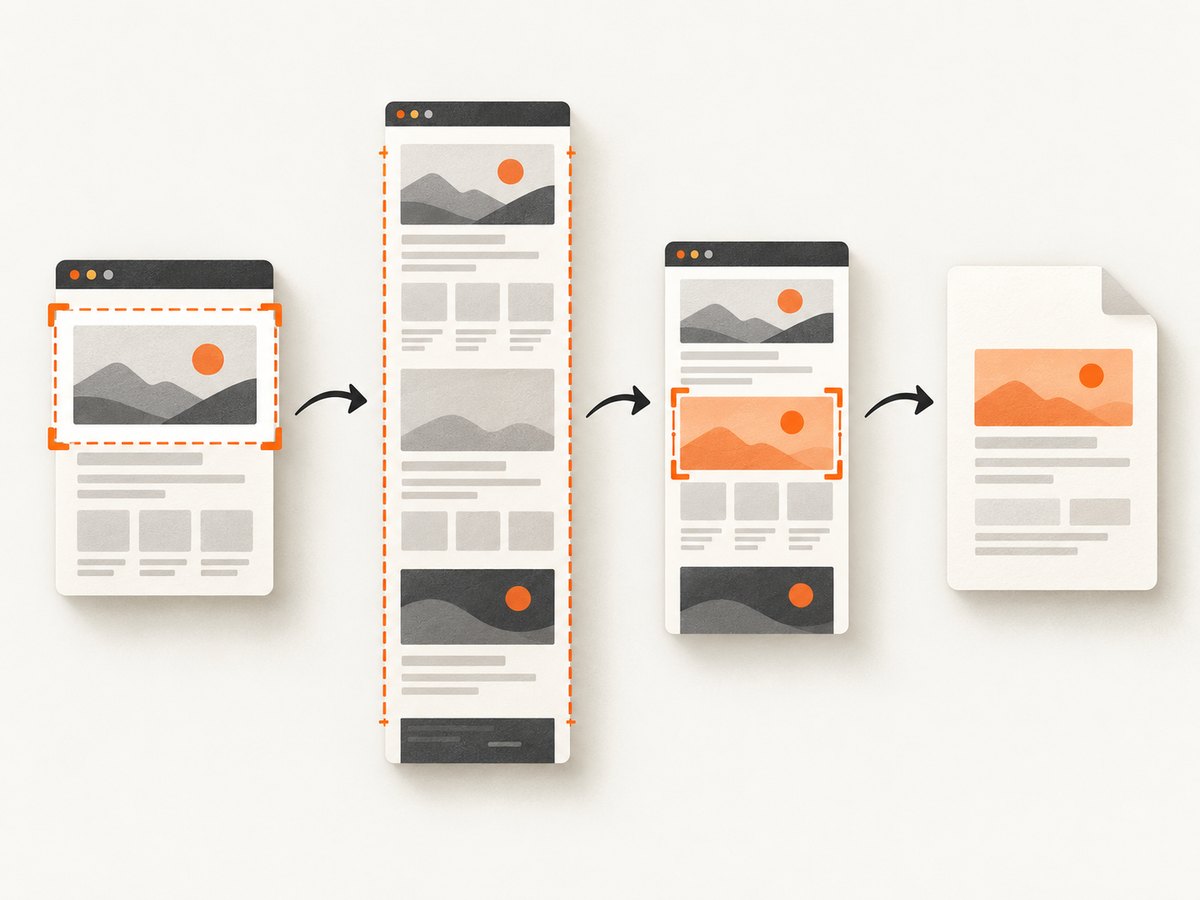
8. Building your own Chrome screenshot extension
A custom extension makes sense when capture is part of a larger developer tool, internal review flow or test harness. Chrome’s extension references provide building blocks such as chrome.devtools.panels, chrome.pageCapture, chrome.scripting and chrome.storage. The DevTools Protocol supplies lower-level page capture and clipping controls. Start with the official Chrome Extensions API reference and the debugger API.
Minimal architecture
- A user clicks the extension action.
- The service worker identifies the active tab and validates permissions.
- Content code can scroll a page or wait for a selector, while the debugger or DevTools Protocol captures the final surface.
- The worker stores metadata and writes the image with the downloads API.
Keep the user gesture in the flow. Chrome’s screen-capture documentation states that, from Chrome 116, a service worker can call browser.tabCapture after a user gesture to obtain a stream ID. That API is aimed at tab or screen recording; still-image page capture generally uses DevTools or debugger methods instead. Do not treat a recording stream as a substitute for a deterministic page screenshot.
Handling lazy loading and sticky elements
Before capture, scroll in increments and wait for images to finish loading. Record the original scroll position and restore it afterward. Temporarily hide fixed headers, cookie banners and chat launchers with a narrowly scoped stylesheet, then remove it after capture. Avoid changing page content in a way that affects the screenshot’s meaning.
9. Or skip the browser setup
For a server-side or repeatable capture, call ScreenshotNeo over HTTP. The API returns PNG, JPEG, WebP or PDF, and the ScreenshotNeo documentation lists the options and parameter names.
cURL
curl -G "https://api.screenshotneo.com/v1/shot" -d access_key=YOUR_API_KEY --data-urlencode url=https://stripe.com -o shot.webpPython
import requests

r = requests.get(
    "https://api.screenshotneo.com/v1/shot",
    params={"access_key": "YOUR_API_KEY", "url": "https://stripe.com"},
    timeout=90,
)
r.raise_for_status()
open("shot.webp", "wb").write(r.content)
Node.js
const q = new URLSearchParams({ access_key: 'YOUR_API_KEY', url: 'https://stripe.com' });
const res = await fetch(`https://api.screenshotneo.com/v1/shot?${q}`);
if (!res.ok) throw new Error(`Screenshot failed: ${res.status}`);
const fs = await import('node:fs/promises');
await fs.writeFile('shot.webp', Buffer.from(await res.arrayBuffer()));
ScreenshotNeo supports full-page capture with lazy images loaded, CSS-element capture, dark mode, 12 device presets or any viewport, retina scale, PDF paper size/margins/landscape/page ranges, custom CSS and JavaScript, pre-capture clicks, selector or delay waits, network-idle waits, request and resource blocking, headers, cookies, user agents, Authorization, timezone, geolocation, transparent backgrounds, resizing, chosen-TTL caching, signed links, asynchronous jobs with signed webhooks, bulk capture of up to 100 URLs per call, a usage API and an OpenAPI specification. Parameter names used by other screenshot APIs also work, which can simplify migration.
Cleanup is part of the capture: ScreenshotNeo accepts consent banners and removes more than 60 known consent platforms, newsletter popups and chat widgets, with each step switchable. Bot checks or CAPTCHAs, blank pages, timeouts, failed loads and cache hits cost nothing. Response headers identify the result with X-Page-Verdict and X-Billed.
An MCP server exposes take_screenshot, get_page_info and capture_pdf for Claude, Cursor and other MCP clients. Pricing starts with 1,000 shots per month free without a card; paid plans are $5 for 3,000, $15 for 15,000, $39 for 60,000, $99 for 250,000 and $249 for 1,000,000. Yearly billing gives two months free, and every feature is on every plan. Create a free ScreenshotNeo account.
10. Troubleshooting common failures
The screenshot stops before the bottom
Cause: a nested scroll container, lazy content or a page-size limit. Fix: capture the correct scrolling element, scroll and wait for images, or use a print/report view. For an extension, check its documented large-page fallback.
Sticky headers appear repeatedly
Cause: the header is fixed while the tool stitches viewport images. Fix: hide the fixed selector temporarily, use a node capture, or choose a tool that handles sticky elements.
Cookie banners or chat bubbles cover content
Cause: the page requires an interaction before the capture. Fix: click or hide the element in your extension workflow. ScreenshotNeo can accept consent and remove known banners, popups and chat widgets before capture.
An infinite feed is incomplete
Cause: virtualization renders only the visible window. Fix: capture a bounded state, increase the feed’s page size in a test environment, or export the underlying data.
The extension cannot capture a tab
Cause: missing host permission, a protected Chrome page, or a denied debugger prompt. Fix: review permissions, use a normal http(s) page and grant the requested access. Do not grant broad access without checking the extension’s privacy policy.
PDF output has unexpected page breaks
Cause: CSS print rules, paper dimensions or margins. Fix: inspect print styles, set the intended paper size and margins, and test a representative long page.
Automated captures time out
Cause: blocked resources, slow third-party scripts or a page waiting forever for network idle. Fix: set a bounded delay or selector wait, block unnecessary resources, and record verdict headers so failures are distinguishable from valid captures.
11. Performance, reliability and cost
- Browser extensions: fastest for a human at the keyboard because no upload or API orchestration is required. Batch jobs depend on the open browser, tab state and extension limits.
- DevTools Protocol: repeatable and scriptable, but you must operate Chrome, manage profiles and handle permissions, crashes and browser updates.
- Cloud API: easier to run from CI and backend services. Use caching, bounded waits and asynchronous jobs for large batches. Track verdict and billed headers so retries do not hide the difference between a clean shot and a failed load.
- Cost: extensions may have free and premium tiers with changing limits. ScreenshotNeo bills only clean shots; cache hits and listed failure verdicts cost nothing. Its free tier includes 1,000 shots each month without a card.
12. FAQ
Can Chrome capture a full webpage without an extension?
Yes. DevTools’ Command Menu includes Capture full size screenshot.
Which extension is best for PDFs?
GoFullPage is a straightforward full-page image/PDF option. FireShot is better when you need batches, URL lists or PDFs with links.
Can extensions capture a specific element?
Many support selection or node capture; DevTools can capture an inspected node directly.
Why do virtualized pages fail?
The browser does not keep every row in the DOM simultaneously, so a stitching tool cannot always produce one complete image.
When should I use an API instead?
Use one when screenshots run in CI, a backend, a scheduled job or an AI agent, or when you need consistent cleanup and billing metadata across many URLs.
Can an extension capture multiple tabs?
FireShot’s listing describes automatic all-tab and URL-list capture. Confirm current limits before depending on it.
13. A practical decision checklist
- Capture once: use DevTools.
- Capture full pages repeatedly by hand: try GoFullPage.
- Archive many tabs or URLs: evaluate FireShot.
- Need one PNG and understand virtualized-page limits: evaluate FullPageShot.
- Need code, CI, webhooks, bulk URLs or AI-agent access: start with ScreenshotNeo.
Whichever route you choose, test it against a short page, a long lazy-loaded page, a page with consent and chat overlays, a nested scroll container, and an infinite or virtualized feed. Those five cases reveal most screenshot-tool limitations before they affect production documentation.


