Screenshot Tools for Firefox
Use Firefox’s built-in screenshot tool for selections, visible areas, and full pages. Learn the Developer Tools options, troubleshooting steps, and a browser-free API alternative.
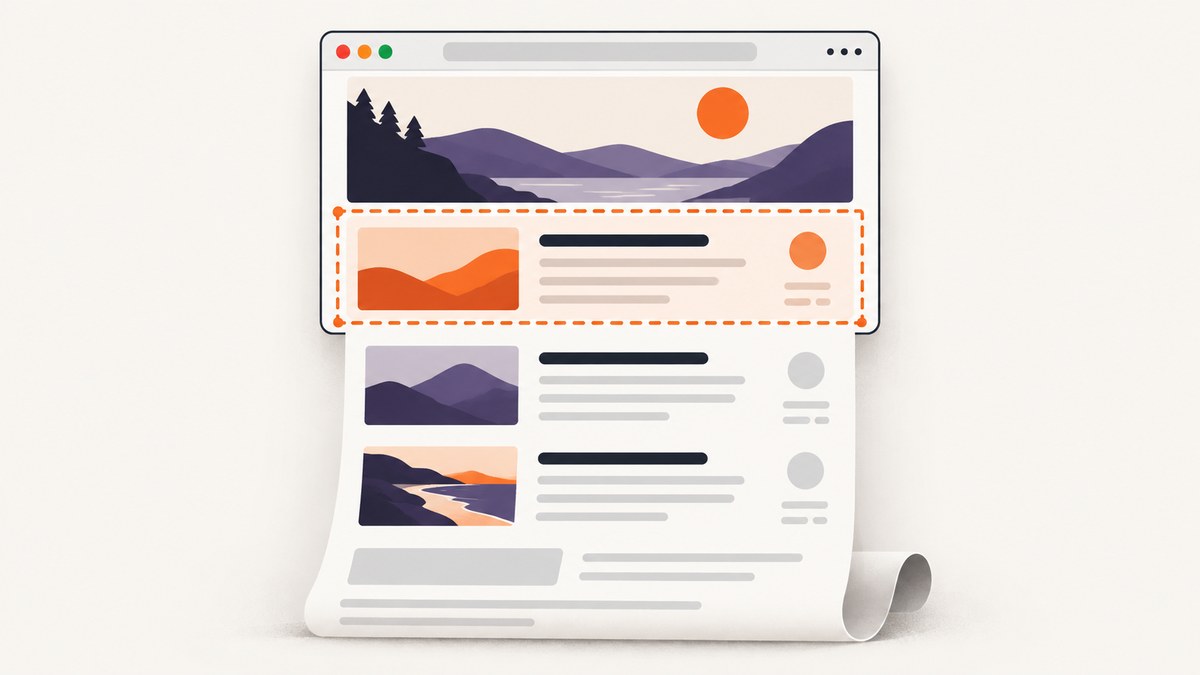
Firefox already has a screenshot tool for capturing a selected region, a highlighted page part, the visible portion, or the full page. Right-click an empty part of a page and choose Take Screenshot, or press Ctrl+Shift+S on Windows or Linux and Command+Shift+S on macOS. For element-level captures and repeatable settings such as a CSS selector or device-pixel ratio, use Firefox Developer Tools.
This guide covers the built-in workflow first, then Developer Tools, extensions, privacy, and troubleshooting. If you need screenshots in a script or service, see the API option after the browser instructions.
1. Choose the right Firefox capture method
| Need | Use |
|---|---|
| Capture a quick part of a webpage | Built-in Take Screenshot, then drag a region |
| Capture the visible viewport or whole page | Built-in Take Screenshot, then Save visible or Save full page |
| Capture a specific DOM element | Developer Tools Inspector → Screenshot Node, or the Web Console selector option |
| Repeat captures with a delay, filename, or DPR | Developer Tools Web Console :screenshot helper |
| Add annotation, blur, recording, or cloud sharing | Consider an extension after checking its current permissions, privacy terms, compatibility, and price |
| Capture URLs from a script or backend | A screenshot API, such as ScreenshotNeo |
For ordinary browser screenshots, a separate app or add-on is not required. Firefox’s built-in feature can copy an image to the clipboard or download it. Mozilla’s help page describes the current controls and privacy behavior: Take screenshots in Firefox.
2. Take a screenshot with Firefox’s built-in tool
- Open the webpage you want to capture.
- Right-click an empty area of the page and choose Take Screenshot. On macOS, Control-click is also documented. Alternatively, press Ctrl+Shift+S on Windows/Linux or Command+Shift+S on macOS.
- Choose the target: drag a custom region, click an automatically highlighted page part, select Save full page, or select Save visible.
- Choose Download to save a PNG in Firefox’s default downloads folder, or Copy to place the screenshot on the clipboard. Press Escape to cancel.
The highlighted-part behavior is useful for selecting an image, card, or content block without estimating its edges by hand. For exact DOM targeting, use Developer Tools as described below.
Add a Screenshot button to the toolbar
- Open the Firefox menu and choose More Tools → Customize Toolbar.
- Find the Screenshot item and drag it to the toolbar position you want.
- Select Done, then use the button when you need a capture.
Mozilla documents keyboard operation for the crosshair and selection, but warns that moving the crosshair does not work on Wayland. If selection behaves unexpectedly there, try Developer Tools or another supported capture route.
3. Capture a DOM element with Developer Tools
Use Developer Tools when you need a particular node rather than a visually estimated rectangle.
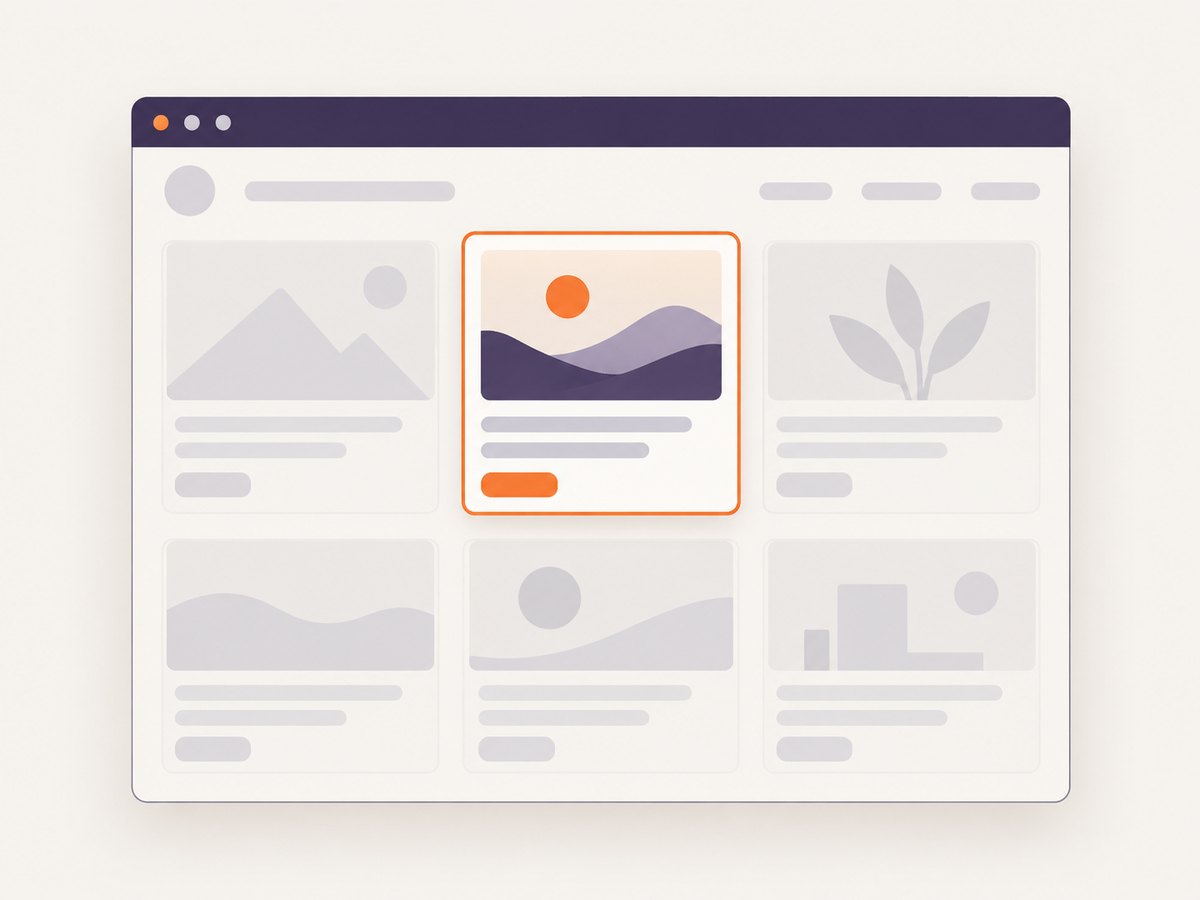
Screenshot Node from the Inspector
- Open Developer Tools with F12 or the browser menu’s Web Developer tools.
- Open the Inspector and select the element in the HTML pane.
- Right-click the selected node and choose Screenshot Node.
- Firefox saves the resulting image to Downloads.
Enable the screenshot button
In Developer Tools, open Settings and enable the Screenshot control under Available Toolbox Buttons. Use that control to capture a page. The Firefox Source Docs describe the Developer Tools workflows: Taking screenshots.
4. Use the Web Console screenshot helper
The Web Console :screenshot helper exposes options for clipboard output, delay, device-pixel ratio, filename, full-page capture, and CSS selector targeting. This is useful for a capture you want to repeat with the same settings. Commands run in Firefox’s Web Console, not in a system terminal.
:screenshot --fullpage
:screenshot --selector ".product-card"
:screenshot --delay 3000 --dpr 2 --filename "page.png"
:screenshot --clipboard
These examples show the documented option categories. Consult the Firefox Source Docs for the exact syntax supported by your installed Firefox version. Reusing a filename overwrites the previous image, so use a new filename when preserving earlier captures matters.
Practical capture sequence
- Load the page and wait until its content is in the state you intend to document.
- Use a selector for an element capture or
--fullpagefor the whole page. - Add a delay if the page needs a few seconds to settle; use a suitable DPR if the output needs higher pixel density.
- Choose a unique filename or clipboard output.
- Open the saved image and check that lazy-loaded content, sticky headers, and the intended element appear as expected.
Browser screenshots reflect the current page state, including viewport size, scroll position where relevant, loaded fonts, animations, and any content gated on interaction. A delay can help with timing, but it does not guarantee that a site has finished all asynchronous work.
5. When an extension makes sense
Use an extension when the built-in browser controls do not cover the post-capture workflow you need, such as annotations, blur or highlighting, screen recording, or cloud sharing. The Mozilla Add-ons listing for Awesome Screenshot & Screen Recorder describes these kinds of features, along with full-page, visible, selected-area, whole-screen, and application-window capture.
The listing requests permissions that include access to browser tabs and website data, along with clipboard and download-related access. Review the current permission list and privacy terms before installing; the listing’s privacy description is the publisher’s statement. Marketplace ratings, user counts, version, and compatibility can change, so check the live listing rather than treating old figures as durable evidence.
Decide based on the actual task: local copy/save, exact element targeting, annotation, recording, or collaboration. A third-party extension adds a separate software publisher and permission model to the workflow.
6. Privacy and sharing considerations
Mozilla says Firefox Screenshots collects interaction events such as using Copy or Save full page, but not the page URL or details of the captured image. Mozilla also documents controls for technical and interaction data and says the web component respects Do Not Track. These statements describe Mozilla’s own feature; they should not be generalized to add-ons or external screenshot services. See Mozilla’s privacy details and settings.
For sensitive pages, consider where the image will go after capture. Copying puts it on the system clipboard, downloading creates a local file, and a cloud-sharing extension or API may send page content to a service. Follow your organization’s rules for credentials, customer data, and private internal pages.
7. Performance, reliability, and file handling
- Full-page captures take longer and can be larger than visible-area captures because the image includes more content.
- Dynamic pages can shift while capturing. Wait for important content to load and avoid capturing during transitions or animations.
- Lazy-loaded images may need scrolling or time to load. Inspect the output for missing images or incomplete lower sections.
- High DPR increases pixel dimensions and file size. Use it when clarity matters, and use a lower setting when a smaller file is more useful.
- File overwrites are possible. The Developer Tools documentation notes that reusing a filename replaces the prior image.
- Clipboard capture depends on the destination app. If paste fails, download the PNG and open or attach the file directly.
For a one-off screenshot, the built-in tool is usually the simplest path. For recurring or high-volume URL capture, a browser GUI creates manual work; scripted capture or an API can make the workflow repeatable. The cost depends on the tool and capture volume, so check current pricing and any per-capture billing rules before automating.
8. Troubleshooting Firefox screenshots
| Problem | Likely cause | What to try |
|---|---|---|
| Take Screenshot is missing from the context menu | Context menu opened on a control or browser chrome, or the menu item is not visible in that context | Right-click an empty page area, use the keyboard shortcut, or add the toolbar button through Customize Toolbar. |
| The shortcut does not open the tool | Shortcut differs by operating system or another application intercepts it | Use Ctrl+Shift+S on Windows/Linux or Command+Shift+S on macOS; otherwise use the context menu. |
| Crosshair will not move on Wayland | Mozilla documents this platform limitation | Use the Inspector’s Screenshot Node, the Developer Tools screenshot control, or another capture workflow. |
| Full-page result is missing content | Lazy loading, delayed rendering, or content that appears only after interaction | Scroll through the page first where appropriate, wait for content, then capture again. Verify the result image. |
| Element capture targets the wrong node | Several elements look alike, or the selected node is a wrapper rather than the desired content | Confirm the selected node in the Inspector; use a more specific CSS selector with the Console helper. |
| Screenshot file replaced an earlier one | The same filename was reused | Choose a distinct filename for each capture. |
| Copy appears to do nothing | Clipboard contents may not be visible until pasted, or the destination does not accept the image | Paste into an image-capable app; if that fails, download the PNG. |
| An extension stops working after a Firefox update | Extension compatibility can change with browser releases | Check the current add-on listing and publisher notes, then use Firefox’s built-in feature for basic captures. |
9. Or skip the browser setup
For automated URL screenshots, ScreenshotNeo is a website screenshot API and MCP server. A single GET request returns PNG, JPEG, WebP, or PDF; the documented API and options are at ScreenshotNeo docs.

curl -G "https://api.screenshotneo.com/v1/shot" -d access_key=YOUR_API_KEY --data-urlencode url=https://stripe.com -o shot.webpimport requests
r = requests.get("https://api.screenshotneo.com/v1/shot", params={"access_key": "YOUR_API_KEY", "url": "https://stripe.com"}, timeout=90)
open("shot.webp", "wb").write(r.content)const q = new URLSearchParams({ access_key: 'YOUR_API_KEY', url: 'https://stripe.com' });
const res = await fetch(`https://api.screenshotneo.com/v1/shot?${q}`);- Cookie banners are accepted like a visitor, and known consent platforms, newsletter popups, and chat widgets are removed before the shot; each step can be turned off.
- Bot checks, blank pages, timeouts, failed loads, and cache hits cost nothing. Responses identify the page verdict and billing status in headers.
- An MCP server gives AI agents tools to take screenshots, get page information, and capture PDFs.
- The Free plan includes 1,000 shots per month with no card. Paid plans start at $5 for 3,000 shots; every feature is on every plan.
Sign up for 1,000 free screenshots a month, with no card required.
10. FAQ
Can Firefox take a screenshot of only one element?
Yes. Select a node in the Inspector and choose Screenshot Node, or use the Web Console helper’s CSS selector option.
Does the built-in tool save JPEG?
The Mozilla help instructions describe downloading a PNG. If you need another format, convert the downloaded image with an image editor or use a capture tool that returns that format.
Can I capture an entire desktop or application window with Firefox’s built-in tool?
The built-in webpage feature focuses on page content. The Awesome Screenshot listing describes whole-screen and application-window capture as extension features; review its current permissions and privacy details first.
Do I need an extension for full-page screenshots?
No. Firefox’s built-in tool includes Save full page.
Where do Developer Tools screenshots go?
The documented Developer Tools captures save to the Downloads folder unless you use a different supported output option such as clipboard.


