How to Screenshot Websites Translated with Google Website Translator
Translate a website, verify the translated view, and save a reliable screenshot on desktop, iPhone, Android, or with an API.
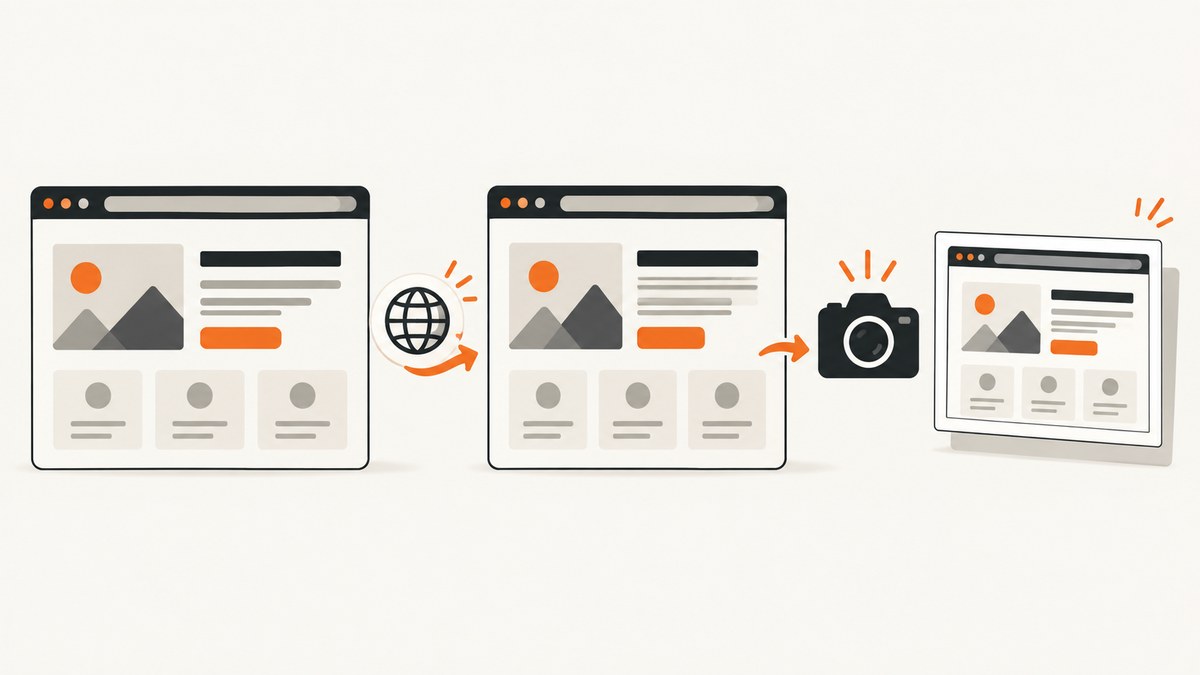
To screenshot a website translated with Google Website Translator, open the URL through Google Translate’s Websites workflow (or use Chrome’s built-in translation), confirm the page is in Translation mode, wait for the translated content to settle, and then capture the visible region or full page with your device’s screenshot tool. The verification step matters: Google Translate lets you switch between Translation and Original, and capturing while Original is selected produces a screenshot in the source language.
This guide covers Google’s website route, Chrome, Windows, iPhone, Android, long pages, dynamic content, troubleshooting, and an automated option with ScreenshotNeo.
1. Translate the website with Google Translate
Google Translate’s Websites workflow
- Open Google Translate on a desktop browser.
- Select Websites.
- Leave the source language as Detect language unless you know the page’s language.
- Choose your target language.
- Paste the complete webpage URL into the URL field.
- Select Go or Translate.
- Wait for the translated-site view to open, then follow the verification steps below.
Google documents website translation on supported devices and says the feature is not available in every region. Its Website Translator shortcut supports more than 100 languages. If the URL does not open in a translated view, try Chrome’s in-page route or check whether the feature is available where you are.
Chrome’s in-page translation route
Open the foreign-language page directly in Chrome. Select the Translate icon beside the address bar and choose the target language. You can also right-click the page and select Translate to [language]. Chrome’s language settings let you enable or disable Google Translate and set preferred target languages. If translation does not work, Chrome Help recommends refreshing the page.
2. Confirm that the page is actually translated
Do not capture immediately after the page appears. Google’s translated-site view includes language controls and a menu that switches between Translation and Original. Use this checklist:
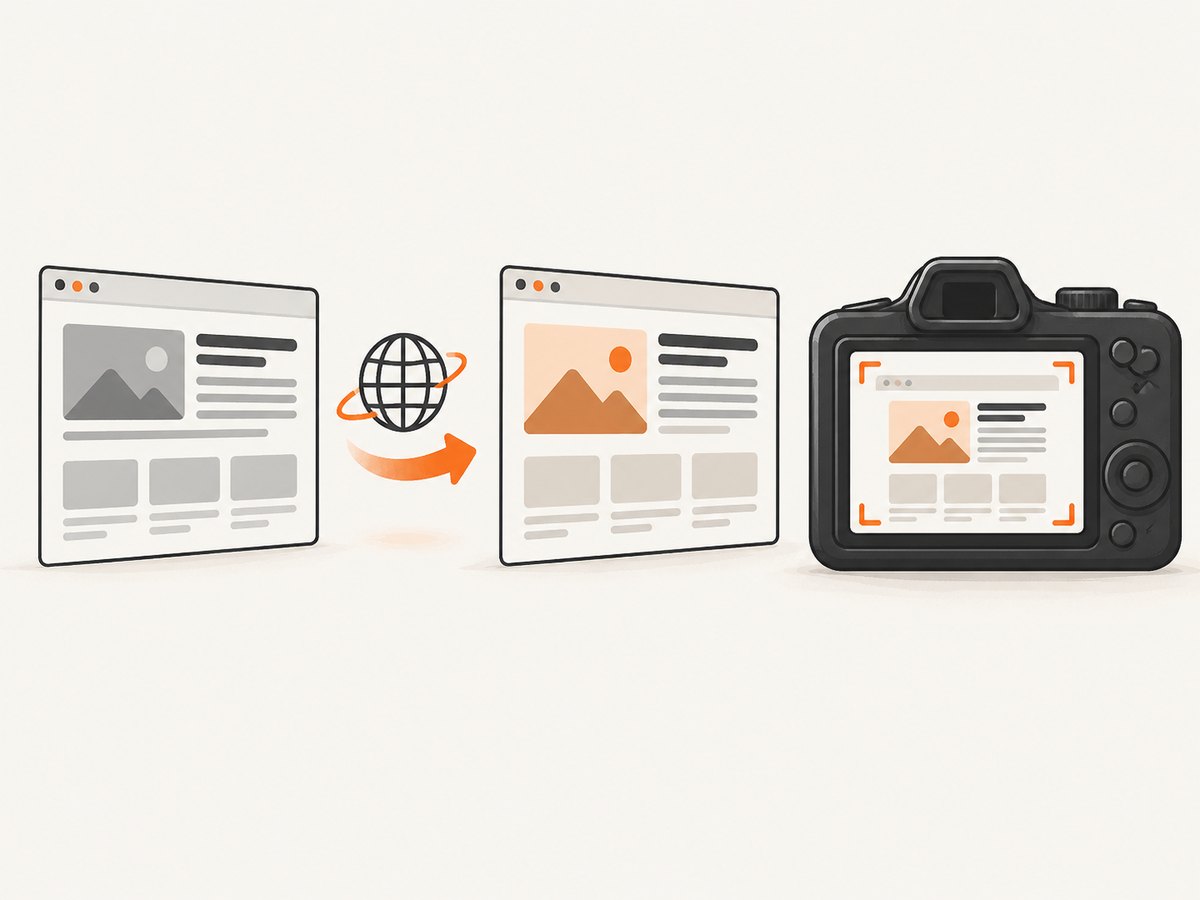
- Read a heading or paragraph and confirm it is in the target language.
- Open the translation-language dropdown and verify the selected target language.
- Check that the control says Translation, not Original.
- Scroll through the section you intend to capture and wait for menus, images, and late-loading text.
- Keep the translation control in the frame when the screenshot is evidence that translation is active.
Some dynamic widgets, embedded applications, or canvas-rendered areas may not translate consistently. If a critical label remains in the source language, refresh once, switch back to the target language, and wait again. Translation can also change line wrapping, page height, and the position of buttons, so recheck your intended crop after translation finishes.
3. Capture a translated page on Windows
Snipping Tool
Windows Snipping Tool captures all or part of the screen. Press Windows + Shift + S, then choose a mode:
- Rectangular snip: drag around the translated section, language control, or dialog.
- Window snip: capture the browser window while excluding other applications.
- Full-screen snip: capture everything visible on the display.
- Free-form snip: draw an irregular region around the content.
After selecting an area, open the Snipping Tool notification, annotate if needed, and save as PNG. For readable evidence, use a rectangular or window snip that includes the translated text and, when useful, the Translation control. Windows’ documented Snipping Tool modes capture what is visible; they do not promise one automatically scrolling image of an entire desktop webpage.
Print Screen shortcuts
- Print Screen copies the whole screen.
- Alt + Print Screen copies the active window.
Paste the result into an image editor and save it. These shortcuts are useful when Snipping Tool is unavailable, but they still capture only the visible viewport.
Capturing a long desktop page
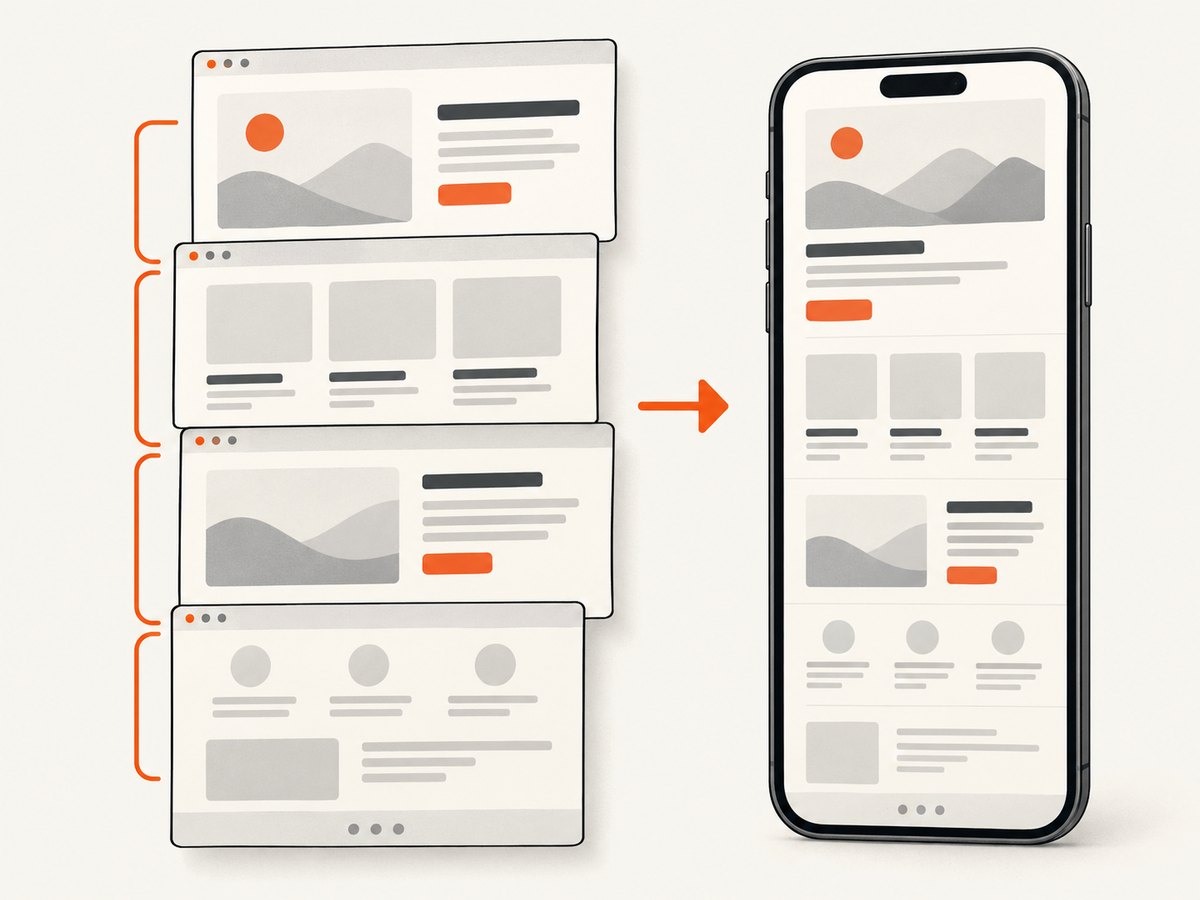
For a page longer than the viewport, capture several overlapping sections. Keep the browser zoom consistent and include a small overlap between images so they can be joined later. Before each section, confirm that the translated state has not reverted to Original. If your browser version provides a scrolling capture feature, verify the output because interface support varies by version and operating system.
4. Capture a translated page on iPhone
- Open the translated page in Safari and wait for the target-language text to settle.
- Take a normal screenshot: press the side button and volume-up on Face ID models, or the side button and Home on Home-button models.
- Tap the screenshot thumbnail.
- Select Full Page when it is available.
- Use the preview to confirm that the translated sections you need are included.
- Save to Photos or save as a PDF.
Safari’s Full Page option is designed for long webpages. It can save the result as an image or PDF. If Full Page is not offered, capture the visible viewport and repeat while scrolling. Keep the translation control or a translated heading in at least one frame if you need to prove the language state.
5. Capture on Android
Android screenshot controls depend on the phone manufacturer. Open the translated page, verify Translation, and use the device’s normal screenshot command. Many devices expose a scrolling or extended screenshot action immediately after the first capture, but the label and availability differ. Google recommends checking the manufacturer’s instructions when the standard method does not work.
For a long page, look for an option such as Capture more, Scroll, or Extended screenshot. Review the resulting image from top to bottom: translation overlays can load late, and an extended capture may stop before content that was not rendered yet.
6. Make the screenshot useful as evidence
Choose the right capture scope
| Need | Recommended capture | Why |
|---|---|---|
| A paragraph or dialog | Rectangular or free-form | Keeps text large and removes unrelated content |
| The whole browser view | Window capture | Includes the page and translation controls |
| Everything visible | Full-screen | Useful for context, but may include private tabs or notifications |
| An entire iPhone page | Safari Full Page | Produces one long image or PDF where supported |
| A long desktop page | Overlapping sections or a verified scrolling feature | Windows’ documented modes do not guarantee automatic scrolling capture |
Protect privacy and readability
- Close unrelated tabs and hide notifications before capturing.
- Do not include account names, addresses, order numbers, or private messages unless they are required.
- Use 100% zoom or a larger zoom when small translated text is hard to read.
- Prefer PNG for crisp text; use PDF when the recipient needs a printable long page.
- Name files with the URL, target language, and date, for example
example-es-2026-09-30.png.
7. Automate the capture with ScreenshotNeo
If you need repeatable screenshots, CI jobs, many URLs, or a capture that does not depend on a person’s browser, ScreenshotNeo provides a GET endpoint that returns PNG, JPEG, WebP, or PDF. Use the translated-page URL as the url value, then configure the capture options documented at the ScreenshotNeo API docs.
cURL
curl -G "https://api.screenshotneo.com/v1/shot" -d access_key=YOUR_API_KEY --data-urlencode url=https://stripe.com -o shot.webpPython
import requests

r = requests.get(
    "https://api.screenshotneo.com/v1/shot",
    params={"access_key": "YOUR_API_KEY", "url": "https://stripe.com"},
    timeout=90,
)
r.raise_for_status()
open("shot.webp", "wb").write(r.content)
Node.js
const q = new URLSearchParams({ access_key: 'YOUR_API_KEY', url: 'https://stripe.com' });
const res = await fetch(`https://api.screenshotneo.com/v1/shot?${q}`);
if (!res.ok) throw new Error(`HTTP ${res.status}`);
const fs = await import('node:fs/promises');
await fs.writeFile('shot.webp', Buffer.from(await res.arrayBuffer()));
Replace the example URL with the translated URL you want to capture. If the translation route requires a session, supply the relevant cookies or headers through ScreenshotNeo’s options. You can also wait for a selector, delay, or network idle; run custom JavaScript; click an element; hide selectors; block ads, trackers, requests, or resource types; set a user agent, timezone, geolocation, or Authorization header; and choose full-page, element, device, viewport, retina, dark-mode, transparent-background, resize, cache, PDF, async, webhook, or bulk-capture settings. A CSS selector can target one translated article instead of the entire page.
Why use the API for translated screenshots?
- Consent banners are accepted and more than 60 known consent platforms, newsletter popups, and chat widgets are removed before capture; each step can be turned off.
- Bot checks, blank pages, timeouts, failed loads, and cache hits are not billed. Response headers identify the result with
X-Page-VerdictandX-Billed. - An MCP server provides
take_screenshot,get_page_info, andcapture_pdffor Claude, Cursor, and other MCP clients. - The Free plan includes 1,000 shots per month with no card. Paid plans start at $5 for 3,000 shots; yearly billing gives two months free.
Or skip the browser setup: make the one-call request above after opening the translated URL. ScreenshotNeo removes cookie banners, popups, and chat widgets before the shot; bot checks, blank pages, and failed loads are never billed; its MCP server lets AI agents take screenshots; and 1,000 screenshots a month are free with no card, with paid plans starting at $5 for 3,000. Create a free ScreenshotNeo account.
8. Troubleshooting translated screenshots
| Symptom | Cause | Fix |
|---|---|---|
| No Translate icon in Chrome | Translation is disabled or the icon is hidden | Right-click and choose Translate, then check Settings > Languages > Google Translate and refresh. |
| Wrong source language detected | The page uses an uncommon language or mixed content | In Google Translate Websites, select the correct source language instead of Detect language. |
| Screenshot is in the original language | The translated view was switched to Original or capture happened too early | Select the target language, confirm Translation, wait for the page, and capture again. |
| Only part of the page appears | The tool captured the viewport rather than a full page | Use Safari Full Page on iPhone, an Android extended capture, or multiple desktop sections. |
| Some labels remain untranslated | Dynamic widgets, embedded apps, or canvas content may not be translated | Refresh, wait for late content, and capture the translated text that is visible. Do not assume every dynamic element will translate. |
| Google Translate will not open the site | Website translation is unavailable in the region or the site restricts translation | Try Chrome’s route, check regional availability, or capture the page after translating it in a supported browser. |
| Automated capture is blank | The page timed out, failed to load, or triggered a bot check | Increase the wait strategy, supply required headers or cookies, and inspect ScreenshotNeo’s verdict and billed headers. |
9. Performance, reliability, and cost notes
For manual work, the main reliability variable is timing. Wait for translated text, images, menus, and consent dialogs before capturing. Long pages are more reliable when captured in sections unless the platform explicitly supports a full-page mode. Keep one original-language reference capture when you need to compare wording or layout.
For automation, use selector waits for a distinctive translated heading, network-idle waiting for pages with many assets, and a bounded delay for late client-side rendering. Full-page and retina captures use more memory and produce larger files than a viewport capture. Element screenshots are faster and easier to review when only one translated component matters. Caching can reduce repeated work when the translated URL and options are unchanged; choose a TTL that matches how often the source changes.
ScreenshotNeo’s billing is based on clean shots. Bot checks, blank pages, timeouts, failed loads, and cache hits cost nothing, and every response reports whether it was billed. Plans are Free (1,000 shots/month), Starter ($5 for 3,000), Growth ($15 for 15,000), Pro ($39 for 60,000), Scale ($99 for 250,000), and Business ($249 for 1,000,000). Every feature is available on every plan.
10. FAQ
Can I translate and screenshot a page without buying software?
Yes. Google Translate or Chrome can translate the page, and Windows, iPhone, and Android include screenshot tools.
How do I prove that the screenshot is translated?
Include translated text and, when appropriate, the Google Translate control showing the target language and Translation mode.
Can Windows Snipping Tool capture a whole scrolling webpage?
Its documented modes are rectangular, free-form, window, and full-screen. For a long desktop page, capture overlapping sections or use a scrolling feature your current browser explicitly provides.
Should I save a translated page as PNG or PDF?
Use PNG for image evidence and PDF for a long page that must be printed or shared as a document.
Can an API capture a translated URL?
Yes, if the translated view is reachable at a URL or can be established with the required cookies and headers. ScreenshotNeo supports custom headers, cookies, JavaScript, waits, full-page capture, PDF output, and signed asynchronous workflows.


