How to Screenshot a Tweet for Instagram
Capture an X post as an image for Instagram, or share a public post straight to an Instagram Story with X’s iOS sticker option.
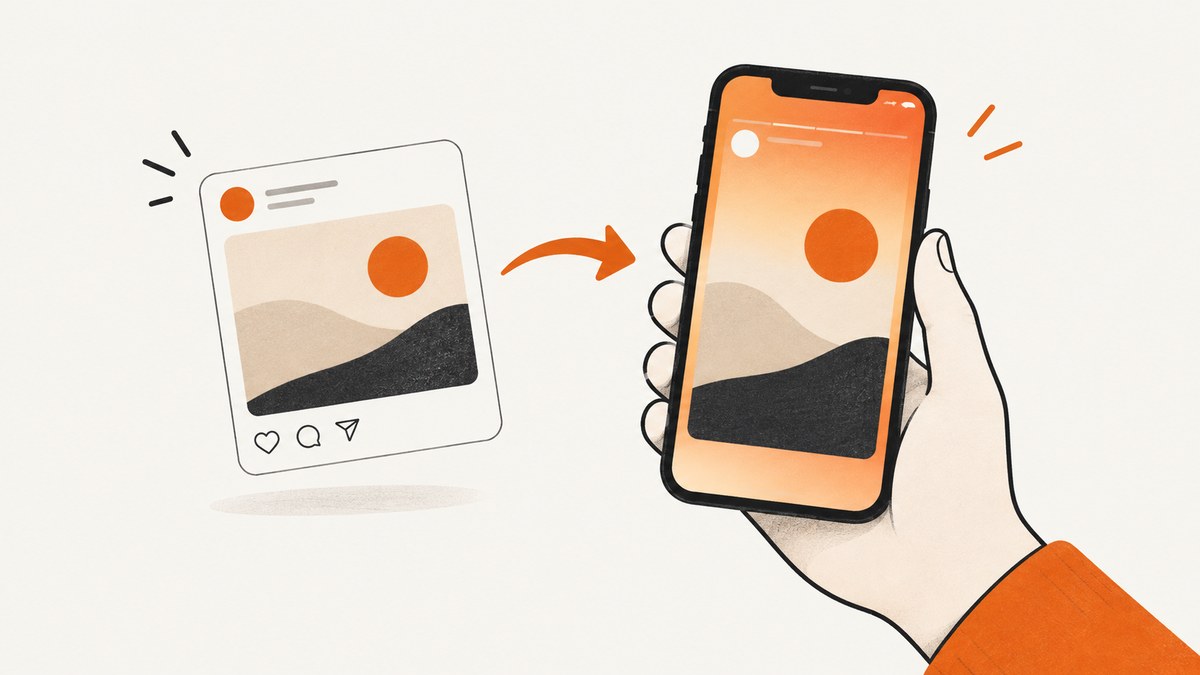
To put a tweet on Instagram as a static image, open the post in X, take a screenshot with your phone, crop it, then share the saved image to Instagram. “Tweet” is now commonly called an X post. If you want an Instagram Story and the post is public, X for iOS also has a direct share option that opens a Story draft with the post as a movable, resizable sticker.
Use a screenshot when you need an image file or the direct share option is unavailable. Use X’s native Story option when it appears and you want the post itself as a sticker. The official X instructions reviewed here cover iOS; Android availability may vary.
1. Take a screenshot on iPhone
- Open the X post you want to share. Check that the text, account context, and any image you want to preserve are visible.
- On an iPhone with a side button, quickly press and release the side button and Volume Up together.
- On an iPhone with a Home button, quickly press and release Home and the side button together.
- If a screenshot preview appears, tap it to crop or mark up the image. Otherwise, find the screenshot in Photos.
Apple also lists Siri, AssistiveTouch, and Back Tap as alternatives to the button shortcut. See Apple’s screenshot guide for the device-specific details.
Crop for Instagram without losing context
Trim away unnecessary phone controls and surrounding feed content, but keep enough of the post to show what it is and where it came from. For example, retaining the account name and post text can help viewers identify the source. Avoid cropping off attribution or context that changes the meaning. You can use the screenshot preview or edit the saved capture in Photos before sharing.
2. Take a screenshot on Android
- Open the X post.
- Press Power and Volume Down together.
- If that shortcut does not work, hold Power for a few seconds and tap Screenshot.
- Open the capture in Photos or, on some older devices, Gallery. Edit or share it from there.
Button combinations vary by device, so the shortcut is common but not universal. If neither method works, follow the phone manufacturer’s support instructions. Google says scrolling screenshots are available on Android 12 and later on most screens that allow scrolling. They can help when a post or conversation extends beyond one screen, but a long capture may be harder to read in a Story. See Google’s Android screenshot guide.

Check the image before posting
- Make sure the text is readable at phone size. A full-screen capture with tiny post text may need a tighter crop.
- Keep the post’s account or other relevant source context visible where practical.
- Check that the crop does not cut off a key reply, image, or qualification.
- If you edit or mark up the screenshot, make sure the changes do not obscure or misrepresent the original post.
3. Share a public X post directly to an Instagram Story on iPhone
For public posts in X for iOS, X documents a built-in Story sharing path. Install Instagram and sign in first, then:
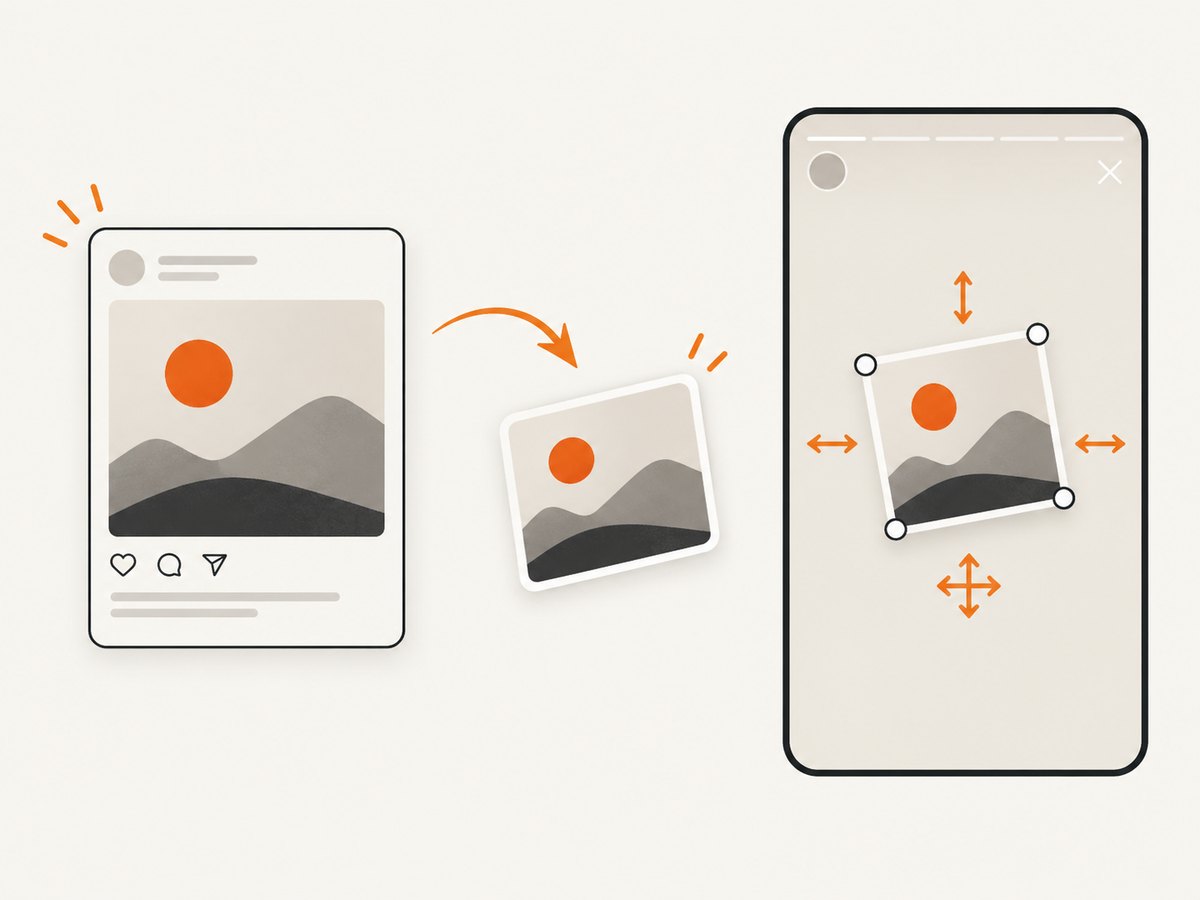
- Open the public post in X.
- Tap the post’s share icon.
- Tap Instagram.
- Continue in the new Instagram Story draft. X says the post appears as a movable, resizable sticker.
This path is specifically for Instagram Stories, not a general method for making a feed image. X says protected posts cannot be shared this way. If the Instagram option is missing, use a screenshot instead; the share menu can depend on eligibility and app availability.
X also cautions that content shared to Instagram may no longer reflect the post’s current state on X, and that Instagram’s policies and rules apply after sharing. For details, see X Help Center’s Story sharing instructions.
4. Choose the right format
| Method | Best for | What you get | Limits |
|---|---|---|---|
| Phone screenshot | A saved image, or when the native share option is unavailable | A static capture you can crop or mark up | It will not update if the post changes or disappears |
| X’s native Story share | A public post when the direct option is available | A movable, resizable post sticker in a Story draft | X documents this for iOS; protected posts are ineligible |
| Designed Story card | A composed card layout | A separately formatted Story graphic | Requires another app or service and may offer paid features |
A third-party option such as to Stories describes rebuilding X posts, including posts with photos, as Story cards, with multiple layouts and an optional Pro subscription. That is the vendor’s description, not independent testing or an endorsement. For a quick share, start with the built-in screenshot or X’s native option.
5. Post the saved screenshot to Instagram
Once you have the screenshot, open Instagram and use its current creation flow to select the saved image for a Story or feed post. The exact import and posting controls can change, so this guide does not assume a particular button label. Preview the result before publishing: confirm the crop, legibility, and source context in the layout you chose.
For a Story, a tall crop usually gives the post more room. For a feed post, consider whether the complete post remains readable in the chosen framing. If it does not, use a designed card or the native Story sticker when available instead of shrinking the text until it is difficult to read.
6. Or skip the browser setup
If you are capturing a post from a web page for a project, report, or repeatable workflow, ScreenshotNeo can return a website screenshot with one GET request. It is a screenshot API and MCP server from Yorker Media. Use a phone’s built-in sharing workflow for ordinary personal posts; use an API when you need repeatable captures or want to automate a web page workflow.
See the ScreenshotNeo documentation for request options. Example using the X post URL:
curl -G "https://api.screenshotneo.com/v1/shot" \
  -d access_key=YOUR_API_KEY \
  --data-urlencode url=https://x.com/example/status/123 \
  -o shot.webp
Python:
import requests

r = requests.get(
    "https://api.screenshotneo.com/v1/shot",
    params={
        "access_key": "YOUR_API_KEY",
        "url": "https://x.com/example/status/123",
    },
    timeout=90,
)
r.raise_for_status()
open("shot.webp", "wb").write(r.content)
Node.js:
const q = new URLSearchParams({
  access_key: 'YOUR_API_KEY',
  url: 'https://x.com/example/status/123',
});
const res = await fetch(`https://api.screenshotneo.com/v1/shot?${q}`);
if (!res.ok) throw new Error(`Screenshot request failed: ${res.status}`);
await Bun.write('shot.webp', new Uint8Array(await res.arrayBuffer()));
ScreenshotNeo removes cookie and consent banners, newsletter popups, and chat widgets before capture; each of those steps can be turned off. Bot checks, blank pages, timeouts, failed loads, and cache hits cost nothing, and response headers identify the page verdict and billing status. Its MCP server gives AI agents tools to take screenshots, get page information, and capture PDFs. The free plan includes 1,000 screenshots a month with no card; paid plans start at $5 for 3,000. See the docs for configuration and response details, then create a free account.
7. Troubleshooting
| Problem | Likely cause | What to try |
|---|---|---|
| The iPhone shortcut does nothing | The button combination may not match the device, or both buttons were not pressed and released together | Use the shortcut for the iPhone’s button layout. Try Siri, AssistiveTouch, or Back Tap, which Apple lists as alternatives. |
| The Android shortcut does nothing | Button behavior differs by model | Hold Power and tap Screenshot, then consult the manufacturer’s support instructions if needed. |
| The X-to-Instagram option is missing | The post may be protected, the documented iOS flow may not apply, or the apps/share menu may differ | Check that the post is public and Instagram is installed and signed in. If the option still is not available, capture a screenshot. |
| The screenshot is too tall or text is tiny | The capture includes too much surrounding screen content or a long scrolling page | Crop to the relevant post while preserving context. For very long content, consider a readable card layout. |
| The shared post looks different later | A screenshot or Story sticker is a share-time representation and may not match the current X post | Reopen the original post to verify its current state. X notes that shared content may not reflect the current state. |
| A ScreenshotNeo request does not return an image | The page may fail to load, require access, or trigger a bot check | Check the URL and API key, inspect the response and its verdict/billing headers, and retry only when appropriate. Failed loads and bot checks are not billed. |
8. Reliability, privacy, and cost notes
A phone screenshot is dependable for preserving what is visible at capture time, but it is static: edits, deletion, or account changes on X will not update the image. The native Story route keeps the post as a sticker in the draft, but it is limited to eligible public posts and the documented iOS flow. Before sharing, consider whether the post contains information you have permission to redistribute and whether your crop keeps its meaning intact.
The built-in screenshot and edit paths described above do not require a separate screenshot service. The native X Story route also uses the installed apps. ScreenshotNeo’s listed monthly plans are Free: 1,000 shots, Starter: $5 for 3,000, Growth: $15 for 15,000, Pro: $39 for 60,000, Scale: $99 for 250,000, and Business: $249 for 1,000,000; yearly billing gives two months free. Every feature is on every plan. For automated work, caching with a chosen TTL can reduce repeated captures, and bulk capture supports up to 100 URLs per call. Only clean shots are billed; check the response headers to see the verdict and billing result.
Frequently asked questions
Is a screenshot the same as sharing a tweet to Instagram?
No. A screenshot is a static image file. X’s documented iOS Story option puts an eligible public post into a Story draft as a movable, resizable sticker.
Can I share a protected X post to an Instagram Story with the native option?
No. X says protected posts cannot be shared through this route.
Does a screenshot update when the original post changes?
No. It preserves the captured appearance. Check X again if you need to confirm the post’s current state.
Can I use the same native steps on Android?
The official X instructions in the sources here document the iOS flow. A secondary report describes a similar share-sheet route on Android, but menu availability can vary. Use a screenshot if the option is absent.


