How to Take a Screenshot of a Web Page on iPhone
Capture a visible screen, an entire Safari webpage, or a PDF on iPhone. Follow the exact buttons, saving steps, accessibility options, and fixes.
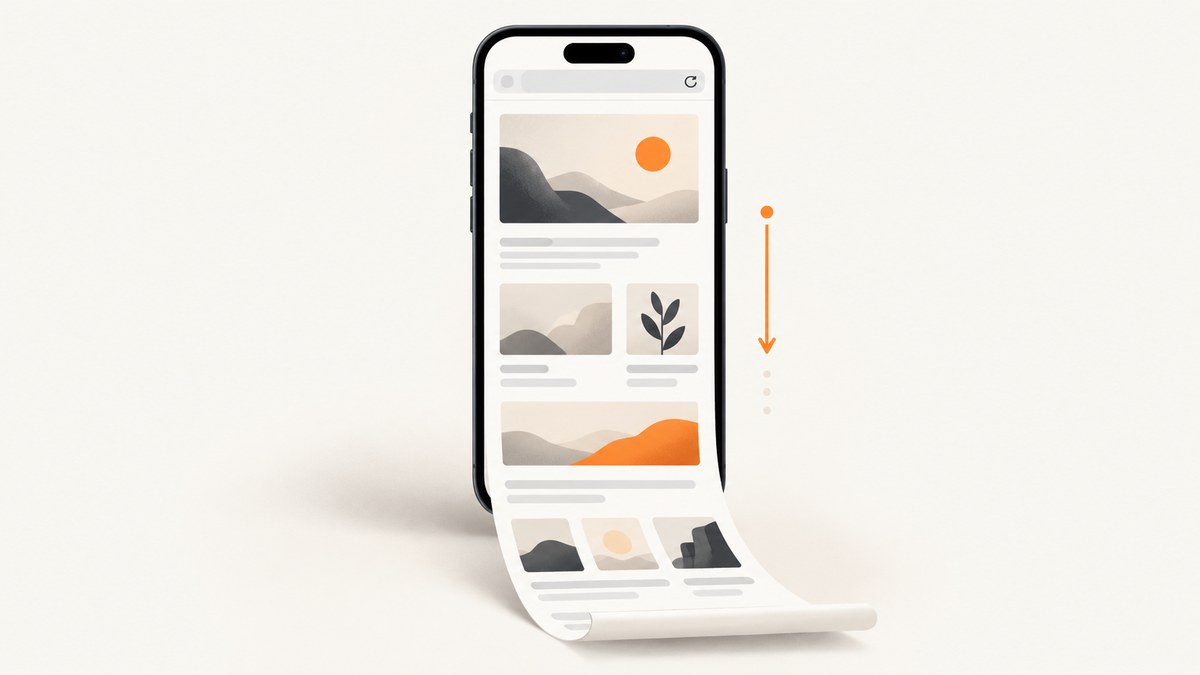
To screenshot a web page on an iPhone, open it in Safari, press the correct button combination, tap the preview, choose Full Page, then save it as an image or PDF. A normal screenshot captures only the visible viewport. The Full Page control captures the page beyond the screen and is the option you need for a long webpage.
This guide covers current Face ID and Home button iPhones, iOS presentation differences, saving locations, accessibility alternatives, PDF export, troubleshooting, and a developer workflow for capturing pages with an API.
1. Take a normal screenshot in Safari
Use a normal screenshot when you need exactly what is visible on screen, such as a headline, error message, checkout step, or section of a page.
- Open Safari and navigate to the webpage.
- On an iPhone with Face ID, quickly press and release the side button and volume-up button together.
- On an iPhone with a Home button, quickly press and release the side button and Home button together.
- On some older models, press and release the top button and Home button together.
- Tap the screenshot preview. On older iOS versions this appears as a thumbnail in the lower-left corner. Newer iOS versions can open a full-screen screenshot presentation.
- Tap Done, then choose Save to Photos or another available destination.
If you do not tap the preview, the screenshot is still saved automatically. Open Photos, tap Collections, scroll to Media Types, and tap Screenshots to find it.
2. Capture an entire webpage with Full Page
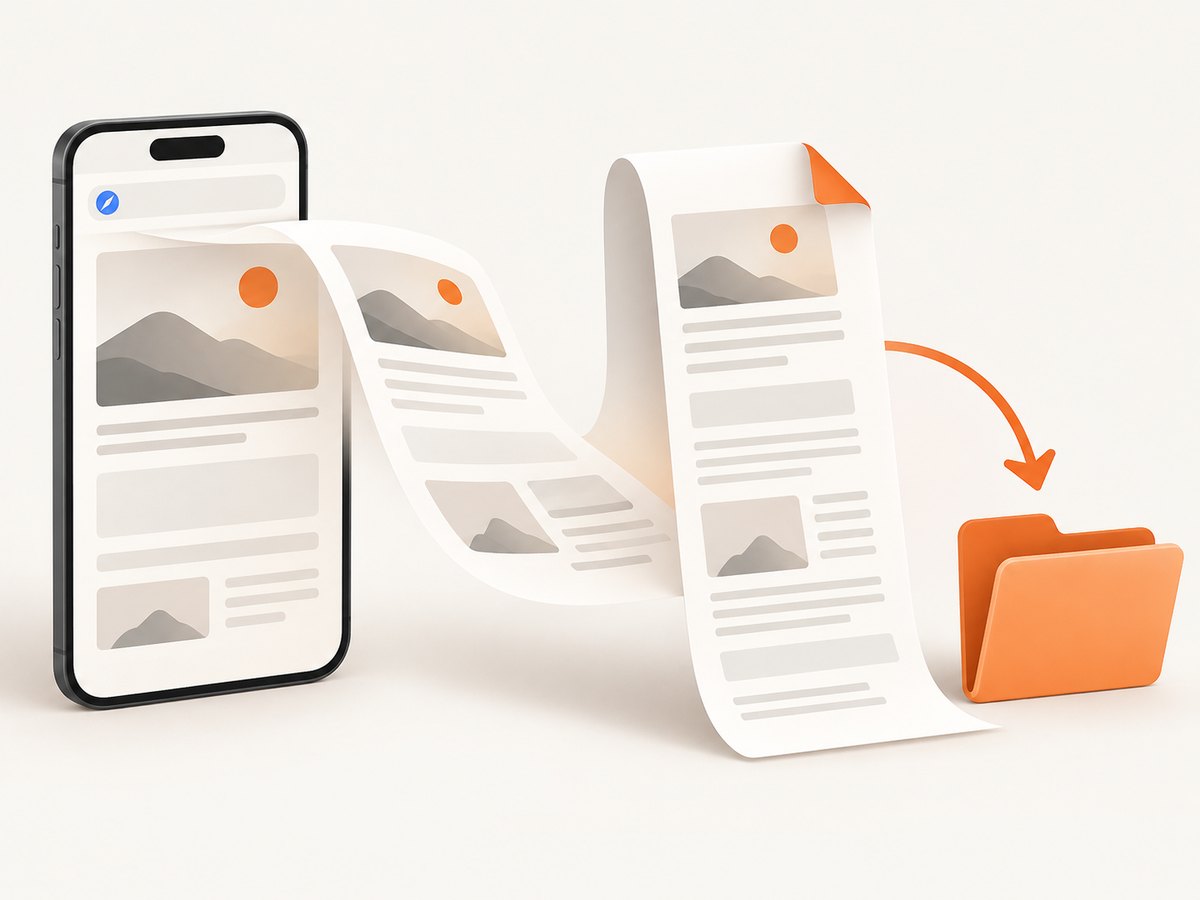
Safari’s Full Page mode captures content below the visible viewport. Apple describes this as capturing an entire webpage in Safari. It is useful for archiving an article, reviewing a long document, sharing a complete receipt, or annotating a page without taking many separate screenshots.
- Open the webpage in Safari and wait for the content you need to load.
- Take a screenshot using the button combination for your iPhone model.
- Open the preview immediately.
- At the top of the editor, tap Full Page.
- Use the page preview on the right to inspect the capture. Drag through it to move from the top toward the bottom.
- Tap the Crop tool if you want to remove browser chrome, blank margins, or unrelated content.
- Use Markup to draw, add text, insert shapes, or highlight an area.
- Tap Done.
- Choose Save PDF to Files, select a folder, enter a filename, and tap Save.
For a full-page Safari capture, the saved result is normally a PDF in Files. The Full Page editor may show the page as a long preview, but the system’s full-page save path is PDF-oriented. If you need a raster image such as PNG or JPEG, use a normal viewport screenshot, crop it, or capture the page with a web screenshot service.
Inspecting and trimming a long capture
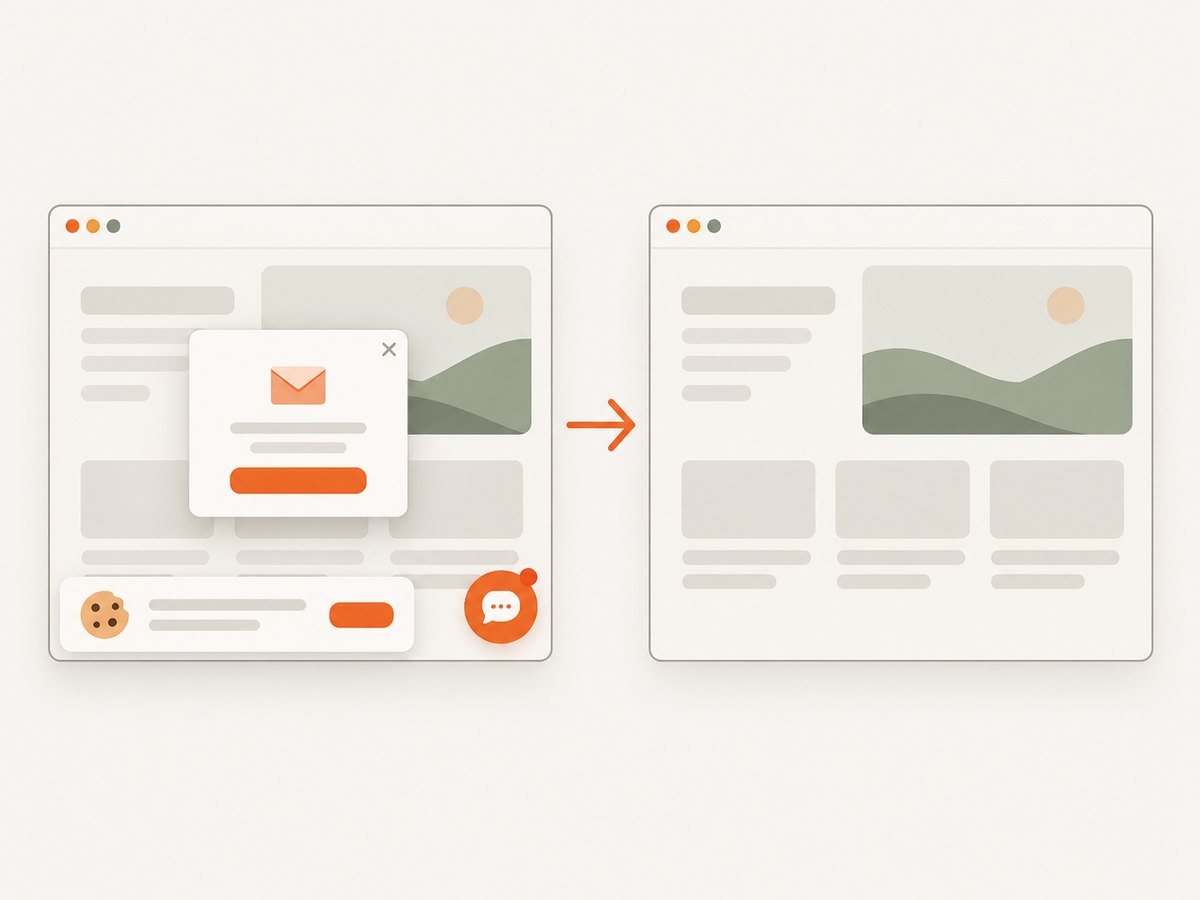
The preview strip lets you check whether lazy-loaded sections, images, tables, and footers appeared. Scroll through the preview before saving. If a page contains a sticky header, cookie notice, or floating chat control, crop the PDF after capture or dismiss the element before taking the screenshot.
3. Save a Safari webpage directly as a PDF
You can create a PDF without first taking a screenshot. This is often the better choice when the goal is a document that can be searched, shared, or stored in Files.
- Open the page in Safari.
- Tap the Page Menu or More button in the address bar.
- Tap Share.
- Choose Markup.
- Optionally annotate or crop the document.
- Tap Done, choose Save File To, select a folder, name the file, and tap Save.
This workflow produces a PDF rather than an image in Photos. Use it for invoices, reference pages, research notes, and pages you expect to read again. The exact button placement can vary with the iOS version and Safari tab layout. Apple’s iPhone User Guide documents the current screenshot and screen-recording controls.
4. Choose the right capture type
| Goal | Best method | Where it goes |
|---|---|---|
| Capture what is visible now | Normal screenshot | Photos, in Screenshots |
| Capture a complete Safari page | Screenshot, then Full Page | Files as a PDF |
| Create a shareable document | Safari Share → Markup | Files as a PDF |
| Annotate a small area | Normal screenshot → Markup | Photos or a share destination |
| Capture a page as PNG, JPEG, or WebP | Web screenshot API or desktop browser workflow | Your download location |
A normal screenshot represents one viewport. Full Page represents the scrollable Safari document. A PDF is usually more practical than a very tall image for reading and printing, while an image is convenient for chat, presentations, and visual comparisons.
5. If the button shortcut is difficult
Apple provides alternatives through accessibility features. You can trigger screenshots with AssistiveTouch, Back Tap, or Siri. These options help when pressing two physical buttons at the same time is uncomfortable or unreliable.
AssistiveTouch
- Open Settings → Accessibility → Touch → AssistiveTouch.
- Turn on AssistiveTouch.
- Configure a single tap, double tap, or custom menu action for Screenshot.
- Return to Safari and use the configured gesture.
Back Tap
- Open Settings → Accessibility → Touch → Back Tap.
- Choose Double Tap or Triple Tap.
- Select Screenshot.
- Tap the back of the iPhone with the chosen gesture while Safari is open.
Siri
With Siri enabled, ask Siri to take a screenshot. This is useful when you cannot reach the buttons or screen comfortably. Siri and accessibility labels may differ slightly by iOS release and language.
6. Troubleshooting
Full Page does not appear
Cause: You may be in an app other than Safari, viewing content that is not recognized as a scrollable webpage, or using a screen that does not support the full-page editor.
Fix: Open the URL in Safari, take a fresh screenshot, and tap its preview. Full Page is intended for supported Safari webpages. For an app screen, use a normal screenshot or the app’s export function.
The screenshot preview disappeared
Cause: The thumbnail was dismissed or timed out.
Fix: Open Photos and go to Collections → Media Types → Screenshots. The image should already be saved even if you did not open the preview.
I cannot find the full-page PDF
Cause: Full-page documents are saved through Files, not the Photos Screenshots album.
Fix: Open Files and check Recents, iCloud Drive, On My iPhone, and the folder selected during saving. Search by the filename or filter for PDFs.
The capture stops before the bottom
Cause: The page may load more content only after scrolling, require a login, or contain an embedded frame that Safari cannot include in the document.
Fix: Wait for the page to finish loading, scroll through it once to trigger lazy content, then take the screenshot again. If the page is behind a login or uses an interactive app shell, save the relevant view separately or use the site’s own export feature.
Images or text look blank
Cause: The resource may still be loading, be blocked by a connection issue, or be rendered only after an interaction.
Fix: Confirm the page works normally, disable Low Data Mode temporarily if appropriate, wait for images to render, and retry. A screenshot cannot include content that Safari never rendered.
The wrong buttons trigger another action
Cause: The timing or button pair does not match the iPhone design.
Fix: Press and release quickly rather than holding the buttons. Face ID models use side plus volume up; Home button models use side plus Home; some older models use top plus Home. Use AssistiveTouch or Back Tap if the physical shortcut remains unreliable.
A cookie banner or chat bubble covers the page
Cause: The webpage’s consent, newsletter, or chat overlay is part of what Safari rendered.
Fix: Dismiss it before the capture, crop it from the result, or use a capture service that removes common overlays before rendering.
7. Or skip the browser setup
For developers who need repeatable screenshots from scripts, CI jobs, documentation pipelines, or many URLs, ScreenshotNeo returns a clean screenshot or PDF from one GET request. Its capture process accepts cookie and consent banners, removes more than 60 known consent platforms plus newsletter popups and chat widgets, and lets you turn each cleanup step off. Bot checks and CAPTCHAs, blank pages, timeouts, failed loads, and cache hits are not billed; each response identifies the result with X-Page-Verdict and X-Billed headers.
See the ScreenshotNeo API documentation for all options. The examples below capture a page as WebP.
cURL
curl -G "https://api.screenshotneo.com/v1/shot" \
  -d access_key=YOUR_API_KEY \
  --data-urlencode url=https://stripe.com \
  -o shot.webp
Python
import requests

r = requests.get(
    "https://api.screenshotneo.com/v1/shot",
    params={"access_key": "YOUR_API_KEY", "url": "https://stripe.com"},
    timeout=90,
)
r.raise_for_status()
open("shot.webp", "wb").write(r.content)
Node.js
const q = new URLSearchParams({
  access_key: 'YOUR_API_KEY',
  url: 'https://stripe.com'
});
const res = await fetch(`https://api.screenshotneo.com/v1/shot?${q}`);
if (!res.ok) throw new Error(`HTTP ${res.status}`);
const bytes = await res.arrayBuffer();
await Bun.write('shot.webp', bytes);
Useful capture options
- Format and output: PNG, JPEG, WebP, or PDF.
- Page scope: full-page capture with lazy images loaded, or one element selected by CSS selector.
- Appearance: dark mode, 12 device presets, custom viewport, retina scale, transparent background, and image resizing.
- Timing: wait for a selector, a fixed delay, or network idle.
- Interaction: click an element before capture, inject custom CSS or JavaScript, and hide selectors.
- Network control: block ads, trackers, requests, or resource types; provide custom headers, cookies, a user agent, and Authorization.
- Location: set timezone and geolocation.
- PDF controls: paper size, margins, landscape mode, and page ranges.
- Delivery: choose a cache TTL, create signed links for public
<img>tags, submit async jobs with signed webhooks, or capture up to 100 URLs per bulk call.
ScreenshotNeo also provides an MCP server with take_screenshot, get_page_info, and capture_pdf tools for Claude, Cursor, and other MCP clients. Every feature is available on every plan. The Free plan includes 1,000 screenshots per month without a card; paid plans start at $5 for 3,000 screenshots. Use the free ScreenshotNeo sign-up to get started.
8. Performance, reliability, and cost considerations
On iPhone, capture quality depends on the page being loaded and rendered before you press the buttons. Long pages with lazy images can require an initial scroll. PDFs are easier to store and print, while image screenshots are easier to paste into messages. Keep the original PDF when you need a complete record and use cropped images for focused discussion.
For automated capture, wait conditions are more reliable than an arbitrary short delay when a page loads asynchronously. Selector waits help when a known component must appear; network-idle waits help when the page makes a predictable set of requests. Caching can reduce repeated work when the page does not need a fresh render, while a chosen cache TTL controls how long a result may be reused. For large batches, bulk capture can reduce request-management overhead, and async jobs with signed webhooks avoid holding a client connection open.
9. FAQ
Can I screenshot an entire webpage as one image on iPhone?
Safari’s Full Page workflow is designed to save the complete capture as a PDF. A normal screenshot saves an image of the visible viewport. Use a screenshot API or another rendering workflow when you specifically need one tall PNG, JPEG, or WebP.
Where are iPhone screenshots stored?
Regular screenshots are in Photos → Collections → Media Types → Screenshots. Full-page PDFs are saved in Files in the folder you choose.
Does Full Page work in every iPhone app?
No. Full Page is primarily a Safari webpage feature. Other apps may offer their own export or document tools, but the standard screenshot editor may provide only the visible screen.
How do I capture a webpage without cookie banners?
Dismiss the banner manually before using Safari. For automated captures, ScreenshotNeo can accept consent banners and remove known consent platforms, newsletter popups, and chat widgets before the shot.
Can I use Siri instead of pressing buttons?
Yes. Siri can trigger a screenshot when enabled. AssistiveTouch and Back Tap are additional alternatives listed by Apple.
What should I use for a page that changes frequently?
Use a fresh capture and avoid a long cache period. For repeatable developer workflows, set the viewport, device, wait condition, and output format explicitly, then inspect the response verdict and billing headers.


