How to Take a Screenshot of a Web Page in Safari
Capture a full Safari webpage on iPhone, understand Mac’s built-in screenshot options, and choose the right way to save or automate a page capture.
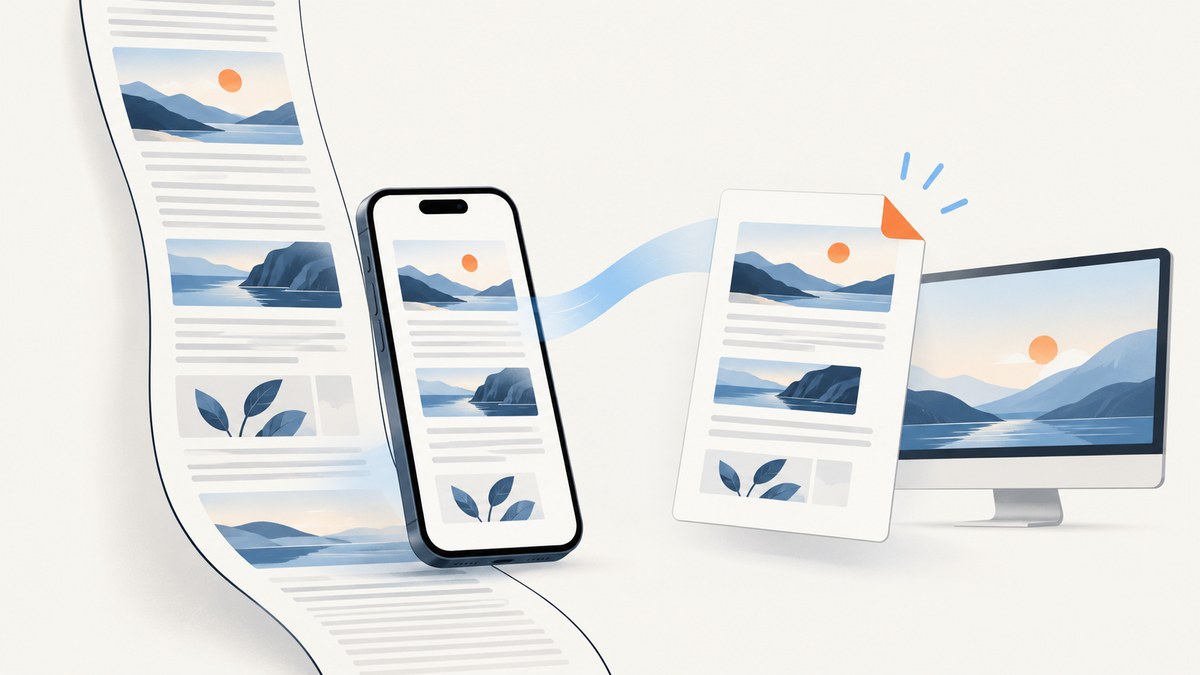
To capture an entire webpage in Safari on iPhone, take a screenshot, tap its thumbnail, select Full Page, then save the result as an image in Photos or as a PDF in Files. On Mac, the built-in screenshot shortcuts capture the screen, a selected area, or a window; Safari’s File > Save As instead saves a Web Archive or Page Source, which are not screenshot images. If you need repeatable captures from code, a screenshot API can render a URL without a manual browser workflow.
1. Take a full-page Safari screenshot on iPhone
Apple’s iPhone screenshot flow includes a Full Page view for content such as an entire Safari webpage. The option appears in the screenshot editor after you take the screenshot; it is not a separate Safari menu command. See Apple’s iPhone screenshot instructions.
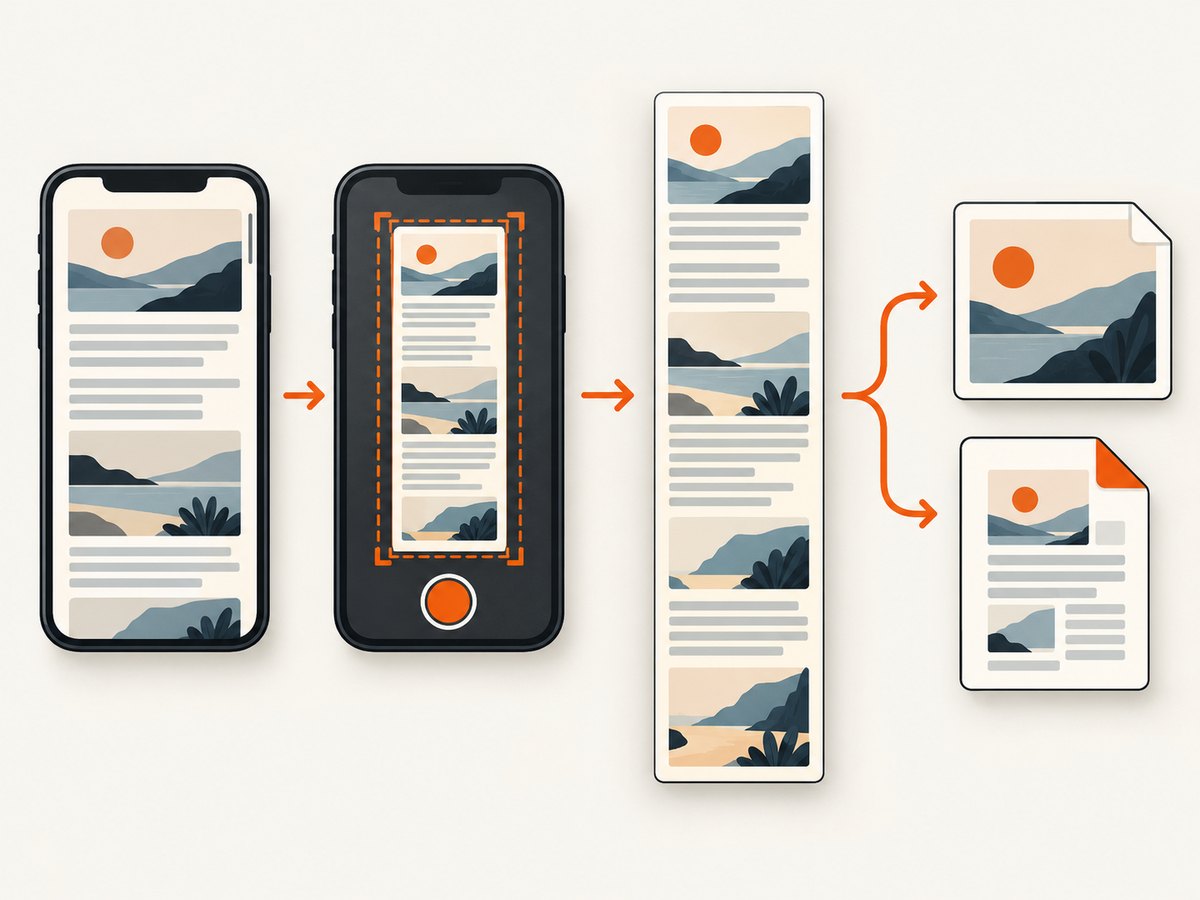
- Open the page in Safari and wait for the content you need to appear.
- Take a screenshot. On iPhone models without a Home button, press and quickly release the Side button and Volume Up together. On a model with a Home button, press and quickly release the Side button and Home button together.
- Tap the screenshot thumbnail when it appears. If it disappears, take another screenshot and tap the new thumbnail.
- Choose Full Page in the screenshot preview. Inspect the page preview, including content beyond the visible screen, and crop if needed.
- Choose the save destination: save an image to Photos or save a PDF to Files.
A regular screenshot records the visible viewport. Full Page is useful for a long article, receipt, or instructions that continue below the fold. The output choice matters: use an image when you need a picture in Photos, or a PDF when you want a document in Files.
If Full Page is missing
- Confirm you opened the screenshot thumbnail’s editor. Full Page is an option in the screenshot interface after capture.
- Make sure you are capturing a webpage in Safari and not an unrelated app or a standard screen image.
- Try taking a new screenshot after the page has loaded. The screenshot preview is temporary, so tap the thumbnail promptly.
- If the page contains dynamically loaded sections, scroll through them first so the site has an opportunity to load the content before you make the full-page capture.
2. What Mac’s built-in screenshot shortcuts capture
On Mac, the built-in screenshot shortcuts capture screen pixels. Apple documents these three common shortcuts in its Mac screenshot guide:
| Shortcut | What it captures | Use it for |
|---|---|---|
| Shift-Command-3 | The entire screen | A quick image of what is visible on your display |
| Shift-Command-4 | A selected portion of the screen | A specific visible area of the page |
| Shift-Command-4, then press Space | A window or menu | A browser window or menu capture |
These shortcuts do not document a scrolling, full-page Safari webpage capture. If you use them on a long page, the result is the visible screen, selected region, or window area—not the entire document below the fold. This distinction prevents a common disappointment: a full-screen image is not automatically a full-page webpage image.
3. Save a Safari webpage on Mac as a file
If your goal is to keep the page’s contents for later rather than produce an image, Safari for Mac has a separate save workflow. Apple documents File > Save As with two relevant formats in its guide to saving part or all of a webpage:
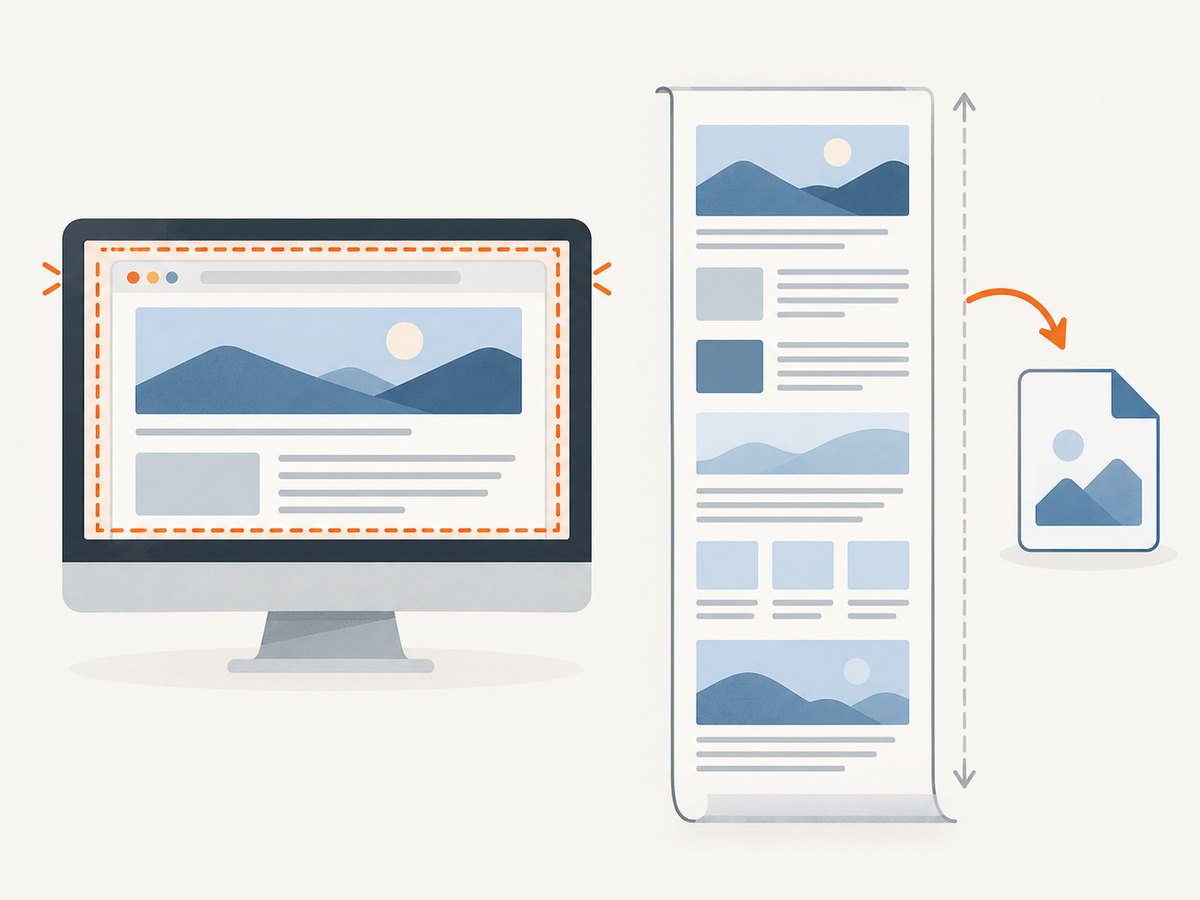
- Web Archive retains page graphics and working links while the destination pages remain available. This is a saved webpage format, not a screenshot image.
- Page Source saves the HTML source. It is useful when you specifically need the source document, not a visual rendering.
To use this route, open the page in Safari, choose File > Save As, select the desired format, and save. Some webpages may prevent items displayed on the page from being saved. If you need a shareable visual record, choose a screenshot method instead; if you need editable or inspectable source, choose Page Source.
4. Choose the right capture method
| Your goal | Best fit | Result |
|---|---|---|
| Save a long Safari page from an iPhone | Screenshot thumbnail → Full Page | Image in Photos or PDF in Files |
| Capture what is currently visible on Mac | Mac screenshot shortcut | Screen image |
| Keep page content and links on Mac | Safari File → Save As → Web Archive | Web Archive file |
| Inspect or archive the HTML source | Safari File → Save As → Page Source | HTML source file |
| Capture a long page on Mac as an image | Optional Safari utility or a screenshot API | Depends on the selected utility or service |
| Generate screenshots from a script or workflow | Screenshot API | Image or PDF response, depending on service options |
For Mac, the Mac App Store lists FullPage Screenshot for Safari as an optional app for full-page capture with PNG/PDF export. Check its current listing for compatibility and terms. If you need repeated, automated captures across URLs, an API is a different workflow from installing a browser utility.
5. Capture Safari-like webpages from code
A scriptable screenshot works by sending a webpage URL to a rendering service and saving the returned image or document. This is useful for scheduled reports, visual QA, link previews, archives, or batch jobs. The code below uses ScreenshotNeo’s API; the same general integration pattern applies to other screenshot endpoints, but request parameter names and response behavior vary. ScreenshotNeo’s API documentation describes its available parameters.
cURL
Replace the example URL with the page to capture and provide an API key. The request writes the response body to a local file.
curl -G "https://api.screenshotneo.com/v1/shot" \
  -d access_key=YOUR_API_KEY \
  --data-urlencode url=https://stripe.com \
  -o shot.webp
Python
Install the HTTP client with python -m pip install requests, then run:
import requests

r = requests.get(
    "https://api.screenshotneo.com/v1/shot",
    params={"access_key": "YOUR_API_KEY", "url": "https://stripe.com"},
    timeout=90,
)
r.raise_for_status()
open("shot.webp", "wb").write(r.content)
Calling raise_for_status() makes HTTP errors visible instead of silently writing an error response to a file with an image extension.
Node.js
In a recent Node.js runtime with global fetch, use:
const q = new URLSearchParams({
  access_key: 'YOUR_API_KEY',
  url: 'https://stripe.com'
});
const res = await fetch(`https://api.screenshotneo.com/v1/shot?${q}`);
if (!res.ok) throw new Error(`Screenshot request failed: ${res.status}`);
const bytes = Buffer.from(await res.arrayBuffer());
await import('node:fs/promises').then(fs => fs.writeFile('shot.webp', bytes));
Keep the API key on a server or in a protected environment variable. Do not place a secret key in frontend JavaScript that every visitor can inspect.
Useful capture choices
For a one-off screenshot, start with the default viewport. For a production workflow, choose options based on what the output must show. ScreenshotNeo supports these relevant controls:
- Page extent: full-page capture, which loads lazy images, or one element selected by CSS selector.
- Viewport and appearance: 12 device presets, custom viewport dimensions, dark mode, and retina scale.
- Output: PNG, JPEG, WebP, or PDF. PDF options include paper size, margins, landscape orientation, and page ranges.
- Timing and page state: wait for a CSS selector, a delay, or network idle; click an element before capture; add custom CSS or JavaScript; hide selected elements.
- Network and access: block ads, trackers, requests, or resource types; send custom headers, cookies, user agent, or Authorization; set timezone and geolocation.
- Other output behavior: transparent background, image resizing, a cache with a chosen TTL, signed links for public image tags, async jobs with signed webhooks, bulk capture for up to 100 URLs per call, a usage API, and an OpenAPI specification.
Do not add every option by default. For example, use a selector wait when a specific component must appear; use network idle only when the page’s network activity settles predictably. A long-lived analytics connection can make “idle” an unsuitable condition. If the page needs authentication, pass only the headers or cookies the target requires, and treat the screenshot as potentially sensitive output.
Format and waiting guidance
| Need | Consider | Trade-off |
|---|---|---|
| Pixel-perfect screenshots for review | PNG, appropriate viewport, retina scale if needed | Image files can be larger than lossy formats |
| Compact previews | WebP or JPEG and a deliberate resize | Lossy compression can affect fine detail |
| Long document for printing or sharing | PDF with paper, margin, orientation, and page-range settings | Page layout differs from one tall image |
| Content appears after client-side rendering | Wait for a stable selector or a suitable delay | Over-waiting increases job duration |
| Repeated identical captures | Use a cache TTL appropriate to the freshness requirement | A cache hit can return older output by design |
6. Or skip the browser setup
ScreenshotNeo is a website screenshot API and MCP server from Yorker Media. One GET request takes a URL and returns a PNG, JPEG, WebP, or PDF. Here is the one-call example:
curl -G "https://api.screenshotneo.com/v1/shot" \
  -d access_key=YOUR_API_KEY \
  --data-urlencode url=https://stripe.com \
  -o shot.webp
Cookie banners are accepted like a visitor would accept them, and 60+ known consent platforms, newsletter popups, and chat widgets are removed before the shot; each step can be turned off. Bot checks and CAPTCHAs, blank pages, timeouts, failed loads, and cache hits cost nothing, and each response identifies the page verdict and billing status in X-Page-Verdict and X-Billed headers. An MCP server lets AI agents, including Claude and Cursor, call take_screenshot, get_page_info, and capture_pdf.
The free plan includes 1,000 screenshots a month with no card. Paid plans start at $5 for 3,000 screenshots; every feature is on every plan. See the documentation for request options, then sign up free for 1,000 screenshots a month with no card.
7. Troubleshooting
| Symptom | Likely cause | What to do |
|---|---|---|
| iPhone screenshot only shows the visible area | The regular screenshot was saved without selecting Full Page | Open the screenshot thumbnail editor and choose Full Page before saving. |
| Full Page is not visible | The capture preview was dismissed, or the capture was not a Safari webpage flow | Take a fresh Safari screenshot and tap its thumbnail promptly. |
| Mac capture omits everything below the fold | Built-in shortcuts capture screen pixels rather than a scrolling webpage | Use an optional full-page utility or a screenshot API for a long-page image. |
| Web Archive does not contain an expected embedded item | The webpage may prevent some displayed items from being saved | Try the page’s own download or export option if available, or capture a visual record. |
| API output file cannot be opened as an image | An HTTP error or other response body was saved as if it were an image | Check the status before saving; inspect the response headers and body, and verify the key and URL. |
| Screenshot looks blank or misses a section | The page may not have rendered before capture, or the content appears after interaction | Wait for a stable selector, set a delay, or click the required element before capture. |
| Lazy images are absent in a long capture | The page loads images only as they approach the viewport | Use full-page capture with lazy images loaded and allow page rendering to complete. |
| Output differs between runs | Responsive layout, changing page content, time zone, cookies, or cache state may differ | Fix the viewport and relevant headers/cookies, specify timezone if needed, and choose the cache TTL deliberately. |
8. Performance, reliability, and cost
Manual iPhone capture is a good fit for occasional personal saves. Mac shortcuts are fast for visible content, while a long webpage image needs a method that handles scrolling and page rendering. In an automated pipeline, capture time depends on page load and any waits you request. Prefer a selector tied to the actual content you need over an unnecessarily long fixed delay; set a timeout that allows normal pages to finish while surfacing slow or failed loads.
For repeatable results, keep viewport, device scale, cookies, user agent, and time zone consistent. Dynamic pages can change between runs, and cache reuse trades freshness for reduced repeated work. If captures run in bulk, ScreenshotNeo supports up to 100 URLs per bulk call; async jobs with signed webhooks are available for workflows that should not hold a request open. Check usage through its usage API and use response verdict and billing headers when tracking outcomes.
Cost depends on the method and volume. Apple’s described iPhone and Mac capture controls are built into the device workflows; optional software has its own current store terms. ScreenshotNeo’s listed monthly plans are Free: 1,000 shots, no card; Starter: $5 for 3,000; Growth: $15 for 15,000; Pro: $39 for 60,000; Scale: $99 for 250,000; and Business: $249 for 1,000,000. Yearly billing gives two months free. Only clean shots are billed under the product facts provided; bot checks/CAPTCHAs, blank pages, timeouts, failed loads, and cache hits are not charged. Confirm current plan details in the product documentation before building a budget around expected volume.
9. FAQ
Can Safari on iPhone save a full webpage as a PDF?
Yes. In the Full Page screenshot preview, choose the save option for Files to save the result as a PDF.
Does a Mac screenshot shortcut capture a whole scrolling webpage?
Apple documents the shortcuts for the whole screen, a selected portion, or a window/menu. They are not documented as scrolling full-page webpage capture.
Is a Web Archive the same as a screenshot?
No. It is a saved webpage format that can retain graphics and links. A screenshot is an image of a rendered page.
Can a screenshot API return a PDF?
ScreenshotNeo supports PDF output as well as PNG, JPEG, and WebP. Its PDF controls include paper size, margins, landscape, and page ranges.


