How to Take a Screenshot of a Web Page
Capture the visible screen or an entire webpage in Chrome, Firefox, Edge, or Safari on iPhone. Choose an image or PDF, and troubleshoot common capture issues.

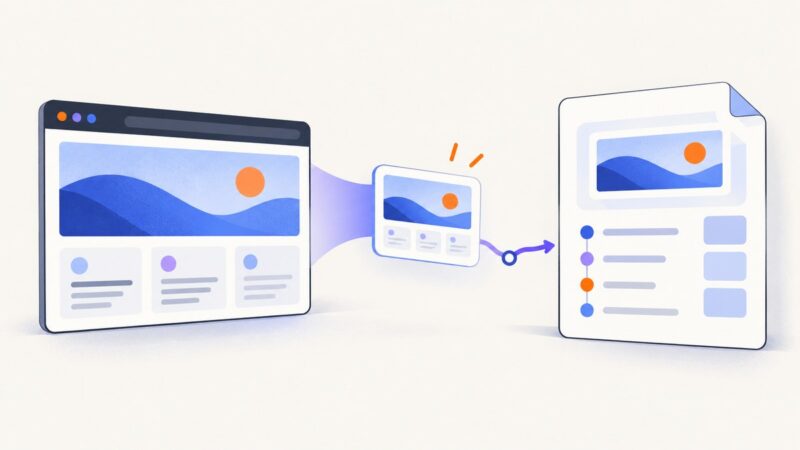
To screenshot a web page, choose a capture that matches what you need: a normal screenshot saves the visible viewport, a full-page screenshot includes content below the fold, and a PDF is often easier to read or file when the page is long. On desktop, Chrome, Firefox, and Microsoft Edge document full-page capture tools. On iPhone, Safari offers a Full Page option from the screenshot preview.
If the page is for reference or sharing, save an image. If it is a long article or document you expect to read or archive, save a PDF and check its page breaks. The exact browser menus can change by version and device.
1. Decide what kind of capture you need
| Need | Use | What to know |
|---|---|---|
| Show exactly what is on screen | Visible-screen screenshot | It only includes the current viewport. Scroll and take more captures if you need additional sections. |
| Show the whole scrollable page as one image | Full-page screenshot | It includes below-the-fold content. A very long image may be awkward to view or share. |
| Read, print, or archive a long page | PDF via the print dialog | PDFs are paginated; breaks and layout can differ from the live page. |
Before capturing, consider what the result is for. A visual bug report may need the browser chrome, address bar, and visible state. A clean record of a page usually needs only page content. If the page loads content as you scroll, visit the sections you need first or use a full-page tool that waits for content to load.

2. Take a full-page screenshot in Chrome
- Open the webpage in Chrome on desktop.
- Open Chrome DevTools. You can use the browser’s menu or the keyboard shortcut for DevTools on your operating system.
- Open the DevTools command menu and search for Capture a full-page screenshot.
- Select the command. Chrome saves the resulting image, typically to your downloads location.
Chrome DevTools also documents capture for an element, a mobile version, or a selected area. Use element capture when a particular component is the subject of your documentation. The DevTools interface can change between versions, so searching the command menu for the current full-page capture command is more reliable than following an old menu path.
3. Take a full-page screenshot in Firefox
- Open the webpage in Firefox desktop.
- Right-click the page and choose Take Screenshot.
- Choose Save full page.
- Download the image or copy it, depending on what you need.
Firefox also documents a screenshot icon and a Web Console :screenshot helper with options such as device-pixel ratio, delay, and filename. These options can help when you need a repeatable capture or want to account for high-density displays. Console commands and available options can depend on Firefox version; consult the current Firefox developer documentation before automating a workflow.
4. Take a full-page screenshot in Microsoft Edge
- Open the webpage in Edge desktop.
- Open the browser’s Screenshot feature. Microsoft lists Ctrl+Shift+S as a shortcut.
- Choose Capture full page.
- Review or mark up the result, then copy or save it.
Microsoft says the full-page option captures the page without requiring you to scroll manually. Feature availability and behavior may vary by device, market, and browser version. If the shortcut does not open the capture tool, find Screenshot in Edge’s current menu.
5. Capture a whole webpage on iPhone in Safari
- Open the webpage in Safari and take a screenshot using your iPhone’s button combination.
- Tap the screenshot preview before it disappears.
- Choose Full Page in the preview.
- Save to Photos as an image, or save to Files as a PDF.
Apple documents this option for content longer than the iPhone screen, including an entire Safari webpage. The available save choices and controls can vary by iOS version and content. If the Full Page tab is not available, the current page or capture context may not support it.
6. Save a webpage as a PDF
Use the browser’s print dialog when you want a document-style result rather than one very tall image.
- Open the page and choose Print. On Windows, Edge lists Ctrl+P; on Mac, use Command+P.
- In the print dialog, choose a PDF destination if one is offered by your browser or operating system.
- Review the preview, page breaks, margins, and orientation.
- Save the PDF to the location you want.
Dialog labels differ across operating systems and browsers. A printed PDF may omit interactive elements or reflow content. Check the preview before sharing, especially if charts, tables, or code blocks cross page boundaries.
7. For developers: capture pages with a browser or an API
For a single manual capture, built-in browser tools are usually the simplest starting point. For repeatable captures, scheduled documentation, or batch work, use browser automation or a screenshot API. Keep the target URL, viewport, output format, and load condition explicit so later captures are comparable.

DIY with Playwright in Node.js
This runnable example captures a full-page PNG using Chromium. Install Playwright, save the code as screenshot.mjs, then run it with a URL argument.
npm install playwright
npx playwright install chromium
// screenshot.mjs
import { chromium } from 'playwright';
const url = process.argv[2] ?? 'https://example.com';
const browser = await chromium.launch({ headless: true });
const page = await browser.newPage({
viewport: { width: 1440, height: 900 },
deviceScaleFactor: 1,
});
try {
await page.goto(url, { waitUntil: 'networkidle', timeout: 60_000 });
await page.screenshot({ path: 'page.png', fullPage: true });
} finally {
await browser.close();
}node screenshot.mjs https://example.comnetworkidle waits for network activity to settle, but some sites keep connections open or load content only after scrolling. If that happens, wait for a meaningful selector with page.waitForSelector(), or use a short explicit delay after navigation. For lazy-loaded images, scroll through the page before capture and allow images to load. Set a fixed viewport and device scale factor when visual comparisons matter.
DIY with Playwright in Python
Install Playwright and its Chromium browser, then save and run this script. The output is a full-page PNG.
python -m pip install playwright
python -m playwright install chromium
# screenshot.py
import asyncio
import sys
from playwright.async_api import async_playwright
async def main():
url = sys.argv[1] if len(sys.argv) > 1 else 'https://example.com'
async with async_playwright() as p:
browser = await p.chromium.launch()
page = await browser.new_page(
viewport={"width": 1440, "height": 900},
device_scale_factor=1,
)
try:
await page.goto(url, wait_until='networkidle', timeout=60_000)
await page.screenshot(path='page.png', full_page=True)
finally:
await browser.close()
asyncio.run(main())python screenshot.py https://example.comDIY with cURL
cURL can save a screenshot only when an HTTP screenshot service provides an endpoint. It cannot render a webpage by itself. For a hosted option, ScreenshotNeo accepts a URL and returns an image or PDF. Its API parameters and response details are in the ScreenshotNeo documentation.
Or skip the browser setup
ScreenshotNeo is a website screenshot API and MCP server. One GET request returns an image or PDF for a URL. Here is the cURL form:
curl -G "https://api.screenshotneo.com/v1/shot" -d access_key=YOUR_API_KEY --data-urlencode url=https://stripe.com -o shot.webpEquivalent Python and Node.js requests:
import requests
r = requests.get("https://api.screenshotneo.com/v1/shot", params={"access_key": "YOUR_API_KEY", "url": "https://stripe.com"}, timeout=90)
open("shot.webp", "wb").write(r.content)
const q = new URLSearchParams({ access_key: 'YOUR_API_KEY', url: 'https://stripe.com' });
const res = await fetch(`https://api.screenshotneo.com/v1/shot?${q}`);Before the capture, ScreenshotNeo accepts cookie or consent banners like a visitor and removes more than 60 known consent platforms, newsletter popups, and chat widgets; each step can be turned off. Bot checks, blank pages, failed loads, timeouts, and cache hits are not billed, and response headers report the page verdict and billing status. Its MCP server provides take_screenshot, get_page_info, and capture_pdf for Claude, Cursor, and other MCP clients. The free plan includes 1,000 screenshots each month with no card; paid plans start at $5 for 3,000 screenshots. See the API docs for options and setup.
Sign up for 1,000 free screenshots a month, with no card required.
8. Choose the right capture options
When you automate captures, these settings determine what the image represents:
| Option | When it matters | Practical guidance |
|---|---|---|
| Viewport size | Layout, responsive behavior, visual comparison | Use a fixed width and height so captures are consistent. |
| Full page | Long pages and documentation | Useful for a page record, but very tall images can be large and harder to inspect. |
| Device scale factor | Sharpness and high-density displays | A higher factor creates more pixels and larger files. Choose it deliberately. |
| Wait condition | Client-rendered content and delayed assets | Prefer a selector that signals readiness; network idle is not suitable for every site. |
| Output format | Storage and sharing | PNG is useful for crisp UI and text; JPEG is often smaller for photographic pages; WebP can offer compact output where supported. Use PDF for paginated reading. |
For captures behind authentication, use a controlled browser context with the required session. Avoid placing credentials in source code or logs. If the page includes personal or account data, limit access to the resulting files and follow your organization’s data handling rules.
9. Troubleshooting common screenshot problems
| Symptom | Likely cause | Fix |
|---|---|---|
| The screenshot stops at the bottom of the screen | A visible-viewport capture was used. | Choose the browser’s full-page option or set fullPage: true in Playwright. |
| The page is blank or partly rendered | Capture started before navigation or client-side rendering completed. | Wait for a page-specific selector or a suitable load condition, then capture. |
| Images are missing | Images load lazily as the user scrolls, or image requests are still pending. | Scroll through the page before capture and wait for image loading. A full-page tool may not trigger every site’s lazy-load behavior. |
| The screenshot has a consent banner or popup | The page displayed an overlay before capture. | Dismiss it through the page’s controls when appropriate, or use a capture workflow that can remove such overlays. |
| Full-page capture is too tall or slow | The document is long or the page keeps loading content. | Capture selected sections, use an element capture, or save as PDF. For automation, wait on a selector rather than an endless network-idle condition. |
| Print preview changes the layout | Print styles and pagination differ from the live page. | Inspect page breaks and margins; use an image capture if exact on-screen appearance is important. |
| The shortcut does nothing | The shortcut differs by platform, browser version, or keyboard configuration. | Open the browser menu or DevTools command menu and locate the current screenshot action. |
| Automation times out | The page never reaches the chosen wait state, or the timeout is too short. | Use a page-specific readiness selector, raise the timeout carefully, and handle navigation errors explicitly. |
10. Performance, reliability, and cost
A local browser capture uses your machine’s CPU, memory, browser installation, and network connection. Full-page captures can require more rendering and produce larger files than viewport captures, especially with high device scale factors. Reusing a browser process for a batch of pages can avoid repeated startup overhead, while using a fresh page or browser context per task helps isolate cookies and state.
Reliability depends on the page as well as the tool. Ads, consent dialogs, bot checks, variable network speed, and dynamic content can change what a capture shows. For repeatable records, fix the viewport, wait for a known page element, retain the URL and capture time, and store failures separately from successful images. Do not assume a screenshot is a permanent record of all interactive content.
DIY browser automation has no per-screenshot service fee, but you maintain browser binaries and runtime infrastructure. A hosted API trades that setup for a service charge and request limits. ScreenshotNeo’s listed plans are Free: 1,000 shots/month with no card; Starter: $5 for 3,000; Growth: $15 for 15,000; Pro: $39 for 60,000; Scale: $99 for 250,000; and Business: $249 for 1,000,000. Yearly billing gives two months free, and every feature is on every plan. Check the current product and docs for the exact request parameters that fit your capture.
11. Frequently asked questions
How do I screenshot an entire webpage?
Use a full-page capture option: Chrome DevTools, Firefox’s Take Screenshot tool, and Microsoft Edge document desktop workflows. On iPhone, use Safari’s Full Page option from the screenshot preview.
Can I save a full webpage as a PDF?
Yes. Use the browser’s print dialog and select a PDF destination if available. On iPhone Safari, the Full Page screenshot can also be saved to Files as a PDF.
Why is my full-page screenshot missing content?
Content may load only after scrolling, or it may appear after the capture begins. Scroll through lazy-loaded sections, wait for the relevant content, then capture again.
Should I use a screenshot or a PDF?
Use an image when preserving visual appearance is the priority. Use a PDF when a long page is easier to read, print, share, or file in paginated form.
Can I take screenshots automatically?
Yes. Browser automation tools such as Playwright can navigate to a URL and save a screenshot. A screenshot API can handle rendering remotely when you prefer not to install and maintain a browser runtime.