How to Generate a Screenshot From a WebBrowser Control
Capture a WebView2 screenshot to PNG, handle timing and streams, and choose Selenium when you are automating a browser.

Short answer: first identify the control. For Microsoft Edge WebView2, use CoreWebView2.CapturePreviewAsync after the control has initialized and content loading has started. The method writes an image to a stream and completes asynchronously. If you are driving a browser for tests or automation, use Selenium’s page or element screenshot APIs instead. The phrase “WebBrowser Control” does not identify WebView2, so do not copy WebView2 code into the older .NET WebBrowser control without checking its API.
Choose the right capture route
| Route | Use it when | What it captures | Important details |
|---|---|---|---|
WebView2 CapturePreviewAsync |
Your desktop app embeds Microsoft Edge WebView2 | The control’s rendered preview | Choose an image format, provide a writable stream, and wait for completion. |
| Selenium screenshot API | You automate a browser for tests or jobs | A driver view or a WebElement |
Exact page boundaries and clipping depend on the browser driver and binding. |
| ScreenshotNeo | You need an HTTP API instead of managing a browser | A URL rendered by a hosted browser | Clean shots, only clean shots billed, and a free tier; see the section below. |
Microsoft’s WebView2 overview documents image capture for .NET/C#, WinRT/C#, and Win32/C++. The detailed Win32 reference describes ICoreWebView2::CapturePreview, which writes bytes to a caller-provided IStream. Selenium documents both driver and element screenshots, with behavior that can vary by driver.
Capture a WebView2 screenshot in C#
The following Windows Forms example assumes the Microsoft.Web.WebView2 package and a WebView2 control named webView. It navigates, waits for the first content-loading event, captures a PNG, and writes it after the asynchronous operation completes.
using System;
using System.IO;
using System.Threading.Tasks;
using System.Windows.Forms;
using Microsoft.Web.WebView2.Core;

public partial class MainForm : Form
{
    private bool _contentHasLoaded;

    public MainForm()
    {
        InitializeComponent();
        Shown += MainForm_Shown;
    }

    private async void MainForm_Shown(object? sender, EventArgs e)
    {
        await webView.EnsureCoreWebView2Async();
        webView.CoreWebView2.ContentLoading += CoreWebView2_ContentLoading;
        webView.CoreWebView2.Navigate("https://example.com");
    }

    private void CoreWebView2_ContentLoading(object? sender, CoreWebView2ContentLoadingEventArgs e)
    {
        _contentHasLoaded = true;
    }

    private async Task CapturePngAsync(string path)
    {
        if (!_contentHasLoaded)
            throw new InvalidOperationException("Wait for ContentLoading before the first capture.");

        await using var stream = new FileStream(
            path, FileMode.Create, FileAccess.Write, FileShare.None);

        await webView.CoreWebView2.CapturePreviewAsync(
            CoreWebView2CapturePreviewImageFormat.Png,
            stream);
    }

    private async void saveButton_Click(object? sender, EventArgs e)
    {
        try
        {
            await CapturePngAsync(Path.Combine(
                Environment.GetFolderPath(Environment.SpecialFolder.Desktop),
                "webview2-shot.png"));
            MessageBox.Show("Screenshot saved.");
        }
        catch (Exception ex)
        {
            MessageBox.Show(ex.Message, "Capture failed");
        }
    }
}
Check the API signature and supported formats against the WebView2 SDK installed in your project. The Win32 reference used for the timing details is versioned SDK 1.0.992.28, so platform packages can differ.
WPF variation
In WPF, the call is the same; invoke it from an event handler after EnsureCoreWebView2Async and after content loading, passing a writable Stream:
private async Task SaveWebView2PngAsync(string fileName)
{
    await using var output = File.Create(fileName);
    await webView.CoreWebView2.CapturePreviewAsync(
        CoreWebView2CapturePreviewImageFormat.Png,
        output);
}
Capture timing and navigation
- Initialize the control with
EnsureCoreWebView2Async. - Navigate to the target URL.
- Wait until the relevant
ContentLoadingpoint. Microsoft warns that the first capture can fail before the firstContentLoadingevent. - For later navigations, do not capture immediately at navigation start; an early call can capture the page being navigated away from.
- Only read or upload the stream after the completion task or callback has finished.
ContentLoading means content loading has begun, not that every image, font, or client-side component is finished. If your page has a known ready marker, wait for that marker in the page or add an application-level delay before calling capture. Avoid arbitrary long delays when a deterministic signal is available.
Output formats and streams
- PNG: lossless and suitable for UI or text.
- JPEG: smaller for photographic pages, with lossy compression.
- WebP: compact when your downstream tools support it.
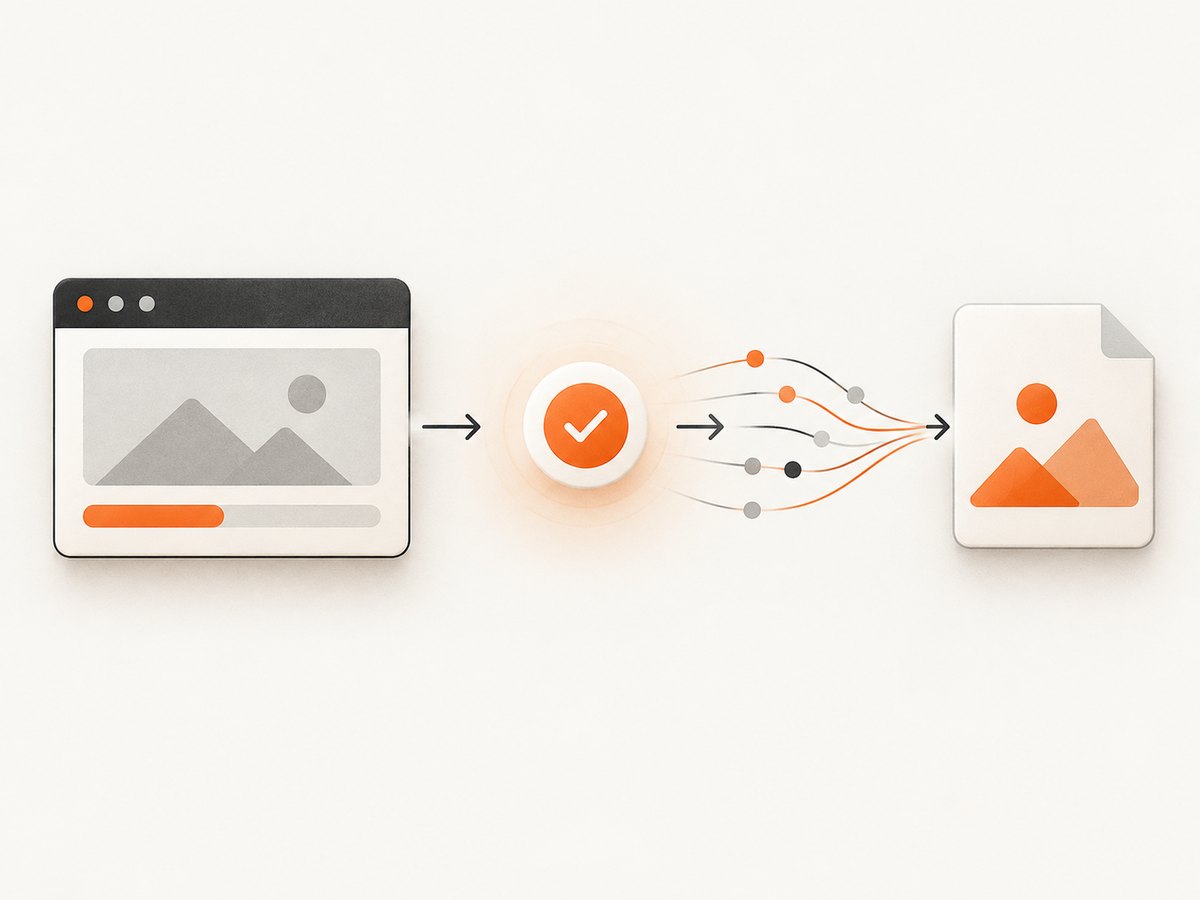
For Win32, create a writable IStream and pass the requested format to ICoreWebView2::CapturePreview. The completion handler indicates when the bytes are ready. In .NET, a FileStream, MemoryStream, or another writable stream can be used. Keep the stream alive until the asynchronous operation completes.
Common WebView2 edge cases
- Blank or partial image: capture happened during navigation or before the page’s own rendering finished. Wait for content loading and an application-specific ready condition.
- First call fails: the first capture was made before the first
ContentLoadingevent. Subscribe before navigating and gate the capture. - File is zero bytes: the stream was disposed or read before the completion task finished.
- Wrong page after navigation: a capture raced with a new navigation. Associate a capture with a navigation ID and ignore stale requests.
- Cross-thread exception: call the WebView2 API on the UI thread that owns the control.
- Missing runtime: install the WebView2 Runtime and ensure the SDK package reference matches your target framework.
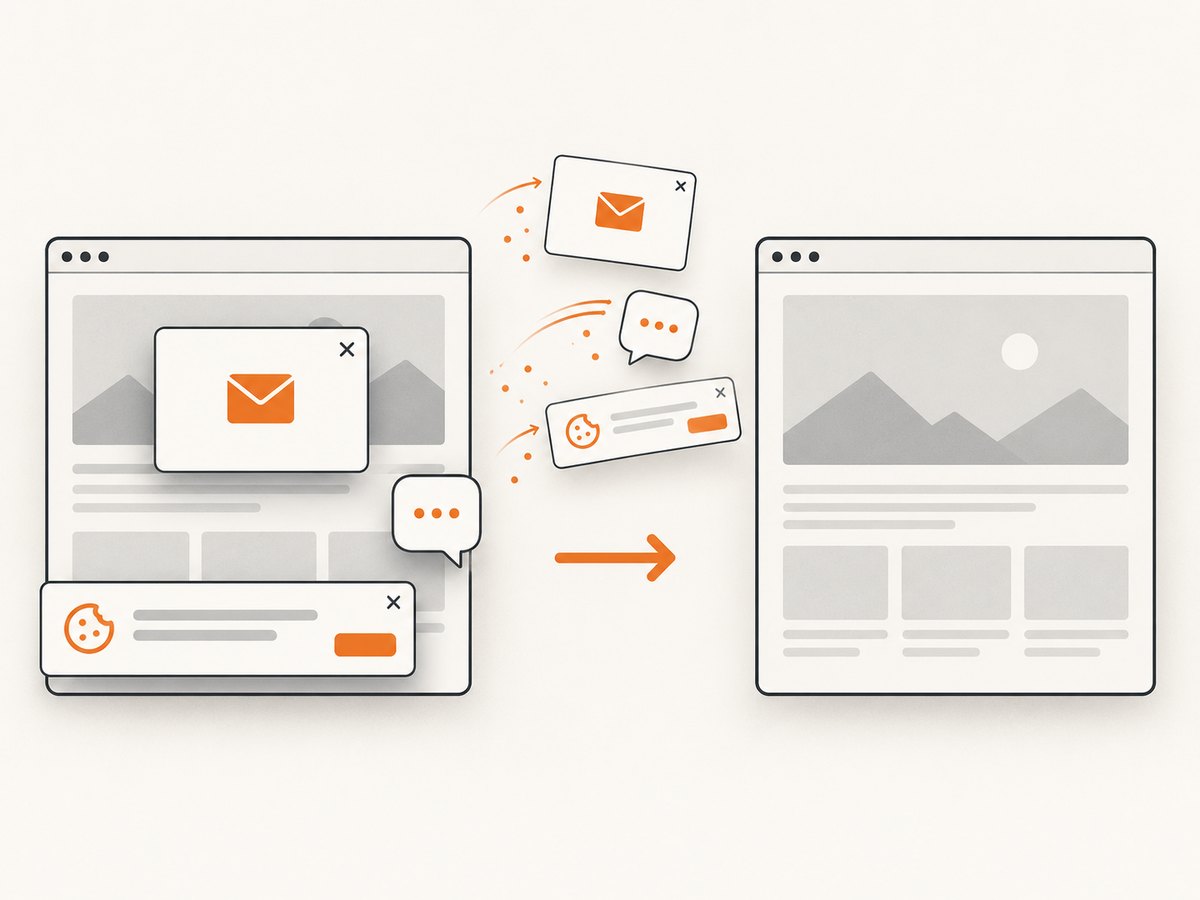
- Cookie dialogs or chat overlays: WebView2 captures what the control rendered. Hide or dismiss those elements in your application before capture if a clean image is required.
Automated browser screenshots with Selenium
Use Selenium when the browser is an automation target rather than a control embedded in your application. A page screenshot captures the driver’s current view; an element screenshot targets a WebElement. Selenium notes that full-page behavior and clipping can vary by driver, and an element result may contain the full element or only its visible portion.
Python
from selenium import webdriver
from selenium.webdriver.common.by import By

options = webdriver.ChromeOptions()
options.add_argument("--headless=new")
driver = webdriver.Chrome(options=options)
try:
    driver.get("https://example.com")
    driver.save_screenshot("page.png")
    heading = driver.find_element(By.TAG_NAME, "h1")
    heading.screenshot("heading.png")
finally:
    driver.quit()
Node.js
import { Builder, By } from "selenium-webdriver";

const driver = await new Builder().forBrowser("chrome").build();
try {
  await driver.get("https://example.com");
  await driver.takeScreenshot().then(data =>
    require("node:fs").writeFileSync("page.png", data, "base64"));
  const heading = await driver.findElement(By.css("h1"));
  await heading.takeScreenshot().then(data =>
    require("node:fs").writeFileSync("heading.png", data, "base64"));
} finally {
  await driver.quit();
}
C# Selenium
using OpenQA.Selenium;
using OpenQA.Selenium.Chrome;

using IWebDriver driver = new ChromeDriver(new ChromeOptions { BinaryLocation = "" });
try
{
    driver.Navigate().GoToUrl("https://example.com");
    var screenshot = ((ITakesScreenshot)driver).GetScreenshot();
    screenshot.SaveAsFile("page.png");

    var heading = driver.FindElement(By.CssSelector("h1"));
    ((ITakesScreenshot)heading).GetScreenshot().SaveAsFile("heading.png");
}
finally
{
    driver.Quit();
}
Configure the driver and headless options for your environment. For pixel-sensitive tests, pin browser and driver versions and verify the viewport, device scale factor, fonts, and screenshot scope.
Reliability and performance checklist
- Reuse one initialized browser instance when taking several captures, while isolating navigations that must not overlap.
- Use explicit readiness signals instead of large fixed sleeps.
- Set a timeout around navigation and capture, and always dispose drivers, controls, and streams.
- Keep output in memory for an upload pipeline; write directly to disk when files are the final artifact.
- For Selenium, use a fixed viewport and wait for the exact element or state under test.
- Expect pages with animations, ads, web fonts, and lazy images to change between runs unless you freeze or wait for them.
- Record the URL, viewport, browser version, capture time, and failure reason with each artifact.
Or skip the browser setup
ScreenshotNeo provides a hosted website screenshot API and MCP server. One GET request returns PNG, JPEG, WebP, or PDF. Cookie and consent banners are accepted and 60+ known consent platforms, newsletter popups, and chat widgets are removed before the shot. Bot checks, blank pages, timeouts, failed loads, and cache hits are not billed, and response headers identify the page verdict and billing result. Its MCP server gives Claude, Cursor, and other MCP clients take_screenshot, get_page_info, and capture_pdf tools.
See the ScreenshotNeo API documentation for all options. cURL:
curl -G "https://api.screenshotneo.com/v1/shot" -d access_key=YOUR_API_KEY --data-urlencode url=https://stripe.com -o shot.webpPython:
import requests
r = requests.get("https://api.screenshotneo.com/v1/shot", params={"access_key": "YOUR_API_KEY", "url": "https://stripe.com"}, timeout=90)
open("shot.webp", "wb").write(r.content)
Node.js:
const q = new URLSearchParams({ access_key: 'YOUR_API_KEY', url: 'https://stripe.com' });
const res = await fetch(`https://api.screenshotneo.com/v1/shot?${q}`);
The Free plan includes 1,000 screenshots a month with no card. Paid plans start at $5 for 3,000; every feature is available on every plan. Create a free ScreenshotNeo account.
FAQ
Does the old .NET WebBrowser control support CapturePreviewAsync?
No conclusion can be made from the name alone. CapturePreviewAsync is the WebView2 API; verify whether your project hosts WebView2 or the older control before choosing code.
Can WebView2 capture a full page longer than the visible control?
The preview API captures the control’s rendered preview. For full-page automation, use a Selenium capability supported by your driver or a hosted screenshot service.
Why does my Selenium element screenshot differ between machines?
Driver behavior, viewport size, browser version, fonts, device scale, and whether the element is fully visible all affect the result.
Which format should I store?
Use PNG for crisp text and deterministic UI comparisons, JPEG for photographs where smaller files matter, and WebP when your consumers support it.


