How to Render and Screenshot WebGL Pages with Selenium .NET
Render WebGL in headless Chrome with Selenium .NET: wait for the canvas, capture a full page or element, and troubleshoot blank or inconsistent screenshots.
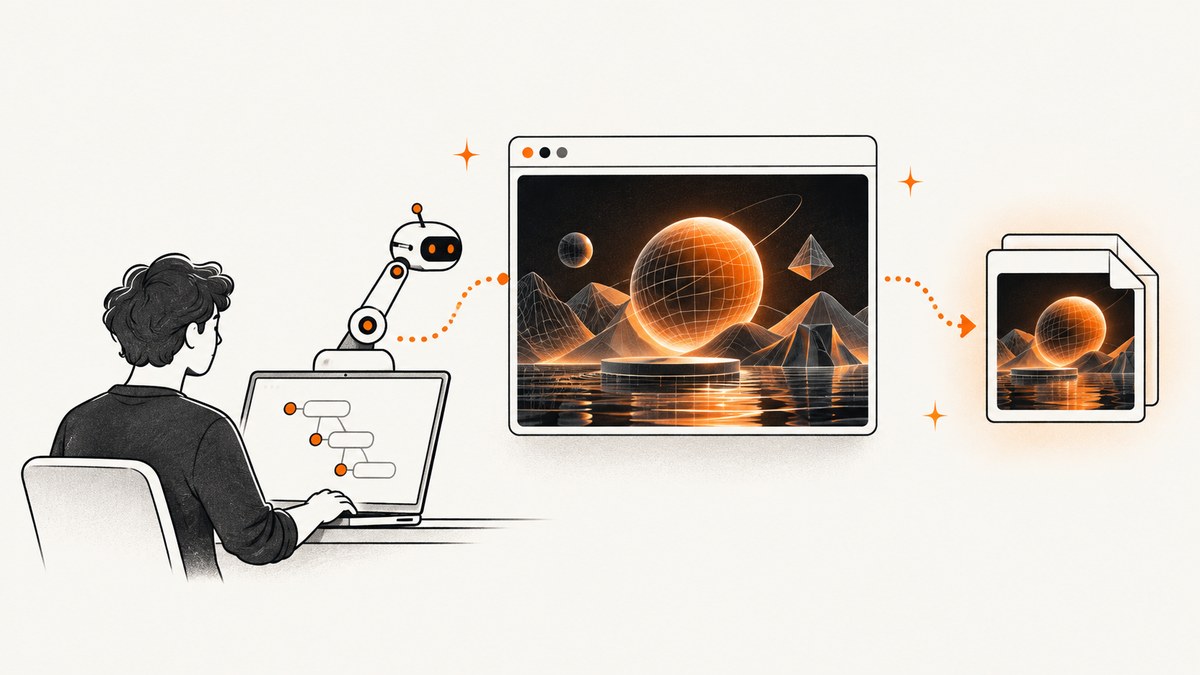
To render and screenshot a WebGL page with Selenium .NET, start Chrome in headless mode with a fixed window size, navigate to the page, wait for the page’s own WebGL-ready condition, then save either a browser screenshot or a screenshot of the canvas element. A screenshot call does not wait for a WebGL scene or animation to finish by itself.
Use PNG for sharp text and canvas edges. For an animated scene whose pixels must correspond to a specific rendered frame, consider Chrome’s DevTools BeginFrame workflow; it gives more control but depends on a versioned protocol API and target support. Chrome’s current headless mode shares the normal browser implementation: since Chrome 112 it creates platform windows without displaying them. This makes it a practical default for automation, but does not promise identical rendering across operating systems, GPU paths, drivers, fonts, browser versions, or WebGL extensions. Chrome Headless documentation
1. Install Selenium and prepare Chrome
Create a .NET console application and add Selenium WebDriver. Install Chrome in the environment where the program runs. Keep Chrome and ChromeDriver compatible; Selenium Manager can usually resolve the driver for a local Chrome installation, while locked-down CI environments may need an explicitly installed compatible driver.
dotnet new console -n WebGlCapture
cd WebGlCapture
dotnet add package Selenium.WebDriver
The example below targets a URL you control or are permitted to automate. It uses a fixed viewport and a page-owned readiness signal named window.webglReady. Your application must expose an equivalent signal, or you should replace the wait with a condition that represents your page’s actual initialization.
2. Complete Selenium .NET example
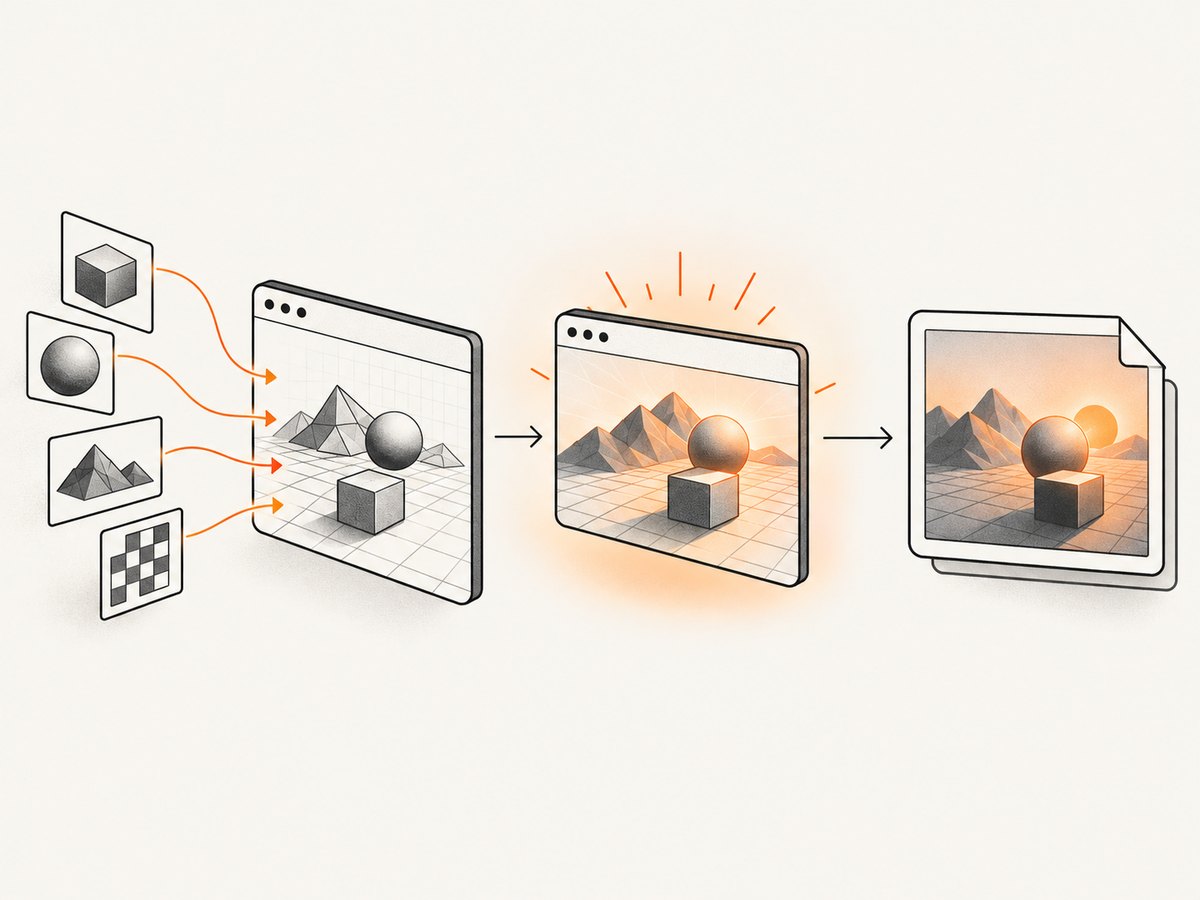
This runnable example captures the page and, optionally, only the first canvas. Set WEBGL_URL to your page. For a reliable production capture, update IsSceneReady to match the application’s documented readiness state.
using OpenQA.Selenium;
using OpenQA.Selenium.Chrome;
using OpenQA.Selenium.Support.UI;

var url = Environment.GetEnvironmentVariable("WEBGL_URL")
          ?? "https://example.com/webgl-demo";
var outputDirectory = Path.GetFullPath("captures");
Directory.CreateDirectory(outputDirectory);

var options = new ChromeOptions();
options.AddArgument("--headless");
options.AddArgument("--window-size=1440,1000");
// Add host-specific options only when your environment requires them.

using var driver = new ChromeDriver(options);
driver.Manage().Timeouts().PageLoad = TimeSpan.FromSeconds(60);
driver.Navigate().GoToUrl(url);

var wait = new WebDriverWait(driver, TimeSpan.FromSeconds(45));
wait.Until(d => IsSceneReady(d));

var pageShot = ((ITakesScreenshot)driver).GetScreenshot();
pageShot.SaveAsFile(Path.Combine(outputDirectory, "webgl-page.png"));

var canvas = wait.Until(d =>
{
    var matches = d.FindElements(By.CssSelector("canvas"));
    return matches.FirstOrDefault(e => e.Displayed
        && e.Size.Width > 0
        && e.Size.Height > 0);
});
canvas.GetScreenshot().SaveAsFile(
    Path.Combine(outputDirectory, "webgl-canvas.png"));

static bool IsSceneReady(IWebDriver driver)
{
    try
    {
        return (bool)((IJavaScriptExecutor)driver).ExecuteScript(
            "return window.webglReady === true;");
    }
    catch (JavascriptException)
    {
        return false;
    }
}
The example uses WebDriverWait from Selenium’s support classes. If your project does not already reference it, add the support package that provides waits for your Selenium version. Selenium’s screenshot API obtains a screenshot with ITakesScreenshot.GetScreenshot() and saves it through Screenshot.SaveAsFile(). The API documents PNG, BMP, GIF, JPEG, and TIFF formats; SaveAsFile on the current .NET Screenshot class saves PNG. Selenium .NET Screenshot API
Use a page-owned readiness signal
When you control the WebGL application, set a flag only after the renderer, assets, and initial scene are ready. For example, the page can assign window.webglReady = true after its own initialization promise resolves. The flag should mean the scene is ready to capture, rather than merely that the canvas element exists.
If you cannot change the page, choose the strongest observable condition available. A nonzero canvas size only proves that the element has dimensions. It does not prove shaders compiled, textures loaded, a scene rendered, or an animation reached the desired state. A stable canvas over consecutive animation frames can be a fallback, but a WebGL canvas may animate continuously, so stability is not always an appropriate definition of readiness.
3. Choose full-page or canvas capture
| Capture | Use it when | Trade-off |
|---|---|---|
| Driver screenshot | You need the visible browser viewport, including surrounding page controls. | Captures the viewport, and can include unrelated page content. |
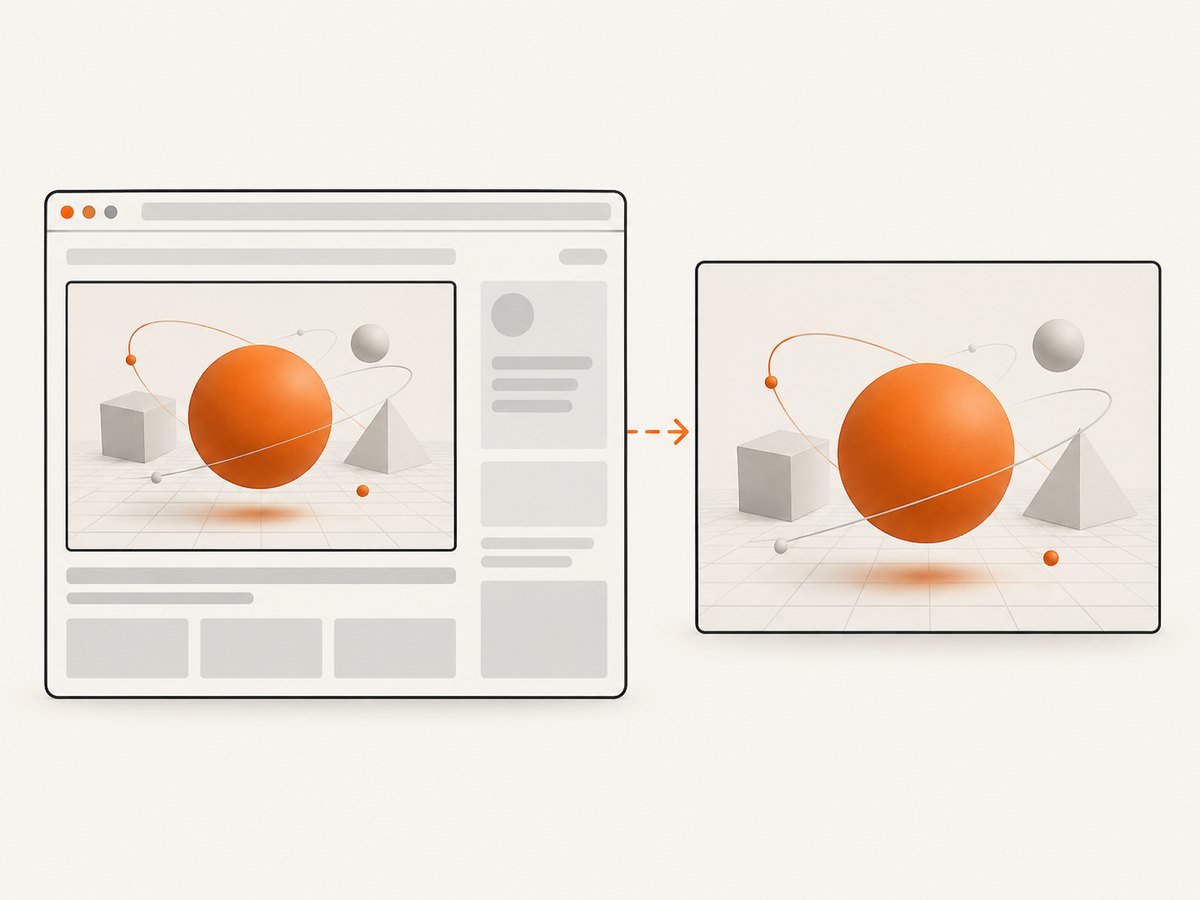
| Canvas element screenshot | You need just the WebGL drawing region. | Does not include labels or controls outside the canvas; locate the intended canvas when a page has several. |
Selenium .NET exposes element screenshots through IWebElement.GetScreenshot(). Find the canvas by a stable id, class, or other application-owned selector where possible, rather than assuming the first canvas is the right one. Selenium .NET WebElement API
var canvas = driver.FindElement(By.CssSelector("#scene canvas"));
var shot = canvas.GetScreenshot();
shot.SaveAsFile("canvas.png");
Element screenshots represent the element’s on-screen region. They are not a general way to export the underlying WebGL drawing buffer at arbitrary resolution. For a high-resolution render, use the application’s own renderer/export feature when available, or configure its rendering dimensions before capture.
4. Make headless output predictable
Set the viewport explicitly. The Chrome command-line reference documents --window-size and its screenshot capture options; the same principle applies when using WebDriver’s screenshot endpoint: viewport dimensions affect responsive layout, canvas sizing, and the resulting image. Chrome headless command-line documentation
- Viewport: fix width and height so responsive breakpoints and canvas dimensions are repeatable.
- Device scale: if your test uses a device scale factor, set it deliberately and record it; CSS pixels and image pixels may differ.
- Timing: wait on an app readiness signal rather than sleeping for an arbitrary duration.
- Environment: record Chrome, ChromeDriver, OS, viewport, device scale factor, and headless/headed mode with each artifact.
- GPU and WebGL: don’t assume the same machine-independent renderer, extensions, or output. Investigate the actual browser capabilities in the deployment environment.
Chrome headless is not a separate browser implementation in current Chrome. Still, pixel differences between environments are an engineering possibility because rendering also depends on the graphics stack, browser build, fonts, device scale, extensions, and page timing. Treat visual baselines as environment-specific unless you have verified portability for your setup.
5. Synchronize animated scenes with BeginFrame
A conventional screenshot asks the browser for its current image. If the page is animating, a frame may be captured between application updates or before the compositor has presented the frame you intended. First try a page-owned readiness signal. If the scene must be captured at a controlled animation frame and ordinary waits are too fragile, Selenium’s .NET DevTools API documents HeadlessExperimental.BeginFrame, which waits for a frame to complete and can optionally return its screenshot.
This is an advanced option. BeginFrame requires the target to have BeginFrameControl enabled, is designed for use with --run-all-compositor-stages-before-draw, and is exposed through Chrome DevTools Protocol namespaces versioned alongside Selenium’s supported browser protocol. Check the API for the Selenium package and Chrome version you actually ship before implementing it. Selenium .NET HeadlessExperimental API
CDP support is version-dependent. Selenium describes its Chrome DevTools Protocol support as temporary while it works toward the standards-based WebDriver BiDi protocol. That makes BeginFrame useful when frame control matters, but a higher-maintenance choice than standard WebDriver screenshots. Selenium CDP documentation
6. cURL, Python, and Node.js options
These alternatives are useful when the same capture needs to run outside a .NET test harness. Chrome’s own CLI screenshot is a browser-level option; Python and Node examples below use Selenium bindings and need a compatible browser and driver, just like the .NET version.
Chrome command line
chrome --headless --window-size=1440,1000 \
  --screenshot=webgl.png https://example.com/webgl-demo
The CLI form has no page-specific wait in this example. Chrome documents a --timeout maximum wait for screenshot capture, but a timeout is a time limit, not proof that a WebGL scene is ready. For application readiness and canvas-only capture, use WebDriver automation.
Python with Selenium
from selenium import webdriver
from selenium.webdriver.common.by import By
from selenium.webdriver.support.ui import WebDriverWait
from selenium.webdriver.support import expected_conditions as EC

options = webdriver.ChromeOptions()
options.add_argument("--headless")
options.add_argument("--window-size=1440,1000")

driver = webdriver.Chrome(options=options)
try:
    driver.get("https://example.com/webgl-demo")
    WebDriverWait(driver, 45).until(
        lambda d: d.execute_script("return window.webglReady === true")
    )
    driver.save_screenshot("webgl-page.png")
    canvas = WebDriverWait(driver, 15).until(
        EC.presence_of_element_located((By.CSS_SELECTOR, "#scene canvas"))
    )
    canvas.screenshot("webgl-canvas.png")
finally:
    driver.quit()
Node.js with Selenium WebDriver
const { Builder, By, until } = require('selenium-webdriver');
const chrome = require('selenium-webdriver/chrome');

(async () => {
  const options = new chrome.Options()
    .addArguments('--headless', '--window-size=1440,1000');
  const driver = await new Builder()
    .forBrowser('chrome').setChromeOptions(options).build();
  try {
    await driver.get('https://example.com/webgl-demo');
    await driver.wait(async () =>
      driver.executeScript('return window.webglReady === true'), 45000);
    await driver.takeScreenshot().then(data =>
      require('fs').writeFileSync('webgl-page.png', data, 'base64'));
    const canvas = await driver.findElement(By.css('#scene canvas'));
    await canvas.takeScreenshot().then(data =>
      require('fs').writeFileSync('webgl-canvas.png', data, 'base64'));
  } finally {
    await driver.quit();
  }
})();
Or skip the browser setup
ScreenshotNeo is a website screenshot API and MCP server. Send one GET request with a URL to receive an image or PDF. It can be a simpler fit when your job is to capture a website rather than control a local browser session. For WebGL pages, confirm your target renders as expected in the service’s capture environment before relying on it for a visual baseline.
curl -G "https://api.screenshotneo.com/v1/shot" \
  -d access_key=YOUR_API_KEY \
  --data-urlencode url=https://example.com/webgl-demo \
  -o shot.webp
See the ScreenshotNeo API documentation for request options. Cookie banners, popups, and chat widgets are removed before the shot; bot checks, blank pages, and failed loads are never billed. Its MCP server lets AI agents take screenshots. The free plan includes 1,000 screenshots a month with no card; paid plans start at $5 for 3,000. Sign up free and capture your first 1,000 screenshots.
7. Troubleshooting WebGL screenshots
| Symptom | Likely cause | What to try |
|---|---|---|
| Blank or black canvas | Capture occurred before scene initialization, a shader or asset failed, or the environment’s WebGL path differs. | Wait for the page’s actual ready signal; inspect browser console errors and WebGL capability; compare a headed run; verify the page works in the same Chrome build. |
| Canvas is missing | Selector does not match, canvas is in an iframe or shadow root, or it is added after navigation. | Wait for the correct selector; switch to the owning frame or locate through the shadow root; verify the DOM structure. |
| Canvas screenshot is empty or clipped | Canvas has zero dimensions, is hidden, or was resized after selection. | Wait for displayed state and nonzero dimensions; reacquire the element after layout changes; check CSS sizing and device scale. |
| Different output across runs | Animation timing, asynchronous resources, changing content, or different browser/GPU/font environment. | Use a readiness signal and deterministic scene state; pin and record browser/environment; use BeginFrame when appropriate. |
| Chrome fails to start in CI | Missing browser libraries, incompatible driver, sandbox/container policy, or host-specific constraints. | Read ChromeDriver’s startup error, install matching dependencies, and add only the flags required by that host. There is no universal flag set. |
| Wait times out | Readiness flag never becomes true, page errors prevented initialization, or the timeout is shorter than asset loading. | Check the page console and network behavior; verify the readiness contract; set a bounded timeout based on expected load behavior. |
8. Performance, reliability, and cost
Each browser startup and page navigation has a fixed operational cost, so reuse a driver for a batch of captures when isolation requirements allow it. Always close the driver in a using block or finally so failed waits do not leave Chrome processes behind. Bound page-load and readiness waits so a broken page cannot stall a pipeline indefinitely.
Full-page screenshots and large viewports produce larger artifacts and may require more browser memory than a viewport or canvas capture. Capture only the region you need, and avoid increasing viewport or output dimensions without a reason. PNG preserves crisp graphics but can be larger than lossy formats; choose formats based on downstream needs rather than assuming smaller files are visually equivalent.
For dependable visual checks, make the WebGL scene deterministic where possible: freeze time-dependent inputs, use stable fixtures, and wait for assets and the intended frame. Record enough environment metadata to explain changes. Headless mode removes visible UI; it does not eliminate browser, GPU, network, or application failure modes.
Selenium’s main cost is the infrastructure and maintenance of browsers, drivers, runtime dependencies, and capture jobs. A managed API trades browser provisioning for per-plan usage. ScreenshotNeo lists 1,000 free shots per month without a card; paid plans are Starter at $5 for 3,000, Growth $15 for 15,000, Pro $39 for 60,000, Scale $99 for 250,000, and Business $249 for 1,000,000. Yearly billing gives two months free, and every feature is on every plan. Choose based on expected volume and whether browser-level control is essential.
FAQ
Does headless Chrome support WebGL?
Headless Chrome uses the browser implementation shared with normal Chrome. That does not guarantee a particular WebGL renderer, extension set, or pixel output on every host. Check the actual deployment environment.
Can Selenium wait for WebGL automatically?
No. Selenium can wait for a condition you specify, such as an application flag or canvas dimensions. The page or test must define what “ready” means.
Can I capture only the WebGL canvas?
Yes. Locate the canvas as a WebElement and call its screenshot method. Use a selector specific to the intended canvas.
Should I use JPEG for a WebGL screenshot?
PNG is a good default for text, edges, and visual comparisons. Use JPEG only when its smaller output matters and compression artifacts are acceptable.
When should I use BeginFrame?
Use it when you need compositor-controlled frame completion and ordinary synchronization remains unreliable. It requires BeginFrameControl and a compatible, versioned DevTools API.


