How to Screenshot a Webpage in Chrome on Mac
Capture a full webpage, visible viewport, or selected area in Chrome on Mac with DevTools, shortcuts, troubleshooting, and an automated API option.

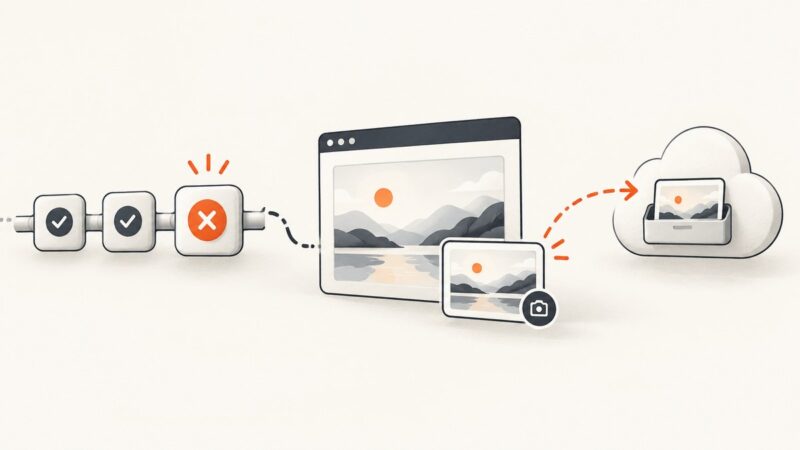
To screenshot an entire webpage in Chrome on a Mac, open DevTools with Command-Option-I, open the Command Menu with Command-Shift-P, type screenshot, and choose Capture full size screenshot. Chrome captures content below the visible viewport and saves the image through its normal download flow. For only the visible browser area, choose Capture screenshot. For a hand-selected region, choose Capture area screenshot.
This guide covers Chrome’s built-in workflow, macOS shortcuts, dynamic pages, troubleshooting, repeatable automation, and an API option when you need screenshots without opening a browser manually.
Choose the right screenshot method
| Goal | Chrome or macOS method | What it captures |
|---|---|---|
| Entire webpage | DevTools → Capture full size screenshot | The full document, including content below the viewport |
| Visible browser page | DevTools → Capture screenshot | The current viewport only |
| Selected webpage region | Command Menu → Capture area screenshot | A region you drag over in Chrome |
| One HTML element | DevTools → Capture node screenshot | The selected DOM node |
| Whole Mac screen | Shift-Command-3 | Everything on the selected display |
| Selected screen rectangle | Shift-Command-4 | A visible rectangle anywhere on the screen |
Chrome’s full-size command is the correct choice for a scrolling webpage. macOS screen shortcuts capture pixels currently displayed on the screen; they do not scroll through a long page automatically. Chrome documents Capture screenshot for the viewport and Capture a full size screenshot for the whole page. Its Command Menu documentation describes the area-selection workflow. Apple documents the Shift-Command-3 and Shift-Command-4 shortcuts.
How to capture a full webpage in Chrome on Mac
- Open the page. Navigate to the webpage in Google Chrome and wait until the main content appears.
- Open DevTools. Press Command-Option-I. Chrome’s shortcut opens the last-used DevTools panel, so you might see Elements, Console, Network, or another panel.
- Open the Command Menu. Press Command-Shift-P.
- Search for screenshot. Type
screenshotinto the command field. - Select Capture full size screenshot. Chrome renders the document beyond the current viewport and starts a download.
- Find the file. Open Chrome’s configured download folder, normally Downloads, and rename or move the image as needed.
The result is a webpage image rather than a picture of your entire desktop. Browser chrome, other applications, and the Mac menu bar are excluded. If you need those, use a macOS screen shortcut instead.

If Command-Option-I opens an unexpected panel
The shortcut opens whichever DevTools panel Chrome last used. That is normal. Leave DevTools open and use Command-Shift-P; the Command Menu works regardless of the currently selected panel. You can also choose DevTools from Chrome’s menu if the shortcut is unavailable or has been remapped by a keyboard utility.
Capture only what is visible
For a screenshot of the current viewport, open DevTools, open the Command Menu, type screenshot, and select Capture screenshot. This is useful for documenting a modal, error message, dashboard state, or the top of a page without including everything below it.
A viewport capture reflects the current window size, zoom level, device emulation settings, scroll position, and visible browser content. Scroll to the desired position before running the command. If a sticky header covers content, capture the viewport after adjusting the page or use a full-size capture and crop the result.
Capture a selected area
Press Command-Shift-P, search for screenshot, and choose Capture area screenshot. When the crosshair appears, drag over the portion of the webpage you want. This avoids taking a full-page image and cropping it afterward.
Area capture is tied to what Chrome can display at that moment. It is therefore suited to a visible card, chart, or paragraph. It is not a substitute for a full-page screenshot when the target extends below the fold.
Capture one element with Capture node screenshot
- Open DevTools and select the Elements panel.
- Use the element picker or inspect the DOM until the target element is highlighted.
- Open the Command Menu and search for
screenshot. - Choose Capture node screenshot.
Verify the selected node before capturing. A parent container may include padding, backgrounds, or neighboring content; a child node may omit them. For repeatable automation, a stable CSS selector is usually more reliable than manually selecting a node.
Use macOS shortcuts for screen captures
- Shift-Command-3: captures the whole screen.
- Shift-Command-4: changes the pointer to a crosshair so you can drag a screen region.
These shortcuts are useful for a browser window, a dialog, or a quick visual note. They capture the visible desktop and do not provide Chrome’s documented full-scroll webpage capture. On a Mac with multiple displays, confirm which display or region is selected before releasing the keys.
Dynamic pages, lazy images, and consent banners
A webpage can change between the time it loads and the time you capture it. Give pages with animations, client-side rendering, ads, charts, or lazy-loaded images enough time to settle. Scroll through the page once when you need to trigger content that loads only near the viewport, then run the full-size command again.
Cookie consent banners, newsletter popups, and chat widgets can obscure content. Dismiss them before capturing when possible. If a page has a sticky navigation bar, check several scroll positions to make sure it is not hiding headings or cards in the final image. A full-size capture can also reveal content that was not visible when you first opened the page, so inspect the downloaded file rather than assuming the browser preview tells the whole story.
Animations and rotating carousels can produce different frames on different attempts. Pause the animation where the site allows it, wait for a stable state, or capture the same URL repeatedly and select the desired frame. Some pages require a logged-in session; Chrome’s DevTools capture uses the cookies and permissions of that browser profile.
Repeatable screenshots without manual browser setup
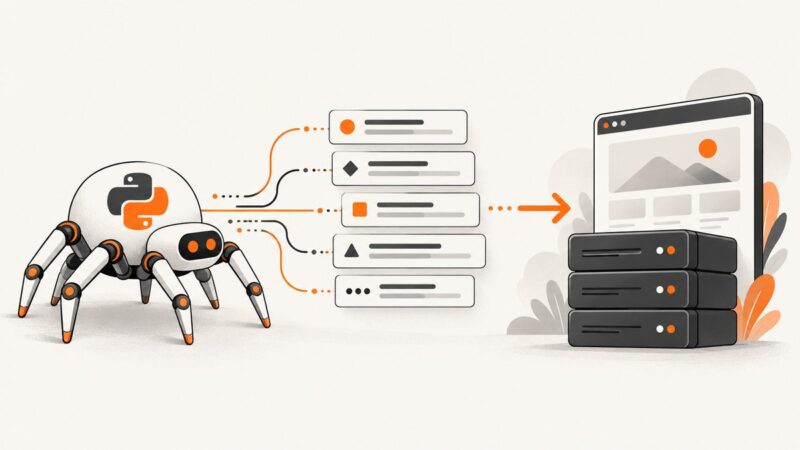
DevTools is excellent for an occasional capture. A service is more practical when you need scheduled screenshots, many URLs, consistent options, or a server-side workflow. ScreenshotNeo is a website screenshot API and MCP server. One GET request returns a PNG, JPEG, WebP, or PDF.

ScreenshotNeo’s capture pipeline accepts consent banners like a visitor and removes more than 60 known consent platforms, newsletter popups, and chat widgets before the shot. Each step can be turned off. Clean shots are the only billable results: bot checks or CAPTCHAs, blank pages, timeouts, failed loads, and cache hits cost nothing, and the response identifies the result with X-Page-Verdict and X-Billed headers.
Or skip the browser setup
Use the API when a Mac shortcut is not repeatable enough for your workflow. See the ScreenshotNeo documentation for the complete parameter reference.
cURL
curl -G "https://api.screenshotneo.com/v1/shot" \
  -d access_key=YOUR_API_KEY \
  --data-urlencode url=https://stripe.com \
  -o shot.webp
Python
import requests

r = requests.get(
    "https://api.screenshotneo.com/v1/shot",
    params={"access_key": "YOUR_API_KEY", "url": "https://stripe.com"},
    timeout=90,
)
r.raise_for_status()
open("shot.webp", "wb").write(r.content)
Node.js
const q = new URLSearchParams({ access_key: 'YOUR_API_KEY', url: 'https://stripe.com' });
const res = await fetch(`https://api.screenshotneo.com/v1/shot?${q}`);
if (!res.ok) throw new Error(`HTTP ${res.status}`);
const buffer = Buffer.from(await res.arrayBuffer());
require('fs').writeFileSync('shot.webp', buffer);
For a straightforward page, the call above is enough. ScreenshotNeo also supports full-page capture with lazy images loaded, CSS-selector element capture, dark mode, 12 device presets or any viewport, retina scale, custom CSS and JavaScript, clicks before capture, hiding selectors, waits for a selector, delay, or network idle, and transparent backgrounds.
For controlled environments, you can provide custom headers, cookies, a user agent, an Authorization value, timezone, or geolocation. You can block ads, trackers, requests, or resource types. Image resizing, a cache TTL you choose, signed links for public <img> tags, asynchronous jobs with signed webhooks, bulk capture for up to 100 URLs per call, a usage API, and an OpenAPI specification cover common production cases. Parameter names used by other screenshot APIs also work, which can reduce migration work.
An MCP server provides take_screenshot, get_page_info, and capture_pdf tools for Claude, Cursor, and other MCP clients. This lets an AI agent inspect a page or create a capture as part of a task without driving your local Chrome window.
Plans include 1,000 shots per month free with no card, Starter at $5 for 3,000, Growth at $15 for 15,000, Pro at $39 for 60,000, Scale at $99 for 250,000, and Business at $249 for 1,000,000. Yearly billing gives two months free, and every feature is available on every plan. Create a free ScreenshotNeo account to start with 1,000 screenshots a month and no card.
Troubleshooting Chrome screenshots
| Problem | Likely cause | Fix |
|---|---|---|
| Full size screenshot is missing | The Command Menu search is too narrow or DevTools is not focused | Press Command-Shift-P while DevTools is open and search exactly for screenshot. |
| Only the visible area was captured | You selected Capture screenshot | Run the command again and select Capture full size screenshot. |
| Command-Option-I opens a different panel | Chrome restores the last-used DevTools panel | Use the Command Menu; the panel does not affect screenshot commands. |
| Images are blank or missing | Lazy loading, slow network requests, or blocked resources | Wait longer, scroll to trigger lazy content, check the page directly, and capture again. |
| A popup covers the content | Consent, newsletter, or chat overlay remains open | Dismiss it before capture, or use an automated capture tool that removes supported overlays. |
| The result changes each time | Animation, rotating content, ads, or live data | Pause motion, wait for a stable state, or repeat the capture at a controlled time. |
| The element capture includes too much | A parent DOM node was selected | Inspect the element tree and select the smallest node that contains the desired content. |
| Download cannot be found | Chrome’s download directory differs from Downloads | Open Chrome settings and check the configured download location or the downloads list. |
| Shortcut does nothing | macOS or a keyboard utility intercepted it | Use Chrome’s menus and Command Menu, then review keyboard shortcut settings. |
Performance, reliability, and cost considerations
Manual Chrome capture
A manual capture has no service charge and is quick for one page. Its repeatability depends on window size, browser state, login cookies, page timing, extensions, and the version of Chrome. Record the URL, viewport size, zoom, scroll position, and whether overlays were dismissed when screenshots are evidence or part of a bug report.
Automated capture
For scheduled or bulk work, control timing explicitly. Wait for a selector or network idle when the page renders asynchronously, use a fixed viewport and device preset, and select a cache TTL when repeated captures do not need a fresh request. Blocking unnecessary ads, trackers, or resource types can reduce page work, while custom headers and cookies make authenticated pages reproducible.
Check response headers and status codes. With ScreenshotNeo, X-Page-Verdict and X-Billed tell you whether the result was a clean, billable capture, a cache hit, or a failed condition. Bot checks, blank pages, timeouts, and failed loads are not billed, which makes retries safer to automate. Use asynchronous jobs and signed webhooks when a large capture set should not hold an HTTP request open; use bulk capture for up to 100 URLs per call.
Checklist before you save or share a screenshot
- Confirm whether you need the viewport, a selected area, one node, or the entire document.
- Set the browser window and zoom to the intended dimensions.
- Wait for fonts, images, charts, and client-rendered content.
- Dismiss consent banners and popups or verify they are intentionally included.
- Check sticky headers, fixed chat buttons, and lazy-loaded sections.
- Open the downloaded file and inspect the top, middle, and bottom of a full-page image.
- For repeatable jobs, record URL, viewport, timing, authentication, and output format.
FAQ
What is the Mac shortcut for a full webpage screenshot in Chrome?
There is no single macOS screen shortcut that scrolls a webpage. Use DevTools: Command-Option-I, Command-Shift-P, search screenshot, then choose Capture full size screenshot.
Can Chrome capture a page that is longer than the screen?
Yes. Capture full size screenshot includes content that is not currently visible in the viewport.
Does Shift-Command-4 capture a scrolling webpage?
No. It captures a selected visible screen region. Use Chrome DevTools for a full-page webpage image.
Can I capture a PDF instead of an image?
Chrome can print a page to PDF. ScreenshotNeo also provides a capture_pdf MCP tool and PDF options such as paper size, margins, landscape mode, and page ranges.
How can an AI agent take a screenshot?
Connect an MCP client such as Claude or Cursor to ScreenshotNeo and use its take_screenshot, get_page_info, or capture_pdf tools.
What should I use for hundreds of URLs?
Use an automated service with bulk capture, asynchronous jobs, signed webhooks, caching, and usage reporting. ScreenshotNeo supports up to 100 URLs per bulk call and exposes a usage API.