Screenshot Webpages as JPEG in Go
Capture a rendered webpage as a real JPEG in Go with chromedp, control quality, handle full pages, and compare a hosted ScreenshotNeo workflow.
To take a screenshot of a webpage as a JPEG in Go, drive Chrome with chromedp, navigate to the page, and request JPEG encoding through the Chrome DevTools Protocol. For a page taller than the viewport, use chromedp.FullScreenshot with a quality below 100. In the reviewed chromedp helper, quality 100 selects PNG; any other quality selects JPEG. A filename ending in .jpg does not convert PNG bytes into JPEG bytes.
Choose the capture you actually need
Decide the capture extent before writing code:
| Need | Approach | Output control |
|---|---|---|
| Visible browser viewport | Call page.CaptureScreenshot after navigation. |
Set format to JPEG and quality from 0 to 100. |
| Entire document | Call chromedp.FullScreenshot. |
Pass a quality below 100 for JPEG in the reviewed helper. |
| One element | Use chromedp’s element screenshot task, then decode and re-encode if JPEG is required. | The task structure is demonstrated by the official example; verify the actual encoding rather than trusting its .png filename. |
The protocol’s default screenshot format is PNG. JPEG quality is documented as a value from 0 through 100. The helper’s quality-100 behavior is a special case, so make the format decision explicit in code when you use the lower-level protocol.
Set up a minimal Go capture program
chromedp is a Go browser automation library built around Chrome DevTools Protocol. The official repository links to screenshot examples, including element and full-page tasks. Add chromedp and its page protocol package to your module using your normal Go dependency workflow, then use a locally available Chrome or Chromium executable.
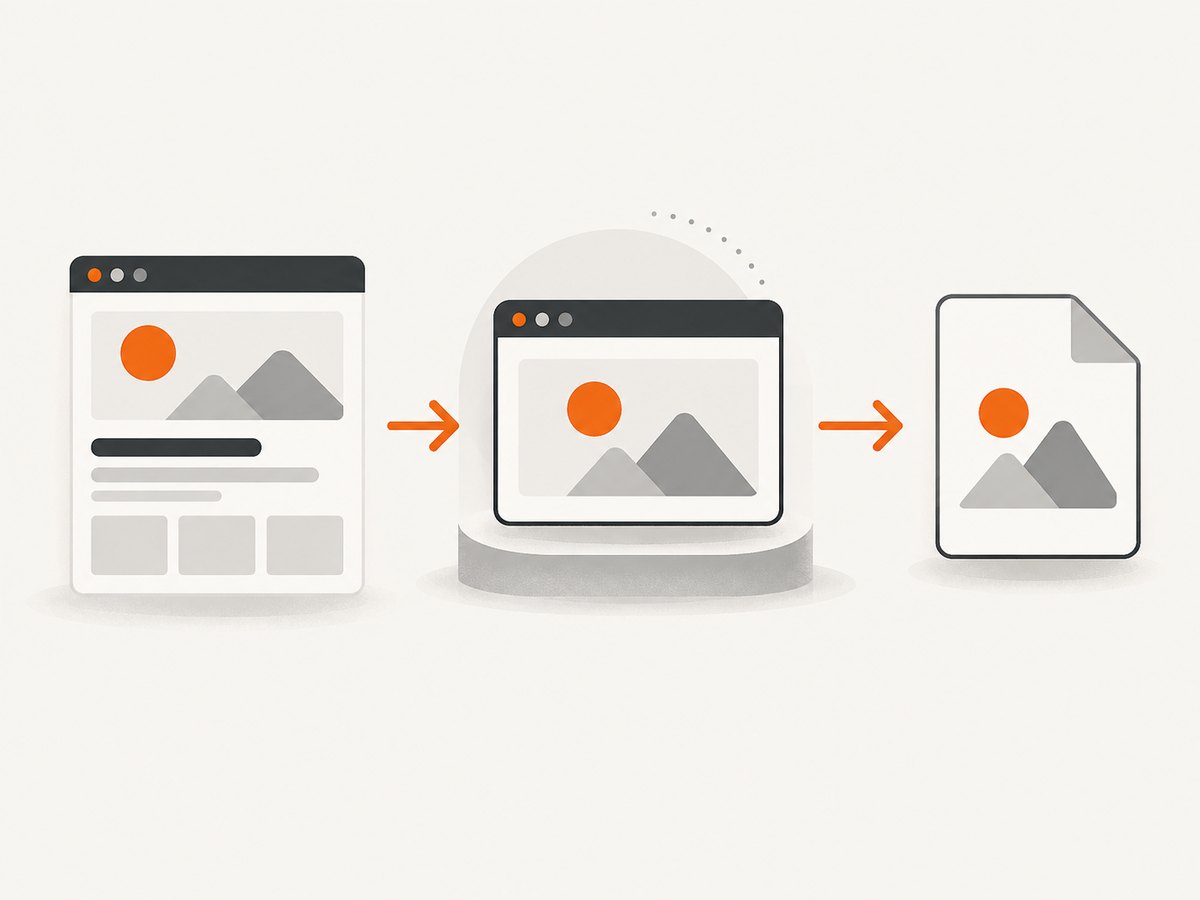
Viewport screenshot as JPEG
package main

import (
    "context"
    "fmt"
    "os"
    "time"

    "github.com/chromedp/cdproto/page"
    "github.com/chromedp/chromedp"
)

func main() {
    ctx, cancel := chromedp.NewContext(context.Background())
    defer cancel()

    ctx, cancel = context.WithTimeout(ctx, 60*time.Second)
    defer cancel()

    var jpeg []byte
    err := chromedp.Run(ctx,
        chromedp.EmulateViewport(1440, 900),
        chromedp.Navigate("https://example.com"),
        chromedp.WaitVisible("body", chromedp.ByQuery),
        chromedp.ActionFunc(func(ctx context.Context) error {
            var err error
            jpeg, err = page.CaptureScreenshot().
                WithFormat(page.CaptureScreenshotFormatJpeg).
                WithQuality(90).
                Do(ctx)
            return err
        }),
    )
    if err != nil {
        panic(err)
    }

    if err := os.WriteFile("viewport.jpg", jpeg, 0644); err != nil {
        panic(err)
    }
    fmt.Printf("wrote %d bytes to viewport.jpg\n", len(jpeg))
}
This captures the visible 1440×900 viewport after the body exists. The returned slice contains encoded JPEG data. The .jpg extension matches the bytes because the protocol format was explicitly set to JPEG.
Full-page JPEG with chromedp.FullScreenshot
package main

import (
    "context"
    "os"
    "time"

    "github.com/chromedp/chromedp"
)

func main() {
    ctx, cancel := chromedp.NewContext(context.Background())
    defer cancel()

    ctx, cancel = context.WithTimeout(ctx, 90*time.Second)
    defer cancel()

    var fullPage []byte
    err := chromedp.Run(ctx,
        chromedp.Navigate("https://example.com"),
        chromedp.WaitVisible("body", chromedp.ByQuery),
        chromedp.FullScreenshot(&fullPage, 90),
    )
    if err != nil {
        panic(err)
    }

    if err := os.WriteFile("full-page.jpg", fullPage, 0644); err != nil {
        panic(err)
    }
}
FullScreenshot captures beyond the viewport. In the reviewed implementation, passing 90 selects JPEG; passing 100 selects PNG. Keep that edge case in mind if quality comes from configuration.
Capture one element and produce a JPEG
The official chromedp example demonstrates element screenshot tasks. A convenient element task may return PNG bytes, so convert those bytes to JPEG with Go’s image packages. This is an encoding conversion after the browser capture; it does not change layout or browser rendering.
package main

import (
    "bytes"
    "context"
    "image"
    _ "image/png"
    "image/jpeg"
    "os"
    "time"

    "github.com/chromedp/chromedp"
)

func main() {
    ctx, cancel := chromedp.NewContext(context.Background())
    defer cancel()
    ctx, cancel = context.WithTimeout(ctx, 60*time.Second)
    defer cancel()

    var pngBytes []byte
    err := chromedp.Run(ctx,
        chromedp.Navigate("https://example.com"),
        chromedp.WaitVisible("body", chromedp.ByQuery),
        chromedp.Screenshot("h1", &pngBytes, chromedp.NodeVisible),
    )
    if err != nil {
        panic(err)
    }

    img, _, err := image.Decode(bytes.NewReader(pngBytes))
    if err != nil {
        panic(err)
    }

    file, err := os.Create("heading.jpg")
    if err != nil {
        panic(err)
    }
    defer file.Close()
    if err := jpeg.Encode(file, img, &jpeg.Options{Quality: 90}); err != nil {
        panic(err)
    }
}
Use a selector that identifies exactly one visible element. If the selector matches nothing, wait for the element or inspect the page before capturing.
Control JPEG format and quality directly
For viewport captures, the protocol API exposes the relevant controls:
jpeg, err := page.CaptureScreenshot().
    WithFormat(page.CaptureScreenshotFormatJpeg).
    WithQuality(80).
    Do(ctx)
The documented quality range is 0–100. Higher values generally preserve more detail and produce larger files; lower values generally reduce size and introduce more visible compression. Choose a value based on your image requirements, then inspect representative pages. Do not infer encoding from a path or filename: validate the format in the bytes if downstream systems require a strict MIME type.
Wait for the page you mean to capture
Navigation completion does not guarantee that client-rendered content, fonts, charts, or lazy images are ready. Combine a meaningful readiness condition with a bounded timeout.
- Selector readiness: wait for a stable element such as
main, a chart container, or a product card. - Application readiness: use
chromedp.Evaluateto read a page flag your application sets after rendering. - Images: wait for a known image or evaluate whether document images have completed.
- Animations: inject CSS or wait briefly after the important transition; otherwise you may capture an intermediate frame.
- Lazy loading: full-page capture behavior depends on the page and browser. Scroll or trigger the page’s lazy-load mechanism when required, then capture.
chromedp.WaitVisible("#report-ready", chromedp.ByID),
chromedp.Sleep(500 * time.Millisecond),
Use a timeout around every capture. A page that never resolves should become a recorded failure, not a permanently stuck worker.
Viewport, full page, and element edge cases
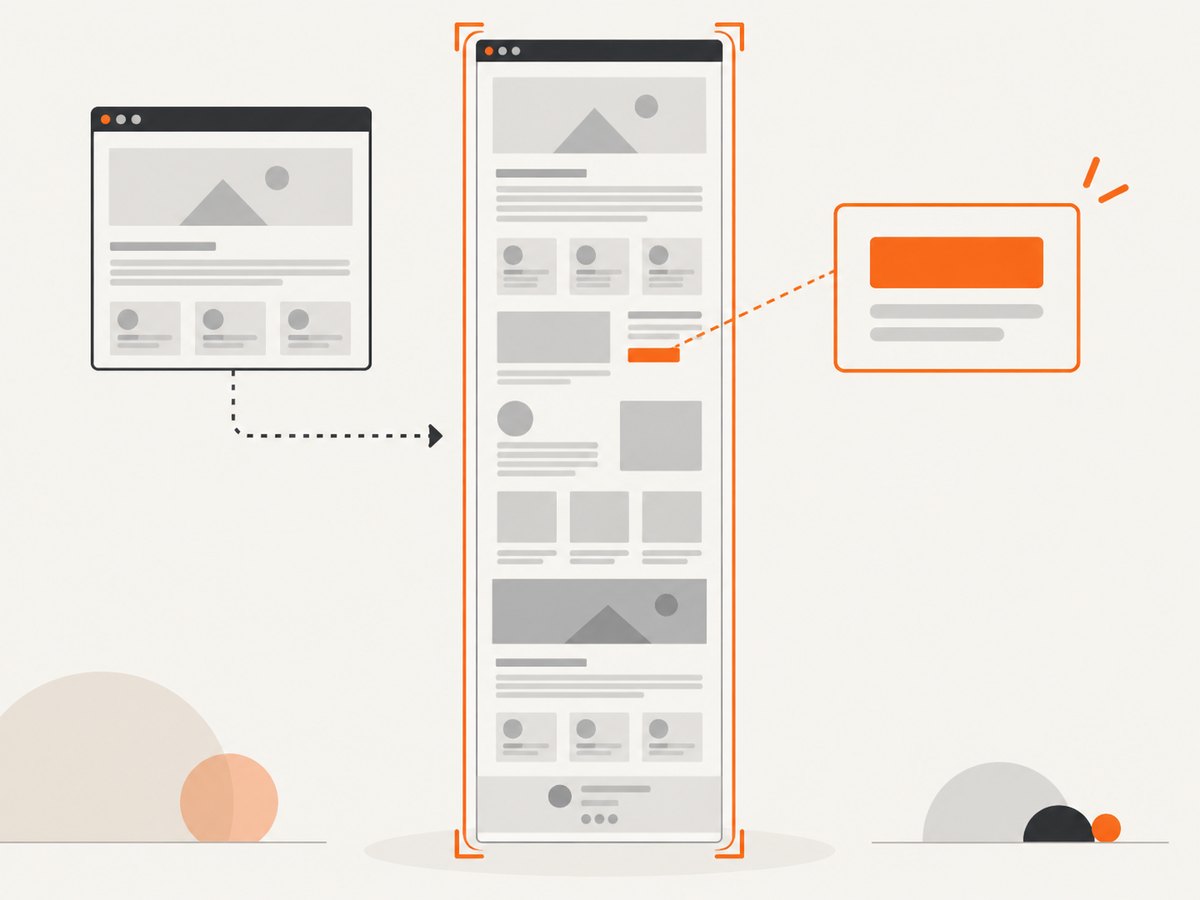
Very tall documents
A full-page image can consume substantial memory because all encoded output is held in a byte slice before writing. For long reports, consider a PDF or a series of viewport captures if a single raster image is not required.
Fixed headers and sticky navigation
Full-page screenshots can repeat fixed elements at each viewport segment or overlap content, depending on browser behavior and page CSS. If the result is for archival use, hide sticky elements with injected CSS before capture.
Cross-origin frames
Chrome can render cross-origin iframes, but JavaScript inspection inside them is restricted by browser security rules. Capture the rendered page when possible; do not assume you can query every frame’s DOM from the top-level document.
Fonts and external assets
Missing fonts, blocked resources, and slow third-party scripts alter the pixels. Run from an environment with network access to required assets, or provide deterministic local assets and headers. A successful navigation is not proof that every resource loaded.
Transparent backgrounds
JPEG has no alpha channel. If the page or element needs transparency, capture PNG and retain it, or deliberately composite it onto a background before JPEG encoding.
Reusable options for production code
| Concern | Implementation choice |
|---|---|
| Browser lifecycle | Reuse a browser context for multiple pages, but create a fresh tab or isolated context per job when state must not leak. |
| Viewport | Set width and height before navigation so responsive CSS selects the intended breakpoint. |
| Authentication | Set cookies or headers through the browser context; never put secrets in a public output URL. |
| Privacy | Redact or hide sensitive selectors before capture and avoid writing URLs containing credentials to logs. |
| Output | Write bytes directly to a file or object store. Set the media type to image/jpeg. |
| Retries | Retry transient browser or network failures with a limit. Do not blindly repeat pages that trigger side effects. |
Troubleshooting
The file is called .jpg but viewers report PNG
The extension does not transcode bytes. Set CaptureScreenshotFormatJpeg, or pass a non-100 quality to the reviewed FullScreenshot helper.
FullScreenshot unexpectedly returns PNG
Quality 100 selects PNG in the reviewed helper. Use a quality below 100 when you need JPEG, or call the protocol method with an explicit JPEG format.
The screenshot is blank
The page may still be loading, require JavaScript, redirect, reject the browser, or render content after your capture. Wait for a page-specific selector, inspect navigation errors, and verify that required assets are reachable.
The element is not found
Check whether the selector is correct, whether the element is inside an iframe, and whether it appears only after an API call. Add a bounded wait and capture diagnostic HTML or a viewport image.
The output is clipped
You captured the viewport rather than the document. Use FullScreenshot for beyond-viewport output, or increase the emulated viewport when only a larger visible region is needed.
JPEG quality has no visible effect
Confirm that the bytes are JPEG and that the image viewer is not displaying a cached file. Compare file sizes and decode the output with an image library.
Chrome cannot start in a container
Ensure a compatible Chrome or Chromium executable is installed and that the runtime has the permissions and shared libraries it needs. Keep browser startup errors separate from page-load errors in logs.
Performance, reliability, and cost
Browser startup is usually more expensive than JPEG encoding. Reuse a controlled browser process for batches, cap concurrency, and set navigation and total-job timeouts. A queue prevents a burst of large full-page captures from exhausting memory. Measure your own pages: the supplied sources do not establish a benchmark or browser compatibility matrix.
JPEG reduces transfer and storage size compared with PNG for photographic or complex pages, but text and sharp UI edges may show artifacts. Keep PNG when pixel-perfect text, transparency, or lossless archival quality matters.
With self-hosted chromedp, your operational cost includes browser CPU, memory, storage, bandwidth, and maintenance. If you need a hosted endpoint, compare what counts as a billable capture, how failures are reported, and whether you can control waiting, headers, cookies, and output format.
Or skip the browser setup
ScreenshotNeo provides a hosted screenshot API and MCP server. The same request returns PNG, JPEG, WebP, or PDF, so your Go service does not need to manage Chrome.
curl -G "https://api.screenshotneo.com/v1/shot" -d access_key=YOUR_API_KEY --data-urlencode url=https://stripe.com -o shot.webpimport requests
r = requests.get("https://api.screenshotneo.com/v1/shot", params={"access_key": "YOUR_API_KEY", "url": "https://stripe.com"}, timeout=90)
open("shot.webp", "wb").write(r.content)const q = new URLSearchParams({ access_key: 'YOUR_API_KEY', url: 'https://stripe.com' });
const res = await fetch(`https://api.screenshotneo.com/v1/shot?${q}`);See the ScreenshotNeo API documentation for format and capture options. Before the shot, it accepts cookie and consent banners and removes more than 60 known consent platforms, newsletter popups, and chat widgets; each step can be disabled. Bot checks, blank pages, timeouts, failed loads, and cache hits are not billed, and response headers identify the page verdict and billing status. Its MCP server exposes take_screenshot, get_page_info, and capture_pdf for Claude, Cursor, and other MCP clients. The free plan includes 1,000 screenshots per month with no card; paid plans start at $5 for 3,000.
Create a free ScreenshotNeo account and start with 1,000 screenshots a month at no charge.
Short FAQ
Does a JPEG screenshot include the browser chrome?
No. The capture is the rendered webpage content, not the operating system window or browser toolbar.
Can I use quality 100 for JPEG?
With the reviewed FullScreenshot helper, no: quality 100 selects PNG. The lower-level protocol documents JPEG quality from 0 to 100, so use explicit format control when exact behavior matters.
Is a full-page screenshot always one continuous image?
FullScreenshot is intended to capture beyond the viewport, but page layout, sticky elements, lazy content, and browser behavior can affect the result.
Should I convert PNG to JPEG?
Convert when you need JPEG compatibility or smaller photographic images. Keep PNG for transparency and lossless text or diagram detail.
Where can I verify the API details?
Consult the cdproto/page documentation, the chromedp screenshot implementation, and the official screenshot example. Repository code and generated documentation can change.


