Screenshot Webpages as JPEG in TypeScript
Use Playwright in TypeScript to capture webpages as JPEG, control quality and scale, save files or buffers, and handle full-page and element screenshots.
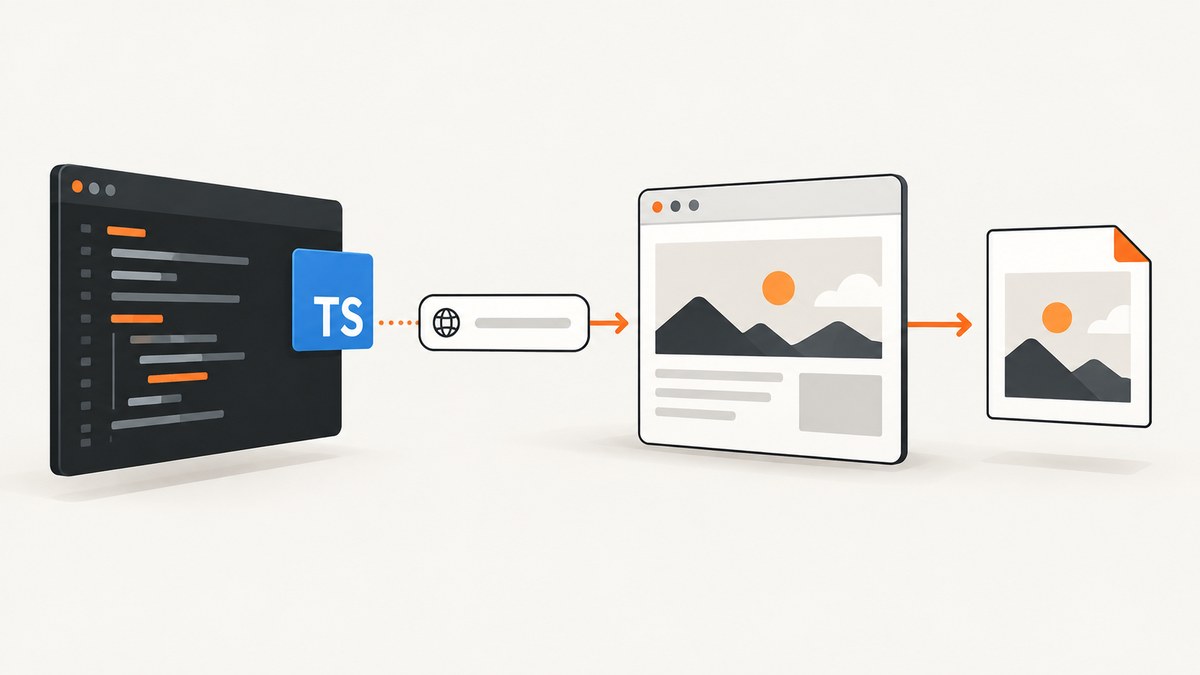
Yes. In TypeScript, Playwright’s page.screenshot() method can return a webpage screenshot as a JPEG buffer or write it directly to a file. Set type: 'jpeg', choose a quality from 0 to 100, and add fullPage: true when you need the entire scrollable document instead of only the visible viewport. The method also supports PNG and WebP output, CSS or device-pixel scaling, and element-level captures.
This guide shows a complete local implementation, explains every setting that affects JPEG output, covers failure modes and production concerns, and then shows how to avoid browser infrastructure with ScreenshotNeo.
1. Install Playwright and create a TypeScript project
Playwright launches a real browser, loads the target page, and uses the browser’s screenshot implementation. Install the package and one browser engine:
npm init -y
npm install playwright
npm install -D typescript tsx @types/node
npx playwright install chromium
Create a tsconfig.json suitable for a small command-line script:
{
  "compilerOptions": {
    "target": "ES2022",
    "module": "NodeNext",
    "moduleResolution": "NodeNext",
    "strict": true,
    "esModuleInterop": true,
    "skipLibCheck": true
  }
}
The official Playwright Page API documentation defines the screenshot options and return value. The method returns a Promise<Buffer>; when path is supplied, Playwright also writes the image to disk.
2. Capture a full webpage as a JPEG
This is a runnable TypeScript example. It opens Chromium, captures the complete scrollable page, writes page.jpeg, and keeps the returned bytes in memory for a later upload or transformation.
import { chromium } from 'playwright';

async function capturePageAsJpeg(url: string): Promise<Buffer> {
  const browser = await chromium.launch();
  try {
    const page = await browser.newPage();
    await page.goto(url);
    return await page.screenshot({
      path: 'page.jpeg',
      type: 'jpeg',
      quality: 80,
      fullPage: true,
    });
  } finally {
    await browser.close();
  }
}

const image = await capturePageAsJpeg('https://example.com');
console.log(`Captured ${image.length} bytes`);
Run it with:
npx tsx capture.tstype: 'jpeg' makes the format explicit. If you provide a path, Playwright can also infer the format from the file extension; the documentation states that “The screenshot type will be inferred from file extension.” Explicitly setting the type is clearer when the output is passed to another function.
3. JPEG format, quality and file output
JPEG quality
The quality option accepts an integer from 0 to 100. Playwright documents 80 as the default. Higher values preserve more visual detail and usually produce larger files; lower values reduce file size and can introduce visible compression around text, icons and sharp edges. There is no universal best value, so select it according to the delivery size and visual fidelity your application needs.
const jpeg = await page.screenshot({
  type: 'jpeg',
  quality: 75,
});
Quality is a JPEG setting and does not apply to PNG. JPEG also cannot preserve an alpha-transparent background. If transparency is required, use PNG and the omitBackground option instead.
Write a file or keep a buffer
Use path when a file on disk is the next step. Omit it when you want to upload the bytes directly to object storage, send them in an HTTP response, or process them without temporary files.
const bufferOnly = await page.screenshot({
  type: 'jpeg',
  quality: 80,
});

const fileOnDisk = await page.screenshot({
  path: 'artifacts/homepage.jpeg',
  type: 'jpeg',
  quality: 80,
});
Both calls return a buffer. The second call also creates the requested file, so make sure the destination directory already exists.
4. Viewport, full-page and element screenshots
Viewport screenshots
Without fullPage, Playwright captures the current viewport. Set the viewport when responsive layout matters:
const page = await browser.newPage({
  viewport: { width: 1440, height: 900 },
});

await page.goto('https://example.com', { waitUntil: 'networkidle' });
await page.screenshot({
  path: 'viewport.jpeg',
  type: 'jpeg',
  quality: 80,
});
Full-page screenshots
fullPage: true changes the capture area from the visible viewport to the page’s full scrollable height. It is useful for documentation, visual regression snapshots and archiving landing pages.
await page.screenshot({
  path: 'complete-page.jpeg',
  type: 'jpeg',
  quality: 80,
  fullPage: true,
});
Very tall pages create large images. Consider a viewport capture, a cropped region, or an element capture when a single long JPEG is impractical.
Capture one element
For a component such as a product card or chart, use a locator’s screenshot method. The Playwright screenshots guide documents this pattern:
const card = page.locator('[data-testid="pricing-card"]');
await card.waitFor();
await card.screenshot({
  path: 'pricing-card.jpeg',
  type: 'jpeg',
  quality: 85,
});
The element must exist and have a renderable bounding box. If the selector matches multiple nodes, narrow it with .first(), .nth() or a more specific locator.
5. Pixel scale: CSS pixels versus device pixels
Playwright’s scale option controls the relationship between CSS pixels and output pixels. scale: 'css' produces one image pixel per CSS pixel. scale: 'device' captures device pixels and can create a larger image on high-density displays; device scale is the documented default.
await page.screenshot({
  path: 'one-css-pixel-per-pixel.jpeg',
  type: 'jpeg',
  quality: 80,
  scale: 'css',
});
CSS scale is useful when predictable image dimensions and smaller files matter. Device scale can retain more detail on high-DPI contexts but increases pixel count and often file size. Treat scale and JPEG quality as separate controls: scale changes dimensions, while quality changes compression.
6. Make the capture deterministic
A screenshot is only useful when the page has reached the state you expect. Use navigation options, explicit locators and controlled timing instead of relying on an arbitrary sleep.
Wait for navigation and a required element
await page.goto('https://example.com/dashboard', {
  waitUntil: 'domcontentloaded',
  timeout: 30_000,
});
await page.locator('main[data-ready="true"]').waitFor({
  state: 'visible',
  timeout: 20_000,
});

await page.screenshot({
  path: 'dashboard.jpeg',
  type: 'jpeg',
  quality: 80,
  fullPage: true,
});
domcontentloaded waits for the initial document. Pages that render data after JavaScript may need a selector wait or waitUntil: 'networkidle'. Network idle can take a long time on applications with analytics, polling or open connections, so use it only when it matches the page’s behavior.
Control animations and dynamic content
Animations can produce different pixels on every run. Add a style tag that disables transitions and animations before capture:
await page.addStyleTag({
  content: `
    *, *::before, *::after {
      animation: none !important;
      transition: none !important;
      caret-color: transparent !important;
    }
  `,
});
For cookie banners, modal dialogs or chat launchers that obscure the page, close them through a locator when your test has permission to do so. If a page requires authentication, create a browser context with the appropriate storage state rather than putting credentials in the URL.
7. A production-friendly capture function
The following function validates the URL, sets an explicit viewport, applies a navigation timeout, and always closes the browser. It returns bytes so the caller decides where to store them.
import { chromium, type Browser } from 'playwright';

export type JpegOptions = {
  url: string;
  quality?: number;
  fullPage?: boolean;
  width?: number;
  height?: number;
};

export async function webpageJpeg(options: JpegOptions): Promise<Buffer> {
  const parsed = new URL(options.url);
  if (!['http:', 'https:'].includes(parsed.protocol)) {
    throw new Error('Only http and https URLs are supported');
  }

  const quality = options.quality ?? 80;
  if (!Number.isInteger(quality) || quality < 0 || quality > 100) {
    throw new Error('JPEG quality must be an integer from 0 to 100');
  }

  const browser: Browser = await chromium.launch();
  try {
    const page = await browser.newPage({
      viewport: {
        width: options.width ?? 1440,
        height: options.height ?? 900,
      },
    });
    await page.goto(options.url, {
      waitUntil: 'domcontentloaded',
      timeout: 30_000,
    });
    return await page.screenshot({
      type: 'jpeg',
      quality,
      fullPage: options.fullPage ?? true,
      scale: 'css',
    });
  } finally {
    await browser.close();
  }
}
8. Troubleshooting common errors
| Symptom | Likely cause | Fix |
|---|---|---|
Executable doesn't exist |
The browser binary was not installed. | Run npx playwright install chromium during setup or image creation. |
| JPEG file is actually PNG | The type was omitted and the path extension or defaults selected another format. | Set type: 'jpeg' and use a .jpeg path. |
| Screenshot stops at the fold | The default viewport capture was used. | Add fullPage: true, or capture a specific locator. |
| Output is unexpectedly huge | Device-pixel scaling, a tall document or high JPEG quality. | Use scale: 'css', reduce quality, or capture a smaller area. |
| Element screenshot has zero size | The selector is hidden, not attached, or matched the wrong node. | Wait for visibility, verify the selector, and inspect its bounding box. |
| Navigation timeout | The server is slow, blocked, or keeps connections open. | Set an appropriate timeout, use domcontentloaded, and wait for a meaningful selector. |
| Different pixels on every run | Animations, rotating content, ads or time-dependent data. | Disable animation, hide unstable regions, and use controlled test data. |
| Blank or partially rendered image | Capture began before client-side rendering completed. | Wait for the application-ready selector or a specific network/data condition. |
9. Performance, reliability and cost considerations
Launching a new browser for every URL is simple but adds startup overhead. For a worker that processes many pages, launch one browser and create a fresh context or page per job, then close contexts after each job. Reusing a page without clearing state can leak cookies, local storage or DOM changes between captures.
Full-page screenshots require more layout and image memory than viewport captures. Large pages can exceed practical image dimensions or exhaust a constrained container. Limit the capture area, use CSS scale, or split a long document when your downstream system has size limits.
Set explicit timeouts and record the target URL, navigation duration, screenshot duration and output byte count. Retry transient navigation failures with a bounded retry count, but avoid retrying deterministic errors such as an invalid URL or a missing selector. Store the final buffer only after the screenshot promise resolves.
Browser automation has infrastructure costs: browser binaries, CPU, memory, concurrency limits and maintenance of cookie or bot-check behavior. Protect internal URLs and credentials when accepting user-supplied URLs. Validate schemes, restrict private network access where appropriate, and never log authorization headers or session cookies.
10. Or skip the browser setup
ScreenshotNeo provides a website screenshot API and MCP server. One GET request returns a PNG, JPEG, WebP or PDF. The API accepts the same kinds of screenshot parameters developers commonly use, so it can be a practical replacement when you do not want to package and operate Playwright.

See the ScreenshotNeo documentation for the complete option list and authentication details.
cURL
curl -G "https://api.screenshotneo.com/v1/shot" -d access_key=YOUR_API_KEY --data-urlencode url=https://stripe.com -o shot.webpPython
import requests

r = requests.get(
    "https://api.screenshotneo.com/v1/shot",
    params={"access_key": "YOUR_API_KEY", "url": "https://stripe.com"},
    timeout=90,
)
r.raise_for_status()
open("shot.webp", "wb").write(r.content)
Node.js
const q = new URLSearchParams({ access_key: 'YOUR_API_KEY', url: 'https://stripe.com' });
const res = await fetch(`https://api.screenshotneo.com/v1/shot?${q}`);
if (!res.ok) throw new Error(`Screenshot failed: ${res.status}`);
const bytes = Buffer.from(await res.arrayBuffer());
ScreenshotNeo can load lazy images for full-page captures, capture an element by CSS selector, set dark mode, choose a device preset or custom viewport, apply retina scale, and return PDFs with paper size, margins, landscape mode and page ranges. It also supports custom CSS and JavaScript, clicks before capture, waits for selectors, delays or network idle, request and resource blocking, custom headers, cookies, user agents and Authorization, timezone and geolocation, transparent backgrounds, resizing, configurable caching TTLs, signed public image links, asynchronous jobs with signed webhooks, bulk capture of up to 100 URLs per call, a usage API and an OpenAPI specification.
Before capture, its clean-shot flow accepts cookie or consent banners and removes more than 60 known consent platforms, newsletter popups and chat widgets; each step can be disabled. Bot checks or CAPTCHAs, blank pages, timeouts, failed loads and cache hits cost nothing, and the response reports the result through X-Page-Verdict and X-Billed headers. An MCP server exposes take_screenshot, get_page_info and capture_pdf to Claude, Cursor and other MCP clients.
The Free plan includes 1,000 shots per month with no card. Paid plans start at $5 for 3,000 shots; yearly billing provides two months free, and every feature is available on every plan. Create a free ScreenshotNeo account to try the API.
11. FAQ
Does Playwright return JPEG bytes or only save a file?
It returns a Promise<Buffer>. Supplying path additionally writes the image to disk.
What is the default JPEG quality?
The documented default is 80. You can set any integer from 0 through 100.
Can JPEG screenshots have transparent backgrounds?
No. JPEG does not preserve alpha transparency. Use PNG when transparency is required.
How do I capture only a chart or card?
Use page.locator('selector').screenshot() after waiting for the locator to be visible.
Should I use CSS or device scale?
Use CSS scale for predictable dimensions and smaller output. Device scale retains more device pixels and can produce larger images.
When is a hosted API preferable?
A hosted API is useful when browser installation, concurrency, consent cleanup, retries and capture billing would be more work than the screenshot feature itself. ScreenshotNeo provides those capture controls through one HTTP endpoint and an MCP server.


