Screenshot Webpages as PNG in C#
Use Playwright for .NET to capture a webpage as PNG in C#. Set up its browser, save viewport or full-page shots, and handle common capture issues.

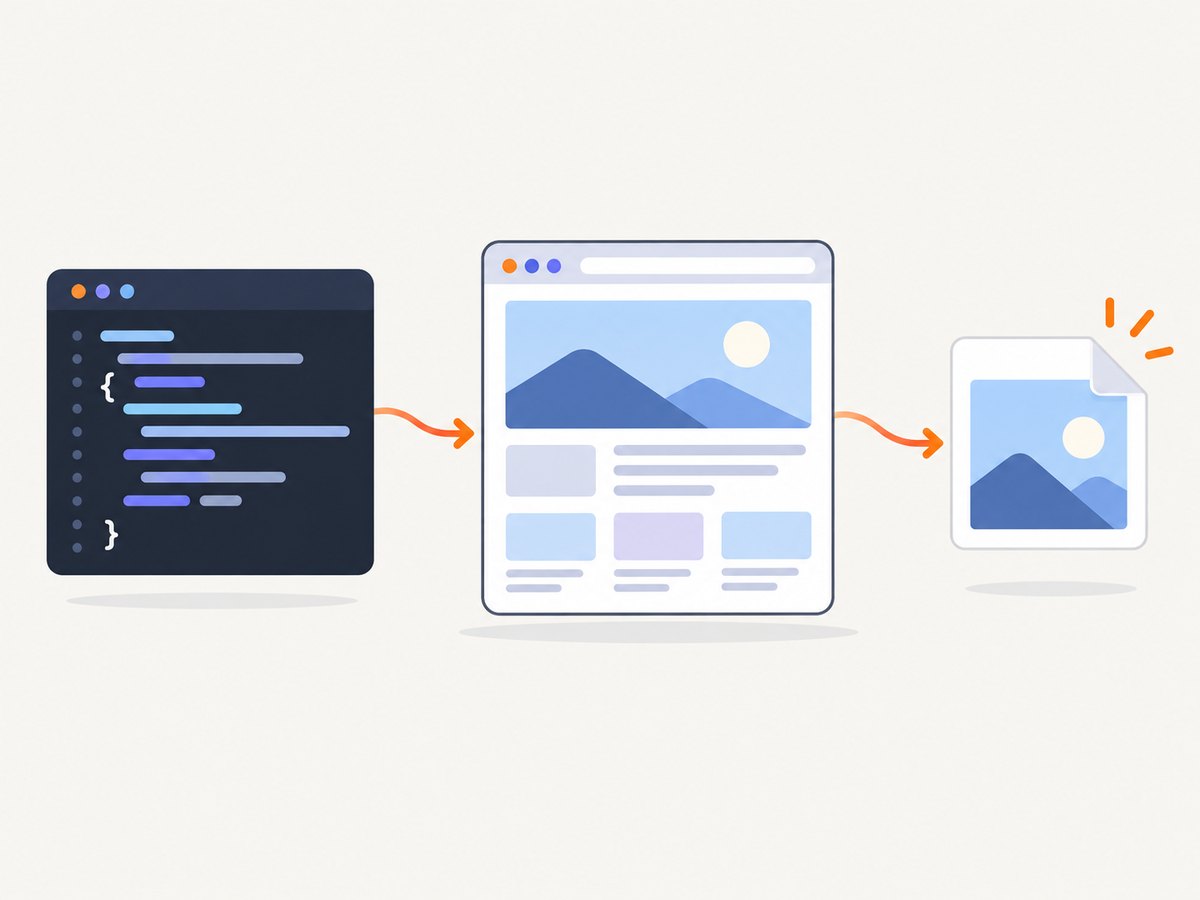
To screenshot a webpage as a PNG in C#, use Playwright for .NET: install the Microsoft.Playwright NuGet package, build the project, install Playwright’s browser binaries, navigate to the page, and call Page.ScreenshotAsync with a .png path. The browser installation step matters: adding the package alone does not install the browser runtime. This guide uses Chromium and .NET 8 in its commands; replace net8.0 with your project’s target framework when needed.
1. Create a C# project and install Playwright
For a small console utility, start with the .NET CLI. The steps below create a project, add Playwright, build it so the Playwright command script is generated, then install Chromium.
dotnet new console -n PageShot
cd PageShot
dotnet add package Microsoft.Playwright
dotnet build
pwsh bin/Debug/net8.0/playwright.ps1 install chromium
If you target a different framework or build configuration, use the matching output folder, such as bin/Release/net8.0. To install the default supported browsers instead of Chromium alone, omit chromium. Playwright’s browser binaries are versioned alongside Playwright; after upgrading the package, run the install command again if the required browser is missing. On a CI machine that also needs operating-system libraries, install dependencies with pwsh bin/Debug/net8.0/playwright.ps1 install --with-deps chromium. See the official browser installation guide for supported options and system requirements.
2. Capture and save a webpage as PNG
Replace Program.cs with this complete top-level C# program. It accepts an optional URL and output path, navigates to the page, and writes the screenshot. By default, Playwright infers PNG from the .png extension.
using Microsoft.Playwright;

var url = args.Length > 0 ? args[0] : "https://example.com";
var outputPath = args.Length > 1 ? args[1] : "screenshot.png";

using var playwright = await Playwright.CreateAsync();
await using var browser = await playwright.Chromium.LaunchAsync();
var page = await browser.NewPageAsync();

await page.GotoAsync(url, new() { WaitUntil = WaitUntilState.NetworkIdle });
await page.ScreenshotAsync(new() { Path = outputPath });

Console.WriteLine($"Saved screenshot to {Path.GetFullPath(outputPath)}");
Run it from the project directory with dotnet run -- https://example.com result.png. Playwright launches headless by default, so a visible browser window is not required. For a first, simplest example, the navigation can be await page.GotoAsync(url);. The explicit NetworkIdle wait in the program can be useful on pages whose initial content depends on network requests, but some sites keep requests open indefinitely; in that case use the default navigation behavior or a targeted wait described below. The Playwright screenshot guide documents saving to a path, full-page capture, element capture, and in-memory output.
3. Choose viewport, full-page, element, or in-memory capture
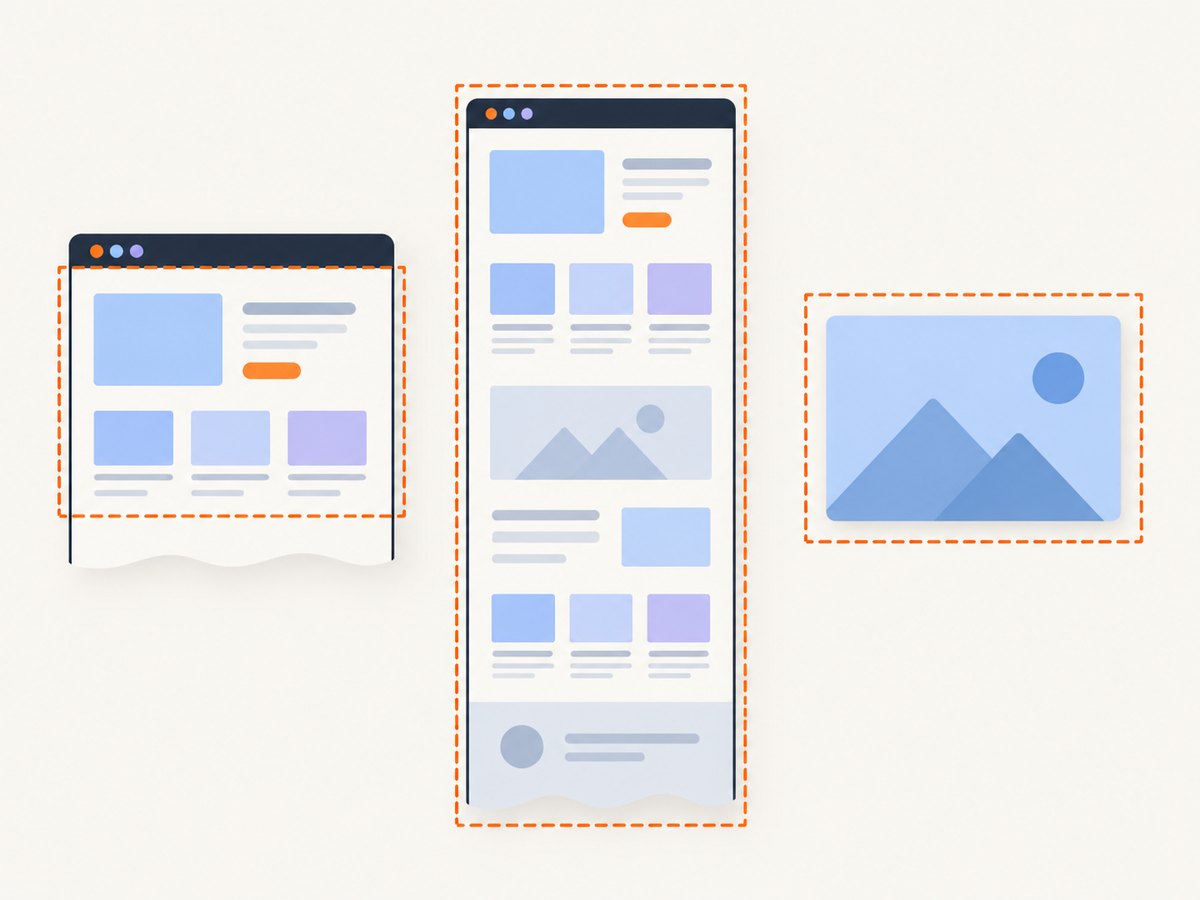
A normal page screenshot captures the current viewport. The choice of capture scope affects both what appears and the image’s dimensions.
| Need | Code | Result |
|---|---|---|
| Visible viewport | page.ScreenshotAsync(new() { Path = "view.png" }) |
PNG of the current browser viewport. |
| Whole scrollable page | page.ScreenshotAsync(new() { Path = "full.png", FullPage = true }) |
A tall image laid out to include the full page. |
| One element | page.Locator(".header").ScreenshotAsync(new() { Path = "header.png" }) |
Image clipped to the element’s bounds. |
| Bytes for another component | var bytes = await page.ScreenshotAsync(); |
PNG bytes in memory, suitable for processing or upload. |
Full-page means the document’s full scrollable layout, not a collection of separate viewport files. On an unusually long page, expect a large, tall image that takes more memory to encode and transfer. For a selector screenshot, make sure the target exists and is visible before capturing; use a locator wait if the page builds that element asynchronously. For memory output, pass the byte array to your image pipeline or write it yourself with await File.WriteAllBytesAsync("screenshot.png", bytes);.
4. Set the viewport and wait for the right page state
Viewport dimensions are CSS pixels. Set them on the browser context or page before navigation when layout depends on screen width. A context is useful when you want related pages to share settings such as viewport, locale, or color scheme.
var context = await browser.NewContextAsync(new()
{
    ViewportSize = new() { Width = 1440, Height = 900 }
});
var page = await context.NewPageAsync();
await page.GotoAsync("https://example.com");
await page.ScreenshotAsync(new() { Path = "desktop.png" });
await context.CloseAsync();
Pick a wait condition based on what the screenshot requires. Navigation completion does not guarantee that every third-party widget, delayed image, or client-side component has finished rendering. A fixed delay is easy but can be both wasteful and unreliable. Prefer waiting for a meaningful selector when you know which content must be ready:
await page.GotoAsync("https://example.com");
await page.Locator("main article").WaitForAsync();
await page.ScreenshotAsync(new() { Path = "article.png", FullPage = true });
If a page’s layout is changing because of animation, an available screenshot option can disable animations for the capture. This helps reduce motion-related differences but can change the visual state relative to a normal visitor view. Fonts, hover states, rotating content, consent dialogs, and live data are other sources of variation; decide whether the goal is a faithful visitor view or a stable visual artifact, then control the relevant state consistently.
5. Screenshot options that affect PNG output
Page.ScreenshotAsync has options for the capture area, file path, format, scale, quality for lossy formats, animations, and caret. The exact members are documented in the Page API. Common decisions:
- Format: PNG is the default, and a file extension can determine the screenshot type. To be explicit, set
Type = ScreenshotType.Pngwhen using the API’s screenshot options. - Quality: The quality setting applies to lossy formats such as JPEG, not PNG. PNG is lossless; changing a quality value will not make a PNG smaller.
- Scale: Choose CSS-pixel or device-pixel scale depending on whether you need dimensions aligned to CSS layout or higher-density output. Device-pixel output can increase image dimensions and file size.
- Full page: Set
FullPage = truefor the entire scrollable page. This can create very large images on long documents. - Element: Call screenshot on a locator when only a specific component matters, rather than capturing the entire page and cropping later.
- Headed mode: For debugging, launch with
Headless = falsewhere a display environment is available. Normal automation runs headlessly.
For repeatable comparisons, use the same operating system, browser version, viewport, rendering settings, fonts, and headless or headed mode for both baseline and new captures. Playwright notes that output can vary with host OS, browser version, hardware, settings, and browser engine; Chromium, Firefox, and WebKit can render the same page differently. Keep baselines per environment when those differences matter. See the visual comparisons guidance.
6. Handle errors and dynamic pages
| Symptom | Likely cause | Fix |
|---|---|---|
| Browser executable not found | The NuGet package is present but its matching browser binaries were not installed, or Playwright was upgraded. | Build the project, run its generated playwright.ps1 install chromium script again, and use the matching output directory. |
pwsh is missing or the command fails |
PowerShell is unavailable or outdated, or the script path does not match the target framework. | Install/update PowerShell, check the generated script under bin, and use the correct framework path. |
| Browser starts locally but fails in CI/container | Required operating-system browser dependencies may be missing. | Install them with the Playwright install-deps command or use install --with-deps chromium in a supported environment. |
| Navigation or screenshot times out | The target is slow, blocked, or has ongoing requests; a strict wait condition may never complete. | Inspect the navigation error, choose a less restrictive wait condition, and wait for a page-specific selector instead of all network activity. |
| Image is blank or misses a section | Content may render after navigation, require scrolling, or be hidden behind a stateful overlay. | Wait for the relevant selector or load state, verify the page URL and content, and capture after the needed interaction. |
| Screenshot differs from the baseline | Browser, OS, fonts, viewport, animation, hover, or live content changed. | Pin the environment and rendering inputs; hide or stabilize dynamic regions only when appropriate for the test’s purpose. |
| PNG file is unexpectedly large | PNG is lossless; full-page dimensions or device-pixel scale may be high. | Capture only the required viewport or element, lower the output scale where suitable, or choose JPEG/WebP if lossy output is acceptable. |
Sites that require authentication may need a context with the appropriate cookies or other state. Treat those credentials as secrets and avoid putting them in source control or logs. A site may also deliberately show a bot check or CAPTCHA to automated browsers; Playwright does not guarantee that a target will permit an automated capture. If the page is public but intermittently slow, capture failures should be reported and retried thoughtfully rather than retried in a tight loop.
7. Performance, reliability, and operating cost
With Playwright, you operate the browser process and its runtime. The tradeoff is control over browser, viewport, and capture flow in exchange for maintaining browser binaries, system dependencies, and your execution environment. A persistent process can reuse a browser for multiple captures, while creating a fresh browser per URL is simpler to isolate but adds launch overhead. Reuse a browser when processing batches, and create separate contexts or pages where you need isolated state.
Set sensible navigation and operation timeouts for your application, record which URL failed, and distinguish a navigation failure from a successful capture. In a service, bound concurrency: each browser page consumes resources, and opening too many pages at once can cause memory pressure or unstable capture times. For very long pages or high-density output, the screenshot itself can be the main memory and transfer cost. For visual regression, use stable environments and avoid comparing outputs captured with different browser builds.
The browser automation package does not charge per screenshot, but running it still consumes your compute, storage, and maintenance time. A hosted capture service can be a better fit when you prefer not to install and operate browser binaries. The sources reviewed do not establish a neutral benchmark showing one .NET browser library to be faster than another. PuppeteerSharp is a .NET option for teams already using that ecosystem; choose by API fit, browser requirements, deployment model, and maintenance needs rather than an unsupported speed ranking.
8. Or skip the browser setup
ScreenshotNeo is a website screenshot API and MCP server. One GET request returns a screenshot or PDF, and the API supports PNG, JPEG, or WebP. It can be useful when you do not want to install and maintain browser binaries in your C# environment. See the ScreenshotNeo API documentation for request options.
curl -G "https://api.screenshotneo.com/v1/shot" -d access_key=YOUR_API_KEY --data-urlencode url=https://stripe.com -o shot.webpEquivalent quick-start requests from Python and Node.js:
import requests
r = requests.get("https://api.screenshotneo.com/v1/shot", params={"access_key": "YOUR_API_KEY", "url": "https://stripe.com"}, timeout=90)
open("shot.webp", "wb").write(r.content)
const q = new URLSearchParams({ access_key: 'YOUR_API_KEY', url: 'https://stripe.com' });
const res = await fetch(`https://api.screenshotneo.com/v1/shot?${q}`);ScreenshotNeo removes cookie banners, newsletter popups, and chat widgets before the shot; bot checks, blank pages, and failed loads are never billed. Its MCP server lets AI agents use take_screenshot, get_page_info, and capture_pdf. The free plan includes 1,000 screenshots a month with no card; paid plans start at $5 for 3,000 shots. Sign up for 1,000 free screenshots a month, with no card required.
9. Frequently asked questions
Can I save the screenshot to a stream instead of a file?
Yes. Call ScreenshotAsync without a path to get a byte array, then pass it to the component that needs it or write it to a stream or file.
Does Playwright capture the page exactly as a user sees it?
It captures a browser-rendered state under the configured browser, viewport, and page state. User-specific content, overlays, animations, fonts, and browser differences can change the result.
Can I use Firefox or WebKit instead of Chromium?
Yes. Playwright for .NET supports Chromium, Firefox, and WebKit. Install the browser you intend to use and launch the corresponding Playwright browser property.
Should I use Playwright or PuppeteerSharp?
Both are relevant .NET browser automation choices. Select based on the API and browser ecosystem your application needs; the reviewed sources do not provide a neutral performance comparison.
Can this approach export a PDF too?
Playwright has separate PDF functionality for supported browser workflows. This article focuses on PNG capture; PDF layout and page settings require their own configuration.