How to Screenshot a Website on Android
Press Power + Volume Down for a normal Android screenshot, or use Capture more and Chrome's Long screenshot for full pages.
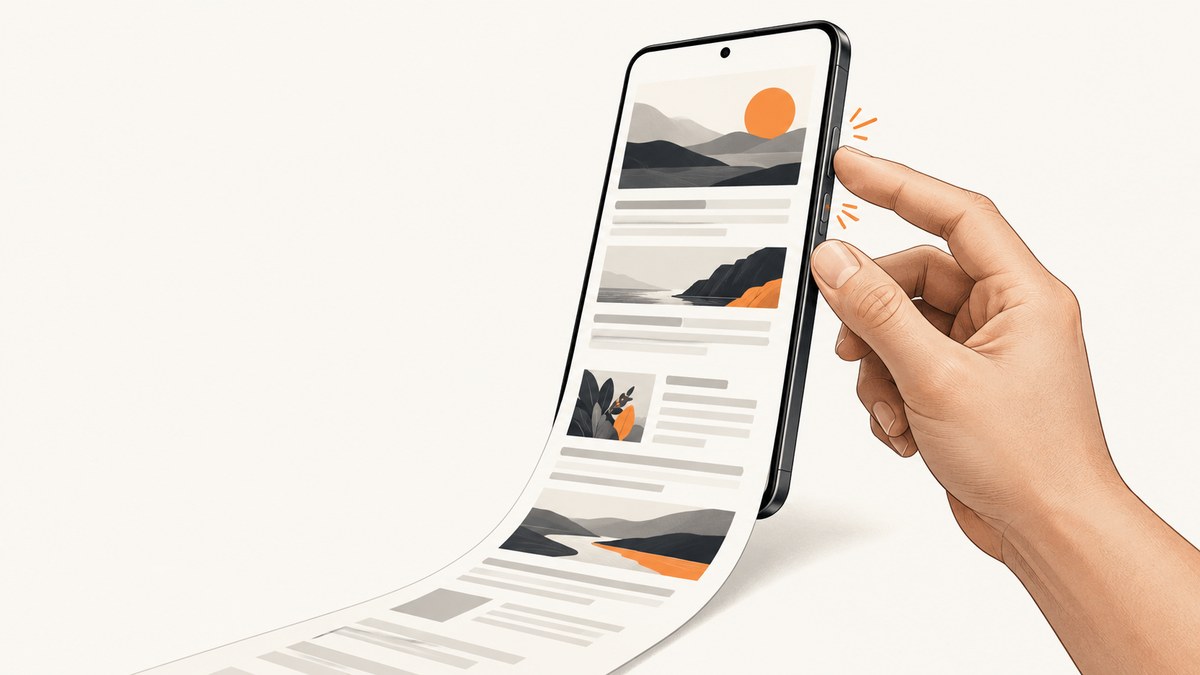
To screenshot a website on Android, open the page and press Power + Volume Down at the same time. For a longer capture, tap Capture more after taking the screenshot when your device runs Android 12 or later and the page supports scrolling. In Chrome for Android, you can also use More → Share → Long screenshot.
The exact controls vary by phone maker and Android version. The steps below cover the standard shortcut, scrolling captures, Chrome’s browser-specific workflow, Pixel alternatives, storage, troubleshooting, and an automated option for developers.
1. Take a normal screenshot of the visible webpage
- Open Chrome or another browser and load the website.
- Position the page so the content you want is visible.
- Press Power and Volume Down simultaneously.
- Wait for the screenshot preview or toolbar to appear.
- Use the preview controls to crop, edit, share, or delete the image.
This captures only the current viewport. It does not automatically include content below the fold, menus that are closed, or parts of the page outside the screen.
If the button combination does not work, press and hold the Power button and tap Screenshot when that option appears. If neither method is available, check the support instructions for your phone manufacturer. Google documents these alternatives in Android Help.
2. Take a scrolling screenshot with Capture more
Android’s built-in scrolling capture is documented for Android 12 and later on most screens that allow scrolling. It is not guaranteed to work in every browser, app, or webpage.
- Open the webpage and press Power + Volume Down.
- When the screenshot controls appear, tap Capture more.
- Drag the crop handles to include the portion of the page you need.
- Tap Save or the equivalent confirmation control.
If Capture more is missing, the device may be running an older Android version, the current app may not expose a scrollable surface, or the page may not be compatible with system scrolling capture. Try Chrome’s Long screenshot workflow below, or capture several viewport screenshots and combine them in an editor.
3. Use Chrome’s Long screenshot option
Chrome for Android provides a separate way to capture a longer webpage. Google documents this workflow without stating an Android-version requirement on the instructions page.
- Open the webpage in Chrome.
- Tap More (the three-dot menu) beside the address bar.
- Tap Share.
- Select Long screenshot.
- Drag the crop handles to select the page area.
- Tap Confirm, then save the image or share it with another app.
Chrome’s long capture is useful when Android’s screenshot toolbar does not offer Capture more. Menu wording and availability can change after Chrome updates. See Google Chrome Help for the documented flow.
4. Pixel-specific screenshot options
On a Pixel phone or tablet, you can capture the current app from the Overview screen:
- Open Overview (the recent-apps screen).
- Select the browser or app showing the webpage.
- Tap Screenshot.
Pixel devices also support the voice command “Hey Google, take a screenshot.” Scrolling capture on Pixel is described for Android 12 and later on most scrollable screens. Refer to Pixel Phone Help for device-specific instructions.
5. Find, edit, and share the screenshot
On devices using Google Photos, open Photos → Collections → On this device → Screenshots. Phones without Photos usually place captures in the Gallery app’s Screenshots folder.
From the screenshot preview or gallery, you can:
- Crop browser chrome, status bars, or unrelated page content.
- Annotate or draw on the image.
- Share it to messaging, email, cloud storage, or an editor.
- Delete an accidental capture.
Chrome’s Long screenshot flow lets you save or share immediately after confirming the crop.
6. Troubleshooting common problems
| Problem | Likely cause | What to try |
|---|---|---|
| Power + Volume Down does nothing | Timing, case interference, or a manufacturer-specific shortcut | Press both buttons together; remove a tight case; hold Power and choose Screenshot; check the phone maker’s support page. |
| Capture more is not shown | Android version, app, or page does not support scrolling capture | Confirm Android 12 or later, try Chrome’s More → Share → Long screenshot, or capture multiple screens. |
| The long image stops early | The page exposes only part of its content as a scrollable surface, or content loads dynamically | Scroll through the page first so lazy content loads, then retry; otherwise capture sections separately. |
| Cookie dialog or chat bubble covers the page | The site displays overlays above its content | Dismiss the dialog or widget before capturing. If it cannot be dismissed, use an automated capture service that can remove known overlays. |
| The result is blurry | Image was resized or compressed during sharing | Save the original capture, avoid sending it through a service that recompresses images, and share the file directly. |
| The page is blank or incomplete | Network failure, bot check, login requirement, or JavaScript content still loading | Wait for the page to finish loading, verify the URL in a normal tab, sign in if required, and retry. |
7. Reliability, quality, and privacy considerations
- Visible versus full page: A standard screenshot is predictable for the current viewport. Long captures depend on the browser and page’s scrolling behavior.
- Dynamic content: Animations, ads, lazy-loaded images, and personalized content can change while you scroll. Capture after the important content is visible.
- Restricted screens: Some apps prevent screenshots for security reasons. Android or the app may show a blank result or block capture.
- Large pages: Very long captures can create large image files and may be difficult to edit or share. Capture only the section needed when possible.
- Private data: Review the image for account names, addresses, tokens, or other personal information before sharing.
- Cost: Android and Chrome’s built-in screenshot controls do not require a separate screenshot service or API charge.
8. Or skip the browser setup with ScreenshotNeo
For repeatable captures from code, use ScreenshotNeo, a website screenshot API and MCP server. It accepts one GET request and returns a PNG, JPEG, WebP, or PDF. Before capture, it can accept cookie and consent banners and remove more than 60 known consent platforms, newsletter popups, and chat widgets; each cleanup step can be turned off. Bot checks, blank pages, timeouts, failed loads, and cache hits are not billed, and the response identifies the result with X-Page-Verdict and X-Billed headers.

See the ScreenshotNeo API documentation for all options. The following examples capture the same target URL.
cURL
curl -G "https://api.screenshotneo.com/v1/shot" \\
  -d access_key=YOUR_API_KEY \\
  --data-urlencode url=https://stripe.com \\
  -o shot.webp
Python
import requests

r = requests.get(
    "https://api.screenshotneo.com/v1/shot",
    params={"access_key": "YOUR_API_KEY", "url": "https://stripe.com"},
    timeout=90,
)
r.raise_for_status()
open("shot.webp", "wb").write(r.content)
Node.js
const q = new URLSearchParams({
  access_key: 'YOUR_API_KEY',
  url: 'https://stripe.com'
});
const res = await fetch(`https://api.screenshotneo.com/v1/shot?${q}`);
if (!res.ok) throw new Error(`Screenshot failed: ${res.status}`);
const fs = await import('node:fs/promises');
await fs.writeFile('shot.webp', Buffer.from(await res.arrayBuffer()));
Useful options include full-page capture with lazy images loaded, CSS-selector element capture, dark mode, device presets or custom viewports, retina scale, custom CSS and JavaScript, clicks before capture, selector hiding, waits for selectors or network idle, request and resource blocking, custom headers and cookies, user agents, Authorization, timezone and geolocation, transparent backgrounds, resizing, configurable caching, signed image links, asynchronous jobs with signed webhooks, bulk capture for up to 100 URLs per call, PDF output, and a usage API. An MCP server provides take_screenshot, get_page_info, and capture_pdf tools for Claude, Cursor, and other MCP clients.
ScreenshotNeo includes 1,000 screenshots per month free with no card. Paid plans start at $5 for 3,000 screenshots; yearly billing provides two months free. Create a free ScreenshotNeo account.
9. Frequently asked questions
Can I screenshot an entire website in one image?
Sometimes. Use Android’s Capture more on Android 12 or later where supported, or Chrome’s Long screenshot. Neither workflow is guaranteed for every page.
Why is Capture more unavailable on my phone?
The phone may run an older Android version, or the current app or webpage may not expose a compatible scrollable surface.
Does Chrome’s Long screenshot require Android 12?
Chrome Help documents the menu flow without giving an Android-version requirement. Availability still depends on the Chrome version and device.
Where are Android screenshots stored?
Google Photos users can look in Photos → Collections → On this device → Screenshots. Other phones commonly use a Gallery app’s Screenshots folder.
Can I automate website screenshots instead of using a phone?
Yes. ScreenshotNeo provides a GET API, PDF capture, bulk jobs, signed webhooks, and MCP tools for AI agents.


