How to Take a Screenshot of a Website in Kotlin
Capture website screenshots in Kotlin with Selenium or Playwright, including full pages, elements, PNG output, troubleshooting, and an API alternative.
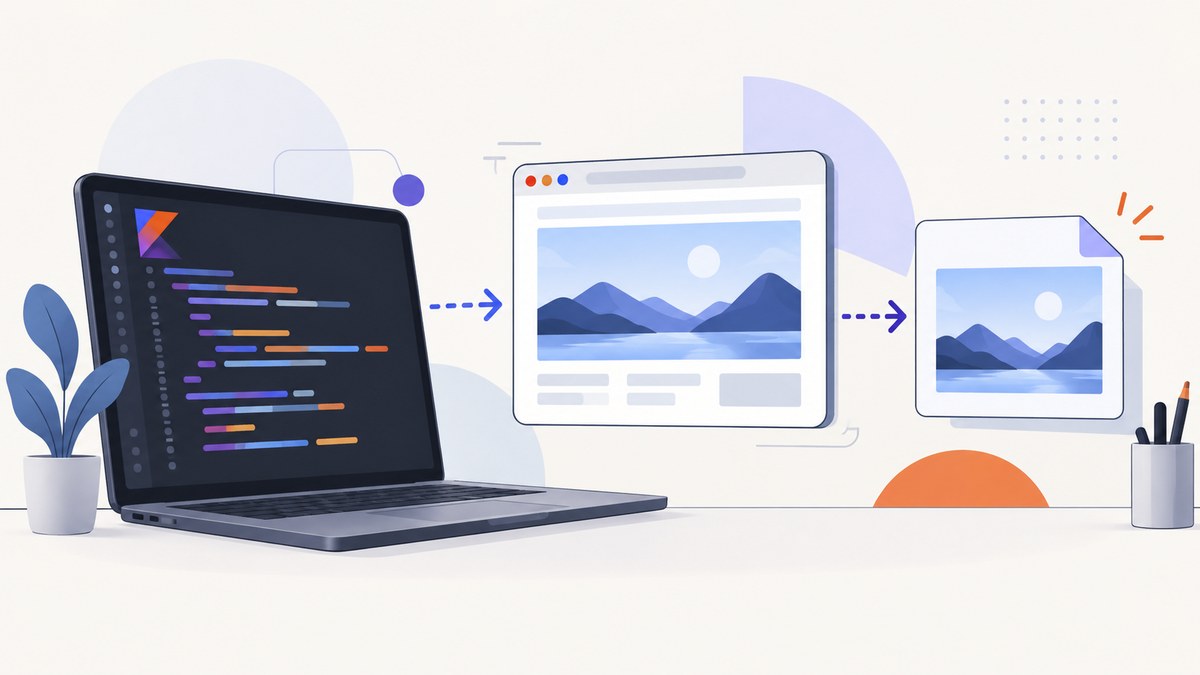
Direct answer: On the Kotlin/JVM, use Selenium WebDriver or Playwright. Selenium captures through the Java-compatible TakesScreenshot interface. Playwright provides viewport, full-page, in-memory, and element screenshots through Java APIs that Kotlin can call directly. Choose viewport capture for what is visible, full-page capture for the entire scrollable document, and element capture for a specific component.
This guide shows complete Kotlin examples, browser setup, dynamic-page handling, PNG/JPEG/WebP output, full-page and element capture, reliability practices, common errors, and an API route when you do not want to maintain browser binaries.
1. Choose Selenium or Playwright
| Need | Recommended approach | Reason |
|---|---|---|
| Existing WebDriver grid or Selenium suite | Selenium | Uses the familiar WebDriver API and TakesScreenshot. |
| Full-page screenshots and modern browser automation | Playwright | Provides an explicit setFullPage(true) option and locator screenshots. |
| Capture bytes without writing a temporary file | Playwright | page.screenshot() returns a ByteArray. |
| Command-line capture | Playwright CLI | Supports filename, image type, full-page, and high-resolution flags. |
| Kotlin/JS browser tests | Kotlin’s experimental browser-testing DSL | It uses Playwright as the browser driver and supports Chromium, Firefox, and WebKit. |
For visual comparisons, keep the operating system, browser version, settings, hardware conditions, power source, and headless mode consistent. Playwright documents that each can change rendering.
2. Capture a screenshot with Selenium
2.1 Add Selenium and create a driver
A Gradle Kotlin project can use Selenium’s Java dependency. The exact browser driver distribution is project-specific; use a driver compatible with the browser installed in your build environment.

dependencies {
    implementation("org.seleniumhq.selenium:selenium-java:4.x")
}
The following program opens a page, waits for the document to load, captures the current browser view, and copies the temporary file to a stable destination.
import org.openqa.selenium.By
import org.openqa.selenium.OutputType
import org.openqa.selenium.TakesScreenshot
import org.openqa.selenium.chrome.ChromeDriver
import org.openqa.selenium.chrome.ChromeOptions
import java.nio.file.Files
import java.nio.file.Path

fun main() {
    val options = ChromeOptions()
    options.addArguments("--headless=new", "--window-size=1440,1000")

    val driver = ChromeDriver(options)
    try {
        driver.get("https://example.com")

        val temporary = (driver as TakesScreenshot)
            .getScreenshotAs(OutputType.FILE)
        Files.copy(temporary.toPath(), Path.of("website.png"))

        val hero = driver.findElement(By.cssSelector("h1"))
        val elementTemporary = (hero as TakesScreenshot)
            .getScreenshotAs(OutputType.FILE)
        Files.copy(elementTemporary.toPath(), Path.of("heading.png"))
    } finally {
        driver.quit()
    }
}
Selenium’s TakesScreenshot API indicates that a driver or HTML element can capture a screenshot in different forms. OutputType.FILE returns a temporary file. You can also request a base64 representation with the appropriate OutputType. Element capture depends on the WebElement implementation supporting the interface.
2.2 Make Selenium captures reliable
- Navigate with
driver.get()and wait for the state your page needs. - Set a deterministic window size before capture.
- Wait for a meaningful selector instead of using an arbitrary short sleep.
- Scroll or interact with the page if content is lazy-loaded.
- Always call
quit()infinallyso failed captures do not leave browser processes running.
import org.openqa.selenium.support.ui.ExpectedConditions
import org.openqa.selenium.support.ui.WebDriverWait
import java.time.Duration

val wait = WebDriverWait(driver, Duration.ofSeconds(20))
wait.until(ExpectedConditions.visibilityOfElementLocated(By.cssSelector("main")))
Driver-level screenshots are normally the current viewport. WebDriver implementations may differ when a driver is not fully conformant: the best-effort order can be the entire page, current window, visible frame, or display. If you require an explicitly full scrollable page, Playwright is usually clearer.
3. Capture a screenshot with Playwright
3.1 Viewport, full-page, bytes, and element examples
Playwright’s Java API is Kotlin-compatible. Add the Playwright Java dependency and install the browser binaries required by your environment. The [Playwright screenshot documentation](https://playwright.dev/java/docs/screenshots) covers the Java methods used below.
dependencies {
    implementation("com.microsoft.playwright:playwright:1.x")
}
import com.microsoft.playwright.Playwright
import com.microsoft.playwright.BrowserType
import com.microsoft.playwright.Page
import com.microsoft.playwright.Locator
import java.nio.file.Paths

fun main() {
    Playwright.create().use { playwright ->
        playwright.chromium().launch(
            BrowserType.LaunchOptions().setHeadless(true)
        ).use { browser ->
            val page = browser.newPage(
                BrowserType.NewPageOptions()
                    .setViewportSize(1440, 1000)
            )
            page.navigate("https://example.com")
            page.waitForSelector("main")

            // Visible viewport
            page.screenshot(
                Page.ScreenshotOptions().setPath(Paths.get("viewport.png"))
            )

            // Entire scrollable document
            page.screenshot(
                Page.ScreenshotOptions()
                    .setPath(Paths.get("full-page.png"))
                    .setFullPage(true)
            )

            // Keep the image in memory
            val bytes: ByteArray = page.screenshot()
            Paths.get("memory-copy.png").toFile().writeBytes(bytes)

            // One component
            page.locator(".header").screenshot(
                Locator.ScreenshotOptions()
                    .setPath(Paths.get("header.png"))
            )
        }
    }
}
A full-page screenshot behaves as if the page had a very tall screen and the complete scrollable page fit inside it. Element screenshots are useful for cards, headers, charts, invoices, and other components where capturing the whole document would add irrelevant content.
3.2 Useful Playwright options
- Path: choose the output filename. The extension determines the format when no explicit type is supplied.
- Full page: set
setFullPage(true)for the complete scrollable document. - Format: use the screenshot type option where supported for PNG, JPEG, or WebP. PNG is lossless; JPEG is smaller for photographs; WebP often reduces size while preserving quality.
- Quality: apply quality settings for lossy formats when your Java API version exposes them.
- Clip: capture a rectangle when you need a fixed region rather than a locator.
- Animations: disable or wait for animations before visual comparisons to avoid frames changing between runs.
4. Handle dynamic pages and lazy content
A screenshot taken immediately after navigation can contain skeletons, missing images, cookie dialogs, or half-rendered charts. Wait for a selector that proves the page is ready, then allow any required network or application work to finish.
page.navigate("https://example.com/dashboard")
page.waitForSelector("[data-report-ready='true']")
page.locator("img").all().forEach { image ->
    image.scrollIntoViewIfNeeded()
}
page.screenshot(
    Page.ScreenshotOptions()
        .setPath(Paths.get("dashboard.png"))
        .setFullPage(true)
)
For pages that load content as you scroll, explicitly scroll through the document before the final capture. For consent banners or chat widgets, close them through the page’s own controls or hide them with injected CSS in your test setup. If a page requires authentication, create a browser context with the necessary cookies or headers and avoid storing credentials in source control.
5. Kotlin/JS browser testing
Kotlin’s official JavaScript project setup includes an experimental browser-testing DSL. It uses Playwright for browser driving and distribution, with Chromium, Firefox, and WebKit runners. Browser binaries can be installed through the Playwright install command. This is useful when the screenshot is part of a Kotlin/JS test suite rather than a standalone JVM utility. Keep the runner and browser versions pinned so visual snapshots remain comparable.
6. Playwright CLI alternative
When Kotlin code is unnecessary, the Playwright CLI can capture a page directly:
playwright screenshot https://example.com --filename=page.png
playwright screenshot https://example.com --filename=full.png --full-page
playwright screenshot https://example.com --filename=hero.webp --type=webp
playwright screenshot https://example.com .hero --filename=hero.png
playwright screenshot https://example.com --filename=hires.png --hires
If no type is supplied, Playwright infers it from the filename extension and defaults to PNG.
7. Or skip the browser setup
ScreenshotNeo provides a website screenshot API and MCP server. One GET request returns a PNG, JPEG, WebP, or PDF. See the [ScreenshotNeo API documentation](https://screenshotneo.com/docs/) for the full parameter list.

curl -G "https://api.screenshotneo.com/v1/shot" \
  -d access_key=YOUR_API_KEY \
  --data-urlencode url=https://stripe.com \
  -o shot.webp
import requests

r = requests.get(
    "https://api.screenshotneo.com/v1/shot",
    params={"access_key": "YOUR_API_KEY", "url": "https://stripe.com"},
    timeout=90,
)
r.raise_for_status()
open("shot.webp", "wb").write(r.content)
const q = new URLSearchParams({ access_key: 'YOUR_API_KEY', url: 'https://stripe.com' });
const res = await fetch(`https://api.screenshotneo.com/v1/shot?${q}`);
if (!res.ok) throw new Error(`Screenshot failed: ${res.status}`);
const buffer = Buffer.from(await res.arrayBuffer());
require('fs').writeFileSync('shot.webp', buffer);
ScreenshotNeo accepts options for full-page capture, CSS element selection, dark mode, device presets, arbitrary viewports, retina scale, PDF paper and margins, custom CSS and JavaScript, clicks, selector or network-idle waits, blocked ads and resource types, headers, cookies, user agents, authorization, timezone, geolocation, transparent backgrounds, resizing, caching with a chosen TTL, signed image links, asynchronous jobs with signed webhooks, bulk capture of up to 100 URLs per call, usage reporting, and an OpenAPI specification. Parameter names used by other screenshot APIs also work, which helps when switching.
It accepts consent banners like a visitor and removes more than 60 known consent platforms, newsletter popups, and chat widgets; each step can be disabled. Bot checks or CAPTCHAs, blank pages, timeouts, failed loads, and cache hits cost nothing. Responses identify the result with X-Page-Verdict and X-Billed headers. Its MCP server exposes take_screenshot, get_page_info, and capture_pdf for Claude, Cursor, and other MCP clients.
Plans include 1,000 shots per month free with no card, Starter at $5 for 3,000, Growth at $15 for 15,000, Pro at $39 for 60,000, Scale at $99 for 250,000, and Business at $249 for 1,000,000. Yearly billing gives two months free, and every feature is available on every plan. Start with 1,000 free screenshots a month without a card.
8. Troubleshooting Kotlin screenshots
| Problem | Likely cause | Fix |
|---|---|---|
SessionNotCreatedException |
Browser and driver versions do not match, or the binary is unavailable. | Install a compatible browser and driver, verify executable paths, and use the same environment in CI. |
| Screenshot is blank | Capture ran before navigation or application rendering completed. | Wait for a stable selector or application-ready marker; check the response and page logs. |
| Cookie banner covers content | The consent dialog is still visible. | Click its accept button, hide the selector, or use ScreenshotNeo’s consent handling. |
| Full page is cut off | You captured the viewport or the page uses unusual scrolling containers. | Use Playwright setFullPage(true); for nested containers, capture the container or scroll it explicitly. |
| Lazy images are missing | Images load only after entering the viewport. | Scroll through the document, wait for image completion, then capture. |
| Element not found | Selector changed, iframe context is wrong, or the element has not rendered. | Wait for the selector, switch into the correct frame, and prefer stable data attributes. |
| Visual diffs are noisy | OS, browser, fonts, hardware, or headless settings changed. | Pin the environment and use identical viewport, scale, and browser versions. |
| Files remain after failures | Browser shutdown is skipped. | Use Kotlin’s use blocks or a finally block around quit(). |
9. Performance, reliability, and cost considerations
- Reuse browsers: launching a browser is expensive. For batches, keep one browser alive and create isolated contexts or pages.
- Limit concurrency: too many simultaneous pages exhaust CPU, memory, file descriptors, or bandwidth. Start with a small pool and measure.
- Control output size: use JPEG or WebP for large photographic pages, resize images for thumbnails, and avoid unnecessary full-page captures.
- Cache stable pages: cache only when the URL and relevant headers, cookies, and content are unchanged.
- Make retries selective: retry transient navigation failures, but do not repeatedly retry authentication errors or bot challenges.
- Protect secrets: pass API keys, cookies, and authorization headers through environment variables or a secret manager.
- Account for dynamic content: deterministic waits improve correctness more than simply increasing a global timeout.
With self-hosted Selenium or Playwright, your cost is the compute, browser maintenance, network traffic, and engineering time. ScreenshotNeo charges only clean shots; failed loads, blank pages, bot checks, timeouts, and cache hits are not billed, and the response headers state the verdict and billing result.
10. Kotlin screenshot checklist
- Choose viewport, full-page, or element scope before writing the capture code.
- Set a fixed viewport and device scale for repeatable output.
- Wait for a real application-ready condition.
- Load lazy content before a full-page capture.
- Dismiss or hide overlays that obscure the target.
- Use PNG for lossless visual tests and JPEG/WebP when file size matters.
- Close pages and browsers even when an assertion or navigation fails.
- Pin browser and operating-system conditions for visual regression.
11. FAQ
Can Kotlin save a browser screenshot as PNG?
Yes. Selenium can copy the file returned by getScreenshotAs(OutputType.FILE). Playwright can write a path ending in .png or return bytes that Kotlin writes to a file.
Which tool is better for full-page screenshots?
Playwright documents an explicit full-page option and handles locator screenshots directly. Selenium can work, but full-document behavior varies by driver and page structure.
Can I capture only one HTML element?
Yes. Selenium can cast a supported WebElement to TakesScreenshot; Playwright uses page.locator(selector).screenshot().
Why does the same screenshot differ in CI?
Rendering depends on OS, browser version, settings, hardware, power source, and headless mode. Keep those conditions aligned between baseline and comparison runs.
Do I need a browser installed to use ScreenshotNeo?
No local browser setup is required for its HTTP API. Send the URL and options to the API endpoint, or let an MCP client call its screenshot tools.


