How to Screenshot a Website on Linux
Capture a visible page, a selected region, or a full webpage on Linux with Firefox, GNOME Screenshot, headless Firefox, or Puppeteer.
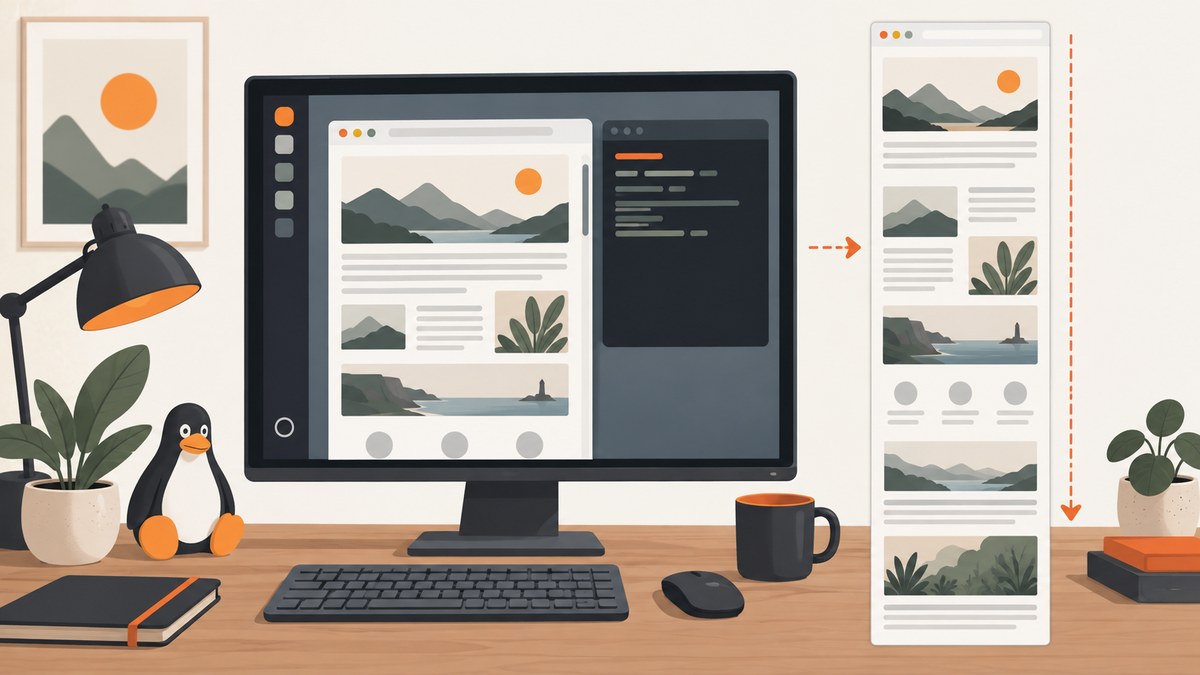
To screenshot a website on Linux, use Firefox’s built-in screenshot tool for a quick capture, GNOME Screenshot for what is visible on your desktop, or a headless browser such as Firefox or Puppeteer for repeatable command-line captures. For a long page, choose Firefox’s Save full page option or use a browser automation script with full-page capture, then inspect the result because dynamic and lazy-loaded content can affect what appears.
1. Choose the capture that matches what you need
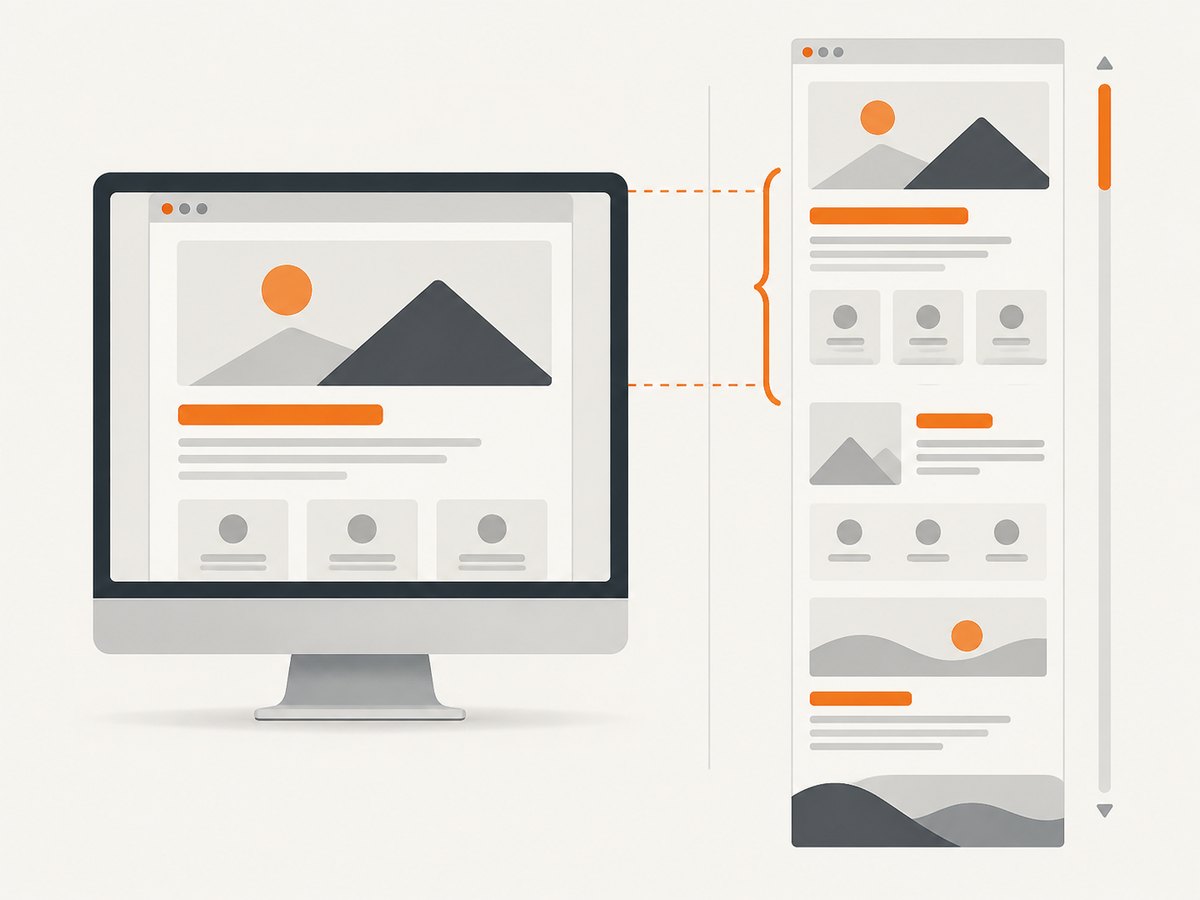
First decide what should be in the image. A desktop screenshot records pixels currently on screen. A webpage screenshot records page content, and may include the entire scrollable page even when it is taller than the display.
| Goal | Good starting point | What it captures |
|---|---|---|
| Save the current browser view quickly | Firefox screenshot | Visible page, selected area, or full page |
| Include browser chrome or another application | GNOME Screenshot | Full screen, active window, or selected screen area |
| Capture from a terminal or remote server | Headless Firefox | A browser-rendered image at a specified window size |
| Repeat captures or integrate them into a script | Puppeteer | Browser page, including a full-page option |
| Capture a URL through an API | ScreenshotNeo | A returned image or PDF from one GET request |
For an entire long page, do not confuse “visible” with “full page.” For a record of the Linux desktop, choose a desktop capture instead of a webpage-only capture.
2. Take a screenshot in Firefox
Firefox has a built-in screenshot interface for a selected region, a page element it detects, the visible page, or the full page. This is usually the simplest route when you are already browsing. Mozilla’s help page documents the workflow and the distinction between full-page and visible captures (Mozilla Support).
- Open the page in Firefox.
- Right-click an empty part of the page and choose Take Screenshot, or press Ctrl+Shift+S.
- Choose a capture mode: drag a region, click a highlighted page part, select Save full page, or select Save visible.
- Choose Download to save the image in Firefox’s default download folder, or Copy to place it on the clipboard.
Use Save full page for the whole scrollable page. Use Save visible when you want only the portion currently on screen. A selected region is useful for a chart, error message, or page section that does not correspond to a single detectable element.
On Wayland, Mozilla notes a limitation with moving the selection crosshair using arrow keys. Use the mouse to place or resize the selection. If the screenshot toolbar does not appear, try the keyboard shortcut or check that the context menu was opened over the page rather than browser chrome.
3. Capture the Linux desktop with GNOME Screenshot
Use a desktop screenshot when the image must show the browser controls, other windows, or the surrounding screen. GNOME Screenshot supports full-screen, active-window, and user-defined-area captures. Its documented command-line options include -w or --window for a window, -a or --area for an area, and -d for a delay. The exact behavior can vary with the installed desktop and utility version; the cited manual is for Debian Bookworm (GNOME Screenshot manual page).
# Capture the full screen
 gnome-screenshot

# Capture the active window
 gnome-screenshot --window

# Select a screen area
 gnome-screenshot --area

# Wait five seconds before capturing
gnome-screenshot --delay=5
Check the installed command’s help if an option is unavailable. A desktop utility captures the screen pixels; it does not document scrolling a webpage and stitching the entire page together. To capture a page longer than the display, use Firefox full-page capture or browser automation.
4. Run headless Firefox from the terminal
Headless Firefox is useful on a Linux machine without a graphical session, such as a server accessed over SSH. Mozilla documents --headless, --screenshot [path], and --window-size width[,height]; the screenshot option itself implies headless operation. Install Firefox using the method supported by your Linux distribution, then run:
firefox --headless \
  --screenshot screenshot.png \
  --window-size 1366,900 \
  https://example.com
The arguments set the output path and browser window size. Replace the example URL with the page you need and use an absolute output path if you want to avoid confusion about the current directory. For example:
firefox --headless \
  --screenshot /tmp/example-home.png \
  --window-size 1440,1000 \
  https://example.com
Mozilla’s command-line reference documents these options but does not promise that every Firefox package, page, or version will produce a full-height image. Check the output dimensions and scroll coverage. If you need dependable full-page behavior for a workflow, use Firefox’s interactive Save full page option or an automation library with an explicit full-page setting. See the Firefox command-line reference.
5. Automate full-page captures with Puppeteer
For repeat captures, Puppeteer can drive a browser and save a screenshot from a script. A Linux tutorial demonstrates the fullPage: true option; installation details depend on the Node.js, Puppeteer, and browser versions you use (Baeldung’s Linux Puppeteer walkthrough).
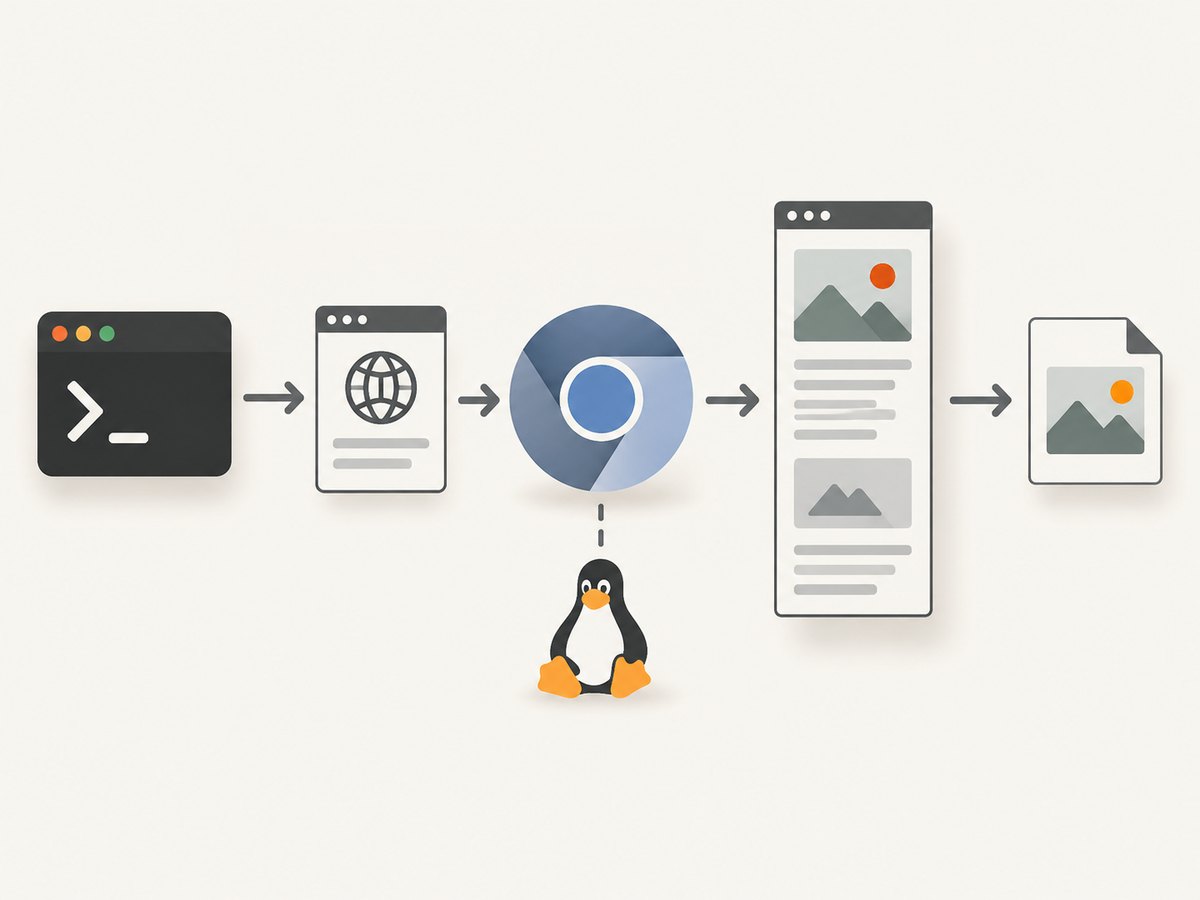
Install Puppeteer in a project using the package manager and version appropriate for your environment. The following example assumes Puppeteer is installed and uses its bundled browser:
const puppeteer = require('puppeteer');

(async () => {
  const browser = await puppeteer.launch({ headless: true });
  try {
    const page = await browser.newPage();
    await page.setViewport({ width: 1366, height: 900 });
    await page.goto('https://example.com', {
      waitUntil: 'networkidle2',
      timeout: 60000,
    });
    await page.screenshot({
      path: 'website-full.png',
      fullPage: true,
    });
  } finally {
    await browser.close();
  }
})();
networkidle2 waits for a period with limited network activity. Some pages maintain long-lived connections or load content after a user interaction, so network idleness is not proof that every visible component is ready. If the page has a known ready element, wait for that selector before capturing:
await page.goto('https://example.com', { waitUntil: 'domcontentloaded' });
await page.waitForSelector('main article', { timeout: 30000 });
await page.screenshot({ path: 'article.png', fullPage: true });
Use a selector that is meaningful for your target page. For lazy-loaded images, scrolling through the page before capture can trigger loading; wait for the images you need to finish loading, then capture. A very long page can create a large image and consume substantial memory. The tutorial also cautions against disabling Chromium’s sandbox to run as root. Keep the browser sandbox enabled where possible and use an appropriate non-root runtime for automation.
6. Or skip the browser setup
For URL-to-image capture in a script, ScreenshotNeo is a website screenshot API and MCP server. One GET request returns PNG, JPEG, WebP, or PDF output. See the API documentation for parameters and response details.
curl -G "https://api.screenshotneo.com/v1/shot" \
  -d access_key=YOUR_API_KEY \
  --data-urlencode url=https://example.com \
  -o shot.webp
import requests
r = requests.get(
"https://api.screenshotneo.com/v1/shot",
params={"access_key": "YOUR_API_KEY", "url": "https://example.com"},
timeout=90,
)
open("shot.webp", "wb").write(r.content)const q = new URLSearchParams({
access_key: 'YOUR_API_KEY',
url: 'https://example.com',
});
const res = await fetch(`https://api.screenshotneo.com/v1/shot?${q}`);
if (!res.ok) throw new Error(`Screenshot request failed: ${res.status}`);
await Bun.write('shot.webp', res);The Node.js example uses Bun’s file writer for a concise runnable save step; in Node, write the response bytes with fs/promises:
import { writeFile } from 'node:fs/promises';

const q = new URLSearchParams({ access_key: 'YOUR_API_KEY', url: 'https://example.com' });
const res = await fetch(`https://api.screenshotneo.com/v1/shot?${q}`);
if (!res.ok) throw new Error(`Screenshot request failed: ${res.status}`);
await writeFile('shot.webp', Buffer.from(await res.arrayBuffer()));
ScreenshotNeo removes cookie and consent banners, newsletter popups, and chat widgets before capture; each cleanup step can be turned off. Bot checks and CAPTCHAs, blank pages, timeouts, failed loads, and cache hits are not billed, and response headers identify the page verdict and billing status. Its MCP server gives AI agents tools to take a screenshot, get page information, or capture a PDF. The free plan includes 1,000 screenshots a month with no card; paid plans start at $5 for 3,000, and every feature is available on every plan. Sign up for 1,000 free screenshots a month with no card.
7. Options that affect the result
When a page is incomplete or framed incorrectly, adjust capture behavior rather than repeatedly saving the same output.
- Viewport: Set a width and height that match the intended device or layout. Responsive sites may rearrange content at different widths.
- Full page: Use a full-page mode for the scrollable document. Extremely tall pages may be slow or produce large files.
- Wait condition: Wait for a page-ready selector, a fixed delay, or a suitable network-idle condition. Each has tradeoffs: delays waste time, while network activity may never settle.
- Lazy content: Scroll to trigger lazy images or sections before capture; then verify the resulting image.
- Authentication: A page requiring a login will show a login screen unless the browser session or script is authenticated. Protect cookies and credentials.
- Output format and location: Choose the extension and path deliberately. Confirm the tool actually produced a non-empty file before using it downstream.
8. Troubleshooting
| Symptom | Likely cause | What to try |
|---|---|---|
| Firefox only saves what is visible | Save visible was selected | Repeat with Save full page. |
| Screenshot is blank or mostly white | Capture happened before rendering, navigation failed, or access is blocked | Open the page normally to confirm it is reachable; in automation, wait for a relevant selector and inspect navigation errors. |
| Images or sections are missing | Lazy loading or delayed client-side rendering | Scroll the page to trigger lazy content, wait for the needed elements, then capture again. |
| Headless Firefox cannot start | Firefox is missing, the executable name differs, or the runtime lacks required dependencies | Check the installed package and executable path; run the distro’s Firefox command and inspect its error output. |
| No file appears where expected | Relative output path points to a different working directory or capture failed | Use an absolute path and confirm the process exited successfully and created a non-empty file. |
| Puppeteer times out waiting for navigation | The page keeps network connections open or takes longer than the timeout | Use domcontentloaded and wait for a page-specific selector, or increase the timeout when appropriate. |
| Puppeteer fails under root | Browser sandbox restrictions or missing runtime setup | Run as a suitable non-root user and preserve the browser sandbox; avoid disabling it as a routine workaround. |
| Desktop capture omits the rest of a long page | GNOME Screenshot records screen pixels, not the scrollable webpage | Use Firefox full-page capture or browser automation. |
9. Performance, reliability, and cost
Firefox’s built-in workflow has little setup cost and is well suited to occasional manual captures. A desktop screenshot is similarly simple but records only the screen area. Headless Firefox and Puppeteer add browser installation, runtime dependencies, and script maintenance, but make repeated captures easier to schedule and integrate.
For automation, reuse a browser process when taking many screenshots rather than launching one for every URL, while creating a fresh page or context when isolation matters. Set timeouts, handle navigation failures, close pages and browsers in cleanup code, and log the target URL and output path. For reliability, wait for content that matters and inspect a sample of outputs when changing the browser version or target site.
Local capture has no per-request API charge, but uses your machine’s CPU, memory, disk, and engineering time. Full-page images of very long pages can use significant memory and storage. An API can reduce browser maintenance when your requirement is a URL-to-image request; compare its billing rules, output options, and failure behavior against the volume and sensitivity of your workload. ScreenshotNeo’s stated plans range from the free 1,000 monthly shots to paid tiers of $5 for 3,000, $15 for 15,000, $39 for 60,000, $99 for 250,000, and $249 for 1,000,000; yearly billing gives two months free. Only clean shots are billed, according to the product’s provided terms.
10. Frequently asked questions
How do I take a scrolling screenshot on Linux?
In Firefox, open Take Screenshot and select Save full page. For repeatable scripts, use browser automation with a full-page screenshot setting and handle lazy-loaded content.
Can GNOME Screenshot capture a complete webpage?
Its documented modes capture the screen, active window, or selected screen area. Use a browser’s full-page feature for content beyond the visible screen.
Where does Firefox save the screenshot?
Firefox downloads it to the browser’s default download folder. You can also choose to copy the image to the clipboard.
Can I capture a site over SSH?
Yes. Headless Firefox or a Puppeteer script can capture pages without a visible desktop session, provided the browser and its runtime dependencies are installed.
Why does a full-page capture still miss some content?
Some pages only load images or sections after scrolling, interaction, authentication, or a delay. Trigger and wait for the required content, then inspect the image.


