How to Take a Screenshot of a Website in NestJS
Build a NestJS screenshot service with Puppeteer: install a browser, wait for dynamic pages, return images safely, and handle production edge cases.

To take a website screenshot in NestJS, run Chromium through Puppeteer from an injectable service: open a page, navigate to a validated URL, wait for the content you need, call page.screenshot(), then close the page in a finally block. Reuse the browser process across requests, but isolate each capture in its own page or browser context. The example below returns PNG bytes from an HTTP endpoint.
This guide uses Puppeteer directly so the browser lifecycle and failure handling are visible. A Nest integration package can provide the browser through dependency injection too; check its supported Nest, Node.js, and Puppeteer versions before choosing it.
1. Install Puppeteer and create the NestJS service
Use a current NestJS application and install Puppeteer. The puppeteer package downloads a compatible Chrome for Testing browser during installation. That simplifies local setup, but the browser download adds substantial size: Puppeteer’s installation guide lists approximate downloads of 170 MB on macOS, 282 MB on Linux, and 280 MB on Windows. In containers, make sure package installation scripts are allowed and plan for the browser’s runtime dependencies. Puppeteer installation guide.
npm install puppeteer
npm install class-validator class-transformer
The browser should be a singleton managed by a Nest provider. Do not launch a new Chromium process for every request: process startup and memory use make that an expensive default. This provider launches once and closes during application shutdown.
// src/browser/browser.module.ts
import { Global, Injectable, Module, OnApplicationShutdown } from '@nestjs/common';
import puppeteer, { Browser } from 'puppeteer';

@Injectable()
export class BrowserService implements OnApplicationShutdown {
  private browserPromise: Promise<Browser> = puppeteer.launch({
    headless: true,
    args: ['--no-sandbox', '--disable-setuid-sandbox'],
  });

  async getBrowser(): Promise<Browser> {
    const browser = await this.browserPromise;
    if (!browser.connected) {
      this.browserPromise = puppeteer.launch({
        headless: true,
        args: ['--no-sandbox', '--disable-setuid-sandbox'],
      });
      return this.browserPromise;
    }
    return browser;
  }

  async onApplicationShutdown(): Promise<void> {
    const browser = await this.browserPromise.catch(() => undefined);
    await browser?.close();
  }
}

@Global()
@Module({ providers: [BrowserService], exports: [BrowserService] })
export class BrowserModule {}
The two launch flags are commonly needed when Chromium runs in a constrained container as a non-root user or in an environment without normal sandbox support. Understand the security tradeoff before disabling the sandbox; do not expose an untrusted browser workload as though this were a harmless default. Prefer a properly configured sandbox where your deployment supports it.
2. Implement a capture service with explicit waits
page.goto() supports several navigation milestones, but no single one proves that every site’s visible content is ready. domcontentloaded is often a quick starting point; networkidle2 waits until network activity is low and is useful for many pages. Pages with analytics, polling, streaming, or long-lived requests may never become idle. For those, use a bounded navigation wait plus a selector that identifies the actual content you need.

// src/screenshot/screenshot.service.ts
import { Injectable } from '@nestjs/common';
import { BrowserService } from '../browser/browser.module';

export interface CaptureOptions {
  fullPage?: boolean;
  selector?: string;
  waitForSelector?: string;
  waitUntil?: 'load' | 'domcontentloaded' | 'networkidle0' | 'networkidle2';
  width?: number;
  height?: number;
  deviceScaleFactor?: number;
}

@Injectable()
export class ScreenshotService {
  constructor(private readonly browserService: BrowserService) {}

  async capture(url: string, options: CaptureOptions = {}): Promise<Uint8Array> {
    const browser = await this.browserService.getBrowser();
    const page = await browser.newPage();
    try {
      await page.setViewport({
        width: options.width ?? 1440,
        height: options.height ?? 900,
        deviceScaleFactor: options.deviceScaleFactor ?? 1,
      });
      await page.goto(url, {
        waitUntil: options.waitUntil ?? 'networkidle2',
        timeout: 30_000,
      });
      if (options.waitForSelector) {
        await page.waitForSelector(options.waitForSelector, { timeout: 10_000 });
      }
      if (options.selector) {
        const element = await page.$(options.selector);
        if (!element) throw new Error(`Screenshot selector not found: ${options.selector}`);
        return await element.screenshot({ type: 'png' });
      }
      return await page.screenshot({ type: 'png', fullPage: options.fullPage ?? true });
    } finally {
      await page.close();
    }
  }
}
This follows Puppeteer’s basic sequence: launch a browser, navigate to a page, take a screenshot, and close resources. The API describes Page.screenshot() as capturing a screenshot of the page. Puppeteer Page.screenshot() reference.
The viewport is set before navigation so responsive layouts render at the intended width. A device scale factor of 2 produces a denser image, but also increases pixel count and memory needs. Full-page capture can create very tall images; for exceptionally long pages, consider a PDF, segmented captures, or a maximum-height policy.
3. Expose a validated NestJS endpoint
A screenshot endpoint that accepts arbitrary URLs can be abused to make your server request internal services. This is a server-side request forgery risk. Restrict allowed schemes to HTTP and HTTPS, block private and loopback IP ranges after DNS resolution, re-check redirects, and apply network-level egress controls. An allowlist of domains is safer when your use case permits it. The minimal example below enforces scheme and host allowlisting; production deployments should also defend against DNS rebinding and redirects to disallowed hosts.
// src/screenshot/screenshot.controller.ts
import { BadRequestException, Controller, Get, Query, Res } from '@nestjs/common';
import { Response } from 'express';
import { ScreenshotService } from './screenshot.service';

const allowedHosts = new Set(['example.com', 'www.example.com']);

@Controller('screenshots')
export class ScreenshotController {
  constructor(private readonly screenshots: ScreenshotService) {}

  @Get()
  async capture(@Query('url') rawUrl: string, @Res() res: Response) {
    let parsed: URL;
    try {
      parsed = new URL(rawUrl);
    } catch {
      throw new BadRequestException('Provide a valid URL.');
    }
    if (!['http:', 'https:'].includes(parsed.protocol) || !allowedHosts.has(parsed.hostname)) {
      throw new BadRequestException('This URL is not allowed.');
    }
    const png = await this.screenshots.capture(parsed.toString(), {
      fullPage: true,
      waitForSelector: 'body',
    });
    res.set({ 'Content-Type': 'image/png', 'Cache-Control': 'no-store' });
    res.send(Buffer.from(png));
  }
}
Register the controller and service in a feature module, import BrowserModule, and enable shutdown hooks in main.ts so Nest calls the browser cleanup method:
// src/main.ts
const app = await NestFactory.create(AppModule);
app.enableShutdownHooks();
await app.listen(process.env.PORT ?? 3000);
For public APIs, validate query inputs with DTOs, set request limits, authenticate callers, and cap concurrent captures. Return a clear 4xx response for invalid input and a 5xx response for browser or target-site failures. Avoid returning raw internal exception details to callers.
4. Configure output, timing, and page behavior
| Need | Puppeteer setting | Notes |
|---|---|---|
| PNG, JPEG, or WebP | page.screenshot({ type: 'jpeg', quality: 80 }) |
Quality applies to JPEG/WebP; PNG is lossless. Confirm the installed Puppeteer version supports the requested format. |
| Full document | fullPage: true |
Captures beyond the viewport; tall pages consume more memory. |
| One element | page.$(selector) then element.screenshot() |
Wait for it first and handle a missing element. |
| Predictable responsive layout | page.setViewport({ width, height, deviceScaleFactor }) |
Set before navigation for consistent media queries. |
| Late content | page.waitForSelector() |
Prefer a meaningful content selector to an arbitrary long sleep. |
| Auth or locale | page.setExtraHTTPHeaders(), cookies, or page emulation |
Keep credentials out of logs and isolate authenticated sessions. |
| Deterministic visual state | Inject CSS/JS before capture | Disable animations or hide volatile regions where appropriate. |
One way to wait for a lazy image and fonts is to evaluate readiness in the page. Keep this bounded; a page can contain broken image URLs or font requests that never resolve.
await page.evaluate(async () => {
  await document.fonts.ready;
  await Promise.all(Array.from(document.images, image => {
    if (image.complete) return Promise.resolve();
    return new Promise<void>(resolve => {
      image.addEventListener('load', () => resolve(), { once: true });
      image.addEventListener('error', () => resolve(), { once: true });
    });
  }));
});
Lazy-loaded images may not start downloading until scrolled into view. For full-page shots, scroll through the document in increments before waiting on images. This can trigger loading but may also activate sticky headers or infinite scrolling; impose a maximum scroll distance and capture time.
5. Package integrations and browser ownership
If you want dependency injection helpers, nestjs-puppeteer documents a PuppeteerModule.forRoot({ headless: true }) setup and injection of browser, context, and named page instances. Its stated compatibility includes Node.js 20 or later, Nest common/core 10 or 11, and Puppeteer 22, 23, or 24; verify the package documentation against your versions before installing. nestjs-puppeteer package documentation.
import { Module } from '@nestjs/common';
import { PuppeteerModule } from 'nestjs-puppeteer';

@Module({
  imports: [PuppeteerModule.forRoot({ headless: true })],
})
export class AppModule {}
Choose puppeteer when you want its installation process to manage a compatible browser. Choose puppeteer-core when Chrome is installed and managed separately or you connect to a remote browser; then explicitly configure the executable path, channel, or connection. The core package does not download Chrome. Puppeteer installation options and browser management.
The integration package nest-puppeteer also documents injectable browser, context, and page objects, including navigation with waitUntil: 'networkidle2'. Treat integration examples as version-specific and check maintenance and compatibility before adopting one. nest-puppeteer documentation.
6. Reliability, security, and performance in production
- Bound work. Set navigation, selector, and total request deadlines. A target may hang or continuously make network requests.
- Limit concurrency. Chromium pages use memory and CPU. Put a semaphore or job queue in front of captures and reject or defer work above capacity.
- Isolate state. Create a fresh page for each job and use separate browser contexts when cookies or local storage must not cross users. Close both page and context in cleanup paths.
- Recycle unhealthy browsers. Detect disconnected processes, restart them, and record launch failures. Do not reuse a page after navigation or screenshot failure.
- Control output size. Set viewport dimensions, image format and quality, and maximum full-page height. Return bytes directly for small synchronous jobs; use object storage or async jobs for larger captures.
- Protect credentials. Never accept arbitrary caller-supplied browser headers or cookies without authorization. Redact URL query strings and secrets from logs.
- Observe useful timings. Record queue delay, navigation time, screenshot time, output bytes, target status, and failure category. Avoid recording page contents or sensitive URL parameters.
Container deployments should include Chromium’s OS libraries and fonts, and should test the exact runtime image. Puppeteer documents manual browser installation for environments where package-manager download scripts are blocked. Headless configuration also matters: the nestjs-puppeteer README distinguishes headless: true (Chrome’s newer headless mode) from headless: 'shell' (the separate legacy chrome-headless-shell binary). Installation troubleshooting · headless configuration.
7. Troubleshooting common failures
| Symptom | Likely cause | Fix |
|---|---|---|
| “Could not find Chrome” | Browser download was skipped, or puppeteer-core is used without an executable. |
Install Puppeteer’s managed browser, or configure a valid executable/remote connection. |
| Launch fails in container | Missing OS libraries, sandbox constraints, or insufficient shared memory. | Use a compatible base image, install documented dependencies, configure sandboxing intentionally, and allocate adequate memory. |
| Navigation times out | Slow target or perpetual network activity under an idle wait condition. | Use a shorter navigation milestone such as domcontentloaded, then wait for a specific selector with its own timeout. |
| Screenshot is blank or incomplete | Wrong URL, client rendering still in progress, blocked resources, or capture before content appears. | Check response status and page URL, wait for the content selector, and inspect console/network failures. |
| Selector screenshot throws | The selector does not match or the target is inside a frame/shadow root. | Verify selector spelling and readiness; query the correct frame or use page evaluation for shadow DOM. |
| Output is unexpectedly huge | Full-page capture of a long document or high device scale factor. | Set a height policy, lower scale, use JPEG/WebP when acceptable, or capture an element/viewport. |
| Memory grows over time | Pages, contexts, or browser instances are not closed after errors. | Use finally cleanup, monitor process memory, and recycle the browser after repeated failures. |
| Some users see another user’s state | Cookies, cache, or local storage are shared. | Use fresh browser contexts for isolation and avoid globally shared authenticated pages. |
8. Or skip the browser setup
If you do not want to ship and operate Chromium in your NestJS service, ScreenshotNeo offers a website screenshot API and MCP server. One GET request returns an image or PDF. See the API documentation for parameters and response behavior.
// cURL
curl -G "https://api.screenshotneo.com/v1/shot" -d access_key=YOUR_API_KEY --data-urlencode url=https://stripe.com -o shot.webp
// Python
import requests
r = requests.get("https://api.screenshotneo.com/v1/shot", params={"access_key": "YOUR_API_KEY", "url": "https://stripe.com"}, timeout=90)
open("shot.webp", "wb").write(r.content)// Node.js
const q = new URLSearchParams({ access_key: 'YOUR_API_KEY', url: 'https://stripe.com' });
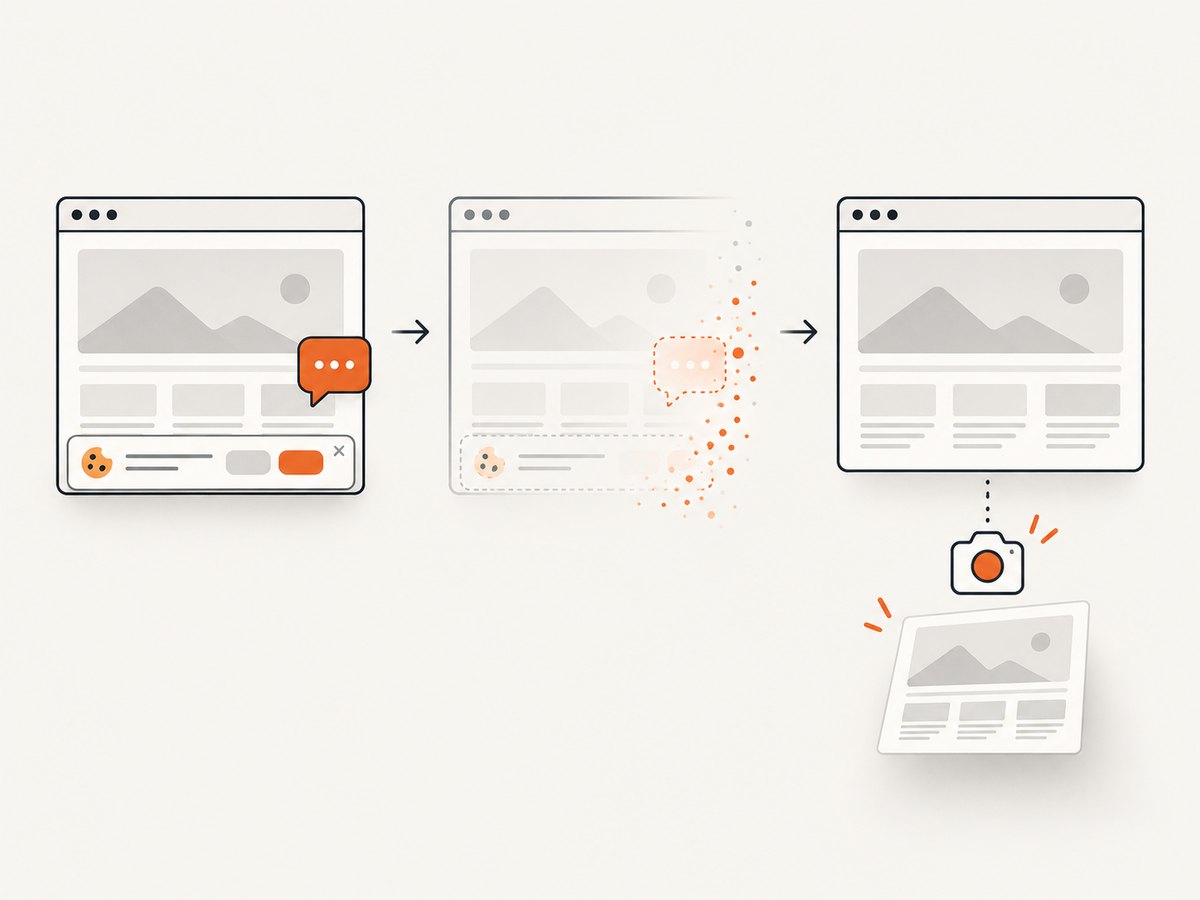
const res = await fetch(`https://api.screenshotneo.com/v1/shot?${q}`);With ScreenshotNeo, cookie banners, newsletter popups, and chat widgets are removed before capture; bot checks, blank pages, and failed loads are never billed. Its MCP server lets AI agents take screenshots. The free plan includes 1,000 screenshots a month with no card, and paid plans start at $5 for 3,000.
Create a free ScreenshotNeo account and start with 1,000 screenshots a month at no charge.
9. FAQ
Should I use a queue for a NestJS screenshot endpoint?
Use a queue when captures take long enough to tie up HTTP requests, when bursts exceed browser capacity, or when you need retries. A synchronous endpoint is reasonable for bounded, low-volume jobs with a strict deadline.
Can I return the screenshot as a downloadable file?
Yes. Set Content-Type to the image MIME type and Content-Disposition to an attachment filename. For in-browser display, return the image content type without attachment disposition.
Why does the same page look different between deployments?
Rendering can vary with browser version, viewport, device scale, fonts, locale, timezone, network-loaded assets, and page state. Pin the browser/runtime and explicitly set the rendering inputs that matter to your use case.
Does networkidle2 mean the page is fully rendered?
No. It is a network-activity condition, not a universal definition of visual readiness. Wait for the page-specific selector or state that represents the content your screenshot needs.