How to Take a Screenshot of a Website in Nuxt
Use Nuxt Test Utils and Playwright to capture viewport, full-page, or element screenshots, stabilize output, and automate visual checks.

Direct answer: use a real browser through Playwright. Nuxt renders your application, while Playwright captures the rendered pixels. With Nuxt Test Utils, create a Nuxt-aware page and call page.screenshot(). Leave fullPage off for the visible viewport; set fullPage: true for the entire scrollable document. Use a locator screenshot when you need one component.
Nuxt server rendering produces HTML, not a PNG, JPEG, WebP, or PDF file. A browser still has to load CSS, execute JavaScript, resolve fonts, and paint the page before an image can be saved. The workflow below targets Nuxt 4 documentation and Playwright. Nuxt 3 reached end of life on 31 July 2026 according to its testing guide, so new automation should use Nuxt 4 or an appropriate supported arrangement.
1. Choose the screenshot scope
| Goal | Playwright call | Result |
|---|---|---|
| Visible browser area | page.screenshot({ path: 'shot.png' }) |
Current viewport only |
| Entire page | page.screenshot({ path: 'shot.png', fullPage: true }) |
Full scrollable document |
| One component | page.locator('.card').screenshot({ path: 'card.png' }) |
Pixels clipped to the matching element |
| Visual regression | expect(page).toHaveScreenshot() |
Compares against a stored baseline |
The viewport-versus-full-page distinction matters. A viewport shot is predictable for social cards or documentation thumbnails. A full-page shot is useful for a release artifact, but it can become very tall and may include content that only appears after scrolling. An element shot avoids unrelated layout changes.

2. Install the browser test dependencies
Nuxt’s official testing guide recommends @nuxt/test-utils for Nuxt application testing. Its end-to-end setup can launch your app or target an existing host and uses Playwright for browser control. Install the packages in your project:
npm install -D @nuxt/test-utils playwright
npx playwright install
If your project already uses Playwright Test, keep its runner configuration and browser installation. The important pieces are a running Nuxt application, a browser page, and a deterministic capture point.
3. Capture a Nuxt page with Nuxt Test Utils
The following TypeScript example combines Nuxt Test Utils’ createPage helper with Playwright’s screenshot API. Put it in the end-to-end test location used by your runner and follow that runner’s setup and cleanup lifecycle.
import { createPage } from '@nuxt/test-utils/e2e'

const page = await createPage('/')
await page.screenshot({
  path: 'artifacts/home.png',
  fullPage: true
})
await page.close()
createPage('/') creates a configured browser page for the Nuxt app. The path option writes the image to disk. If the directory does not exist, create it before the test or configure your runner’s artifact directory. The API also returns an image buffer when you omit path, which is useful when an upload service or test assertion consumes bytes directly.
Set a stable viewport
const page = await createPage('/pricing')
await page.setViewportSize({ width: 1440, height: 900 })
await page.screenshot({ path: 'artifacts/pricing-1440.png' })
await page.close()
A fixed viewport prevents a developer laptop’s window size from changing line wraps and breakpoints. Set the viewport before navigation if your setup permits it, or immediately after creating the page and reload when the application chooses responsive markup during initial load.
Capture one component
const page = await createPage('/dashboard')
const card = page.locator('[data-testid="summary-card"]')
await card.waitFor()
await card.screenshot({ path: 'artifacts/summary-card.png' })
await page.close()
Prefer a stable test identifier or semantic selector. A selector that matches multiple nodes makes the target ambiguous; use .first() or a more specific locator when that is intentional.
4. Use Playwright Test for repeatable visual regression
For a baseline comparison, Playwright Test provides expect(page).toHaveScreenshot(). The assertion captures the page and compares it with a stored image. Playwright’s screenshot assertions disable animations by default and wait for two consecutive screenshots to match before comparison, which reduces transient differences.
import { test, expect } from '@playwright/test'

test('home page visual contract', async ({ page }) => {
  await page.goto('http://127.0.0.1:3000/')
  await expect(page).toHaveScreenshot('home.png', {
    fullPage: true,
    animations: 'disabled'
  })
})
Keep the browser engine, browser version, operating system, viewport, fonts, and device scale consistent between baseline creation and later runs. Playwright documents that rendered pixels can vary with the host operating system, browser version, settings, hardware, power source, and headless mode. Review a changed baseline as a product decision instead of accepting every pixel difference automatically.
5. Wait for Nuxt content before capturing
A screenshot taken immediately after navigation can contain loading skeletons, missing images, or data that has not arrived. Choose an explicit readiness condition:
const page = await createPage('/reports')
await page.locator('[data-testid="report-ready"]').waitFor({ state: 'visible' })
await page.screenshot({ path: 'artifacts/reports.png', fullPage: true })
await page.close()
For a known, short transition, a delay can be a fallback, but a selector is generally more reliable because it follows application state rather than elapsed time. If the page depends on a request, wait for the response or for a UI element that only appears after the request succeeds.
Lazy-loaded images and long pages
Full-page capture may reveal images that are lazy-loaded only when near the viewport. Scroll through the page before taking the final image, or expose an application-level ready marker after images have loaded:
const page = await createPage('/catalog')
await page.evaluate(async () => {
  for (const image of Array.from(document.images)) {
    image.scrollIntoView({ block: 'center' })
    await new Promise(resolve => setTimeout(resolve, 50))
  }
})
await page.locator('main').waitFor()
await page.screenshot({ path: 'artifacts/catalog.png', fullPage: true })
await page.close()
This technique is application-specific. Do not add an arbitrary scroll loop if your page already provides a reliable loaded signal.
6. Screenshot options you will use most
| Option | Use | Notes |
|---|---|---|
path |
Save an image file | Use a unique artifact path in CI |
fullPage |
Capture the complete scrollable page | Defaults to false |
type |
Choose PNG, JPEG, or WebP where supported | JPEG and WebP can reduce artifact size |
quality |
Set lossy image quality | Relevant to JPEG and WebP |
scale |
Control CSS-pixel versus device-pixel output | Keep it consistent for baselines |
clip |
Capture a rectangle | Coordinates must describe a valid visible region |
mask |
Cover volatile locators | Useful for timestamps, ads, or rotating avatars |
animations |
Control animation handling in assertions | Disable transitions for stable comparisons |
await page.screenshot({
  path: 'artifacts/hero.webp',
  type: 'webp',
  quality: 85,
  fullPage: false,
  scale: 'css'
})
Use clipping for a known region, or a locator screenshot when the region follows layout. Mask data that is expected to change instead of weakening the entire comparison.
7. A practical Nuxt capture checklist
- Start the Nuxt app in the same mode used by the target environment.
- Choose viewport, full-page, or element scope.
- Use a deterministic browser engine and viewport.
- Navigate to the route and wait for a ready selector or response.
- Load fonts and images that affect layout.
- Disable animations and mask timestamps or rotating content.
- Capture to a known artifact path or consume the returned buffer.
- Close the page and browser through your test runner’s lifecycle.
- In visual tests, inspect baseline diffs and record intentional UI changes.
8. Troubleshooting common failures
Blank or partially rendered image
Cause: capture occurs before hydration, data fetching, fonts, or images finish. Fix: wait for a page-specific ready selector, verify the route’s API responses, and capture after the loading state disappears.
createPage cannot connect
Cause: the Nuxt server is not running, the test-utils host is misconfigured, or the selected port is unavailable. Fix: start the app through the runner’s Nuxt setup, confirm the base URL, and check that the port is reachable from the test process.
Screenshot file is missing
Cause: the output directory does not exist or the process lacks write access. Fix: create the artifact directory before capture and use an absolute or runner-managed path.
Full-page image stops early
Cause: content is inserted after the initial measurement or a virtualized list does not render off-screen rows. Fix: wait for the final content count, scroll to trigger lazy loading, and use an application mode that renders the complete document when a full export is required.
Element screenshot times out
Cause: the selector is wrong, hidden, detached, or matches several elements. Fix: inspect the locator, wait for visibility, narrow the selector, and handle intentional duplicates explicitly.
Visual diff changes on every machine
Cause: different fonts, browser builds, operating systems, device scale factors, or headless settings. Fix: pin the environment used for baselines, install the same fonts, set a fixed viewport, and review diffs instead of comparing images produced by unrelated environments.
Cookie banners, chat widgets, or popups obscure the page
Cause: third-party overlays appear during navigation. Fix: automate their dismissal, block the relevant requests, or hide the selectors before capture. For a public site you do not control, an API that handles consent and cleanup can be simpler.
9. Performance, reliability, and cost considerations
Browser startup is usually the expensive part of a capture pipeline. Reuse a browser process when your runner allows it, create pages per test, and close pages promptly. Capture only the scope you need: a viewport or element is smaller and faster to store than a very tall full-page image. Use WebP or JPEG for delivery artifacts when lossless PNG is unnecessary.
Reliability comes from controlling state. Pin browser versions, freeze time or mask timestamps, seed test data, wait on signals rather than arbitrary delays, and keep network dependencies available in CI. For visual regression, treat font loading and animation settings as part of the test environment.
Self-hosted Playwright costs include CI minutes, browser downloads, storage, and maintenance of the capture environment. A hosted screenshot API changes that trade-off to request pricing and service configuration. Compare the cost of running browsers at your expected URL volume with the engineering time required to maintain them.
10. Or skip the browser setup
ScreenshotNeo provides a website screenshot API and MCP server. One GET request returns PNG, JPEG, WebP, or PDF. The API accepts the URL and capture options, so you do not need to install Playwright or manage browser workers for a basic capture.
See the ScreenshotNeo API documentation for the complete parameter list. This minimal call captures a Nuxt route or any public URL:
curl -G "https://api.screenshotneo.com/v1/shot" -d access_key=YOUR_API_KEY --data-urlencode url=https://example.com -o shot.webpimport requests
r = requests.get(
"https://api.screenshotneo.com/v1/shot",
params={"access_key": "YOUR_API_KEY", "url": "https://example.com"},
timeout=90,
)
r.raise_for_status()
open("shot.webp", "wb").write(r.content)const q = new URLSearchParams({ access_key: 'YOUR_API_KEY', url: 'https://example.com' });
const res = await fetch(`https://api.screenshotneo.com/v1/shot?${q}`);
if (!res.ok) throw new Error(`Screenshot failed: ${res.status}`);
await Bun.write('shot.webp', res);For a Nuxt deployment, replace https://example.com with the fully qualified route you want to capture. ScreenshotNeo can load lazy images for full-page captures, capture one element by CSS selector, set dark mode, choose a device preset or custom viewport, use retina scale, apply custom CSS or JavaScript, click an element, wait for a selector, delay, or network idle, and block ads, trackers, requests, or resource types. It also supports custom headers, cookies, user agents, Authorization, timezone, geolocation, transparent backgrounds, resizing, caching with a chosen TTL, signed links, asynchronous jobs with signed webhooks, bulk capture of up to 100 URLs per call, a usage API, and an OpenAPI specification.
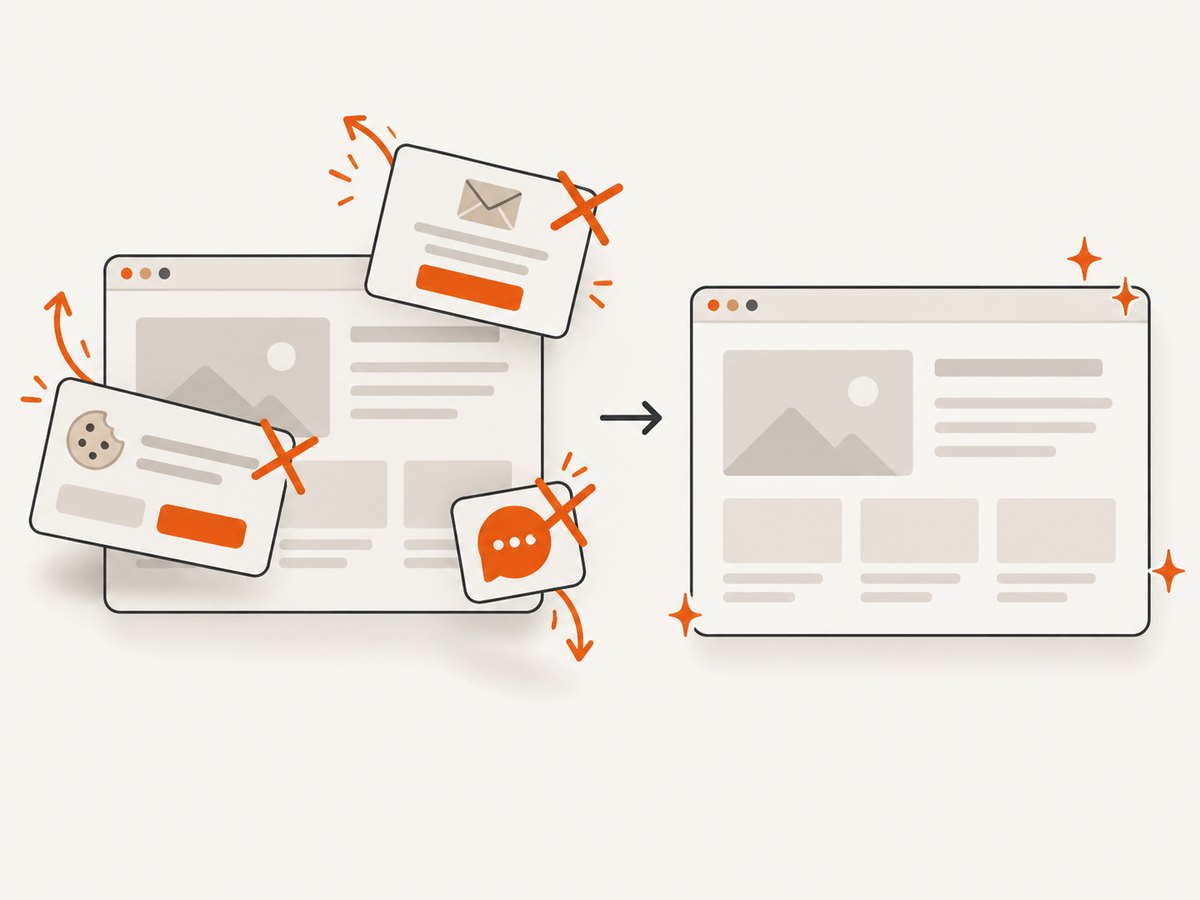
Cleanup is built in: before capture, it accepts consent banners and removes more than 60 known consent platforms, newsletter popups, and chat widgets. Each cleanup step can be disabled. Bot checks or CAPTCHAs, blank pages, timeouts, failed loads, and cache hits cost nothing, and response headers identify the page verdict and whether the request was billed. The MCP server exposes take_screenshot, get_page_info, and capture_pdf for Claude, Cursor, and other MCP clients.
Free usage includes 1,000 shots each month with no card. Paid plans start at $5 for 3,000 shots; yearly billing gives two months free, and every feature is available on every plan. Sign up free for ScreenshotNeo.
11. FAQ
Does Nuxt itself have a screenshot function?
Nuxt supplies the application and testing integration. Playwright supplies the browser screenshot API that writes the image.
How do I capture only what the user sees?
Call page.screenshot({ path: 'shot.png' }) without fullPage. Set the viewport explicitly for repeatable dimensions.
Can I create a PDF instead of an image?
Playwright has separate PDF capabilities in supported browser contexts. ScreenshotNeo’s capture_pdf MCP tool and API support PDF output with paper size, margins, landscape mode, and page ranges.
Why is my screenshot different in CI?
Browser and host differences affect rendered pixels. Pin the browser and operating system, install matching fonts, set viewport and scale, and remove dynamic content from the comparison.
Should I use full-page screenshots for every test?
No. Use full-page capture for document-level checks, element shots for components, and viewport shots for fixed-size presentation assets. Smaller scopes are easier to diagnose and store.