How to Screenshot a Website on Chromebook
Learn Chromebook shortcuts for screen, region, window, and full-page website screenshots, plus an automated ScreenshotNeo option for developers.
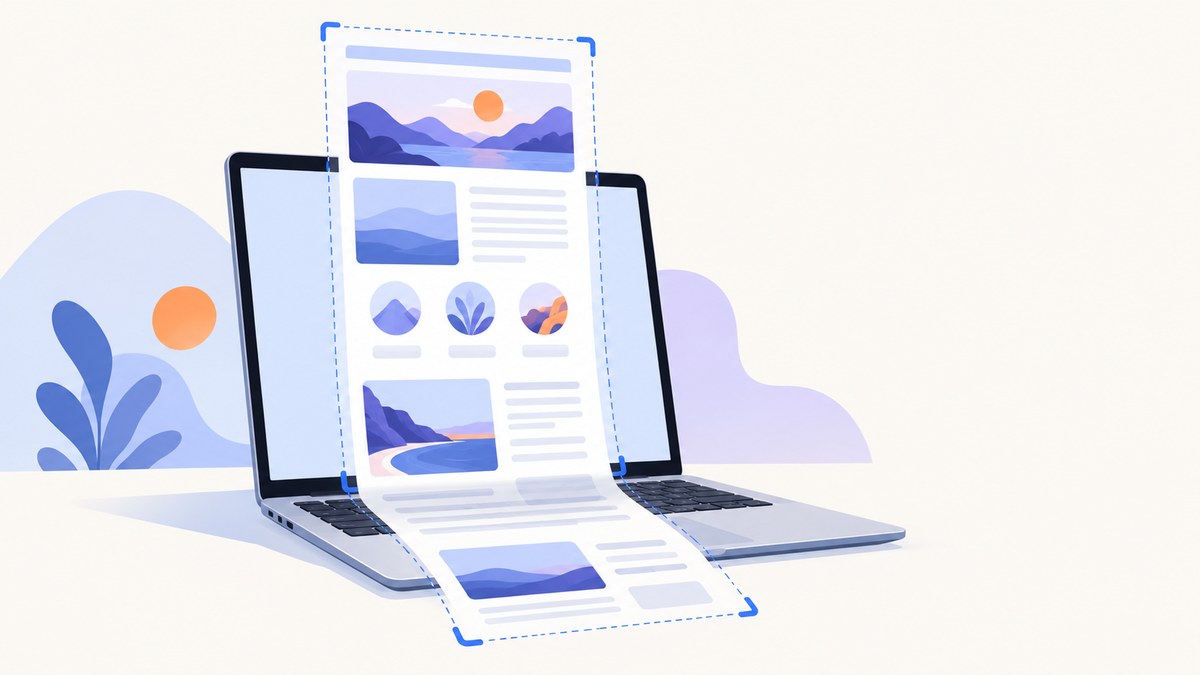
To screenshot a website on a Chromebook, open the page in Chrome and use ChromeOS Screen Capture. Choose full screen, partial, or window. For one image containing the entire webpage, including content below the fold, use Chrome DevTools and select Capture a full size screenshot.
This guide explains both workflows, keyboard alternatives, where files are saved, how to capture long or dynamic pages, and how developers can automate captures with ScreenshotNeo.
Choose the right Chromebook screenshot method
| Goal | Best method | What it captures |
|---|---|---|
| Capture everything currently visible | Screen Capture: full screen | The complete Chromebook display |
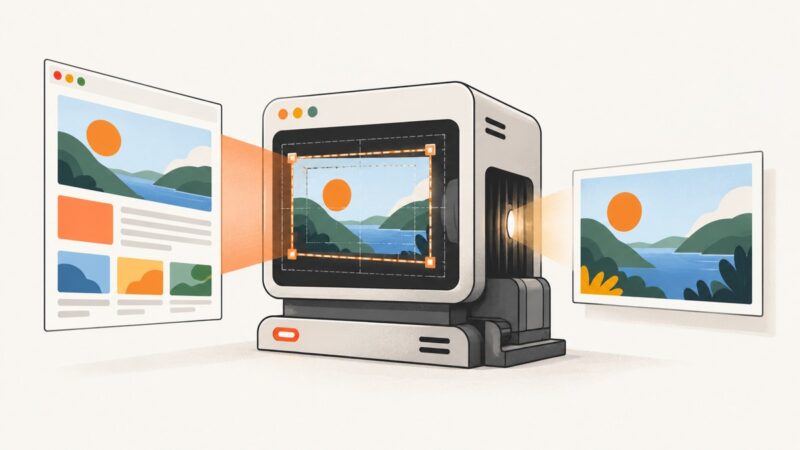
| Capture part of a webpage | Screen Capture: partial | A rectangle you select |
| Capture only Chrome | Screen Capture: window | The browser window |
| Capture a long webpage | DevTools: Capture a full size screenshot | The full document, including below the viewport |
Use the standard ChromeOS tool when the visible screen, a region, or the browser window is enough. Use DevTools when the result must include content that is not currently visible.
Take a normal screenshot on Chromebook
1. Open the website
Launch Chrome, navigate to the page, and wait until the content you want is visible. Close menus, permission prompts, or overlays that should not appear in the image.
2. Open Screen Capture
You have several ways to open the capture toolbar:
- Press the dedicated Screenshot key if your Chromebook has one.
- Open Quick Settings by selecting the clock in the bottom-right corner, then choose Screen Capture.
- Press Shift + Ctrl + Show windows.
- With an external keyboard that has no Show windows key, Google documents Ctrl + Shift + F5 as an alternative.
Keyboard labels differ between Chromebook models and external keyboards. If a shortcut does nothing, use Quick Settings.
3. Select a capture mode
In the Screen Capture toolbar, choose Screenshot, then select one of these modes:
- Full screen: captures the entire display, including areas outside Chrome.
- Partial: lets you drag a rectangle around the exact area to keep.
- Window: captures the selected application window, such as Chrome.
For a partial screenshot, drag from one corner of the desired region to the opposite corner. Release to capture it. If the selection is wrong, cancel and start again rather than trying to crop a saved image.
4. Find or paste the image
Ordinary screenshots are saved in Downloads by default. ChromeOS also copies screenshots to the clipboard automatically, so you can paste one directly into an email, document, chat, or image editor. Screen Capture settings let you choose another save folder.
Use keyboard shortcuts directly
For a quick capture, Google lists these shortcuts:
- Ctrl + Show windows: screenshot the screen.
- Shift + Ctrl + Show windows: open partial screenshot selection.
- Power + Volume down: screenshot on Chromebook tablets.
The Show windows key is usually on the top row and looks like a rectangle beside two vertical lines. On a non-Chromebook keyboard, the equivalent key may not be obvious; use the documented Ctrl + Shift + F5 alternative or open Screen Capture from Quick Settings.
Screenshot an entire webpage, including below the fold
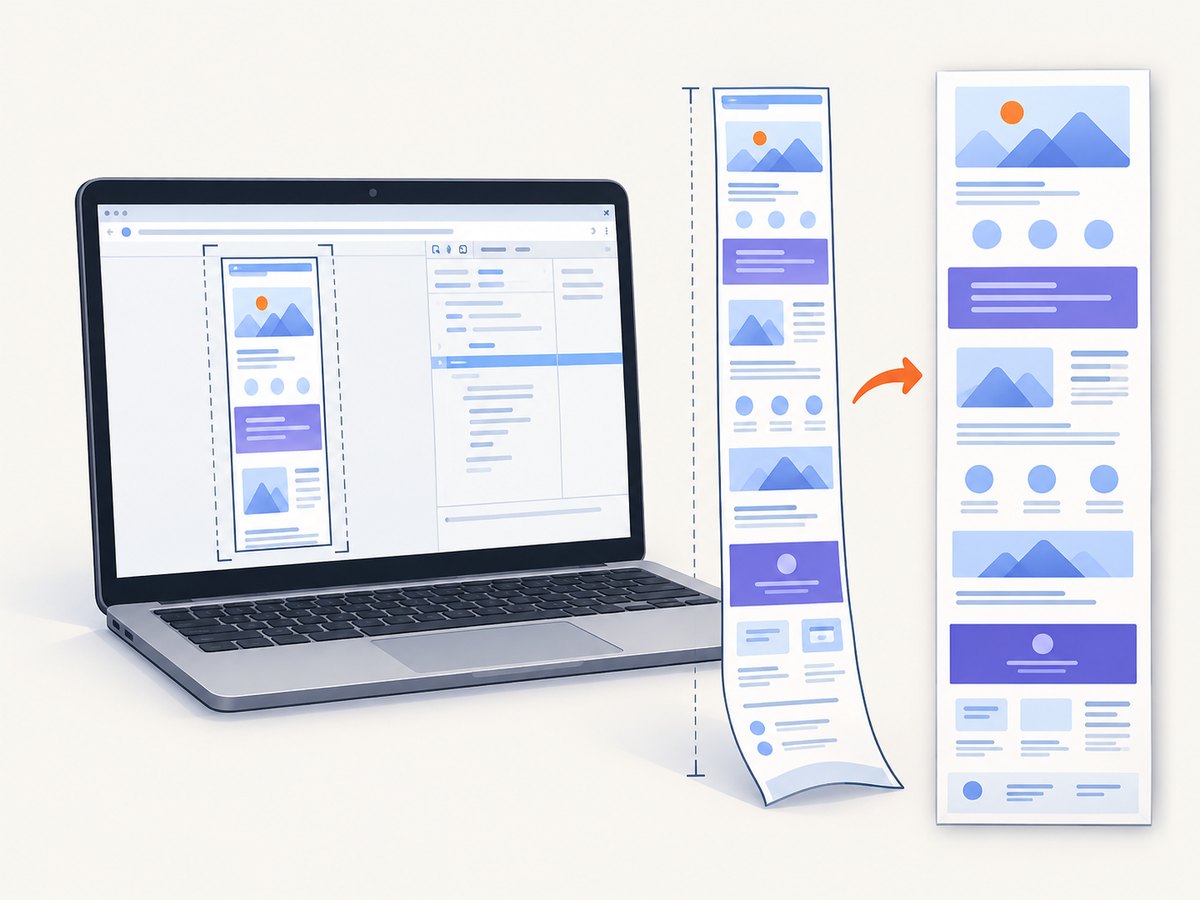
A normal full-screen capture records only what is visible. To create one tall image of a complete webpage, use Chrome DevTools.
- Open the page in Chrome.
- Press Ctrl + Shift + I to open DevTools.
- Enable the device toolbar if it is not already active. The device toolbar lets DevTools emulate a viewport.
- Open the device toolbar’s More options menu.
- Choose Capture a full size screenshot.
Chrome captures the whole document, including content outside the visible viewport, and downloads the resulting image. This is the appropriate built-in workflow for an entire webpage in one file.
When full-size capture needs extra care
- Lazy-loaded images: some pages load images only as you scroll. If sections are blank, scroll through the page first, wait for images to appear, then run the command.
- Sticky headers: a fixed navigation bar may repeat or cover content. This is controlled by the page’s CSS, not Chromebook Screen Capture.
- Very long pages: tall images can be difficult to open or share. A PDF or several regional captures may be more practical.
- Animations and video: the result records one moment. Pause media when a consistent frame matters.
- Authenticated pages: DevTools uses your current Chrome session, so sign in before capturing private content.
Chromebook tablet screenshots
On a Chromebook tablet, press Power + Volume down at the same time. The screenshot is saved like other captures and copied to the clipboard. If your device has a detachable keyboard, the keyboard shortcuts may also work when it is attached.
Capture a website automatically with ScreenshotNeo
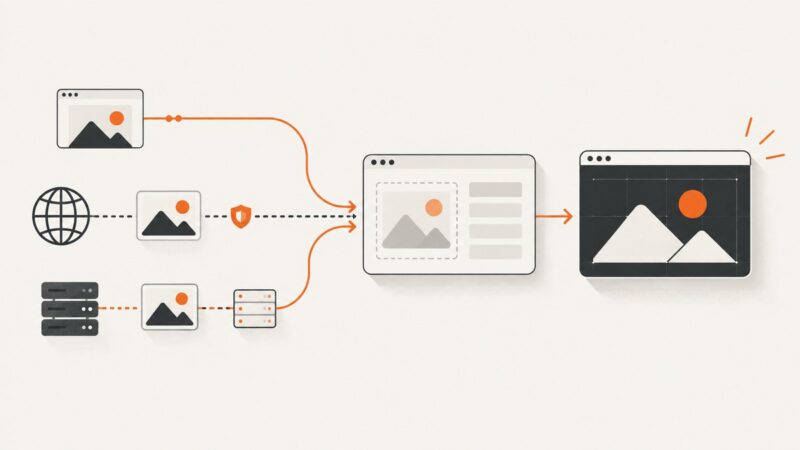
If you need repeatable screenshots for documentation, monitoring, testing, or a content pipeline, an API avoids opening Chrome and repeating the same capture steps. ScreenshotNeo accepts one GET request and returns a PNG, JPEG, WebP, or PDF. Its options include full-page capture with lazy images loaded, element capture by CSS selector, device presets, custom viewports, dark mode, retina scale, custom CSS and JavaScript, clicks before capture, waits, request blocking, cookies, headers, user agents, timezone, geolocation, resizing, caching, signed links, asynchronous jobs, bulk capture, and PDF settings.
Or skip the browser setup
See the ScreenshotNeo API documentation for the complete parameter reference. A basic capture is:
curl -G "https://api.screenshotneo.com/v1/shot" -d access_key=YOUR_API_KEY --data-urlencode url=https://stripe.com -o shot.webpPython:
import requests

r = requests.get(
    "https://api.screenshotneo.com/v1/shot",
    params={"access_key": "YOUR_API_KEY", "url": "https://stripe.com"},
    timeout=90,
)
r.raise_for_status()
open("shot.webp", "wb").write(r.content)
Node.js:
const q = new URLSearchParams({
  access_key: 'YOUR_API_KEY',
  url: 'https://stripe.com'
});
const res = await fetch(`https://api.screenshotneo.com/v1/shot?${q}`);
if (!res.ok) throw new Error(`HTTP ${res.status}`);
const image = Buffer.from(await res.arrayBuffer());
require('fs').writeFileSync('shot.webp', image);
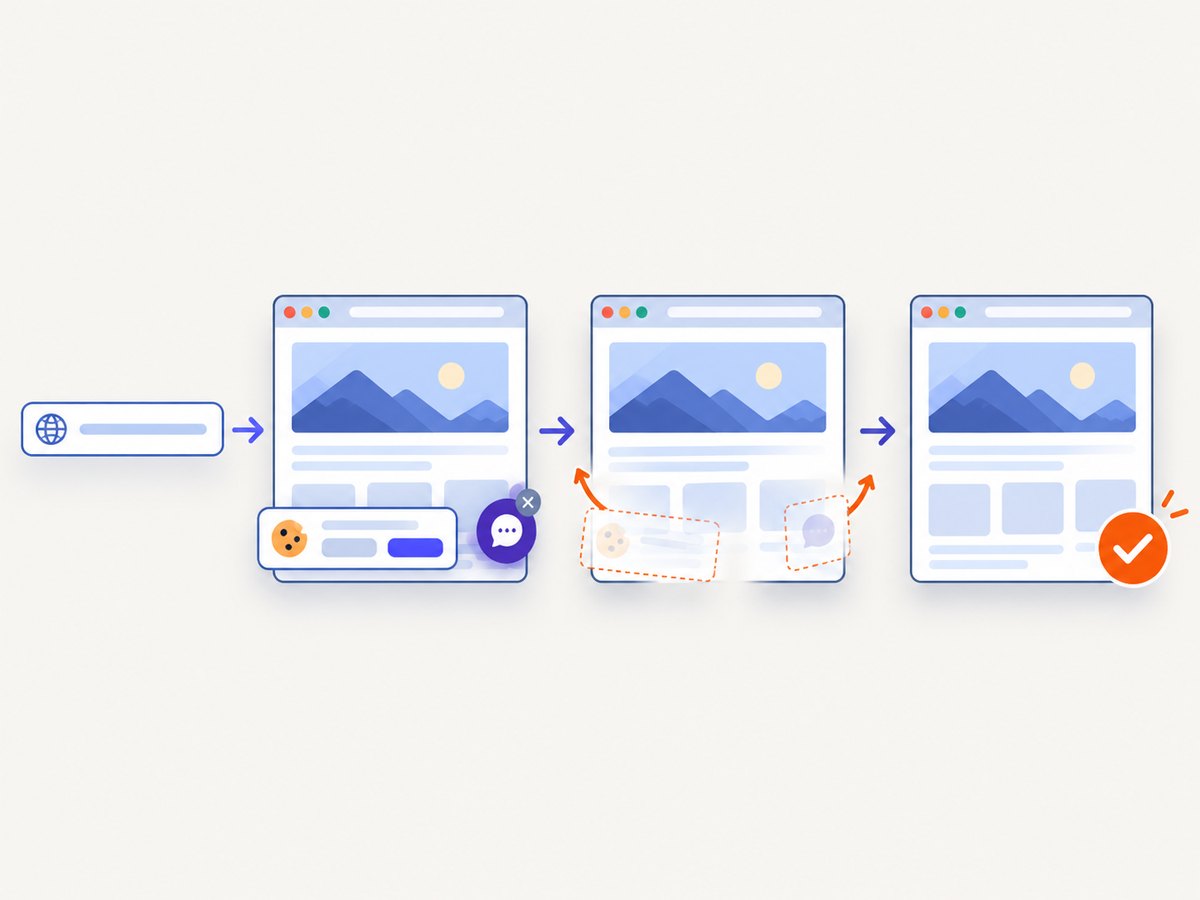
ScreenshotNeo removes cookie and consent banners, newsletter popups, and chat widgets before the shot. Bot checks, blank pages, timeouts, failed loads, and cache hits are not billed, and the response identifies the result with X-Page-Verdict and X-Billed headers. Its MCP server provides take_screenshot, get_page_info, and capture_pdf tools for Claude, Cursor, and other MCP clients.
The Free plan includes 1,000 screenshots per month with no card. Paid plans start at $5 for 3,000 screenshots; yearly billing provides two months free. Create a free ScreenshotNeo account.
Useful capture options for developers
| Need | Option to use |
|---|---|
| Capture one component | CSS selector element capture |
| Make a mobile or tablet image | Device preset or custom viewport |
| Match a dark interface | Dark mode |
| Wait for a chart or app state | Selector wait, delay, or network-idle wait |
| Hide an unwanted control | Hide selectors or custom CSS |
| Reach a private page | Custom headers, cookies, user agent, or Authorization |
| Reduce repeat requests | Choose a cache TTL |
| Process many pages | Bulk capture, up to 100 URLs per call |
| Generate print output | PDF paper size, margins, orientation, and page ranges |
Troubleshooting Chromebook screenshots
The shortcut does not work
Keyboard layouts vary. Open Quick Settings and select Screen Capture. On an external keyboard without Show windows, try Ctrl + Shift + F5. On a tablet, use Power + Volume down.
The screenshot is saved somewhere unexpected
Check the Files app and Downloads. Open Screen Capture settings to inspect or change the save folder. The image may still be available on the clipboard even when you cannot immediately find the file.
The full-page option is missing
Open DevTools with Ctrl + Shift + I, enable the device toolbar, and open its More options menu. The command is named Capture a full size screenshot. Chrome updates can move menu items, so look within the device toolbar rather than the normal Screen Capture toolbar.
Only the visible viewport was captured
That is expected from full-screen, window, and partial Screen Capture modes. Repeat the process through DevTools’ full-size command for content below the fold.
Parts of the page are blank
Wait for the page to finish loading and scroll through it to trigger lazy content. For automated captures, use a selector wait, delay, or network-idle wait. Check that the page is not showing a bot check, login wall, or error response.
The automated request returns an error
Check that the access key is present, URL-encoded, and valid. Confirm the target URL is reachable and that your timeout is long enough for the page. For private pages, provide the required headers, cookies, user agent, or Authorization settings.
Performance, reliability, and cost considerations
- Local captures: ChromeOS Screen Capture is immediate and has no API usage cost, but every capture is manual and tied to the current display and browser session.
- Full-page captures: page length, scripts, fonts, images, and lazy loading all affect completion time and file size.
- Repeat jobs: caching with a chosen TTL can avoid unnecessary recaptures. Async jobs and signed webhooks help when a page takes longer to load.
- Large batches: use bulk capture for up to 100 URLs per call and monitor usage through the usage API.
- Billing: ScreenshotNeo bills only clean shots. Bot checks, blank pages, timeouts, failed loads, and cache hits cost nothing, with the verdict and billing result returned in headers.
FAQ
How do I screenshot an entire webpage on a Chromebook?
Open DevTools with Ctrl + Shift + I, enable device mode, open More options, and select Capture a full size screenshot.
Where are Chromebook screenshots stored?
They go to Downloads by default, and ChromeOS copies them to the clipboard. You can change the save folder in Screen Capture settings.
Can I screenshot just one part of a website?
Yes. Open Screen Capture, choose Screenshot and Partial, then drag around the region.
Can a Chromebook capture a website without showing browser controls?
Use Window capture for the Chrome window, or use DevTools full-size capture for a webpage image without the surrounding desktop.
What is the easiest option for scheduled website screenshots?
Use an API such as ScreenshotNeo so a script or MCP agent can request captures without an open Chromebook session.