How to Screenshot a Website on iPad
Learn the iPad button shortcuts, Safari Full Page capture, PDF saving, alternatives, troubleshooting, and an automated ScreenshotNeo workflow.
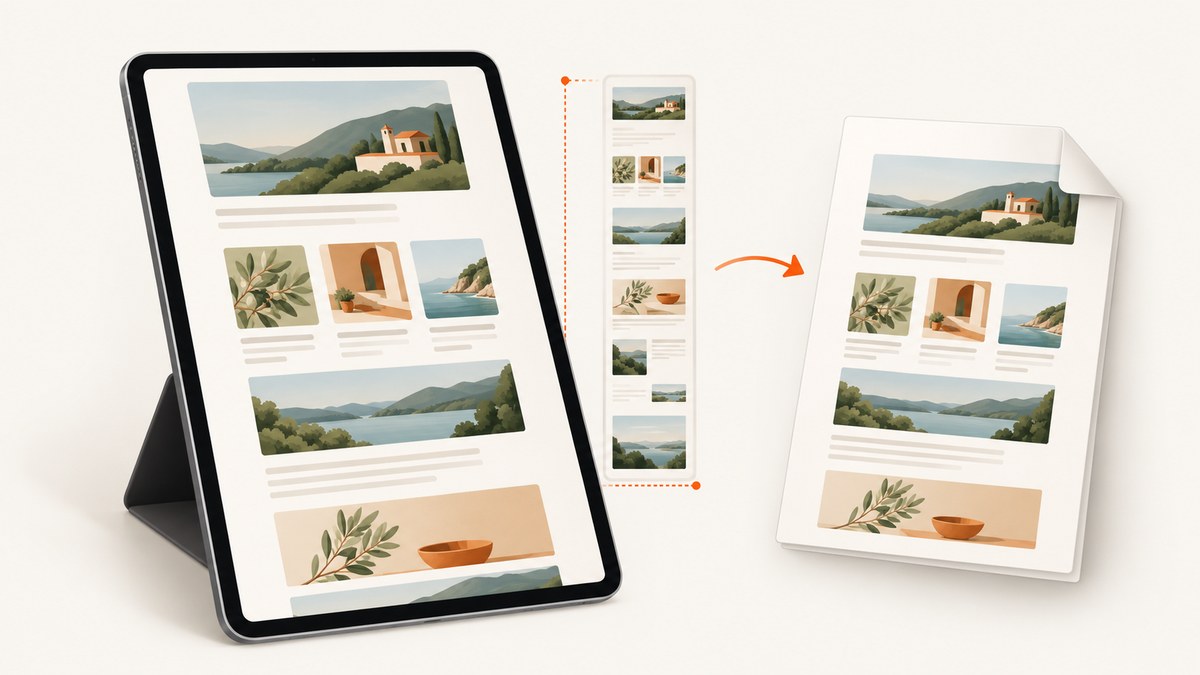
To screenshot a website on an iPad, open the page in Safari, quickly press and release the top button and either volume button together, then tap the screenshot preview. Choose Full Page to capture the entire webpage, crop or annotate it, and save it as an image to Photos or as a PDF to Files. On an iPad with a Home button, use the top button and Home button instead. Apple documents this workflow, including an entire Safari webpage as the example for Full Page capture (Apple’s iPad screenshot guide).
Choose the kind of capture you need
| Goal | What to choose | Where it goes |
|---|---|---|
| Save exactly what is visible | Normal screenshot; do not select Full Page | Photos |
| Save an entire Safari page | Screenshot preview → Full Page | Photos as an image, or Files as a PDF |
| Keep only part of the page | Crop the preview with the handles | Photos or Files, depending on the save option |
| Capture a page for a document | Full Page → Save PDF to Files | Files |
A normal screenshot is best for a quick visual message or a small section you plan to edit. Full Page is better when the reader needs the content below the fold. Saving as an image is convenient for sharing and image editing; saving as a PDF preserves a long, document-like page in Files.
Take a normal website screenshot
iPad without a Home button
- Open Safari and load the webpage.
- Press and release the top button and either volume button at the same time. Press briefly; holding the buttons can open other controls.
- Tap the screenshot preview. It may appear as a lower-left thumbnail or as a full-screen preview, depending on your Screen Capture settings.
- Use Markup, crop handles, or the share control if needed.
- Tap Done, then save the capture to Photos or choose another available destination.
iPad with a Home button
- Open the page in Safari.
- Press and release the top button and Home button together.
- Tap the preview and edit or save it.
The shortcut must be pressed and released quickly. If the screen locks, Siri opens, or nothing is captured, try pressing both buttons at exactly the same time with less pressure.
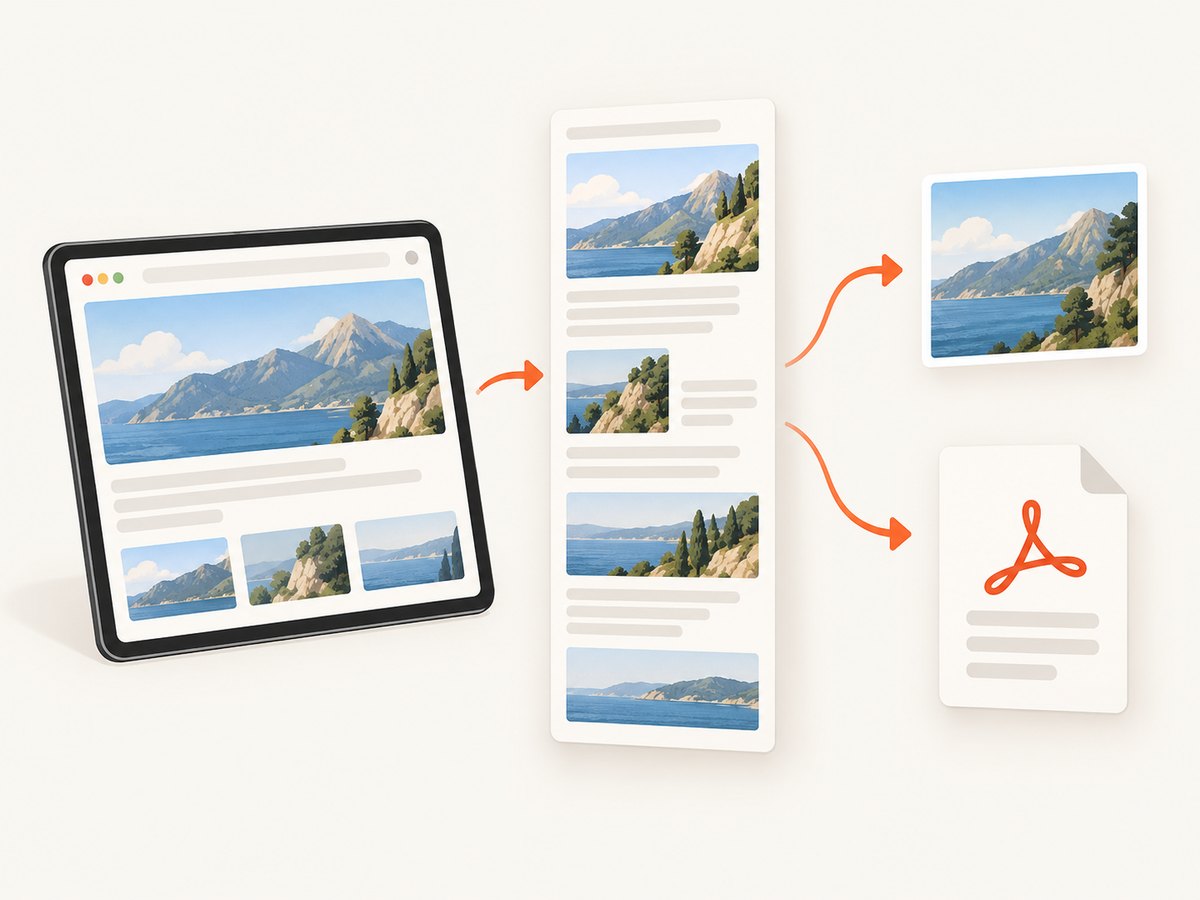
Capture an entire webpage with Safari Full Page
Safari’s Full Page control extends the capture beyond the visible screen. It is the built-in way to save a long webpage without taking many separate screenshots.
- Open the target webpage in Safari. Let the page finish loading before capturing it. If the page loads content while you scroll, wait until important sections and images appear.
- Take a screenshot using the button combination for your iPad model.
- Tap the screenshot preview.
- At the top of the editor, tap Full Page. If you only see the normal screen preview, look for the tab or control labeled Full Page in the screenshot editor.
- Drag on the preview to inspect the captured page. The preview lets you move through content below the initial viewport.
- Crop with the handles if the page includes material you do not want to share.
- Tap Done and select the destination you need.
Apple specifically describes capturing an entire webpage in Safari with this control (Apple’s full-page screenshot instructions). Full Page is available for supported webpage content; it is not a general-purpose way to stitch every app or every scrolling surface.
Save the full page as an image
In the Full Page editor, tap Done, then choose the image save option, such as Save to Photos. The resulting file is useful for a design review, a visual record, or sharing in a chat. Very long pages can create a tall image that is awkward to view or attach, so PDF may be a better format for documentation.
Save the full page as a PDF
- Choose Full Page in the screenshot editor.
- Tap Done.
- Choose Save PDF to Files.
- Select an iCloud Drive folder or an On My iPad location, then save.
A PDF is usually easier to search, print, and place in a project folder. The exact save labels can vary with iPadOS version and locale, but the Full Page and Files workflow remains the relevant path.
Improve the capture before you press the buttons
- Choose the right viewport: Turn the iPad to landscape when you need to see more horizontal content before capturing. Landscape helps you inspect the page but does not replace Full Page for a complete webpage.
- Dismiss transient UI: Close Safari’s address bar, translation banners, permission prompts, or an open menu if they should not appear in the result.
- Wait for lazy content: Scroll through the page once if images or sections appear only after entering the viewport. Then return to the top and capture.
- Use a stable zoom: Pinch to the reading size you want before the screenshot. Browser zoom changes what fits in the viewport and can affect the visual result.
- Check sensitive data: Sign out of accounts or hide private fields before saving or sharing a screenshot.
Alternative ways to trigger a screenshot
You do not need a hardware-button shortcut. Apple documents three alternatives:
- Apple Pencil: Swipe diagonally upward from either lower corner. This requires a compatible Apple Pencil but no extra screenshot app.
- AssistiveTouch: Enable AssistiveTouch in Accessibility settings and assign Screenshot to a menu item or gesture. This is useful when physical buttons are difficult to press.
- Siri: Activate Siri and ask it to take a screenshot.
These alternatives produce the same preview workflow, so you can still choose Full Page, crop, annotate, and save.
Find, edit, and share your screenshots
Screenshots are saved automatically to the photo library when you save them as images. To find them, open Photos, tap Collections, scroll to Media Types, and select Screenshots. Apple describes this location in its iPad guide.
From the preview editor you can crop, draw with Markup, add shapes, and share. Crop before sharing when the page contains an account name, order number, email address, or other private information. For a PDF, use Files to rename the document, move it to a project folder, or share it with a collaborator.
Screen Capture settings that change the preview
Recent iPadOS versions can show the screenshot editor full screen instead of displaying a temporary thumbnail. If the flow looks different from an older tutorial, the feature has not necessarily disappeared.
- Open Settings.
- Tap General.
- Tap Screen Capture.
- Turn off Full-Screen Previews if you prefer a temporary lower-left thumbnail.
Apple documents this setting in its screen-capture settings guide. Regardless of preview style, open the screenshot controls and look for Full Page when the target is a Safari webpage.
Troubleshooting
Full Page is missing
Cause: You may be capturing an app surface that does not expose a full webpage, or the screenshot editor is still showing the normal screen view.
Fix: Confirm that the page is open in Safari, wait for it to finish loading, tap the preview, and look for the Full Page tab. Try a regular public webpage to determine whether the issue is page-specific.
The screenshot captures only the visible screen
Cause: The capture was saved before selecting Full Page.
Fix: Take the screenshot again, tap the preview immediately, select Full Page, and then choose Done. A normal screenshot cannot be expanded later into the rest of the webpage.
Images or sections are blank in Full Page
Cause: The site may load images lazily, require scrolling, or show content only after a script runs.
Fix: Scroll through the webpage once, wait for images to appear, return to the top, and capture again. If the page requires a login, make sure the session is still active. Some content is intentionally protected from automated or off-screen rendering.
The button shortcut does nothing
Cause: The wrong combination was used, the buttons were held too long, or a case prevents a clean press.
Fix: Use top plus volume on models without a Home button; use top plus Home on models with one. Press and release quickly and at the same time. Remove a tight case temporarily or use AssistiveTouch, Siri, or Apple Pencil.
The preview disappeared
Cause: The thumbnail timed out or Full-Screen Previews is enabled and the editor was dismissed.
Fix: Take the screenshot again and tap the preview as soon as it appears. You can change the preview behavior at Settings → General → Screen Capture.
The PDF is not where expected
Cause: Full-page PDFs are saved through Files, not the Photos screenshot album.
Fix: Open Files and check the location selected during Save PDF to Files, including iCloud Drive and On My iPad. Use Files search if you renamed the document.
Or skip the browser setup
If you need repeatable captures for a script, a content pipeline, or many URLs, ScreenshotNeo provides a website screenshot API. One GET request returns a PNG, JPEG, WebP, or PDF. Its capture can accept cookie banners and remove more than 60 known consent platforms, newsletter popups, and chat widgets before the shot. Bot checks, blank pages, timeouts, failed loads, and cache hits are not billed, and each response reports the result in X-Page-Verdict and X-Billed headers.

See the ScreenshotNeo API documentation for all options, including full-page capture, element selectors, device presets, dark mode, custom CSS and JavaScript, waits, blocked resources, headers, cookies, user agents, timezone, geolocation, PDFs, caching, signed links, asynchronous jobs, webhooks, bulk capture, and usage data.
cURL
curl -G "https://api.screenshotneo.com/v1/shot" \
  -d access_key=YOUR_API_KEY \
  --data-urlencode url=https://stripe.com \
  -o shot.webp
Python
import requests

r = requests.get(
    "https://api.screenshotneo.com/v1/shot",
    params={"access_key": "YOUR_API_KEY", "url": "https://stripe.com"},
    timeout=90,
)
r.raise_for_status()
open("shot.webp", "wb").write(r.content)
Node.js
const q = new URLSearchParams({
  access_key: 'YOUR_API_KEY',
  url: 'https://stripe.com'
});
const res = await fetch(`https://api.screenshotneo.com/v1/shot?${q}`);
if (!res.ok) throw new Error(`HTTP ${res.status}`);
const bytes = Buffer.from(await res.arrayBuffer());
require('fs').writeFileSync('shot.webp', bytes);
ScreenshotNeo also includes an MCP server with take_screenshot, get_page_info, and capture_pdf tools for Claude, Cursor, and other MCP clients. It has 1,000 screenshots per month free with no card; paid plans start at $5 for 3,000 shots. Create a free ScreenshotNeo account.
Performance, reliability, and cost notes
- On-device capture: iPad screenshots are immediate, but Full Page processing time depends on page length, scripts, images, and the device’s available memory.
- Repeatability: A manual Safari capture records what your current session displays. For consistent output across runs, an API can set viewport, device, timezone, cookies, headers, waits, and rendering options explicitly.
- Long pages: A very tall image can be difficult to share. Prefer PDF for document workflows and crop irrelevant sections before distribution.
- API billing: ScreenshotNeo bills only clean shots. Failed loads, blank pages, bot checks, timeouts, and cache hits are free, with the verdict and billing status returned in headers.
- Throughput: For many URLs, use asynchronous jobs, signed webhooks, caching with a chosen TTL, or bulk capture of up to 100 URLs per call.
FAQ
Can I screenshot a whole website from Chrome on iPad?
The documented Full Page workflow is for Safari webpages. In another browser, use its own sharing or export tools, or capture the visible screen in iPadOS.
Does Full Page save as PNG?
Use the image save option to place the result in Photos. If you need a document, choose Save PDF to Files.
Can I capture only one section?
Yes. Use the crop handles in the screenshot editor. For automated, selector-based captures, ScreenshotNeo can capture one element by CSS selector.
Why is my screenshot rotated?
iPad captures the current orientation. Rotate to portrait or landscape before taking the screenshot, then capture again.
Where are screenshots stored?
Image screenshots appear in Photos under Collections → Media Types → Screenshots. PDFs appear in the Files location you selected.