How to Screenshot a Whole Page by Scrolling on iPhone
Use Safari’s Full Page screenshot to capture a long webpage on iPhone, then save it as an image or PDF. Here are the steps, limits, and fixes.
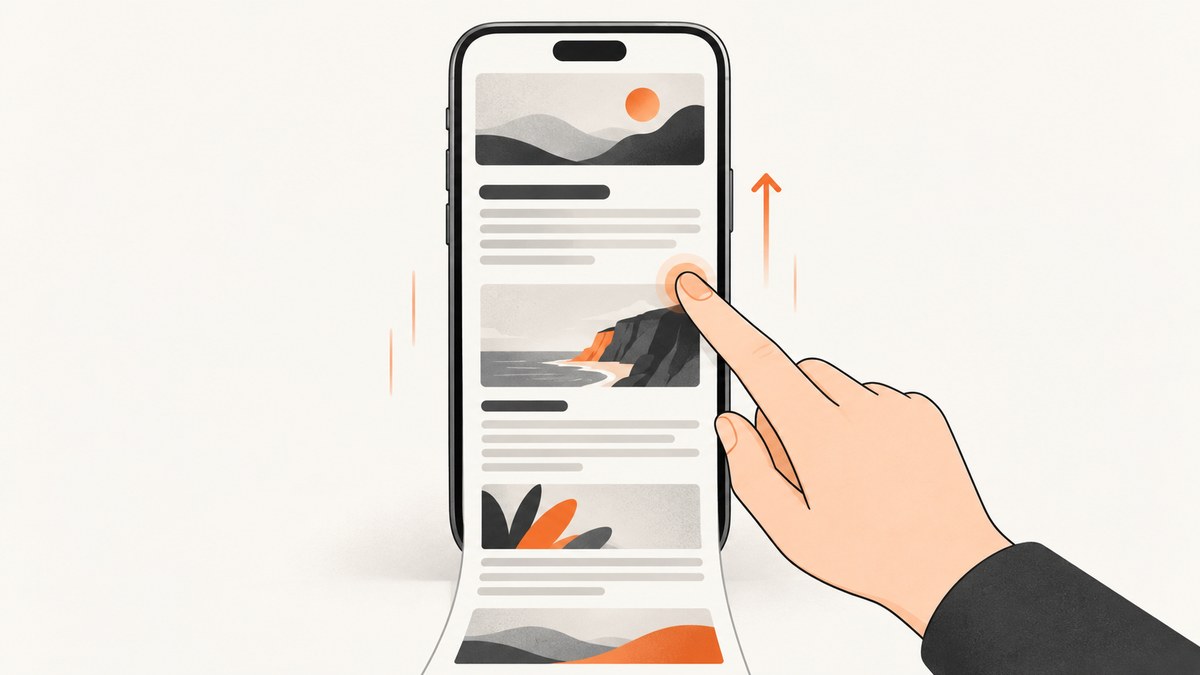
To screenshot a whole webpage on an iPhone, open it in Safari, take a screenshot, tap the thumbnail to open the editor, and choose Full Page. Review or crop the long-page preview, then save it to Photos as an image or to Files as a PDF. Apple documents this workflow for capturing an entire webpage in Safari. Apple’s iPhone screenshot guide.
The key distinction is that a regular screenshot captures what is visible on the display; Full Page captures supported content that extends beyond it. The Full Page option appears in the screenshot editor after capture, rather than as a separate scrolling mode you must enable beforehand.
1. Take a scrolling screenshot in Safari
- Open the webpage in Safari and wait for it to finish loading. If the page reveals more content as you scroll, scroll through it first so those sections have a chance to load.
- Take a screenshot using the buttons for your iPhone model:
- iPhone with Face ID: press and quickly release the side button and volume-up button together.
- iPhone with a Home button: press and quickly release the side button and Home button together.
Apple documents both combinations in its screenshot instructions.
- Tap the screenshot thumbnail that appears. If it disappears before you tap it, take another screenshot and tap the new thumbnail.
- In the editor, tap Full Page. If that tab is not available, see What if Full Page is missing?.
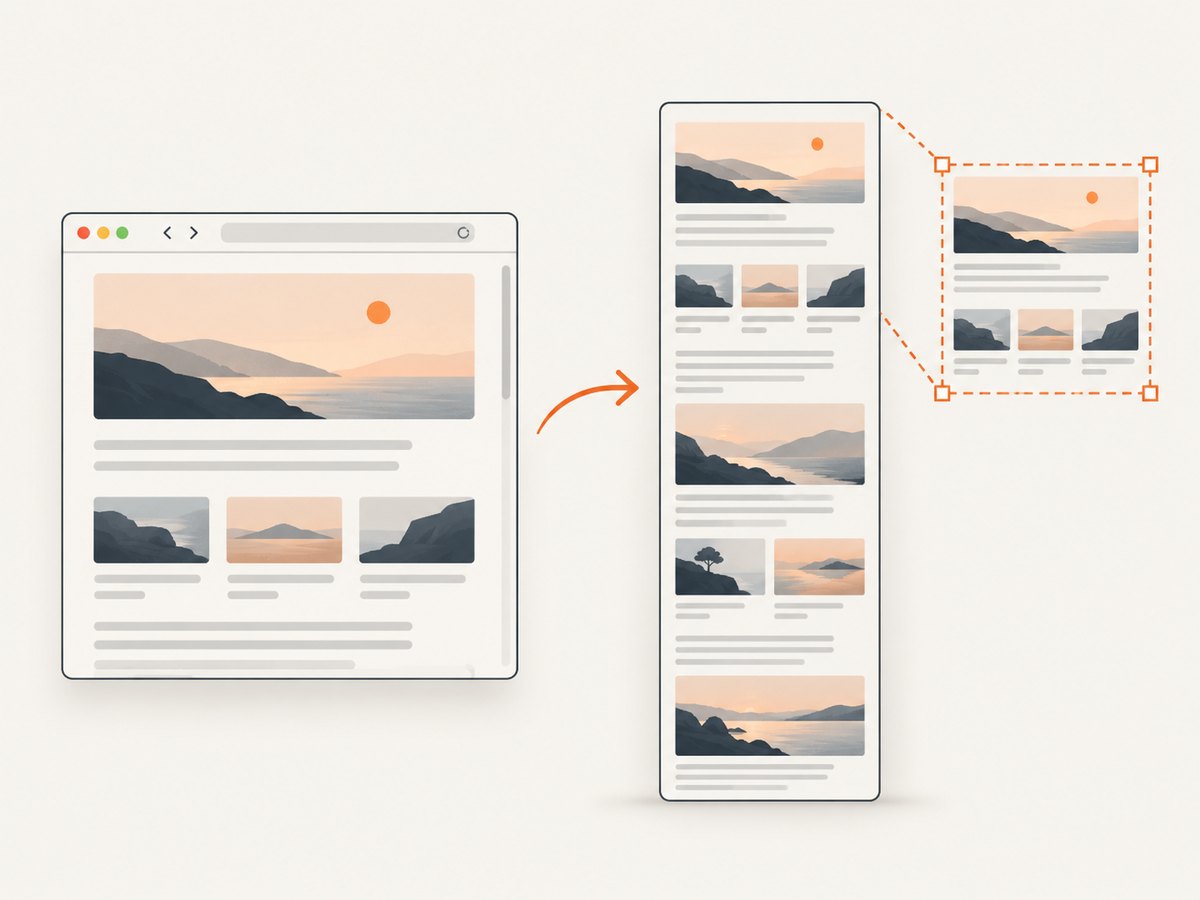
- Inspect the tall preview on the right. Drag the preview to move through the captured page. Use Crop if you want to trim its edges or remove content.
- Choose where to save it: select Save to Photos for an image, or Save PDF to Files for a PDF and then choose a destination.
You can mark up or share a screenshot from the editor too. If you need to highlight information before sending it, add annotations while the capture is open.
2. Choose the right save format
| Goal | Choose | Where to find it |
|---|---|---|
| Keep or share the capture as an image | Save to Photos | Photos app |
| Keep a long document-style capture | Save PDF to Files | Files app, in the folder you select |
The PDF option is useful when you want a portable file you can place in a folder or send as a document. The Photos option is convenient when you want the result alongside your other pictures. Choose before leaving the editor so you know where to look for the file.
Find a saved screenshot
For an image, open Photos, tap Collections, scroll to Media Types, and tap Screenshots. Apple describes this path in its guide to finding screenshots. For a PDF, open Files and browse to the destination you selected when saving.
3. Crop, inspect, and annotate the long capture
A full-page capture can include more than the portion you care about. Before saving, drag through the preview and check the beginning, middle, and end. Use the crop control to trim unwanted edges or sections when the editor allows it. This quick review helps catch a capture that starts too early, ends before the relevant content, or includes a page area you do not want to share.
If the screenshot is meant to explain something, use Markup to add a highlight or note before sharing. Keep in mind that annotations become part of the image or PDF you send. If you want an unmarked original as well, save a clean copy before annotating or take another capture.
4. Start a screenshot without the hardware buttons
If using the button combination is difficult or inconvenient, Apple lists AssistiveTouch, Back Tap, and Siri as alternate ways to initiate a screenshot. These alternatives change how you start the screenshot; you still open the resulting capture in the editor and choose Full Page for the long-page workflow. See Apple’s screenshot guide for its documented options.
When to use each trigger
- Hardware buttons: the direct option when the buttons are easy to reach.
- AssistiveTouch: a touch-based alternative for starting a screenshot.
- Back Tap or Siri: alternatives Apple documents for initiating a screenshot when you prefer not to use the button combination.
The trigger does not determine whether the result is a full-page capture. The important step is selecting Full Page in the editor after the screenshot is taken.
5. Understand what the iPhone workflow is for
The built-in workflow is a good fit when you are capturing a webpage for your own reference, sharing a page as a file, or preserving a long view from Safari. It provides a preview you can inspect and crop, plus image and PDF save choices.
If you are a developer who needs to capture websites from code, automate captures, or produce files on a server, the iPhone workflow is manual and tied to Safari on the device. A website screenshot API is a different kind of tool: your program sends a URL and receives a screenshot or PDF. For one-off personal captures, stay with the built-in iPhone method.
6. Common problems and fixes
Full Page is missing from the editor
Cause: You may not be capturing a supported long-page view, or you may have left the screenshot editor. Apple documents an entire webpage in Safari as the Full Page example.
Fix: Open the webpage in Safari, take a fresh screenshot, tap its thumbnail promptly, and look for Full Page in the editor. If it still does not appear, use a regular screenshot for the visible area or save the content by another method offered by the page.
The screenshot thumbnail disappeared
Cause: The temporary thumbnail was dismissed before you opened the editor.
Fix: Take the screenshot again and tap the thumbnail as soon as it appears. Then choose Full Page.
The capture seems to stop before the end
Cause: Some webpages load content as you scroll, so content farther down may not have been ready when you captured the page.
Fix: Return to the page, scroll through it to let additional sections load, wait for loading to settle, and capture again. Inspect the preview from top to bottom before saving.
You saved it but cannot find it
Cause: The destination depends on which save choice you used.
Fix: Look in Photos under Collections → Media Types → Screenshots for an image. For a PDF, look in Files and check the folder selected in the save dialog.
The PDF is not in Photos
Cause: Save PDF to Files creates a PDF in Files; it is a different destination from Save to Photos.
Fix: Open Files and browse to the folder you chose. If you need an image in Photos instead, capture again and choose Save to Photos.
The saved page includes unwanted content
Cause: The full-page capture includes the webpage area shown in its preview.
Fix: Inspect the preview and use Crop before saving. For a shareable explanation, annotate the capture in Markup, then check the result before sending it.
7. Capture a webpage from code with ScreenshotNeo
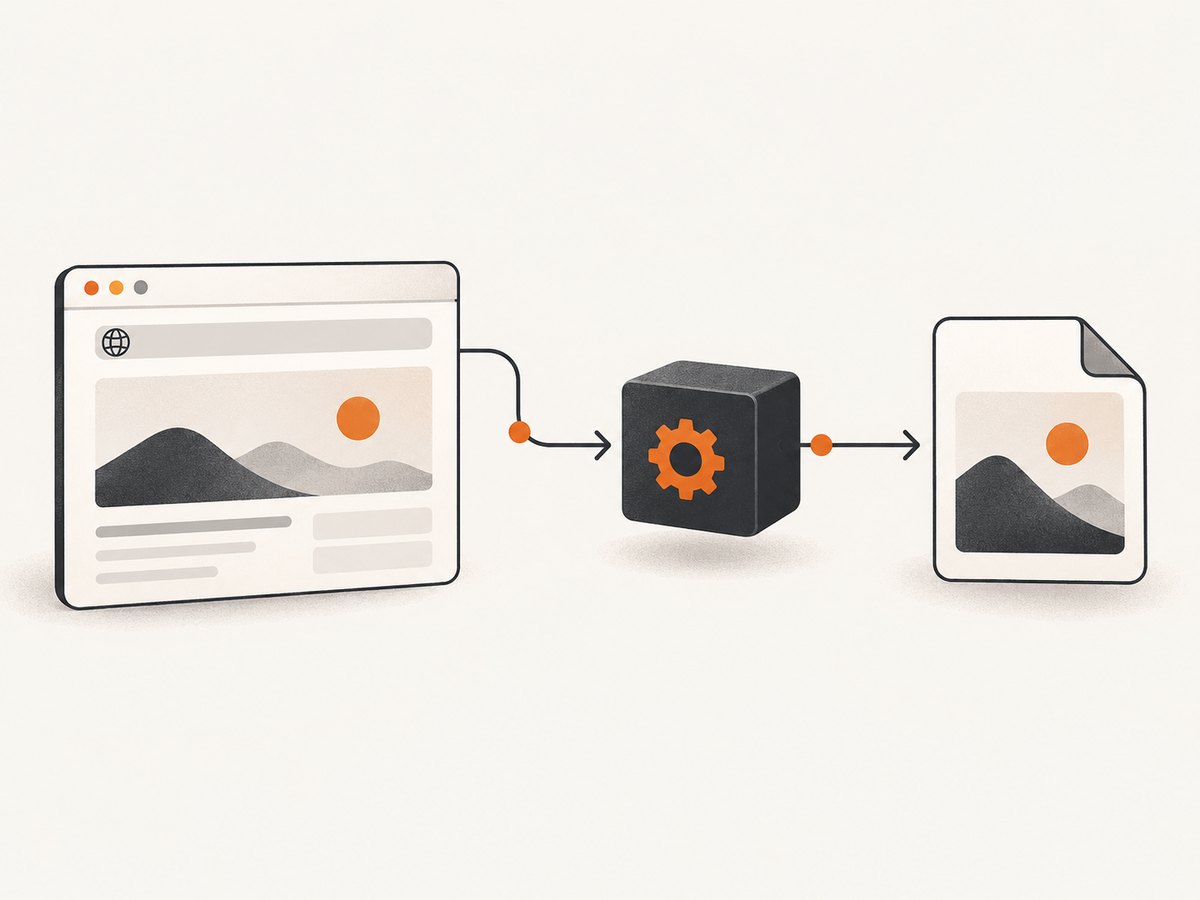
If your actual goal is a repeatable website capture from a developer workflow, ScreenshotNeo is a website screenshot API and MCP server. A single GET request takes a URL and returns an image or PDF. This is for capturing a website with code; it does not operate the iPhone’s Safari editor. See the ScreenshotNeo documentation for API details.
cURL
curl -G "https://api.screenshotneo.com/v1/shot" \
  -d access_key=YOUR_API_KEY \
  --data-urlencode url=https://stripe.com \
  -o shot.webp
Python
import requests

r = requests.get(
    "https://api.screenshotneo.com/v1/shot",
    params={"access_key": "YOUR_API_KEY", "url": "https://stripe.com"},
    timeout=90,
)
open("shot.webp", "wb").write(r.content)
Node.js
const q = new URLSearchParams({
  access_key: 'YOUR_API_KEY',
  url: 'https://stripe.com'
});
const res = await fetch(`https://api.screenshotneo.com/v1/shot?${q}`);
const bytes = Buffer.from(await res.arrayBuffer());
await import('node:fs/promises').then(fs => fs.writeFile('shot.webp', bytes));
In each example, replace YOUR_API_KEY with your API key and change the target URL as needed. The examples save the returned response body as a file. Check the API response and headers as part of a production integration so your application can handle failed captures appropriately.
Or skip the browser setup
Use the same one-call API pattern for a clean webpage capture:
curl -G "https://api.screenshotneo.com/v1/shot" -d access_key=YOUR_API_KEY --data-urlencode url=https://stripe.com -o shot.webpScreenshotNeo removes cookie banners, newsletter popups, and chat widgets before the shot. Bot checks, blank pages, and failed loads are never billed. Its MCP server lets AI agents take screenshots. The Free plan includes 1,000 screenshots a month with no card; paid plans start at $5 for 3,000. The service also supports PDF output, full-page captures, and options such as viewport, device presets, and waiting for a selector. Read the API documentation, then sign up for 1,000 free screenshots a month with no card.
8. Performance, reliability, and cost notes
For iPhone captures
The iPhone method needs no separate screenshot service or API key. It is a manual capture flow: open the page, take the screenshot, review it, and save it. For pages that reveal content during scrolling, allow the page to load and inspect the resulting preview before relying on the file. If accuracy matters, make sure the content you need is visible in the captured preview before saving or sharing.
For automated captures
An API is more suitable when captures need to run from a script or application. Network requests can fail or time out, and pages can return bot checks or blank content, so handle the response instead of assuming every request produced a usable image. ScreenshotNeo identifies page outcomes with X-Page-Verdict and billing status with X-Billed response headers; its stated policy is that only clean shots are billed, while bot checks/CAPTCHAs, blank pages, timeouts, failed loads, and cache hits cost nothing. See the documentation for the current request and response details.
ScreenshotNeo’s listed monthly plans are Free: 1,000 shots; Starter: $5 for 3,000; Growth: $15 for 15,000; Pro: $39 for 60,000; Scale: $99 for 250,000; and Business: $249 for 1,000,000. Yearly billing gives two months free, and every feature is on every plan. Choose a plan based on expected capture volume and check the service’s current plan details before integrating it into a budget.
9. FAQ
Can I screenshot a whole webpage on an iPhone?
Yes. Apple documents Safari’s Full Page option in the screenshot editor for capturing an entire webpage.
Does a scrolling screenshot save as an image or PDF?
You can choose Save to Photos for an image or Save PDF to Files for a PDF.
Do I have to scroll manually while taking the screenshot?
No. Take a screenshot, open the editor, and select Full Page. You can drag the preview afterward to inspect the capture.
Can I capture a full webpage from an iPhone app?
The documented example is an entire webpage in Safari. If Full Page does not appear for the content you captured, use the available capture method for that app or content.
Can I automate screenshots of websites?
Yes, a screenshot API can capture a URL from code. ScreenshotNeo provides a GET endpoint, an MCP server, and a free plan with 1,000 shots a month; see its documentation.


