How to Capture a Screenshot Without the Browser Window Border
Capture a webpage without tabs or browser chrome using Chrome DevTools, Firefox, or headless Chrome. Includes full-page, element, and scripted options.
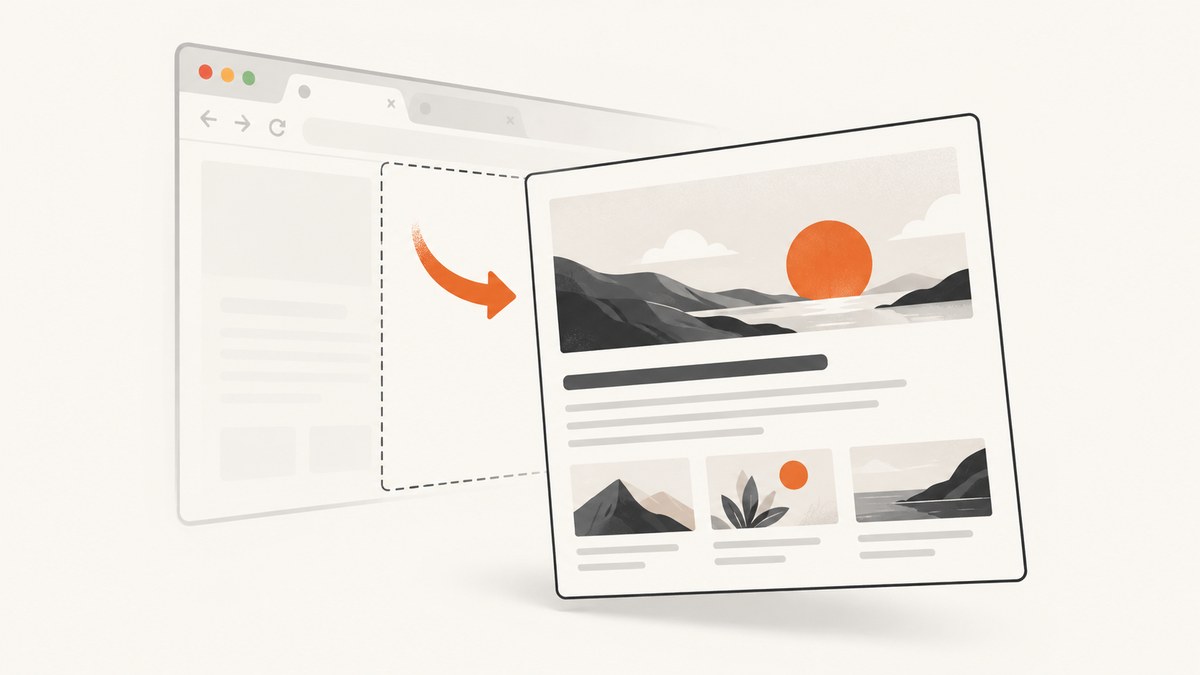
To capture a webpage without the browser window border, capture the page from the browser instead of taking a screenshot of your desktop. In Chrome, open DevTools and choose Capture screenshot for the visible viewport or Capture full size screenshot for the whole page. In Firefox, right-click an empty part of the page, choose Take Screenshot, then choose Save visible or Save full page. These methods capture webpage content without the tabs, toolbar, or window frame.
Why desktop screenshots include a browser border
Operating-system screenshot shortcuts capture pixels from the display or selected window. If the browser window is included in the selection, its title bar, tabs, toolbar, and sometimes its shadow are included too. Browser screenshot tools use page boundaries such as the viewport, full page, a selected region, or a DOM element, so the browser frame is outside the capture. Chrome and Mozilla document these page capture modes in their respective guides: Chrome DevTools, Firefox screenshots, and Firefox Developer Tools screenshots.
Capture a screenshot in Chrome DevTools
- Open the page you want to capture.
- Open DevTools from Chrome’s menu, or use F12 / Ctrl+Shift+I on Windows and Linux, or Command+Option+I on macOS.
- Open the DevTools Command Menu with Ctrl+Shift+P on Windows/Linux or Command+Shift+P on macOS.
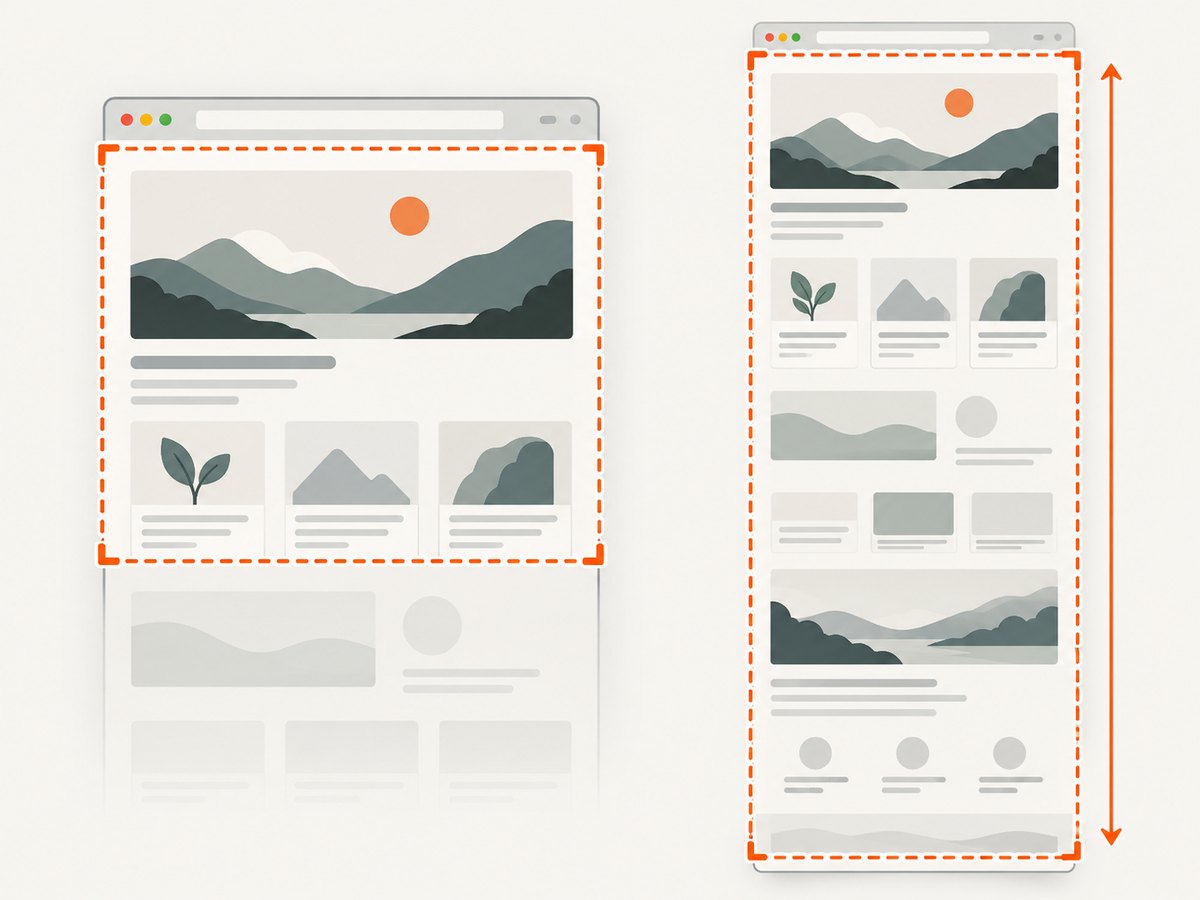
- Search for Capture screenshot and select it for the currently visible viewport. Choose Capture full size screenshot to include content below the fold.
- Save the resulting image from the download prompt.
To capture at a particular viewport size, enable Device Toolbar in DevTools, enter the desired width and height, and then take the screenshot. The viewport setting controls the page’s responsive layout; it does not add browser chrome to the image. Full-page capture can produce a very tall image, so use viewport capture when you only need the visible screen.
Capture a screenshot in Firefox
- Open the page and right-click an empty area of it.
- Choose Take Screenshot, or press Ctrl+Shift+S on Windows/Linux or Command+Shift+S on macOS.
- Choose a highlighted page part, drag to select a region, or choose Save visible or Save full page.
- Select Download to save a PNG, or Copy to copy it to the clipboard.
For just one element, open Firefox Developer Tools, inspect the element, right-click its node in the Inspector’s HTML pane, and choose Screenshot Node. Firefox’s Web Console also provides the :screenshot helper. Useful options include --clipboard, --delay, --dpr, --filename, --fullpage, and --selector; consult the Firefox screenshot documentation for current syntax and behavior.
Capture from the command line with headless Chrome
Headless Chrome captures a page without opening a visible browser window. This is useful for repeat captures, scripts, and build jobs. The following command writes screenshot.png in the current directory:
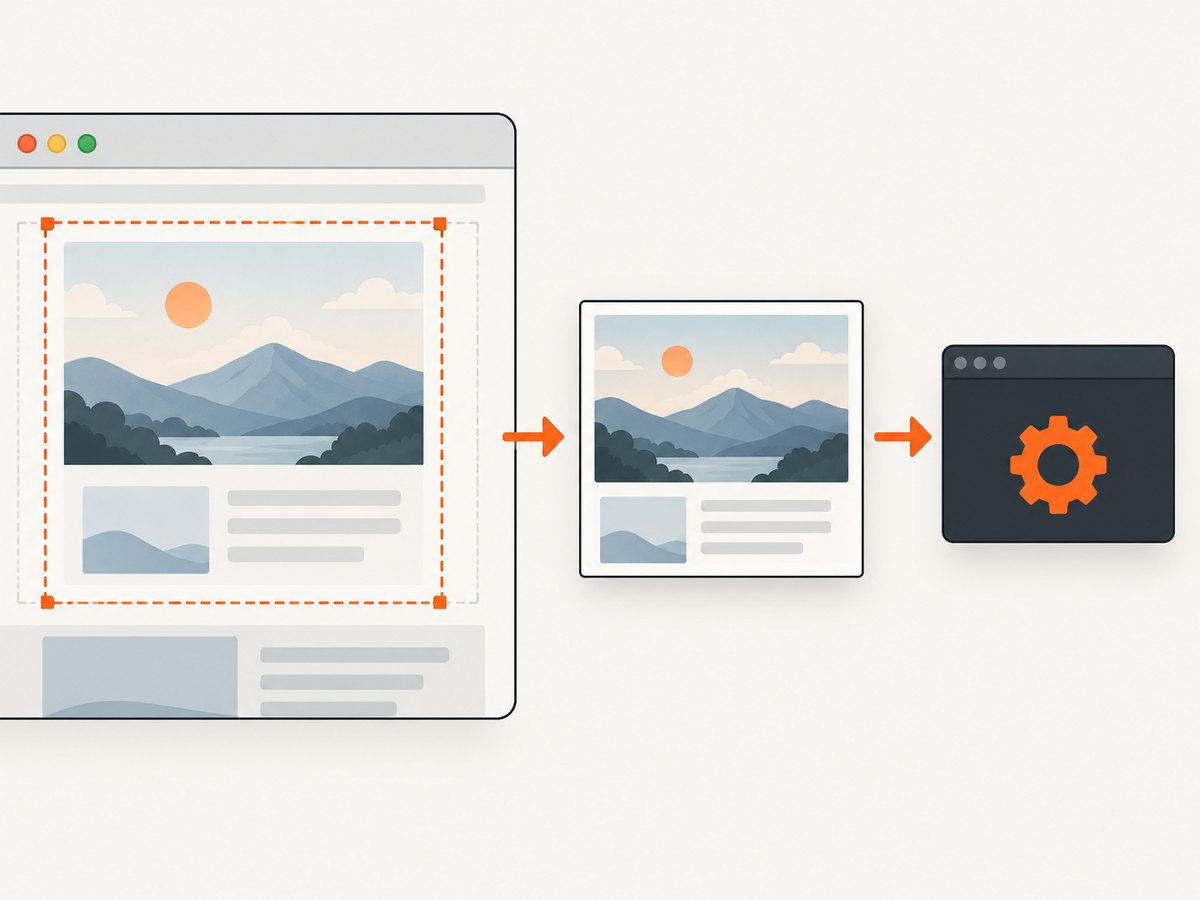
chrome --headless --disable-gpu --screenshot https://example.com/Set a viewport explicitly with --window-size=WIDTH,HEIGHT:
chrome --headless --disable-gpu --screenshot --window-size=1280,900 https://example.com/On some systems the executable is named google-chrome, google-chrome-stable, or chromium instead of chrome. Replace the executable name with the one installed on your system. Chrome’s official Headless Chrome command-line documentation describes the screenshot flag.
Choose the capture boundary
| Need | Method | What it captures |
|---|---|---|
| What is on screen now | Chrome viewport capture or Firefox Save visible | The current viewport, excluding browser controls. |
| The entire scrolling page | Chrome full-size capture or Firefox Save full page | Page content beyond the fold; output can be very tall. |
| One card, image, or DOM node | Firefox Screenshot Node or :screenshot --selector |
The selected element rather than the surrounding page. |
| A scripted repeat capture | Headless Chrome --screenshot |
A page rendered at the selected window size. |
| Paste directly into another app | Firefox screenshot Copy | The selected capture on the clipboard. |
Make the result consistent
- Set the viewport deliberately. Responsive pages can rearrange at different widths. Use Device Toolbar in Chrome or headless Chrome’s
--window-size=WIDTH,HEIGHTfor reproducible dimensions. - Wait for the page to settle. Let fonts, images, animations, and asynchronous content load before capturing. A page that is still rendering may produce missing or shifted content.
- Check the entire-page output. Lazy-loaded images may appear only after scrolling. For a manual full-page capture, scroll through the page first if content is missing, then capture again.
- Use an element capture for a single component. Cropping an element from a full-page image can leave unnecessary whitespace or include nearby content.
- Check the output format and destination. Firefox downloads a PNG or copies the image; headless Chrome writes
screenshot.pngin the working directory. Rename or convert it if your workflow requires another format.
Or skip the browser setup
ScreenshotNeo is a website screenshot API and MCP server from ScreenshotNeo. One GET request captures a URL as PNG, JPEG, WebP, or PDF. See the API documentation for request options.
curl -G "https://api.screenshotneo.com/v1/shot" -d access_key=YOUR_API_KEY --data-urlencode url=https://stripe.com -o shot.webpimport requests
r = requests.get("https://api.screenshotneo.com/v1/shot", params={"access_key": "YOUR_API_KEY", "url": "https://stripe.com"}, timeout=90)
open("shot.webp", "wb").write(r.content)const q = new URLSearchParams({ access_key: 'YOUR_API_KEY', url: 'https://stripe.com' });
const res = await fetch(`https://api.screenshotneo.com/v1/shot?${q}`);- Cookie banners and consent overlays, newsletter popups, and chat widgets are removed before the shot; each cleanup step can be turned off.
- Bot checks, blank pages, timeouts, failed loads, and cache hits are not billed. Response headers report the page verdict and billing status.
- An MCP server gives AI agents tools to take screenshots, get page information, and capture PDFs.
- The Free plan includes 1,000 screenshots a month with no card. Paid plans start at $5 for 3,000 shots; every feature is available on every plan.
Sign up for free: get 1,000 screenshots a month with no card.
Troubleshooting
| Problem | Likely cause | Fix |
|---|---|---|
| The screenshot contains tabs or a toolbar. | A desktop or window screenshot was taken. | Capture through Chrome DevTools, Firefox Screenshots, or headless Chrome instead. |
| The page is cut off below the fold. | The command captured only the viewport, or the full-page option was not selected. | Use Capture full size screenshot in Chrome or Save full page in Firefox. |
| Images are missing in a full-page capture. | Lazy-loaded content may not have loaded until the page was scrolled into view. | Scroll through the page, wait for images to appear, then capture again. |
| The screenshot has the wrong layout. | The page rendered at a different responsive viewport width or height. | Set the desired dimensions in Device Toolbar or with headless Chrome’s --window-size. |
| The command reports that Chrome cannot be found. | The installed browser executable has a different name or is not on PATH. | Use the installed executable name, such as google-chrome or chromium, or provide its full path. |
| The file is not where expected. | Headless Chrome writes the output in the command’s current working directory. | Check that directory after running the command; run it from the folder where you want the screenshot saved. |
| Fonts or dynamic content look incomplete. | The capture started before the page finished loading or updating. | Wait for the content to settle and retry. For scripted flows, add an explicit wait in the automation that controls the page. |
Performance, reliability, and cost
For an occasional manual capture, browser tools have no service charge and require no setup beyond the browser. Headless Chrome is convenient for automation, but each capture still requires the page to load and render; large pages and slow resources take longer. Full-page images use more memory and disk space than viewport captures, and very tall pages may be unwieldy to share. Fixing the viewport and waiting for page content to settle improves repeatability. For repeated capture jobs, handle navigation failures and retry only when appropriate so a transient site problem does not silently produce an incomplete image.
ScreenshotNeo is a paid API option when you need a managed capture endpoint: the Free tier provides 1,000 shots monthly, Starter is $5 for 3,000, Growth $15 for 15,000, Pro $39 for 60,000, Scale $99 for 250,000, and Business $249 for 1,000,000. Yearly billing gives two months free. Its billing rules exclude bot checks/CAPTCHAs, blank pages, timeouts, failed loads, and cache hits; check the response’s billing headers when accounting for individual requests.
FAQ
Does this capture the browser window invisibly?
No. These methods capture webpage content from the browser’s rendering, so the browser frame is not part of the image.
Can I screenshot only one element?
Yes. Firefox Developer Tools offers Screenshot Node in the Inspector’s element context menu, and Firefox’s :screenshot helper supports a selector.
Which option should I use for a quick capture?
Use the browser’s built-in screenshot feature: Chrome DevTools for its viewport/full-size choices or Firefox for visible, full-page, region, and clipboard capture.


