How to Take Screenshots of Internationalized URLs
Capture Unicode domains, paths, and browser URL evidence correctly with Playwright, OS screenshots, and ScreenshotNeo.
Direct answer: Navigate to the exact Unicode URL, wait for the page state you need, and capture the viewport, full page, or target element with browser automation. If the evidence must include the browser’s visible URL, take a separate whole-window or operating-system screenshot that includes the address bar. A page screenshot alone does not prove what the address bar displayed.
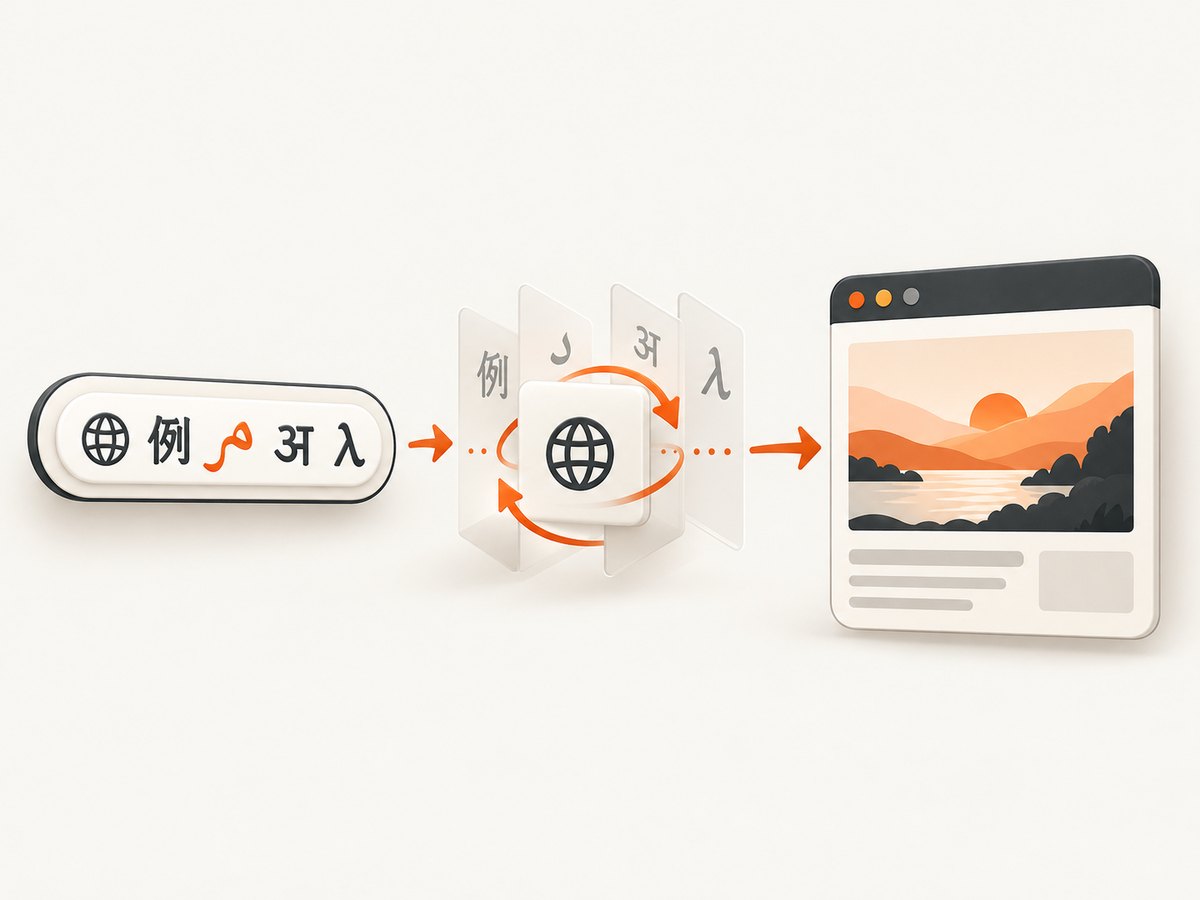
Internationalized URLs can contain non-ASCII characters in the hostname, path, or query. The hostname is processed with IDNA: for example, Bücher.de becomes xn--bcher-kva.de for DNS, while a browser may render bücher.de again. Browser display policies differ, and Chrome can fall back to Punycode when Unicode could look deceptive. Treat the URL input, resolved hostname, serialized URL, and visible address-bar text as separate evidence.
1. Decide what the screenshot must prove
- Rendered page: capture the viewport after navigation and required waits.
- Complete page: use a full-page capture that includes the scrollable document.
- One component: capture a locator or CSS-selected element.
- Browser-visible URL: capture the browser window or OS screen with browser chrome and the address bar visible.
Keep page captures and address-bar captures as separate files or clearly labeled figures. This prevents a reader from assuming that a page image contains browser chrome.
2. Understand the URL representations
| Representation | Purpose | Example |
|---|---|---|
| Unicode input | The URL a person types or your test supplies | https://Bücher.de/über uns |
| ASCII hostname | DNS-compatible IDNA/Punycode form | xn--bcher-kva.de |
| Serialized URI | Percent-encoded form used for interoperability | UTF-8 bytes represented as %HH sequences where required |
| Visible browser URL | What the browser chooses to display in its address bar | Unicode or an xn-- form, depending on policy |
Unicode UTS #46 documents mapping, validation, and the Bücher.de conversion example (Unicode UTS #46). The WHATWG URL Standard warns that internationalized domain names, special characters, and bidirectional text need care to prevent spoofing (URL Standard security considerations). Chromium documents when its UI chooses Unicode or Punycode display (Chromium URL display guidelines).
3. Capture the page with Playwright
The following Node.js script captures a viewport, a full page, and a selected element. It records the URL supplied to the browser and the final URL after redirects.
import { chromium } from 'playwright';

const inputUrl = 'https://例え.テスト/製品?検索=カメラ';
const browser = await chromium.launch();
const page = await browser.newPage({
  viewport: { width: 1440, height: 900 },
  deviceScaleFactor: 1
});

try {
  await page.goto(inputUrl, { waitUntil: 'domcontentloaded', timeout: 60000 });
  await page.waitForLoadState('networkidle', { timeout: 30000 }).catch(() => {});

  console.log(JSON.stringify({
    inputUrl,
    finalUrl: page.url(),
    title: await page.title()
  }, null, 2));

  await page.screenshot({ path: 'viewport.png' });
  await page.screenshot({ path: 'full-page.png', fullPage: true });

  const target = page.locator('main').first();
  if (await target.count()) {
    await target.screenshot({ path: 'main-element.png' });
  }
} finally {
  await browser.close();
}
Playwright documents viewport, full-page, element, and buffer screenshot APIs (Playwright screenshots). Use a fixed viewport and device scale factor when comparing captures across runs.
Wait for the state you need
- Use
domcontentloadedfor an early, deterministic baseline. - Use
networkidleonly when the page’s background requests eventually settle; analytics or live feeds can prevent it. - Wait for a meaningful selector such as
[data-testid="article"]when content is rendered by JavaScript. - Add a bounded delay for animations, web fonts, or lazy images, then inspect the result.
4. Capture the address bar when URL evidence matters
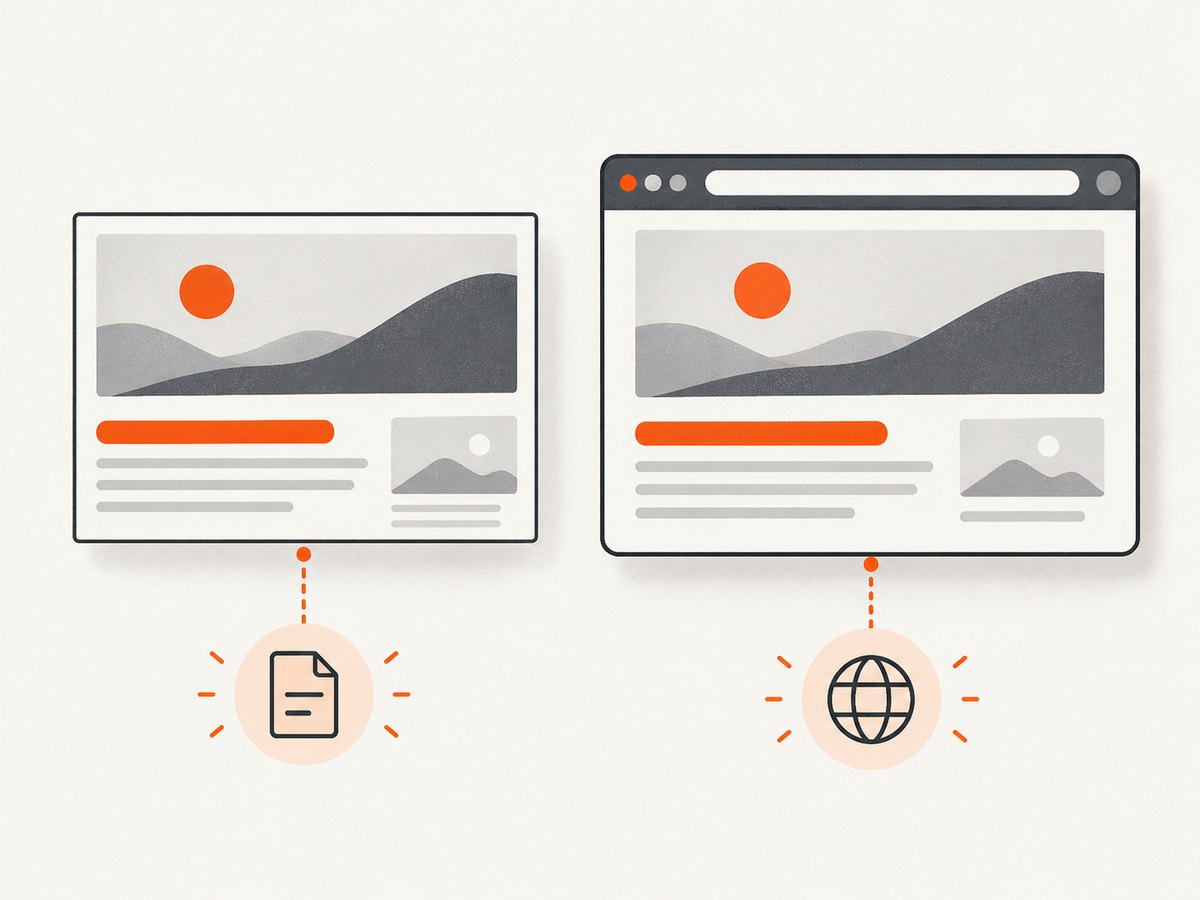
Playwright’s page screenshot captures the document, not the browser’s tab strip or address bar. Use your operating system’s whole-window capture facility or a browser automation setup that exposes browser chrome. The exact controls vary by operating system and browser version, so record the browser and OS instead of relying on an undocumented menu path.
- Open the exact Unicode URL in the browser you are documenting.
- Wait until redirects and navigation finish.
- Ensure the address bar is visible and wide enough to show the relevant host and path.
- Capture the whole browser window, including its chrome.
- Save the page capture and window capture with captions that state what each proves.
For reproducibility, record the browser name and version, operating system, capture-tool version, viewport, device scale, exact Unicode input, final serialized URL, and any visible xn-- hostname. Clipboard copying can also produce percent-encoded URL text in some browsers; Unicode UTS #58 describes this behavior (Unicode UTS #58).
5. Handle Unicode in paths and queries
Hostname processing and path/query encoding are separate operations. An internationalized path such as /über uns may be serialized with UTF-8 percent encoding, while an IDN hostname is converted with IDNA. RFC 3987 explains IRI-to-URI conversion and domain-label handling (RFC 3987).
const url = new URL('https://Bücher.de/über uns?café=ja');
console.log('hostname:', url.hostname);
console.log('href:', url.href);
console.log('pathname:', url.pathname);
console.log('search:', url.search);
Do not compare only the text visible in an address bar. Compare the normalized URL fields and preserve the original input in your test metadata.
6. Bidirectional text, homoglyphs, and visual checks
Right-to-left characters can make the boundary between hostname and path difficult to see. Visually similar characters from different scripts can also create homoglyph confusion. Inspect the saved image at its original resolution and verify:
- The hostname boundary is legible.
- The relevant path and query are not clipped.
- Fonts cover every script used by the page and URL.
- No browser security indicator or redirect changes the site you intended to capture.
- The caption identifies which portion is the hostname and which is the path.
7. Or skip the browser setup
ScreenshotNeo captures a URL with one GET request and returns PNG, JPEG, WebP, or PDF. Its URL and capture options support full-page, element, viewport, waits, custom headers and cookies, user agents, timezone, geolocation, JavaScript, CSS, and device settings. See the ScreenshotNeo API documentation for the complete option list.
curl -G "https://api.screenshotneo.com/v1/shot" -d access_key=YOUR_API_KEY --data-urlencode url=https://Bücher.de/über%20uns -o shot.webpimport requests
r = requests.get(
"https://api.screenshotneo.com/v1/shot",
params={"access_key": "YOUR_API_KEY", "url": "https://Bücher.de/über%20uns"},
timeout=90,
)
r.raise_for_status()
open("shot.webp", "wb").write(r.content)const q = new URLSearchParams({ access_key: 'YOUR_API_KEY', url: 'https://Bücher.de/über%20uns' });
const res = await fetch(`https://api.screenshotneo.com/v1/shot?${q}`);
if (!res.ok) throw new Error(`HTTP ${res.status}`);
const bytes = new Uint8Array(await res.arrayBuffer());
await Bun.write('shot.webp', bytes);ScreenshotNeo accepts the consent banner like a visitor and removes more than 60 known consent platforms, newsletter popups, and chat widgets before capture; each step can be disabled. Bot checks, blank pages, timeouts, failed loads, and cache hits are not billed, and the response reports the result with X-Page-Verdict and X-Billed headers. Its MCP server provides take_screenshot, get_page_info, and capture_pdf tools for Claude, Cursor, and other MCP clients.
The Free plan includes 1,000 screenshots per month with no card. Paid plans start at $5 for 3,000 screenshots; yearly billing gives two months free. Create a free ScreenshotNeo account.
8. Troubleshooting
| Symptom | Likely cause | Fix |
|---|---|---|
The address bar shows xn-- |
Browser IDN safety display policy | Record both the Unicode input and visible form; do not treat Punycode as a failed navigation. |
| Unicode path appears percent-encoded | URI serialization or clipboard behavior | Compare decoded URL components and preserve the original input separately. |
| Page is blank | Capture occurred before client rendering or navigation failed | Wait for a content selector, inspect console/network errors, and verify the final URL. |
| Full-page image cuts off content | Lazy content or late layout shifts | Scroll or wait for the relevant selector before using fullPage; capture again after fonts load. |
| Element screenshot fails | Selector matches nothing, is hidden, or is inside a frame | Check the locator count, wait for visibility, and target the correct frame. |
| Hostname and path are hard to distinguish | Bidirectional text or narrow address bar | Widen the window, use a higher-resolution whole-window capture, and label the host/path in metadata. |
| ScreenshotNeo response is not an image | Authentication, invalid URL, or page verdict | Check HTTP status and X-Page-Verdict/X-Billed headers before writing the body to a file. |
9. Performance, reliability, and cost
- Performance: viewport captures are smaller and faster than full-page images. Use element captures when only one component is needed. Reuse a browser context for batches, but isolate tests that require different cookies, locales, or geolocation.
- Reliability: pin browser and automation versions, set explicit timeouts, wait on selectors rather than arbitrary long sleeps, and retain input and final URLs with every artifact.
- Determinism: fix viewport, device scale, timezone, locale, fonts, and color scheme. Disable animations where they affect the comparison.
- Cost: self-hosted Playwright costs compute and browser maintenance. ScreenshotNeo offers caching with a chosen TTL, bulk capture of up to 100 URLs per call, asynchronous jobs with signed webhooks, and usage reporting. Failed loads and cache hits are not billed.
10. Practical checklist
- Define whether you need page pixels, an element, a full page, or address-bar evidence.
- Store the exact Unicode URL input.
- Record the final URL after redirects and its serialized form.
- Use a fixed viewport and device scale.
- Wait for the content state that matters.
- Capture browser chrome separately when proving visible URL text.
- Inspect scripts, bidi text, fonts, clipping, and lazy content.
- Caption each artifact with browser, OS, tool version, and capture settings.
FAQ
Does a page screenshot show the URL?
No. A page screenshot shows the document. Capture the whole browser window when the address bar is evidence.
Is an xn-- hostname an error?
No. It is the ASCII Punycode representation used for DNS or selected by a browser’s safety display policy.
Should I convert every Unicode URL to Punycode first?
No. Supply the intended Unicode URL to the browser or capture service, then record the normalized and serialized forms for reproducibility.
Can automation prove what a user saw in the address bar?
Only a capture that includes browser chrome can show that visible presentation. Page APIs alone cannot establish it.
Can I capture an internationalized URL as a PDF?
Yes. Browser print/PDF workflows and ScreenshotNeo’s capture_pdf tool can capture page content, but a PDF still does not include the browser address bar unless you separately capture the window.


