Are Screenshots JPG or PNG? Image Formats Explained
Screenshots can be PNG, JPEG, HEIF, or another format depending on the device and capture settings. Learn which format to choose, how to convert images, and what to check before sharing or submitting them.
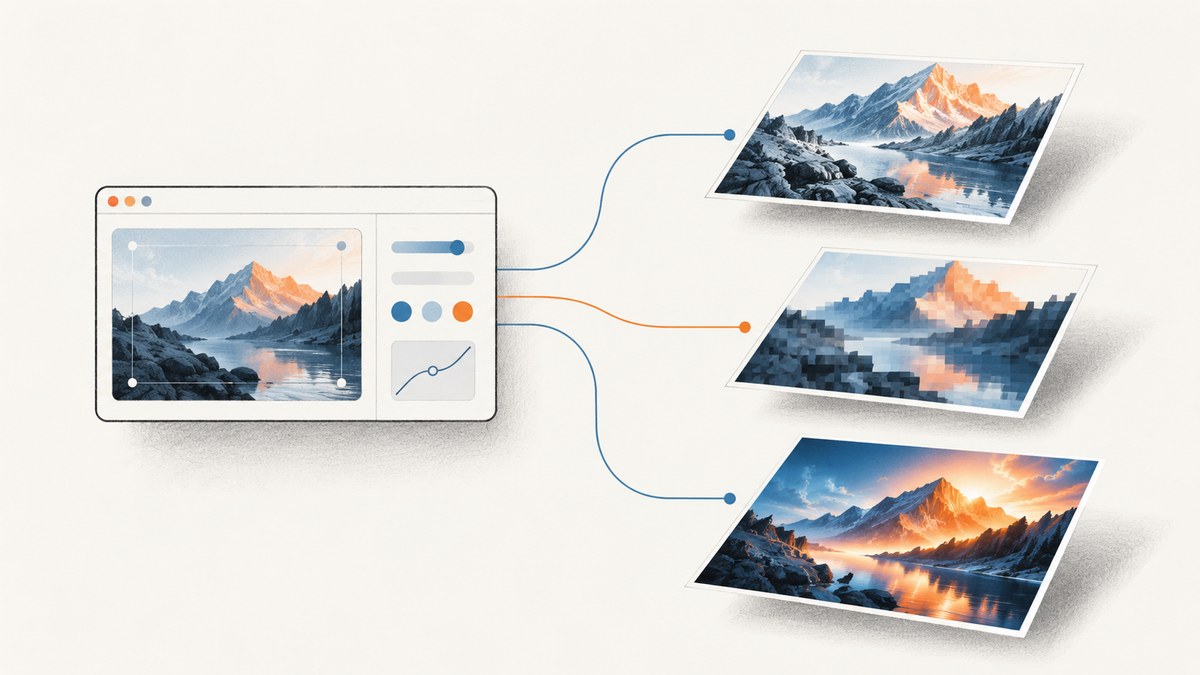
Screenshots can be PNG, JPEG (often named JPG), HEIF, or another format. The device, capture method, and settings determine what gets saved. On iPhone, Apple documents PNG for SDR captures and HEIF for HDR captures; Android’s documented HDR screenshot pipeline encodes PNG for compatibility. On Mac, Apple’s ScreenCaptureKit API offers HEIC, JPEG, and PNG as format choices. There is no universal screenshot format.
For a screenshot dominated by text, icons, and sharp interface edges, PNG is a sensible default because it preserves those details without lossy compression. Choose JPEG when a workflow requires it or a smaller file is important and some image loss is acceptable. If HDR matters, check both the capture format and whether the recipient can view HDR. Always check the destination’s upload requirements.
1. What do JPG and PNG mean?
JPG and JPEG are filename extensions commonly used for images encoded with the JPEG format. The three-letter extension became common where file systems limited extension length; .jpg and .jpeg both identify JPEG files. A filename ending in .jpg does not by itself tell you which app created the image or what settings it used.
JPEG uses lossy compression: encoding or re-saving an image can discard information. The amount depends on the encoder and quality setting. If crisp text, thin lines, or exact pixel values matter, avoid repeatedly opening and saving a screenshot as JPEG. Keep an original copy before converting.
PNG is a lossless image format. It is a practical fit for interface screenshots because it can preserve crisp boundaries and text without the generation loss associated with JPEG. That does not mean every PNG is smaller, or that every screenshot must be PNG. Dimensions, image content, encoder settings, and the receiving service all matter. Apple’s image guidance recommends PNG for bitmap interface imagery and JPEG or HEIC for photographs.
2. Why are screenshots often PNG?
A screen interface contains large areas of flat color, small glyphs, icons, and sharp edges. Lossy compression can introduce visible artifacts around those edges, while PNG preserves the encoded pixels. This makes PNG a straightforward choice for software UI captures, documentation, bug reports, and designs where clarity matters.
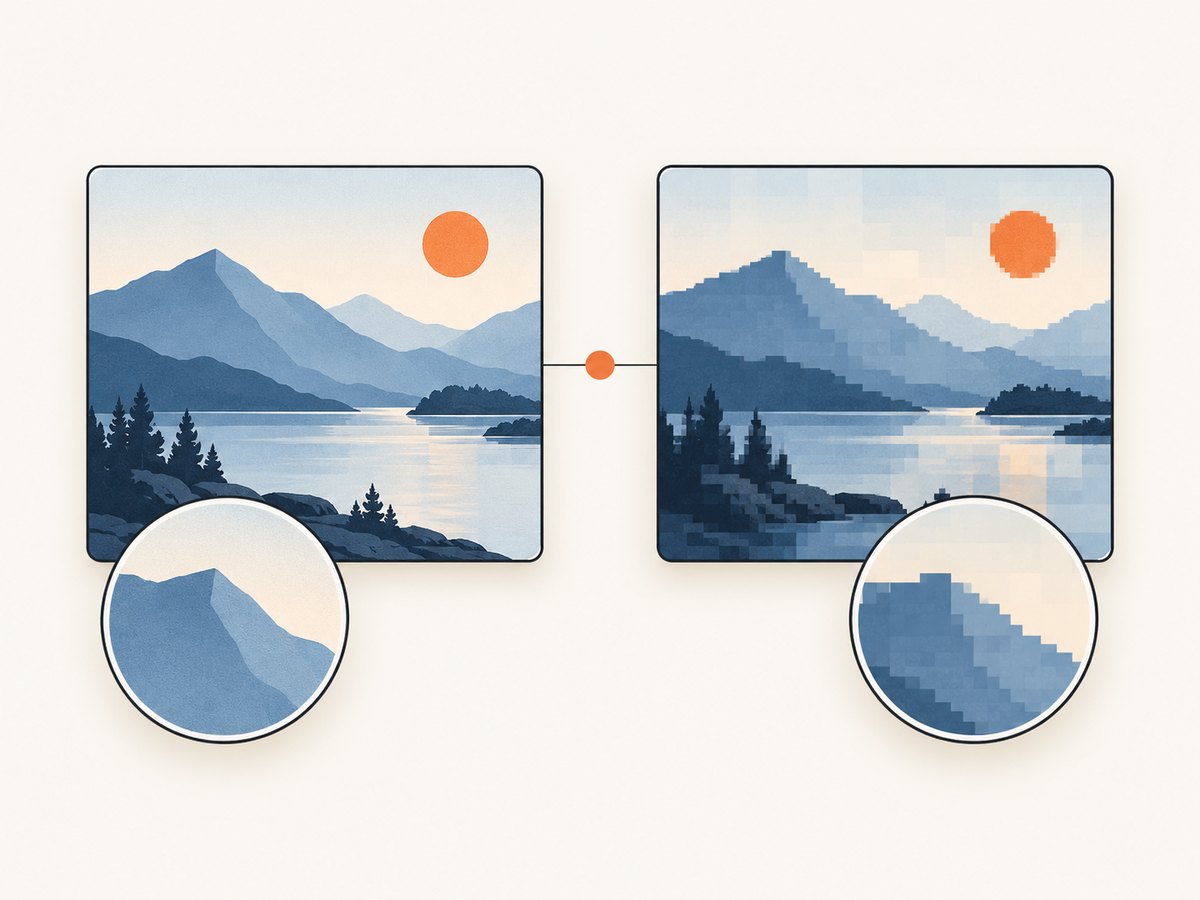
PNG is not automatically the best choice for every purpose. A large full-page capture can produce a substantial file, and a destination may insist on JPEG or have a size limit. In that case, convert a copy and inspect the result at its intended display size. Do not promise that conversion will preserve the original exactly.
3. Which format does each platform use?
iPhone
Apple says iPhone screenshots use PNG in SDR mode and HEIF in HDR mode. The screen capture settings include SDR and HDR. HDR screenshots can preserve brighter highlights and a wider range of color, but an HDR display is needed to show their full quality; on a standard display they appear in SDR. Check the phone’s current setting and the actual saved file rather than assuming every screenshot from one device has the same extension. Apple’s iPhone screen capture settings describe the behavior.
Mac and Apple capture APIs
Apple’s ScreenCaptureKit screenshot configuration exposes HEIC, JPEG, and PNG as content type choices. That is an API capability, not a promise that every Mac capture tool uses a particular default. The app or capture code decides what to write. ScreenCaptureKit’s content type documentation lists the available choices.
Android
The Android Open Source Project documents an HDR screenshot pipeline that continues to encode screenshots as PNG for backward compatibility with systems that ingest PNG screenshots. Its described flow stores an SDR base rendition and gainmap in a PNG file. This describes that HDR pipeline; it should not be generalized to every Android version, device, or third-party screenshot app. See Android’s HDR screenshot documentation.
Windows
Windows has multiple capture methods and applications. The research available for this article did not verify one current default that applies across Snipping Tool, Game Bar, and third-party tools. Check the selected app’s save dialog, settings, and resulting file. If a format requirement matters, explicitly choose or convert to an accepted format.
4. Choose a format for the job
| Need | Practical choice | What to check |
|---|---|---|
| Readable UI, text, diagrams, crisp edges | PNG | File size and destination limits |
| Upload workflow explicitly requires JPEG | JPEG/JPG copy | Inspect text and edges after conversion; retain original |
| Photographic content | JPEG or HEIC may fit | Recipient support and quality settings |
| HDR brightness and color | A supported HDR capture path, often HEIF on iPhone | Recipient format support and HDR display |
| App Store Connect submission | .jpeg, .jpg, or .png | No alpha channel or transparency is allowed |
Apple’s App Store Connect specifications accept .jpeg, .jpg, and .png screenshots and prohibit alpha channels or transparency. This is a submission requirement, not evidence of the default format on an iPhone or Mac. Confirm current requirements for the specific destination before preparing a batch. Apple’s screenshot specifications provide the rule.
5. Identify the format of an existing screenshot
- Look at the filename extension. Treat it as a clue, not proof: files can be renamed without changing their encoded format.
- Inspect the image properties in your operating system or image editor. Look for the format, dimensions, color profile, and transparency information.
- For automated workflows, inspect the file’s decoded format or signature with an image library rather than trusting the extension.
- Check whether the image is HDR if preserving HDR appearance is part of the task; an extension alone may not tell you how the receiver will render it.
When an upload rejects an image, verify both the actual encoding and the destination’s rules. A file named capture.png that contains JPEG data may be rejected, as may a valid PNG with transparency when transparency is prohibited.
6. Convert screenshots without surprises
Use an image editor or command-line image utility that supports the source and target formats. Preserve the original, convert a copy, and review the result at the size people will see it. JPEG conversion is lossy, so select an appropriate quality setting when your tool exposes one. Converting HDR imagery to a non-HDR format or viewing path can change how brightness and color appear.
For a submission or upload, follow the destination’s exact format, dimensions, and transparency rules. For sharing a UI bug, PNG is usually a good starting point. If file size is the problem, first check whether the image is unnecessarily large in pixel dimensions; resizing changes detail, so retain the full-resolution original when it may be needed.
7. Capture a website screenshot with a chosen output format
A browser capture workflow has two separate choices: how to render the page and what image encoding to return. With Playwright, use a PNG screenshot for sharp interface content, or use its JPEG option and quality setting when that fits the destination. The example below is runnable with Node.js and Playwright. It captures a full page, waits for the page’s load event, and writes a PNG file.
import { chromium } from 'playwright';

const browser = await chromium.launch({ headless: true });
const page = await browser.newPage({
  viewport: { width: 1440, height: 1000 },
  deviceScaleFactor: 1
});

try {
  await page.goto('https://example.com', {
    waitUntil: 'load',
    timeout: 30000
  });
  await page.screenshot({ path: 'page.png', fullPage: true });
} finally {
  await browser.close();
}
To save JPEG instead, replace the screenshot line with await page.screenshot({ path: 'page.jpg', type: 'jpeg', quality: 85, fullPage: true });. The quality value is a workflow setting, not a universal recommendation; inspect the result for artifacts. For a viewport-only shot, omit fullPage: true. For a crisp high-density capture, set deviceScaleFactor to 2, but expect more pixels and a larger output. Browser capture format support and options are documented in Playwright’s screenshot guide.
Capture choices to make explicit
- Viewport or full page: full-page captures can be tall and large; some pages load content only as you scroll.
- Scale: a larger device scale factor increases pixel dimensions and may improve fine detail, at a storage and processing cost.
- Readiness:
loaddoes not guarantee that client-rendered content or late images have finished. Wait for a relevant selector or application state when needed. - Fonts and animation: fonts may shift layout if they arrive late; animations can make repeated captures differ. Wait for stable content or disable animation in the page when appropriate.
- Cookies and access: capture the intended consent state. Pages behind authentication need a legitimate session or configured credentials.
- Output: choose PNG or JPEG intentionally and name the file accordingly. Avoid renaming one format to another without encoding it.
8. Or skip the browser setup
ScreenshotNeo is a website screenshot API and MCP server. One GET request can return a PNG, JPEG, WebP, or PDF. Use the format parameter appropriate to your capture; see the ScreenshotNeo API documentation for supported parameter names and options. The basic request below uses the provided API example and saves the response body.
curl -G "https://api.screenshotneo.com/v1/shot" \
  -d access_key=YOUR_API_KEY \
  --data-urlencode url=https://stripe.com \
  -o shot.webp
import requests
r = requests.get(
"https://api.screenshotneo.com/v1/shot",
params={"access_key": "YOUR_API_KEY", "url": "https://stripe.com"},
timeout=90
)
open("shot.webp", "wb").write(r.content)const q = new URLSearchParams({
access_key: 'YOUR_API_KEY',
url: 'https://stripe.com'
});
const res = await fetch(`https://api.screenshotneo.com/v1/shot?${q}`);
if (!res.ok) throw new Error(`Screenshot request failed: ${res.status}`);
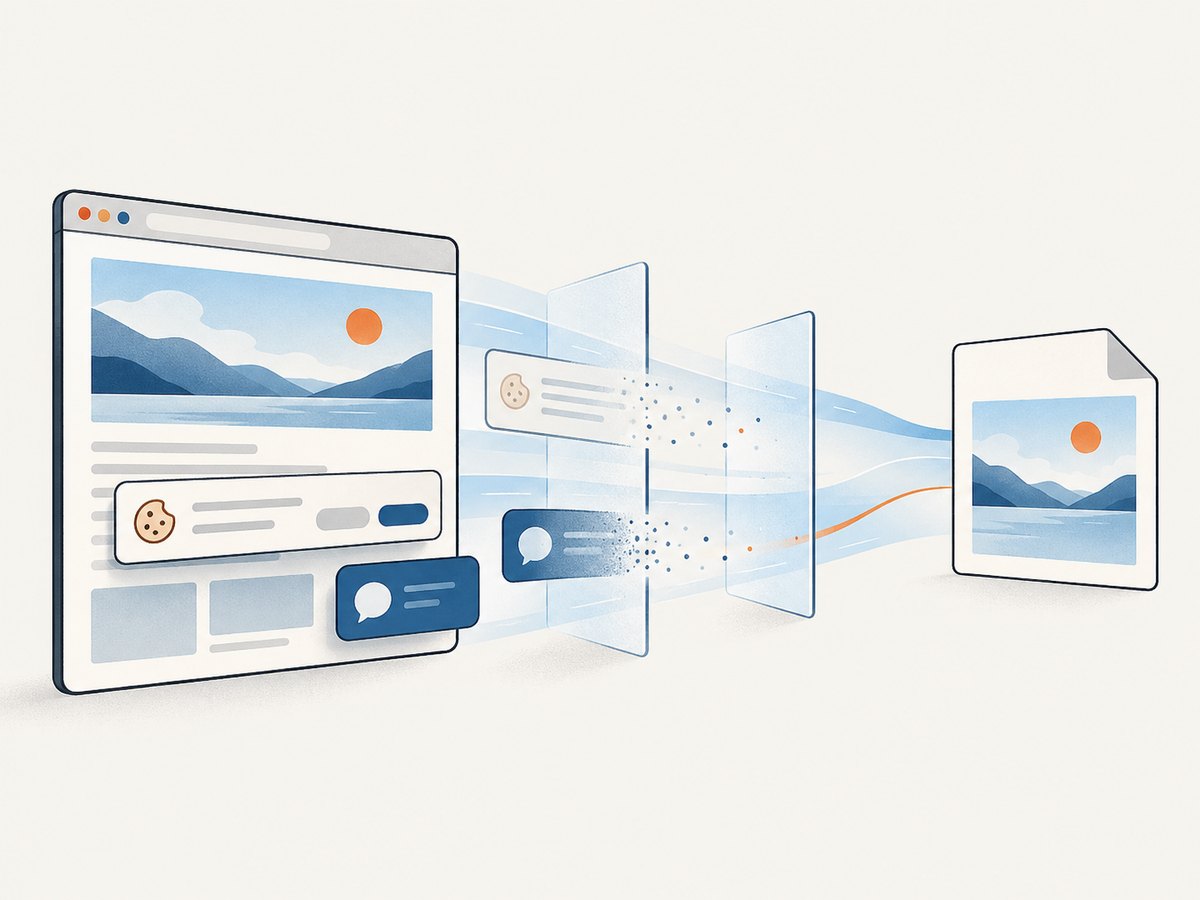
await import('node:fs/promises').then(fs => fs.writeFile('shot.webp', Buffer.from(await res.arrayBuffer())));ScreenshotNeo removes cookie and consent banners, newsletter popups, and chat widgets before capture; each cleanup step can be turned off. Bot checks or CAPTCHAs, blank pages, timeouts, failed loads, and cache hits are not billed. Responses indicate the page verdict and billing state in X-Page-Verdict and X-Billed headers. Its MCP server gives AI agents tools named take_screenshot, get_page_info, and capture_pdf. The Free plan includes 1,000 shots per month with no card; paid plans start at $5 for 3,000 shots. Every feature is on every plan. Sign up for 1,000 free screenshots a month, with no card.
9. Troubleshooting
| Symptom | Likely cause | Fix |
|---|---|---|
| Text looks smeared or has halos | Screenshot was encoded as JPEG at a lossy quality setting | Capture or export as PNG; if JPEG is required, raise quality and inspect a copy |
| Upload says unsupported format | Wrong encoding, misleading extension, or unsupported HDR/HEIF input | Inspect the actual format and convert a copy to one the destination accepts |
| Valid PNG is rejected for submission | Transparency/alpha channel or other destination constraint | Flatten onto an opaque background and verify the current submission specs |
| Screenshot is much larger than expected | Full-page dimensions, high scale factor, or image content/encoding | Check dimensions; capture only the needed area or reduce scale; use a lossy format only if suitable |
| Image looks different on another screen | HDR rendered on an SDR display, or color handling differs | Confirm HDR support end to end; export an SDR copy if predictable SDR viewing is required |
| Browser capture is blank or incomplete | Capture ran before client content rendered, navigation failed, or content is lazy-loaded | Wait for a page-specific selector/state, inspect navigation errors, and trigger scrolling if required |
| Repeated captures differ | Animation, changing content, late fonts, or dynamic data | Stabilize the page state, wait for fonts/content, and disable animation where appropriate |
10. Performance, reliability, and cost
Format is only one part of capture cost. A full-page image with a high scale factor contains more pixels and takes more memory to encode and transfer. Select the smallest viewport and pixel density that still make the content legible. JPEG can reduce output size in some cases, but there is no universal size ratio: dimensions, content, encoder, and settings affect the result. The cited platform guidance does not establish a controlled general benchmark.
Reliability comes from checking the capture result, not only whether the screenshot call returned. Set a navigation timeout, handle rejected navigation, wait for meaningful page content, and ensure the browser closes in a finally block. For unattended jobs, record the URL, output format, dimensions, timing, and failure reason. Keep originals if images are being converted or resized. Use an API or service when maintaining browser binaries, capture workers, and retries costs more than the per-capture workflow.
ScreenshotNeo offers caching with a chosen TTL, asynchronous jobs with signed webhooks, bulk capture for up to 100 URLs per call, and a usage API. These options can help structure recurring or larger capture workflows; choose them based on freshness, latency, and operational needs. Its billing rules exempt bot checks, blank pages, timeouts, failed loads, and cache hits, and the response headers report verdict and billing state. Compare the actual plan allowance with expected successful captures: Free is 1,000 per month, Starter is $5 for 3,000, Growth $15 for 15,000, Pro $39 for 60,000, Scale $99 for 250,000, and Business $249 for 1,000,000. Yearly billing gives two months free. Each plan includes every feature.
11. Frequently asked questions
Can I change a PNG screenshot into JPG?
Yes. Export or convert it with an image editor or image library that encodes JPEG. The result is lossy, so keep the PNG if you need a faithful original.
Does .jpg mean the image is lower quality?
The extension alone does not tell you quality settings, but JPEG encoding is lossy. A high-quality JPEG may look very good, while repeated re-encoding can accumulate losses.
Is HEIF the same as HDR?
No. HEIF is a file format; HDR describes image brightness and color range. A particular capture workflow may use HEIF for HDR output, as Apple documents for iPhone screenshots, but the terms are not interchangeable.
Which format should I send with a bug report?
PNG is a sound default for interface text and boundaries. Follow any issue tracker’s file-size or attachment limits, and avoid converting if exact pixels matter.
Why is my screenshot format different from someone else’s?
They may use a different device, capture app, API, or SDR/HDR setting. Compare the saved file’s actual format and the capture settings.


