How to Take Screenshots of Multiple URLs With Puppeteer
Capture a list of web pages with Puppeteer, save one image per URL, and control readiness, concurrency, formats, and failure handling.

To take screenshots of multiple URLs with Puppeteer, launch one browser, create a page for each URL, navigate with page.goto(), save the result with page.screenshot(), and close each page. For a short list, process URLs sequentially. For larger batches, use a bounded worker pool so you control browser memory and load on the target sites. The example below writes one full-page PNG for each valid URL and continues past individual failures.
Puppeteer’s core screenshot operation is Page.screenshot(), and a browser can manage multiple page instances. The right wait condition, viewport, and concurrency depend on the pages and runtime you are capturing. [Puppeteer screenshot guide] [Browser API]
1. Install Puppeteer and prepare the URL list
In a Node.js project, install Puppeteer. The package can download a compatible browser as part of installation; if you use a separately managed browser or connect to a remote browser, follow Puppeteer’s getting-started guidance for that setup. [Puppeteer getting started]
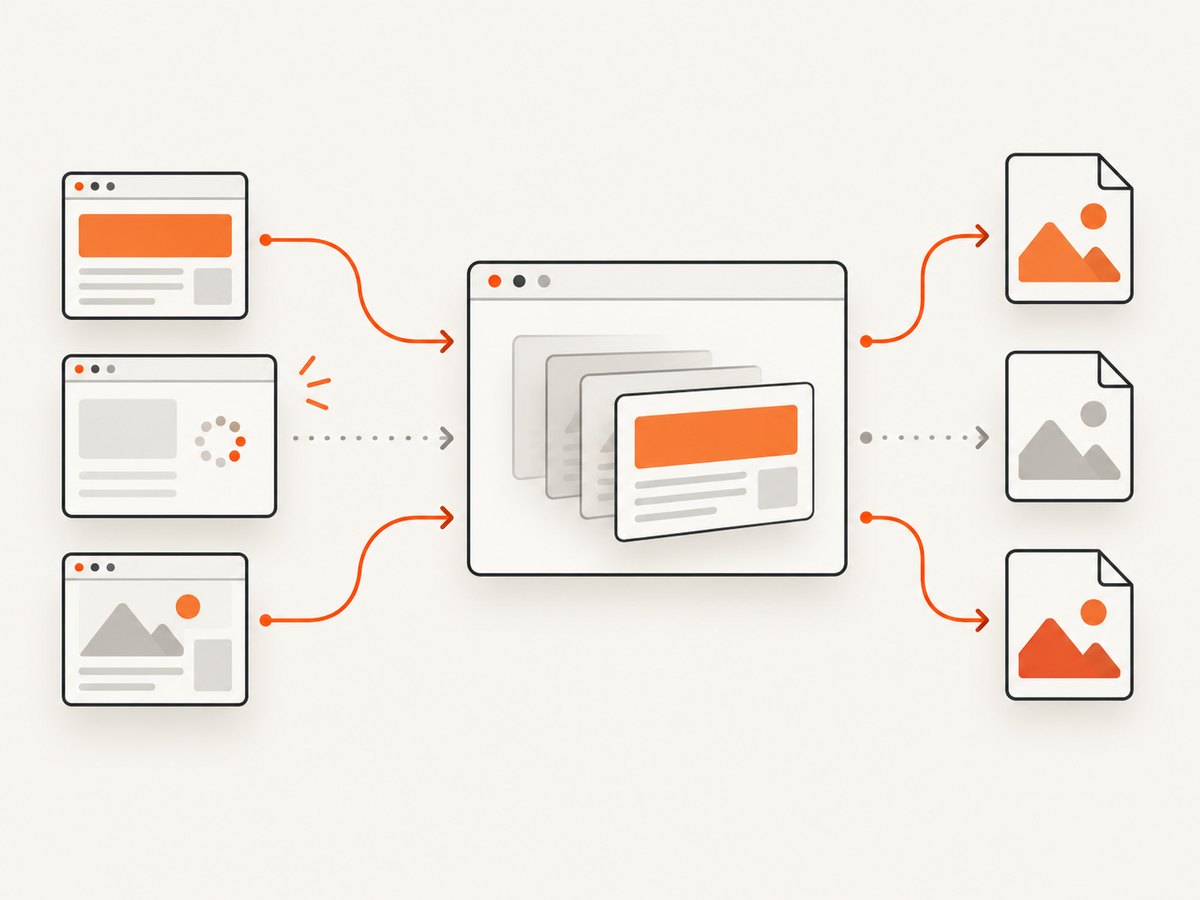
npm install puppeteerSave the following as capture.mjs. It creates the output directory, validates that each input is an HTTP or HTTPS URL, generates collision-resistant filenames from the input index and hostname, and limits parallel work to a configurable number of pages. Run it with node capture.mjs.
import puppeteer from 'puppeteer';
import { mkdir } from 'node:fs/promises';

const urls = [
  'https://example.com',
  'https://news.ycombinator.com',
  'https://www.wikipedia.org',
];

const outputDir = 'screenshots';
const concurrency = 2; // Tune for your runtime and target sites.
const viewport = { width: 1440, height: 900, deviceScaleFactor: 1 };
const waitUntil = 'networkidle2';
const timeout = 45_000;

function validateUrl(value) {
  const parsed = new URL(value);
  if (!['http:', 'https:'].includes(parsed.protocol)) {
    throw new Error(`Unsupported URL protocol: ${parsed.protocol}`);
  }
  return parsed;
}

function filenameFor(index, parsed) {
  const host = parsed.hostname.replace(/[^a-z0-9.-]/gi, '_');
  return `${String(index + 1).padStart(3, '0')}-${host}.png`;
}

async function captureOne(browser, value, index) {
  let page;
  try {
    const parsed = validateUrl(value);
    page = await browser.newPage();
    await page.setViewport(viewport);
    await page.goto(value, { waitUntil, timeout });
    const path = `${outputDir}/${filenameFor(index, parsed)}`;
    await page.screenshot({ path, fullPage: true, type: 'png' });
    return { index, url: value, ok: true, path };
  } catch (error) {
    return {
      index,
      url: value,
      ok: false,
      error: error instanceof Error ? error.message : String(error),
    };
  } finally {
    if (page && !page.isClosed()) await page.close();
  }
}

await mkdir(outputDir, { recursive: true });
const browser = await puppeteer.launch();
let results;
try {
  results = new Array(urls.length);
  let nextIndex = 0;
  async function worker() {
    while (true) {
      const index = nextIndex++;
      if (index >= urls.length) return;
      results[index] = await captureOne(browser, urls[index], index);
    }
  }
  await Promise.all(
    Array.from({ length: Math.min(concurrency, urls.length) }, () => worker()),
  );
} finally {
  await browser.close();
}

for (const result of results) {
  console.log(result.ok ? `Saved ${result.path}` : `Failed ${result.url}: ${result.error}`);
}
if (results.some((result) => !result.ok)) process.exitCode = 1;
Each worker owns one page at a time, and each page closes even if navigation or capture throws. The outer finally closes the browser if the batch encounters an error. Create pages directly and retain their references; relying on a later global page listing can omit non-visible pages. [Browser.pages API]
2. Choose when the page is ready
The screenshot starts after the page.goto() promise resolves. The waitUntil option tells Puppeteer which navigation milestone to await. Puppeteer’s screenshot guide uses networkidle2 as an example, but network idleness is not a universal signal that a page is visually complete. A site with polling, analytics, streaming, or long-lived connections may never become idle. [Page.goto API]
| Wait condition | Use it when | Tradeoff |
|---|---|---|
domcontentloaded |
You need the parsed document quickly and can tolerate late-loading content. | Images, fonts, and scripts may still change the page. |
load |
The page’s normal load event is a useful readiness signal. | Some resources or application rendering can continue after it fires. |
networkidle2 |
The site settles its network requests and you want a practical general starting point. | Persistent requests may delay or prevent completion. |
networkidle0 |
You specifically need a quiet network with no active connections. | Often unsuitable for pages with ongoing requests. |
For an app that renders after navigation, wait for a meaningful selector after goto:
await page.goto(url, { waitUntil: 'domcontentloaded', timeout: 45_000 });
await page.waitForSelector('main article', { timeout: 15_000 });
await page.screenshot({ path, fullPage: true });
A selector is only useful if it represents the content you need; a generic container may appear before data has loaded. If a site has a known application-ready signal, wait for that. For content that loads as the page scrolls, a full-page screenshot does not guarantee every lazy image has been triggered. Scroll through the document and allow images to load before capture, or use a site-specific readiness strategy.
3. Configure viewport, page size, and image format
Set the viewport before navigation when you need consistent responsive layout. Each page can use a different viewport; page size and device scale factor affect the image dimensions. [Page.setViewport API]
await page.setViewport({
  width: 1440,
  height: 900,
  deviceScaleFactor: 2,
});
await page.goto(url, { waitUntil: 'networkidle2' });
await page.screenshot({ path, fullPage: true, type: 'png' });
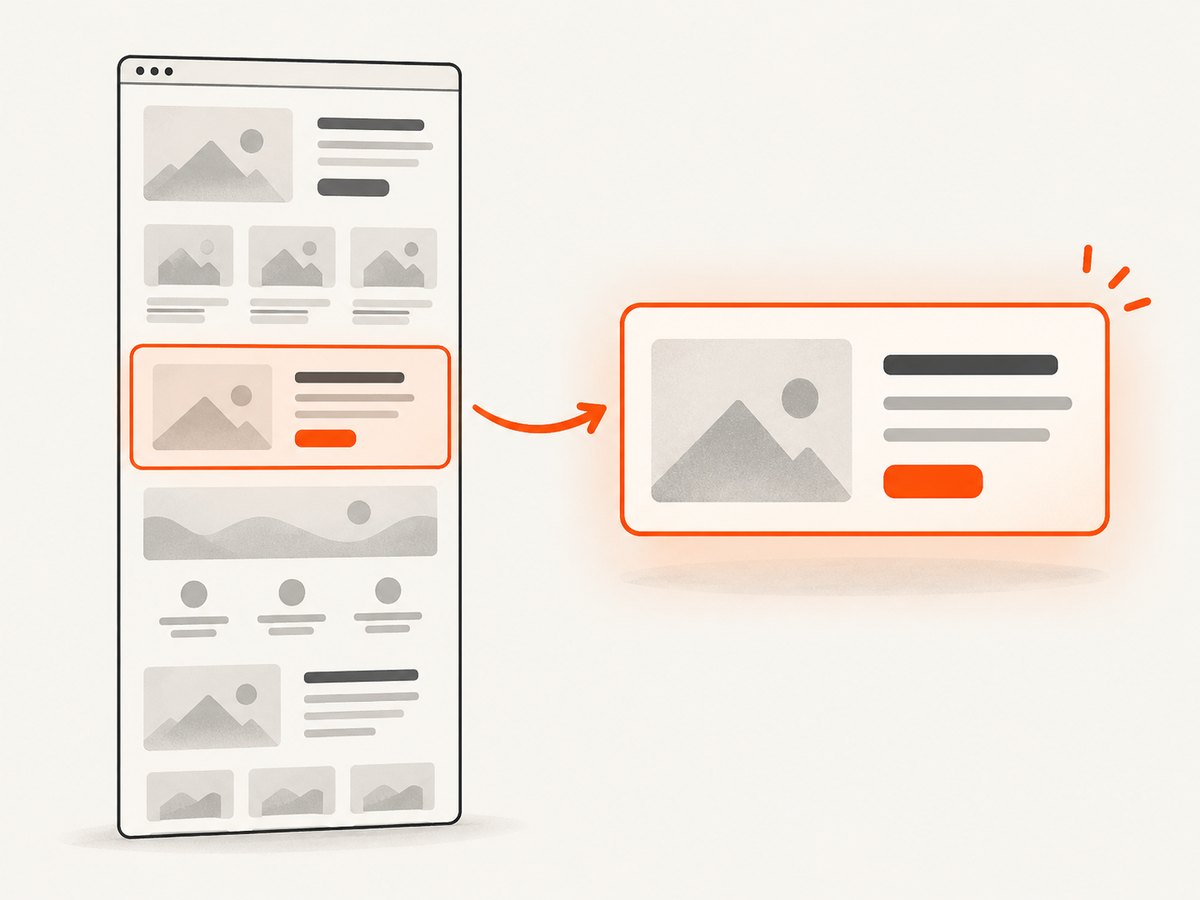
Use fullPage: true to capture the document beyond the current viewport. Leave it off for a viewport-only image. A very long document can create a large image and use substantial memory; if that matters, capture selected regions with clip or capture a particular element instead. [ScreenshotOptions API]
The file extension normally lets Puppeteer infer a format when writing to path, and type can be specified directly. PNG is lossless and has no quality setting. JPEG and WebP support a quality value in the range accepted by Puppeteer; use a lossy format when smaller files matter more than pixel-perfect output. You can also capture a clipped rectangle or request a transparent background where the format and content make that useful:
await page.screenshot({
  path: 'page.webp',
  type: 'webp',
  quality: 82,
  fullPage: true,
});

await page.screenshot({
  path: 'region.png',
  type: 'png',
  clip: { x: 0, y: 0, width: 900, height: 500 },
});
Consult the version of the ScreenshotOptions API installed in your project for the exact current option types and constraints, including format-specific settings.
4. Capture one element rather than the whole page
When the target is a chart, card, or article element, locate it and call screenshot() on its handle. Puppeteer scrolls the element into view when needed. If the DOM removes or replaces the element before capture, the handle is detached and the operation fails. [ElementHandle.screenshot API]
const element = await page.waitForSelector('.report-card', { timeout: 15_000 });
if (!element) throw new Error('Report card was not found');
await element.screenshot({ path: 'report-card.png' });
If the page can re-render the target, locate it as late as practical and avoid holding a handle across navigation or a major UI update. Use a full-page capture when you need the full document rather than only the visible element.
5. Pick a context and concurrency strategy
Sequential capture is easiest to reason about: create a page, capture it, close it, and continue. It limits simultaneous resource use and is a good default for a small batch or sites that apply strict rate limits. Its tradeoff is that total completion time grows with each navigation.
Bounded concurrency uses several workers and pages at once. It can process independent URLs in parallel, but every open page consumes resources and sends traffic to a target. There is no universally correct pool size in Puppeteer’s documentation. Start conservatively, observe memory, failures, and target-site behavior, then tune for your environment. Do not open an unbounded page for every URL in a large input list.
Pages created with browser.newPage() use the default browser context. A separate context is useful when a group of pages needs isolated cookies or local storage; contexts isolate browser storage. There is no need to create a separate context for each URL unless isolation is required. Close a context when its work is finished; closing it closes its pages. [BrowserContext API]
const context = await browser.createBrowserContext();
try {
  const page = await context.newPage();
  await page.goto(url, { waitUntil: 'domcontentloaded' });
  await page.screenshot({ path: 'isolated.png', fullPage: true });
} finally {
  await context.close();
}
If pages should share an authenticated session, use a common context and configure its cookies or authentication before navigating. If each URL must not inherit another page’s storage, use separate contexts. Treat credentials in cookies and headers as sensitive, and do not print them in batch logs.
6. cURL, Python, and Node.js options
Puppeteer is a Node.js library, so the runnable Puppeteer batch implementation above is JavaScript. If your surrounding workflow uses Python or shell, you can invoke the same Node script from those environments, but that does not turn Puppeteer into a Python package. For a managed screenshot endpoint, use its HTTP interface instead of launching a local browser.
Run the Puppeteer script from Python
import subprocess

result = subprocess.run(
    ['node', 'capture.mjs'],
    check=False,
    text=True,
    capture_output=True,
)
print(result.stdout)
if result.returncode:
    raise RuntimeError(result.stderr or 'Puppeteer batch failed')
Run the Puppeteer script from a shell
node capture.mjsFor a hosted screenshot call, ScreenshotNeo accepts a URL and returns an image. Find configuration and the full parameter reference in the ScreenshotNeo API documentation.
curl -G "https://api.screenshotneo.com/v1/shot" \
  -d access_key=YOUR_API_KEY \
  --data-urlencode url=https://stripe.com \
  -o shot.webp
import requests
r = requests.get(
"https://api.screenshotneo.com/v1/shot",
params={"access_key": "YOUR_API_KEY", "url": "https://stripe.com"},
timeout=90,
)
r.raise_for_status()
with open("shot.webp", "wb") as f:
f.write(r.content)const q = new URLSearchParams({ access_key: 'YOUR_API_KEY', url: 'https://stripe.com' });
const res = await fetch(`https://api.screenshotneo.com/v1/shot?${q}`);
if (!res.ok) throw new Error(`Screenshot request failed: ${res.status}`);
const bytes = new Uint8Array(await res.arrayBuffer());
await (await import('node:fs/promises')).writeFile('shot.webp', bytes);7. Or skip the browser setup
ScreenshotNeo is a website screenshot API and MCP server. One GET request returns a screenshot or PDF. For multiple URLs, make one request per URL or use its bulk capture option for up to 100 URLs per call. Cookie banners are accepted like a visitor and removed before the shot, along with supported newsletter popups and chat widgets; each cleanup step can be turned off. Bot checks, blank pages, timeouts, failed loads, and cache hits cost nothing, and response headers indicate the page verdict and billing status. An MCP server exposes screenshot and PDF tools for AI agents and MCP clients.
curl -G "https://api.screenshotneo.com/v1/shot" \
  -d access_key=YOUR_API_KEY \
  --data-urlencode url=https://stripe.com \
  -o shot.webp
There is no browser installation or page lifecycle code to manage in this call. ScreenshotNeo includes 1,000 shots per month free with no card; paid plans start at $5 for 3,000. Sign up for free and get 1,000 screenshots a month with no card.
8. Reliability, performance, and cost
- Reuse one browser per batch. Launching a browser for every URL adds startup work. Keep one browser alive for the batch, while creating and closing pages around each capture.
- Bound parallel pages. More workers mean more simultaneous browser work and target-site traffic. Tune based on observed resource use and failures; no published universal safe limit or speed figure is available.
- Set timeouts. Navigation and selector waits should have limits so a stalled page does not hold a worker forever. Catch failures per URL and retain the URL, index, and error in a result manifest.
- Make retries selective. A transient network error may merit a retry with a small limit and backoff. Retrying invalid URLs, access-denied responses, or pages that consistently exceed resource limits usually repeats the same failure.
- Control output size. Full-page PNGs can be large. Choose viewport-only or clipped captures when appropriate, and choose JPEG/WebP quality settings when lossy output is acceptable.
- Respect target sites. A capture is a real navigation. Avoid sending excessive concurrent traffic, and follow the site’s access policies.
- Account for local runtime costs. Local Puppeteer requires a compatible browser and enough CPU, memory, and disk for the browser processes and output images. A hosted API shifts browser operations to the service; compare the resulting plan price and the work you need to maintain.
For repeatable results, keep viewport, device scale, wait strategy, and browser version consistent. Dynamic pages can change between runs because content, personalization, advertisements, and network timing can change. A screenshot is a capture of a particular render, not a guarantee that every remote page will produce identical pixels on every run.
9. Troubleshooting
| Symptom | Likely cause | Fix |
|---|---|---|
| Navigation times out | The site is slow, the selected wait condition never occurs, or the URL is unreachable. | Check the URL from the same runtime, set an intentional timeout, and try a more suitable navigation milestone followed by a selector wait. |
| Screenshot is blank or incomplete | The app renders after navigation, the selector was too general, or content is lazy-loaded. | Wait for a meaningful content selector; trigger scrolling for lazy content and verify the page state before capture. |
| Network-idle wait hangs | The page maintains requests such as polling, streaming, or analytics. | Use a different documented waitUntil condition and wait for the specific content you need. |
| Element screenshot reports a detached node | The framework replaced the element after it was found. | Wait for the UI to settle and query the element again immediately before capturing. |
| Output overwrites another image | Filenames were derived only from a hostname or path that repeats. | Include the input index or a stable unique identifier, and sanitize characters before writing a path. |
| Browser process remains after an error | Cleanup was skipped on an exception. | Place page and browser closure in finally blocks, as in the batch example. |
| Memory use grows sharply | Too many pages are open, or full-page images are very tall. | Lower concurrency, close each page promptly, and use viewport or clipped captures where they meet the need. |
| Request is blocked or shows a challenge | The site is restricting automated access. | Review the site’s access rules and use an authorized method. Do not attempt to bypass access controls. |
10. FAQ
Can one Puppeteer browser capture multiple URLs?
Yes. Create a page for each URL in the browser and capture it before closing the page. Keep direct references to pages your script creates.
Should I use one page for every URL?
Either reuse pages carefully or create a fresh page per capture. Fresh pages make per-URL cleanup straightforward; reuse may suit a controlled workflow but requires deliberate handling of page state.
Does fullPage: true load every image?
No. It requests a screenshot of the document’s full extent, but lazy-loaded content may need to be triggered and awaited first.
What is a good concurrency value?
There is no universal documented value. Choose a conservative starting point for your machine and sites, then adjust based on resource use, timeouts, and target behavior.
Can Python use Puppeteer directly?
Puppeteer is a Node.js library. A Python program can call a Node script as a subprocess, or use an HTTP screenshot API from Python.


