How to Make Screenshots Visible in Klo Reports
Missing screenshots in a Klo report? First check whether you mean Klov/ExtentReports or Katalon, then follow the right capture and report checks.
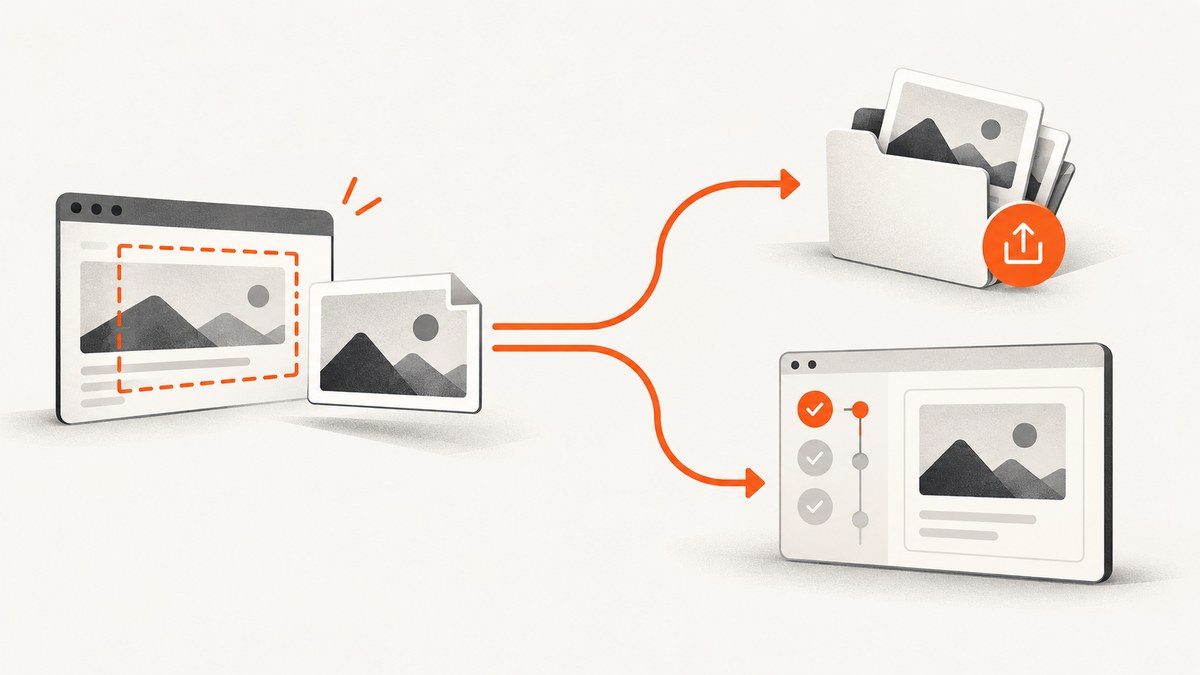
When screenshots are missing from a “Klo” report, first confirm which product you mean. The name may refer to Klov, the ExtentReports reporting component, or to Katalon. Their fixes are different: Klov troubleshooting starts with the image path passed to the reporter; Katalon troubleshooting starts with its failure-capture setting and the generated report.
If you use Klov with ExtentReports, resolve the screenshot to an existing, readable absolute path, normalize its separators, and pass that same path to the media API. If you use Katalon Studio, verify Take Screenshot when execution failed, inspect the report folder after a run, and open the failed test’s Result and Image tabs or export a report.
1. Identify which “Klo” report you have
Before changing code or settings, check the product name in your project or report. Klov and Katalon both appear in discussions about missing test screenshots, but they store and present captures differently.
| Check | Klov / ExtentReports | Katalon Studio |
|---|---|---|
| How screenshots get into reports | Your test/reporting code supplies an image path to ExtentReports; Klov’s media manager must be able to use it. | Studio can capture screenshots on failure, and reports expose them in the test result or exported report. |
| First place to investigate | The exact path and file passed to the reporter, plus the installed versions. | The failure-capture setting, run result, and local report output. |
| Where to view them | In the Klov report after the media upload succeeds. | In the failed test’s Result tab and Image tab, or in exported HTML, CSV, or PDF. |
If the exception or log mentions HttpMediaManagerKlov or “Unable to upload file to server,” follow the Klov section. If the report is from Katalon Studio, follow the Katalon section. These are the procedures documented in a historical Klov community thread and current Katalon documentation; the Klov thread is not evidence that every version behaves the same way.
2. Fix screenshots that will not upload to Klov
A documented Klov failure showed an image path with both Windows backslashes and forward slashes, such as C:\\V2AutoWK/temp//screenshots/...png. The accepted answer recommended using an absolute project path and saving the screenshot under a project-controlled Screenshots directory before attaching it. Treat that as a practical first check, not a guarantee that every upload issue has the same cause. See the original troubleshooting thread.
Step 1: Log the exact path created at runtime
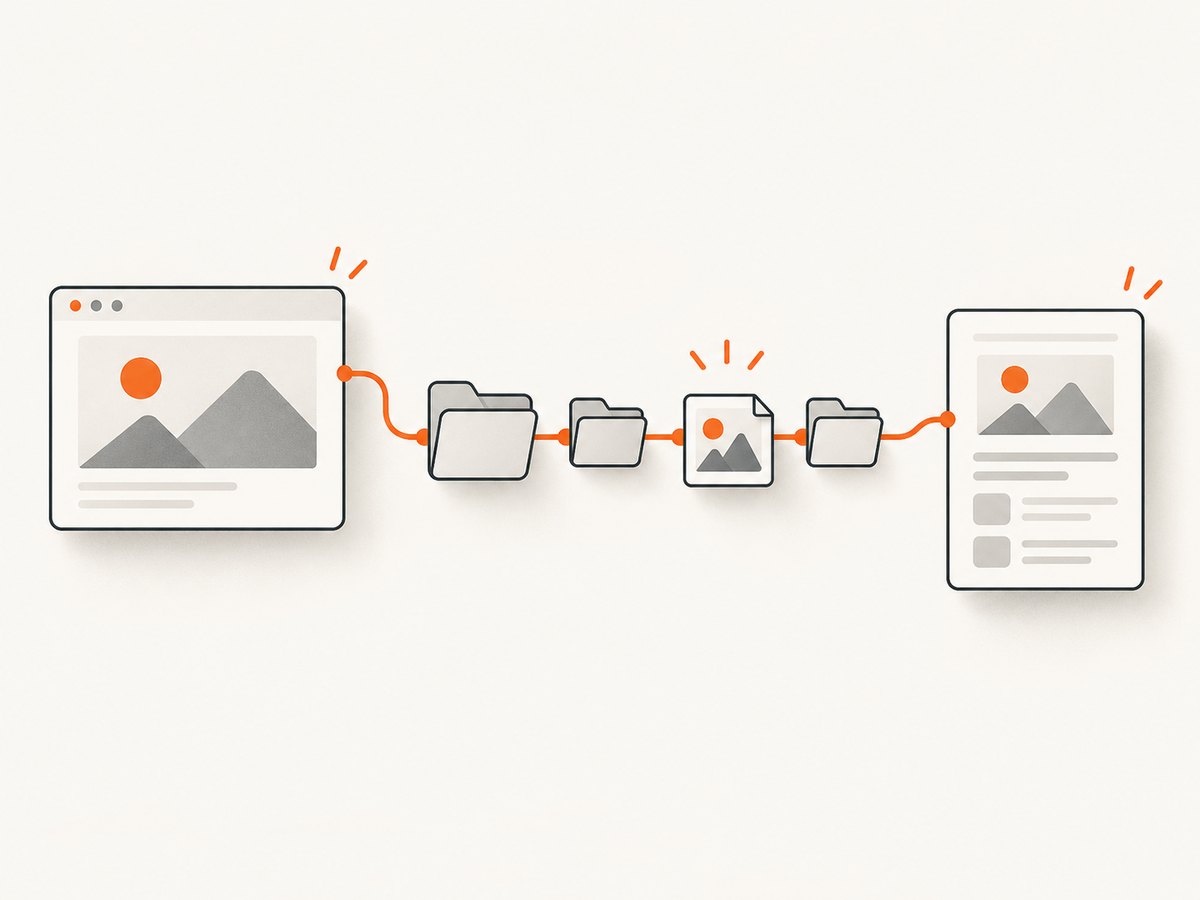
Do not rely on a path assembled by visually inspecting code. Print or log the final path immediately before attaching the image. Check for repeated extensions, unexpected temporary directories, empty values, and path separators mixed by manual concatenation.
System.out.println("Screenshot path: " + screenshotPath);The line above is Java-style illustrative logging; adapt it to your test language. The important value is the fully resolved path that the report API receives, not just the directory name in your configuration.
Step 2: Save under a known project directory
Create the target directory before the test tries to write the image. Use the operating system’s path APIs to join components instead of concatenating slash characters. Resolve the path to an absolute path so the reporting process does not depend on which working directory launched the test.
// Java path construction example
Path screenshotDir = Paths.get("Screenshots").toAbsolutePath().normalize();
Files.createDirectories(screenshotDir);
Path screenshotFile = screenshotDir.resolve("failure.png").normalize();

// Save the screenshot bytes to screenshotFile using your browser driver.
// Then pass screenshotFile.toString() to the ExtentReports screenshot API.
This example demonstrates path construction and directory creation only; the browser-driver capture and ExtentReports attachment APIs vary by library version. Ensure your actual capture has completed before the reporter attempts to upload the file.
Step 3: Verify the file before attachment
Check that the path exists, ends with the expected image extension exactly once, and is readable by the process doing the report upload. A path can be syntactically valid but point to a file that was never written, was written elsewhere, or is inaccessible to the reporting process.
// Java checks before attaching
if (!Files.isRegularFile(screenshotFile)) {
    throw new IllegalStateException("Screenshot does not exist: " + screenshotFile);
}
if (!Files.isReadable(screenshotFile)) {
    throw new IllegalStateException("Screenshot is not readable: " + screenshotFile);
}
System.out.println("Attaching screenshot: " + screenshotFile);
Pass this same resolved path to the ExtentReports screenshot/media API. Avoid constructing one path for saving and a second, slightly different path for reporting.
Step 4: Normalize paths and check versions
Let the platform path library handle separators. On Windows, do not manually combine backslashes with forward slashes; on Unix-like systems, do not assume a Windows drive path will resolve. If the file is created on one machine and uploaded by a separate reporter process or container, check that the latter can see the same filesystem location.
A second answer in the historical discussion connected the issue to Klov issue 45 and mentioned a fix in 3.1.6-SNAPSHOT. That is a historical version note, not current compatibility guidance. Record the installed Klov and ExtentReports versions, then consult the relevant project documentation and release information before changing versions. The thread and its version note should not substitute for checking your deployed release.
3. Fix screenshots that are missing from Katalon reports
Katalon uses a managed capture setting for failure screenshots and provides report views and screenshot keywords. Its vendor article recommends checking the failure-capture setting and the local report folder; current documentation describes viewing captured screenshots in the Studio report and exported formats.
Step 1: Enable capture on failure
- Open Project → Settings → Execution.
- Check Take Screenshot when execution failed.
- Save the project settings, then run the test suite again.
Katalon’s article specifically recommends this setting when failure screenshots are absent. It also notes reports of missing screenshots across Studio versions, so a successful setting check should be followed by inspecting the output from a fresh run. Katalon’s guidance on screenshot visibility.
Step 2: Inspect the failed test’s result
After the suite finishes, open the failed test’s Result tab and select its Image tab. If the Studio view is empty, inspect the local report folder for the run you just completed. Confirm that you are looking at the current run’s output rather than a previous report location.
Katalon’s documentation says failure screenshots are captured by default, can be viewed from a failed test suite’s Result tab, and are available in exported HTML, CSV, or PDF reports. See the current Katalon report documentation for the documented viewing workflow.
Step 3: Capture at a specific point when needed
Automatic failure capture is for the failure event. If you need evidence from a particular step, add an explicit screenshot or checkpoint keyword at that point in the test. Katalon documents WebUI and Mobile keywords including Take Screenshot, Take Screenshot As Checkpoint, Take Area Screenshot, Take Element Screenshot, and Take Full Page Screenshot. Use the keyword and arguments that match your target and current Katalon workflow; refer to the documentation for the exact syntax supported by your installed version.
For visual testing, use the checkpoint workflow described in Katalon’s current documentation. A screenshot taken earlier in a test can answer a different question from the automatic capture attached to a later failure, so choose the capture point deliberately.
4. A reliable diagnostic checklist
Work through these checks in order; stop when you find the first point where the screenshot disappears.
- Confirm the product. Is the report from Klov/ExtentReports or Katalon Studio?
- Confirm the capture happened. For Klov, check the file at runtime. For Katalon, rerun with failure capture enabled or add an explicit capture keyword.
- Confirm the output path. Log it, resolve it to an absolute location where appropriate, and inspect the report folder after the run.
- Confirm the file. Check that it exists, is readable, and has the intended extension once.
- Confirm the attachment step. In Klov, pass the same resolved path used to save the image. In Katalon, inspect the failed test’s Result and Image tabs or export the report.
- Confirm runtime context. If a separate process, container, or CI worker handles reporting, check that it can access the screenshot location.
- Check versions and current docs. This matters especially for the historical Klov issue; do not apply an old snapshot note blindly.
This sequence separates capture failures from path, upload, and report-viewing failures. It also produces a useful log trail for CI, where a report UI alone may not show whether the file was ever created.
5. Common errors, causes, and fixes
| Symptom | Likely cause | What to check or change |
|---|---|---|
Unable to upload file to server in Klov |
The media manager cannot use the supplied image path, or there is another upload/configuration problem. | Log the final path; confirm it exists and is readable; use a normalized absolute project path; then inspect version and server configuration. |
| Path contains mixed separators or doubled slashes | Path pieces were joined manually or came from different conventions. | Build the path with the language’s path library and pass the resulting normalized path. |
| Screenshot file is absent before attachment | Capture did not finish, save failed, or the destination directory was not created. | Create the directory, check the capture result, and verify the file before calling the reporter. |
| File exists locally but report has no image | The reporter received a different path, cannot read that location, or upload/viewing failed. | Log the exact argument to the API; compare it with the saved file; check process permissions and server logs. |
| Katalon failed test has no screenshot | Failure capture may be disabled, or the wrong run/result is being inspected. | Enable Take Screenshot when execution failed, rerun, then inspect the current run’s Result and Image tabs. |
| Katalon Studio view is empty | The screenshot may be easier to locate in the generated report output or exported report. | Check the local report folder and export HTML, CSV, or PDF. |
| Only a particular test step needs an image | Automatic capture is tied to failure behavior, not necessarily the desired point. | Add an explicit screenshot or checkpoint keyword at the step where evidence is needed. |
| Issue appears after a dependency upgrade | Reporter behavior or compatibility may differ by installed version. | Record Klov and ExtentReports versions and check current release documentation; treat the 3.1.6-SNAPSHOT note as historical. |
6. Storage, reliability, and runtime considerations
For Klov, the key reliability boundary is the file handoff: the screenshot must exist at a path the reporting component can resolve and read when attachment or upload occurs. Keeping captures in a predictable project directory makes it easier to inspect CI artifacts and compare the produced file with the path in logs. In a distributed setup, a local path on the test worker may not be a path the reporting service can access; validate the actual process boundary rather than assuming a shared filesystem.
For Katalon, follow the managed report output for the current run and verify both the UI and exported report when troubleshooting. Manual captures can increase report storage, particularly if every test step produces a full-page image. Capture only where it helps diagnose a test, and make retention and artifact storage choices in the CI system that runs the suite.
The supplied references do not publish capture-speed benchmarks, storage costs, or quantitative reliability rates for either product. Measure report size and job time in your own suite if you are deciding how frequently to capture, and avoid inferring performance from a single missing-image fix.
7. Choosing the right workflow
Use the workflow that matches who owns capture and storage:
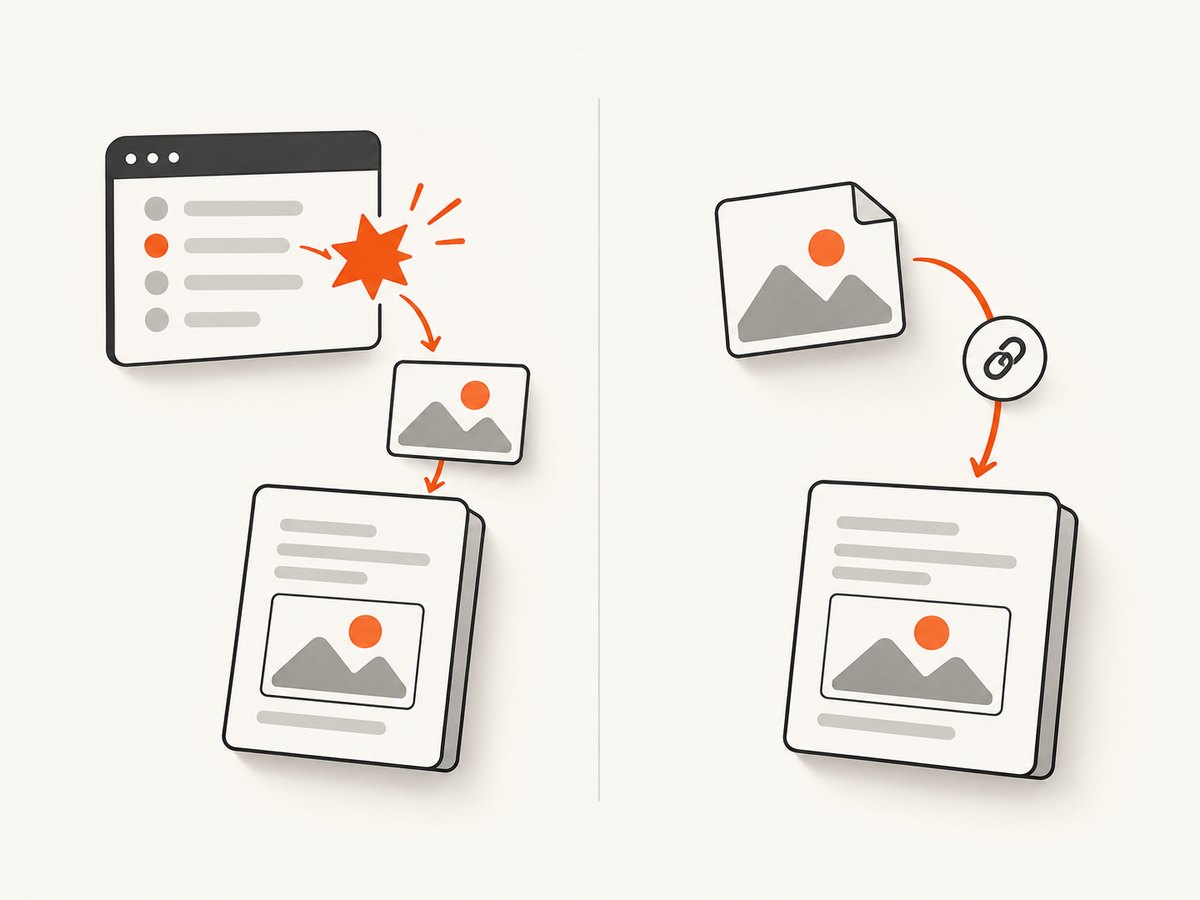
- Klov/ExtentReports: your test code creates the image and supplies a valid path; investigate path construction, file availability, permissions, and reporter versions.
- Katalon Studio: use its failure-capture setting for automatic failure evidence, report tabs or export for viewing, and manual screenshot/checkpoint keywords for a chosen test step.
These are not interchangeable procedures. A Katalon setting will not repair a Klov upload path, and changing a Java file path will not enable Katalon’s failure capture.
8. Or skip the browser setup
If you need a standalone capture of a page to attach to a report, ScreenshotNeo is a website screenshot API and MCP server. It returns a PNG, JPEG, WebP, or PDF from one GET request. It is useful when maintaining a browser capture setup is not the part of the report pipeline you want to own; it does not replace Katalon’s test-result reporting or automatically attach an image to a Klov report.
For API options and configuration, see the ScreenshotNeo documentation. This cURL example saves a WebP capture of the target page:
curl -G "https://api.screenshotneo.com/v1/shot" \
  -d access_key=YOUR_API_KEY \
  --data-urlencode url=https://stripe.com \
  -o shot.webp
Use a ScreenshotNeo image URL or downloaded file in the report workflow your test system supports. The service accepts cookies or consent banners before capture and removes more than 60 known consent platforms, newsletter popups, and chat widgets; each step can be turned off. Bot checks/CAPTCHAs, blank pages, timeouts, failed loads, and cache hits are not billed, and responses identify the page verdict and billing status in headers. Its MCP server exposes take_screenshot, get_page_info, and capture_pdf tools for Claude, Cursor, and other MCP clients.
The free plan includes 1,000 shots per month with no card; paid plans start at $5 for 3,000 shots. All features are on every plan. For a plain API call from Python or Node.js, see the same API docs.
import requests

r = requests.get(
    "https://api.screenshotneo.com/v1/shot",
    params={"access_key": "YOUR_API_KEY", "url": "https://stripe.com"},
    timeout=90,
)
r.raise_for_status()
open("shot.webp", "wb").write(r.content)
const q = new URLSearchParams({
access_key: 'YOUR_API_KEY',
url: 'https://stripe.com'
});
const res = await fetch(`https://api.screenshotneo.com/v1/shot?${q}`);
if (!res.ok) throw new Error(`Screenshot request failed: ${res.status}`);
await Bun.write('shot.webp', res); // In Node.js, write the response buffer with fs/promises.Create a free ScreenshotNeo account for 1,000 screenshots a month with no card.
9. FAQ
Does “Klo” mean Klov or Katalon?
It can refer to either in this troubleshooting context. Check the report name, project dependencies, and logs before applying a fix.
Can I use an absolute path on every operating system?
An absolute path is useful when the reporter needs an unambiguous file location, but it must be valid and accessible in the process environment that uses it. Construct it with the host language’s path APIs.
Where can I see Katalon screenshots outside Studio?
Katalon’s documentation lists exported HTML, CSV, and PDF reports as viewing options. The generated local report folder is also a useful diagnostic when the Studio result is empty.
Does a screenshot API automatically add images to Klov or Katalon?
No automatic report attachment is described here. You still need to connect the returned image or file to the reporting workflow used by your test suite.
Sources
- Klov screenshots are not visible in reports (historical community troubleshooting thread).
- Katalon: Ensuring Visibility of Screenshots in Reports.
- Katalon Studio: View Captured Screenshots in Reports.


