How to Take Screenshots When Browser Focus Changes
Capture page content reliably when focus changes, with Playwright, Selenium, diagnostics, repeatability tips, and a no-browser-setup API option.
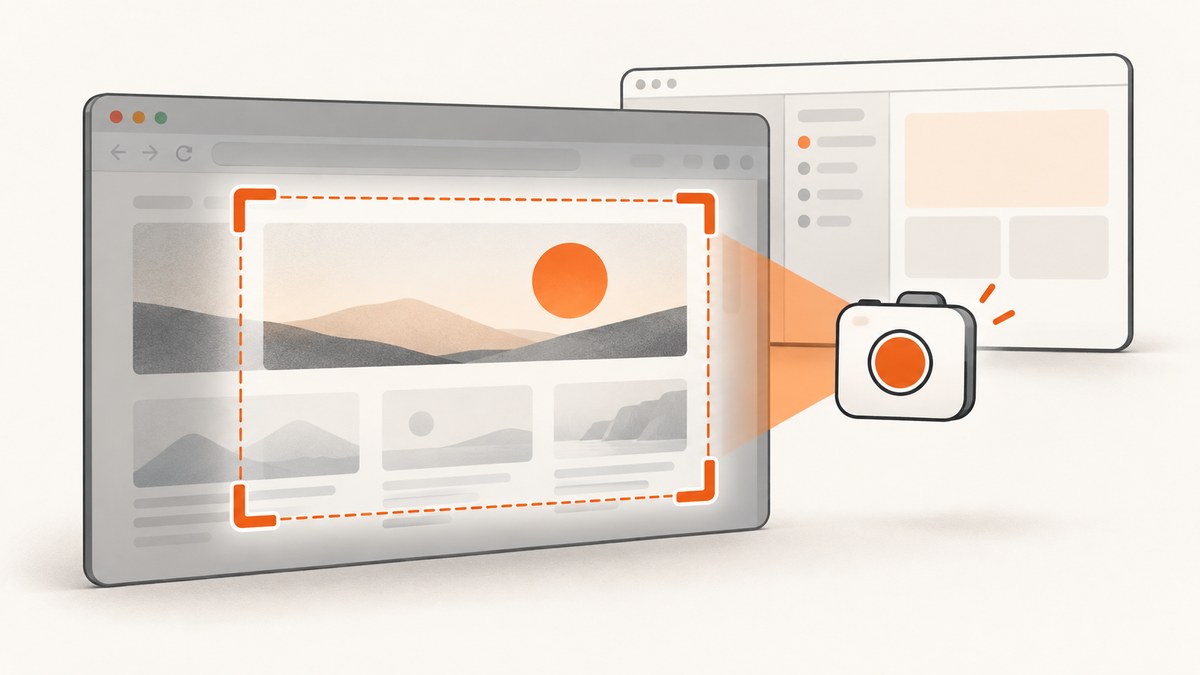
Use the browser page or element screenshot API instead of a desktop screenshot command. In Playwright, capture the viewport, a selected element, or the full scrollable page. In Selenium, capture an element in the current browsing context. These APIs render page content and do not define a universal promise that an operating-system window will never receive focus.
A historical Puppeteer report describes focus being taken by a non-headless browser on macOS, but it is a 2018 report from one setup, not proof that current Puppeteer, Chrome, or every platform steals focus. Reproduce the behavior with your exact browser, operating system, framework version, launch mode, and page before choosing a workaround. See the historical Puppeteer issue.
1. Decide what you are capturing
| Goal | Use | What it contains |
|---|---|---|
| Visible page state | Viewport screenshot | The current rendered viewport |
| One component or bug | Element screenshot | The selected element’s rendered pixels |
| Everything below the fold | Full-page screenshot | The full scrollable page |
| The desktop or browser chrome | Operating-system or desktop capture | Windows, other applications, and browser chrome |
Playwright documents viewport, element, full-page, masking, animation controls, and visual snapshot repeatability. Selenium documents screenshots in the current window or tab context. These page APIs are separate from capturing the entire desktop. Playwright visual snapshots, Playwright Page API, and Selenium windows and tabs describe the documented behavior.
2. Playwright: capture without depending on desktop focus
Install Playwright and its browser, then capture the page through the page object. Headless mode is usually easier to run on CI because no visible window needs to be activated.
npm install -D playwright
npx playwright install chromium
Viewport, element, and full-page screenshots
import { chromium } from 'playwright';

const browser = await chromium.launch({ headless: true });
const page = await browser.newPage({
  viewport: { width: 1440, height: 900 },
  deviceScaleFactor: 1
});

await page.goto('https://example.com', { waitUntil: 'networkidle' });
await page.screenshot({ path: 'viewport.png' });
await page.locator('h1').screenshot({ path: 'heading.png' });
await page.screenshot({ path: 'full-page.png', fullPage: true });

await browser.close();
Use fullPage: true when content below the current viewport matters. Use a locator when a component is the subject of the capture. A full-page image is still a page render; it is not a screenshot of the desktop.
Stabilize a focus-dependent page state
import { chromium } from 'playwright';

const browser = await chromium.launch({ headless: true });
const page = await browser.newPage();
await page.goto('https://example.com', { waitUntil: 'domcontentloaded' });

await page.locator('[data-ready]').waitFor();
await page.waitForTimeout(300);
await page.screenshot({
  path: 'stable.png',
  animations: 'disabled',
  caret: 'hide',
  mask: [page.locator('.timestamp'), page.locator('.random-ad')],
  maskColor: '#777'
});
await browser.close();
Disable animations and mask values that change on every run when creating visual baselines. Keep the same browser version, operating system, settings, hardware, power conditions, viewport, scale factor, and headless or headful mode for comparisons. Playwright identifies these environment details as sources of rendering variation. Read the repeatability guidance.
Headful diagnostics
import { chromium } from 'playwright';

const browser = await chromium.launch({ headless: false, slowMo: 100 });
const page = await browser.newPage();
page.on('console', message => console.log('[console]', message.type(), message.text()));
page.on('pageerror', error => console.error('[pageerror]', error));
await page.goto('https://example.com', { waitUntil: 'networkidle' });
console.log('URL:', page.url());
console.log('title:', await page.title());
await page.screenshot({ path: 'headful-diagnostic.png' });
await browser.close();
If this run changes the active desktop window, record that fact as a property of this exact configuration. Do not generalize it to all operating systems or framework versions. If the requirement is “do not disturb the person using the computer,” prefer a headless runner or an isolated machine and verify the result on the target environment.
3. Python Playwright and Selenium examples
Python Playwright
from playwright.sync_api import sync_playwright

with sync_playwright() as p:
    browser = p.chromium.launch(headless=True)
    page = browser.new_page(viewport={"width": 1440, "height": 900})
    page.goto("https://example.com", wait_until="networkidle")
    page.screenshot(path="viewport.png")
    page.locator("h1").screenshot(path="heading.png")
    page.screenshot(path="full-page.png", full_page=True)
    browser.close()
Python Selenium element capture
from selenium import webdriver
from selenium.webdriver.chrome.options import Options
from selenium.webdriver.common.by import By

options = Options()
options.add_argument("--headless=new")
options.add_argument("--window-size=1440,900")
driver = webdriver.Chrome(options=options)
try:
    driver.get("https://example.com")
    driver.find_element(By.TAG_NAME, "h1").screenshot("heading.png")
    driver.save_screenshot("viewport.png")
finally:
    driver.quit()
Selenium’s element screenshot captures the element in the current browsing context. If you need the complete scrollable document, use a framework or browser-specific full-page technique and verify the output; save_screenshot by itself commonly represents the current viewport.
4. How to diagnose a focus change
- Write down the OS, browser and version, framework version, headless/headful mode, viewport, device scale factor, and launch flags.
- Run the same URL twice without interacting with the desktop. Compare the page image, not only whether a window became active.
- Run once headless and once headful. A difference that appears only in headful mode is evidence about that launch configuration.
- Check whether the page itself changes on
focus,blur, visibility changes, timers, or pointer movement. - Capture the target element and the viewport separately. This distinguishes a page-state problem from a desktop-focus problem.
- Log navigation, console errors, page errors, network failures, and the final URL before taking the image.
await page.addInitScript(() => {
  window.addEventListener('focus', () => console.log('window focus'));
  window.addEventListener('blur', () => console.log('window blur'));
  document.addEventListener('visibilitychange', () => console.log('visibility', document.visibilityState));
});
These events describe the page’s browser context. They do not prove whether another desktop application was activated. For that question, inspect the runner and operating system using the tools supported by your environment.
5. Common errors and fixes
| Symptom | Likely cause | Fix |
|---|---|---|
| Only the visible area is captured | Viewport capture was requested | Use Playwright fullPage: true or an equivalent full-document method. |
| Element screenshot fails | Selector is wrong, element is detached, hidden, or outside a loaded state | Wait for the locator, verify the selector, and capture after the component is visible. |
| Screenshot is blank | Navigation failed, the page is still loading, or a bot check blocked content | Log response and page errors, wait for a meaningful selector, and inspect the final URL. |
| Headless and headful images differ | Different rendering conditions, fonts, GPU behavior, timing, or page focus state | Keep modes and environment consistent; install the same fonts and wait for stable content. |
| Animations cause flaky diffs | CSS or JavaScript animation is active during capture | Disable animations and transitions, or mask the changing region. |
| Cookie banner covers the page | Consent state was not established | Set the required consent cookie, click the banner deliberately, or remove it in a controlled test setup. |
| Desktop focus changes | Headful browser or runner activates a window | Use headless mode or an isolated display, then reproduce with the exact OS and versions before relying on a workaround. |
| Timeout while waiting | Network idle never occurs because of polling or long-lived connections | Wait for a specific selector or a bounded delay instead of waiting indefinitely for network idle. |
6. Reliability and performance
- Prefer deterministic readiness: wait for the selector that proves the required component is rendered. Use network-idle waits only when they match the site behavior.
- Bound every wait: set navigation and assertion timeouts so a broken page cannot occupy a worker forever.
- Reuse browsers: keep one browser process and create isolated contexts for multiple URLs. This reduces launch overhead while keeping cookies and storage separate.
- Control page size: full-page captures of very long documents use more memory and take longer than viewport or element captures.
- Limit concurrency: too many simultaneous pages can exhaust CPU, memory, file descriptors, or the target site’s rate limit.
- Use stable assets: self-host or cache fonts where permitted, and pin browser versions for visual regression.
- Save diagnostics: retain the URL, timestamp, browser version, mode, viewport, and failure reason alongside the image.
For visual comparisons, treat the execution environment as part of the test fixture. A screenshot difference can come from the host OS, browser version, settings, hardware, power source, or headless/headful mode rather than from your code.
7. Or skip the browser setup
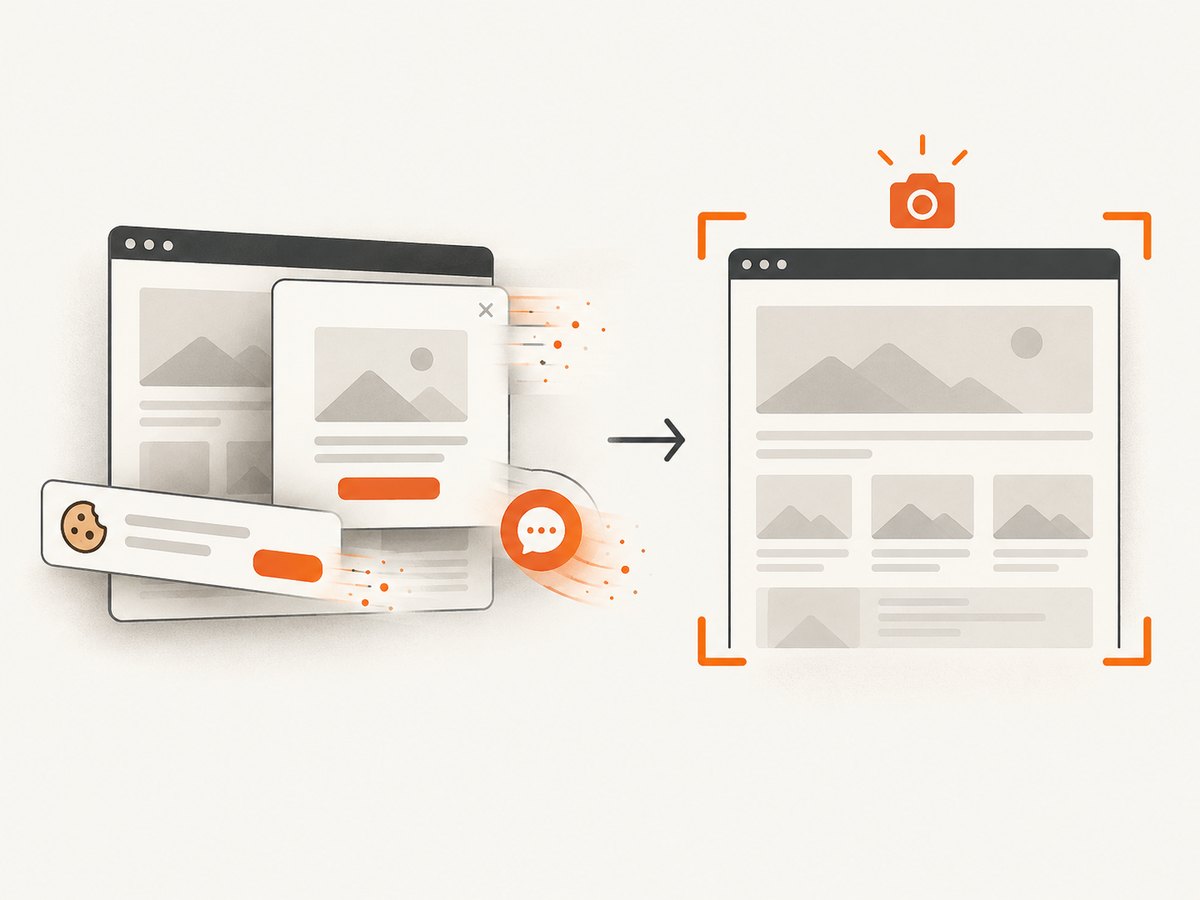
ScreenshotNeo provides a website screenshot API and MCP server. One GET request returns a PNG, JPEG, WebP, or PDF. It accepts consent banners like a visitor and removes more than 60 known consent platforms, newsletter popups, and chat widgets before capture; each cleanup step can be turned off. Bot checks, blank pages, timeouts, failed loads, and cache hits are not billed, and the response identifies the result with X-Page-Verdict and X-Billed headers. Its MCP server lets Claude, Cursor, and other MCP clients call take_screenshot, get_page_info, and capture_pdf.
See the ScreenshotNeo API documentation for all options.
cURL
curl -G "https://api.screenshotneo.com/v1/shot" -d access_key=YOUR_API_KEY --data-urlencode url=https://stripe.com -o shot.webpPython
import requests
r = requests.get("https://api.screenshotneo.com/v1/shot", params={"access_key": "YOUR_API_KEY", "url": "https://stripe.com"}, timeout=90)
open("shot.webp", "wb").write(r.content)
Node.js
const q = new URLSearchParams({ access_key: 'YOUR_API_KEY', url: 'https://stripe.com' });
const res = await fetch(`https://api.screenshotneo.com/v1/shot?${q}`);
if (!res.ok) throw new Error(`HTTP ${res.status}`);
const data = Buffer.from(await res.arrayBuffer());
await import('node:fs/promises').then(fs => fs.writeFile('shot.webp', data));
ScreenshotNeo also supports full-page capture with lazy images loaded, CSS element capture, dark mode, device presets or custom viewports, retina scale, PDF paper settings and page ranges, custom CSS and JavaScript, clicks, selector waits, delays, network-idle waits, request and resource blocking, custom headers and cookies, user agents, Authorization, timezone, geolocation, transparent backgrounds, resizing, configurable caching, signed image links, asynchronous jobs with signed webhooks, bulk capture for up to 100 URLs per call, a usage API, and an OpenAPI specification. Parameter names used by other screenshot APIs also work to simplify migration.
Free usage includes 1,000 shots each month without a card. Paid plans start at $5 for 3,000 shots; yearly billing gives two months free. Choose the direct browser method when you need desktop-window behavior or browser debugging. Choose the API when you want repeatable server-side page images without maintaining browser binaries and cleanup scripts.
Create a free ScreenshotNeo account and get 1,000 screenshots a month with no card.
8. Cost and operational notes
Self-hosted Playwright or Selenium costs the compute time and maintenance of browser processes, fonts, dependencies, displays, and upgrades. API pricing adds a per-shot service cost but can remove that operational work. With ScreenshotNeo, only clean shots are billed; failed loads and cache hits are not billed. Use caching with a TTL when repeated captures of the same URL are acceptable, and use bulk capture when processing many URLs.
For either approach, set timeouts, cap retries, and preserve verdicts or logs. A retry policy should distinguish transient network failures from deterministic bot checks, invalid URLs, authentication failures, and pages that consistently return blank content.
9. FAQ
Does taking a screenshot always steal browser focus?
No. The available evidence does not establish that as universal behavior. A historical 2018 Puppeteer report describes it in one macOS headful setup. Test your exact configuration.
Can I capture a page without capturing the browser toolbar?
Yes. Playwright and Selenium page APIs capture rendered page content. Desktop capture tools can include browser chrome, so use the page API when the toolbar is not part of the desired image.
Should I use headless mode for visual regression?
Use one mode consistently for the baseline and later runs. Changing headless/headful mode can change rendering and page behavior.
How do I know whether a failure is focus-related?
Compare page and element captures, run headless and headful with the same versions, and log page focus, visibility, navigation, console, and network events. A desktop window becoming active is a runner-level observation, not proof that page rendering changed.
When is a full-page screenshot the wrong choice?
Use a viewport or element capture when only the visible state or one component matters. Full-page images can be slower and larger, especially for long documents.


