How to Take Screenshots with wkhtmltoimage
Use wkhtmltoimage to save a URL or local HTML page as an image. Configure output, viewport, cropping and JavaScript waits, and troubleshoot common rendering issues.

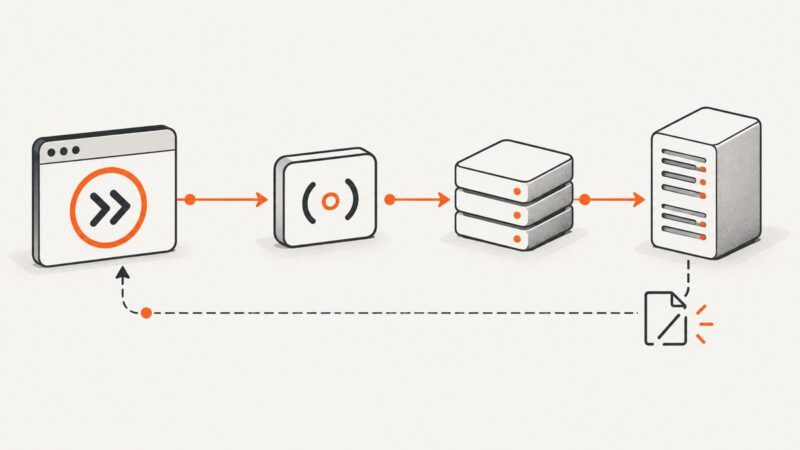
wkhtmltoimage takes a URL or local HTML file and renders it to an image. The basic command is wkhtmltoimage [OPTIONS]... <input> <output>. For example:
wkhtmltoimage https://example.com capture.pngThe input and output are positional arguments; options go before them. You can choose an image format, set the viewport, crop or scale the result, and adjust JavaScript timing. The tool uses Qt WebKit, so its output may differ from a current browser on modern sites. The upstream GitHub repository is archived. See the project repository and wkhtmltoimage manpage for the source details.
1. Install and check wkhtmltoimage
Install a package or binary appropriate for your operating system using the project’s official download information, or build from source. Availability and behavior can vary by platform and package. The Ubuntu Noble manpage, for example, identifies package version 0.12.6-2build2; that is a distribution-specific package version, not a universal current release.
Confirm the command is on your path and inspect the version and options provided by your installed build:
wkhtmltoimage --version
wkhtmltoimage --help
The project describes the tools as using the Qt WebKit rendering engine and operating headlessly. That makes the command useful in scripts and environments without a display service, but it does not make its rendering equivalent to a modern Chrome or Firefox build.
2. Capture a URL
Pass the full URL followed by the destination file. The extension selects a common output format:

wkhtmltoimage https://example.com page.png
wkhtmltoimage https://example.com page.jpg
Use an explicit scheme such as https://. If the URL contains query parameters or shell-special characters, quote it:
wkhtmltoimage 'https://example.com/search?q=widgets&sort=recent' search.pngFor a remote page, the machine running the command must be able to resolve the hostname and reach the site. The page may also depend on cookies, authentication, scripts, fonts, or images that load separately. If the result is incomplete, inspect those dependencies and use the relevant options below.
3. Capture local HTML
Use a local file path as the input. An absolute path avoids ambiguity about the current working directory:
wkhtmltoimage /path/to/page.html /path/to/page.pngLocal HTML often references stylesheets, images, or fonts with relative paths. Keep the directory structure intact or use valid file URLs in the document. Builds may restrict access to local files. The manpage documents --enable-local-file-access, --disable-local-file-access, and repeatable --allow <path> options. Allow only the paths the page needs:
wkhtmltoimage --enable-local-file-access --allow /path/to/assets /path/to/page.html page.pngCheck wkhtmltoimage --help for the exact options supported by your installed build. Be cautious when rendering HTML you do not trust: enabling local file access can expose files available to the process.
4. Choose format and image quality
You can select a format through the output extension or set it explicitly with --format. The documented JPEG quality control takes an integer from 0 through 100:
wkhtmltoimage --format png https://example.com page.png
wkhtmltoimage --format jpg --quality 85 https://example.com page.jpg
Choose PNG when you want lossless output, sharp text, or transparency where supported. JPEG can reduce file size for photographic content but uses lossy compression. WebP availability depends on the installed build; consult its help output before relying on it. There is no universal ideal JPEG quality: compare the resulting file size and visual artifacts for your content.
5. Set the viewport, crop, and scale
--width sets the screen width used as a rendering guide. --height sets the screen height; if omitted, height is calculated from page content. For a strict width, the manpage advises disabling smart width:
wkhtmltoimage --width 1440 --disable-smart-width https://example.com desktop.pngA viewport influences responsive layouts: a page rendered at a phone width may show a different navigation menu and column arrangement than one rendered at desktop width. Specify the width that matches the layout you want to capture. Verify support for --disable-smart-width in the installed build.
Crop options define the crop size and origin; zoom changes the rendered scale. For example, these options illustrate a crop starting at the top-left of the rendered page:
wkhtmltoimage --crop-x 0 --crop-y 0 --crop-w 1200 --crop-h 800 https://example.com cropped.png
wkhtmltoimage --zoom 1.5 https://example.com enlarged.png
Crop coordinates and dimensions are not a substitute for choosing the right viewport. If content is cut off, first check the page layout and viewport, then adjust crop values. Zoom can change effective dimensions, so inspect the resulting image rather than assuming the output pixel size from the input values alone.
6. Wait for JavaScript-driven content
JavaScript is enabled or disabled through command options. For pages that populate content after initial load, --javascript-delay waits a fixed number of milliseconds. A page can also expose a status value for --window-status to wait for:
wkhtmltoimage --javascript-delay 2000 https://example.com/dynamic page.png
wkhtmltoimage --window-status ready https://example.com/dynamic page.png
The delay is a timing control, not a guarantee that all content has loaded. A fixed wait may be too short on a slow run and unnecessarily long on a fast one. A status-based wait depends on the page actually setting the requested value. Neither option guarantees compatibility with every modern web application; Qt WebKit is an older rendering engine.
7. Use options for site access and debugging
The manpage documents options for cookies, custom headers, authentication, proxies, and client certificates. These can help when the page requires a session or must be reached through a network proxy. Consult your local --help output for the exact syntax, and avoid putting secrets in shell history or logs.
When a capture fails or resources are missing, these diagnostic controls may help:
--debug-javascriptreports JavaScript diagnostics.--load-error-handlingcontrols handling of page load errors.--load-media-error-handlingcontrols handling of media load errors.--log-levelchanges the amount of logged detail.
Option values and defaults can differ between builds. Check the installed manpage or help output before copying settings into a production script.
8. Automate repeat captures
A shell script can make the input and output explicit and stop if the command reports an error:
#!/usr/bin/env bash
set -eu

url='https://example.com'
out='capture.png'
wkhtmltoimage --width 1440 --disable-smart-width "$url" "$out"
printf 'Wrote %s\n' "$out"
For scheduled jobs, write outputs to a known directory, use predictable filenames, and retain the command’s exit status and logs. If multiple captures run in parallel, limit concurrency to what the host can support and avoid overwriting the same output path. The research sources do not establish a performance benchmark or safe universal concurrency level.
9. Troubleshooting
| Symptom | Likely cause | What to try |
|---|---|---|
| Command not found | The binary is not installed or is not on PATH. |
Install the platform-appropriate package or binary, then check wkhtmltoimage --version. |
| Could not load page | Malformed URL, DNS or network issue, inaccessible site, or load error. | Include the scheme, quote the URL, check network access, and inspect logs with an appropriate log level and load-error handling option. |
| Blank or partly rendered page | JavaScript content has not appeared, a resource failed, or the page uses features the rendering engine does not support. | Try a JavaScript delay or a page-provided window status; inspect JavaScript and media errors. If the site relies on modern browser behavior, use a current browser-based renderer. |
| Images or styles missing from local HTML | Relative paths are wrong or local-file access is restricted. | Check paths and working directory; enable local access only if needed, and use --allow for the required asset directory when supported. |
| Unexpected width or layout | Smart width or responsive breakpoints changed the layout. | Set --width and, if supported, --disable-smart-width. Match the viewport to the layout you intend. |
| Output is unexpectedly large or blurry | Format, JPEG quality, zoom, or source dimensions are unsuitable. | Choose PNG or JPEG deliberately, adjust documented quality or zoom settings, and inspect the output dimensions and detail. |
| Option is rejected | Your packaged build differs from the documentation you followed. | Check wkhtmltoimage --help and the local manpage; use options available in that build. |
10. Performance, reliability, and cost
wkhtmltoimage is a local command-line tool, so there is no per-shot service charge for using it. You are responsible for the machine, package installation, updates, networking, and any job orchestration. Capture time depends on the page and environment; no source here supplies a general runtime figure. A longer JavaScript delay adds at least that wait to the capture workflow, so choose it based on the page’s needs.
For reliable automation, record the binary version, check exit codes, keep logs for failed runs, and validate output files before downstream use. A successful command does not prove every dynamic element rendered correctly. Since the upstream repository is archived and the renderer uses Qt WebKit, assess compatibility with your actual pages and operating environment before making it a dependency for long-lived workflows.
11. Or skip the browser setup
ScreenshotNeo is a website screenshot API and MCP server from Yorker Media. A single GET request returns a PNG, JPEG, WebP, or PDF. See the ScreenshotNeo API documentation for configuration details.

curl -G "https://api.screenshotneo.com/v1/shot" -d access_key=YOUR_API_KEY --data-urlencode url=https://stripe.com -o shot.webpimport requests
r = requests.get("https://api.screenshotneo.com/v1/shot", params={"access_key": "YOUR_API_KEY", "url": "https://stripe.com"}, timeout=90)
open("shot.webp", "wb").write(r.content)const q = new URLSearchParams({ access_key: 'YOUR_API_KEY', url: 'https://stripe.com' });
const res = await fetch(`https://api.screenshotneo.com/v1/shot?${q}`);- Cookie banners and consent prompts are accepted, and 60+ known consent platforms, newsletter popups, and chat widgets are removed before the shot; each step can be turned off.
- Bot checks or CAPTCHAs, blank pages, timeouts, failed loads, and cache hits cost nothing; response headers identify the page verdict and whether it was billed.
- An MCP server provides
take_screenshot,get_page_info, andcapture_pdftools for Claude, Cursor, and other MCP clients. - The free plan includes 1,000 shots per month with no card. Paid plans start at $5 for 3,000 shots; every feature is on every plan.
Sign up free for 1,000 screenshots a month, with no card.
12. Frequently asked questions
Can wkhtmltoimage save a PDF?
No. It is the image command. The related wkhtmltopdf command creates PDFs; use the command that matches the output you need.
Does wkhtmltoimage need a graphical desktop?
The project describes it as headless and says it runs without a display service. The installed build and environment still need to be configured correctly.
Will it match Chrome exactly?
Do not assume so. It uses Qt WebKit, and modern sites may depend on browser features or rendering behavior that differ from this engine.
How do I know which version I have?
Run wkhtmltoimage --version and consult the package manager or local help output. Package versions are distribution-specific.
Sources
- Upstream wkhtmltopdf repository (archived status and project description).
- Ubuntu Noble wkhtmltoimage manpage (options and package documentation).
- Official project downloads.