How to Scroll a Webpage Before Taking a Screenshot with Selenium
Scroll to the bottom or a target element in Selenium, wait for lazy content, and capture the correct viewport or full page.
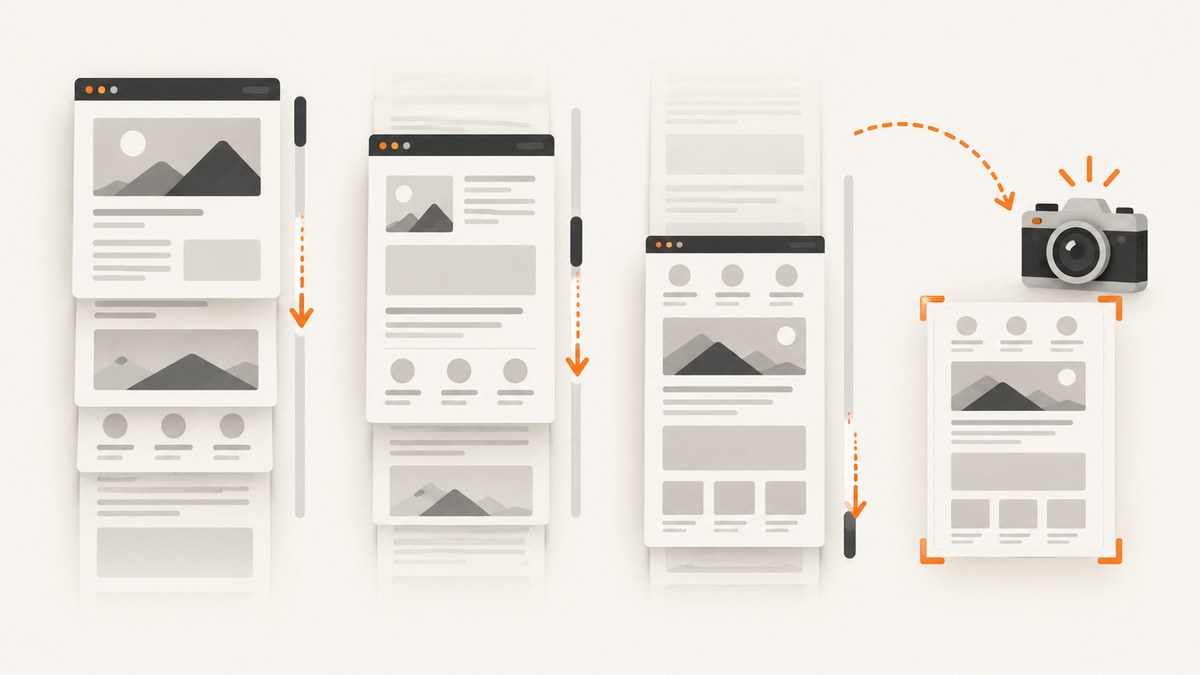
Use Selenium’s JavaScript executor to scroll, then capture the current viewport. In Python, scroll to the document bottom with driver.execute_script("window.scrollTo(0, document.body.scrollHeight)") and save it with driver.save_screenshot("screenshot.png"). To bring a known element into view, call element.scrollIntoView(true) before saving.
execute_script runs JavaScript synchronously in the current window or frame, so Selenium runs the screenshot command after the scroll script returns. A normal WebDriver screenshot contains only the current viewport. Scrolling does not automatically create one tall, full-document image.
1. Scroll to the bottom, then capture the viewport
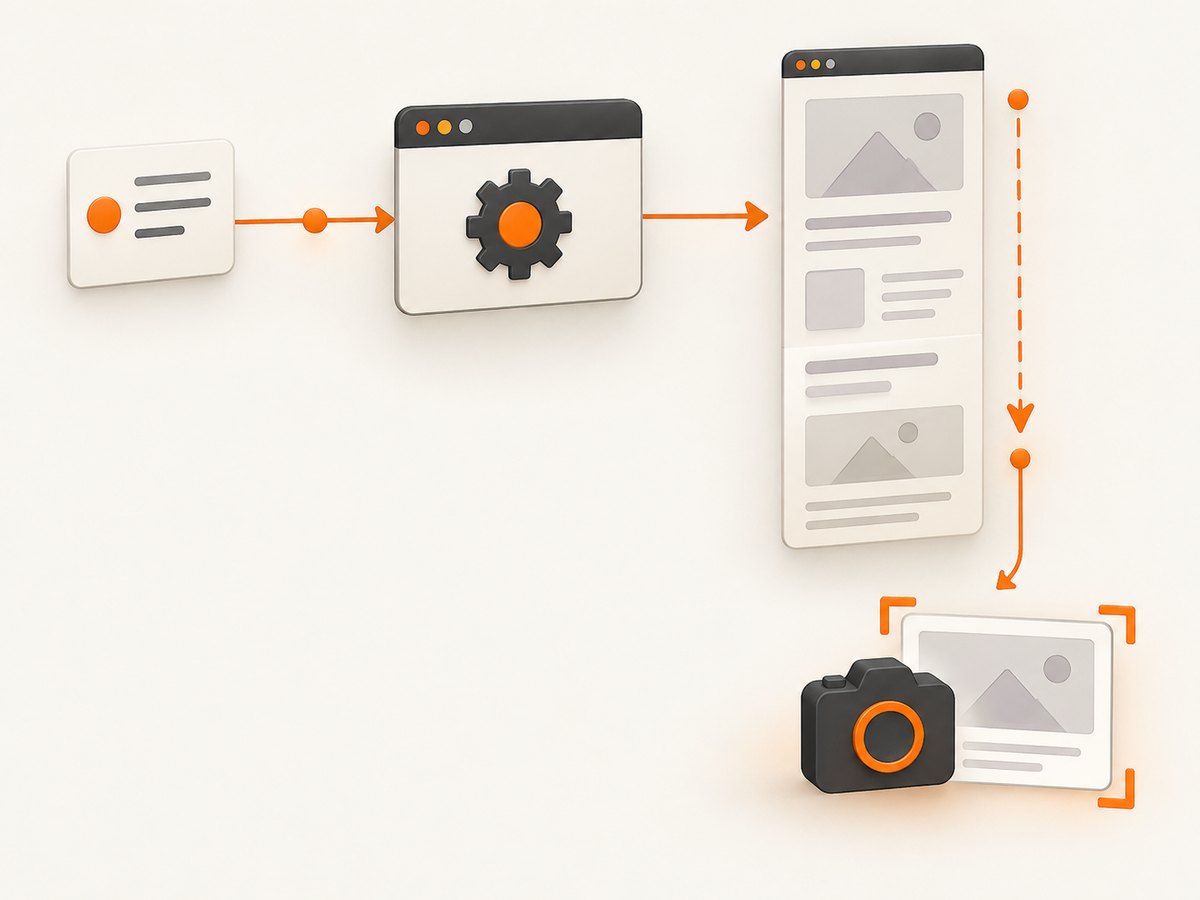
This complete Python example opens a page, scrolls to its bottom, waits for a small application-specific rendering interval, saves a PNG, and closes the browser.
from selenium import webdriver
from selenium.webdriver.chrome.options import Options
import time

options = Options()
options.add_argument("--headless=new")
options.add_argument("--window-size=1440,1000")

driver = webdriver.Chrome(options=options)
try:
    driver.get("https://example.com")
    driver.execute_script("window.scrollTo(0, document.body.scrollHeight)")
    time.sleep(1)  # Replace with a condition tied to your application when possible.
    driver.save_screenshot("bottom-of-page.png")
finally:
    driver.quit()
The screenshot shows the viewport after the scroll. If the page is taller than the viewport, it will not include the entire document in one image.
2. Scroll to a specific element
Find the element first, then align it with the viewport. The true argument places the element’s top edge near the top of the viewport.
from selenium import webdriver
from selenium.webdriver.common.by import By
from selenium.webdriver.chrome.options import Options

options = Options()
options.add_argument("--headless=new")
driver = webdriver.Chrome(options=options)
try:
    driver.get("https://example.com")
    element = driver.find_element(By.CSS_SELECTOR, "footer")
    driver.execute_script("arguments[0].scrollIntoView(true);", element)
    driver.save_screenshot("footer.png")
finally:
    driver.quit()
Use a stable selector such as an ID, data attribute, or semantic element. A selector that matches a hidden or duplicated node can produce an unexpected capture.
Center the element instead
driver.execute_script(
    "arguments[0].scrollIntoView({block: 'center', inline: 'nearest'});",
    element,
)
Centering helps when a sticky header would cover the top of the target. You can also apply an offset after scrolling:
driver.execute_script("window.scrollBy(0, -80);")3. Wait for content that loads during scrolling
The Selenium scroll call is synchronous, but the page may start asynchronous work afterward. Lazy images, infinite lists, advertisements, and client-rendered sections can still be incomplete when the screenshot runs. Selenium’s documentation does not define one universal delay; wait for a condition that represents your application’s ready state.
Wait for a target element
from selenium.webdriver.common.by import By
from selenium.webdriver.support.ui import WebDriverWait
from selenium.webdriver.support import expected_conditions as EC

wait = WebDriverWait(driver, 15)
driver.execute_script("window.scrollTo(0, document.body.scrollHeight)")
wait.until(EC.visibility_of_element_located((By.CSS_SELECTOR, "footer")))
driver.save_screenshot("ready.png")
Wait for an image to finish loading
image = driver.find_element(By.CSS_SELECTOR, "img.hero")
wait.until(lambda d: d.execute_script(
    "return arguments[0].complete && arguments[0].naturalWidth > 0;", image
))
driver.save_screenshot("loaded-image.png")
Scroll an infinite page in increments
For an infinite feed, one jump to document.body.scrollHeight may trigger only the first batch of requests. Repeatedly measure the document height, scroll down, and stop when the height no longer grows or a page-specific end marker appears.
import time
from selenium.webdriver.common.by import By

last_height = 0
for _ in range(20):
    height = driver.execute_script("return document.body.scrollHeight")
    driver.execute_script("window.scrollTo(0, arguments[0]);", height)
    time.sleep(0.5)
    new_height = driver.execute_script("return document.body.scrollHeight")
    if new_height == last_height:
        break
    last_height = new_height

driver.save_screenshot("feed-end.png")
Prefer an explicit “end of results” element or network-ready signal when the site provides one. A fixed loop can stop too early on slow pages or waste time on pages that never end.
4. Viewport screenshots versus full-page screenshots
| Goal | Method | Result |
|---|---|---|
| Capture what the user sees after scrolling | save_screenshot or get_screenshot_as_file |
Current browser viewport as PNG |
| Capture a particular section | scrollIntoView, then save |
Viewport positioned on the element |
| Capture the whole document in one image | Firefox full-page screenshot API | Full-document image, where supported |
Firefox WebDriver documents save_full_page_screenshot and related full-page methods. A normal screenshot remains viewport-sized even if you first scroll to the bottom.
from selenium import webdriver
from selenium.webdriver.firefox.options import Options

options = Options()
options.add_argument("-headless")
driver = webdriver.Firefox(options=options)
try:
    driver.get("https://example.com")
    driver.save_full_page_screenshot("full-page.png")
finally:
    driver.quit()
Full-page support and rendering details vary by browser and driver. If you need identical output across browsers, capture predictable viewport regions or use a dedicated screenshot service.
5. Java Selenium equivalent
Java uses JavascriptExecutor for scrolling and TakesScreenshot for the PNG.
import java.io.File;
import org.openqa.selenium.By;
import org.openqa.selenium.JavascriptExecutor;
import org.openqa.selenium.OutputType;
import org.openqa.selenium.TakesScreenshot;
import org.openqa.selenium.WebDriver;
import org.openqa.selenium.chrome.ChromeDriver;
import org.openqa.selenium.WebElement;

WebDriver driver = new ChromeDriver();
try {
    driver.get("https://example.com");
    JavascriptExecutor js = (JavascriptExecutor) driver;
    WebElement footer = driver.findElement(By.cssSelector("footer"));
    js.executeScript("arguments[0].scrollIntoView(true);", footer);
    File image = ((TakesScreenshot) driver).getScreenshotAs(OutputType.FILE);
    // Copy image to your destination with your preferred file utility.
} finally {
    driver.quit();
}
6. Useful scroll and capture options
- Bottom of document:
window.scrollTo(0, document.body.scrollHeight). - Absolute position:
window.scrollTo({top: 1200, left: 0, behavior: 'instant'}). - Relative movement:
window.scrollBy(0, 600). - Element alignment:
arguments[0].scrollIntoView(true). - Horizontal scrolling: use
scrollTo(x, y)orscrollIntoView({inline: 'center'}). - Viewport size: set the WebDriver window size before navigation so responsive breakpoints are deterministic.
- PNG output:
save_screenshotandget_screenshot_as_filesave the current window as PNG.
Disable smooth scrolling for deterministic automation if the site’s CSS animates movement:
driver.execute_script("document.documentElement.style.scrollBehavior = 'auto';")Fixed headers can hide the target. Scroll it into view, then subtract the header height:
driver.execute_script("arguments[0].scrollIntoView(true); window.scrollBy(0, -72);", element)7. Common errors and fixes
| Symptom | Cause | Fix |
|---|---|---|
| Screenshot still shows the top | Scroll ran in the wrong tab, frame, or before navigation completed | Switch to the correct window/frame, wait for the page, then execute the script. |
| Target is covered by a header | Sticky navigation overlays the element | Use centered scrollIntoView or scroll upward by the header height. |
| Lazy images are blank | Image requests are asynchronous | Wait for complete and naturalWidth, or wait for the page’s loaded marker. |
| Infinite page is incomplete | One bottom jump did not trigger every batch | Scroll in increments and stop on an end marker or stable document height. |
ElementNotInteractableException or stale element |
The DOM changed after locating the element | Wait for visibility and locate the element again immediately before scrolling. |
| Only one viewport appears in the output | save_screenshot is a viewport capture |
Use Firefox’s full-page API or capture and stitch sections deliberately. |
| Different screenshots in headless and headed mode | Different window size, fonts, or timing | Set an explicit viewport, install required fonts, and wait on application state. |
| Script works on the main page but not an iframe | JavaScript runs in the current browsing context | Switch with driver.switch_to.frame(...), scroll, then switch back. |
8. Reliability, performance, and cost considerations
- Reliability: Replace arbitrary sleeps with explicit waits tied to visible elements, loaded images, or an application-ready marker. Keep selectors stable and set page-load and script timeouts.
- Performance: One JavaScript scroll is inexpensive. Incremental scrolling on a long infinite feed is slower because it triggers layout, rendering, and network work at every step.
- Memory: Very long pages and large device-scale factors increase browser memory and image size. Use a realistic viewport and capture only the required region.
- Repeatability: Fix the browser version, viewport, timezone, locale, fonts, and test data when comparing screenshots.
- Cost: Running Selenium means maintaining browser binaries, drivers, compute, and page-loading time. A hosted capture API can remove that operational work; compare its billing rules with your workload.
9. Or skip the browser setup
ScreenshotNeo provides a single-request website screenshot API when you do not need to manage Selenium, Chrome, drivers, or waits yourself. See the ScreenshotNeo API documentation for all options.
curl -G "https://api.screenshotneo.com/v1/shot" -d access_key=YOUR_API_KEY --data-urlencode url=https://stripe.com -o shot.webpimport requests
r = requests.get("https://api.screenshotneo.com/v1/shot", params={"access_key": "YOUR_API_KEY", "url": "https://stripe.com"}, timeout=90)
open("shot.webp", "wb").write(r.content)const q = new URLSearchParams({ access_key: 'YOUR_API_KEY', url: 'https://stripe.com' });
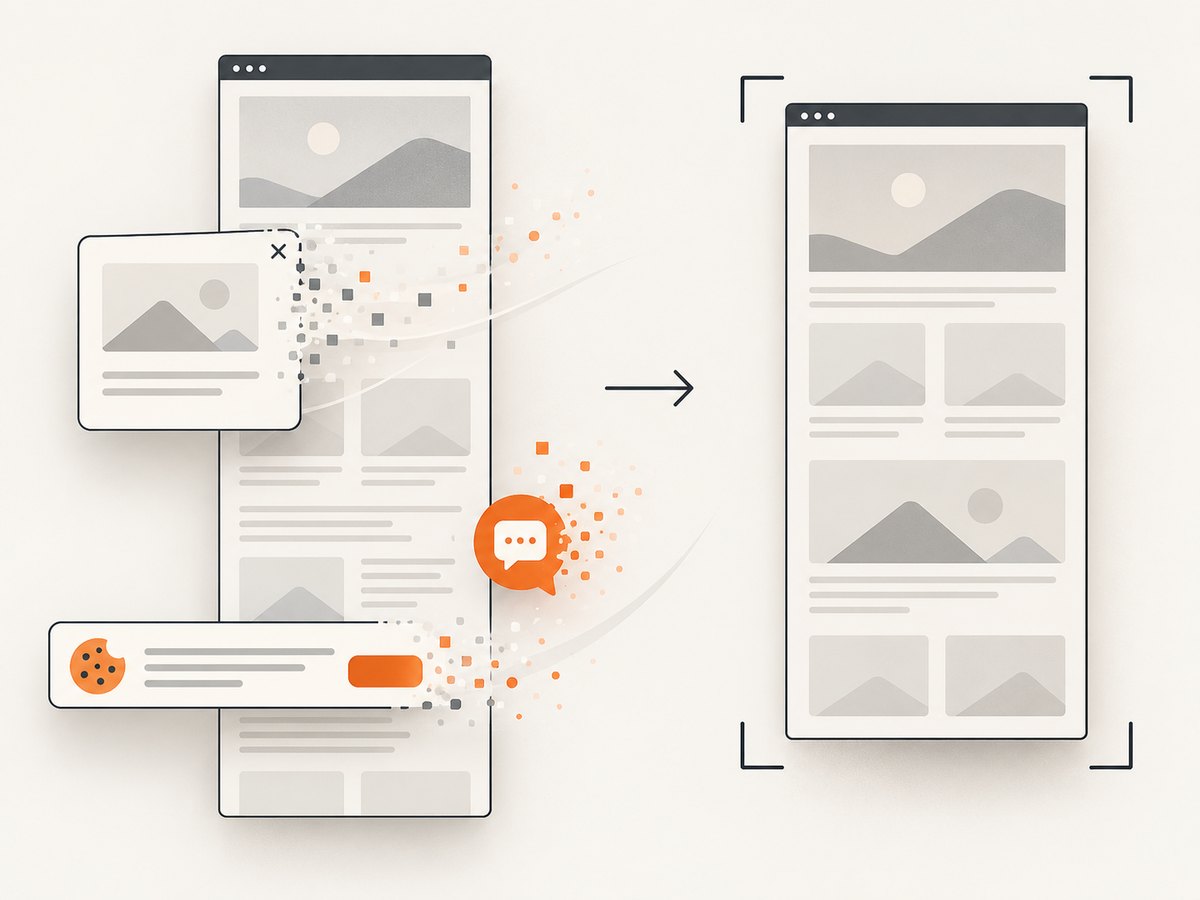
const res = await fetch(`https://api.screenshotneo.com/v1/shot?${q}`);Before capture, ScreenshotNeo can accept cookie or consent banners and remove more than 60 known consent platforms, newsletter popups, and chat widgets; each cleanup step can be turned off. Bot checks, blank pages, timeouts, failed loads, and cache hits are not billed, and the response identifies the result with X-Page-Verdict and X-Billed headers. Its MCP server lets Claude, Cursor, and other MCP clients use take_screenshot, get_page_info, and capture_pdf. The Free plan includes 1,000 screenshots per month with no card; paid plans start at $5 for 3,000.
Create a free ScreenshotNeo account and get 1,000 screenshots a month with no card.
10. FAQ
Does Selenium wait for scrolling to finish?
The JavaScript execution itself is synchronous, so Selenium continues after the script returns. It does not guarantee that lazy content triggered by scrolling has finished loading; wait for that content separately.
Can I scroll an element without clicking it?
Yes. Locate the element and call scrollIntoView; no click is required.
Why is my full-page screenshot not full height?
save_screenshot captures the current viewport. Use a browser-specific full-page method, such as Firefox’s documented API, or capture sections and combine them.
Which Selenium API saves a screenshot?
Python provides save_screenshot and get_screenshot_as_file; Java exposes screenshot output through TakesScreenshot.
How do I capture a page after scrolling horizontally?
Use window.scrollTo(x, y) or scrollIntoView with an inline option, set a viewport wide enough for the layout, and then save the current viewport.


