How to Scroll to and Click Buttons with Puppeteer
Learn the reliable Puppeteer patterns for scrolling to buttons, clicking them, handling navigation, frames, overlays, and failures.
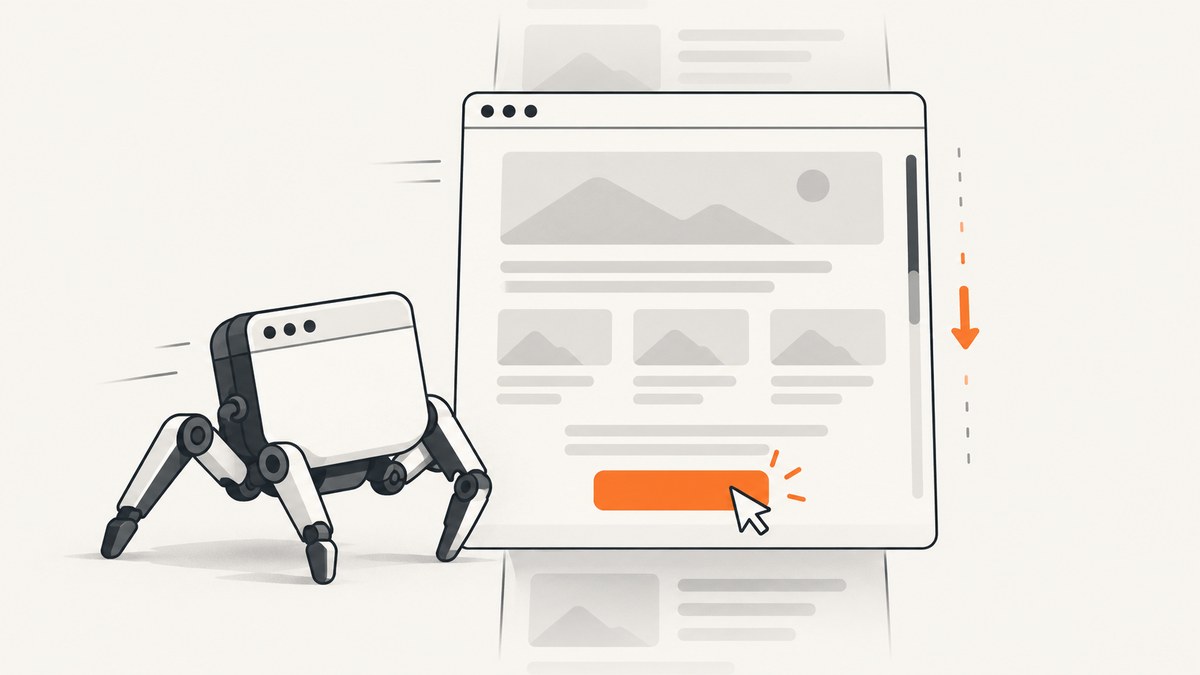
The most reliable way to scroll to and click a button with Puppeteer is usually to let a locator do both jobs:
await page.locator('button#save').click();Puppeteer’s locator click makes sure the element is in the viewport, visible, enabled, and geometrically stable before clicking. If you need to show or control the scroll step explicitly, call scroll() first:
const save = page.locator('button#save');
await save.scroll();
await save.click();
The lower-level equivalent is await page.click('button#save'). Puppeteer finds the element, scrolls it into view when necessary, and clicks its center. Locators are preferred for new code because their readiness checks make timing failures less common.
What “scroll and click” means in Puppeteer
A browser click has several prerequisites. The button must exist in the current document, be visible, be enabled, have a stable bounding box, and be reachable in the viewport. Modern pages also add sticky headers, animated components, consent dialogs, nested scrolling regions, iframes, and single-page application state changes.
Puppeteer’s locator API handles the common sequence for you. It waits until the target can be interacted with, scrolls it into view, and then performs the click. The official interactions guide describes locators as the recommended way to select and interact with elements: Puppeteer page interactions guide.
Complete runnable example
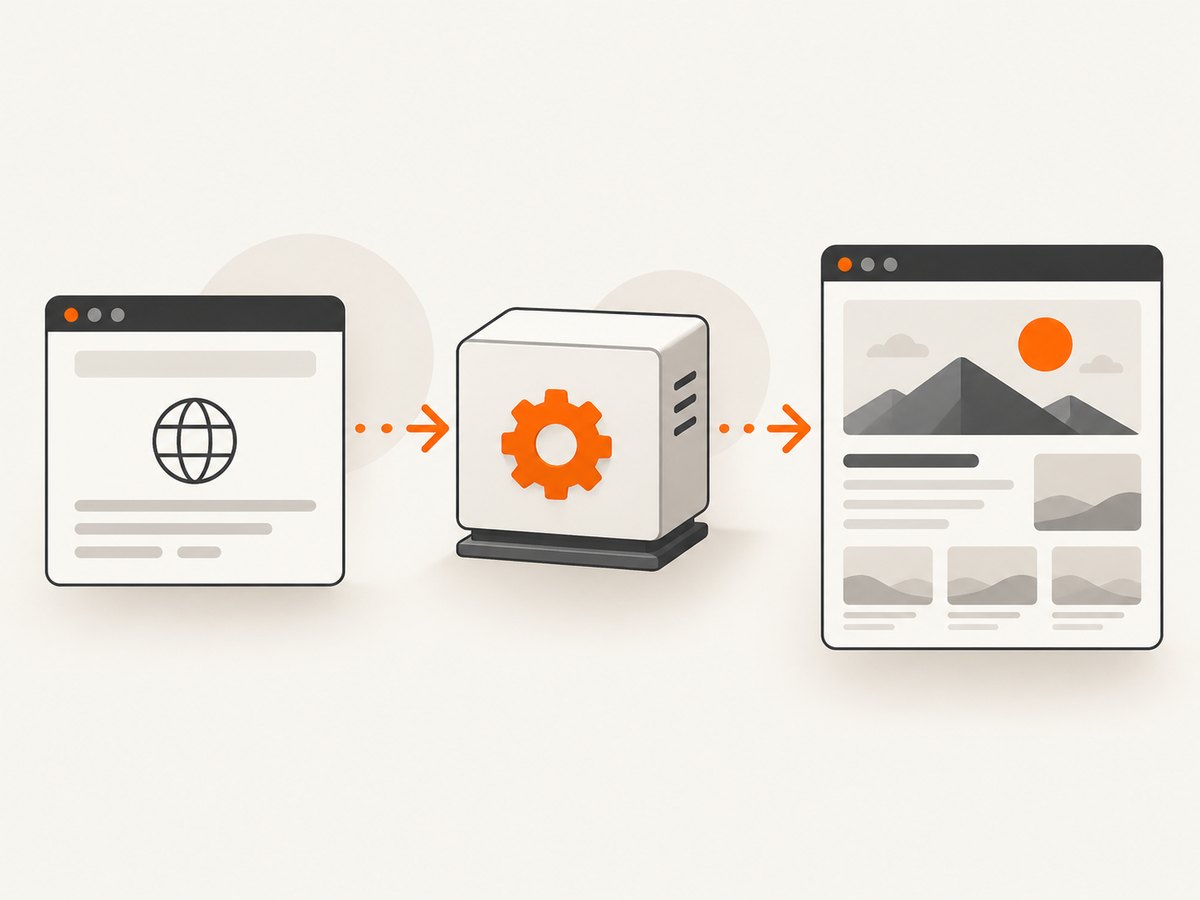
The following script opens a page, waits for a button, scrolls to it, clicks it, and checks for a result. Install Puppeteer with npm install puppeteer, then save this as scroll-click.js.
const puppeteer = require('puppeteer');

(async () => {
  const browser = await puppeteer.launch({headless: true});
  try {
    const page = await browser.newPage();
    await page.setViewport({width: 1365, height: 768, deviceScaleFactor: 1});
    await page.goto('https://example.com/form', {waitUntil: 'domcontentloaded'});

    const save = page.locator('button#save');
    await save.scroll();
    await save.click();

    await page.locator('[role="status"]').wait();
    console.log('Save completed');
  } finally {
    await browser.close();
  }
})();
Replace the URL and selectors with values from your page. If the button navigates, synchronize the navigation wait and click in one expression:
const [response] = await Promise.all([
  page.waitForNavigation({waitUntil: 'networkidle0'}),
  page.locator('button#save').click(),
]);

console.log('Navigated to', response.url());
Creating the two promises together prevents a race in which navigation starts before waitForNavigation() is listening. See the Page.click reference for the documented behavior.
Direct locator clicks: the default choice
For most buttons, this is enough:
await page.locator('button#save').click();The locator waits for viewport presence, visibility, enabled state, and a stable bounding box over consecutive animation frames. That matters when a page moves a button into place after loading data or animates it into view.
Use a locator when:
- the target may initially be below the fold;
- the page enables the button asynchronously;
- the layout changes during startup;
- you want failures to identify a missing or non-interactable element clearly.
You can also keep the operation concise with page.click():
await page.click('button#save');Page.click is useful in existing scripts, but it has fewer explicit readiness controls than a locator. If a selector matches several elements, Puppeteer clicks the first match, so confirm uniqueness whenever duplicate buttons are possible.
Explicit scrolling and alignment
Call locator.scroll() when scrolling is part of the behavior you want to control or document:
const checkout = page.locator('[data-testid="checkout"]');
await checkout.scroll();
await checkout.click();
For a precise alignment, use a DOM scroll and then let the locator perform the final click checks:
await page.$eval('button#save', (element) => {
  element.scrollIntoView({block: 'center', inline: 'nearest'});
});
await page.locator('button#save').click();
Centering helps when a fixed header would cover the button after a default scroll. It also gives you predictable screenshots and coordinates. Avoid replacing the final locator click with a raw mouse coordinate: the layout can shift between the scroll and the click.
A nested scrolling container may require scrolling the container itself:
await page.$eval('.results-panel button#next', (button) => {
  button.scrollIntoView({block: 'center', inline: 'nearest'});
});
await page.locator('.results-panel button#next').click();
If the application intercepts wheel events, use a mouse wheel only to move the container, then use a locator for the actual click:
await page.mouse.move(640, 600);
await page.mouse.wheel({deltaY: 500});
await page.locator('.results-panel button#next').click();
Choosing selectors that survive page changes
CSS selectors are accepted by default. Stable attributes and accessible names are usually safer than generated classes.
// Stable test identifier
await page.locator('button[data-testid="save"]').click();

// Accessible name
await page.locator('aria/Save').click();

// Visible text
await page.locator('text/Save').click();
Prefer a unique role/name, test ID, or stable data attribute. Avoid selectors such as .css-1a2b3c when a build process can rename them. If the page has two “Save” buttons, narrow the scope:
await page.locator('form#profile').locator('aria/Save').click();Before clicking an uncertain selector, inspect how many elements match:
const matches = await page.locator('button#save').count();
if (matches !== 1) {
  throw new Error(`Expected one save button, found ${matches}`);
}
await page.locator('button#save').click();
Waiting for navigation and asynchronous UI
Full page navigation
Pair navigation and clicking with Promise.all:
await Promise.all([
  page.waitForNavigation({waitUntil: 'networkidle0'}),
  page.locator('a#continue').click(),
]);
Choose the navigation readiness condition according to the application. domcontentloaded returns earlier; networkidle0 waits for a quiet network and may never settle on pages with long polling.
Single-page applications
React, Vue, and other single-page applications often update the current document without navigation. Wait for the resulting state instead:
await page.locator('button#save').click();
await page.locator('[role="status"]').wait();
await page.locator('text/Saved').wait();
When an existing element changes rather than appearing, wait for a condition:
await page.waitForFunction(() => {
  const status = document.querySelector('[role="status"]');
  return status && status.textContent.includes('Saved');
});
Buttons inside iframes
A button inside an iframe belongs to the frame’s document. A page locator cannot reach it directly. Find the frame and create the locator there:
const checkoutFrame = page.frames().find((frame) =>
  frame.url().includes('/checkout')
);
if (!checkoutFrame) throw new Error('Checkout frame not found');

await checkoutFrame.locator('button#pay').click();
Wait for the frame to exist when it is injected after startup:
await page.waitForSelector('iframe[name="checkout"]');
const frameElement = await page.$('iframe[name="checkout"]');
const frame = await frameElement.contentFrame();
if (!frame) throw new Error('Checkout iframe has no content frame');
await frame.locator('button#pay').click();
Cross-origin policy does not prevent Puppeteer from automating a frame, but you must use the frame object rather than evaluating selectors in the parent page.
Overlays, sticky headers, and animated buttons
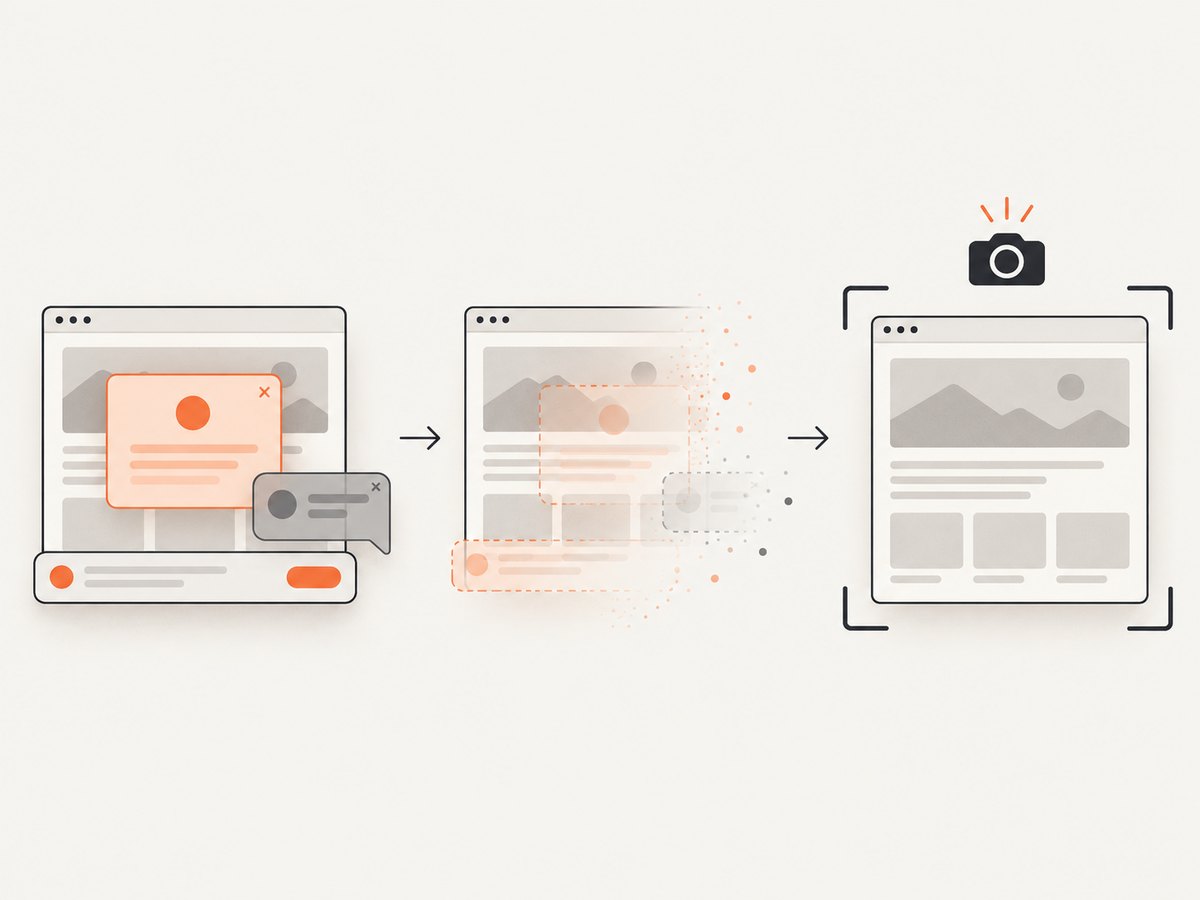
A successful scroll does not guarantee a successful click. A cookie banner, modal, tooltip, chat widget, or sticky header can intercept the center point. Diagnose these separately:
- Check whether a consent dialog or modal is covering the button.
- Wait for the overlay to disappear or close it intentionally.
- Scroll the button to the center when a fixed header overlaps the top edge.
- Wait for an animation to finish before retrying.
const closeBanner = page.locator('[data-testid="cookie-close"]');
if (await closeBanner.count()) {
  await closeBanner.click();
}

await page.$eval('button#save', (button) => {
  button.scrollIntoView({block: 'center'});
});
await page.locator('button#save').click();
Do not add arbitrary sleeps as the primary synchronization method. A state-based wait, such as a locator becoming visible or enabled, is less sensitive to page speed.
Common errors and fixes
| Error or symptom | Likely cause | Fix |
|---|---|---|
| “No element found for selector” | The selector is wrong, the page is not loaded, or the button is in a frame. | Check the URL, wait for the selector, inspect the DOM, and use a frame-scoped locator. |
| Click times out | The element is hidden, disabled, moving, or covered. | Use a locator, wait for the enabled state, close overlays, and allow animations to settle. |
| Click intercepted or wrong element clicked | A duplicate selector or overlay covers the center. | Scope the selector to a form or container, verify the match count, and center the element. |
| Click works manually but not in automation | The script clicks before asynchronous rendering completes. | Wait for a visible result or enabled button instead of using a fixed delay. |
| Navigation wait hangs | The click updates an SPA without a full navigation, or the page keeps network requests open. | Wait for the post-click UI state, or use a less strict navigation condition. |
| Button is visible but does nothing | It may be disabled, require validation, or depend on another event. | Check disabled, fill required fields, and wait for the application’s success indicator. |
| Works outside an iframe only | The selector is evaluated in the parent document. | Find the correct frame and call frame.locator(...). |
Debugging a failed scroll-and-click
Add diagnostics before changing the interaction:
const button = page.locator('button#save');
console.log('matches:', await button.count());
console.log('visible:', await button.isVisible());
console.log('enabled:', await button.isEnabled());

await page.screenshot({path: 'before-click.png', fullPage: true});
await button.scroll();
await page.screenshot({path: 'after-scroll.png'});
await button.click();
Use a headed browser while investigating:
const browser = await puppeteer.launch({headless: false, slowMo: 80});Capture the current URL, page title, and HTML around the target when a CI failure occurs:
console.log(await page.url());
console.log(await page.title());
console.log(await page.locator('button#save').evaluate(el => el.outerHTML));
These checks distinguish selector problems from timing, frame, overlay, and application-state problems.
Performance and reliability guidance
- Reuse one browser process for a batch of pages, but create a fresh page per independent workflow.
- Set a sensible navigation timeout and handle failures with cleanup in
finally. - Wait for the smallest meaningful state, such as a success status, instead of waiting for every network request to stop.
- Prefer stable selectors so a CSS refactor does not break automation.
- Keep screenshots and HTML diagnostics for failed runs, then remove or rotate them according to your data policy.
- When a button triggers a download or popup, listen for that event before clicking.
const downloadPromise = page.waitForEvent('download');
await page.locator('button#export').click();
const download = await downloadPromise;
await download.saveAs('/tmp/export.csv');
Reliability comes from synchronizing with the application’s state. A longer timeout cannot fix a selector that matches the wrong element or a click blocked by an overlay.
Or skip the browser setup
If your goal is to capture a page after its interactive state is ready, ScreenshotNeo provides a single screenshot API request instead of maintaining Puppeteer, Chromium, selectors, and CI browser dependencies. The API can return PNG, JPEG, WebP, or PDF.
See the ScreenshotNeo documentation for the full parameter list. A minimal request is:
curl -G "https://api.screenshotneo.com/v1/shot" -d access_key=YOUR_API_KEY --data-urlencode url=https://stripe.com -o shot.webpimport requests
r = requests.get("https://api.screenshotneo.com/v1/shot", params={"access_key": "YOUR_API_KEY", "url": "https://stripe.com"}, timeout=90)
open("shot.webp", "wb").write(r.content)const q = new URLSearchParams({ access_key: 'YOUR_API_KEY', url: 'https://stripe.com' });
const res = await fetch(`https://api.screenshotneo.com/v1/shot?${q}`);ScreenshotNeo removes cookie and consent banners, newsletter popups, and chat widgets before capture. Bot checks, blank pages, failed loads, timeouts, and cache hits are not billed, and response headers identify the page verdict and billing status. Its MCP server provides take_screenshot, get_page_info, and capture_pdf tools for Claude, Cursor, and other MCP clients.
It also supports full-page captures with lazy images loaded, CSS-selector element captures, custom CSS and JavaScript, clicks before capture, waits, blocked resources, headers, cookies, user agents, authorization, device presets, dark mode, PDFs, caching, signed links, asynchronous jobs, bulk capture, and a usage API. Every feature is included on every plan. The free plan includes 1,000 screenshots per month with no card; paid plans start at $5 for 3,000 shots.
Create a free ScreenshotNeo account and start with 1,000 screenshots per month without a card.
FAQ
Does Puppeteer automatically scroll before clicking?
Yes. page.click(selector) scrolls the matched element into view before clicking. Locator clicks add readiness checks for visibility, enabled state, and stable geometry.
Should I use scrollIntoView() or locator.scroll()?
Use locator.scroll() for normal interactions. Use scrollIntoView() when you need a specific alignment or must account for a sticky header or unusual scroll container.
Why does a click fail after the button appears?
Appearance alone does not prove that the button is enabled, stable, or unobstructed. Let a locator wait, close overlays, and verify the post-click state.
Can Puppeteer click a button in an iframe?
Yes. Find the frame and create the locator from that frame. A locator created on the parent page cannot select elements inside the iframe.
How do I know whether a click navigated?
Use Promise.all with waitForNavigation() when a full navigation is expected. For an SPA, wait for a changed URL or a post-click status element instead.


