How to Scroll Elements Into View for Website Screenshots
Scroll a target into view before capturing it with Playwright or Puppeteer. Choose element, viewport, or full-page capture and handle tricky layouts.

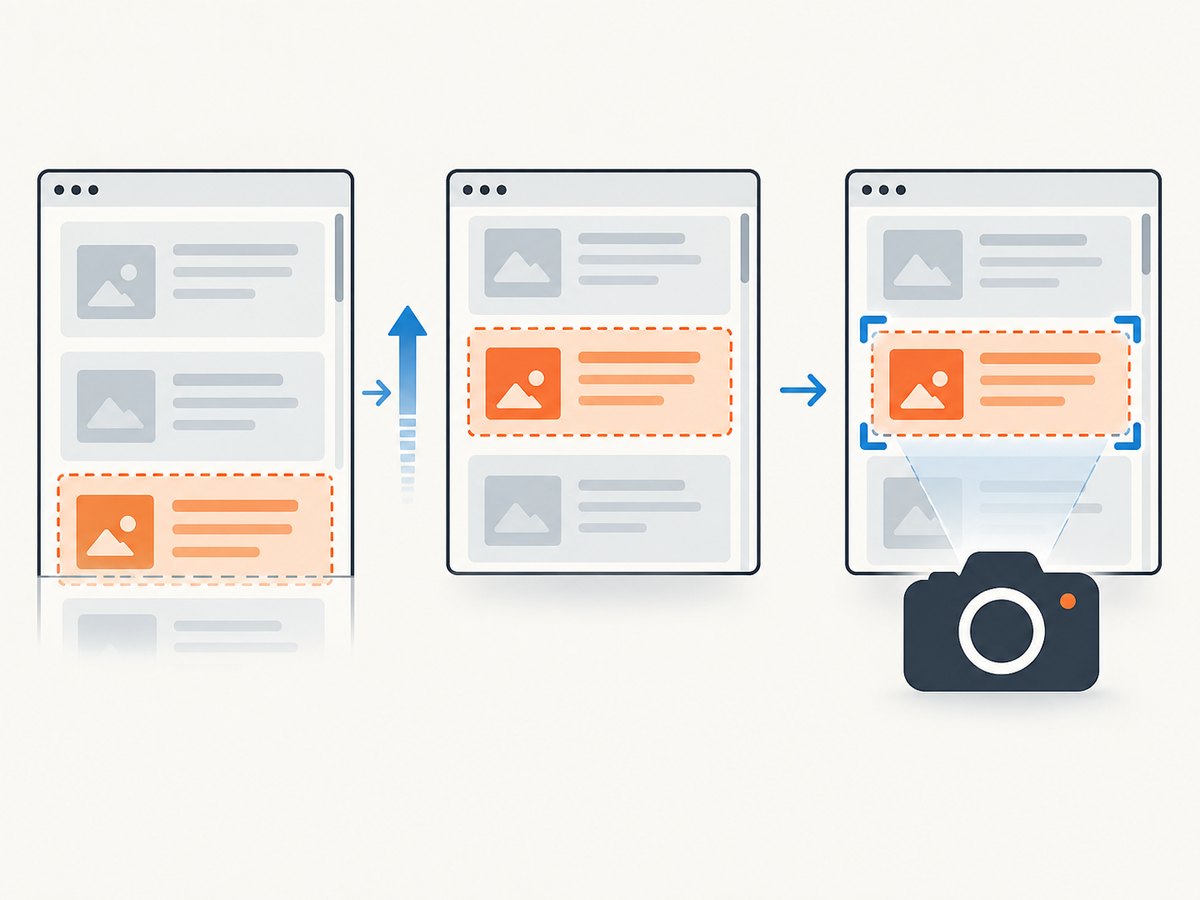
To include an off-screen element in a website screenshot, first bring it into view, then choose the capture scope you actually need. In Playwright, call locator.scrollIntoViewIfNeeded() before a viewport capture, or use locator.screenshot() to capture the element directly; in Puppeteer, ElementHandle.screenshot() scrolls its target into view as needed. Use a full-page screenshot when the output should show the whole scrollable document.
1. Choose the screenshot scope
Scrolling and capturing are separate decisions. Scrolling changes what appears in the browser viewport. The screenshot API determines whether the output is that viewport, one element, or the whole page.
| Desired result | Approach | What appears |
|---|---|---|
| One component or section | Capture the target element | The element itself, rather than the surrounding page |
| A viewport framed around a target | Scroll the target into view, then capture the page | The visible browser area, including nearby context |
| The entire document | Take a full-page screenshot | The full scrollable page as one tall image |
Element capture is useful for a card, chart, or component. Viewport capture is better when the context around a section matters. Full-page capture is appropriate for a page overview, but it does not create the same framing as a viewport screenshot taken after scrolling to a chosen point. Playwright documents both locator screenshots and full-page screenshots in its Locator API and screenshots guide.
2. Playwright with JavaScript: scroll, then capture
Install Playwright and its Chromium browser in a Node.js project, then save this as capture.mjs. Replace the URL and locator with the page and stable target you need.
import { chromium } from 'playwright';

const browser = await chromium.launch();
const page = await browser.newPage({ viewport: { width: 1440, height: 900 } });

try {
  await page.goto('https://example.com', { waitUntil: 'domcontentloaded' });

  const target = page.locator('[data-testid="report-summary"]');
  await target.waitFor({ state: 'visible' });
  await target.scrollIntoViewIfNeeded();
  await page.screenshot({ path: 'viewport.png' });
} finally {
  await browser.close();
}
scrollIntoViewIfNeeded() waits for actionability checks and tries to scroll the element into view unless it is already completely visible according to an IntersectionObserver visibility ratio. After it returns, page.screenshot() captures the current viewport by default. This example waits for the target to be visible in the DOM before scrolling, and closes the browser even if navigation or capture fails. See the current Playwright Locator documentation for details.
Capture just the target
If the surrounding viewport is not part of the deliverable, take a locator screenshot. Playwright scrolls the locator into view when needed as part of its screenshot operation:
const target = page.locator('[data-testid="report-summary"]');
await target.waitFor({ state: 'visible' });
await target.screenshot({ path: 'report-summary.png' });
Use a locator that resolves to one intended element. If a selector matches multiple elements, narrow it explicitly with a test id, an accessible role and name, or a more specific CSS selector.
Capture the full page
For a tall image of the scrollable document, use the page screenshot option:
await page.screenshot({ path: 'full-page.png', fullPage: true });This is a full-document capture, not a way to position a viewport around a particular target. Playwright describes it as capturing the full scrollable page as though it could fit on a very tall screen. If a page loads content only when scrolled, first make sure that content is loaded; a full-page flag alone does not guarantee every site’s lazy content has been fetched.
3. Playwright with Python
Install the Playwright Python package and browser binaries for the browser you intend to use. This synchronous example opens Chromium, scrolls a stable target into view, captures the current viewport, and ensures cleanup:
from playwright.sync_api import sync_playwright

with sync_playwright() as playwright:
    browser = playwright.chromium.launch()
    page = browser.new_page(viewport={"width": 1440, "height": 900})
    try:
        page.goto("https://example.com", wait_until="domcontentloaded")
        target = page.locator('[data-testid="report-summary"]')
        target.wait_for(state="visible")
        target.scroll_into_view_if_needed()
        page.screenshot(path="viewport.png")
    finally:
        browser.close()
For an element-only image, replace the page screenshot call with:
target.screenshot(path="report-summary.png")The Python locator API also exposes scroll_into_view_if_needed(). If you use the asynchronous API, the same operations are awaited on the async page and locator objects; keep browser cleanup in a finally block or an equivalent context-managed lifecycle.
4. Puppeteer with JavaScript
Puppeteer’s element screenshot method handles the basic case directly. This runnable ES module example navigates, locates the target, and saves the element image:
import puppeteer from 'puppeteer';

const browser = await puppeteer.launch({ headless: true });
try {
  const page = await browser.newPage();
  await page.setViewport({ width: 1440, height: 900 });
  await page.goto('https://example.com', { waitUntil: 'domcontentloaded' });

  const target = await page.$('[data-testid="report-summary"]');
  if (!target) throw new Error('Target element was not found');
  await target.screenshot({ path: 'report-summary.png' });
} finally {
  await browser.close();
}
Puppeteer documents that ElementHandle.screenshot() scrolls the element into view if needed, then uses Page.screenshot() to capture the element. For viewport framing instead, scroll the element and then capture the page:
const target = await page.$('[data-testid="report-summary"]');
if (!target) throw new Error('Target element was not found');
await target.scrollIntoView();
await page.screenshot({ path: 'viewport.png' });
Check the installed Puppeteer version’s ElementHandle screenshot API and page APIs for the exact available options. Puppeteer’s automatic element scrolling and Playwright’s locator scrolling are both documented behaviors; the dossier does not establish a general speed or reliability winner. Prefer the framework already used by your project.
5. Position the viewport more precisely
Automatic scroll-into-view is convenient when the target itself defines the image. For a viewport screenshot that must show a deliberate amount of context, position the page, then capture the viewport.
Use wheel input
Wheel input approximates how a user scrolls and is useful when the page responds to wheel events. In Playwright, scroll in increments and then capture:
await page.mouse.move(900, 700);
await page.mouse.wheel(0, 500);
await page.waitForTimeout(250);
await page.screenshot({ path: 'viewport-after-scroll.png' });
The delay is only an example. Choose a wait tied to the page’s actual state where possible, such as waiting for a known element or a loading indicator to disappear. A fixed delay cannot make an unpredictable network request deterministic.
Use locator evaluation for a specific position
When the target should appear at a deliberate point, use the browser’s scrolling behavior and provide a block alignment:
const target = page.locator('[data-testid="report-summary"]');
await target.evaluate(element => {
  element.scrollIntoView({ block: 'center', inline: 'nearest' });
});
await page.screenshot({ path: 'centered-viewport.png' });
block: 'center' asks the browser to place the element near the vertical center. Other useful alignments include 'start' and 'end'. A sticky header may cover an element positioned at the start; adjust the page scroll position or use a suitable CSS scroll margin in the page under test. Playwright’s input guide describes using a visible element near the bottom as a scroll target and using wheel input or locator evaluation for finer positioning.
6. Handle nested scroll containers and dynamic pages
A target inside an internally scrollable panel presents two separate scroll positions: the document and the panel. Scrolling the target into view may move the containing page or container enough to expose the element, but an element screenshot of the panel shows only the panel’s currently scrolled content. If the desired content is deeper inside the panel, scroll the panel itself before capturing.
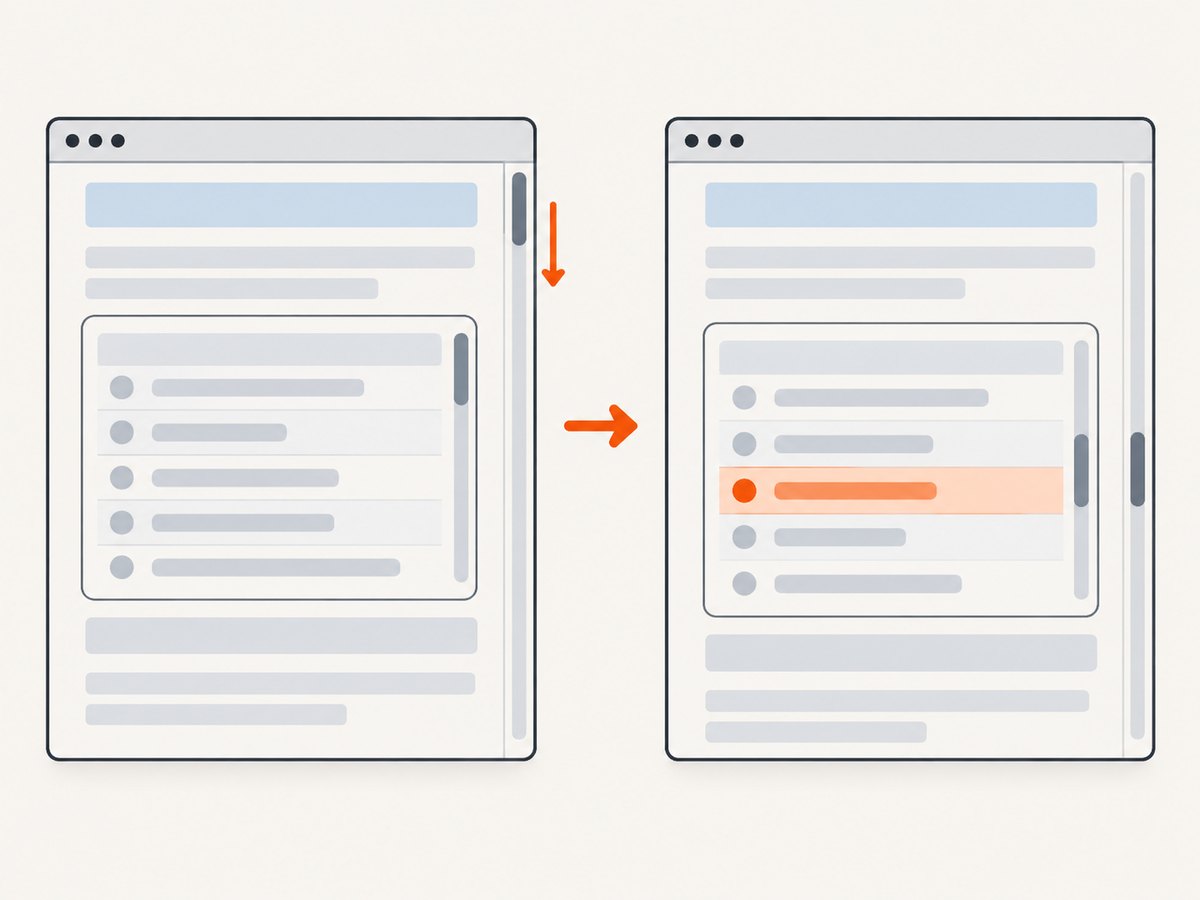
const panel = page.locator('.results-panel');
await panel.evaluate(element => {
  element.scrollTop = 400;
});
await page.locator('.results-panel .desired-row').screenshot({ path: 'row.png' });
Use a stable panel selector and choose the scroll offset based on the content. If the page uses virtualized lists, rows far from the visible area may not exist in the DOM until scrolling reaches them. Scroll in steps and wait for the intended row to appear before capturing.
Lazy-loaded images and cards also need attention. A target can be visible while its image is still loading, or a section can render only after it enters the viewport. Wait for a meaningful signal, such as the image completing, a content-specific selector appearing, or a loading state ending. Recheck the final image when the capture is part of a repeatable workflow; browser layout can change with viewport dimensions, fonts, animation, and page data.
7. Troubleshooting
| Symptom | Likely cause | Fix |
|---|---|---|
| Locator or selector not found | Wrong selector, late rendering, or wrong frame | Wait for the right state; verify the selector and whether content is inside an iframe. |
| Screenshot shows the wrong matching element | Selector matches more than one node | Use a stable unique selector or select the intended match explicitly. |
| Target is cut off under a sticky header | Scrolling aligns the element where a fixed header covers it | Use centered alignment or offset the scroll position, then capture the viewport. |
| Panel screenshot omits lower content | The target is a scrollable container and its internal scroll position is at the top | Scroll the panel itself to the desired content before taking the image. |
| Screenshot is blank or stale | Capture happened before navigation or rendering finished | Wait for a meaningful page or target state; avoid relying only on a short fixed sleep. |
| Lazy image is missing | The image loads only when near the viewport, or is still downloading | Scroll it into view, wait for its load state, then capture. |
| Viewport image is too tall or too short | Full-page and viewport capture options were confused | Use a normal page screenshot for the viewport and the full-page option only for the document. |
| Target moves between runs | Dynamic content, animation, fonts, or responsive layout changes its position | Use a consistent viewport, wait for stable content, and disable or accommodate motion in the page setup. |
8. Performance, reliability, and cost
For a single capture, the main workflow cost is browser startup, navigation, page rendering, and any waits you add. When capturing many pages, reuse a browser process where appropriate and create isolated pages or contexts for independent work. Avoid arbitrary long sleeps: they add latency when pages are ready early and still may be too short when they are not.
Reliability comes from stable selectors and waits tied to page state. A selector based on a content label can be convenient, but labels may change or be duplicated; test ids are often more stable when the site provides them. Keep viewport size, device scale, authentication state, and locale consistent if screenshots need to be comparable. Treat external websites as dynamic: network delays, bot checks, consent dialogs, and content changes can affect the result.
Self-hosted browser automation has no per-screenshot API price from Playwright or Puppeteer themselves, but you pay in your own compute, browser maintenance, and engineering time. Hosted capture services trade some setup for an API charge; compare billing rules and features against your expected volume.
9. Or skip the browser setup
If your goal is a clean screenshot rather than controlling a local browser, ScreenshotNeo takes a website URL in one GET request and returns PNG, JPEG, WebP, or PDF. It can capture a full page, a CSS-selected element, or a chosen viewport; its options also include custom waits, CSS and JavaScript, hiding selectors, device presets, cookies and headers. See the ScreenshotNeo API documentation.
curl -G "https://api.screenshotneo.com/v1/shot" \
  -d access_key=YOUR_API_KEY \
  --data-urlencode url=https://stripe.com \
  -o shot.webp
import requests
r = requests.get(
"https://api.screenshotneo.com/v1/shot",
params={"access_key": "YOUR_API_KEY", "url": "https://stripe.com"},
timeout=90,
)
open("shot.webp", "wb").write(r.content)const q = new URLSearchParams({ access_key: 'YOUR_API_KEY', url: 'https://stripe.com' });
const res = await fetch(`https://api.screenshotneo.com/v1/shot?${q}`);
if (!res.ok) throw new Error(`Screenshot request failed: ${res.status}`);
await Bun.write('shot.webp', res);With ScreenshotNeo, cookie banners, newsletter popups, and chat widgets are removed before the shot. Bot checks, blank pages, and failed loads are never billed; response headers identify page verdict and billing status. Its MCP server gives AI agents tools to take screenshots, get page information, and capture PDFs. The free plan includes 1,000 screenshots a month with no card; paid plans start at $5 for 3,000. Sign up for 1,000 free screenshots a month, with no card required.
10. FAQ
Does scrolling into view capture the whole element?
No. Scrolling changes its position in the viewport. An element screenshot captures the selected element; a page screenshot captures the viewport unless full-page capture is enabled.
Should I use scroll-into-view or full-page capture?
Use scroll-into-view when the frame should focus on a particular element or nearby context. Use full-page capture for the whole scrollable document.
What if the target is inside an iframe?
Locate it through the appropriate frame context, then scroll and capture within that context. A page-level selector generally does not search inside every frame automatically.
Can a screenshot include hidden content?
A normal element or viewport screenshot reflects rendered content. If a section is hidden or not yet loaded, reveal or load it first, then capture.
Which framework should I choose?
Use the framework your project already runs. The documented APIs cover this workflow in both Playwright and Puppeteer; the sources do not establish a universal winner.


