How to Scroll a Web Page Before Capturing a Screenshot
Learn when to scroll manually and when to capture a full page, viewport, or element with Playwright or Puppeteer. Includes runnable code and fixes for tricky pages.
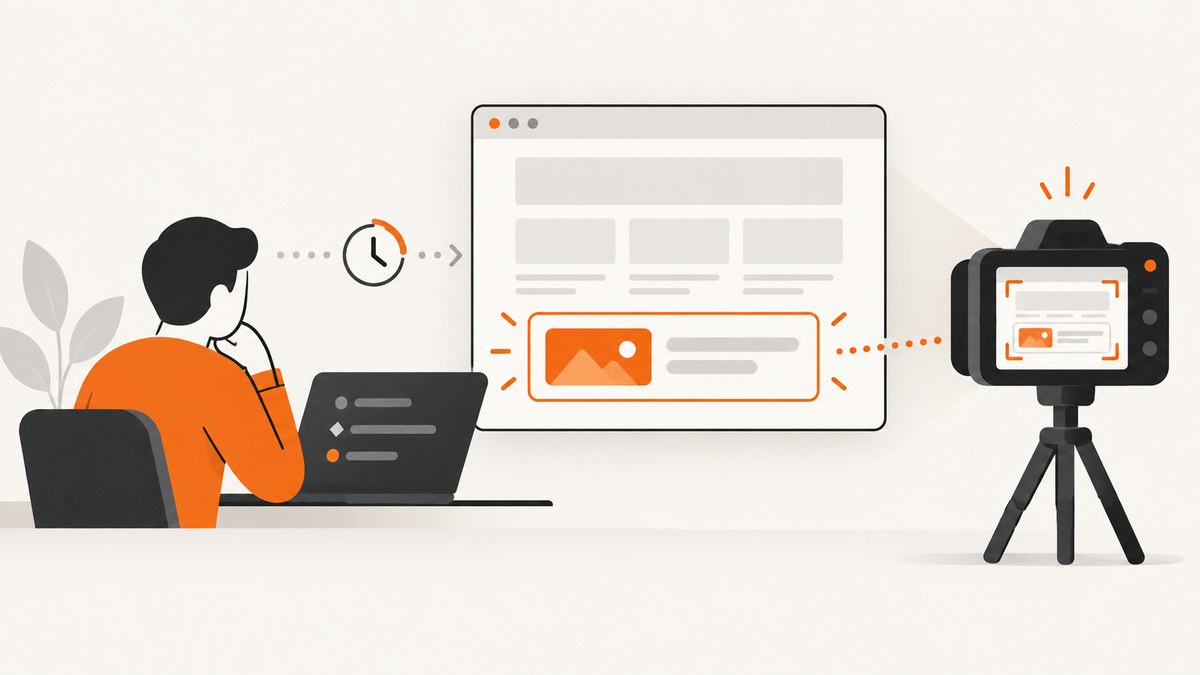
To capture everything in one image, you usually do not need to scroll the page first: use a full-page screenshot option. To capture only what is currently visible, take a normal viewport screenshot. To capture a specific component, target that element. If you are capturing manually, scroll to the section you want and take a separate screenshot at each position.
This guide covers manual scrolling, Playwright and Puppeteer code, lazy-loaded and infinite-scroll content, common failures, and when a screenshot API can save browser setup.
1. Choose the capture area
First decide what the screenshot needs to show. “Scroll before capturing” can mean revealing a section, collecting multiple viewport images, or producing one tall image of the whole page. These are different capture tasks.

| Goal | Approach | What to check |
|---|---|---|
| One tall image of the page | Use the browser automation library’s full-page option. | Inspect whether content loaded only after scrolling is present. |
| What a visitor sees on screen | Capture the current viewport; scroll to the desired position first if needed. | Keep viewport dimensions consistent if comparing screenshots. |
| One card, chart, or component | Capture the element directly when supported. | Wait for the element and ensure it is visible and not covered. |
| A sequence showing a long page in sections | Scroll and capture separate viewport screenshots. | Record the order and avoid gaps or accidental overlaps. |
Playwright’s fullPage option captures the full scrollable page instead of the visible viewport; it defaults to false. Puppeteer exposes the equivalent option, also documented with a default of false. A full-page capture describes the browser’s capture scope; it does not guarantee that every site’s lazy-loaded or infinite-scroll content has been fetched. [Playwright screenshots guide; Playwright Page API; Puppeteer ScreenshotOptions]
2. Scroll manually before taking a screenshot
For a manual capture, scroll until the intended section is visible, then take the screenshot using your operating system or browser’s normal capture controls. The exact key combinations and browser menus vary, so use the controls documented for your environment.
- Open the page at the intended window size.
- Scroll to the section you want included in the viewport.
- If the page reveals images or text as you scroll, pause until the content has rendered.
- Capture the visible viewport.
- For multiple screenshots, scroll in a consistent direction and keep the captures in order. Check adjacent images for missing content or overlap.
This method is useful for evidence, bug reports, and a short sequence of page sections. It is less convenient for creating one continuous long image: separate captures may have repeated or missing content. If the purpose is a single image of the document, automation’s full-page option is usually simpler.
3. Capture a full page with Playwright
Install Playwright and its Chromium browser in a Node.js project:
npm install playwright
npx playwright install chromium
Save this as capture.mjs. It opens the given URL and writes a full-page PNG:
import { chromium } from 'playwright';

const url = process.argv[2] ?? 'https://example.com';
const browser = await chromium.launch({ headless: true });
try {
  const page = await browser.newPage({ viewport: { width: 1440, height: 900 } });
  await page.goto(url, { waitUntil: 'load', timeout: 60_000 });
  await page.screenshot({ path: 'screenshot.png', fullPage: true });
} finally {
  await browser.close();
}
Run it with:
node capture.mjs https://example.compage.goto waits for the page’s load event here. Some sites keep background connections open or load important content afterward; choose a readiness condition appropriate to the site, then wait for a meaningful selector or a deliberate delay if needed. Avoid assuming that “network idle” means every application is ready: analytics, streaming, and long polling can keep requests active.
Viewport, full page, and element screenshots
These snippets use the same page after navigation:
// Current viewport only
await page.screenshot({ path: 'viewport.png' });

// Entire scrollable page
await page.screenshot({ path: 'full-page.png', fullPage: true });

// One element (Playwright locator screenshot)
await page.locator('main article').screenshot({ path: 'article.png' });
Use a selector that identifies the intended component. Locator screenshots wait for the locator to be actionable according to Playwright’s behavior; still inspect the output if the component animates, is covered, or changes size. Playwright’s screenshot tooling documents that target and fullPage cannot be combined: choose element capture or full-page capture for that operation. [Playwright screenshot assertions and options]
Scroll to a section, then capture
If you need a viewport image of a section farther down, scroll the page to the element and take a regular screenshot. For example:
const section = page.locator('#pricing');
await section.scrollIntoViewIfNeeded();
await section.waitFor({ state: 'visible' });
await page.screenshot({ path: 'pricing-viewport.png' });
This captures the current viewport after scrolling, not just the element. Use section.screenshot() instead if the image should contain only the element’s bounding area.
4. Capture a full page with Puppeteer
Install Puppeteer, which downloads a compatible browser as part of its standard installation:
npm install puppeteerSave as capture-puppeteer.mjs:
import puppeteer from 'puppeteer';

const url = process.argv[2] ?? 'https://example.com';
const browser = await puppeteer.launch({ headless: true });
try {
  const page = await browser.newPage();
  await page.setViewport({ width: 1440, height: 900 });
  await page.goto(url, { waitUntil: 'load', timeout: 60_000 });
  await page.screenshot({ path: 'screenshot.png', fullPage: true });
} finally {
  await browser.close();
}
Run with node capture-puppeteer.mjs https://example.com. For a viewport image, omit fullPage: true. Puppeteer’s screenshot options reference documents fullPage as a boolean and states its default is false; check the reference for your installed version when relying on version-specific options. [Puppeteer ScreenshotOptions]
5. Handle lazy loading and infinite scroll
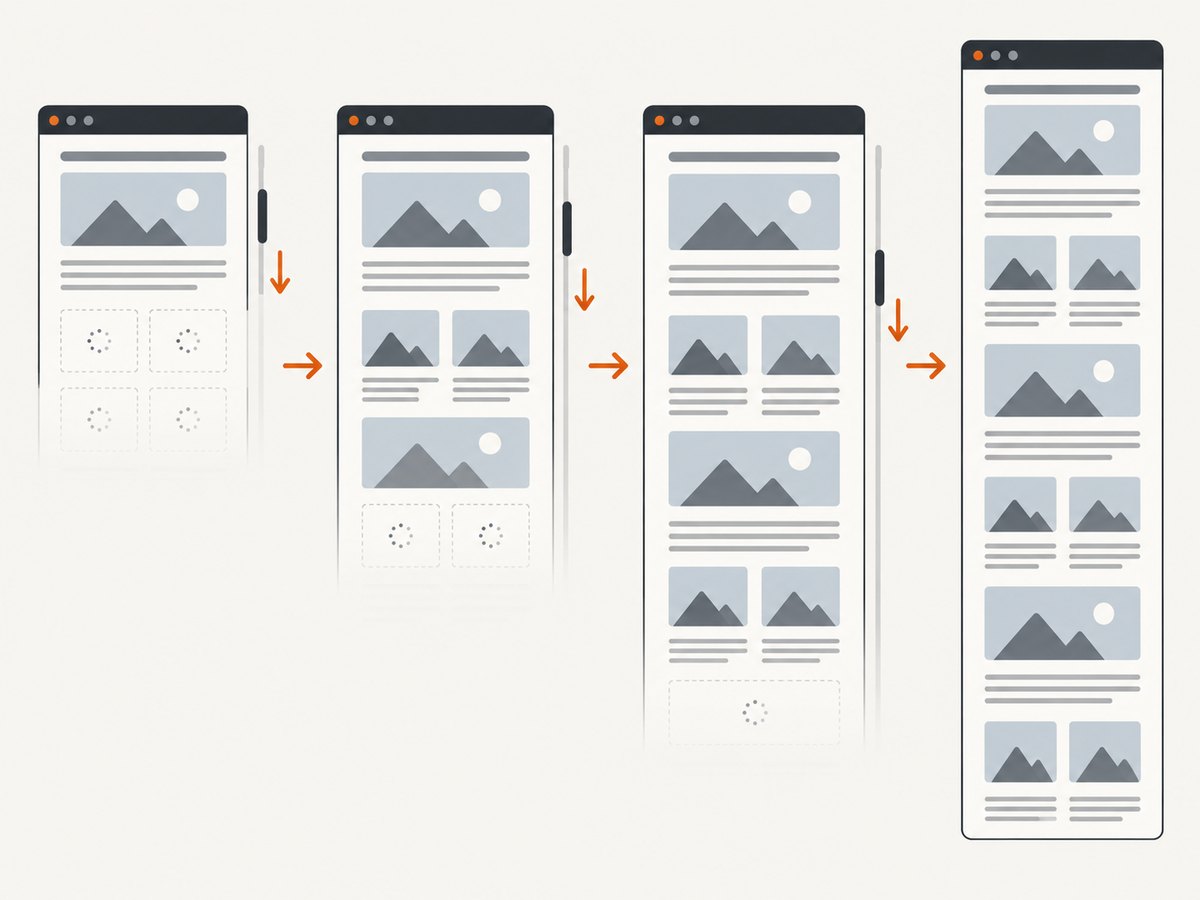
Pages often defer loading images until they approach the viewport. An infinite-scroll feed may request additional records only after a visitor nears the bottom. The documentation for the full-page options establishes capture scope, not a universal lazy-loading workaround. Treat the rendered output as the source of truth.
When images are missing
- Look for empty image areas or placeholders in the output.
- Scroll through the page before capturing so viewport-triggered content has a chance to load.
- Wait for a site-specific selector or for images to finish loading where possible.
- Capture again and verify that the expected sections appear.
A page-wide scroll can be automated in steps. The following Playwright helper advances by roughly one viewport at a time, pauses briefly for site scripts, and returns to the top before capture:
async function revealByScrolling(page, pauseMs = 300) {
  await page.evaluate(async (pause) => {
    const step = Math.max(300, Math.floor(window.innerHeight * 0.8));
    for (let y = 0; y < document.documentElement.scrollHeight; y += step) {
      window.scrollTo(0, y);
      await new Promise(resolve => setTimeout(resolve, pause));
    }
    window.scrollTo(0, 0);
  }, pauseMs);
}

await revealByScrolling(page);
await page.screenshot({ path: 'revealed-full-page.png', fullPage: true });
This is a best-effort technique, not a universal fix. Some sites increase document height after each request; some require a particular element to intersect the viewport; others use virtualized lists that remove off-screen items. For an infinite feed, define a stopping condition such as a known item count or “end of results” marker rather than scrolling forever. If content is virtualized and old items disappear, one full-page screenshot may not contain the entire feed; capture sections as they appear or use the site’s data/export interface when that is the intended workflow.
Sticky headers, animations, and changing layouts
Sticky navigation may appear repeatedly in a full-page image, depending on browser capture behavior and the page’s implementation. If the repeated header obscures content, consider capturing sections individually or hiding the sticky element with page-specific CSS. Animations and carousels can produce inconsistent frames; where visual consistency matters, disable animation with an appropriate stylesheet or wait for the desired state. Avoid adding broad CSS that changes the layout you intend to document.
6. Control format, size, and output
For browser automation, the output format is chosen through the screenshot options supported by the library and browser version. Common practical choices include PNG for crisp UI and text, JPEG for smaller photographic captures, and WebP where the consuming system accepts it. Check the relevant library API for supported options and defaults before depending on quality or encoding behavior. For Playwright, screenshot options include a path and image type; full-page scope is a separate choice. [Playwright Page API]
Set the viewport before navigation or capture when you need repeatable responsive layouts. Device scale factor affects pixel dimensions; choose it deliberately when comparing captures or producing retina-sized output. A longer page and larger pixel dimensions consume more memory and produce larger files. If the destination has an upload limit, resize or compress after capture and check that text remains readable.
7. Troubleshooting
| Symptom | Likely cause | Fix |
|---|---|---|
| The output contains only the first screen. | The capture used the default viewport scope. | Set fullPage: true for a full-page screenshot, or intentionally scroll and take several viewport captures. |
| Images or sections are blank. | Content may load on scroll or after a site-specific event. | Scroll to reveal it, wait for a meaningful selector or image completion, then inspect a fresh capture. |
| Navigation times out. | The page may keep connections open, respond slowly, or never reach the selected lifecycle event. | Increase the timeout if appropriate; use a different navigation readiness event and explicitly wait for the content needed in the screenshot. |
| The element screenshot fails. | The selector matched nothing, the element is detached, or it never became visible. | Check the selector, wait for the locator, and confirm the element exists in the loaded page. |
| The page is cut off or unexpectedly tall. | Dynamic content changed document height, or the site has a long feed. | Wait for the expected content, define a stopping condition, and verify the final dimensions and bottom of the image. |
| Repeated content or sticky bars appear. | Fixed-position elements remain visible as the capture spans the document. | Capture separate sections or hide only the specific fixed element using page-specific CSS. |
| Automation exits but no image is written. | The browser may throw before the screenshot call or the process lacks write access to the output directory. | Check the exception, use an absolute writable output path, and keep browser shutdown in a finally block. |
| The screenshot differs between runs. | Responsive size, data, fonts, animation, or timing changed. | Fix the viewport, wait for fonts and key content, and capture a stable page state. |
8. Performance, reliability, and cost
Local Playwright and Puppeteer captures do not charge a screenshot API fee, but they use your machine or server resources. Browser startup, page scripts, image downloads, and tall-page rasterization all take time and memory. Reuse a browser process for batches when appropriate, close pages after use, and cap concurrency to avoid exhausting CPU and memory. A timeout limits how long a job can wait; it does not ensure that the result is complete.
For repeatable jobs, log the target URL, viewport, capture mode, wait condition, elapsed time, and output path. Retry transient navigation failures selectively rather than retrying deterministic problems such as invalid URLs or selectors. Validate that the file exists and has plausible dimensions before passing it downstream. Long pages, unstable content, and bot checks can all make a capture incomplete, so include output inspection in workflows where correctness matters.
9. Or skip the browser setup
ScreenshotNeo is a website screenshot API and MCP server. A GET request takes a URL and returns a PNG, JPEG, WebP, or PDF. Its API accepts parameters for full-page capture and other screenshot settings; see the ScreenshotNeo API documentation for the current request options.
curl -G "https://api.screenshotneo.com/v1/shot" -d access_key=YOUR_API_KEY --data-urlencode url=https://stripe.com -o shot.webpimport requests
r = requests.get(
"https://api.screenshotneo.com/v1/shot",
params={"access_key": "YOUR_API_KEY", "url": "https://stripe.com"},
timeout=90,
)
open("shot.webp", "wb").write(r.content)const q = new URLSearchParams({ access_key: 'YOUR_API_KEY', url: 'https://stripe.com' });
const res = await fetch(`https://api.screenshotneo.com/v1/shot?${q}`);
if (!res.ok) throw new Error(`Screenshot request failed: ${res.status}`);
await Bun.write('shot.webp', res);In Node.js environments without Bun, write the response bytes with your runtime’s file API. The API’s parameter names used by other screenshot APIs also work, which can make switching easier. ScreenshotNeo accepts cookie banners like a visitor and removes more than 60 known consent platforms, newsletter popups, and chat widgets before capture; each of those steps can be turned off. Bot checks or CAPTCHAs, blank pages, timeouts, failed loads, and cache hits are not billed, and response headers say which result occurred. Its MCP server provides take_screenshot, get_page_info, and capture_pdf tools for Claude, Cursor, and other MCP clients.
The Free plan includes 1,000 screenshots per month with no card. Paid plans start at $5 for 3,000 screenshots; every feature is on every plan. Sign up for 1,000 free screenshots a month, with no card required.
10. FAQ
Does scrolling automatically create one tall screenshot?
No. Scrolling changes the visible viewport. Use the full-page screenshot option for one tall image, or capture separate viewport images after each scroll.
Can I capture just one section of a page?
Yes. Use an element screenshot for the component’s bounds, or scroll it into view and capture the viewport if surrounding context is useful.
Will full-page capture include an infinite feed?
Not necessarily. A feed may load entries only as you scroll, or discard entries outside the viewport. Reveal content deliberately and verify the resulting image.
Which method should I use for a bug report?
Capture the viewport if the issue is visible on screen; use an element capture when one component is the subject. Add multiple ordered viewport captures when the issue spans distinct parts of a long page.


