How to Scroll in Playwright with Java
Learn the right Playwright Java scrolling method for elements, wheel gestures, nested containers, infinite lists, and screenshots.

Use the simplest method that matches the behavior you need. Playwright automatically scrolls most off-screen elements before actions such as click(). To reveal a known element, call locator.scrollIntoViewIfNeeded(). To reproduce a user wheel gesture, hover the scroll container and call page.mouse().wheel(deltaX, deltaY). To set an exact container offset, use locator.evaluate() to change scrollTop.
This guide shows each approach in Java, including nested containers, infinite scrolling, synchronization, troubleshooting, and a ScreenshotNeo option when the goal is a clean screenshot rather than browser interaction.
1. Set up Playwright for Java
Add the Playwright dependency to Maven:
<dependency>
  <groupId>com.microsoft.playwright</groupId>
  <artifactId>playwright</artifactId>
  <version>1.56.0</version>
</dependency>
Install the browser binaries with the Playwright CLI for your project, then run a small program:
import com.microsoft.playwright.*;

public class ScrollExample {
  public static void main(String[] args) {
    try (Playwright playwright = Playwright.create()) {
      Browser browser = playwright.chromium().launch(
          new BrowserType.LaunchOptions().setHeadless(true));
      Page page = browser.newPage();
      page.navigate("https://example.com");
      System.out.println(page.title());
      browser.close();
    }
  }
}
Pin the Playwright version used by your build and check the matching Java input guide and Locator API reference when upgrading.
2. Let a normal action scroll automatically
When your intent is to interact with an element, start with the action itself. Playwright generally scrolls the target into view as part of its actionability checks:
page.getByRole(AriaRole.BUTTON, new Page.GetByRoleOptions().setName("Load more")).click();This is preferable when the scroll is only a prerequisite for clicking, filling, checking, or selecting. A separate scroll call adds another wait and can make a test more sensitive to layout changes.
3. Scroll a target element into view
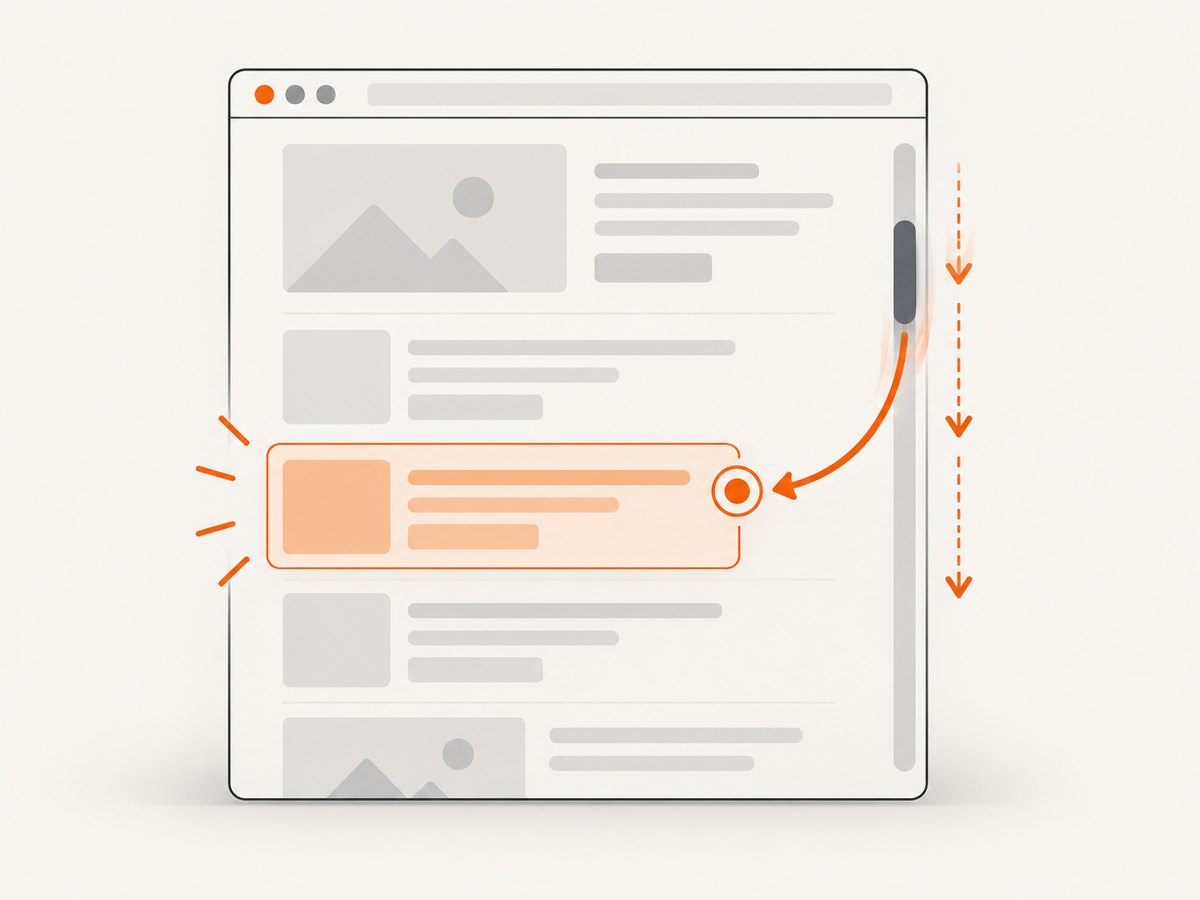
Use scrollIntoViewIfNeeded() when scrolling is part of the test behavior—for example, to reveal a footer that triggers lazy loading or to prepare an element for a screenshot.
Locator footer = page.getByText("Footer text");
footer.scrollIntoViewIfNeeded();

// The element is now visible enough for the next assertion or capture.
Assertions.assertThat(footer).isVisible();
The method waits for actionability checks and scrolls only when the element is not completely visible according to an intersection check. Prefer the locator method over the discouraged ElementHandle.scrollIntoViewIfNeeded(); locators re-resolve the element and are less prone to stale references.
Scroll an element and then take a screenshot
Locator chart = page.locator("#revenue-chart");
chart.scrollIntoViewIfNeeded();
chart.screenshot(new Locator.ScreenshotOptions().setPath(java.nio.file.Paths.get("chart.png")));
4. Reproduce a mouse-wheel gesture
To model a real wheel input, move the pointer over the intended scroll area first, then send horizontal and vertical deltas:
Locator container = page.getByTestId("scrolling-container");
container.hover();
page.mouse().wheel(0, 600);
Mouse.wheel() dispatches a wheel event. It does not wait for the resulting scroll animation, layout update, or network request to finish. Synchronize with the state your test actually needs:
container.hover();
page.mouse().wheel(0, 600);

Locator newlyVisibleRow = page.getByRole(AriaRole.ROW,
    new Page.GetByRoleOptions().setName("Row 25"));
newlyVisibleRow.waitFor();
Assertions.assertThat(newlyVisibleRow).isVisible();
Use a smaller delta for realistic steps or a larger delta to move quickly through a long page. A negative vertical delta scrolls upward; a nonzero horizontal delta scrolls sideways when the container supports horizontal overflow.
5. Set an exact scroll offset with JavaScript
For deterministic positioning inside a known element, evaluate JavaScript against that element:
Locator container = page.getByTestId("scrolling-container");
container.evaluate("e => e.scrollTop = 1000");
To move relative to the current position:
container.evaluate("e => e.scrollTop += 100");Locator.evaluate() runs in the browser page context and passes the matched element as its first argument. Java variables and page-side JavaScript are separate environments, so pass values explicitly when needed:
int offset = 400;
container.evaluate("(e, y) => e.scrollTop = y", offset);
This changes the selected element’s scroll position. It does not automatically scroll the document, trigger a wheel listener, or wait for application code that reacts to user input.
6. Scroll nested containers
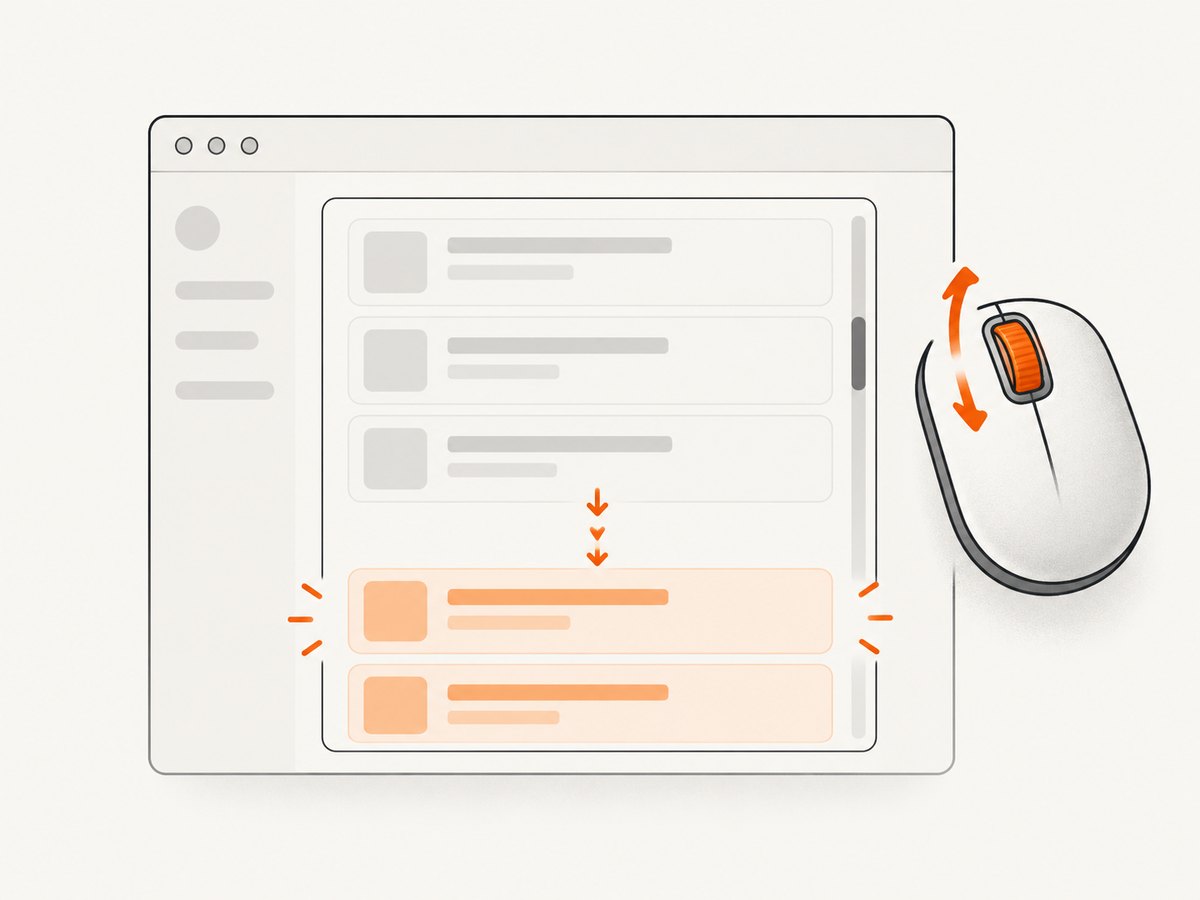
Nested layouts often have a fixed page and an independently scrollable panel. Select the panel itself, not the page, and use either wheel input or scrollTop:
Locator panel = page.locator(".results-panel");
panel.hover();
page.mouse().wheel(0, 500);

Locator result = panel.getByRole(AriaRole.LISTITEM,
    new Locator.GetByRoleOptions().setName("Result 20"));
result.waitFor();
For exact positioning:
panel.evaluate("e => e.scrollTop = e.scrollHeight");If the panel uses shadow DOM, locate it through Playwright’s locator model and verify that the element with overflow is the one receiving the event. If the page intercepts wheel events, direct evaluation may be more reliable for a deterministic test, while wheel input remains the better choice for testing the interaction itself.
7. Trigger infinite scrolling and lazy loading
For an infinite list, reveal a stable element near the bottom, then wait for the next batch to appear. A footer or sentinel is often more reliable than guessing a pixel distance:
Locator sentinel = page.getByTestId("list-sentinel");
int previousCount = page.getByTestId("list-row").count();

sentinel.scrollIntoViewIfNeeded();

page.waitForCondition(() ->
    page.getByTestId("list-row").count() > previousCount);

int newCount = page.getByTestId("list-row").count();
System.out.println("Rows loaded: " + newCount);
If your Playwright version does not provide the exact condition helper used above, wait on an observable locator instead, such as the next row, a loading indicator disappearing, or a response associated with the list request. Avoid fixed sleeps when a DOM or network condition is available.
8. Scroll the document to a coordinate
When the requirement is specifically to move the top-level document, evaluate window.scrollTo:
page.evaluate("() => window.scrollTo(0, document.body.scrollHeight)");
page.waitForTimeout(100);
A coordinate-based document scroll is less resilient than targeting a locator because responsive layouts, banners, and font loading can change page height. Prefer a locator or sentinel when one exists.
9. Choosing the right method
| Need | Use | Key detail |
|---|---|---|
| Click or fill an off-screen target | Normal locator action | Playwright usually scrolls automatically. |
| Reveal a known element | locator.scrollIntoViewIfNeeded() |
Visibility-aware and locator-based. |
| Test a wheel gesture | page.mouse().wheel(dx, dy) |
Hover the intended container first; the call does not wait for scrolling to finish. |
| Set an exact panel position | locator.evaluate() |
Change scrollTop in the page context. |
| Load another infinite-list page | Scroll a sentinel into view | Wait for a new row or loading state. |
10. Synchronization and reliability
- Wait for a target locator, assertion, response, or loading-state change after scrolling.
- Use stable roles, labels, test IDs, or other semantic locators instead of long CSS paths.
- Allow fonts, images, and responsive layout to settle before asserting exact positions.
- For animated containers, wait for the final visible state rather than assuming a wheel event has completed.
- Keep scrolling logic close to the assertion it enables so failures show which state was missing.
11. Common errors and fixes
| Error or symptom | Cause | Fix |
|---|---|---|
scrollIntoViewIfNeeded() appears to do nothing |
The element is already fully visible, or a different ancestor scrolls. | Inspect the layout, target the actual scrollable ancestor, and assert the expected state. |
| Wheel input moves the page instead of the panel | The pointer is outside the panel or the panel cannot receive scrolling. | Call hover() on the panel first and verify its overflow behavior. |
| Assertion runs before new rows appear | mouse().wheel() does not wait for scrolling or network work. |
Wait for a new row, sentinel state, response, or loading indicator. |
| Element is found but not actionable | A sticky header, overlay, consent banner, or animation covers it. | Wait for the overlay to disappear, handle the banner, or scroll the target again after layout settles. |
evaluate() throws a type or syntax error |
Java code was mixed into the browser expression. | Keep the expression valid JavaScript and pass Java values as evaluation arguments. |
| Infinite scrolling stops early | The list requires a specific sentinel, threshold, or user event. | Reveal the application’s sentinel, use wheel input if the app listens for it, and wait for the next batch. |
| Element handle becomes stale | The framework replaced the DOM node during rendering. | Use a locator instead of a previously captured ElementHandle. |
12. Performance, reliability, and cost
Locator actions and scrollIntoViewIfNeeded() usually perform less work than many small wheel events. Use wheel events when input behavior is what you are testing; otherwise, reveal the target directly. For long lists, a sentinel plus a condition avoids repeated full-page scans. Reuse a browser process across tests where your isolation model allows it, but create separate contexts when cookies, permissions, or viewport settings must be isolated.
Scrolling itself has no Playwright service charge. Runtime cost comes from browser CPU, page JavaScript, rendering, network requests, and any external browser infrastructure you run. Screenshots taken through your own browser also inherit the page’s overlays and consent UI unless your test handles them.
13. Or skip the browser setup
If the goal is a clean screenshot after a page has loaded, ScreenshotNeo provides a single screenshot API request. Its capture options include full-page screenshots with lazy images loaded, element capture by CSS selector, custom JavaScript and CSS, waits, device and viewport settings, and PDF output. See the ScreenshotNeo API documentation for request options.
curl -G "https://api.screenshotneo.com/v1/shot" -d access_key=YOUR_API_KEY --data-urlencode url=https://stripe.com -o shot.webpimport requests
r = requests.get("https://api.screenshotneo.com/v1/shot", params={"access_key": "YOUR_API_KEY", "url": "https://stripe.com"}, timeout=90)
open("shot.webp", "wb").write(r.content)const q = new URLSearchParams({ access_key: 'YOUR_API_KEY', url: 'https://stripe.com' });
const res = await fetch(`https://api.screenshotneo.com/v1/shot?${q}`);Cookie and consent banners, newsletter popups, and chat widgets are removed before the shot. Bot checks, blank pages, failed loads, timeouts, and cache hits are not billed, and response headers identify the page verdict and billing status. An MCP server provides take_screenshot, get_page_info, and capture_pdf tools for Claude, Cursor, and other MCP clients. The Free plan includes 1,000 screenshots per month with no card; paid plans start at $5 for 3,000 shots. Create a free ScreenshotNeo account.
14. FAQ
Does Playwright scroll automatically before every action?
Most locator actions scroll as part of actionability handling, but scroll explicitly when the scrolling event itself matters or when it triggers content loading.
Should I use ElementHandle for scrolling?
Use the locator API. The Java reference discourages the ElementHandle scrolling method and recommends Locator.scrollIntoViewIfNeeded().
Why did my wheel call return before the list moved?
Wheel dispatch does not wait for scrolling to finish. Follow it with a condition that represents the final state you need.
Can I scroll horizontally?
Yes. Pass a horizontal delta to page.mouse().wheel(deltaX, deltaY), or set an element’s scrollLeft with evaluate().
Which method is best for a screenshot?
Use scrollIntoViewIfNeeded() for a specific element in a Playwright browser. For an automated clean page capture without managing a browser, use ScreenshotNeo’s API.


